Best Selling Products

Upgrade Genuine Office 365
49 USD

Upgrade Duolingo Super
29 USD

Genuine Cheap Canva Pro
39 USD

Autodesk All App Account Copyright
120 USD

MidJourney Account
29 USD

Capcut Pro 1 Year
39 USD

Adobe Photoshop Copyright - Full App
120 USD

Freepik Premium Account
59 USD

Adobe Premiere Pro Account
99 USD

Genuine Adobe Illustrator account
99 USD

Copyright Adobe Lightroom Account
59 USD

Plugin Retouch4me
69 USD

ChatGPT Plus Account (GPT-4)
16 USD

Windows 10 & 11 Pro Key
36 USD

Upgrade genuine Capture One account
120 USD
Canva for Macbook: The Ultimate Graphic Design Application on macOS
Nội dung
- 1. Overview of the Canva application for Macbook
- 1.1. Differences between application versions and web browsers
- 1.2. System requirements for smooth operation
- 2. Key features of Canva for Macbook
- 2.1. Apple-style minimalist interface
- 2.2. A vast repository of templates and graphic resources
- 2.3. Real-time collaboration features
- 3. Detailed instructions on how to download and install Canva for Macbook
- 3.1. Download the app directly from the App Store
- 3.2. Installation via the official website
- 4. How to optimize Canva performance for Macbook
- 4.1. Periodically release the cache.
- 4.2. Utilize dedicated keyboard shortcuts on macOS
- 5. Introducing the appvip.ai account support platform.
- 6. Common problems and solutions when using Canva on Macbook
- 6.1. The application freezes or crashes automatically.
- 6.2. Unable to download the designed images or videos.
- 6.3. Font errors resulting in incorrect display of Vietnamese characters.
- 7. Advanced design tips to boost work efficiency
- 7.1. Use AI-powered background removal in a snap.
- 7.2. Synchronizing the brand identity with the Brand Kit
- 7.3. Designing animated publications and video transition effects
- 8. Conclusion
Discover how to download and use Canva for Macbook most smoothly. Optimize graphic design performance on macOS with the professional Canva application.
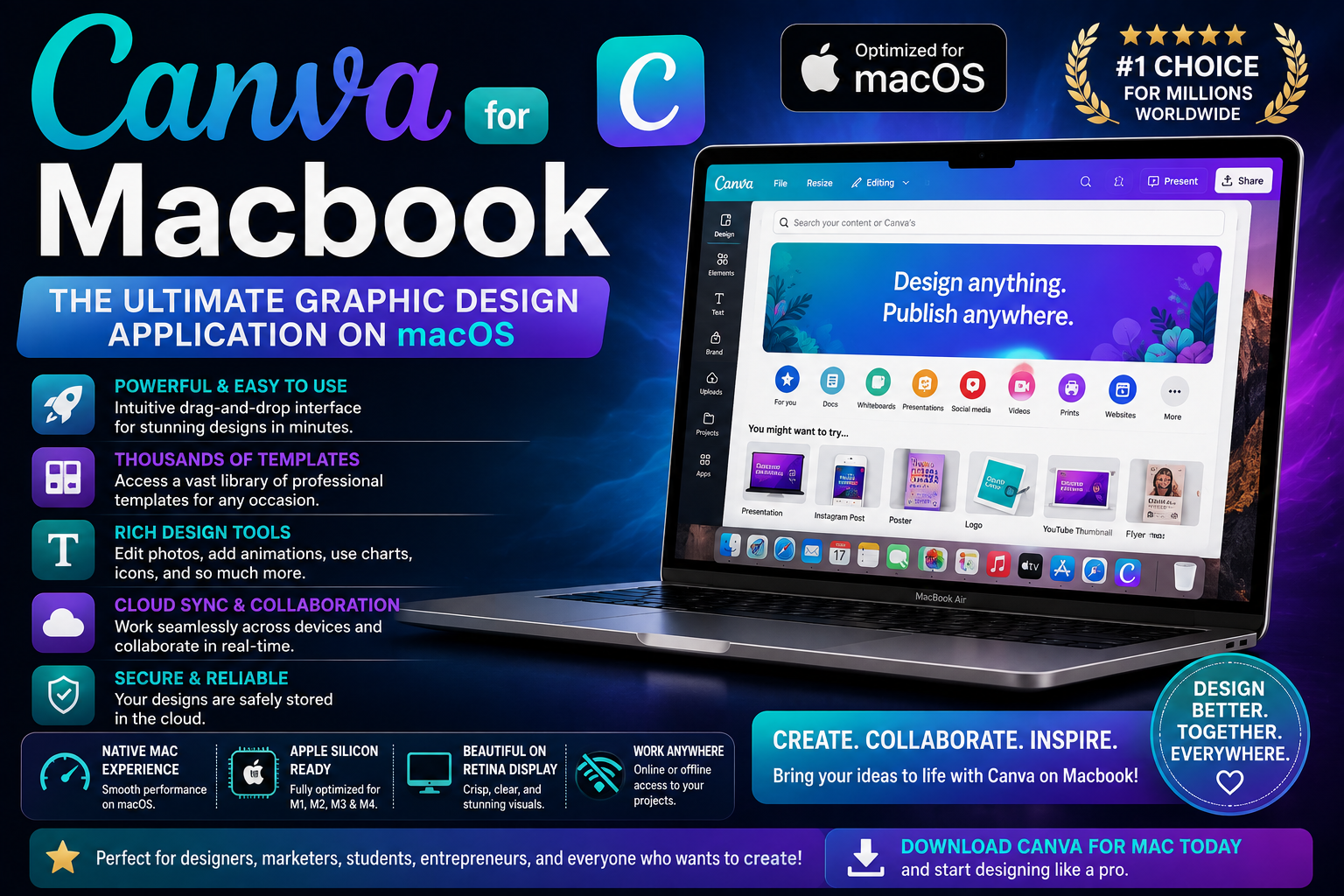
1. Overview of the Canva application for Macbook
The macOS operating system has always been renowned for its ability to smoothly handle professional graphics tasks. When the publisher released a version specifically for this type of machine, the content creation community welcomed it with great enthusiasm.
1.1. Differences between application versions and web browsers
Many users are accustomed to accessing the application directly through browsers like Safari or Google Chrome. However, the standalone application offers a significantly more stable experience thanks to Apple's hardware optimization capabilities. You will no longer experience lag when downloading design files hundreds of megabytes in size. In addition, the calculator application supports push notifications, allowing you to quickly receive feedback from your team.
1.2. System requirements for smooth operation
Your device needs to be running macOS 10.15 (Catalina) or later to install the application smoothly. For devices using Apple Silicon chips such as M1, M2, or M3, the application is deeply optimized into the chip architecture, resulting in video output and effects processing speeds that are twice as fast as older Intel chips. A minimum of 500MB of free memory is recommended to ensure smooth caching.
2. Key features of Canva for Macbook
Owning a high-performance computer combined with optimized software will help you unlock your full creative potential.
2.1. Apple-style minimalist interface
The developers have refined the application's interface to perfectly synchronize with the overall design language of the macOS operating system. Toolbars, control panels, and layer management areas are neatly arranged, creating a more spacious workspace. Dark Mode automatically switches based on your computer's configuration, protecting your eyesight when working at night.
2.2. A vast repository of templates and graphic resources
The platform's greatest strength lies in its incredibly rich library of ready-made templates. You can find millions of images, videos, icons, and fonts suitable for every industry. From designing social media posts and presentation slides to creating a personal brand identity, everything is readily available and updated daily to reflect current trends.
2.3. Real-time collaboration features
Teamwork becomes easier than ever when you can share design links with colleagues directly from the app. All edits, comments, and notes from team members are instantly displayed on the screen. The administrative permission feature ensures the absolute security of your company's internal information.
3. Detailed instructions on how to download and install Canva for Macbook
Setting up applications on a macOS computer is very simple if you follow the steps below precisely.

3.1. Download the app directly from the App Store
Apple's app store is the safest place to find this software.
-
Step 1: Launch the App Store app, which has a blue "A" icon on your computer's Dock.
-
Step 2: Move your mouse to the search box in the upper left corner and enter the exact keyword phrase.
-
Step 3: Select the most suitable result and click the "Get" button to allow the system to automatically download it.
-
Step 4: Verify your identity using your iCloud password or Touch ID to begin the setup process.
3.2. Installation via the official website
In some cases where the App Store is experiencing issues, you can choose to download the installation file directly.
-
Step 1: Using the Safari browser, access the official homepage of the software publisher.
-
Step 2: Search for downloads for your computer's operating system and select the version compatible with your processor (Intel or Apple Silicon).
-
Step 3: Wait for the .dmg file download process to complete, which will take a few minutes.
-
Step 4: Double-click the downloaded file, then drag the application icon to the "Applications" folder on your device.
4. How to optimize Canva performance for Macbook
To ensure the design process runs as smoothly as possible, users need to know some of the following hardware and software optimization techniques.
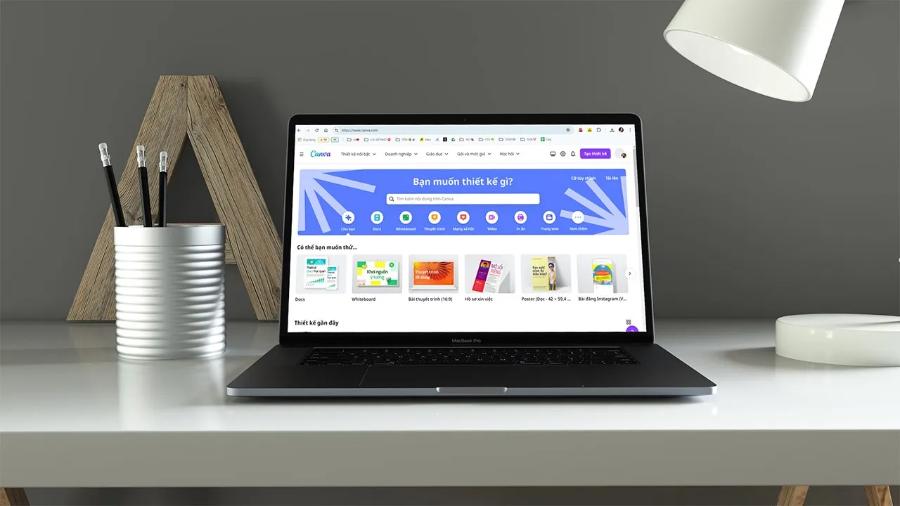
4.1. Periodically release the cache.
After prolonged use, the temporary data generated from images and videos will fill up the application's cache. This inadvertently slows down your computer. You should go to the application's advanced settings to clear the cache, freeing up storage space and improving the responsiveness of drag-and-drop commands.
4.2. Utilize dedicated keyboard shortcuts on macOS
Constant mouse use significantly slows down the workflow of professional designers. The keyboard shortcuts on this operating system will help you work much faster.
5. Introducing the appvip.ai account support platform.
Upgrading to premium versions is essential for professional designers to access unlimited resources. Currently, the website appvip.ai is known as a reputable source for providing solutions to upgrade licensed graphic design software accounts at extremely affordable prices. Customers who choose this service will experience a fast, automated activation process, a long-term warranty, and dedicated technical support from a team of experienced professionals. This is definitely the perfect economical solution to help you fully own the advanced features of design software on your computer without worrying about the cost barrier.
6. Common problems and solutions when using Canva on Macbook
Any software can encounter errors during operation, so having the knowledge to handle these situations will help ensure your work isn't interrupted.
6.1. The application freezes or crashes automatically.
This error usually occurs when you open too many heavy design tabs at once or due to system software conflicts. The quickest solution is to use the keyboard shortcut Command + Option + Esc to open a window forcing the application to quit, then restart your computer. If the problem persists, you should check and update to the latest version of macOS!
6.2. Unable to download the designed images or videos.
The main reasons for this issue stem from an unstable internet connection or because you haven't granted the application permission to access storage. You need to go to "Privacy & Security" in your computer's system settings, find the application, and check the box to allow access to "Files and Folders".
6.3. Font errors resulting in incorrect display of Vietnamese characters.
When writing Vietnamese with diacritics, some foreign fonts may display font errors or uneven spacing between letters. The only solution is to filter and use pre-localized Vietnamese fonts by typing the keyword "Vietnamese" in the application's font search bar.
7. Advanced design tips to boost work efficiency
Mastering design principles and technology tips will help your products look more professional and appealing.

7.1. Use AI-powered background removal in a snap.
The premium version offers an incredibly powerful image background removal tool thanks to artificial intelligence technology. Users simply select the image to be processed, click on the effect option, and choose "Remove background." The system will automatically identify the subject and perfectly remove unwanted details in less than three seconds, saving you hours compared to manual editing in Photoshop.
7.2. Synchronizing the brand identity with the Brand Kit
For businesses or individuals creating consistent content, the Brand Kit feature is a powerful tool. You can store your logo, fixed color palette, and signature fonts in advance within the application. Whenever you create a new project, you only need one click to apply the entire brand identity to the design, ensuring the highest level of consistency across your communication materials.
7.3. Designing animated publications and video transition effects
Beyond just still images, users can create short videos in Reels, TikTok, or dynamic presentation slides. The system offers hundreds of smooth motion effects for text and images. You can customize the appearance time and direction of movement of each element to create highly artistic films.
8. Conclusion
This next-generation graphic design application is truly an indispensable companion for anyone who owns high-end Apple computers. Installing and operating this software correctly not only optimizes workflow but also sparks endless creative inspiration. Apply the detailed instructions in this article to transform your computer into a professional mini-studio today.





















VIP Products








Best Selling Products
Upgrade Genuine Office 365
49 USD
Upgrade Duolingo Super
29 USD
Genuine Cheap Canva Pro
39 USD
Autodesk All App Account Copyright
120 USD
MidJourney Account
29 USD
Capcut Pro 1 Year
39 USD
Adobe Photoshop Copyright - Full App
120 USD
Freepik Premium Account
59 USD
Adobe Premiere Pro Account
99 USD
Genuine Adobe Illustrator account
99 USD
Copyright Adobe Lightroom Account
59 USD
Plugin Retouch4me
69 USD
ChatGPT Plus Account (GPT-4)
16 USD
Windows 10 & 11 Pro Key
36 USD
Upgrade genuine Capture One account
120 USD