Best Selling Products

Adobe Photoshop Copyright - Full App
120 USD

Adobe Premiere Pro Account
99 USD

Freepik Premium Account
59 USD

Upgrade genuine Capture One account
120 USD

Autodesk All App Account Copyright
120 USD

Upgrade Genuine Office 365
49 USD

Plugin Retouch4me
69 USD

MidJourney Account
29 USD

Genuine Cheap Canva Pro
39 USD

Capcut Pro 1 Year
39 USD

ChatGPT Plus Account (GPT-4)
16 USD

Upgrade Duolingo Super
29 USD

Genuine Adobe Illustrator account
99 USD

Copyright Adobe Lightroom Account
59 USD

Windows 10 & 11 Pro Key
36 USD
How to Clean Up Spam in Gmail for the New Year 2025
Nội dung
- 1. Unsubscribe from emails with just one click using Trimbox.
- 2. Locate spam emails using the Cleanfox email cleaning application.
- 3. Delete multiple emails from your Gmail inbox.
- 4. Condense emails into a daily summary using Slimbox.
- 5. Mark emails as spam in Gmail.
- 6. Using search operators in Gmail
- 7. Delete emails by date received.
- 8. Create labels and categorize emails.
- 9. Unsubscribe from unnecessary newsletters.
- 10. Use the "Pending" feature for important emails.
- 11. Conclusion
The New Year 2025 is approaching, and this is the ideal time to refresh yourself, including cleaning up your email inbox.
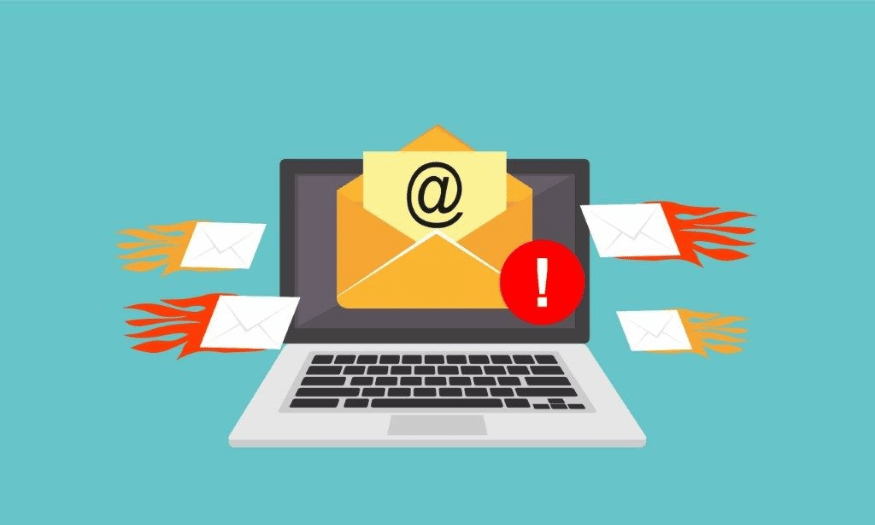
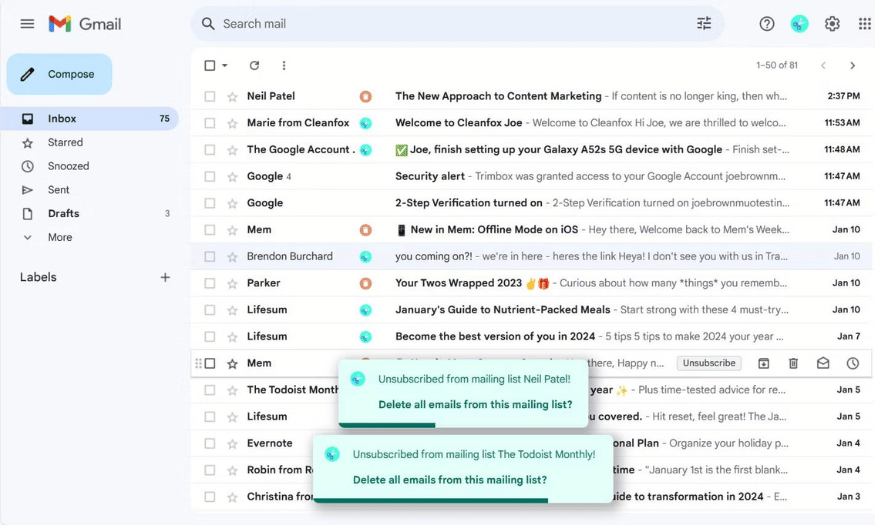
1. Unsubscribe from emails with just one click using Trimbox.
If you're looking for a convenient tool to clean up your Gmail inbox, Trimbox is the perfect solution. With this extension, you can unsubscribe from unwanted mailing lists with just one click. This saves time and effort compared to manually unsubscribing from each email.
After installing Trimbox, the application will automatically scan your Gmail account to identify all the mailing lists you've subscribed to. There's no need to open a new window or perform complicated actions; Trimbox integrates directly into the Gmail interface. This provides a smooth and efficient user experience.
Specifically, next to each email, you'll see a scissors icon. Clicking this icon allows you to easily unsubscribe and instantly delete all related emails by clicking the trash can icon. Trimbox truly makes email management easy and fast, especially when dealing with a large amount of information.
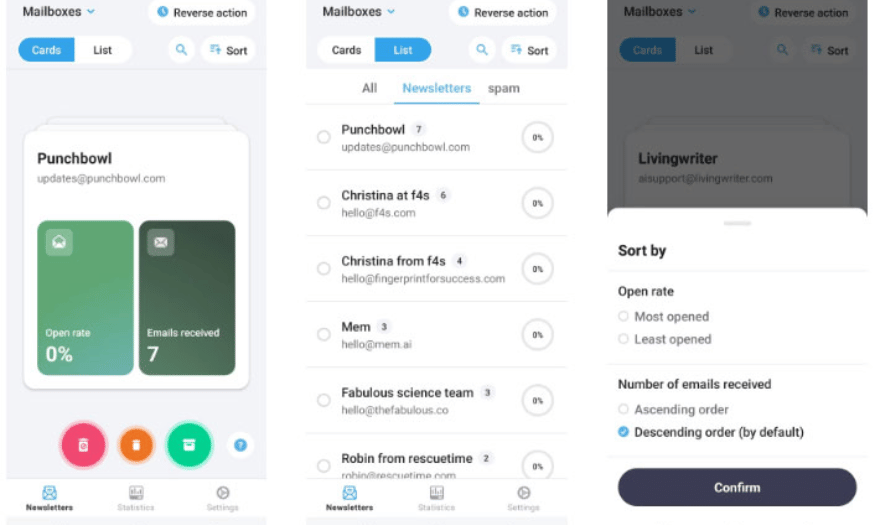
2. Locate spam emails using the Cleanfox email cleaning application.
When you frequently check your email on your mobile phone, finding important information amidst a flood of spam can be frustrating. Cleanfox is a great app that allows you to easily identify and remove unnecessary emails, helping you improve your daily productivity.
Cleanfox works by identifying emails with the lowest open rates. The application will show you emails that you rarely open, helping you quickly eliminate these distractions. This allows you to focus on truly important emails without being distracted by unnecessary notifications.
For ease of use, Cleanfox allows you to swipe in three different directions: permanently delete, delete while still receiving updates from the sender, or continue receiving emails. Additionally, the app categorizes email lists into three types: All, Newsletters, and Spam, making it easy to manage and categorize emails according to your personal needs.
3. Delete multiple emails from your Gmail inbox.
Having a Gmail inbox overflowing with emails not only makes it difficult to find important information but can also lead to other problems such as distractions and limited storage space. When this space is full, you might encounter errors preventing you from receiving new emails or editing documents in applications like Google Docs and Sheets. To resolve this, bulk email deletion is an effective solution.
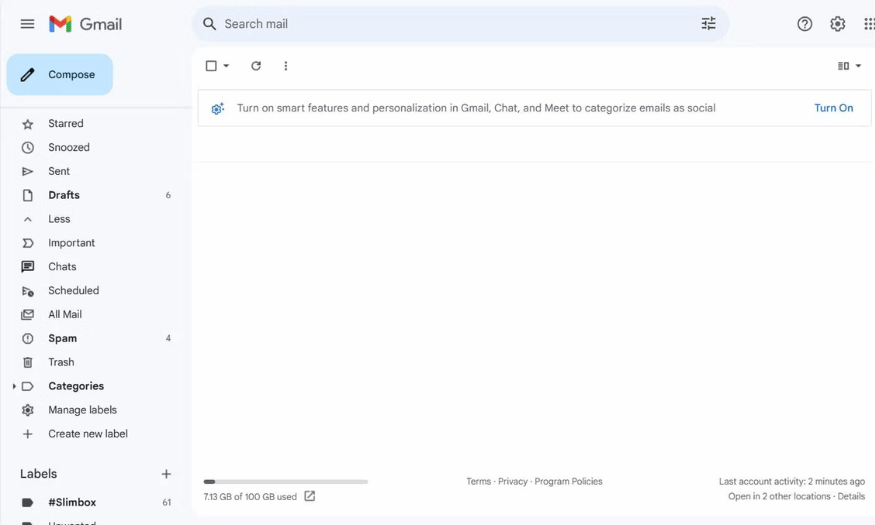
To delete emails in bulk in Gmail, you need to access the web version of Gmail. First, make sure you're logged into your correct Google account. In the upper left corner of your inbox, you'll see a square checkbox. Click on this checkbox to select all the conversations on the current page. This is a simple but very helpful first step.
After selecting all emails on the page, you'll see an option called "Select all conversations in inbox." Click this button to select all emails in your inbox. Next, simply click the trash can icon on the toolbar to delete all selected emails. If you accidentally delete some important emails, don't worry, they will be saved in the Trash folder for up to 30 days before being permanently deleted.
4. Condense emails into a daily summary using Slimbox.
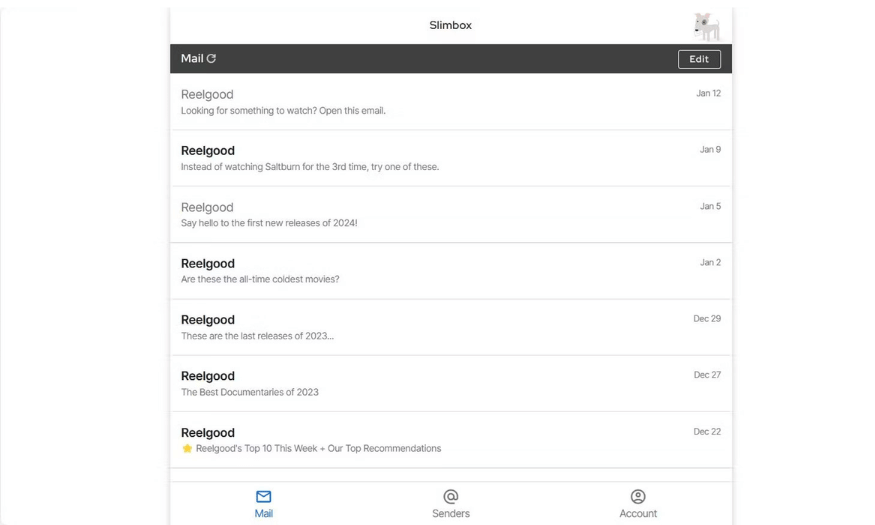
If you find your inbox too cluttered and it's hard to focus on important emails, Slimbox is the ideal tool for you. Slimbox allows you to receive daily email summaries, helping you process information more quickly and efficiently. This not only saves you time but also helps you stay focused on essential content.
When you sign up for Slimbox, you'll have the opportunity to choose which senders you want to keep, as well as move unnecessary emails to the trash or to a separate Slimbox folder. This makes it easy to manage and categorize your emails intelligently. Every day, Slimbox will send you a summary, ensuring you don't miss any important information.
This view is very useful for those who are frequently distracted by constant email notifications. With the daily summary, you'll receive a concise email containing everything you've chosen to keep, making it easy to track without interruption. Slimbox currently offers a 30-day free trial before requiring a small fee of just $1/month for full feature access.
5. Mark emails as spam in Gmail.
Gmail has an automated system for detecting spam, but it's not always accurate. Marking emails as spam not only helps keep your inbox clean but also allows the system to learn and improve its spam detection capabilities in the future. When you encounter a suspicious email, take this step quickly to protect yourself.
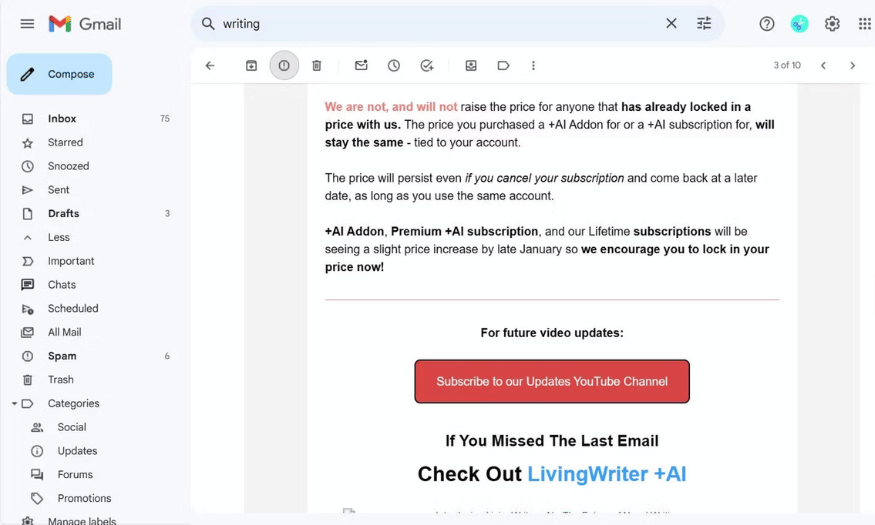
To mark an email as spam, simply open the email and find the "Report Spam" button on the left side of the top panel. Clicking this button will let Gmail know that the email is unwanted and needs to be processed. This not only removes the email from your inbox but also helps improve Gmail's spam detection capabilities in the future.
In addition to marking emails as spam, you also have the option to block the sender. If you frequently receive unwanted emails from a specific source, blocking that person will prevent all future emails from them. To do this, click the three-dot menu in the upper right corner of the email and select "Block User". This is an effective way to protect your inbox from spam.
6. Using search operators in Gmail
Gmail offers powerful search operators, allowing you to narrow down email categories as you wish. Using custom queries makes it easy to identify and filter out unwanted emails, including spam. This is a very useful tool for those who frequently handle large volumes of email.
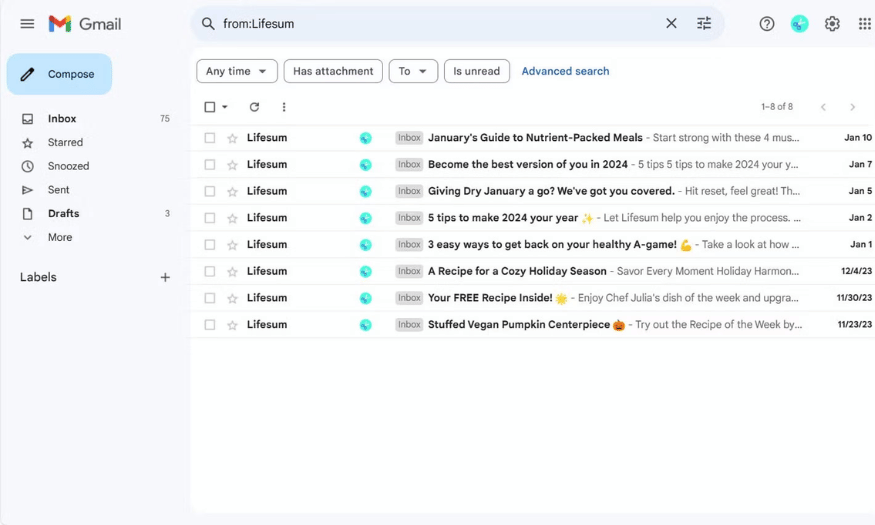
The first way to use search operators is to specify the sender. For example, you can find all emails from a given source using the command ` from: `. Simply type the sender's name after the colon, and Gmail will display all emails from that person. This helps you quickly identify unwanted emails and process them.
In addition to searching by sender, you can also use other operators such as attachment: to find emails with attachments or larger: to find emails larger than a certain size. For example, typing larger:4MB will find all emails larger than 4 megabytes. Using search operators is an effective method for managing your inbox without relying on third-party software.
7. Delete emails by date received.
An effective way to clean up your Gmail inbox is to delete emails by date. If you frequently receive promotional emails or unnecessary notifications, searching for and deleting them by date will save you time and effort. Instead of scrolling through each email, you can quickly delete old emails that you no longer care about.
To do this, simply use the date search operator. Type into the Gmail search bar the syntax before:YYYY/MM/DD or after:YYYY/MM/DD to filter emails by date. For example, if you want to delete all emails before January 1, 2023, you just type before:2023/01/01 . Then you can select all emails and delete them in just a few clicks.
Deleting emails by date not only reduces the burden on your inbox but also makes it easier to find more important emails in the future. Regularly check and clean up old emails to keep your inbox tidy.
8. Create labels and categorize emails.
Creating labels for emails is one of the most effective ways to manage your inbox. Categorizing emails by label makes it easier to find and access important information without being distracted by unnecessary emails. Gmail allows you to create many different labels to suit your personal needs.
To create a new label, simply click the "Label" icon on the left side of the Gmail interface and select "Create New Label". Once created, you can apply this label to existing emails or automatically categorize new emails. This makes it easy to track projects, tasks, or other information you need to keep track of.
Additionally, you can use the filter feature to automatically label emails from specific senders or by keywords. This not only saves you time but also creates a clear organizational system for your inbox.
9. Unsubscribe from unnecessary newsletters.
One of the main reasons your inbox gets cluttered is receiving too many newsletters from different services. To minimize this, regularly review and unsubscribe from newsletters you're no longer interested in. Gmail provides an unsubscribe option directly within the email interface, allowing you to do this quickly.
When you open an email containing a newsletter, look for the "Unsubscribe" link, usually located at the bottom of the email. Clicking this link will stop you from receiving emails from that sender in the future. Unsubscribing from unnecessary newsletters will help you reduce the number of emails in your inbox and focus on more important information.
Additionally, you can also use external tools like Trimbox or Cleanfox to manage and unsubscribe from newsletters automatically. These tools will save you time and effort, while keeping your inbox clean.
10. Use the "Pending" feature for important emails.
Gmail has a "Snooze" feature that allows you to temporarily hide emails until a specific time in the future. This is a great way to declutter your inbox without deleting important emails. You can choose a suitable time to receive the email again, helping you avoid missing important information without being distracted right now.
To use this feature, simply open the email you want to temporarily hide and find the clock icon in the top right corner. Click on this icon and select the time you want to receive the email again. Gmail will automatically return the email to your inbox at the time you selected.
Using the "Pending" feature helps you organize your work more efficiently. You can focus on current tasks without being distracted by emails that need to be processed later. This is a smart way to keep your inbox tidy while ensuring you don't miss important information./kl
11. Conclusion
Cleaning up your Gmail spam folder not only helps you have a tidier workspace but also contributes to a more relaxed mindset and higher productivity. By applying these simple steps, you can start 2025 smoothly and effectively. Make email cleanup a positive habit in your daily life to always keep your inbox in the best condition.





















VIP Products








Best Selling Products
Adobe Photoshop Copyright - Full App
120 USD
Adobe Premiere Pro Account
99 USD
Freepik Premium Account
59 USD
Upgrade genuine Capture One account
120 USD
Autodesk All App Account Copyright
120 USD
Upgrade Genuine Office 365
49 USD
Plugin Retouch4me
69 USD
MidJourney Account
29 USD
Genuine Cheap Canva Pro
39 USD
Capcut Pro 1 Year
39 USD
ChatGPT Plus Account (GPT-4)
16 USD
Upgrade Duolingo Super
29 USD
Genuine Adobe Illustrator account
99 USD
Copyright Adobe Lightroom Account
59 USD
Windows 10 & 11 Pro Key
36 USD