Best Selling Products
Copyright Adobe Lightroom Account
59 USD
Genuine Adobe Illustrator account
99 USD
Upgrade genuine Capture One account
120 USD

MidJourney Account
29 USD
Windows 10 & 11 Pro Key
36 USD
Adobe Premiere Pro Account
99 USD
Adobe Photoshop Copyright - Full App
120 USD
Autodesk All App Account Copyright
120 USD
Upgrade Duolingo Super
29 USD

ChatGPT Plus Account (GPT-4)
16 USD
Genuine Cheap Canva Pro
39 USD
Freepik Premium Account
59 USD
Plugin Retouch4me
69 USD
Upgrade Genuine Office 365
49 USD
Capcut Pro 1 Year
39 USD
How to create and publish a website using Canva Websites easily for beginners.
Nội dung
- 1. What is Canva Websites? What types of websites can be created with it?
- 2. Detailed guide on how to create a website using Canva Websites
- Step 1: Create a website design and choose a suitable template.
- Step 2: Edit the website content, images, and layout.
- Step 3: Preview the website on your computer and phone.
- Step 4: Publish the website and set up the access address.
- Step 5: Set up SEO, password, and website management.
- 3. Tips to make your Canva website more visually appealing and professional.
- 4. What are the advantages and disadvantages of Canva Websites?
- 5. Frequently Asked Questions when creating a website using Canva
- Do I need programming knowledge to create a website using Canva?
- Is it possible to create a website with Canva for free?
- Does the Canva website appear on Google?
- After publication, can the website be edited?
- 6. Conclusion
Do you want a beautiful website to introduce yourself, promote your products, or share information about an event, but don''t know how to program? Canva Websites is a great option. With its library of ready-made templates, intuitive drag-and-drop functionality, and many convenient editing tools, Canva helps you create a website with your own style without needing in-depth knowledge of design or programming. In just a few simple steps, you can complete the interface, test its display on mobile devices, and publish your website online. In this article, let''s explore with Sadesign how to create a website using Canva Websites, from choosing a template to setting up SEO, security, and sharing your website address.
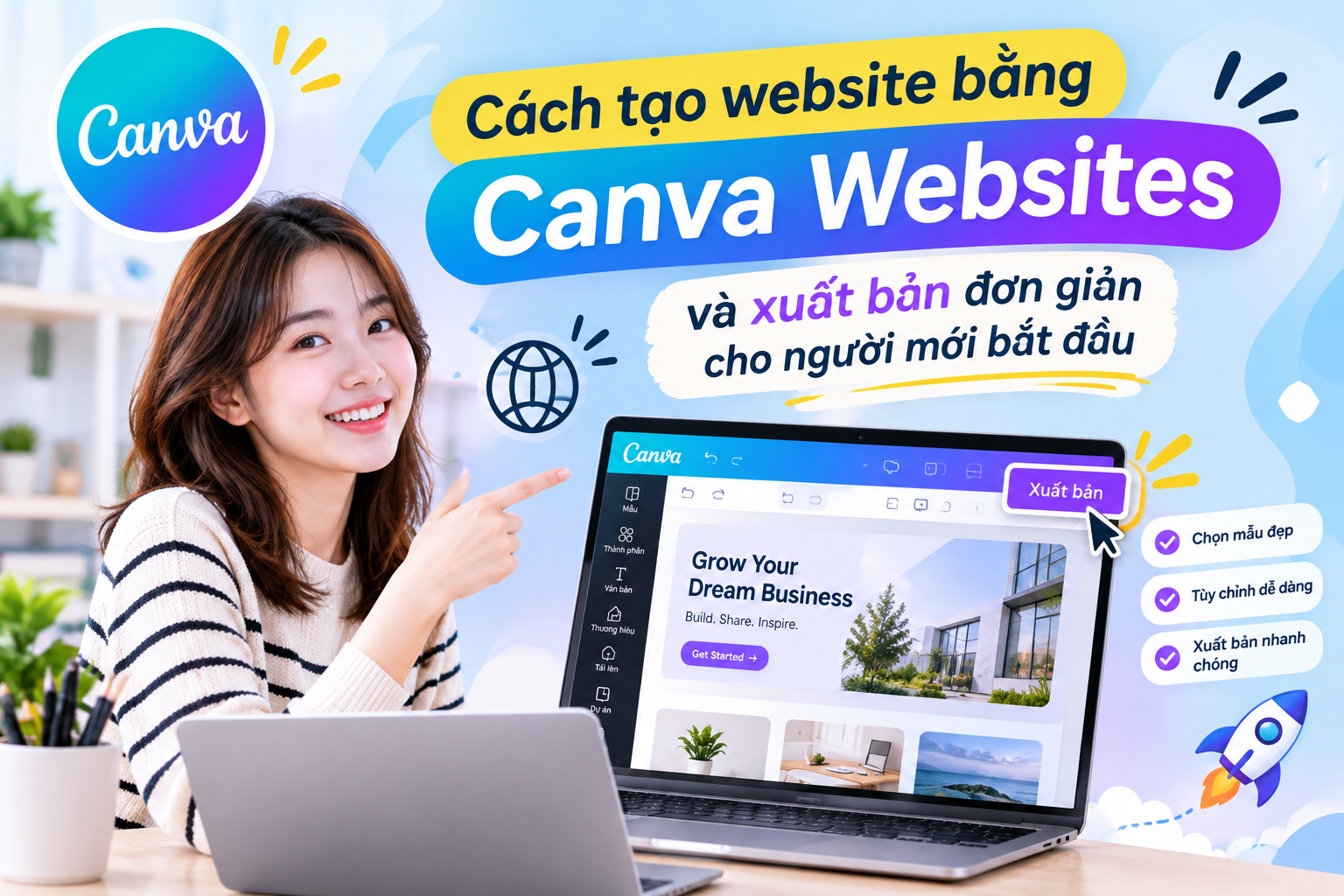
1. What is Canva Websites? What types of websites can be created with it?
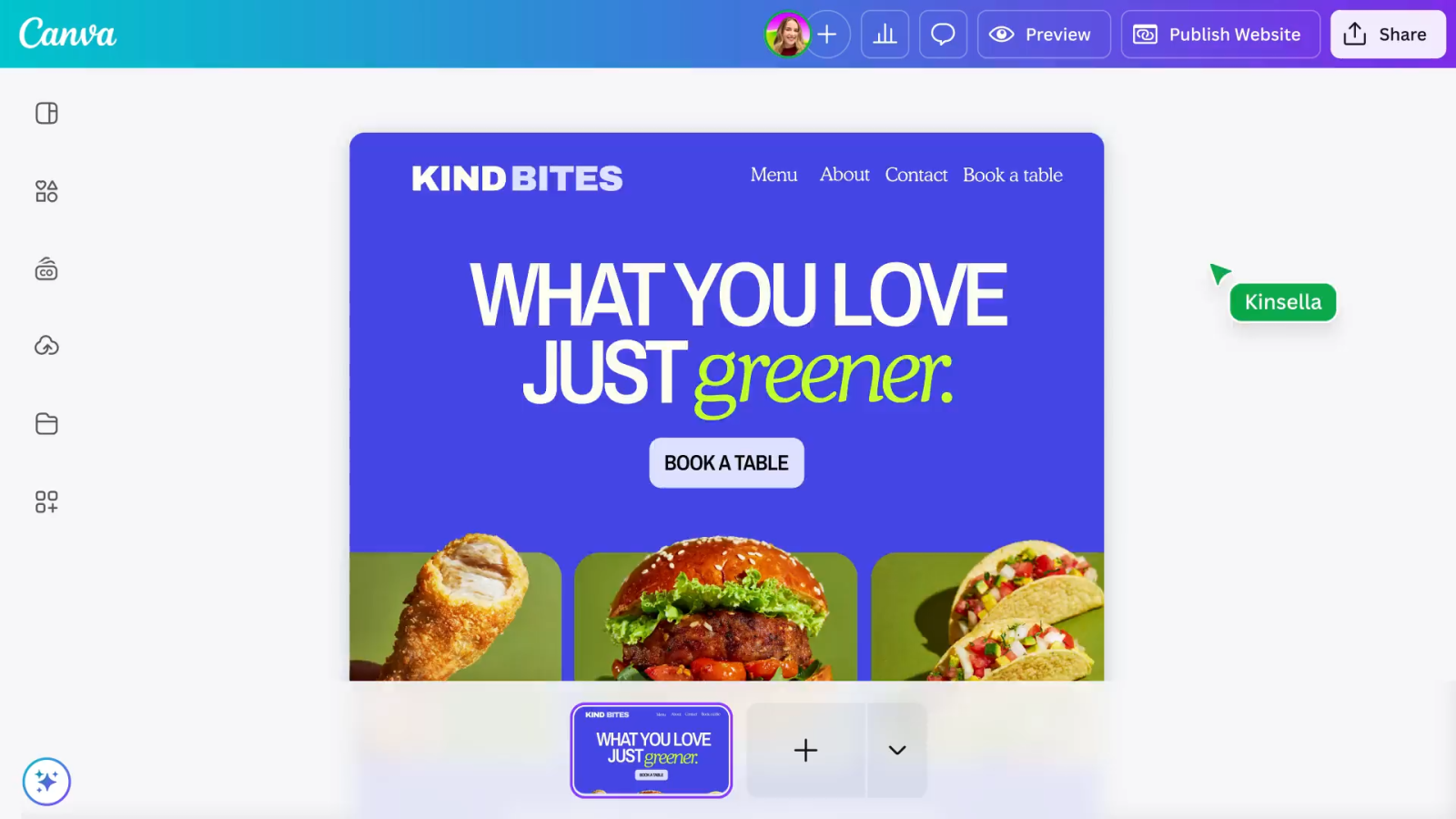
Canva Websites is Canva's online website design feature, allowing users to build websites using pre-made templates and intuitive editing tools. Instead of writing HTML or CSS code or hiring a designer, you simply choose a suitable layout, change images and content, and arrange elements as you wish. Once completed, the website can be published directly for everyone to access via a unique link.
The advantage of Canva Websites is that even beginners can quickly get started. You can create personal websites, portfolios, business information pages, product landing pages, birthday or wedding invitation websites, or event announcement websites. However, Canva is better suited for websites with a simple structure, focusing on images and introductory content. If you need a login system, shopping cart, order management, or a blog with many features, you should consider more specialized platforms.
2. Detailed guide on how to create a website using Canva Websites
To create a complete website, you should prepare the content, images, and define the purpose beforehand. Then, follow the steps below to build the interface and launch the website online.
Step 1: Create a website design and choose a suitable template.
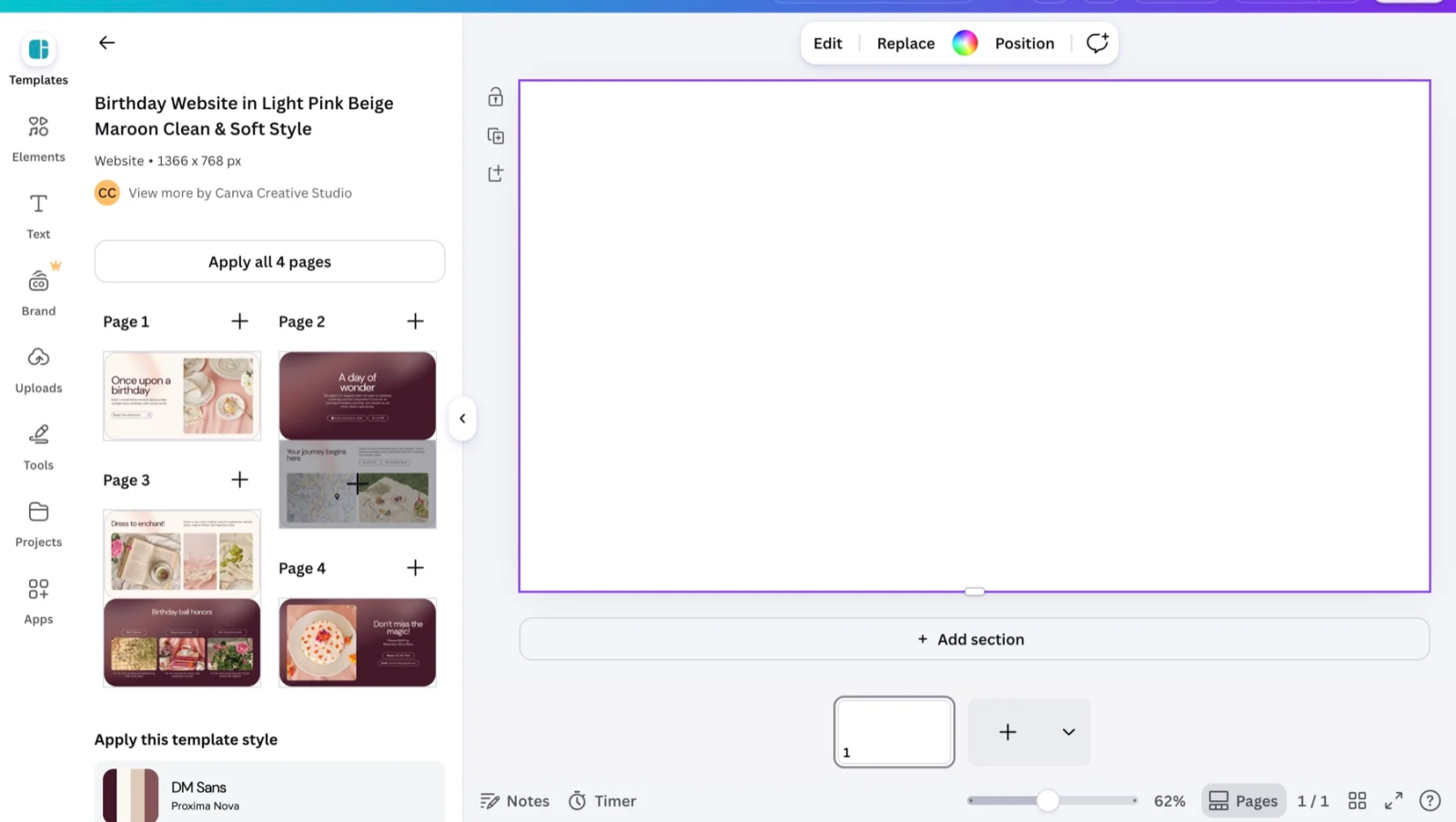
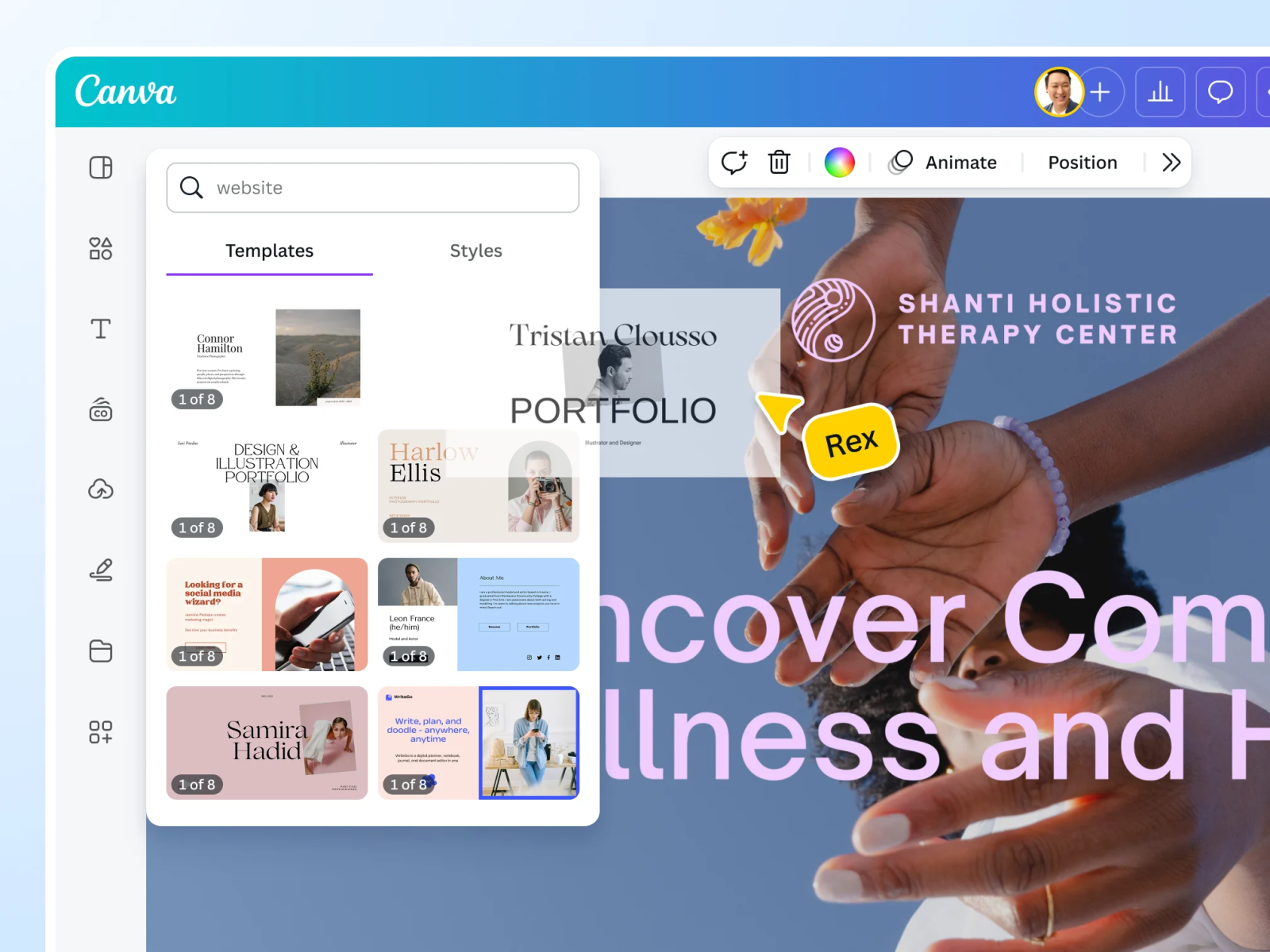
First, access Canva and log in to your personal account. On the homepage, find the Website icon in the list of design types below the search box to open a new website design. Canva will display the workspace with the default size of 1366 × 768 px. In the left-hand toolbar, select Templates to explore the available template library. You can search by theme such as portfolio, business, event, or store to save time.
When choosing a template, pay attention to the crown icon, as this is a distinguishing feature of Canva Pro templates. After finding a template you like, click on it to see the page structure. For example, a birthday website template might include four pages: Home, Event Details, Dress Code, and RSVP. If you want to use the entire layout, click Apply all 4 pages to apply all four pages to your design simultaneously.
Step 2: Edit the website content, images, and layout.
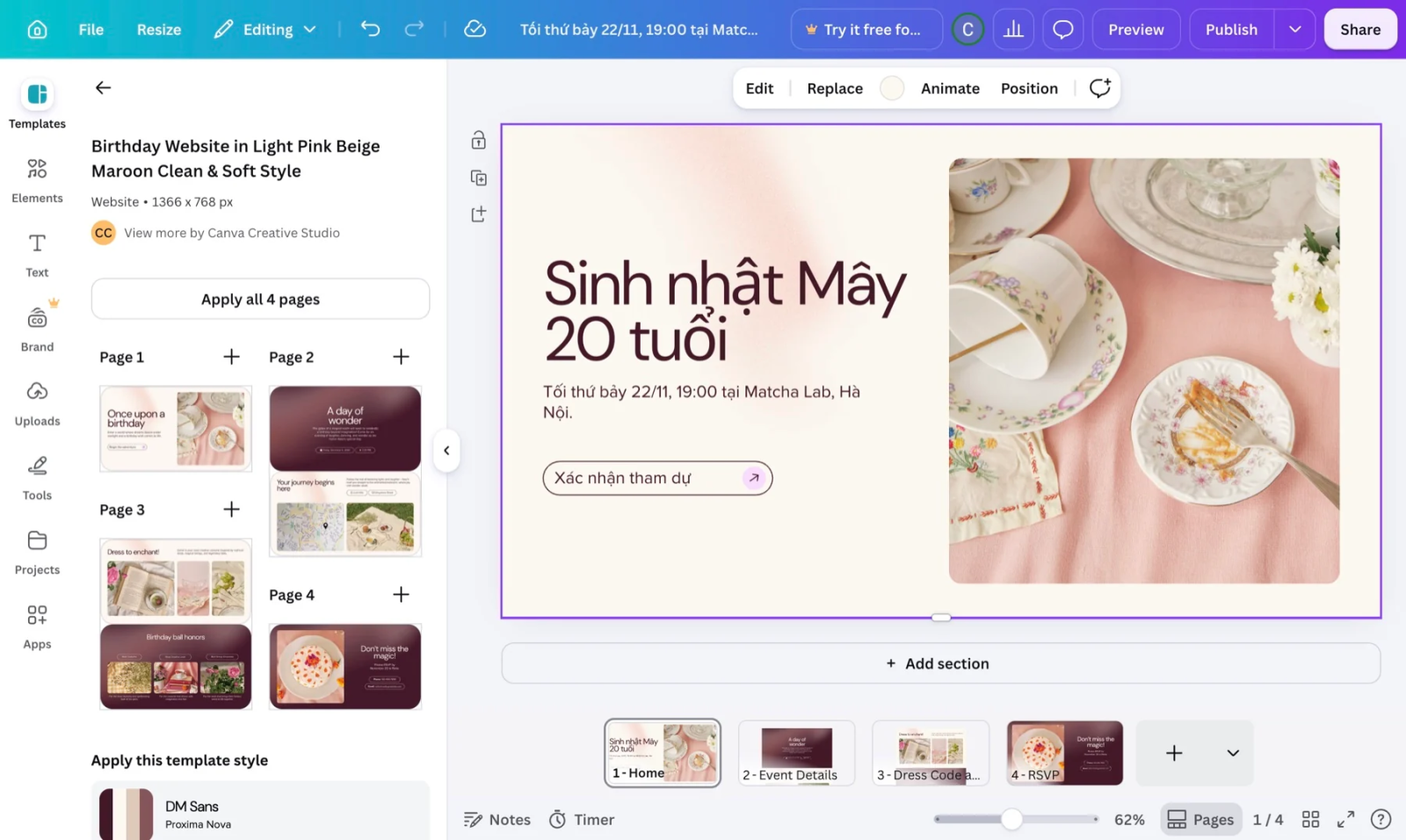
After choosing a template, start transforming the existing design into a website with your own unique style. Simply double-click on each section of text to change the title, description, time, location, or contact information. For example, for a birthday website, you could change the title to "May's 20th Birthday," add the time and location in Hanoi, and change the button content to "Confirm Attendance."
To replace an image, select the image you want to edit, then click Replace on the toolbar and upload a new image or choose an image from the Canva library. Website pages are displayed in the bar below the design area; simply click on each page to edit its corresponding content. If you want to add information, images, or a new section, use Add section to add it to the currently open page. During the editing process, maintain consistency in color, font style, and presentation to make the website look more professional.
Step 3: Preview the website on your computer and phone.
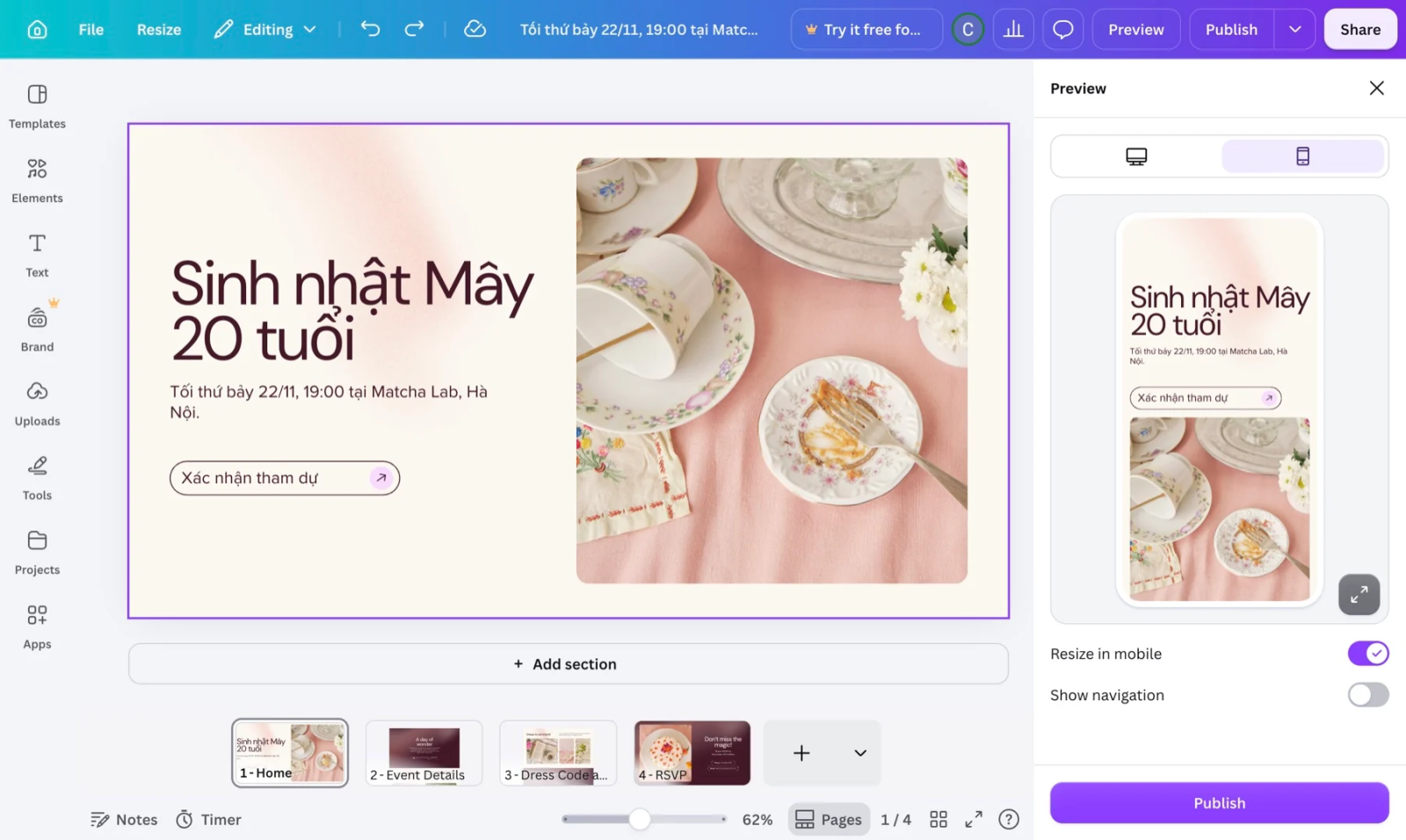
A website that looks great on a computer may not display perfectly on a phone screen. Therefore, before publishing, you should carefully test the interface on both devices. Click Preview on the toolbar at the top to open the preview mode. In the right-hand panel, Canva provides two display modes for computers and phones, allowing you to check the layout on each screen size. In particular, the Resize in mobile option , enabled by default, will automatically rearrange the content to better fit mobile devices.
Additionally, the "Show navigation" switch allows you to display a navigation bar containing page names; when viewed on a phone, the menu may change to a three-line icon. Try scrolling from the top to the bottom of the website to check images, spacing, font size, and links. You should also pay attention to the footer with the Terms & Support, Privacy Policy, and "Designed with Canva" information to see how the website will look when users actually visit it.
Step 4: Publish the website and set up the access address.
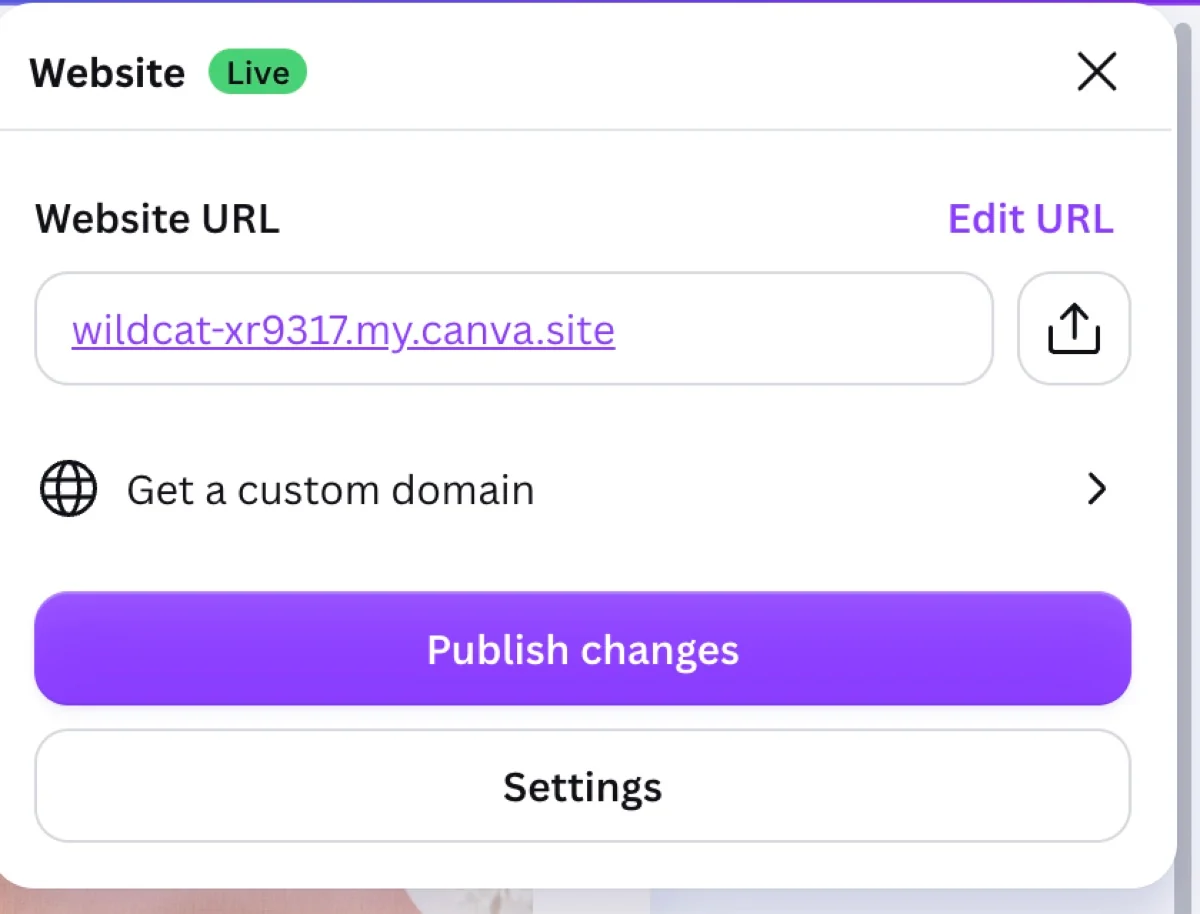
Once you've finalized the content and checked the interface, you can publish your website to the internet by clicking Publish at the top or in the Preview panel. After publishing, Canva will display the Website · Live panel , indicating that the website is live and providing an access address. With a free account, the URL is usually in the format random-name.my.canva.site . If you want a more memorable and professional-looking URL, you can click Edit URL to change the name to suit your needs.
Additionally, Canva offers the option to get a custom domain to use your own domain name. An important point to note is that after each content edit, you need to click "Publish changes" to update the changes to the active version of the website. Therefore, carefully check the information before publishing for the first time. If you only want to send the design to others for review and feedback and don't want to put the website online yet, you should use the "Share" feature instead of "Publish".
Step 5: Set up SEO, password, and website management.
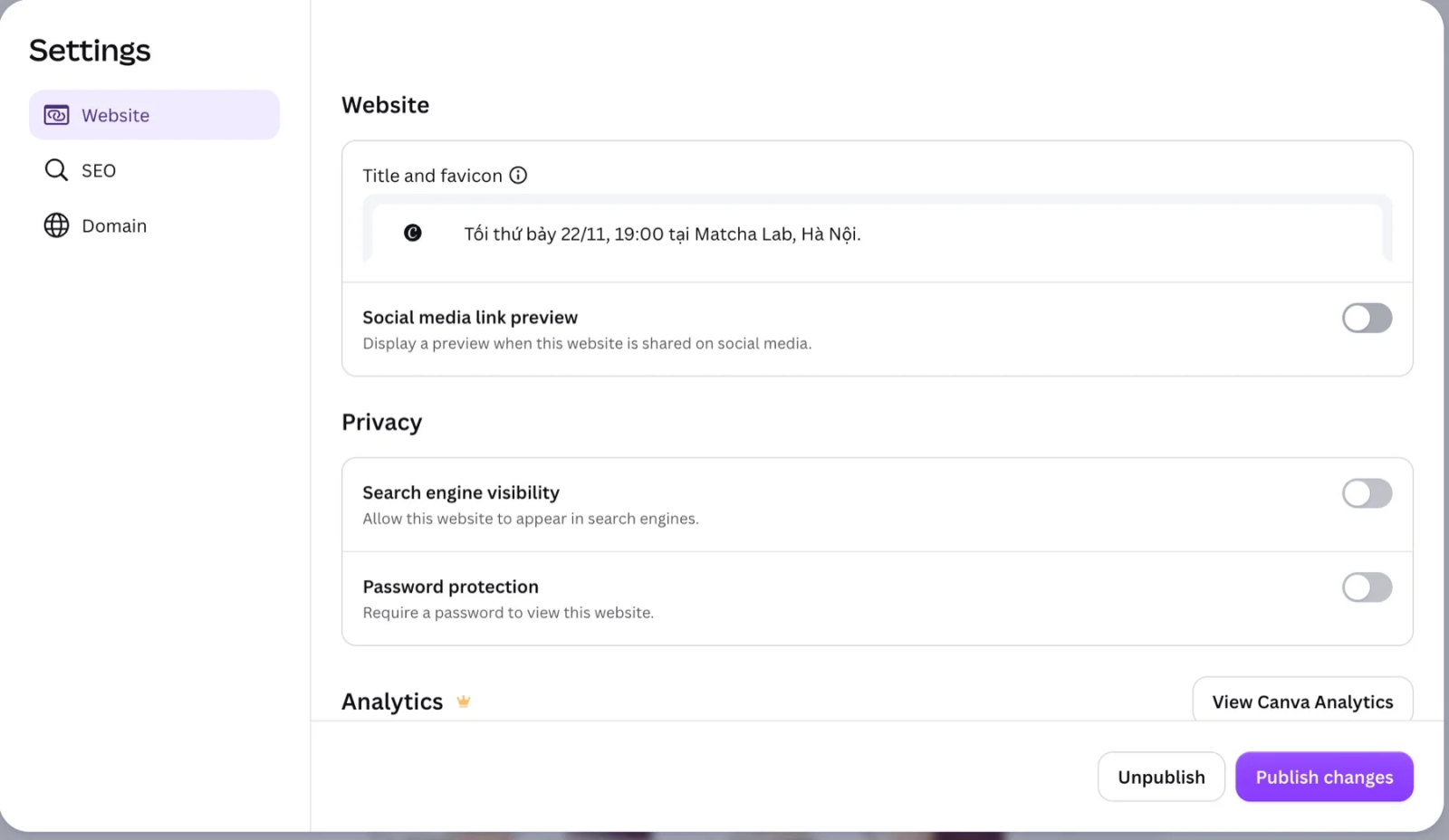
After publishing, don't skip the settings section, as this is where you manage your website's visibility and security. Click Settings in the Website panel to open the options. Under Website, you can use Title and favicon to set the title displayed in browser tabs and choose a website icon. The Social media link preview option allows you to set a preview image before sharing the link on social media. Importantly, if you want your website to appear on Google, check Search engine visibility and enable this option.
According to the interface checked, this feature is turned off by default, so you need to actively change it if you want search engines to index your website. Additionally, Password protection allows you to set a password to limit who can access your site. The settings also include SEO and Domain sections to manage related settings. If you no longer wish to use your published website, you can select Unpublish , then confirm Unpublish website to remove the page from the internet. The old website address will then no longer be accessible.
3. Tips to make your Canva website more visually appealing and professional.
Without using too many effects or decorative details, a website with a clear layout and well-organized content can still make a good impression. Here are some tips you should apply during the design process:
-
Prioritize a simple interface: Choose a template with a clear, easy-to-follow layout that suits its intended purpose. Avoid cramming too much information into one area, making it difficult for viewers to focus.
-
Use consistent colors: Choose about 2 to 3 main colors, combined with a neutral background color to create a harmonious feel. The colors should be appropriate for the field or message the website wants to convey.
-
Choose an easy-to-read font: Prioritize fonts that fully support Vietnamese diacritics. For example, DM Sans is a good option to consider. If there are diacritic errors, try switching to a different font and double-checking the entire content.
-
Image optimization: Use clear images that are appropriately sized and consistent in style. Avoid including too many low-quality images as they can detract from the website's aesthetics.
-
Write concise content: The title should clearly state the topic, the description should focus on the key information, and the button should have a clear call to action.
-
Check on your phone: Make sure the text isn't too small, that images aren't cropped to remove important content, and that the buttons are convenient to use with the touchscreen.
4. What are the advantages and disadvantages of Canva Websites?
Canva Websites scores points for its ease of use, making it suitable for those without website design experience. Its diverse template library allows you to quickly build a website interface without starting from scratch. The drag-and-drop tool also supports convenient editing of images, text, and layout. In particular, the integration of preview and publish features directly within Canva significantly shortens website completion time. Users can leverage the available design resources to create beautiful websites without installing complex software.
However, this platform still has certain limitations. Canva Websites is not designed to completely replace professional website builders. The ability to customize functionality, manage data, deploy online stores, or build complex content systems is limited. Some templates and advanced features require a paid account. Furthermore, a website appearing on Google doesn't automatically guarantee high rankings, as SEO depends on content quality, relevance, and many other factors.
5. Frequently Asked Questions when creating a website using Canva
Do I need programming knowledge to create a website using Canva?
No. Canva Websites uses a visual editing tool, so you can create a website by selecting a template, dragging and dropping elements, and changing the content. Beginners can still design their own websites without knowing HTML, CSS, or JavaScript.
Is it possible to create a website with Canva for free?
Yes. Canva offers free website templates and design features for users to experience. However, some templates, design resources, and advanced features may require Canva Pro. You should check the crown icon before using them to avoid accidentally selecting paid resources.
Does the Canva website appear on Google?
It's possible. You need to check and enable the Search engine visibility option in Settings to allow search engines to find your website. However, enabling this setting doesn't guarantee your page will appear immediately or rank highly on Google. You still need to build useful content, use relevant titles, and optimize basic SEO elements.
After publication, can the website be edited?
Yes. You can still return to Canva to change text, images, layout, or add new pages. However, these edits will only be updated to the live website after you click Publish changes .
6. Conclusion
Creating and publishing a website using Canva Websites isn't overly complicated, even if you've never designed a website before. Simply choose a suitable template, edit the content, test the interface on various devices, and set up the necessary options, and you'll have a complete website to introduce yourself, promote products, or share event information. While it can't replace more sophisticated website building platforms, Canva remains a convenient choice for simple, quick, and cost-effective website design needs.





VIP Products

Best Selling Products
Copyright Adobe Lightroom Account
59 USD
Genuine Adobe Illustrator account
99 USD
Upgrade genuine Capture One account
120 USD
MidJourney Account
29 USD
Windows 10 & 11 Pro Key
36 USD
Adobe Premiere Pro Account
99 USD
Adobe Photoshop Copyright - Full App
120 USD
Autodesk All App Account Copyright
120 USD
Upgrade Duolingo Super
29 USD
ChatGPT Plus Account (GPT-4)
16 USD
Genuine Cheap Canva Pro
39 USD
Freepik Premium Account
59 USD
Plugin Retouch4me
69 USD
Upgrade Genuine Office 365
49 USD
Capcut Pro 1 Year
39 USD