Best Selling Products

Freepik Premium Account
59 USD

Genuine Cheap Canva Pro
39 USD

ChatGPT Plus Account (GPT-4)
16 USD

Capcut Pro 1 Year
39 USD

Windows 10 & 11 Pro Key
36 USD

Adobe Premiere Pro Account
99 USD

Genuine Adobe Illustrator account
99 USD

Plugin Retouch4me
69 USD

Adobe Photoshop Copyright - Full App
120 USD

Copyright Adobe Lightroom Account
59 USD

MidJourney Account
29 USD

Upgrade Genuine Office 365
49 USD

Upgrade genuine Capture One account
120 USD

Autodesk All App Account Copyright
120 USD

Upgrade Duolingo Super
29 USD
Photoshop Lightroom Mac: A Detailed Step-by-Step Guide for macOS Users
Nội dung
- 1. Overview of Photoshop Lightroom on Mac
- 1.1 What is Lightroom?
- 1.2 Reasons Why You Should Use Lightroom on a Mac
- 2. Lightroom Versions for Mac
- 2.1 Lightroom Classic
- 2.2 Lightroom (Cloud-based)
- 2.3 Which Version Should You Choose?
- 3. How to Install Photoshop Lightroom on Mac
- 3.1 System Requirements
- 3.2 Installation Steps
- 3.3 Notes on Installation
- 4. Main Interface and Tools in Lightroom
- 4.1 Library
- 4.2 Develop (Edit)
- 4.3 Important Toolbars
- 5. Basic Photo Editing Guide
- 5.1 Adjusting Lighting
- 5.2 Color Balance
- 5.3 Increase Sharpness
- 5.4 Cutting and Layout
- 6. Advanced Features
- 6.1 Presets
- 6.2 Masking
- 6.3 AI Enhance
- 6.4 Batch Editing
- 7. Optimizing Lightroom Performance on Mac
- 7.1 Using the GPU
- 7.2 Catalog Management
- 7.3 Optimizing Hard Drive
- 7.4 Clear Cache
- 8. Common Errors and How to Fix Them
- 8.1 Lightroom Slow
- 8.2 Image Import Error
- 8.3 Synchronization Error
- 9. Conclusion
A detailed guide to Photoshop Lightroom on Mac: from installation and usage to photo editing, performance optimization, and advanced tips for macOS users.
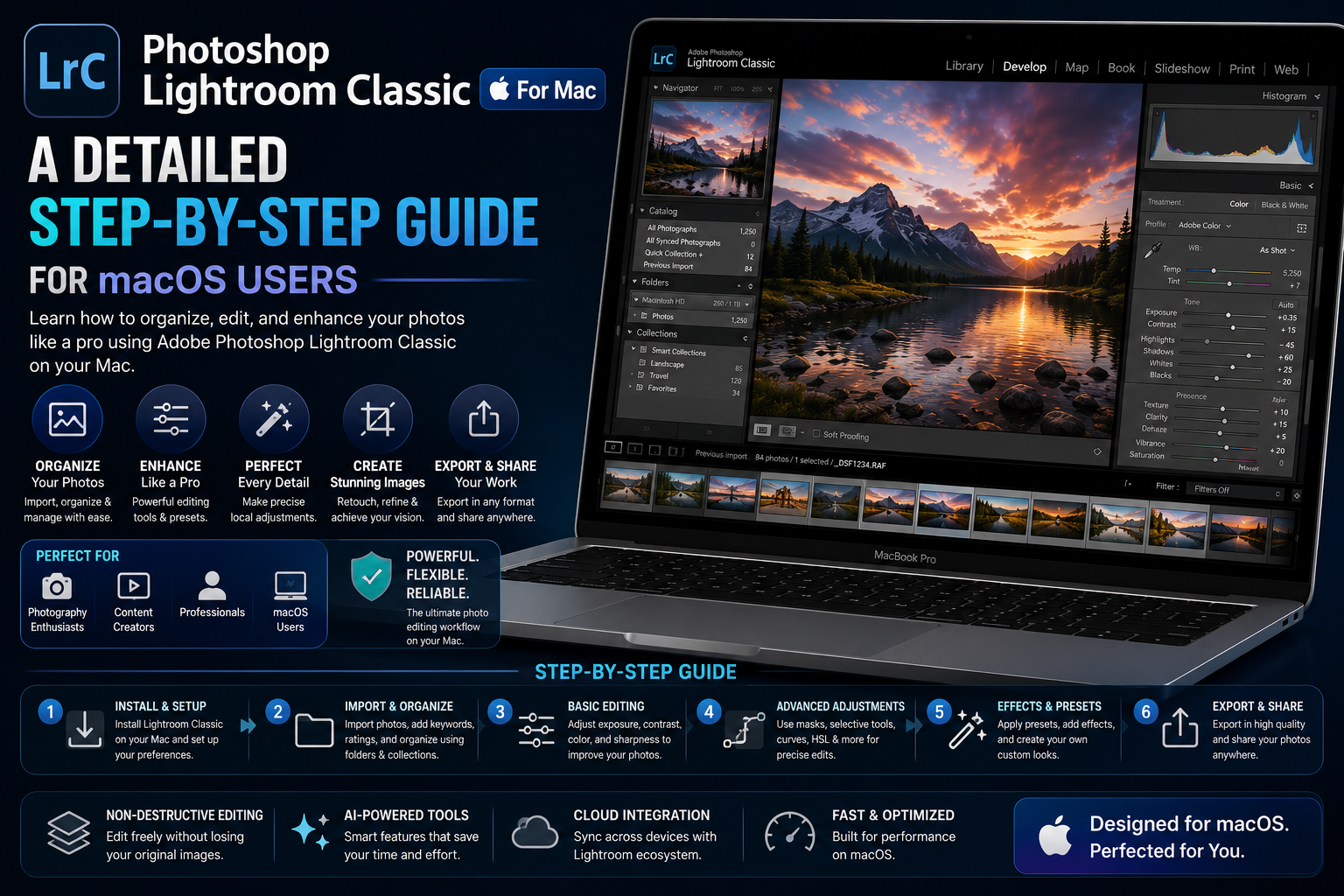
1. Overview of Photoshop Lightroom on Mac
Photoshop Lightroom on Mac offers a comprehensive solution for image editing and management in both professional and personal environments. Understanding this tool not only helps users grasp its operation but also provides a solid foundation for fully utilizing the powerful features that Lightroom offers on the macOS operating system.

1.1 What is Lightroom?
Lightroom is professional photo editing software that operates on a non-destructive editing mechanism. This means that all editing operations are saved as parameters, without altering the original file. Users can undo any step in the editing process without affecting the original image quality.
In addition, Lightroom integrates a powerful library management system, helping to organize thousands of photos scientifically through keywords, star ratings, and metadata.
1.2 Reasons Why You Should Use Lightroom on a Mac
Lightroom on Mac is optimized to take advantage of Apple hardware such as the M1, M2 chips, or earlier Intel chips. This allows for faster and smoother RAW image processing.
The Retina displays on MacBooks and iMacs also help display colors accurately, making them excellent for advanced color grading. At the same time, the Apple ecosystem allows for easy data synchronization between Macs, iPhones, and iPads.
2. Lightroom Versions for Mac
Lightroom on Mac isn't just a single version; it's developed into several different options to meet diverse needs, from beginners to professional photographers. Understanding each version will help users choose the right tool for their work, while optimizing image editing and management on the macOS operating system.
2.1 Lightroom Classic
Lightroom Classic is the professional version. It stores data locally on your computer, allowing you to have complete control over your image files and folders.
This version is suitable for those who work with large volumes of images, such as wedding photographers, studios, or designers who need a stable workflow.
2.2 Lightroom (Cloud-based)
Lightroom Cloud focuses on a simple and flexible experience. All photos are stored in the cloud, allowing access and editing from any device.

This version has a minimalist, user-friendly interface, suitable for beginners or content creators.
2.3 Which Version Should You Choose?
The choice depends on your needs. If you need quick editing and flexible synchronization, Lightroom Cloud is a suitable option. If you need in-depth file management and a complex workflow, Lightroom Classic will be more appropriate.
3. How to Install Photoshop Lightroom on Mac
Installing Photoshop Lightroom on a Mac is a crucial first step in experiencing the full range of professional photo editing features. Understanding the installation process not only saves time but also minimizes errors during use, ensuring the software runs smoothly and is compatible with the macOS operating system.
3.1 System Requirements
Lightroom requires macOS version 10.15 or later. A minimum of 8GB of RAM is required, however 16GB will help the software run more smoothly, especially when processing RAW files.
An SSD hard drive is a crucial factor in speeding up image loading and export.
3.2 Installation Steps
-
Download Adobe Creative Cloud from the official website.
-
Install and log in to your Adobe account.
-
Find Lightroom in the list of applications.
-
Press “Install” to begin the installation.
-
Open the software and initialize the configuration.
3.3 Notes on Installation
During installation, ensure you have sufficient hard drive space. Additionally, close any resource-intensive applications to avoid system conflicts.
4. Main Interface and Tools in Lightroom
The interface and toolset in Lightroom are designed to optimize the user experience, making the photo editing process more intuitive and efficient. Understanding the layout and function of each area will help users work quickly and make the most of the software's power in image processing on a Mac.

4.1 Library
This is where you manage all your photos. Users can import photos, create albums, add tags, rate photos with stars, or filter photos by criteria.
4.2 Develop (Edit)
The Develop area is the heart of Lightroom. Here, users can adjust brightness, color, sharpness, and apply advanced effects.
4.3 Important Toolbars
-
Basic: Adjusting overall lighting
-
Tone Curve: Controls contrast and detail.
-
HSL: Individual channel color correction
-
Detail: increases sharpness and reduces noise.
5. Basic Photo Editing Guide
Basic photo editing in Lightroom is a fundamental step in improving image quality before applying advanced techniques. Mastering these basic editing operations not only helps create more balanced lighting and color in photos but also lays the groundwork for developing your own effective and professional photo editing style.
5.1 Adjusting Lighting
Start with Exposure to adjust the overall brightness. Then use Highlights to reduce bright areas and Shadows to increase detail in dark areas.
5.2 Color Balance
White Balance helps adjust color temperature. Increase the temperature for a warmer image, decrease it for a cooler image.
5.3 Increase Sharpness
Use Sharpening to enhance detail. Combine it with Noise Reduction to avoid unwanted noise.
5.4 Cutting and Layout
Cropping helps improve layout. A grid can be used to align the layout according to the rule of thirds.
6. Advanced Features
Once you've mastered the basic editing operations, exploring advanced features in Lightroom will help elevate image quality to a professional level. These powerful tools optimize workflow and expand creative possibilities during post-processing.

6.1 Presets
Presets are one of the most commonly used features in Lightroom, especially for content creators and photographers who need to process large numbers of images in a short amount of time. Presets are essentially sets of pre-configured editing parameters, including lighting, color, contrast, tone, and many other factors.
When applying a preset, all parameters are instantly applied to the image with just one click, significantly saving editing time. Users can choose to download presets from external sources or create their own presets based on their personal style.
Creating your own presets offers a significant advantage in establishing a consistent brand color scheme or personal style. Additionally, users can adjust the presets after application to suit specific photos.
6.2 Masking
Masking is a selective editing tool that allows users to affect specific areas of an image instead of the entire image. This is a crucial element in enhancing the professionalism and depth of an image.
Lightroom offers various masking options, such as:
-
Select Subject: automatically detects the subject
-
Select Sky: Separate the sky
-
Brush: for drawing areas for manual editing.
-
Linear Gradient and Radial Gradient: creating smooth transitions.
For example, users can brighten the subject while keeping the background dark, or enhance the blue of the sky without affecting other areas. This results in a more balanced image with clearer focal points.
6.3 AI Enhance
AI Enhance is a feature that uses artificial intelligence to automatically improve image quality. This technology is especially useful for RAW image files or photos taken in low-light conditions.
Some of the notable capabilities of AI Enhance include:
-
Enhance Details
-
Noise Reduction (AI)
-
Increase resolution (Super Resolution)
Instead of manually adjusting complex parameters, users simply activate AI and let the system handle the processing. The result is often higher sharpness, clearer colors, and significantly reduced noise while maintaining the natural look of the image.
6.4 Batch Editing
Batch editing is the optimal solution for editing multiple images in batches, especially useful in large projects such as weddings, events, or commercial product photography.
This feature allows users to apply the same set of editing settings to multiple photos at once. The process typically includes:
-
Edit a complete sample image
-
Copy all edited parameters.
-
Paste or sync to other images
As a result, the entire set of photos will have consistent color and lighting, saving hours of manual work. Users can also combine Batch Editing with Presets to maximize processing speed.
7. Optimizing Lightroom Performance on Mac
7.1 Using the GPU
Enabling GPU processing speeds up processing, especially when editing RAW images.
7.2 Catalog Management
The catalog shouldn't be too large. It should be broken down into smaller parts by project.
7.3 Optimizing Hard Drive
Storing files on an SSD helps increase read/write speeds.
7.4 Clear Cache
Clearing the cache periodically helps reduce lag and errors.
8. Common Errors and How to Fix Them
8.1 Lightroom Slow
The cause is usually due to insufficient RAM or too many applications running in the background.
8.2 Image Import Error
This may be due to unsupported formatting or a lack of access permissions.
8.3 Synchronization Error
Check your Adobe account and internet connection.
9. Conclusion
Photoshop Lightroom on Mac is a comprehensive tool for all your photo editing needs. Understanding each feature and applying them correctly will optimize performance and improve image quality. When combined with supporting tools like AI, users can shorten processing time while still achieving professional results.





















VIP Products








Best Selling Products
Freepik Premium Account
59 USD
Genuine Cheap Canva Pro
39 USD
ChatGPT Plus Account (GPT-4)
16 USD
Capcut Pro 1 Year
39 USD
Windows 10 & 11 Pro Key
36 USD
Adobe Premiere Pro Account
99 USD
Genuine Adobe Illustrator account
99 USD
Plugin Retouch4me
69 USD
Adobe Photoshop Copyright - Full App
120 USD
Copyright Adobe Lightroom Account
59 USD
MidJourney Account
29 USD
Upgrade Genuine Office 365
49 USD
Upgrade genuine Capture One account
120 USD
Autodesk All App Account Copyright
120 USD
Upgrade Duolingo Super
29 USD