Best Selling Products

Copyright Adobe Lightroom Account
59 USD

Upgrade genuine Capture One account
120 USD

Adobe Photoshop Copyright - Full App
120 USD

Genuine Adobe Illustrator account
99 USD

Plugin Retouch4me
69 USD

Windows 10 & 11 Pro Key
36 USD

MidJourney Account
29 USD

Capcut Pro 1 Year
39 USD

Freepik Premium Account
59 USD

ChatGPT Plus Account (GPT-4)
16 USD

Upgrade Genuine Office 365
49 USD

Upgrade Duolingo Super
29 USD

Autodesk All App Account Copyright
120 USD

Adobe Premiere Pro Account
99 USD

Genuine Cheap Canva Pro
39 USD
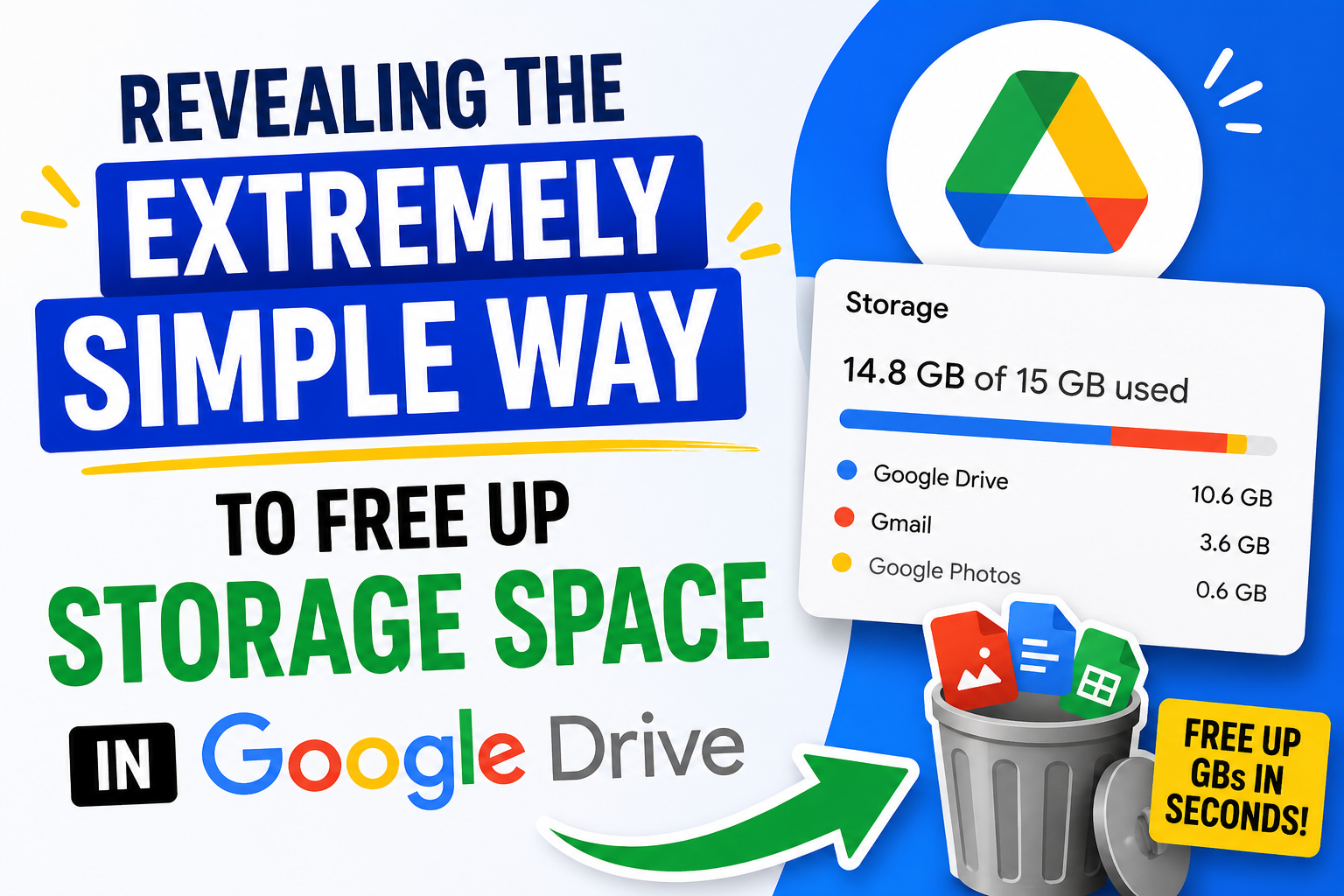
Revealing the Extremely Simple Way to Free Up Storage Space in Google Drive
Nội dung
- 1. Identify and delete large files.
- 2. Delete emails with large attachments.
- 3. Compress photos and videos in Google Photos
- 4. Delete outdated phone backups.
- 5. Clean up app and game data stored in Drive.
- 6. Exclude videos from WhatsApp backups.
- 7. Use Storage Manager's cleanup suggestions.
- 8. Organizing and categorizing files in Google Drive
- 9. Conclusion
Google Drive has become an indispensable data storage and sharing tool for many users worldwide. With its massive storage capacity and user-friendly features, Google Drive allows users to conveniently store documents, images, videos, and many other file types.
1. Identify and delete large files.
One of the most effective ways to free up space on Google Drive is to identify and remove large files that you no longer use. These files may include 4K videos, high-quality images, or large compressed files, which often take up a significant amount of storage space.
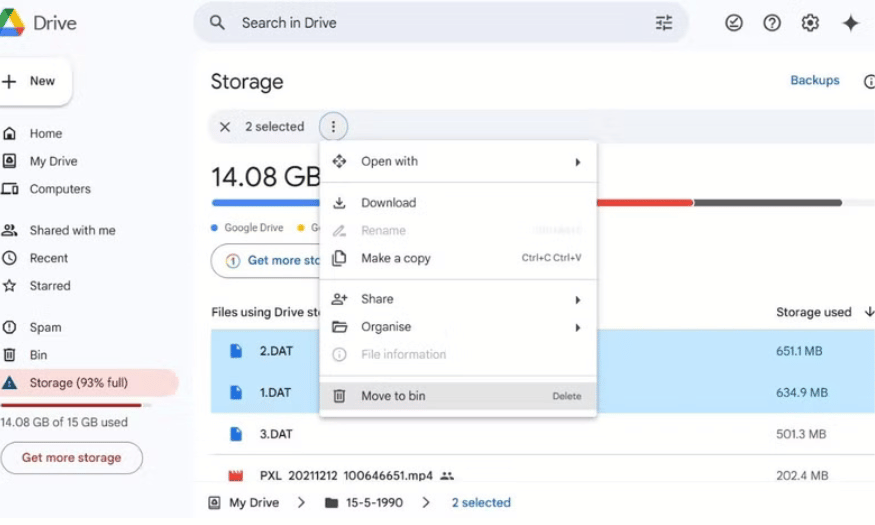
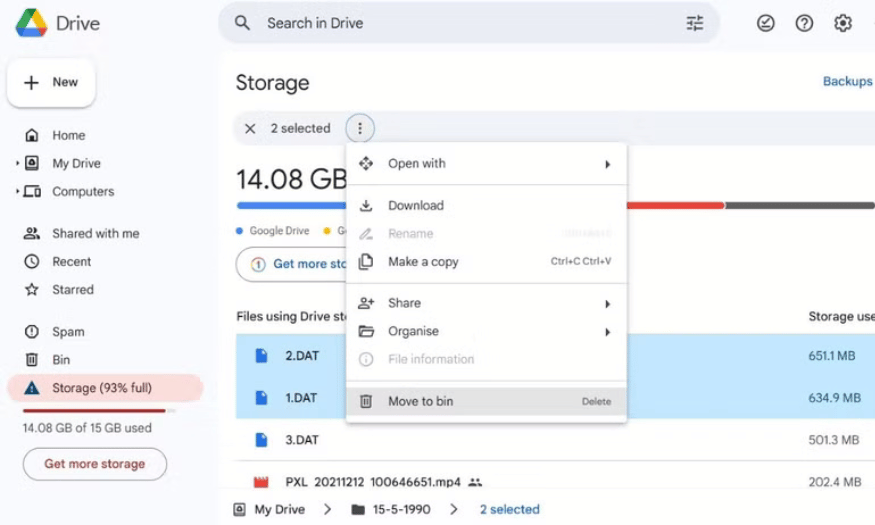
To easily identify these files, you can use the Storage feature in Google Drive. By opening Google Drive in your browser and clicking the Storage option on the left, you will see a list of files sorted by size. The largest files will be at the top of the list, making it easy to identify and decide what to delete.
The deletion process is also very simple. Just select the unnecessary file, click the three-dot icon, and choose "Move to bin". After deleting, remember to check the Bin tab and click the "Empty bin" option to completely free up the occupied space.
2. Delete emails with large attachments.
It's not just files in Google Drive that take up space; your Gmail inbox can be a culprit too. Emails and attachments stored in Gmail also count towards your Google account's total storage capacity. Deleting unnecessary emails, especially those with large attachments, can free up space without incurring additional storage costs.
To free up storage space on your Gmail account, you can go to Gmail and enter the search term "has:attachment larger:10M ". This will list all emails with attachments larger than 10MB. This is a quick way to find the emails that are taking up the most space.
Once the list appears, browse through it and delete any unnecessary emails, such as old conversations, forwarded attachments, or project files you've saved elsewhere. Don't forget to empty your Trash folder afterward to permanently delete these emails and free up storage space.
3. Compress photos and videos in Google Photos
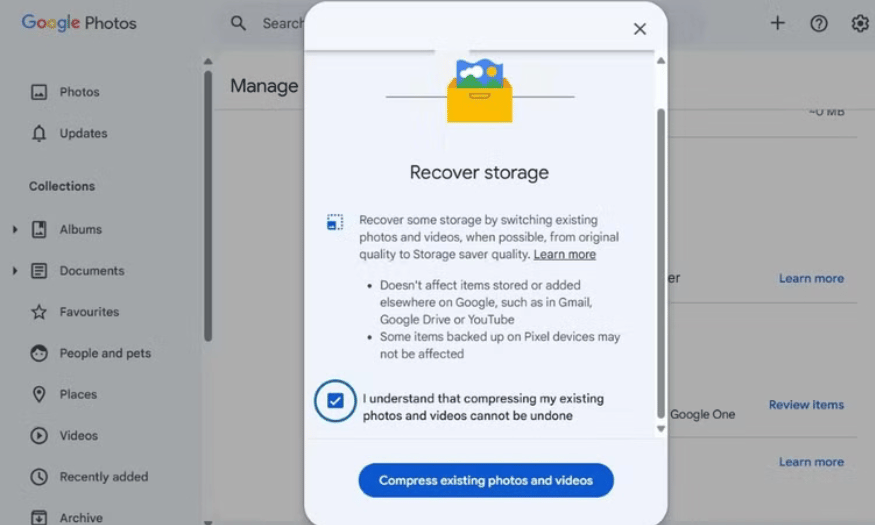
Storing photos and videos has become an indispensable part of our daily lives. Google Photos is a great solution for preserving precious memories, but this can also lead to a significant amount of storage space being used up on your Google account. To solve this problem without deleting cherished memories, you can use the photo and video compression feature.
The Storage Saver feature in Google Photos allows you to compress media files without significantly reducing image or video quality. When you use this option, your photos will be compressed to 16MP and videos will be resized to 1080p if they have a higher resolution. This not only saves you storage space but also preserves your cherished memories in acceptable quality.
To enable this compression feature, open Google Photos on your computer, click the gear icon to access the settings. Then, select the Storage Saver option and confirm compressing existing photos and videos. This is a simple and effective way to free up space, giving you more room to store new moments in your life.
4. Delete outdated phone backups.
Backing up your Android phone data via Google Drive is a good habit, but if you don't check regularly, old backups can start taking up a large amount of storage space you no longer need. These backups may include data from deleted apps or information from devices you no longer use. Cleaning up outdated backups will help you reclaim valuable space.
To delete unnecessary backups, simply open Google Drive on your computer and click the Storage tab in the left pane. Here, you can find the Backups section in the upper right corner. Browse through the list of stored backups and identify which ones are outdated or no longer useful to you.
After identifying the backups you want to delete, simply select them and click the trash can icon at the top of the page. This will free up storage space without any difficulty, allowing you to manage your data more effectively.
5. Clean up app and game data stored in Drive.
One often overlooked aspect of storage management is the data that apps and games store on Google Drive. Many apps, especially games, can generate a large amount of stored data, including saved game files, settings, and other data that you may no longer need. Cleaning up these files not only saves space but also optimizes Google Drive performance.
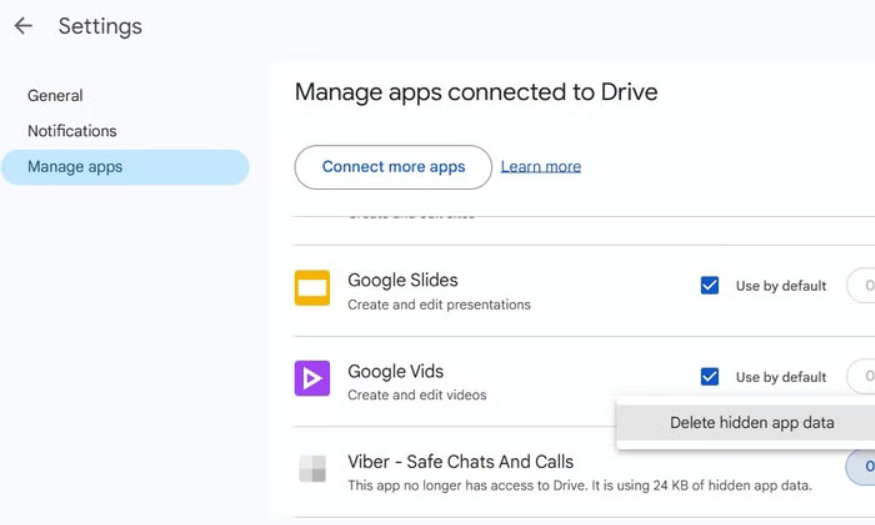
To delete unwanted data from apps and games, open Google Drive on your computer, click the gear icon in the upper right corner to access settings. Next, select the Manage apps tab to see a list of apps and games that have saved data on your Google Drive. Here, you can easily identify which data is unnecessary.
After identifying the unnecessary data, simply click the Options button next to it and select Delete hidden app data. Press Delete to confirm and complete the deletion process. Doing this periodically will help you keep your storage space optimized and avoid wasting it on unnecessary data.
6. Exclude videos from WhatsApp backups.
Today, WhatsApp has become an indispensable part of our daily lives, not only for messaging but also for sharing videos, images, and audio. However, one issue many users overlook is that WhatsApp backups are now starting to affect storage space on Google Drive. If you frequently send and receive videos, these backups can quickly fill up the space you've carefully managed.
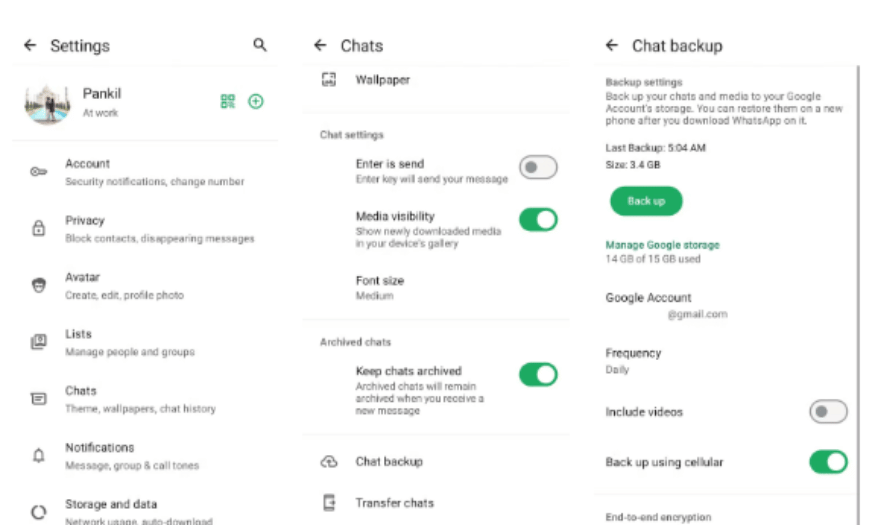
To minimize this impact, an effective solution is to exclude videos from your WhatsApp backup. This not only saves space but also keeps your backup lighter. You can easily do this by opening WhatsApp on your phone, going to settings, then to Chats and selecting Chat backup. Here, simply turn off the "Include videos" option and everything will become much easier.
If you still want to keep important videos, you can manually back them up to Google Photos or another cloud storage service. This not only helps protect your precious memories but also ensures that your Google Drive storage space isn't affected by unnecessary videos.
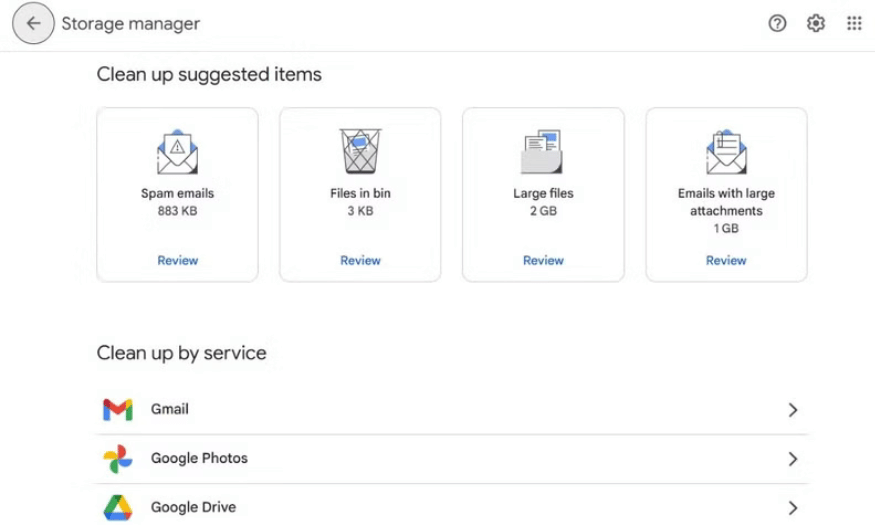
7. Use Storage Manager's cleanup suggestions.
Even if you've done your best to clean up your Google Drive storage, time can easily lead to a return to how things were before. Unnecessary files, old backups, and outdated documents can quickly fill up your space, resulting in a storage upgrade notification. To avoid this, Google Drive has developed a helpful tool called Storage Manager.
When you access the Storage menu in Google Drive and select the Clean up space option, you'll see intelligent cleanup suggestions. These suggestions may include deleting junk emails, files in the Recycle Bin, and many other types of documents you may have forgotten about. This not only saves space but also effectively cleans up your storage.
Furthermore, Storage Manager allows you to clean up specific services like Gmail or Google Photos. This way, you can target the areas taking up the most space and take necessary actions. This not only helps you manage your storage space more effectively but also creates a cleaner workspace and storage area. Take advantage of this tool to keep your Google Drive account optimized!
8. Organizing and categorizing files in Google Drive
Another equally important tip for managing storage space on Google Drive is to organize and categorize your files effectively. Over time, the number of stored files can become overwhelming, making them difficult to find and manage. Organizing your files not only saves space but also improves productivity.
First, create clear and structured folders. You can categorize files by project, document type, or time. For example, you could create folders like "Project 2025," "Personal Images," or "Work Documents." This will make it easier to access the necessary files without spending too much time searching. Remember to regularly review and update these folders to ensure they remain relevant to your needs.
Additionally, consider deleting or moving documents that are no longer needed. You can store infrequently used files on another storage service like Google Archive or on an external hard drive. This way, you not only free up space but also create organization in your online storage.
9. Conclusion
Freeing up space on Google Drive isn't a difficult task if you know how to manage and optimize your data. By taking simple steps like deleting unnecessary files, using Google Photos, and checking your trash regularly, you can easily maintain clean and efficient storage space. Hopefully, these tips will help you use Google Drive more effectively and no longer worry about storage space.





















VIP Products








Best Selling Products
Copyright Adobe Lightroom Account
59 USD
Upgrade genuine Capture One account
120 USD
Adobe Photoshop Copyright - Full App
120 USD
Genuine Adobe Illustrator account
99 USD
Plugin Retouch4me
69 USD
Windows 10 & 11 Pro Key
36 USD
MidJourney Account
29 USD
Capcut Pro 1 Year
39 USD
Freepik Premium Account
59 USD
ChatGPT Plus Account (GPT-4)
16 USD
Upgrade Genuine Office 365
49 USD
Upgrade Duolingo Super
29 USD
Autodesk All App Account Copyright
120 USD
Adobe Premiere Pro Account
99 USD
Genuine Cheap Canva Pro
39 USD