Best Selling Products

Adobe Photoshop Copyright - Full App
120 USD

Upgrade Duolingo Super
29 USD

Genuine Cheap Canva Pro
39 USD

Plugin Retouch4me
69 USD

Adobe Premiere Pro Account
99 USD

Windows 10 & 11 Pro Key
36 USD

Autodesk All App Account Copyright
120 USD

MidJourney Account
29 USD

Genuine Adobe Illustrator account
99 USD

Capcut Pro 1 Year
39 USD

Freepik Premium Account
59 USD

ChatGPT Plus Account (GPT-4)
16 USD

Upgrade genuine Capture One account
120 USD

Upgrade Genuine Office 365
49 USD

Copyright Adobe Lightroom Account
59 USD
Turn a Document File into Professional Slides with Gamma AI
Nội dung
- 1. What is Gamma AI and why is it considered the most powerful slide creation tool today
- 1.1 How Gamma AI works
- 1.2 Outstanding advantages of Gamma AI
- 1.3 What benefits does creating slides from documents with Gamma AI bring
- 2. Preparing documents before uploading to Gamma AI
- 2.1 Optimize content before converting into slides
- 2.2 Document formats supported by Gamma AI
- 3. Tips to help Gamma AI understand content more accurately
- 4. Detailed guide: How Gamma AI creates slides from a single document file
- 4.1 Step 1 Log in to Gamma AI
- 4.2 Step 2 Select Generate with AI mode
- 4.3 Step 3 Upload your document file
- 4.4 Step 4 Choose slide style and content tone
- 4.5 Step 5 Wait for Gamma to process and generate slides
- 4.6 Step 6 Refine slides after AI generation
- 5. Common errors when creating slides from documents and how to fix them
- 5.1 Documents that are too long make AI analysis difficult
- 5.2 Low-quality scanned files prevent AI from reading text
- 5.3 Slides do not reflect user intentions accurately
- 5.4 Free accounts have feature limitations
- 6. Advanced tips for creating more beautiful and professional slides with Gamma AI
- 7. Conclusion
In an increasingly fast-paced and visually driven work environment, having to manually read through documents, summarize key ideas, and turn them into presentation slides often costs people hours just to complete one presentation.
1. What is Gamma AI and why is it considered the most powerful slide creation tool today
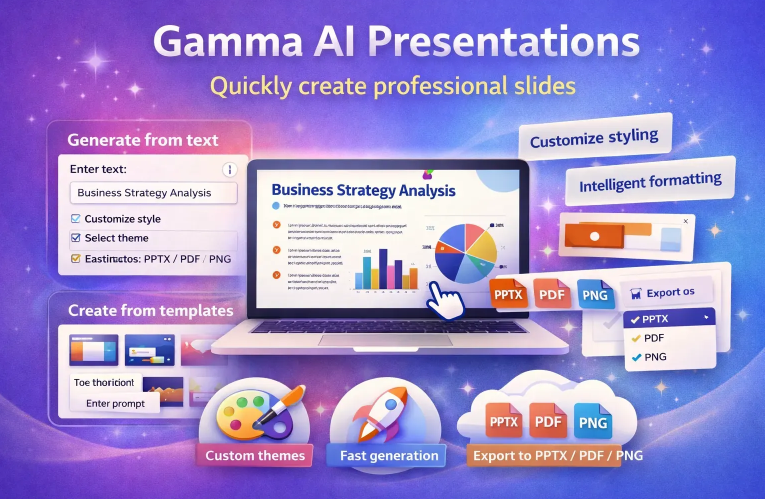
Gamma AI is an intelligent slide creation platform developed to understand document content and automatically handle the entire design process for users. This tool automatically reads lengthy documents, analyzes topics, summarizes key points, and converts them into modern presentation slides with balanced layouts. Thanks to its highly accurate information condensation, scientific presentation style, and extremely fast processing speed, Gamma AI has been rated by many users as superior to traditional tools. Figures published by Gamma in 2024 show that users save on average more than seventy percent of slide creation time, which is why Gamma has become the top choice for office workers, lecturers, marketers, and students.
1.1 How Gamma AI works
When users upload PDF files, Word documents, or plain text content, Gamma begins analyzing each section and identifying core information to build a logical slide structure. This tool automatically separates ideas, divides sections, selects appropriate layouts for each part, and creates a consistent design style based on your preferred color theme.
Everything happens within seconds, and the result is a complete, attractive slide deck that is easy to edit. Compared to manually working in PowerPoint or Google Slides, Gamma eliminates labor-intensive steps such as filtering ideas, alignment, font selection, and color coordination. Users only need to review and make minor adjustments if they want to add a personal touch.
1.2 Outstanding advantages of Gamma AI
Gamma AI attracts users with its ability to instantly create beautiful slides with clear layouts and modern styles. This tool processes content intelligently, helping key points appear concise and easy to understand. Illustrative images are also automatically generated by AI, making presentations more vivid without requiring users to search for external image sources.
The entire slide deck can be quickly edited with just a few clicks, from colors and typography to layout structure. A simple example is that a twenty-five-page marketing plan document can be converted by Gamma into a fourteen to eighteen slide presentation in just seven seconds, with significantly higher quality than manual methods.
1.3 What benefits does creating slides from documents with Gamma AI bring
Converting documents into slides usually takes a lot of time, but Gamma AI significantly simplifies this process. Users do not need to reread the entire document or manually filter ideas and arrange layouts because Gamma handles it for you with exceptional speed. This creates a huge advantage for those who frequently prepare reports, lectures, project presentations, or investor pitch decks.
Verbose content is removed, leaving only the core information, making slides cleaner and easier to follow. Each slide follows visual design principles to ensure aesthetics through spacing, fonts, colors, and charts, allowing even users with no design skills to create polished and professional presentations. Gamma also supports a wide range of document formats including long PDFs, Word files, raw text, and even study notes or research reports.
%20(1)(1).png)
2. Preparing documents before uploading to Gamma AI
2.1 Optimize content before converting into slides
Before uploading documents to Gamma AI, you should spend a few minutes reviewing and cleaning up the content because this directly affects the quality of slides generated by AI. A clear, coherent, and well-organized document helps Gamma analyze key ideas better and present them as more polished slides. Remove all personal notes, excessive highlights, and any irrelevant sections to avoid information noise.
You should also divide content into clearly separated paragraphs so the AI can easily identify topics, prioritizing short and easy-to-understand sentences to improve analysis accuracy. If the document contains multiple subtopics, add subheadings so AI can correctly identify the structure. A highly effective tip is to include a short descriptive paragraph at the beginning with a few sentences introducing the objective and main sections, such as stating that the document contains three parts including introduction, process, and conclusion for internal presentation purposes. With just a few simple preparation steps, you will notice the generated slides are much cleaner and more aligned with your content.
2.2 Document formats supported by Gamma AI
Gamma AI currently supports many popular formats, allowing users to easily upload almost any type of document to create slides. Formats such as PDF, DOCX Word files, plain TXT files, and markdown are all handled efficiently by Gamma. However, some scanned PDFs with poor quality may make it difficult for AI to read or recognize characters correctly, resulting in missing or distorted content.
Therefore, when working with PDFs, prioritize clear original files or export directly from the source software to ensure quality. Thanks to this broad format support, Gamma offers flexibility and convenience for all users, from students and office staff to professional trainers.
3. Tips to help Gamma AI understand content more accurately
To help Gamma analyze documents correctly and generate high-quality slides, ensure your document uses common fonts such as Arial, Helvetica, or Times New Roman to avoid display issues. Avoid placing too many images between paragraphs, as this can confuse AI when identifying content boundaries and disrupt layout structure.
You should also ensure all Vietnamese text contains proper accents to prevent AI from misreading or misunderstanding meanings. In addition, a clear document structure is always the most important factor because AI relies on it to determine main topics, subtopics, and content priority when generating slides. The more coherent the document, the more accurate, readable, and persuasive the resulting slides will be.
.PNG)
4. Detailed guide: How Gamma AI creates slides from a single document file
4.1 Step 1 Log in to Gamma AI
Open the app.gamma.app website and log in using your Google account or email. This helps synchronize your documents quickly and securely. If you frequently work on important projects, consider upgrading to a paid plan to unlock full features and avoid slide quantity limitations.
After logging in, spend a few minutes familiarizing yourself with the main interface, identifying sections such as create new, template library, and account settings. This helps you work more smoothly when uploading files or making quick edits.
%20(1).jpg)
4.2 Step 2 Select Generate with AI mode
On the homepage, find and select the Generate with AI feature because this is the fastest and smartest mode for automatically converting documents into slides. This mode helps Gamma structure content, separate key ideas, and recommend suitable layouts for each section of your document.
Before starting, you can preview demos or presets to understand the output style. Choosing an overall style in advance helps AI generate more accurate slides and saves editing time later.
4.3 Step 3 Upload your document file
Drag and drop the file into the upload area or click Upload File to select it from your computer. You can also paste plain text content if you only have text. Make sure the document has been cleaned and clearly structured because this helps Gamma understand the topic correctly and separate key ideas more accurately.
If the file is a low-quality scanned PDF, re-export the original file from the editing software or convert it to DOCX. This reduces text recognition errors and helps ensure more complete slide output.
%20(1).jpg)
4.4 Step 4 Choose slide style and content tone
Select a tone suitable for your presentation purpose, such as Professional for academic conferences or Creative for dynamic and innovative presentations. Choosing the initial tone ensures visual consistency throughout the entire deck. You can try different tones and compare results before selecting the most suitable version for further refinement.
Additionally, selecting a basic layout such as minimalist for content focus or image-heavy for visual storytelling helps Gamma prioritize content arrangement appropriately, significantly reducing editing time after slide generation.
4.5 Step 5 Wait for Gamma to process and generate slides
After confirming settings and uploading your file, Gamma analyzes content, separates sections, and generates the slide deck within seconds. The result usually includes a cover page, table of contents, and content slides logically segmented. Slide length automatically adjusts based on information volume, typically producing six to ten slides from a ten-page file depending on content density.
During processing, you can preview the structure to decide whether to adjust the tone or style before finalizing. Using the preview step helps avoid fragmented editing and saves time.
4.6 Step 6 Refine slides after AI generation
Once the slides are ready, quickly review the entire deck to shorten lengthy sentences, add important keywords, and ensure no key information is missing or misunderstood. Editing content is the final step to ensure slides deliver the intended message. You can switch layouts from one column to two columns, add or remove illustrations, and convert long paragraphs into concise bullet lists for easier viewing.
Pay attention to adjusting colors and typography to match your brand or presentation goals. For internal reports, prioritize minimalist tones and readable typography, while marketing presentations can use more creative styles to increase appeal. These final refinements usually take only a few minutes but significantly elevate professionalism.
%20(1).jpg)
5. Common errors when creating slides from documents and how to fix them
AI tools like Gamma make slide creation much faster, but sometimes results may not be as perfect as expected. Understanding common issues helps you proactively fix and optimize presentations from the start.
5.1 Documents that are too long make AI analysis difficult
PDF documents exceeding forty to sixty pages often contain too much information, making it difficult for AI to divide content accurately and often causing structural errors. In such cases, split the document into two or three smaller files so Gamma can process each section more precisely. A highly effective additional solution is to include a short summary paragraph at the beginning so AI clearly understands the main objective and content scope, helping the final slides align much more closely with your intentions.
5.2 Low-quality scanned files prevent AI from reading text
Many users upload blurry, distorted, or heavily watermarked scanned PDFs, causing Gamma to fail at text recognition and resulting in analysis errors. To fix this, use tools like Google Drive OCR or Adobe Acrobat to recreate a clean PDF from the original content. Prioritize scans with at least three hundred dpi quality because high resolution helps AI recognize text accurately and convert content into smoother slides.
5.3 Slides do not reflect user intentions accurately
Sometimes AI may omit important ideas or oversummarize, causing slides to fail to reflect your intended message. In this case, you can use follow-up prompts to instruct AI to expand or rewrite slides more professionally, such as asking it to elaborate on content or rewrite in a clearer and more coherent style. If too much content is missing, paste the original paragraph into a separate slide so Gamma can reanalyze it and better understand your intent before regenerating that section.
5.4 Free accounts have feature limitations
Free Gamma accounts often face restrictions such as limited slide generation attempts, capped AI image creation, and low upload file size limits. This can interrupt workflow if you need to create multiple slide decks within a short period. If you frequently use Gamma for training, presentations, or marketing projects, upgrading to a paid plan provides a smoother experience and unlocks Gamma’s full capabilities.
6. Advanced tips for creating more beautiful and professional slides with Gamma AI
Gamma AI can turn a rough draft into an impressive presentation if you know how to maximize its features. These two short sentences help you quickly understand the main benefits before diving into practical suggestions.
Use optimized prompts so AI clearly understands your goals and desired tone, such as requesting professional rewriting, summarizing long sections into three key ideas, or creating metaphorical visuals to deepen content impact.
Try multiple prompt variations and compare results, changing only one small requirement each time to identify which prompt works best for your document type.
Use AI-generated images to illustrate main ideas and avoid boring stock visuals, requesting minimalist styles for technical presentations and metaphorical visuals for conceptual storytelling.
Keep color schemes and visual styles consistent throughout the slide deck so viewers experience smoother flow and stronger brand recognition.
Set up a custom brand theme in Gamma to automatically apply colors, fonts, and logos across all slides, saving time while maintaining presentation consistency.
Build content using storytelling structure with an opening problem statement, solution-focused body, and strong call-to-action ending because this format helps audiences follow and remember better.
Always preview slides in full-screen mode before exporting to check spacing, font sizes, and content density to avoid overcrowded slides during actual presentations.
7. Conclusion
Gamma AI not only shortens slide creation time but also opens up a more efficient workflow for anyone who frequently presents or handles lengthy documents. With just one content file, you can own a clear, modern, and highly practical slide deck without spending effort adjusting every small detail manually. The convenience and intelligence of Gamma AI make it a tool worth experiencing for students, office workers, and content teams alike. If you want to turn documents into coherent presentations in an extremely short time, try Gamma AI and feel the difference from the very first use.





















VIP Products








Best Selling Products
Adobe Photoshop Copyright - Full App
120 USD
Upgrade Duolingo Super
29 USD
Genuine Cheap Canva Pro
39 USD
Plugin Retouch4me
69 USD
Adobe Premiere Pro Account
99 USD
Windows 10 & 11 Pro Key
36 USD
Autodesk All App Account Copyright
120 USD
MidJourney Account
29 USD
Genuine Adobe Illustrator account
99 USD
Capcut Pro 1 Year
39 USD
Freepik Premium Account
59 USD
ChatGPT Plus Account (GPT-4)
16 USD
Upgrade genuine Capture One account
120 USD
Upgrade Genuine Office 365
49 USD
Copyright Adobe Lightroom Account
59 USD