Best Selling Products

Windows 10 & 11 Pro Key
36 USD

Adobe Premiere Pro Account
99 USD

Genuine Adobe Illustrator account
99 USD

Plugin Retouch4me
69 USD

ChatGPT Plus Account (GPT-4)
16 USD

Capcut Pro 1 Year
39 USD

Autodesk All App Account Copyright
120 USD

Copyright Adobe Lightroom Account
59 USD

Genuine Cheap Canva Pro
39 USD

Adobe Photoshop Copyright - Full App
120 USD

Upgrade genuine Capture One account
120 USD

Upgrade Genuine Office 365
49 USD

Upgrade Duolingo Super
29 USD

MidJourney Account
29 USD

Freepik Premium Account
59 USD
A detailed, step-by-step guide to editing CapCut videos on your phone, for beginners.
Nội dung
- 1. Introduction to CapCut
- 2. Key features of CapCut on mobile phones
- 3. How to edit CapCut videos on your phone: detailed step-by-step instructions.
- Step 1: Download and install CapCut
- Step 2: Create a new project
- Step 3: Arrange the videos on the timeline.
- Step 4: Cut and split the video
- Step 5: Add transition effects
- Step 6: Insert text and headings
- Step 7: Add music and sound effects.
- Step 8: Add filters and adjust colors.
- Step 9: Add effects and animation
- Step 10: Add automatic subtitles
- Step 11: Preview the entire video
- Step 12: Export the video
- 4. CapCut video editing tips for beginners
- 5. Why should you use CapCut to edit videos on your phone?
- 6. Conclusion
Looking to learn how to edit CapCut videos on your phone but don''t know where to start?
1. Introduction to CapCut
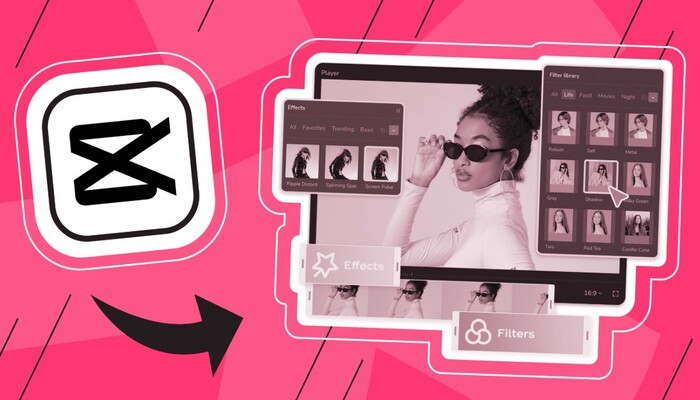
CapCut is a free video editing app developed by ByteDance – the company behind TikTok. The app supports both Android and iOS, making it suitable for beginners as well as professional content creators. With just a few simple steps, you can cut and merge videos, add effects, insert text, create automatic subtitles, adjust colors, add music, and export high-quality videos.
CapCut's highlight lies in its ability to combine manual editing with artificial intelligence (AI), shortening editing time while maintaining image quality. Therefore, if you're looking for how to edit CapCut videos on your phone , this article will provide a complete step-by-step guide from basic to advanced.
2. Key features of CapCut on mobile phones
More than just a regular video editing app, CapCut boasts a wealth of modern tools to support users in creating content.
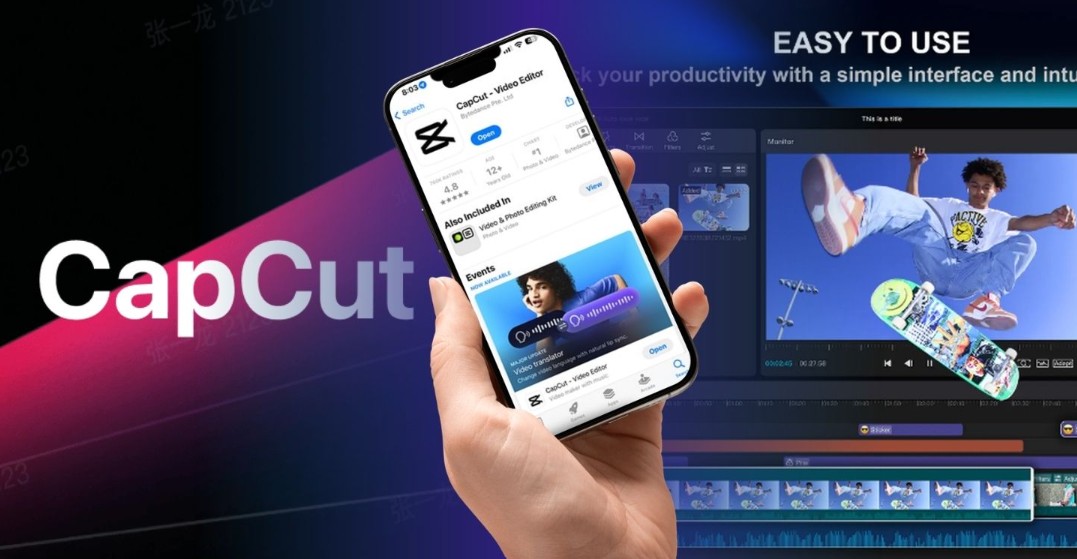
One of the most popular features is the quick video editing function . You can easily cut out unnecessary segments, split videos, change the order of scenes, or combine multiple videos into a single complete product.
CapCut also offers a rich library of transition effects , making the transitions from one scene to another smoother. Effects like Fade, Zoom, Flash, Blur, and Camera Shake are commonly used in TikTok videos.
Another advantage is the library of color filters and color adjustment tools . Users can adjust brightness, contrast, saturation, color temperature, or apply pre-set presets to create their own style for the video.
In addition, CapCut also supports:
-
Insert text using a variety of attractive fonts.
-
Generate automatic subtitles using AI.
-
Text-to-speech.
-
Remove video backgrounds using AI.
-
Background removal without a green screen.
-
Motion tracking.
-
Synchronize effects with the rhythm of the music.
-
Insert stickers, emojis, and animations.
-
Adjust the video speed from slow motion to fast forward.
-
Output video up to 4K resolution (depending on the device).
Thanks to these features, CapCut meets almost all video editing needs, from basic to advanced, right on your phone.
3. How to edit CapCut videos on your phone: detailed step-by-step instructions.
If you've never used CapCut before, follow the instructions below. In just a few minutes, you'll be able to create a complete video.
Step 1: Download and install CapCut
First, open the App Store (for iPhone) or Google Play (for Android).
Search for the keyword "CapCut" , then download and install the application on your phone.
After installation is complete, open the app and grant access to your photo and video library, as well as your microphone, if requested. This allows CapCut to use multimedia files on your device for editing.
Step 2: Create a new project
On the main CapCut interface, click the New Project button .
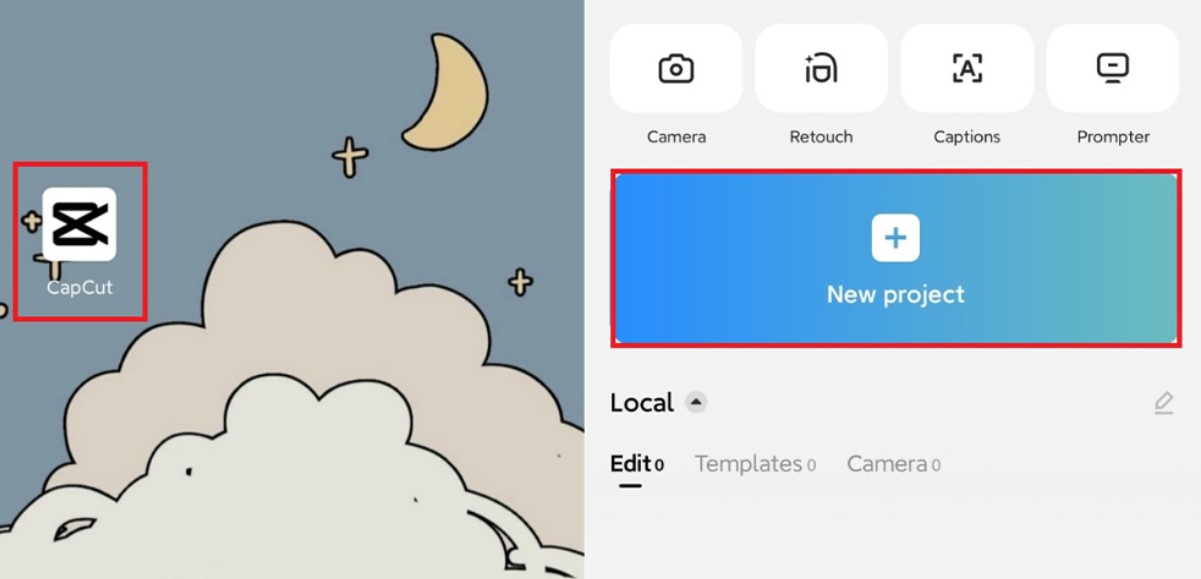
The app will display all images and videos in your phone's gallery.
You just need to:
-
Select one or more videos you want to edit.
-
You can choose to add more photos if you want to create a video slideshow.
-
Click Add to add all the content to the timeline.
CapCut will immediately create a new project and display the editing interface.
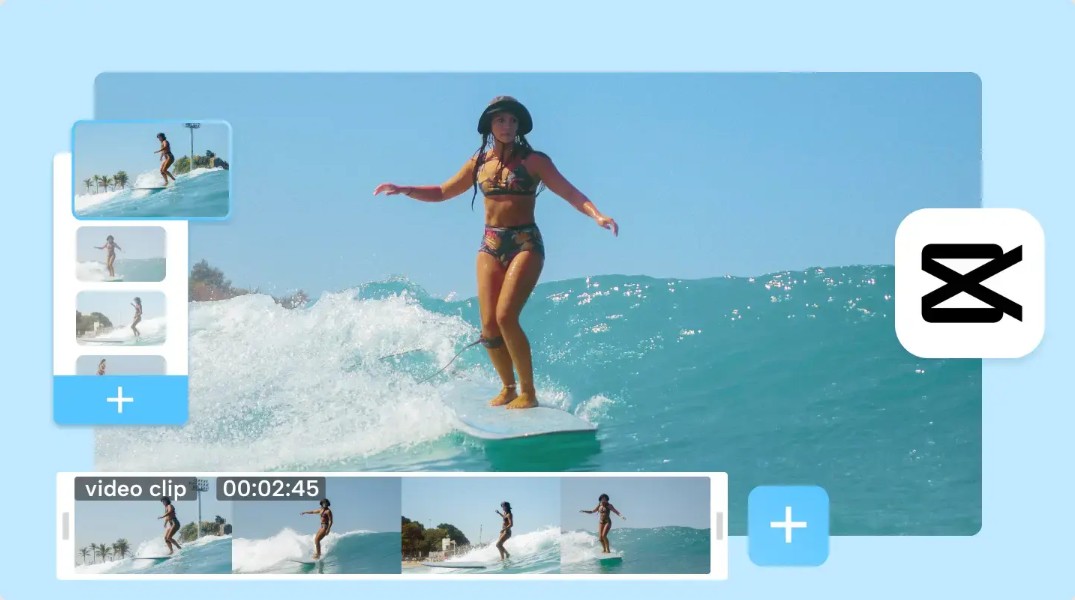
Step 3: Arrange the videos on the timeline.
The timeline is the most important area when editing video.
Here, you can:
-
Move each video segment to a different position.
-
Lengthen or shorten the clip.
-
Change the order of the scenes.
-
Insert a new video in the middle.
-
Remove unnecessary sections.
Setting up a timeline from the start will help speed up the editing process and minimize errors.
Step 4: Cut and split the video
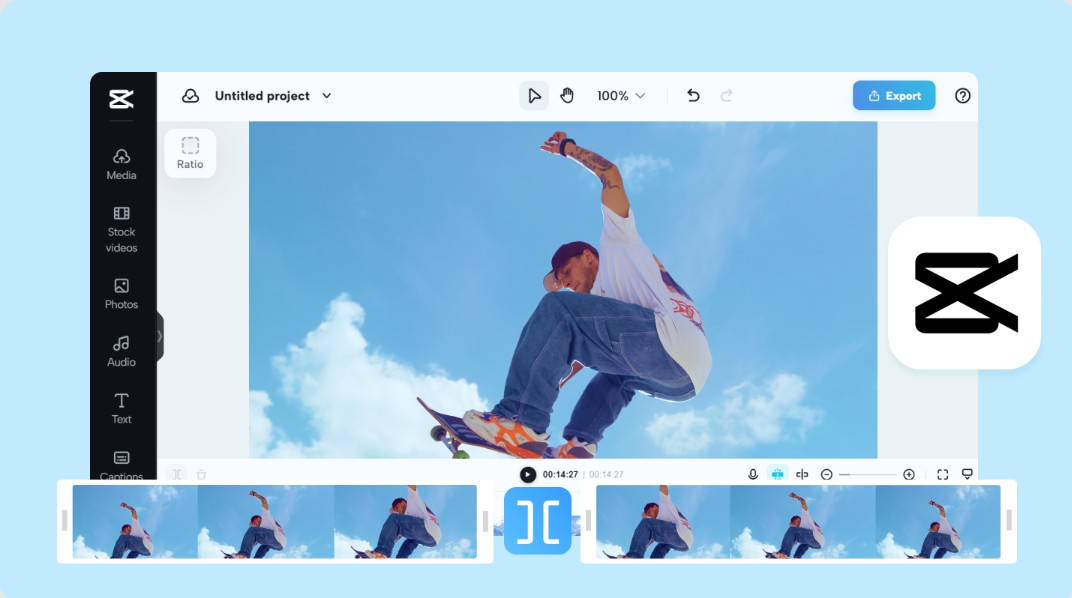
After the video has been added to the timeline, click on the section you want to edit.
Move the playback slider to the desired position and then select Split to cut the video into multiple segments.
Next:
-
Select the unnecessary section.
-
Press Delete to delete.
-
Alternatively, drag both ends of the video to trim it directly.
This is an important step in removing unnecessary scenes and keeping the video concise and more engaging.
Step 5: Add transition effects
If your video has many different segments, you should use transitions to create a sense of continuity.
Proceed as follows:
Click on the small icon located between the two videos.
CapCut will display dozens of transition effects such as: Fade, Pull In, Flash, Blur, Camera, Spin, Zoom
Choose a suitable effect and then adjust the transition time as desired.
Avoid using too many effects in a single video as it can easily become visually distracting.
Step 6: Insert text and headings
To add text to a video, select Text from the toolbar at the bottom.
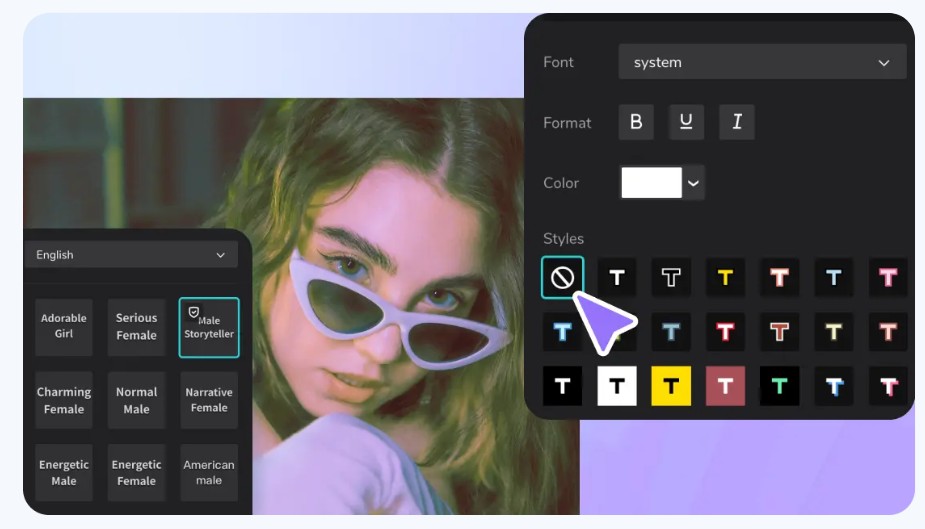
Next:
-
Select Add Text .
-
Enter the content.
-
Change the font.
-
Adjust the colors.
-
Add a border or shadow.
-
Adjust the size.
-
Drag the text to the desired location.
CapCut also supports various text appearance and disappearance effects such as: Fade, Bounce, Zoom, Slide, and Typewriter.
These effects help make the video more lively and professional.
Step 7: Add music and sound effects.
Sound plays a very important role in creating emotion in a video.
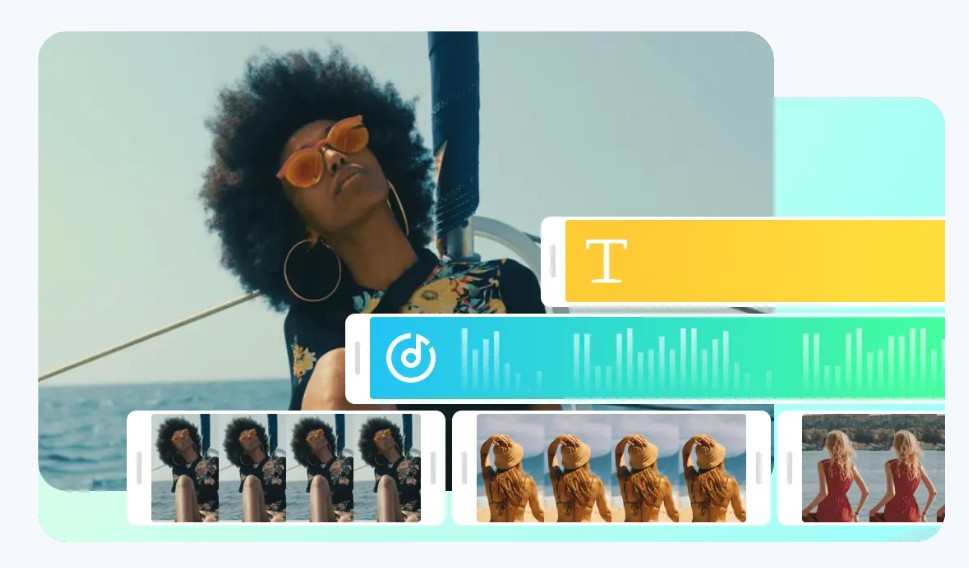
To add music:
Select the Audio option .
You can:
-
Insert music available in CapCut.
-
Add songs from your phone.
-
Extract audio from another video.
-
Live recording.
-
Add sound effects.
After adding the music, adjust the following: Volume, Fade In and Fade Out effects, and Start and End times.
This helps the audio blend seamlessly with the video content.
Step 8: Add filters and adjust colors.
CapCut offers a wide variety of filters to enhance your videos with just one tap.
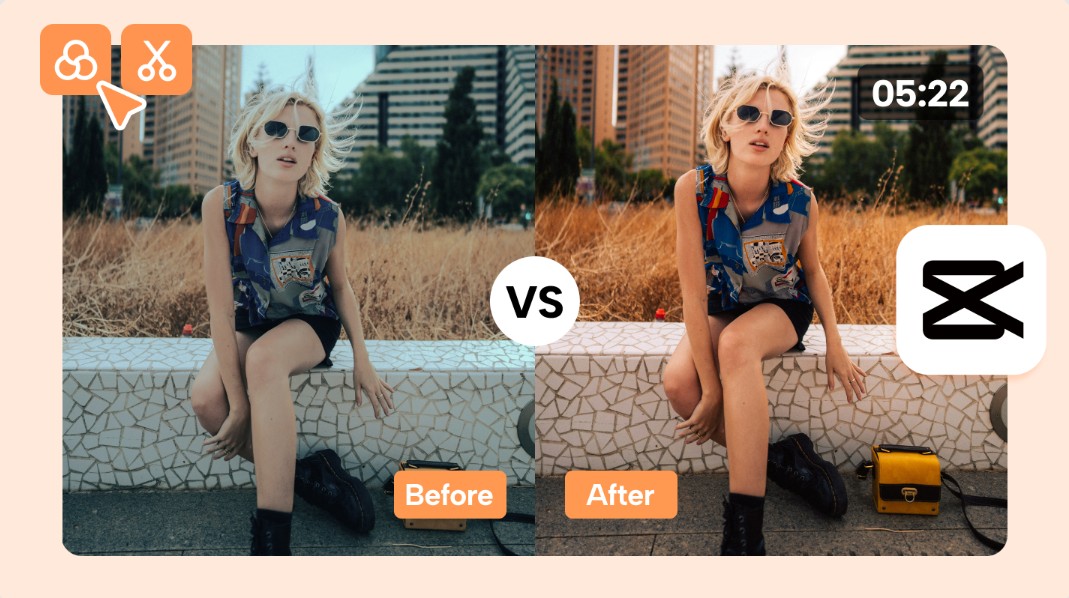
If you want to make more detailed adjustments, you can go to Adjust to change it:
-
Brightness.
-
Contrast.
-
Saturation.
-
Exposure.
-
Highlights.
-
Shadows.
-
Temperature.
-
Sharpen.
-
Fade.
The colors should be natural and consistent throughout the video to create a professional feel.
Step 9: Add effects and animation
CapCut offers hundreds of effects for: Video, Text, Stickers, and Images.

You simply select Effects , then apply the appropriate effect.
Ngoài ra còn có: Body Effects, Video Effects, Glitch, Neon, Sparkle, Retro, VHS, Blur.
Effects should be used sparingly to avoid making the video look unnatural.
Step 10: Add automatic subtitles
This is one of CapCut's most popular AI features.
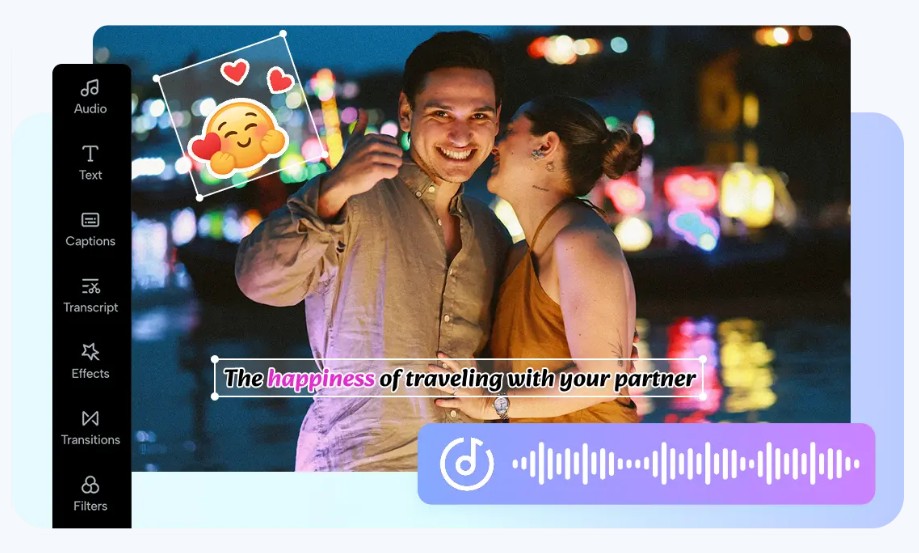
You just need to:
Select Auto Captions .
The app will: Recognize speech, automatically convert it to text, and synchronize it with speech in videos.
Then you can edit the content, colors, fonts, and display position.
Subtitles help increase the number of viewers who watch a video, even when the sound is off.
Step 11: Preview the entire video
Before publishing, please review the video from beginning to end.
During the viewing and inspection process:
-
Is the image jerky or not?
-
The text contains spelling errors.
-
The sound is uniform.
-
The transition effects are smooth.
-
The subtitles are accurate.
-
The music matches the video.
This step helps minimize minor errors before sharing.
Step 12: Export the video
Once you are satisfied with the product, click the Export icon in the upper right corner.
Next option:
-
Resolution (720P, 1080P, or 2K, 4K if the device supports it).
-
Frame rate (30FPS or 60FPS).
-
Video quality.
Click Export and wait for CapCut to process.
The video will be saved directly to your phone's gallery and ready to be shared on TikTok, Facebook, YouTube, or Instagram.
4. CapCut video editing tips for beginners
To make the editing process faster and more professional, you should keep the following tips in mind.
First, create a clean timeline from the start. Arranging the video clips in the correct order makes it easier to find, edit, and add effects without confusion.
If using CapCut on a computer, familiarize yourself with keyboard shortcuts to speed up the editing process. On a phone, you should take advantage of drag, tap, and hold gestures for faster editing.

Although CapCut has an automatic project saving feature, you should still save manually after completing important edits. This helps reduce the risk of data loss if the application crashes or your device runs out of battery.
Before uploading, take some time to review the entire video. Careful checking will help detect minor errors such as uneven audio, overly fast transitions, incorrect subtitles, or uncropped footage.
Additionally, pay attention to balancing the volume between the voiceover, background music, and sound effects. A video with good image quality but with sound that is too loud or too quiet will significantly detract from the viewer's experience.
5. Why should you use CapCut to edit videos on your phone?
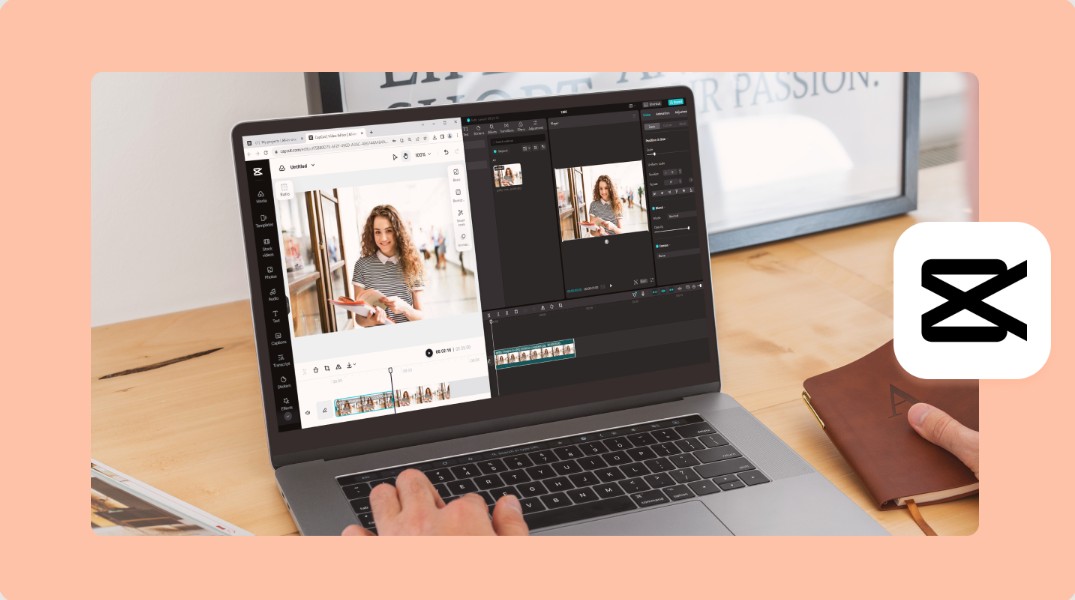
CapCut is considered one of the most comprehensive video editing applications currently available, thanks to its user-friendly interface that is easy to learn and suitable for all users. From beginners learning video editing to professional content creators, everyone can effectively utilize the tools the application provides.
In addition to basic editing features, CapCut continuously updates with various AI technologies such as automatic subtitle generation, background removal, motion tracking, portrait beautification, image quality enhancement, and template-based video creation. These features significantly save editing time while still producing high-quality products that meet the requirements for posting on social media platforms.
6. Conclusion
Learning how to edit CapCut videos on your phone isn't as difficult as many people think. Just master the process from creating a project, arranging the timeline, cutting and splicing videos, adding text, music, effects, adjusting colors, and exporting the video, and you can create engaging content right on your phone.
With its intuitive interface, extensive effects library, and advanced AI features, CapCut is the ideal choice for beginners as well as those who want to create professional-quality videos without using complex computer software. Take the time to practice regularly, explore new tools, and develop your own editing style to create impressive videos that captivate viewers across all platforms.





















VIP Products








Best Selling Products
Windows 10 & 11 Pro Key
36 USD
Adobe Premiere Pro Account
99 USD
Genuine Adobe Illustrator account
99 USD
Plugin Retouch4me
69 USD
ChatGPT Plus Account (GPT-4)
16 USD
Capcut Pro 1 Year
39 USD
Autodesk All App Account Copyright
120 USD
Copyright Adobe Lightroom Account
59 USD
Genuine Cheap Canva Pro
39 USD
Adobe Photoshop Copyright - Full App
120 USD
Upgrade genuine Capture One account
120 USD
Upgrade Genuine Office 365
49 USD
Upgrade Duolingo Super
29 USD
MidJourney Account
29 USD
Freepik Premium Account
59 USD