
Best Selling Products

Upgrade Genuine Office 365
49 USD

Plugin Retouch4me
69 USD

Adobe Premiere Pro Account
99 USD

Windows 10 & 11 Pro Key
36 USD

Autodesk All App Account Copyright
120 USD

Adobe Photoshop Copyright - Full App
120 USD

Upgrade genuine Capture One account
120 USD

Capcut Pro 1 Year
39 USD

Copyright Adobe Lightroom Account
59 USD

ChatGPT Plus Account (GPT-4)
16 USD

Genuine Cheap Canva Pro
39 USD

Freepik Premium Account
59 USD

MidJourney Account
29 USD

Genuine Adobe Illustrator account
99 USD

Upgrade Duolingo Super
29 USD
A guide to integrating Gmail into Claude for smarter email management.
Nội dung
- 1. What can you do by integrating Gmail into Claude?
- 2. Instructions for integrating Gmail into Claude on your phone.
- Step 1: Open the Claude app
- Step 2: Open the settings menu.
- Step 3: Go to the Connectors section.
- Step 4: Select Gmail connection
- Step 5: Select Gmail
- Step 6: Grant Claude permission to access Gmail.
- Step 7: Confirm successful connection
- Step 8: Start using Gmail in Claude
- 3. Instructions for integrating Gmail into Claude on a computer
- Step 1: Log in to Claude
- Step 2: Open account settings
- Step 3: Select Gmail connection
- Step 4: Grant Gmail access
- Step 5: Check the connection status
- Step 6: Start using Gmail in Claude
- 4. Some things to note when integrating Gmail into Claude.
- 5. Is integrating Gmail into Claude really convenient?
- 6. Conclusion
In the midst of a busy workday, opening Gmail and scrolling through dozens, even hundreds, of emails to find the right information can be incredibly time-consuming.
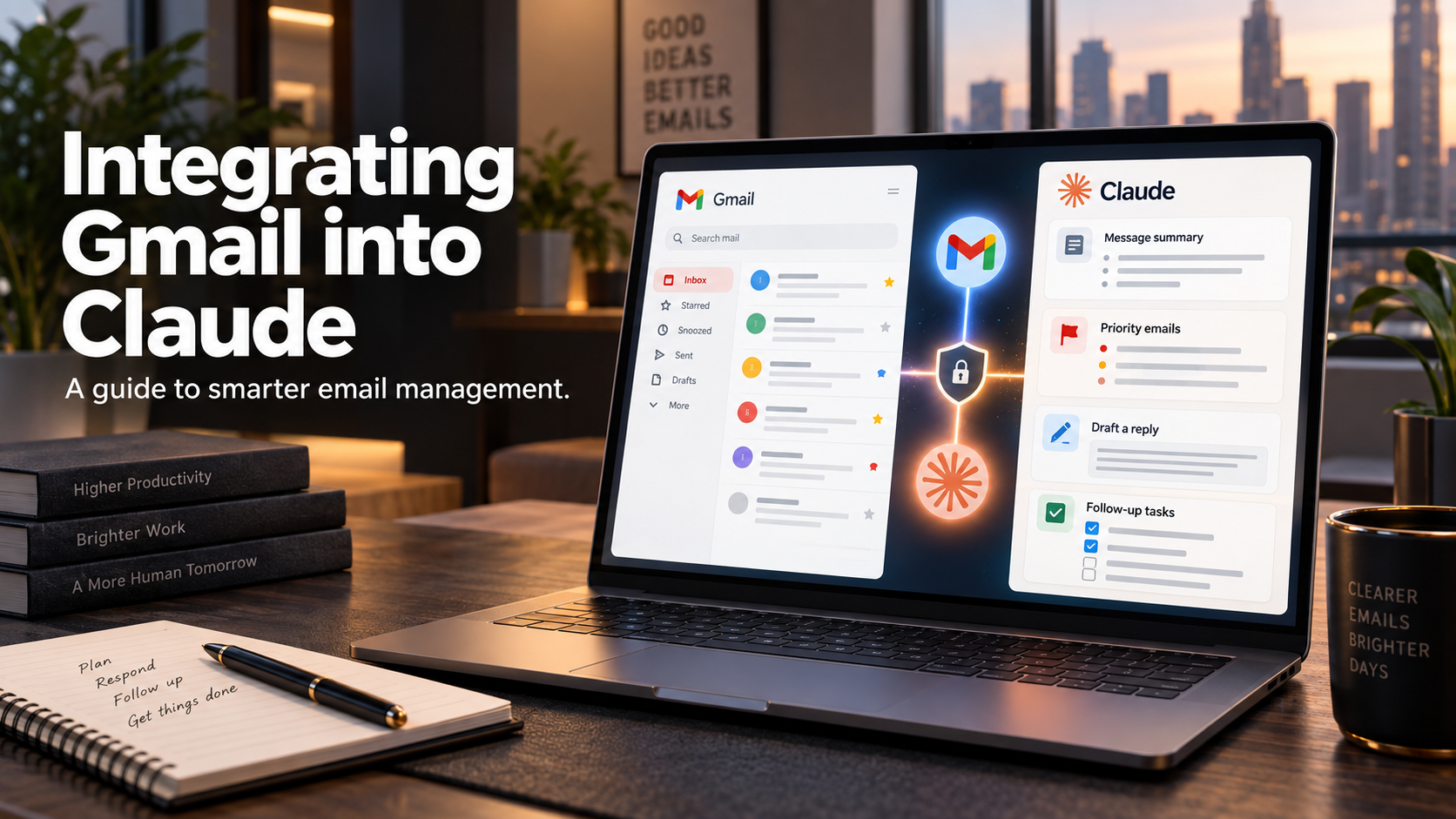
1. What can you do by integrating Gmail into Claude?
When Gmail is connected to Claude, you can search and process emails directly within the chat window without constantly opening the Gmail app. This is especially useful when you need to find specific information but can't remember when the email was sent or which conversation it was part of. Instead of manually typing keywords, opening each result, and rereading the content, you can describe your request in natural language, and Claude will assist in searching and compiling the information. Beyond just finding emails, Claude can also help condense lengthy content into easily understandable main points. For example, you can ask Claude:
-
Summarize all emails related to a project from the past month and list any outstanding tasks.
-
Find all emails from a customer and then compile all the requests or changes they have submitted.
-
List unread emails from your boss or colleagues from the last 7 days.
-
Find emails containing invoices, flight tickets, or meeting schedules to quickly retrieve the necessary information.
-
Summarize a long email sequence into a few key points to quickly grasp the context.
The advantage lies in how you interact with the AI. You don't necessarily need to remember the exact email subject line or the wording used in the message. Simply describe what you're looking for, and Claude can use that description to assist with the search in Gmail.
2. Instructions for integrating Gmail into Claude on your phone.
If you frequently check your email on your smartphone, you can easily connect Gmail to Claude directly through the app. The mobile interface is quite intuitive, so the process isn't too complicated. Simply log in to Claude, open the settings, and follow the steps to connect with your Google account.
Step 1: Open the Claude app
First, open the Claude app on your phone. If you're not already logged in, tap Continue with Google , then select the Google account you want to use to log in to Claude.
Logging in with your Google account makes connecting to Gmail easier. After successfully logging in, you will be taken back to Claude's main interface to continue setting up the connection.
Step 2: Open the settings menu.
On Claude's main interface, tap the three horizontal lines icon in the upper left corner of the screen to open the navigation bar.
Next, select the account icon in the bottom left corner. This will take you to the account settings area, where you'll find options related to your account and the services that can be connected to Claude.

Step 3: Go to the Connectors section.
In the Settings page , scroll down and find the Connectors section , then tap it.
This is the area Claude uses to manage the services that can connect to your account. Depending on the account and service version, this list may include Gmail, Google Drive, Google Calendar, Canva, Figma, and several others. To continue connecting your email, you need to access the correct Connectors area.
Step 4: Select Gmail connection
When the Connectors interface appears, tap the + icon in the upper right corner of the screen. Claude will then display a list of supported services. You can search or view the list to identify the Gmail service you want to link with Claude.

Step 5: Select Gmail
In the list of services, find Gmail and click Connect . Claude will then take you to Google's verification page to begin the account linking process. This is an important step because you need to select the correct Gmail account you want Claude to use when processing emails.
If you're logged into multiple Google accounts on your phone, double-check the selected account before proceeding to avoid connecting to the wrong mailbox.
Step 6: Grant Claude permission to access Gmail.
After selecting the Gmail account to connect, Google will display the permissions Claude needs to work with Gmail. These permissions may relate to reading, searching, composing, and sending emails.
Carefully review the requested permissions, then check the boxes next to the necessary ones as displayed. Once checked, scroll to the bottom of the page and click Continue to grant Claude permission. It's advisable to thoroughly review access permissions before confirming, especially if your Gmail contains both personal and work-related information. You should clearly understand what actions Claude is permitted to perform before completing the linking process.

Step 7: Confirm successful connection
After granting permission, you will be taken back to the Browse connectors interface . Here, check the Gmail section. If Gmail shows the status " Connected ," it means the account has been successfully connected to Claude.
This is also the time you can double-check the linked service before moving on to using Gmail in your conversation with Claude.
Step 8: Start using Gmail in Claude
Once the connection is complete, return to Claude's chat screen and enter the request you want to make to Gmail. You can try simple commands like "Check Funix mail" , "Summary of unread emails today" , or "Find emails from Nguyen Van A" , then press the send button.
Claude will use your Gmail connection to search, aggregate, or summarize email content based on your requests. Instead of having to open Gmail, type in keywords, check each result, and then manually synthesize the information, you can perform most of the research directly within your conversation with the AI.

3. Instructions for integrating Gmail into Claude on a computer
If you frequently work on a computer, connecting Gmail with Claude is also a worthwhile option. The large screen makes it easy to view email content, track Claude's response, and make more complex requests when you need to synthesize a lot of information.
Step 1: Log in to Claude
First, access the Claude website on your computer. If you're not already logged in, click Continue with Google and then select the Google account you want to use to log in. After successfully logging in, you will be taken to the main Claude interface. From here, you can begin setting up your Gmail connection through the account settings.
Step 2: Open account settings
On the Claude desktop interface, click on your profile picture in the bottom left corner of the screen. A settings window will appear. In the left-hand menu, find and select Connectors to access the area for managing services connected to Claude.

Step 3: Select Gmail connection
When the Connectors interface appears, find Gmail and click Connect . Claude will begin the process of linking with your Gmail account. If you use multiple Google accounts, be sure to select the correct email address you want to connect to ensure Claude works with the correct mailbox.
Step 4: Grant Gmail access
Immediately afterward, Google will open the access verification page. You select the Gmail account you want to link, then view the permissions Claude requests. These permissions may include the ability to read, search, compose, and send emails. Check the information displayed, select the requested permissions, and then click Continue to grant Claude permissions.
This is a step you should take carefully because connection permissions determine the extent to which Claude can interact with Gmail. Carefully reading the confirmation before proceeding will give you more control over your email data.

Step 5: Check the connection status
After the verification process is complete, Claude will automatically take you back to the Connectors page . Here, check the Gmail section. If Gmail shows a checkmark or a connected status, it means your Gmail account has been successfully linked to Claude.
Once the connection is complete, you can switch to the chat interface to begin requesting Claude to process your emails.
Step 6: Start using Gmail in Claude
Now, go back to the chat screen and enter a request related to Gmail. Some simple commands you can try are "Summary of school emails" , "Summary of unread emails today" or "Find emails from Nguyen Van A" .
If Claude detects that Gmail is already connected, the application will display a confirmation dialog. You simply need to tap "Use" to allow Claude to use Gmail for that request. Once granted, Claude will proceed to search, aggregate, or summarize emails according to your request. This method is especially useful when you need to quickly find information in your inbox but don't want to spend time manually filtering and reading each email.

4. Some things to note when integrating Gmail into Claude.
-
Although Claude can assist with quick email searching and summarization, you should still double-check important information directly in Gmail. This is especially important for work-related content, meeting schedules, invoices, documents, or information requiring high accuracy; you shouldn't rely solely on the AI's summary.
-
When you need to cross-reference information, you can open Gmail and search using relevant keywords to check the content, sending time, or number of emails. This helps reduce the chance of missing information, especially if there are many related emails or complex exchanges.
-
Additionally, take some time to review access permissions after the connection is complete. Gmail often contains a lot of personal, work-related information and important communications, so you shouldn't enable " Always allow " for all actions unless absolutely necessary.
-
If you no longer need this connection, you can revoke access from your Google account. Actively controlling the permissions you've been granted will help you use Claude with Gmail more conveniently while still ensuring your data is managed according to your needs.
5. Is integrating Gmail into Claude really convenient?
Integrating Gmail with Claude has made searching, summarizing, and aggregating emails more convenient. However, if you frequently work with large volumes of emails or want to leverage AI for needs beyond mailbox management, upgrading to Claude is a worthwhile option. Upgrade packages typically offer broader functionality, allowing you to effectively utilize Claude in your work, studies, and daily information processing.
In particular, once connected to Gmail, owning a version of Claude with more features and better usage limits will make your workflow more seamless. You can leverage AI to assist in reading comprehension, summarizing content, analyzing information, and handling many other tasks instead of just using Claude as an email search tool. If you want to experience advanced features at a reasonable cost, you can check out and upgrade Claude at Sadesign for more efficient use.
6. Conclusion
Integrating Gmail into Claude is a convenient way to make email management faster and less manual. Instead of constantly switching back and forth between Gmail and Claude, you can ask the AI to search, summarize, or synthesize information directly within the conversation. This feature is especially effective when your inbox is overloaded with emails and you need to quickly find a specific item. Whether using a phone or a computer, the steps to connect Gmail with Claude are relatively easy. Once completed, you can start with simple requests such as finding emails from a specific person, summarizing emails by subject, or summarizing unread emails. However, always double-check important information in Gmail and carefully manage access permissions to both leverage the power of AI and proactively protect the data in your inbox.





















VIP Products








Best Selling Products
Upgrade Genuine Office 365
49 USD
Plugin Retouch4me
69 USD
Adobe Premiere Pro Account
99 USD
Windows 10 & 11 Pro Key
36 USD
Autodesk All App Account Copyright
120 USD
Adobe Photoshop Copyright - Full App
120 USD
Upgrade genuine Capture One account
120 USD
Capcut Pro 1 Year
39 USD
Copyright Adobe Lightroom Account
59 USD
ChatGPT Plus Account (GPT-4)
16 USD
Genuine Cheap Canva Pro
39 USD
Freepik Premium Account
59 USD
MidJourney Account
29 USD
Genuine Adobe Illustrator account
99 USD
Upgrade Duolingo Super
29 USD


