Best Selling Products

Upgrade genuine Capture One account
120 USD

Autodesk All App Account Copyright
120 USD

Genuine Adobe Illustrator account
99 USD

Adobe Premiere Pro Account
99 USD

MidJourney Account
29 USD

Capcut Pro 1 Year
39 USD

Genuine Cheap Canva Pro
39 USD

Adobe Photoshop Copyright - Full App
120 USD

Freepik Premium Account
59 USD

Windows 10 & 11 Pro Key
36 USD

Plugin Retouch4me
69 USD

ChatGPT Plus Account (GPT-4)
16 USD

Copyright Adobe Lightroom Account
59 USD

Upgrade Genuine Office 365
49 USD

Upgrade Duolingo Super
29 USD
AI Photo Enhancer on Canva: A solution to rescue blurry and underexposed photos.
Nội dung
- 1. Fix dark, blurry, and oversaturated photos with AI Photo Enhancer.
- 2. Enhance any image using AI.
- 3. From ordinary photos to professional photos
- 4. Refine the colors and lighting to create depth.
- 5. Refine using filters
- 6. How to improve image quality with AI Photo Enhancer on Canva
- 7. Frequently Asked Questions about AI Photo Enhancer
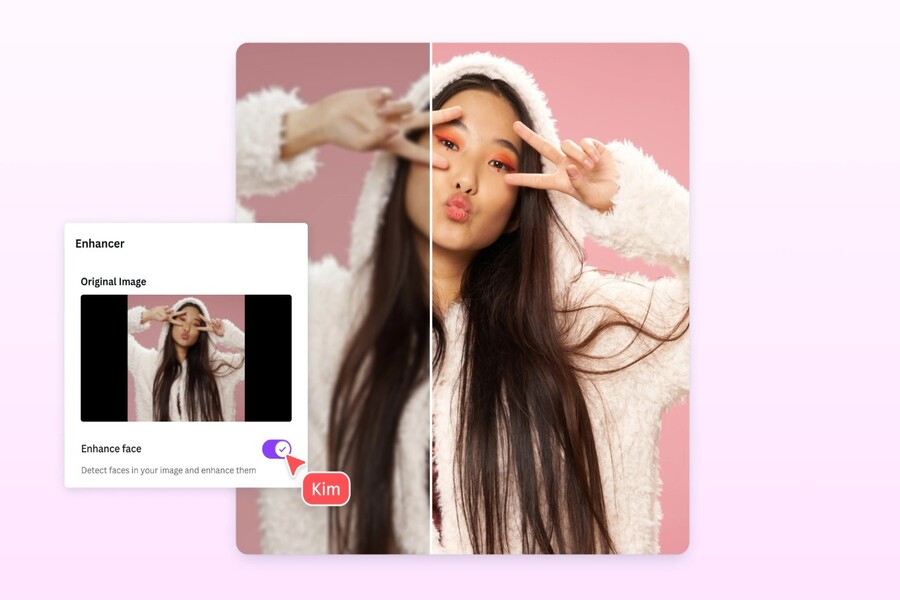
Photos taken in a hurry or under poor lighting conditions can now be easily improved. The AI Photo Enhancer tool helps to clarify details, balance colors, and eliminate blur. All this is done online, with no installation required.
AI Photo Enhancer on Canva: A solution to rescue blurry and underexposed photos.
Photos taken in a hurry or under poor lighting conditions can now be easily improved. The AI Photo Enhancer tool helps to clarify details, balance colors, and eliminate blur. All this is done online, with no installation required.
Previously, high-quality photo editing was often associated with complex software, requiring specialized skills and significant learning time. However, the rapid development of artificial intelligence has opened up a completely new approach. Instead of manually adjusting each parameter, AI can analyze images, identify problems, and make appropriate adjustments in just seconds.
Canva, the familiar design platform used by millions, has integrated its AI Photo Enhancer tool to make improving image quality simpler, faster, and more effective than ever before. From fixing dark or blurry photos to balancing color and light, everything can be done online, easily downloaded, or shared directly on social media platforms.
1. Fix dark, blurry, and oversaturated photos with AI Photo Enhancer.
Not every photo is taken in ideal conditions. Low light, camera shake, limited equipment, or improper post-processing can all result in low-quality images. Canva's AI Photo Enhancer is designed to address these very common problems.
Canva's online photo enhancement tool uses artificial intelligence to comprehensively analyze images, from brightness and contrast to color and detail. Instead of applying rigid filters, the AI adjusts dynamically based on the image content, resulting in a more natural and harmonious look.
Upgrade to Affordable Canva Pro
With just a few simple steps, you can transform a dark photo into a bright one, a blurry photo into a sharp one, or reduce oversaturated colors. Importantly, this entire process is quick, requires no advanced design skills, yet delivers noticeable results.
2. Enhance any image using AI.
It's often said, "a picture is worth a thousand words," and in today's digital media landscape, this saying is truer than ever. A good image can convey a message faster, more powerfully, and leave a longer-lasting impression on the viewer's mind.
With Canva's AI Photo Enhancer, you don't have to settle for mediocre photos. This AI-powered image enhancement or transformation tool lets you dramatically improve your images, whether it's a brand logo, product image, or Instagram post.
.jpg)
With just one click, you can zoom in on images up to 8 times while maintaining clarity and detail. AI technology automatically handles the pixelation, blurring, and loss of detail commonly seen when zooming in on images. The result is sharper, clearer images with richer visual information.
Notably, this process doesn't make images look "artificial" or overly sharp. Canva prioritizes preserving the natural feel of the original image while enhancing its quality just enough to suit practical uses, from printing to screen display.
3. From ordinary photos to professional photos
Not everyone can afford to invest in professional photography equipment. In fact, the vast majority of photos today are taken with smartphones. This isn't a problem, as long as you have the right tools for post-processing.
Canva's AI Photo Enhancer lets you transform your uploaded photos into much more professional-looking images. With the help of artificial intelligence, images are analyzed and comprehensively improved, from the smallest details to the overall composition, lighting, and color.
For small businesses and individuals selling online, this is a huge advantage. You can create high-quality product images without hiring a studio or professional photographer. For individual users, this tool helps you feel more confident when sharing your images on social media or using them for personal projects.
4. Refine the colors and lighting to create depth.
Image quality isn't just about sharpness; it's also about how color and light are handled. An underexposed photo can result in a loss of detail, while an oversaturated photo can be unpleasant to look at.
.jpg)
Canva offers a versatile set of image enhancement tools, allowing you to easily edit these crucial elements. You can fix underexposed images by increasing brightness, create depth by adjusting contrast, or boost color intensity to make images more vibrant.
For black and white photos, you can also add color to give them a completely new look. AI technology makes this process more natural, avoiding the feeling of color being applied in an unsophisticated way.
For situations requiring quick edits, the Auto-Adjust feature is an ideal option. With just one click, Canva will automatically optimize key parameters to instantly enhance your image. You can then fine-tune it further if you want more control over the details.
5. Refine using filters
After the image quality has been improved, the next step is to shape the style and emotion through filters. Canva offers a wide variety of filters and effects, suitable for many purposes.
.jpg)
You can create impressive Facebook posts or YouTube thumbnails by choosing the right filter for your content. The Belvedere filter gives a vibrant and modern feel, while Noir or Slate transforms images into an artistic black and white style.
If you don't want to rely entirely on filters, you can manually edit photos using sliders to precisely control each element. For Pro users, the Magic Expand feature allows you to add missing details, expand the frame, and make the composition more balanced.
Once completed, you can confidently share your images anywhere, from advertisements and flyers to social media posts. Canva also supports sharing via custom shortened URLs, making content distribution even more convenient.
6. How to improve image quality with AI Photo Enhancer on Canva
The image enhancement process on Canva is designed to be simple and intuitive, suitable for all users.
You begin by launching Canva on the app or web browser. Here, you can choose a pre-made template or start a new design project from scratch. If you already have a design, you can also reopen it to edit.
Next, open your photo editing app and upload the image you want to enhance. The AI Photo Enhancer tool will allow you to apply enhancement features in just seconds.
After the image has been enhanced, you can continue exploring filters and sliders to fine-tune the color, lighting, and mood to your liking. Finally, when you're satisfied with the result, you can download the design or share it directly with others.
.jpg)
7. Frequently Asked Questions about AI Photo Enhancer
Can artificial intelligence improve image quality?
Yes. Canva's AI-powered image enhancement tool is designed to effectively improve and upgrade the quality of logos, icons, and images on social media. You can enhance image quality with just one click, without needing complex software or in-depth design knowledge.
How can I improve the image quality on my mobile phone?
You can download the Canva app from the App Store or Google Play. After uploading and selecting your image, simply tap on Adjust and use the sliders to fine-tune brightness, contrast, saturation, and other parameters. Once finished, save your changes and use the image directly on your device.
How can I improve a blurry photo?
To improve a blurry image, upload your photo to Canva, select it, and click Edit. In the Adjustments tab, scroll down to the Texture section and drag the Sharpness slider to the right until you achieve the desired level. Once you're satisfied, simply return to the layout to finish.
How can I increase the resolution of an image?
Image resolution reflects the amount of detail in an image. With the image resolution enhancer tool, you can increase the number of pixels to improve resolution. Pro users can use the Magic Switch, select Custom Size, and enter the desired pixel size to upscale the image.
Canva's AI Photo Enhancer is more than just a photo editing tool; it's a comprehensive solution that makes high-quality images easily accessible to everyone. From fixing dark or blurry photos to perfecting color, lighting, and style, everything is supported by intelligent artificial intelligence.





















VIP Products








Best Selling Products
Upgrade genuine Capture One account
120 USD
Autodesk All App Account Copyright
120 USD
Genuine Adobe Illustrator account
99 USD
Adobe Premiere Pro Account
99 USD
MidJourney Account
29 USD
Capcut Pro 1 Year
39 USD
Genuine Cheap Canva Pro
39 USD
Adobe Photoshop Copyright - Full App
120 USD
Freepik Premium Account
59 USD
Windows 10 & 11 Pro Key
36 USD
Plugin Retouch4me
69 USD
ChatGPT Plus Account (GPT-4)
16 USD
Copyright Adobe Lightroom Account
59 USD
Upgrade Genuine Office 365
49 USD
Upgrade Duolingo Super
29 USD