Best Selling Products

Genuine Cheap Canva Pro
39 USD

Plugin Retouch4me
69 USD

Windows 10 & 11 Pro Key
36 USD

Copyright Adobe Lightroom Account
59 USD

MidJourney Account
29 USD

Freepik Premium Account
59 USD

Adobe Photoshop Copyright - Full App
120 USD

Adobe Premiere Pro Account
99 USD

Upgrade Genuine Office 365
49 USD

Upgrade Duolingo Super
29 USD

Capcut Pro 1 Year
39 USD

ChatGPT Plus Account (GPT-4)
16 USD

Upgrade genuine Capture One account
120 USD

Genuine Adobe Illustrator account
99 USD

Autodesk All App Account Copyright
120 USD
Canva for Windows: A Professional Design Solution on Your Computer
Nội dung
- 1. What is Canva for Windows?
- 2. Why is Canva for Windows becoming increasingly popular?
- 2.1 More stable processing speed
- 2.2 Quick access with just one click
- 3. Key features of Canva for Windows
- 3.1 Huge design template library
- 3.2 Simple drag-and-drop editing
- 3.3 Video Design Support
- 4. Who is Canva for Windows suitable for?
- 4.1 Students
- 4.2 Office Staff
- 4.3 Shop owners and small businesses
- 5. What are the differences between Canva for Windows and Canva Online?
- 5.1 Advantages of Canva for Windows
- 5.2 When should you use Canva Online?
- 6. Benefits of using Canva Pro on Windows
- 6.1 Access millions of premium resources
- 6.2 AI Tools to Assist in Design
- 7. Tips for using Canva for Windows effectively
- 7.1 Utilizing the Brand Kit
- 7.2 Organizing scientific folders
- 7.3 Using keyboard shortcuts
- 8. The future of Canva on the Windows platform
- 9. Conclusion
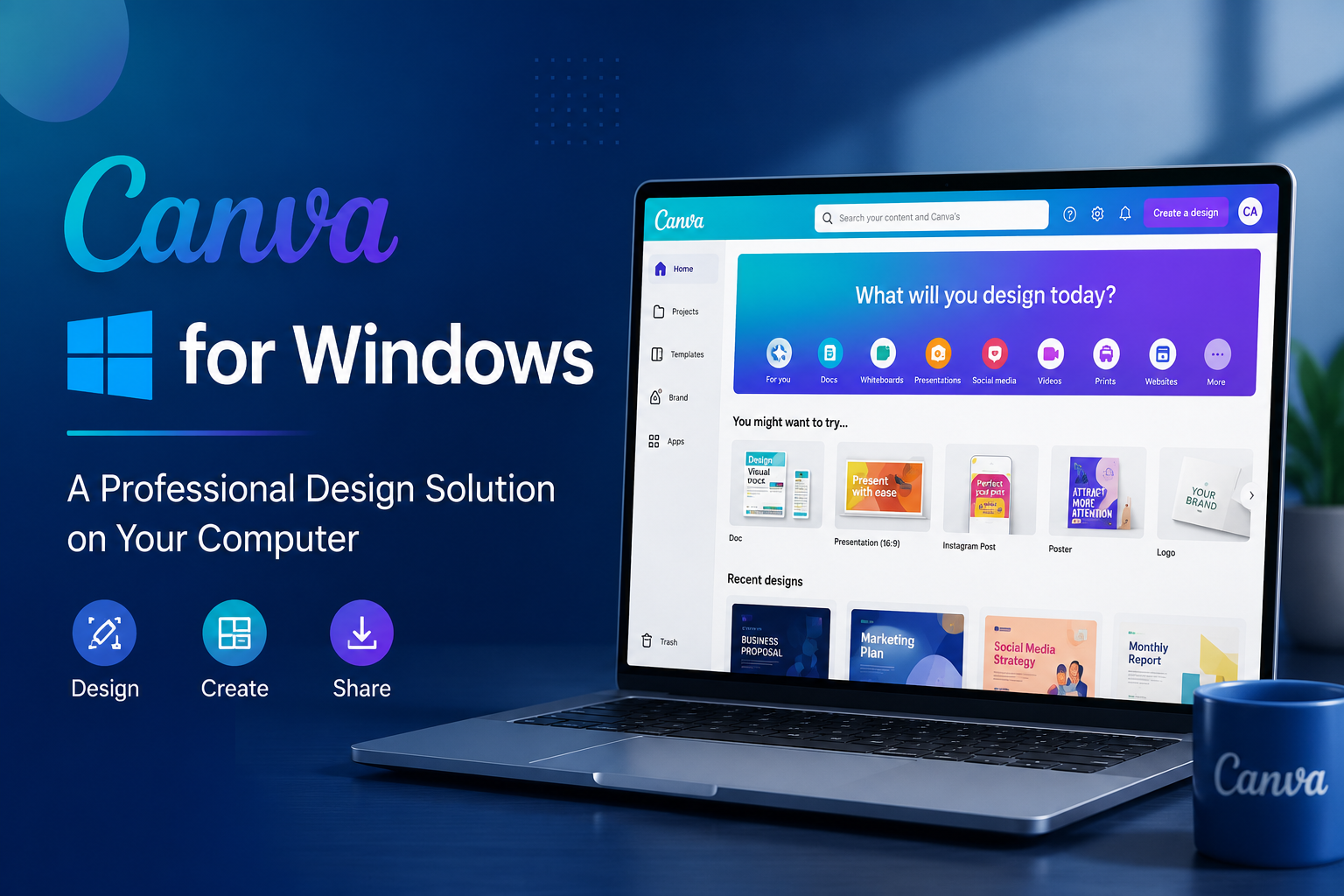
Besides the familiar online version, Canva for Windows is becoming a popular choice for many users due to its convenience, stability, and optimized desktop experience.
1. What is Canva for Windows?
Canva for Windows is a version of the application developed specifically for the Windows operating system. Instead of having to access a web browser every time they use it, users can download the application to their computer and work directly on the desktop interface.
This version offers all the features of Canva Online, from designing social media posts, advertising banners, posters, and infographics to editing videos, creating presentations, and many other types of content. Thanks to real-time data synchronization, users can easily switch between devices without losing progress.
2. Why is Canva for Windows becoming increasingly popular?
Canva is already well-known for its user-friendly interface and vast resource library. When developed as a Windows application, this tool further enhances its advantages. Users don't need to open multiple browser tabs, reducing lag and system resource consumption. Furthermore, direct access from the desktop saves time and significantly improves work efficiency.
2.1 More stable processing speed
When using Canva in a browser, performance is often affected by the number of open tabs or internet connection speed. With the Windows application, many tasks are better optimized, resulting in a smoother editing process.
This is especially useful for projects with many design pages or large video files. Users can work quickly without worrying about the common issues of lag.
2.2 Quick access with just one click
Since the application is installed directly on your computer, you can open Canva right from the Taskbar or Desktop. This saves considerable time compared to accessing the browser and logging in manually.
For those who frequently work with design, such as marketers, content creators, or online shop owners, quick access helps optimize daily workflows.
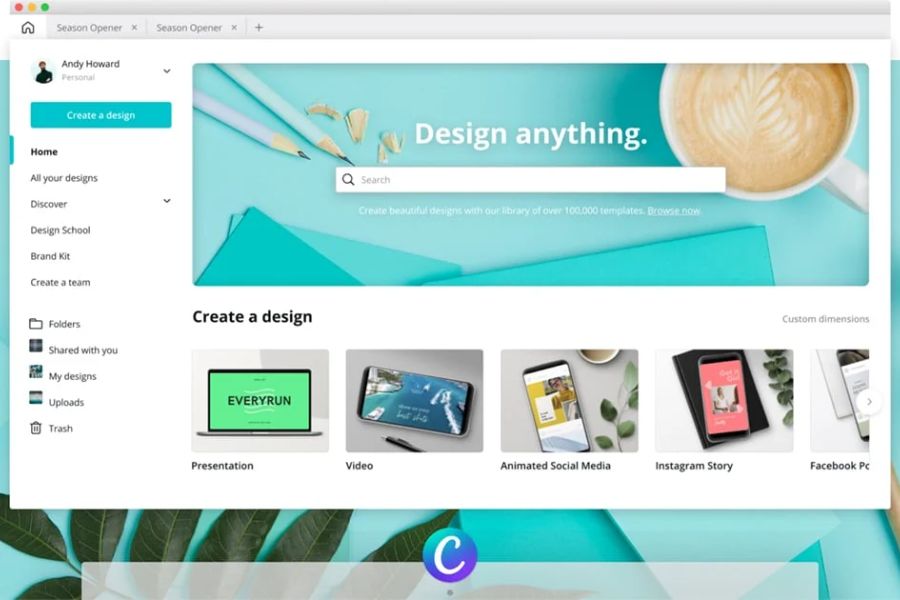
3. Key features of Canva for Windows
Canva is more than just a simple image editing tool; it's a comprehensive content creation ecosystem. The Windows version offers a full range of powerful features that allow users to create professional-quality products without extensive design experience. From image editing to video production, presentation design, and brand identity building, everything is integrated into a single platform.
3.1 Huge design template library
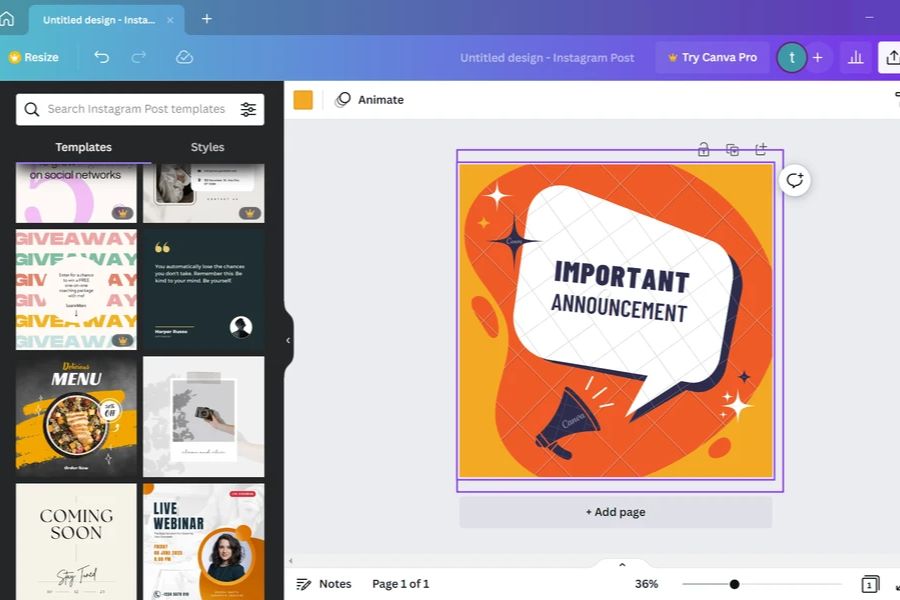
One of Canva's biggest strengths is its incredibly diverse template library. Users can choose from millions of pre-designed templates for a wide variety of purposes.
The samples are categorized by specific areas such as:
-
Advertising banner
-
Facebook post
-
YouTube thumbnail
-
Event poster
-
CV
-
Business brochure
-
Invitation card
-
Presentation slides
Thanks to this, even beginners can create beautiful products in just a few minutes.
3.2 Simple drag-and-drop editing
Canva is renowned for its intuitive drag-and-drop mechanism. You simply drag elements such as images, icons, text, or videos into the design frame and customize them as you wish.
Without needing to learn complex techniques like Photoshop or Illustrator, users can still create professional-looking products with just a few basic steps.
3.3 Video Design Support
Canva for Windows isn't just for graphic design; it also supports highly effective video editing. Users can easily cut and merge videos, add transition effects, insert subtitles, and add background music.
This is a suitable solution for content creators on TikTok, YouTube Shorts, Facebook Reels, or other short video platforms.
4. Who is Canva for Windows suitable for?
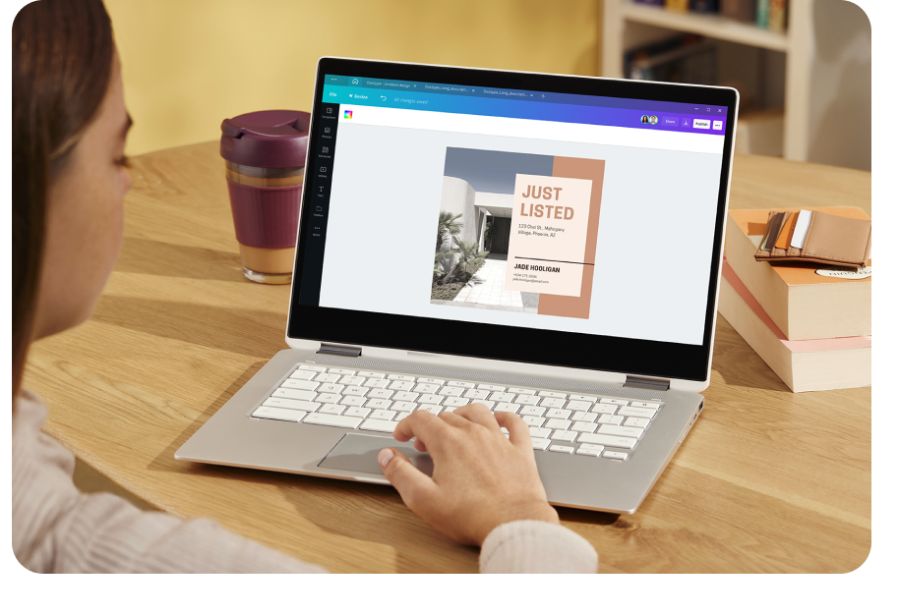
One of the reasons Canva has become so popular is its ability to meet the needs of a wide range of users. Whether you're a beginner or an expert, Canva can effectively support you. Thanks to its intuitive interface and rich resource library, this tool makes it easy for everyone to access the field of design without too much difficulty.
4.1 Students
For students, Canva is a powerful tool for creating presentations, group reports, or designing study materials.
Instead of spending hours adjusting the layout in PowerPoint, users can take advantage of pre-designed templates to create more professional and engaging slides.
4.2 Office Staff
Canva is very helpful for office tasks such as designing reports, internal documents, infographics, and presentations.
Having a simple yet powerful design tool helps employees improve the quality of their work without relying entirely on the design department.
4.3 Shop owners and small businesses
Online store owners frequently need to create promotional banners, product images, and advertising content. Canva helps accomplish these tasks quickly and affordably.
As a result, small businesses can still build a professional brand image without investing too much budget.
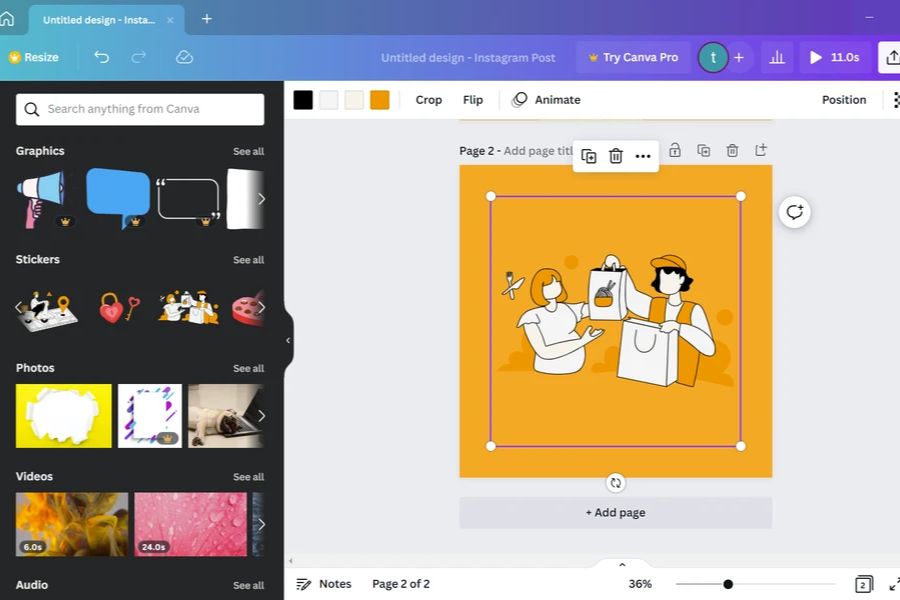
5. What are the differences between Canva for Windows and Canva Online?
Essentially, both versions offer similar features. However, the Windows experience is more convenient for frequent workers. Desktop applications optimize performance, reduce browser overload, and provide a more focused work environment.
5.1 Advantages of Canva for Windows
Canva on Windows has several notable advantages:
-
Faster startup
-
Stable interface
-
Less browser-dependent
-
Easy to manage tasks
-
Optimize computer performance
These advantages are particularly useful for professional users or those who frequently work on multiple projects simultaneously.
5.2 When should you use Canva Online?
Canva Online is suitable if you are using a public computer or do not want to install software.
Additionally, users can quickly access it from any device with an internet connection. This offers flexibility when working from multiple locations.
6. Benefits of using Canva Pro on Windows
Although the free version is already very powerful, Canva Pro offers many valuable benefits for professional users. Its extensive resource library and advanced AI tools make the content creation process much faster and more efficient.
6.1 Access millions of premium resources
Canva Pro users can use:
-
High-quality stock photos
-
Copyrighted video
-
Premium effects
-
Professional fonts
-
Exclusive template
This helps to improve the quality of design and create products that stand out more compared to the free version.
6.2 AI Tools to Assist in Design
Canva now integrates many AI features to automate the content creation process.
Some notable tools include:
-
Magic Design
-
Magic Write
-
AI Image Generator
-
Background Remover
-
Automatic resizing
As a result, users can save considerable design time and focus more on creative ideas.
7. Tips for using Canva for Windows effectively
To fully utilize Canva's power, users should establish a structured workflow from the outset. Properly leveraging available features will help speed up the design process and create higher-quality products.
7.1 Utilizing the Brand Kit
If you're building a personal or business brand, the Brand Kit is a very useful feature.
This tool allows you to store your brand's colors, fonts, and logo for consistent use across all designs. This helps increase brand recognition and professionalism.
7.2 Organizing scientific folders
As the number of projects increases, design management becomes crucial.
Create separate folders for each campaign or purpose to make it easier to search and edit when needed.
7.3 Using keyboard shortcuts
Canva supports many keyboard shortcuts to help you work faster.
Memorizing basic keyboard shortcuts will save you considerable time when working on large projects or those requiring constant editing.
8. The future of Canva on the Windows platform
Canva is constantly updating its features to meet the ever-increasing needs of its users. With the strong development of AI and the trend of digital content creation, Canva is predicted to continue to maintain its position as one of the most popular design platforms in the world.
The Windows version is also being continuously optimized to provide a faster, more stable experience and better support for professional projects.
9. Conclusion
Canva for Windows is more than just a design tool; it's a comprehensive content creation solution for everyone. From students and office workers to content creators and small businesses, everyone can leverage this platform to easily create professional-looking products. With its user-friendly interface, vast resource library, intuitive editing capabilities, and a host of modern AI features, Canva on Windows is becoming the top choice for those who want to design quickly, beautifully, and efficiently. If you're looking for a tool to support your creative work on your computer, this is definitely a solution worth trying.





















VIP Products








Best Selling Products
Genuine Cheap Canva Pro
39 USD
Plugin Retouch4me
69 USD
Windows 10 & 11 Pro Key
36 USD
Copyright Adobe Lightroom Account
59 USD
MidJourney Account
29 USD
Freepik Premium Account
59 USD
Adobe Photoshop Copyright - Full App
120 USD
Adobe Premiere Pro Account
99 USD
Upgrade Genuine Office 365
49 USD
Upgrade Duolingo Super
29 USD
Capcut Pro 1 Year
39 USD
ChatGPT Plus Account (GPT-4)
16 USD
Upgrade genuine Capture One account
120 USD
Genuine Adobe Illustrator account
99 USD
Autodesk All App Account Copyright
120 USD