Best Selling Products

ChatGPT Plus Account (GPT-4)
16 USD

Plugin Retouch4me
69 USD

Upgrade Duolingo Super
29 USD

Adobe Premiere Pro Account
99 USD

Upgrade Genuine Office 365
49 USD

Copyright Adobe Lightroom Account
59 USD

Genuine Cheap Canva Pro
39 USD

Adobe Photoshop Copyright - Full App
120 USD

Windows 10 & 11 Pro Key
36 USD

Freepik Premium Account
59 USD

Genuine Adobe Illustrator account
99 USD

MidJourney Account
29 USD

Capcut Pro 1 Year
39 USD

Autodesk All App Account Copyright
120 USD

Upgrade genuine Capture One account
120 USD
Detailed Guide to Installing and Using Adobe Lightroom 2021 for Photographers
Nội dung
- 1. Learn About the Full Version of Adobe Lightroom 2021
- 1.1. The position of the 2021 version in the software development chain
- 1.2. Benefits of using the full-featured version
- 2. Breakthrough Features in Adobe Lightroom 2021 Full
- 2.1. Advanced Color Grading System
- 2.2. AI-powered smart mask selection and creation tool
- 2.3. Enhanced and Optimized Visual Zoom Features
- 3.1. Hardware configuration for Windows operating system
- 3.2. Hardware configuration for macOS operating system
- 4. Detailed Adobe Lightroom 2021 Installation Guide
- 4.1. Step 1: Prepare the installation file and disconnect from the network.
- 4.2. Step 2: Launch the Setup installer
- 4.3. Step 3: Wait for the system to finish copying the data.
- 4.4. Step 4: Activate the permanent usage feature
- 5. Discover a Collection of Professional Presets for Lightroom 2021 at Appvip.ai
- 6. Guide to Optimizing Software Performance
- 6.1. Setting up GPU optimization
- 6.2. Upgrade cache memory capacity to speed up image loading.
- 6.3. Applying workflows with Smart Previews
- 8. Conclusion
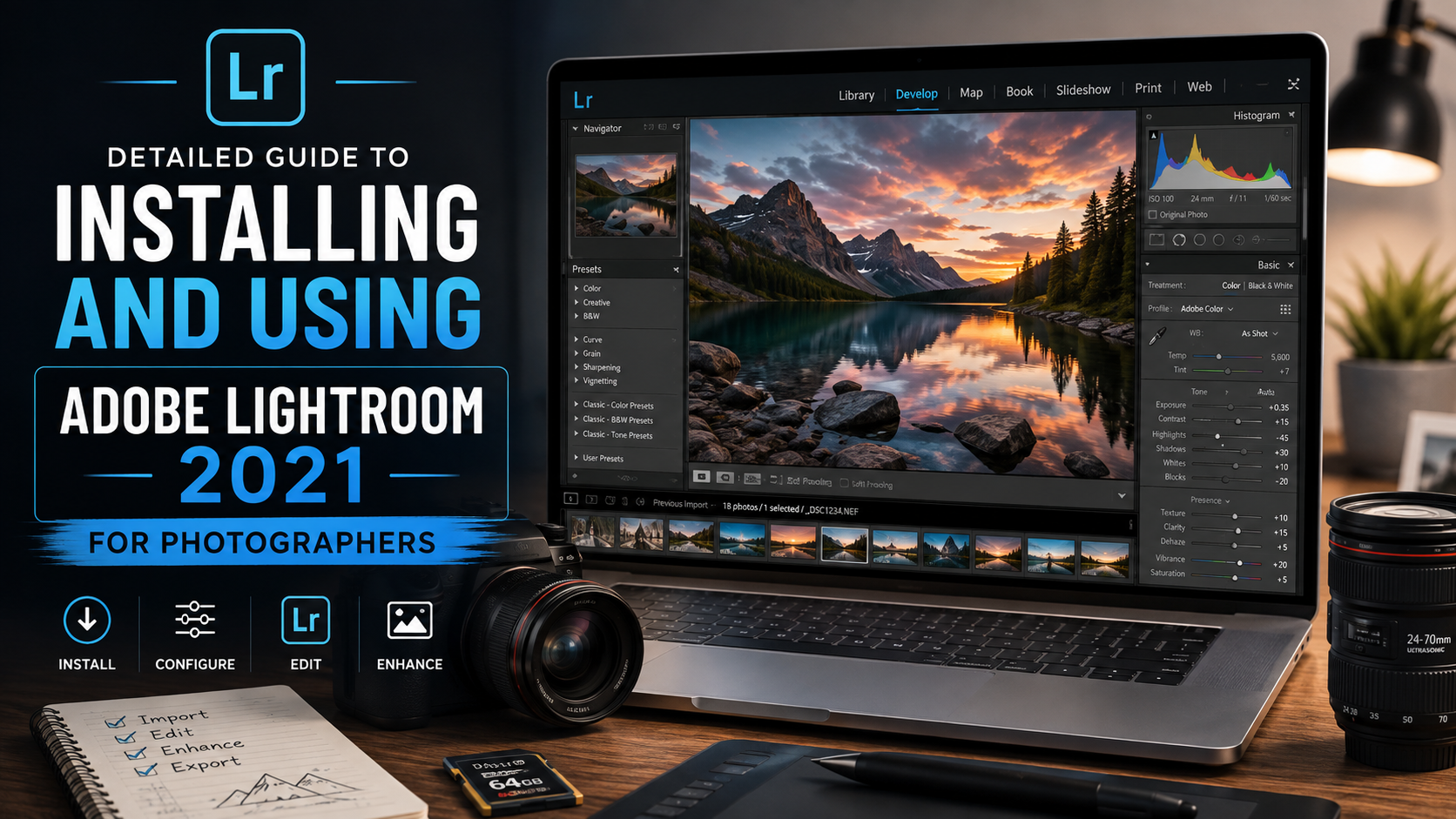
This guide shows you how to download, install, and optimize Adobe Lightroom 2021 Full for professional image processing. Discover the detailed toolset for color correction and intelligent photo library management.
1. Learn About the Full Version of Adobe Lightroom 2021
The 2021 release brings many groundbreaking technological improvements, especially the deep integration of artificial intelligence into automated editing tasks.
1.1. The position of the 2021 version in the software development chain
Adobe Lightroom 2021 marks a significant milestone as the developer focused on comprehensively upgrading the multi-core CPU performance and maximizing the power of the graphics card. This version thoroughly addresses lag issues when users work with RAW image files up to hundreds of megapixels. The core reason for its popularity is its stable operation on both of the most popular operating systems today: Windows and macOS.
1.2. Benefits of using the full-featured version
Using a fully licensed version unlocks all advanced editing tools without time or image export limitations. You won't encounter constant license notifications interrupting your work, and you can freely use hardware synchronization features, significantly speeding up image rendering compared to trial versions or those with reduced features.
2. Breakthrough Features in Adobe Lightroom 2021 Full
The significant algorithmic improvements in this version have completely changed the way photographers approach the process of separating and processing local color.
2.1. Advanced Color Grading System
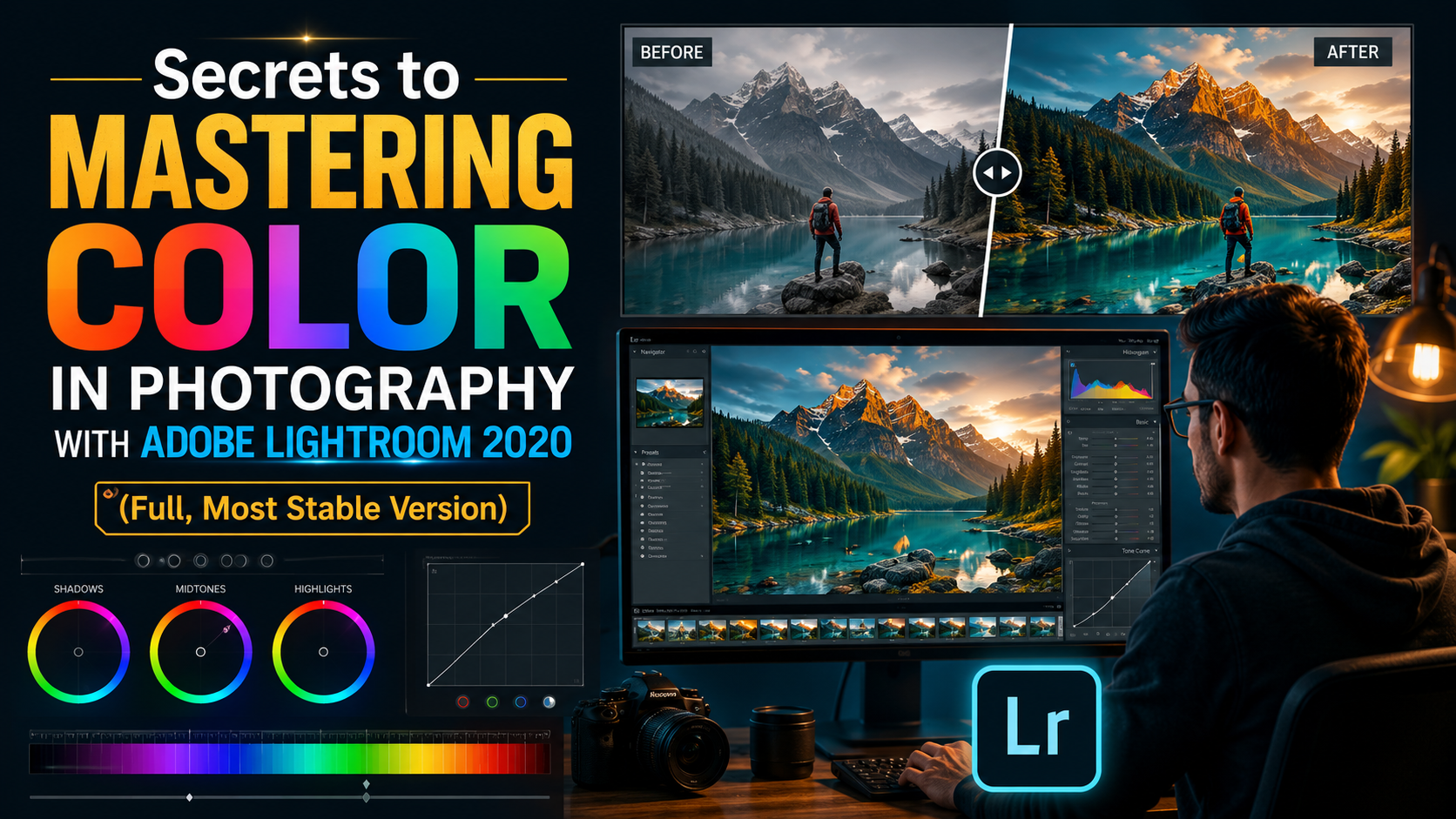
Replacing the outdated Split Toning tool from previous versions, the Advanced Color Grading feature in the 2021 version offers three independent color wheels corresponding to three different light and dark areas: Shadows, Midtones, and Highlights. This upgrade allows users to control color shades with absolute precision, creating smooth, cinematic tones without affecting the subject's natural skin tone.
2.2. AI-powered smart mask selection and creation tool
The Adobe Sensei artificial intelligence integrated into this version provides incredibly intelligent automatic object recognition capabilities. Users can easily separate the sky or the main subject with just one click through advanced masking options. Adjusting brightness, contrast, or sharpness for a specific area no longer requires the time-consuming manual painting with the Brush tool as before.
2.3. Enhanced and Optimized Visual Zoom Features
Checking the sharpness of fine details at the edges of an image is easier thanks to the new Box Zoom and Scrubby Zoom features. Users can drag the mouse to precisely zoom in on any desired area with instant response time.
3. Optimal Software Installation System Requirements
Preparing a computer system with suitable specifications is crucial for stable software operation, preventing power outages or system freezes during graphics rendering.
3.1. Hardware configuration for Windows operating system
Your computer system needs to be equipped with a 6th generation Intel processor or an equivalent AMD processor or higher, supporting 64-bit architecture. A minimum of 8GB of RAM is required; however, for handling large wedding or event photography projects, 16GB or 32GB is recommended. The hard drive storing the operating system and software must be a solid-state drive (SSD) with a minimum of 10GB of free space for caching.
3.2. Hardware configuration for macOS operating system
For users of Apple computers, the software requires macOS version 10.15 (Catalina) or later. The device needs to have an integrated or dedicated graphics card with a minimum of 2GB of VRAM and support for Apple Metal technology to enable hardware acceleration when processing heavy color filters.
4. Detailed Adobe Lightroom 2021 Installation Guide
The software setup process needs to be carried out carefully, following the correct sequence of steps to ensure data integrity and avoid system conflicts.
4.1. Step 1: Prepare the installation file and disconnect from the network.
Users should download the full installation package of the 2021 version from reliable data storage sources. Before extracting the files, you need to disconnect from the internet and temporarily disable the operating system's default antivirus software to prevent the accidental deletion of important configuration files.
4.2. Step 2: Launch the Setup installer
You use common extraction tools to open the software folder, then locate the file named Set-up.exe on Windows or Install.app on Mac. Double-click to launch the installation interface, where you can choose the display language and the location to save the software folder on your system drive. Click the Continue button to begin the source code copying process.
4.3. Step 3: Wait for the system to finish copying the data.
The automatic setup process will take a few minutes, depending on your computer's hard drive's read/write performance. You should avoid performing other demanding tasks such as playing games or exporting videos during this time to prevent interrupting the process of writing the installer files to your system.
4.4. Step 4: Activate the permanent usage feature
After the status bar shows 100% successful installation, close the installation window. Access the included add-on folder, copy the activation file, and paste it to overwrite the file in the root directory where the software was just installed.
5. Discover a Collection of Professional Presets for Lightroom 2021 at Appvip.ai
The website appvip.ai has emerged as a powerful tool for the graphic design community, offering a rich ecosystem of thousands of color filters (Presets) specifically designed for the full version of Adobe Lightroom 2021. On this online platform, creators can search for and download exclusive supplementary tools, diverse lighting and color effect packages ranging from romantic wedding photography and classic portraits to majestic landscapes.
6. Guide to Optimizing Software Performance
Adjusting the technical parameters within the application's settings control panel will help your computer unleash its full potential.
6.1. Setting up GPU optimization
Open the software, access the Edit menu , select Preferences , and navigate to the Performance tab . In the graphics processor configuration area, switch the status from automatic to manual by checking the box " Use Graphics Processor for Image Processing" . This setting significantly reduces the workload on the CPU, transferring real-time image rendering tasks to the graphics card.
6.2. Upgrade cache memory capacity to speed up image loading.
By default, the system allocates a fairly limited amount of space for the Camera Raw Cache. You should proactively change this setting to between 30GB and 50GB, depending on the available space on your SSD. Increasing the cache space allows the software to pre-store high-resolution preview files, making switching between photos in the Develop tab instantaneous.
6.3. Applying workflows with Smart Previews
When importing image data into a catalog, users should make it a habit to select the " Build Smart Previews" feature . The system will automatically generate lightweight preview image files with complete color information, allowing you to easily drag and drop the toolbars. When you execute the final image export command, the software component will then access the original data to apply the parameters, ensuring that the entire editing process is free from frame stuttering or lag.
8. Conclusion
Mastering Adobe Lightroom 2021 Full is like holding a universal key to unlocking an unlimited space of creative color. From understanding AI-powered enhancement tools and setting up the right computer configuration to applying performance optimization tips, everything plays a fundamental role in improving your artistic productivity.





















VIP Products








Best Selling Products
ChatGPT Plus Account (GPT-4)
16 USD
Plugin Retouch4me
69 USD
Upgrade Duolingo Super
29 USD
Adobe Premiere Pro Account
99 USD
Upgrade Genuine Office 365
49 USD
Copyright Adobe Lightroom Account
59 USD
Genuine Cheap Canva Pro
39 USD
Adobe Photoshop Copyright - Full App
120 USD
Windows 10 & 11 Pro Key
36 USD
Freepik Premium Account
59 USD
Genuine Adobe Illustrator account
99 USD
MidJourney Account
29 USD
Capcut Pro 1 Year
39 USD
Autodesk All App Account Copyright
120 USD
Upgrade genuine Capture One account
120 USD