Best Selling Products

Capcut Pro 1 Year
39 USD

Upgrade Duolingo Super
29 USD

Autodesk All App Account Copyright
120 USD

ChatGPT Plus Account (GPT-4)
16 USD

Upgrade Genuine Office 365
49 USD

Copyright Adobe Lightroom Account
59 USD

Adobe Premiere Pro Account
99 USD

Upgrade genuine Capture One account
120 USD

Plugin Retouch4me
69 USD

Genuine Adobe Illustrator account
99 USD

Adobe Photoshop Copyright - Full App
120 USD

Freepik Premium Account
59 USD

MidJourney Account
29 USD

Windows 10 & 11 Pro Key
36 USD

Genuine Cheap Canva Pro
39 USD
Editing Old Photos with Photoshop: Turning Blurry, Torn Photos into Sharp Images
Nội dung
- 1. Why should you edit old photos using Photoshop?
- 2. Common damage to old photographs
- 2.1 The image is blurry and lacks detail.
- 2.2 The photo is torn, folded, or has scratches.
- 2.3 Images fade over time.
- 3. Benefits of restoring old photos using Photoshop
- 4. A step-by-step guide to editing old photos using Photoshop.
- 4.1 Step 1: Scan the image with high resolution
- 4.2 Step 2: Remove dirt and scratches
- 4.3 Step 3: Restore color
- 4.4 Step 4: Increase sharpness
- 4.5 Step 5: Save the image in the correct format
- 5. Useful Photoshop tools for restoring old photos
- 5.1 Healing Brush Tool
- 5.2 Clone Stamp Tool
- 5.3 Patch Tool
- 5.4 Camera Raw Filter
- 6. Tips for editing old photos using Photoshop to make them look beautiful and natural.
- 7. Mistakes to avoid when restoring old photos
- 8. Should AI be used in combination with Photoshop to restore old photos?
- 9. Conclusion
With the support of modern technology, especially editing old photos with Photoshop, restoring photos that seemed completely damaged has become much easier. Photoshop provides a host of powerful tools that help remove flaws, recreate details, and professionally enhance image quality. Just by applying the right technique, you can completely turn blurry, torn photos into sharp, vivid images that look as good as new. Let''s explore it with AppVip.ai right now!
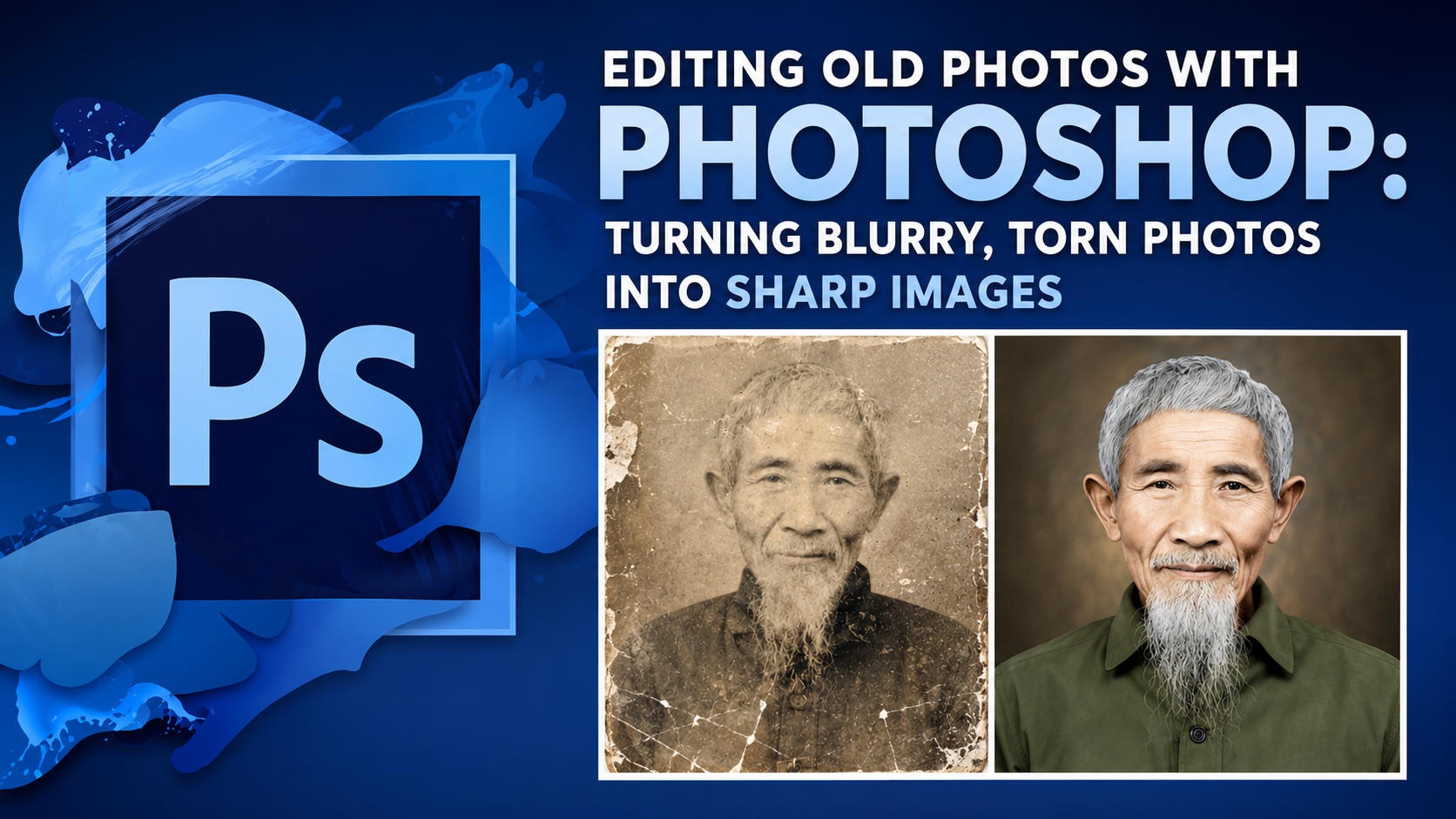
1. Why should you edit old photos using Photoshop?
Old photographs often hold special sentimental value because they preserve moments that can never be relived. These could be images of grandparents or parents in their youth, family gatherings, or memorable life events. As photographs deteriorate over time, restoration not only helps preserve memories but also contributes to the preservation of the family's historical and cultural values.
Among current photo editing software, Photoshop is considered the leading tool thanks to its advanced image processing capabilities. From removing tears and restoring colors to enhancing sharpness and recreating facial details, Photoshop can effectively handle it all. This is also why professional photo restoration studios choose Photoshop as their primary tool.
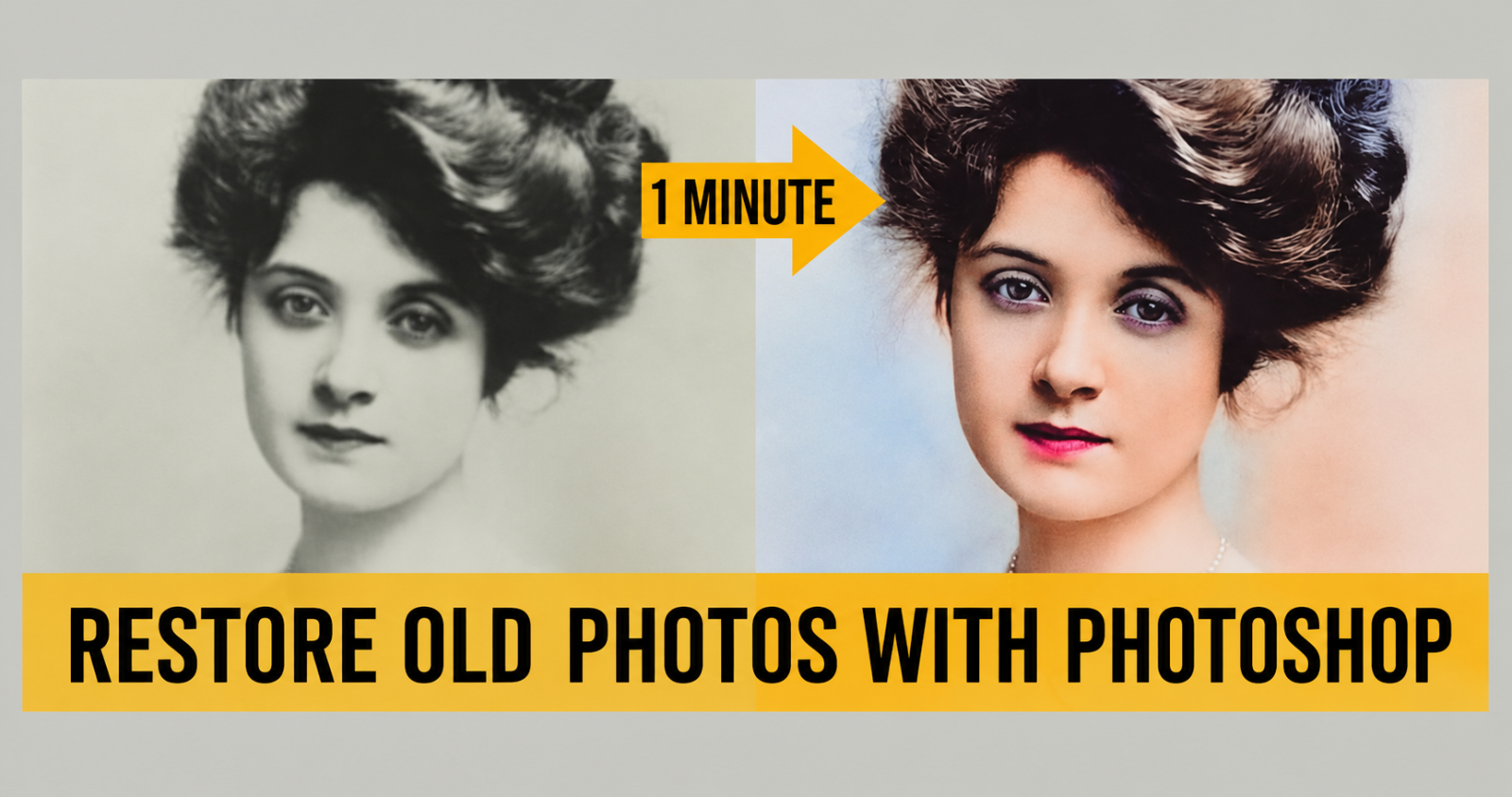
2. Common damage to old photographs
2.1 The image is blurry and lacks detail.
One of the most common problems with old photos is blurriness. This can stem from the quality of cameras from the past, long-term storage, or scanning at low resolution. When photos are blurry, important details such as faces, clothing, or scenery become difficult to discern.
When editing old photos in Photoshop , users can utilize tools like Smart Sharpen, High Pass, or Camera Raw Filter to improve sharpness. These tools increase contrast at the edges of objects, highlighting details without causing excessive noise in the image.
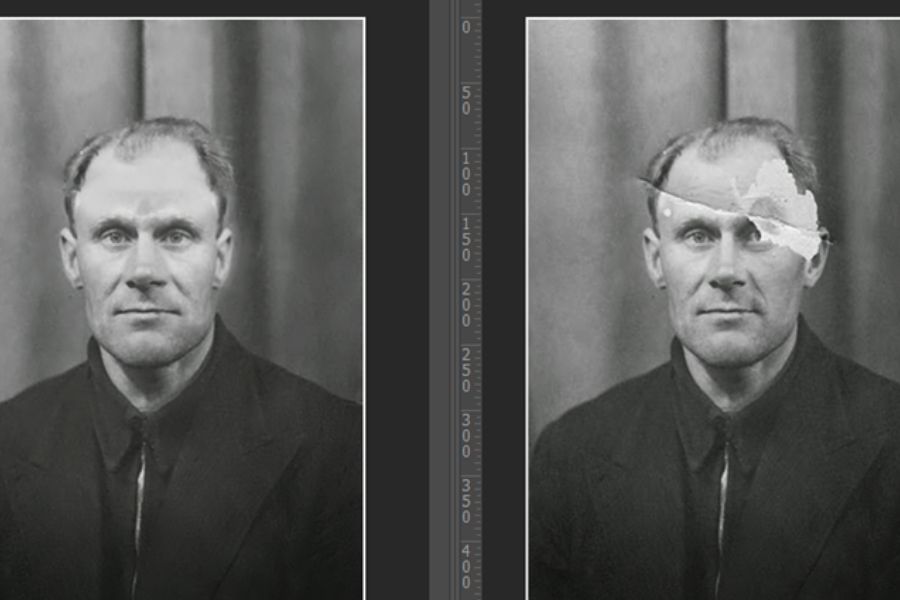
2.2 The photo is torn, folded, or has scratches.
Over the years, paper photographs often become creased, have torn corners, or show scratches due to physical impact. This type of damage directly affects the aesthetic appeal of the photograph and sometimes results in the loss of important content.
Photoshop offers tools like the Healing Brush Tool, Spot Healing Brush, and Clone Stamp Tool to restore damaged areas. Thanks to their ability to copy and blend surrounding image areas, these tools help remove imperfections naturally, resulting in virtually flawless results.
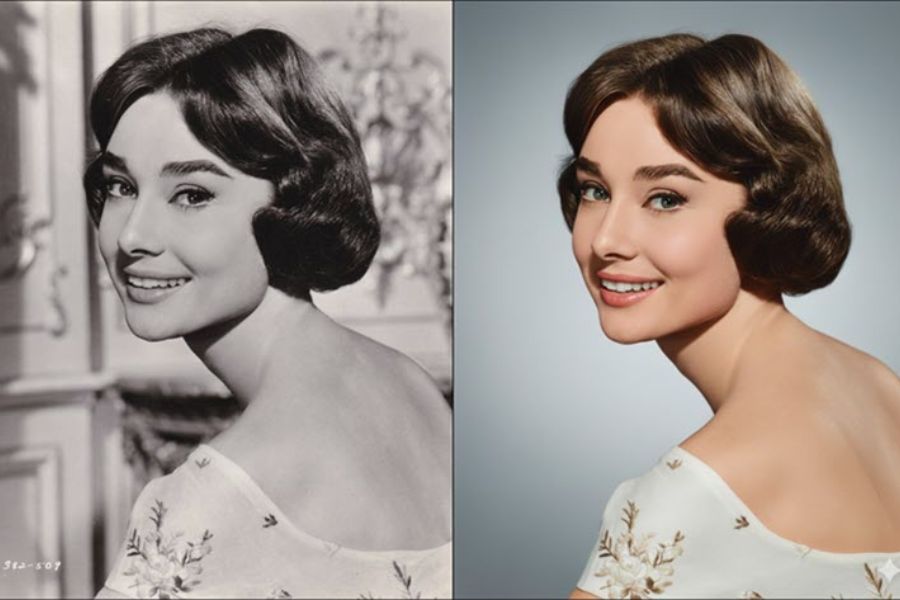
2.3 Images fade over time.
The colors in printed photographs often change after years of storage. Once vibrant photos may turn yellow, brown, or lose their original contrast entirely.
When editing, Photoshop allows you to balance colors using tools like Curves, Levels, Hue/Saturation, and Color Balance. This helps restore the image's colors closer to their original state, while also creating a more realistic and vibrant look.
.png)
3. Benefits of restoring old photos using Photoshop
Restoring old photos is not simply about improving image quality, but also about extending the lifespan of precious memories. After being digitized and edited, photos can be stored on various devices without the risk of damage like traditional paper photos.
In addition, the restored photos can be reprinted in larger sizes for decoration or as gifts for loved ones. This is a meaningful way to preserve memories and pass on family values to future generations.
4. A step-by-step guide to editing old photos using Photoshop.
4.1 Step 1: Scan the image with high resolution
Before you begin editing, you need to digitize the image using a scanner or take a picture with a phone that has a good camera. The minimum resolution should be 300 DPI to ensure that as much detail as possible is preserved.
A high-quality image file will help Photoshop process the image more efficiently during the restoration process. If the original image is too small or heavily compressed, subsequent editing will be limited and it will be difficult to achieve optimal results.
4.2 Step 2: Remove dirt and scratches
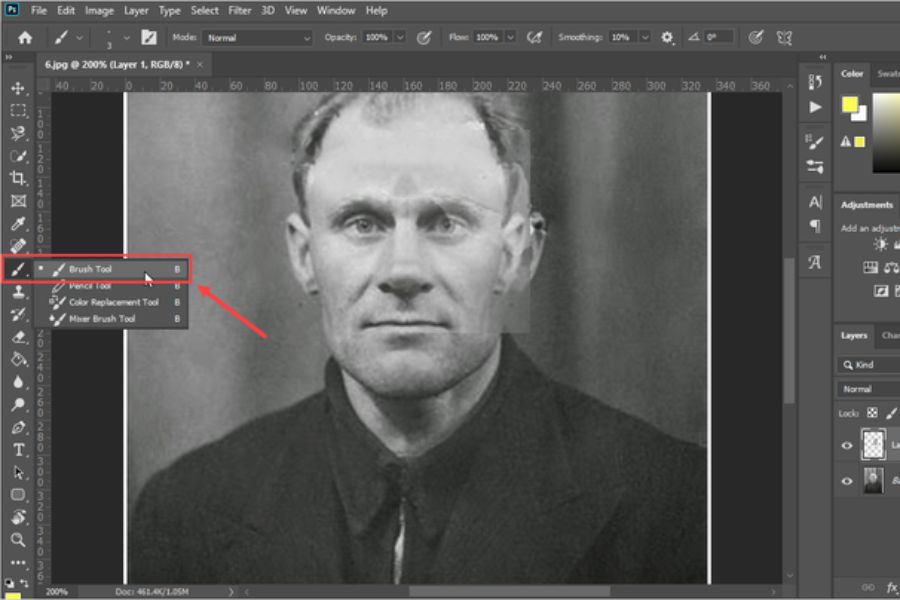
After opening the image in Photoshop, zoom in on each area to check for stains, dark spots, or scratches. The Spot Healing Brush Tool is an ideal choice for repairing minor imperfections on the image surface.
For larger damaged areas, the Clone Stamp Tool will help copy surrounding areas to naturally reproduce detail. This is an important step to clean up the image before performing other advanced operations.
4.3 Step 3: Restore color
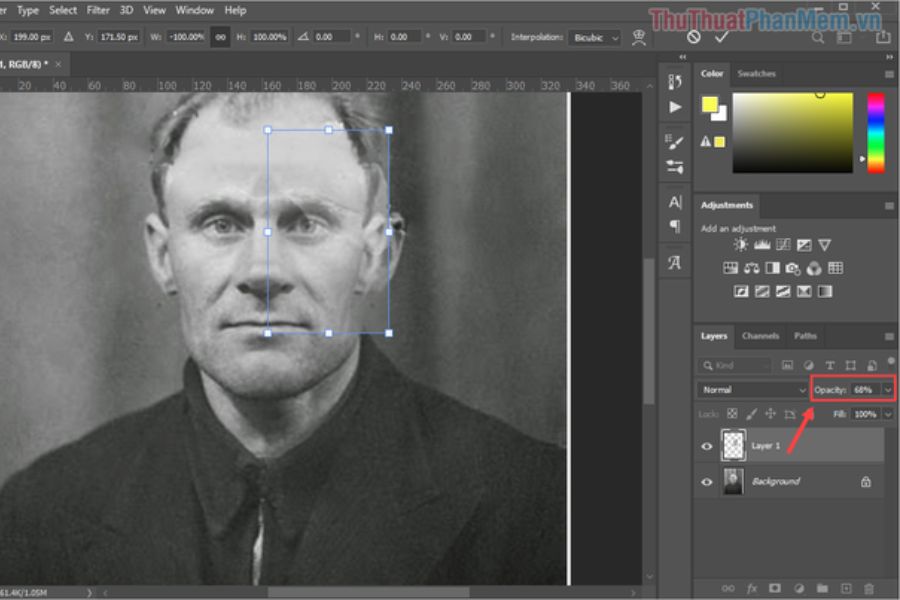
If your image has a yellow tint or faded colors, use an Adjustment Layer to correct the colors without affecting the original file. Tools like Curves and Levels are very effective at improving brightness, contrast, and color.
In many cases, simply adjusting the white balance properly can significantly brighten an image. Using layers makes it easy to edit and revert to previous steps if needed.
4.4 Step 4: Increase sharpness
After completing the basic restoration steps, proceed to sharpen the image. Smart Sharpen is a popular tool that helps improve detail while maintaining the natural look of the image.
However, excessive sharpening should be avoided as it can cause graininess or artificial fringing. Observe the overall picture to achieve a balance between sharpness and realism.
4.5 Step 5: Save the image in the correct format
When you've finished editing old photos in Photoshop, you should save a PSD file to preserve the layers for later editing. Also, export the image in JPG or PNG format for easier sharing and printing.
Storing multiple copies on different devices is also an effective way to protect images and avoid the risk of unintentional data loss.
5. Useful Photoshop tools for restoring old photos
5.1 Healing Brush Tool
The Healing Brush Tool is a commonly used tool in photo restoration. It helps remove scratches, dust spots, and minor imperfections by automatically blending colors with the surrounding area.
The strength of this tool lies in its ability to produce natural-looking results without losing the original texture of the image. This makes it a suitable choice for both beginners and professional users.
5.2 Clone Stamp Tool
The Clone Stamp Tool allows you to precisely copy an area of an image to another location. This tool is particularly useful when dealing with large tears or areas that have lost detail.
For best results, users need to select the appropriate copying area and operate carefully to avoid creating an unnatural, repetitive look in the image.
5.3 Patch Tool
The Patch Tool helps repair large damaged areas by replacing them with intact image areas. This tool works effectively on simple image backgrounds or areas with uniform colors.
Thanks to its intelligent blending capabilities, Patch Tool speeds up the restoration process and significantly reduces manual editing time.
5.4 Camera Raw Filter
Camera Raw Filter isn't just for RAW images; it's also a powerful tool for restoring old photos. Users can intuitively adjust brightness, contrast, sharpness, and color.
This is the ideal solution for improving overall image quality before moving on to more detailed editing operations.
6. Tips for editing old photos using Photoshop to make them look beautiful and natural.
For best results when restoring images, users should work on multiple layers instead of editing directly on the original image. This makes it easier to control changes and reduces the risk of data loss.
Additionally, frequently zoom in and out of the image during editing. An area that looks perfect at 300% zoom may not look natural when viewed at its actual size.
Other helpful tips include:
-
Always keep the original before editing.
-
Use Adjustment Layers instead of editing directly.
-
Do not increase the sharpness too much.
-
Restore colors step by step to avoid artificial-looking images.
-
Combine multiple tools instead of relying on a single one.
-
Save the file in multiple versions.
-
Review images on multiple screens before publishing.
7. Mistakes to avoid when restoring old photos
Many beginners often try to make photos too sharp or too vibrant. This makes the photos lose their natural look and sometimes gives the impression that they were created using AI rather than being restored.
Another mistake is editing directly on the original layer. If an error occurs, restoring the original state will be very difficult and time-consuming.
Additionally, overuse of automatic filters can cause the loss of important facial details or blur the image's texture. Therefore, combine automatic and manual tools for the best results.
8. Should AI be used in combination with Photoshop to restore old photos?
Currently, many AI technologies are capable of upscaling the resolution and sharpening old images in just seconds. These tools are particularly useful when dealing with blurry or small images.
However, AI doesn't always deliver perfect results. In some cases, AI can produce inaccurate details or alter the facial features of the subject in the image. Therefore, the most effective solution is to combine AI for preliminary processing, then use Photoshop for manual refinement. The combination of advanced AI technology and professional editing skills will help achieve higher quality image restoration while significantly saving time.
9. Conclusion
Editing old photos with Photoshop is an effective solution for reviving images that have become faded, torn, or degraded over time. With its powerful toolset, Photoshop allows users to restore details, recreate colors, and enhance image quality professionally. With a little patience and a mastery of basic techniques, you can transform old photos into sharp, vibrant, and valuable works of art. This is not just about image editing, but also about preserving and safeguarding precious memories for the future.





















VIP Products








Best Selling Products
Capcut Pro 1 Year
39 USD
Upgrade Duolingo Super
29 USD
Autodesk All App Account Copyright
120 USD
ChatGPT Plus Account (GPT-4)
16 USD
Upgrade Genuine Office 365
49 USD
Copyright Adobe Lightroom Account
59 USD
Adobe Premiere Pro Account
99 USD
Upgrade genuine Capture One account
120 USD
Plugin Retouch4me
69 USD
Genuine Adobe Illustrator account
99 USD
Adobe Photoshop Copyright - Full App
120 USD
Freepik Premium Account
59 USD
MidJourney Account
29 USD
Windows 10 & 11 Pro Key
36 USD
Genuine Cheap Canva Pro
39 USD