Best Selling Products

Adobe Premiere Pro Account
99 USD

Genuine Adobe Illustrator account
99 USD

Plugin Retouch4me
69 USD

Upgrade Duolingo Super
29 USD

Genuine Cheap Canva Pro
39 USD

Upgrade Genuine Office 365
49 USD

Adobe Photoshop Copyright - Full App
120 USD

Upgrade genuine Capture One account
120 USD

Autodesk All App Account Copyright
120 USD

Capcut Pro 1 Year
39 USD

Windows 10 & 11 Pro Key
36 USD

ChatGPT Plus Account (GPT-4)
16 USD

Copyright Adobe Lightroom Account
59 USD

Freepik Premium Account
59 USD

MidJourney Account
29 USD
Editing photos in Photoshop: Secrets to creating beautiful and professional images.
Nội dung
- 1. Why should you edit photos in Photoshop?
- 1.1 Photoshop delivers professional image quality.
- 1.2 Suitable for a variety of uses
- 2. Effective photo editing process in Photoshop
- 2.1 Adjust the lighting and color before adjusting the details.
- 2.2 Retouch and finalize images
- 3. Essential tools for photo editing in Photoshop
- 3.1 Healing Brush and Clone Stamp help remove blemishes.
- 3.2 Layers, Masks, and Adjustment Layers provide flexible editing capabilities.
- 4. Common mistakes when editing photos in Photoshop
- 4.1 Over-adjusting colors makes images look unnatural.
- 4.2 Abusing effects and not managing layers properly.
- 5. Tips to edit photos in Photoshop like a pro.
- 5.1 Establish a standardized editing process for each image type.
- 5.2 Regularly practice and update your knowledge.
- 6. Conclusion
In today''s rapidly evolving digital content landscape, images are not just illustrative but also play a crucial role in attracting viewers.
1. Why should you edit photos in Photoshop?
A beautiful photograph depends not only on the equipment used but also on the post-processing. This is why Photoshop is always considered the world's leading photo editing software.
1.1 Photoshop delivers professional image quality.
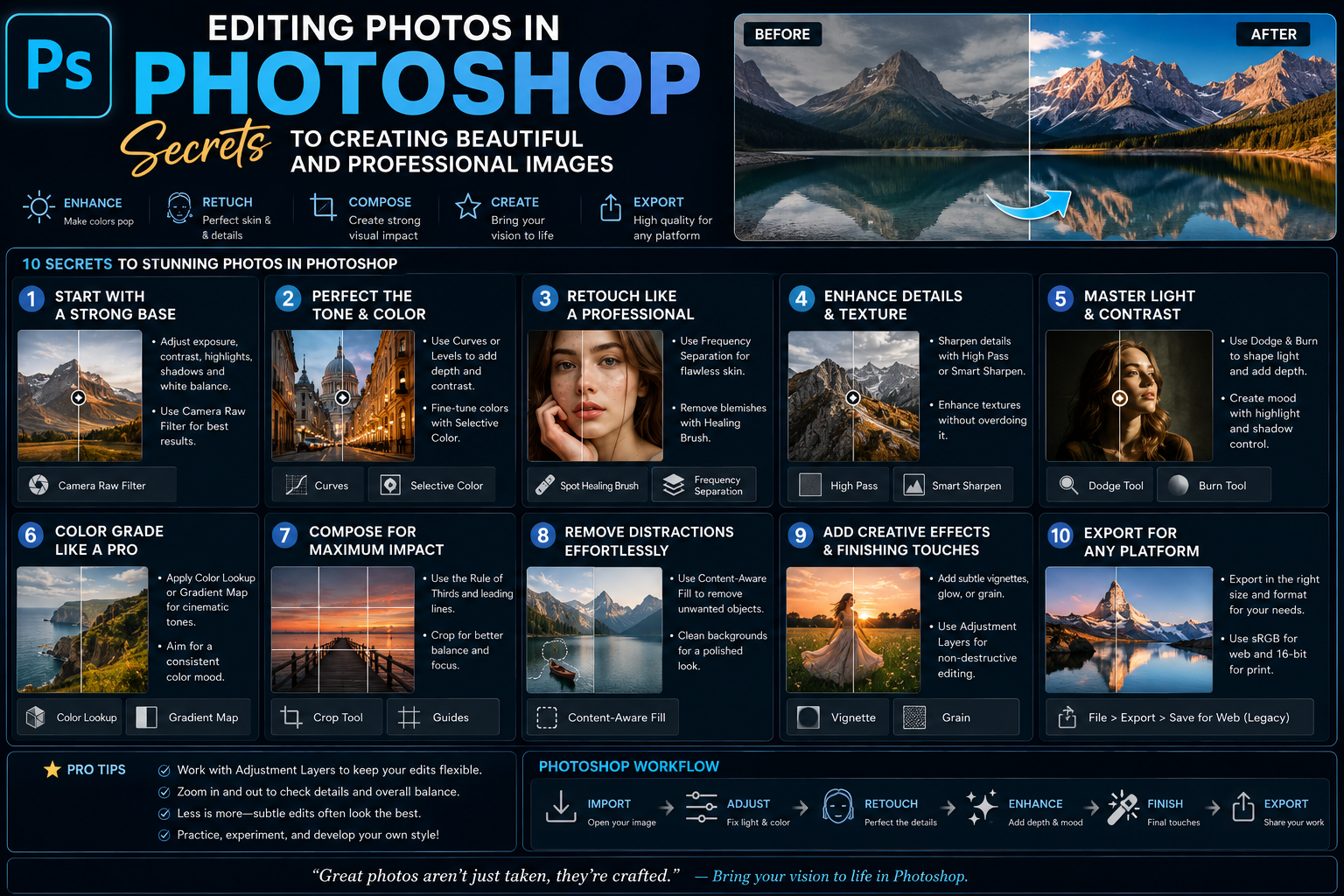
It's no coincidence that Photoshop has been the choice of photographers, studios, and businesses for many years. This software offers hundreds of tools to process even the smallest details in an image, from balancing light and adjusting color to enhancing sharpness while maintaining original quality. When editing photos in Photoshop , users can easily fix common problems such as underexposed, overexposed, color-shifted, or grainy images. Especially with its layer-based capabilities and non-destructive editing, any changes can be reversed or restored at any time. This is an advantage that very few other image editing software programs can fully provide, making the creative process more flexible and efficient.
1.2 Suitable for a variety of uses
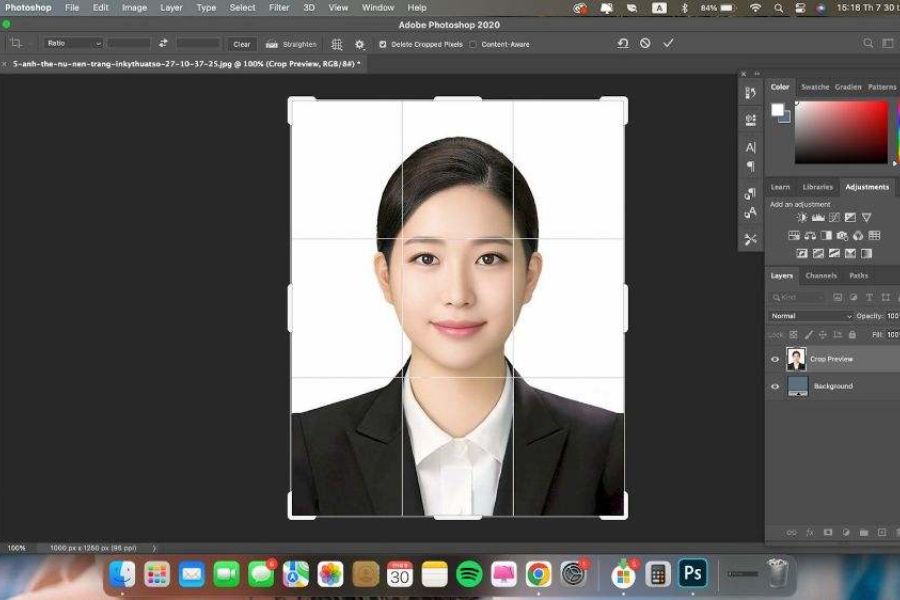
One of Photoshop's most outstanding strengths is its ability to meet a wide range of image editing needs. Online sellers can use the software to highlight products, remove backgrounds, or change the background in just minutes. Graphic designers utilize Photoshop to create eye-catching banners, posters, and advertising images, while photographers use it to retouch portraits or restore old photos. Even beginners can learn image editing in Photoshop through basic operations such as cropping, adjusting brightness, and balancing colors. Thanks to its wide range of applications, Photoshop is always the top choice for anyone who wants to create high-quality images for study, work, and communication.
2. Effective photo editing process in Photoshop
To create a beautiful photograph, you shouldn't edit based on inspiration, but rather follow specific steps to ensure the image is consistent and natural.
2.1 Adjust the lighting and color before adjusting the details.
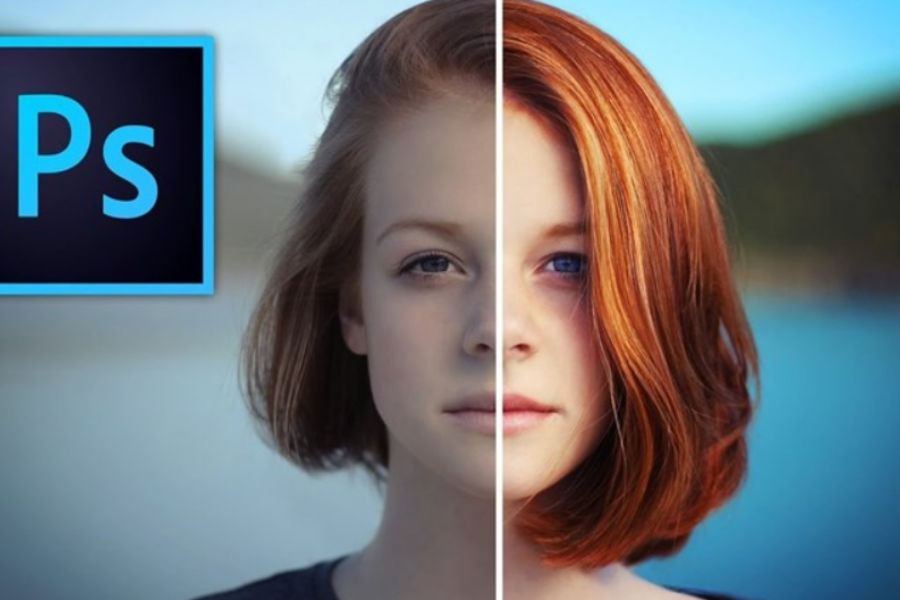
The first step in Photoshop photo editing is balancing the overall lighting and color. This is the foundation that determines the quality of the entire image. Users should use tools such as Camera Raw Filter, Curves, Levels, or Brightness/Contrast to adjust highlights and shadows and add depth to the image. After the lighting is balanced, adjusting color temperature, saturation, and tone will help create a more harmonious image. Following this order not only saves time but also reduces the need for multiple edits in subsequent steps. An image with proper lighting and color will make retouching or adding effects more effective and realistic.
2.2 Retouch and finalize images
After addressing the lighting, the next step is to refine the finer details to enhance the aesthetic appeal of the photo. Users can use the Spot Healing Brush to remove blemishes, the Clone Stamp to eliminate unwanted objects, or Dodge & Burn to add depth to the face. For product photos, pay attention to cleaning dust and dirt, adjusting the shooting angle, and increasing sharpness to make the product stand out more. During the photo editing process in Photoshop , retouching should be done moderately to preserve the natural look of the image. After completion, perform a final check and export the file in a suitable format such as JPG, PNG, or WebP to ensure quality when uploading to websites or social media.
3. Essential tools for photo editing in Photoshop
Photoshop has a wide variety of tools, but mastering just a few basic ones will allow you to handle most photo editing needs.
3.1 Healing Brush and Clone Stamp help remove blemishes.
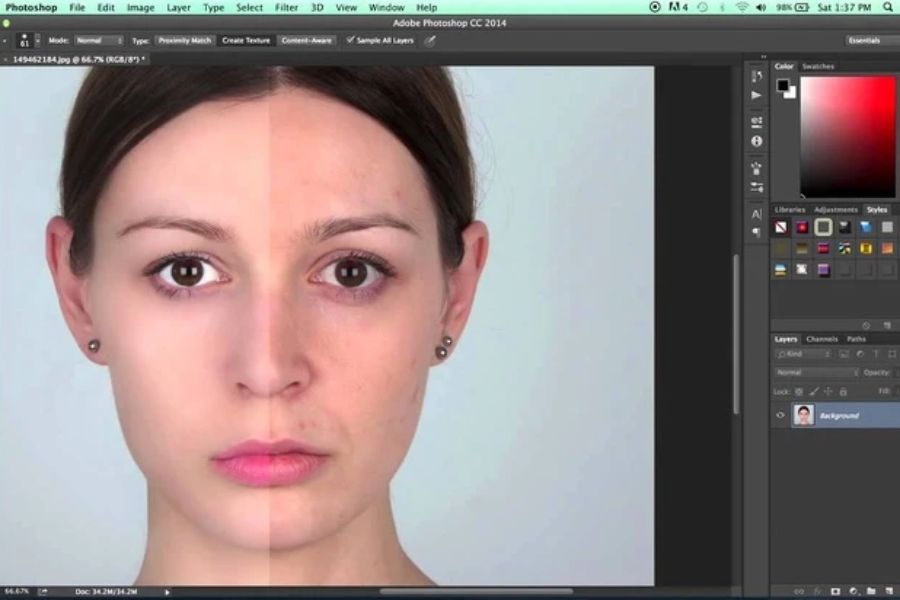
The Healing Brush and Clone Stamp are two of the most frequently used tools when editing photos in Photoshop . The Healing Brush automatically blends colors and textures to remove blemishes, scratches, or minor skin imperfections while maintaining a natural look. Meanwhile, the Clone Stamp allows you to copy an area of an image to another location, suitable for removing complex objects like power lines, signs, or other unsightly details. When these two tools are combined correctly, users can create clean, professional-looking photos with virtually no visible signs of editing. This is also a crucial skill that any Photoshop learner should practice from the beginning.
3.2 Layers, Masks, and Adjustment Layers provide flexible editing capabilities.
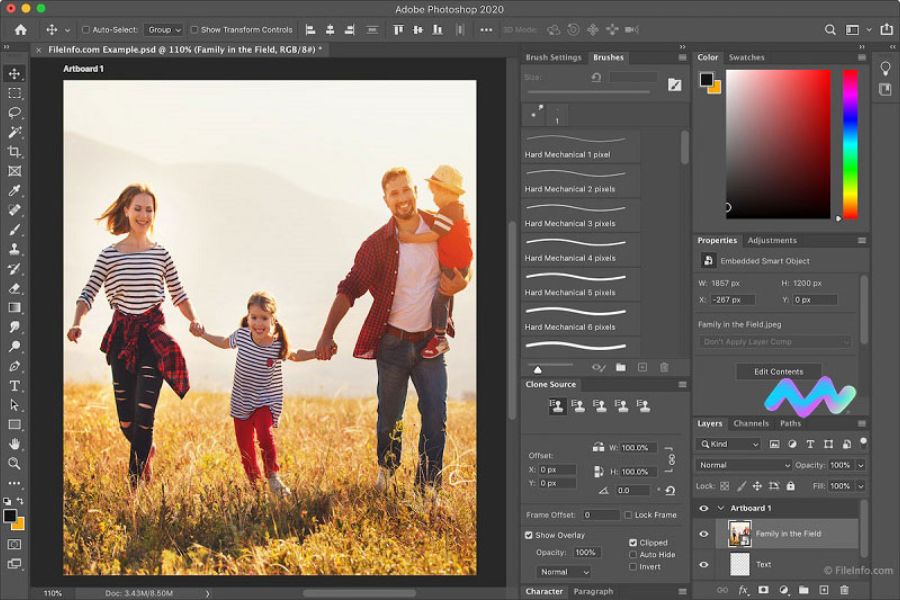
One of the reasons Photoshop surpasses many other software programs is its ability to work with layers and masks. Each detail being edited can be on a separate layer, allowing users to easily change or remove details as needed without affecting the original image. In addition, adjustment layers allow for adjustments to color, brightness, and contrast without altering the original data. This is a non-destructive editing method used by most professionals in their workflows. Mastering layers, masks, and adjustment layers makes image editing in Photoshop much more scientific, flexible, and professional, especially for projects requiring multiple edits or teamwork.
4. Common mistakes when editing photos in Photoshop
Although Photoshop offers many powerful tools, beginners can still easily make mistakes that result in unnatural-looking or low-quality photos. Understanding these common errors will help you shorten your learning time and improve your Photoshop photo editing skills more effectively.
4.1 Over-adjusting colors makes images look unnatural.
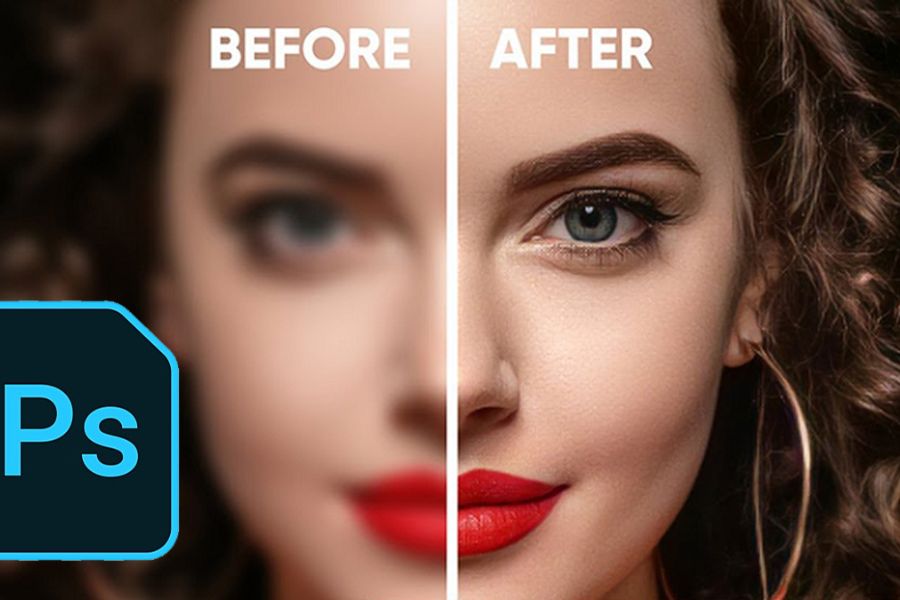
One of the most common mistakes when editing photos in Photoshop is overusing tools to increase color saturation, contrast, or sharpen. Many people believe that the more vibrant the colors, the better the photo; however, this often makes the image harsh, lacking depth, and giving it an unnatural feel. Especially with portraits, increasing saturation too much can cause skin tones to appear red or yellow, ruining their natural look. To avoid this, users should adjust each parameter moderately and regularly compare before and after editing to assess the changes. Using histograms or Camera Raw filters also helps control color and light better, resulting in a harmonious overall effect instead of an overly striking one.
4.2 Abusing effects and not managing layers properly.
Besides over-adjusting colors, many people also have a habit of adding too many effects like Blur, Glow, Sharpen, or artistic filters, causing the image to lose its subtlety. Another common mistake is merging all layers too early or not naming each layer during the editing process. This makes later editing difficult, especially when needing to go back to an earlier step to make adjustments. When editing photos in Photoshop , you should create separate layers for each important operation and name them clearly for easy management. Also, save the file in PSD format to preserve all layers and make it convenient for editing or updating when needed. This is a professional work habit that any designer or photographer should adopt.
5. Tips to edit photos in Photoshop like a pro.
To create high-quality images, in addition to mastering the tools, you also need to build a logical workflow and practice continuously. The following tips will help make photo editing in Photoshop faster and more professional.
5.1 Establish a standardized editing process for each image type.
Instead of editing based on inspiration, establish a fixed process for each group of images, such as portraits, product photos, landscapes, or event photos. For example, you could start by balancing the lighting, then adjusting the color, followed by retouching details, and finally sharpening before exporting the file. A consistent process will significantly save working time and create uniformity across images in the same project. When frequently editing photos in Photoshop , you should also save Presets or Actions for repetitive operations. This not only increases efficiency but also helps ensure consistent image quality every time you edit.
5.2 Regularly practice and update your knowledge.
Adobe constantly updates Photoshop with many modern features such as the Remove Tool, Generative Fill, and Neural Filters, making the photo editing process faster and more accurate. Therefore, in addition to practicing on real photos, you should also spend time learning about new features to optimize your workflow. Furthermore, referring to the work of professional photographers and designers will help you learn how to combine colors, handle lighting, and develop your own editing style. The more you practice, the better you understand the working principles of each tool and how to apply them in specific situations. This is a crucial factor in improving your photo editing skills in Photoshop and creating aesthetically pleasing products.
6. Conclusion
Photo editing in Photoshop is not simply about beautifying images; it's a crucial skill in many fields such as graphic design, photography, marketing, and online business. With its powerful toolset, flexible processing capabilities, and numerous modern features, Photoshop allows users to easily improve image quality, remove imperfections, balance colors, and create professional-looking works. However, to fully utilize the software's power, you need to master the editing process, understand the function of each tool, and avoid common mistakes. Besides theoretical knowledge, regular practice plays a decisive role in improving your skills. Each image presents different processing situations, helping you accumulate experience and gradually develop your own editing style. Combining aesthetic sense with proficient use of tools makes photo editing in Photoshop easier, allowing you to create high-quality images that attract viewers and meet all your needs in learning, work, and life.





















VIP Products








Best Selling Products
Adobe Premiere Pro Account
99 USD
Genuine Adobe Illustrator account
99 USD
Plugin Retouch4me
69 USD
Upgrade Duolingo Super
29 USD
Genuine Cheap Canva Pro
39 USD
Upgrade Genuine Office 365
49 USD
Adobe Photoshop Copyright - Full App
120 USD
Upgrade genuine Capture One account
120 USD
Autodesk All App Account Copyright
120 USD
Capcut Pro 1 Year
39 USD
Windows 10 & 11 Pro Key
36 USD
ChatGPT Plus Account (GPT-4)
16 USD
Copyright Adobe Lightroom Account
59 USD
Freepik Premium Account
59 USD
MidJourney Account
29 USD