Best Selling Products

Upgrade Duolingo Super
29 USD

Plugin Retouch4me
69 USD

Autodesk All App Account Copyright
120 USD

ChatGPT Plus Account (GPT-4)
16 USD

Upgrade genuine Capture One account
120 USD

Genuine Cheap Canva Pro
39 USD

Capcut Pro 1 Year
39 USD

Genuine Adobe Illustrator account
99 USD

Upgrade Genuine Office 365
49 USD

Freepik Premium Account
59 USD

Windows 10 & 11 Pro Key
36 USD

Copyright Adobe Lightroom Account
59 USD

Adobe Photoshop Copyright - Full App
120 USD

MidJourney Account
29 USD

Adobe Premiere Pro Account
99 USD
Editing Photos with Photoshop on a Computer: Secrets to Creating Professional Photos
Nội dung
- 1. Why is editing photos in Photoshop on a computer still the best option?
- 2. Key advantages of editing photos in Photoshop on a computer
- 2.1 Image quality has been significantly improved.
- 2.2 Easily remove defects
- 2.3 Unlimited design and creative support
- 3. Popular Photoshop tools that beginners should know.
- 3.1 Crop Tool – Professional Image Cropping Tool
- 3.2 Spot Healing Brush Tool – Quickly remove blemishes
- 3.3 Clone Stamp Tool – Duplicate and restore images
- 3.4 Adjustment Layers – Non-destructive color correction of the original image
- 3.5 Pen Tool – A precise background separation tool
- 4. Guide to the efficient Photoshop image editing process on a computer.
- 4.1 Step 1: Assess the quality of the original image
- 4.2 Step 2: Adjust the lighting and color
- 4.3 Step 3: Eliminate defects
- 4.4 Step 4: Increase sharpness
- 4.5 Step 5: Export the image in the correct format
- 5. Common mistakes when editing photos in Photoshop on a computer
- 6. Tips for more professional Photoshop photo editing
- 7. Where can I get my Photoshop upgraded reliably?
- 8. Current trends in Photoshop photo editing
- 9. Conclusion
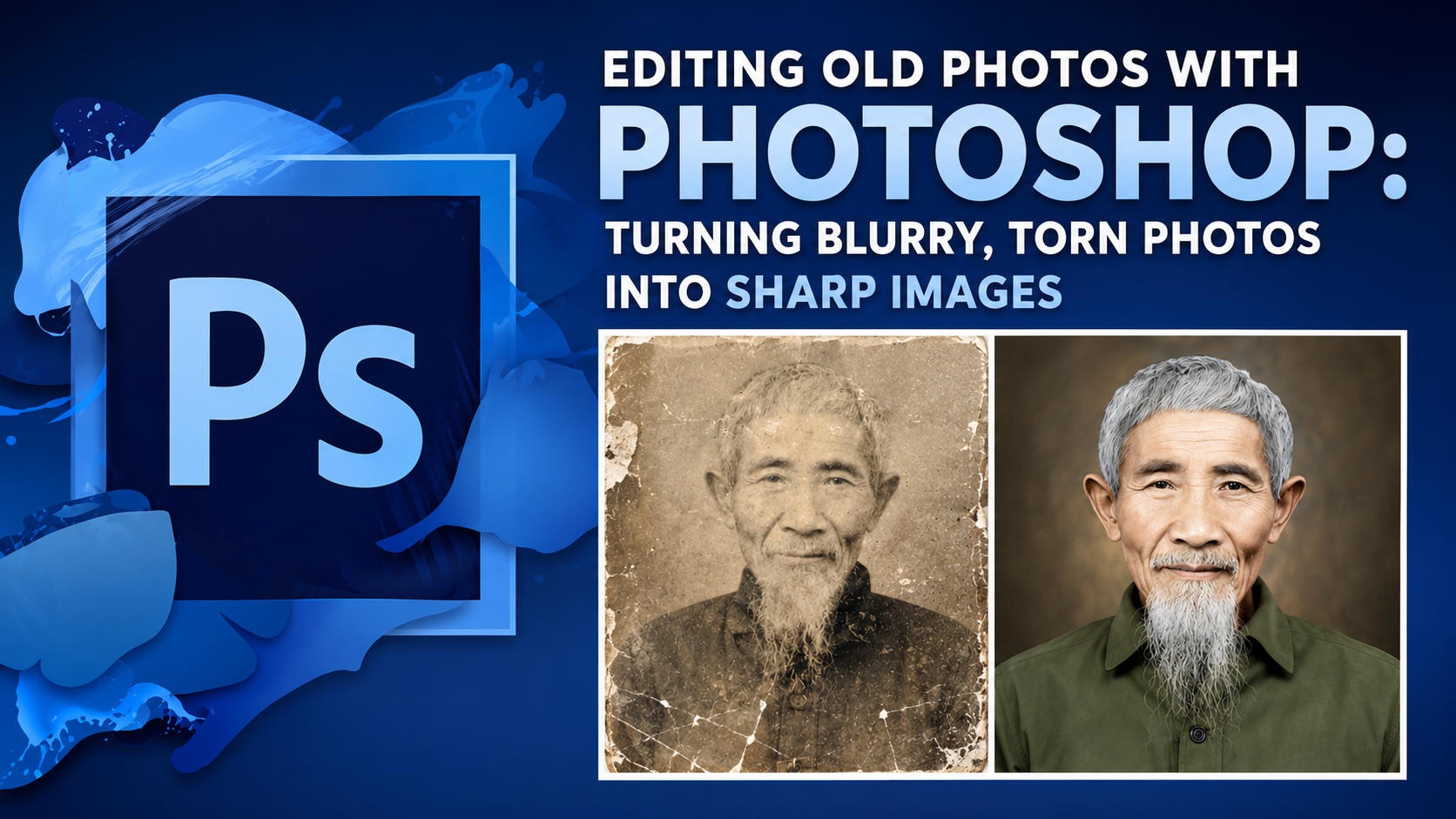
With just a computer and Photoshop software, anyone can turn ordinary photos into impressive, sharp, and highly artistic images. That''s why editing photos with Photoshop on a computer is becoming a skill that many people learn and apply in both work and daily life. From color correction, removing blemishes, and creative photo compositing to designing professional banners and posters, Photoshop offers countless powerful tools that let users unleash their creativity.
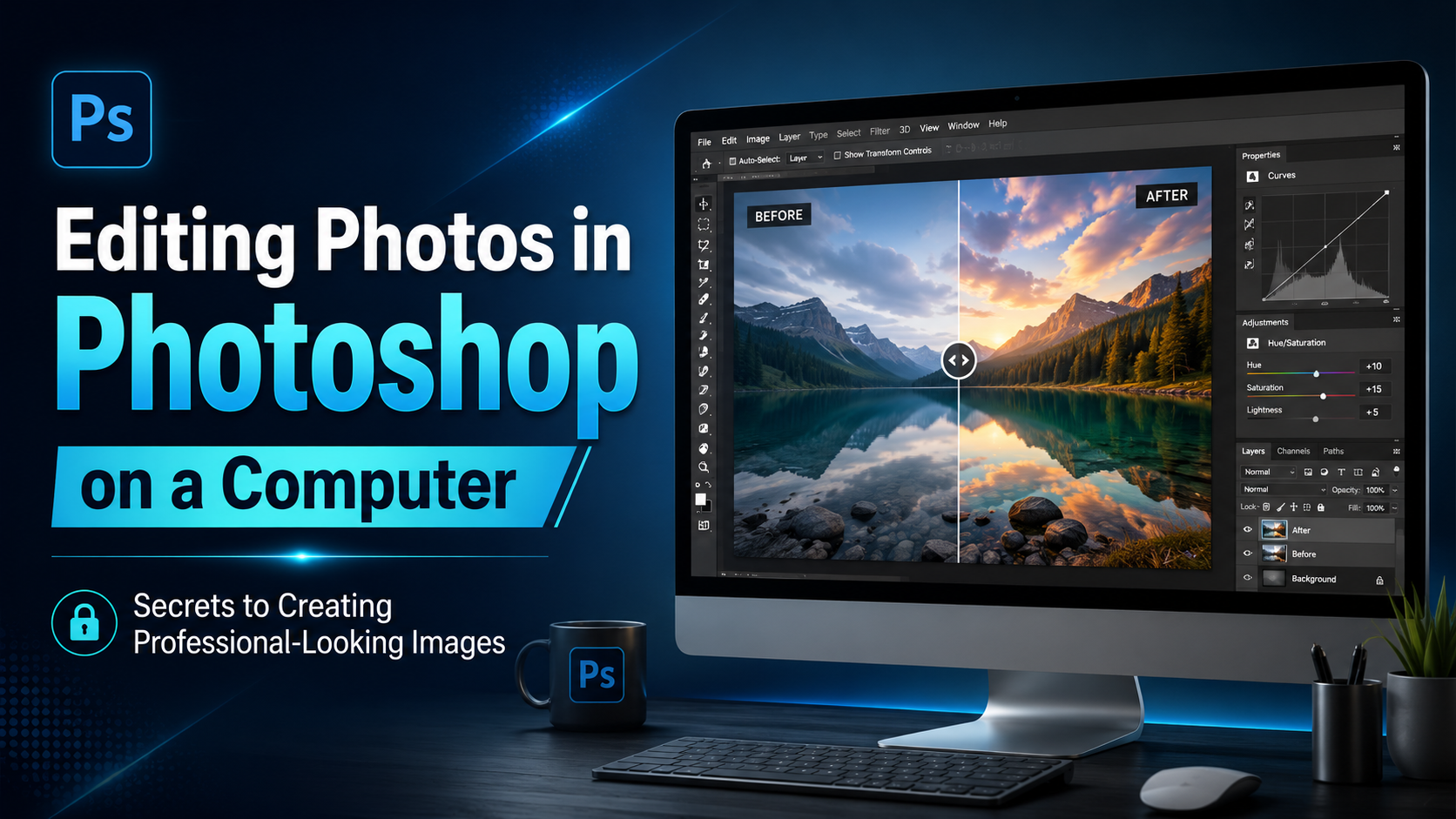
1. Why is editing photos in Photoshop on a computer still the best option?
Photoshop has existed and evolved for decades, becoming the gold standard in the field of digital photo editing. Although there are now many photo editing apps on phones, Photoshop on computers still maintains its position thanks to its powerful, in-depth, and precise image processing capabilities.
One of its most outstanding advantages is the ability to control details down to the pixel level. Users can fine-tune the color, lighting, sharpness, and even the smallest details of an image without compromising overall quality. This is why Photoshop is widely used in photography, marketing, graphic design, and media.
In addition, the computer working environment provides ample workspace, making editing much more convenient. With a large screen, mouse, and keyboard support, users can perform complex operations more quickly and accurately compared to editing on a phone.
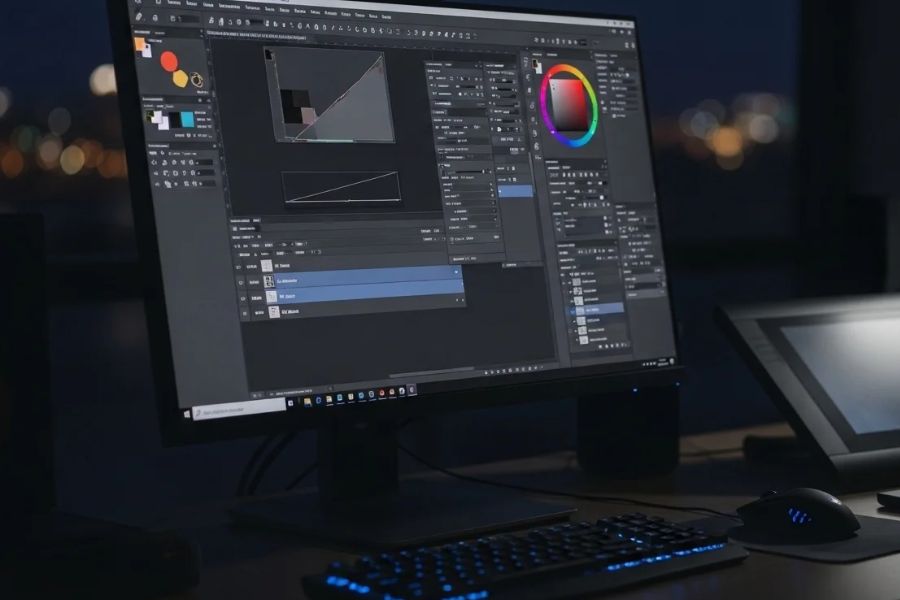
2. Key advantages of editing photos in Photoshop on a computer
2.1 Image quality has been significantly improved.
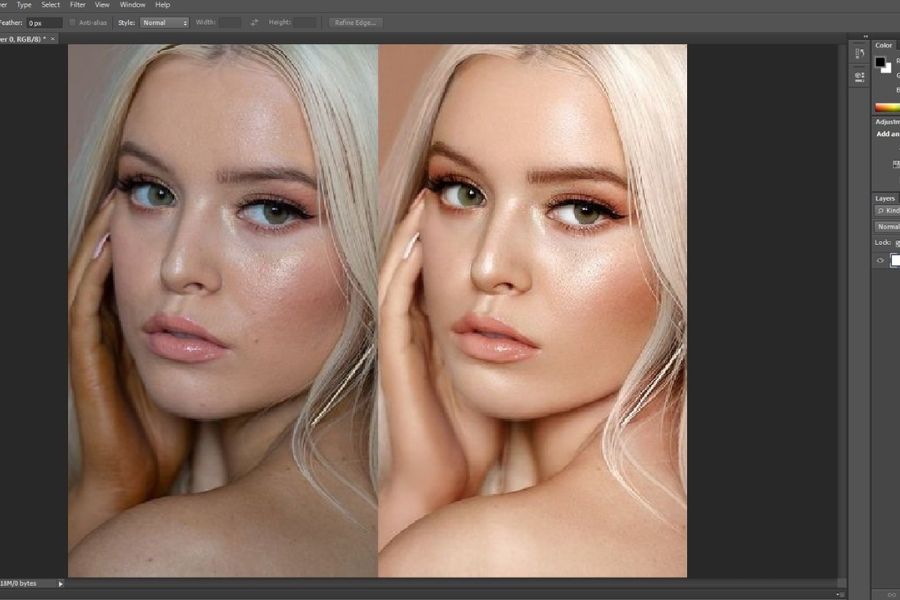
A beautiful photograph depends not only on the camera or phone used to take the picture, but also on post-processing. Photoshop significantly improves image quality through tools for adjusting brightness, balancing color, and enhancing sharpness.
Thanks to this, even photos that are underexposed, have color casts, or aren't perfect can look more professional. This is why photographers always spend a lot of time on post-processing before publishing their work.
2.2 Easily remove defects
Small pimples, blemishes, unwanted objects, or unsightly details can all be quickly retouched using Photoshop.
Tools like the Healing Brush, Spot Healing Brush, and Clone Stamp allow users to edit naturally, making photos more perfect while still maintaining their original authenticity.
2.3 Unlimited design and creative support
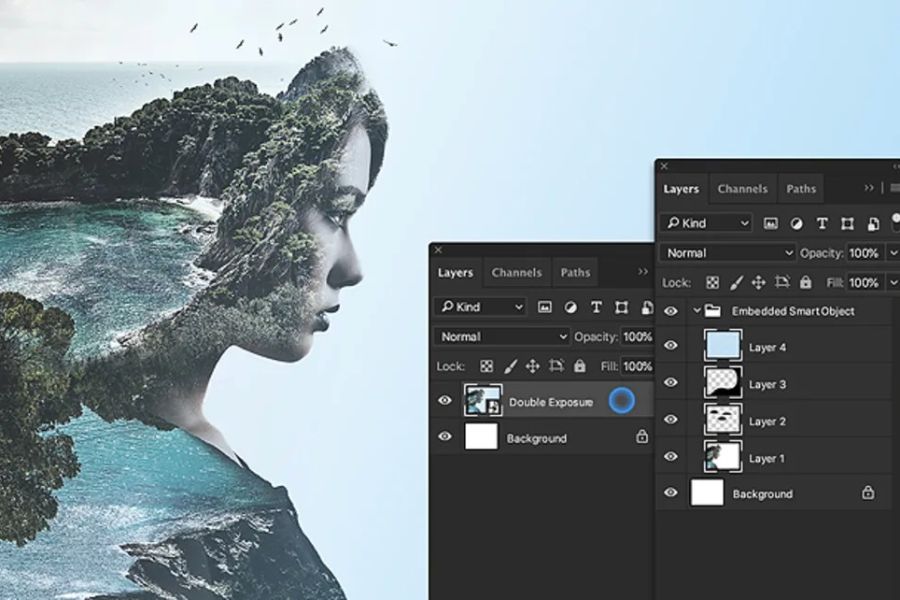
More than just photo editing software, Photoshop is also a powerful graphic design tool. Users can create banners, posters, YouTube thumbnails, advertising images, or other professional media products.
The combination of images, text, effects, and filters makes Photoshop an invaluable tool for marketers, designers, and content creators.
3. Popular Photoshop tools that beginners should know.
3.1 Crop Tool – Professional Image Cropping Tool
The Crop Tool is a basic but extremely important tool in the Photoshop image editing process on a computer. This tool allows users to crop out unnecessary areas and adjust the image composition more effectively.
A well-composed photograph will help the subject stand out and create a professional impression at first glance. Users can apply the Rule of Thirds when using the Crop Tool to enhance the aesthetic appeal of the image.
3.2 Spot Healing Brush Tool – Quickly remove blemishes
This is a tool widely used in portrait photo editing. With just a few clicks, blemishes, dark spots, or other unwanted details can be naturally removed.
The strength of the Spot Healing Brush lies in its ability to automatically analyze the surrounding image area to create a harmonious result. This makes it easy for even Photoshop beginners to use.
3.3 Clone Stamp Tool – Duplicate and restore images
The Clone Stamp Tool works by copying a region of an image and pasting it onto another area. This tool is very useful for restoring old photos or removing large objects.
For effective use, users should select a source for copying that is close to the area being edited to ensure consistent color and texture.
3.4 Adjustment Layers – Non-destructive color correction of the original image
Adjustment Layers are a feature that allows you to change the brightness, contrast, and color without affecting the original image.
This is a professional editing method frequently used by designers and photographers. When you need to change or remove an effect, you simply adjust the layer instead of starting over.
3.5 Pen Tool – A precise background separation tool
The Pen Tool is considered the "secret weapon" of professional designers. This tool allows for extremely precise selections, especially with objects that have complex outlines.
Although it takes some getting used to, once you master the Pen Tool, you'll be able to separate backgrounds, cut and paste products, or create professional designs with high precision.
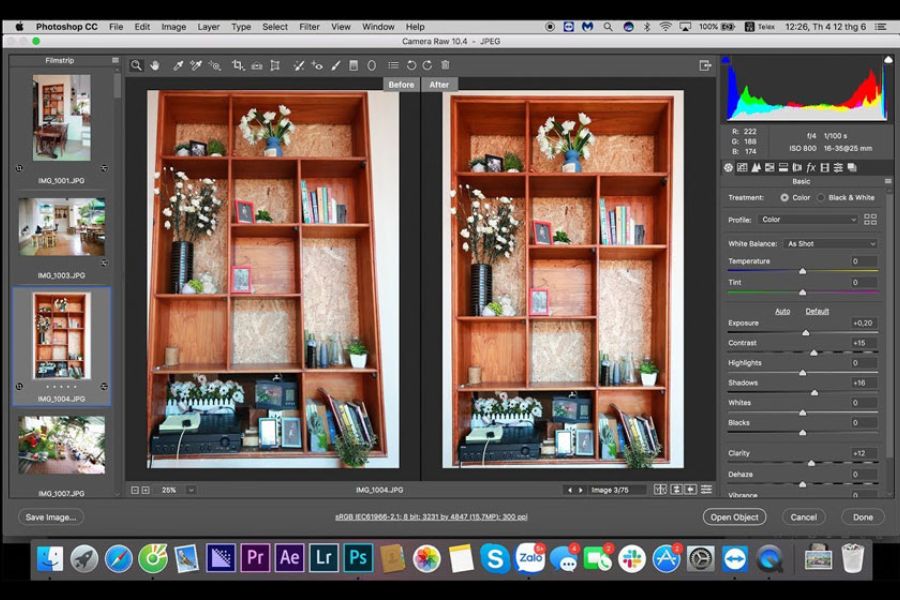
4. Guide to the efficient Photoshop image editing process on a computer.
4.1 Step 1: Assess the quality of the original image
Before editing, observe the overall image to identify areas for improvement such as lighting, color, sharpness, or composition.
Clearly defining your editing goals will save time and prevent over-editing that can make your photos look unnatural.
4.2 Step 2: Adjust the lighting and color
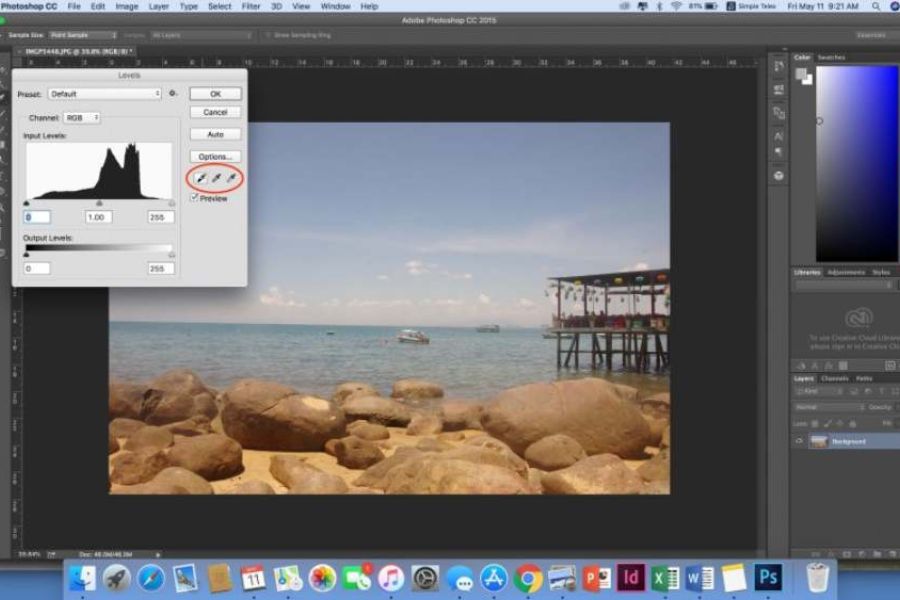
This is the most important step in the post-production process. You can use Curves, Levels, or Camera Raw Filters to balance the lighting and color.
A photograph with harmonious colors will create a more professional impression and attract viewers much more effectively.
4.3 Step 3: Eliminate defects
Use the Healing Brush or Clone Stamp tools to remove unwanted details from the image.
Handle the tool gently and carefully check after each adjustment to ensure the most natural-looking result.
4.4 Step 4: Increase sharpness
After completing the main editing steps, use a Sharpen or High Pass Filter to increase the detail in the image.
However, overuse of sharpening should be avoided as it can cause the image to appear noisy or unnatural.
4.5 Step 5: Export the image in the correct format
Once completed, save the PSD file so you can edit it again if needed, and export the image as a JPG or PNG for practical use.
Choosing the right format will help optimize image quality and file size.
5. Common mistakes when editing photos in Photoshop on a computer
Beginners learning Photoshop often make several mistakes that significantly reduce image quality.
Some common mistakes include:
-
Over-coloring makes the photo look unnatural.
-
Abusing the effects of skin beautification.
-
Excessive sharpening.
-
Cropping the image disrupts the balance of the composition.
-
Do not save the original file before editing.
-
Edit directly on the original layer.
Recognizing these mistakes will help you improve your skills quickly and create higher-quality products.
6. Tips for more professional Photoshop photo editing
To improve their skills, users should develop a scientific workflow and take advantage of Photoshop's powerful features.
Some helpful tips include:
-
Use layers instead of editing directly on the image.
-
Give your layers clear names for easier management.
-
Utilize keyboard shortcuts to speed up your workflow.
-
Use Smart Objects when you need to make multiple edits.
-
Regularly create backups of your files.
-
Learn additional Blend Mode and Mask techniques.
These small habits will save you a lot of time when working on large projects.
7. Where can I get my Photoshop upgraded reliably?
Currently, the demand for licensed Photoshop is increasing as users want to experience the full range of features, receive continuous updates, and ensure data security. However, finding a reputable upgrade service is something not everyone knows how to do.
AppVip.ai is a popular choice for many users looking to upgrade Photoshop and other professional design software. This platform offers various service packages suitable for individuals, freelancers, designers, and businesses at reasonable prices.
Advantages of upgrading Photoshop at AppVip.ai :
-
Fast support process.
-
Cost-effective.
-
Dedicated technical support.
-
We will advise you on choosing the most suitable package.
-
Update to the latest version regularly.
-
Ensure a stable user experience.
For those who frequently edit photos in Photoshop on their computers, owning the full-featured version will optimize workflow and significantly improve product quality.
8. Current trends in Photoshop photo editing
The photo design and editing industry is constantly evolving to keep up with market trends. Users today are no longer chasing overly dramatic effects but are instead looking for a natural, subtle, and professional look.
Popular styles include film color, cinematic color, minimalist light and dark tones, natural portraits, and modern commercial styles. Photoshop, with its rich ecosystem of tools, fully meets these requirements.
Regularly updating on trends will help designers and content creators produce engaging products that suit the tastes of customers and viewers.
9. Conclusion
Editing images in Photoshop on a computer isn't just a skill for professional designers; it's a useful tool for anyone who wants to improve image quality. From color correction and beautification to blemish removal and creative graphic design, Photoshop offers countless opportunities to turn ideas into reality. By combining basic knowledge, a scientific workflow, and the right version of Photoshop, you can create stunning, professional images that make a strong impression on viewers.





















VIP Products








Best Selling Products
Upgrade Duolingo Super
29 USD
Plugin Retouch4me
69 USD
Autodesk All App Account Copyright
120 USD
ChatGPT Plus Account (GPT-4)
16 USD
Upgrade genuine Capture One account
120 USD
Genuine Cheap Canva Pro
39 USD
Capcut Pro 1 Year
39 USD
Genuine Adobe Illustrator account
99 USD
Upgrade Genuine Office 365
49 USD
Freepik Premium Account
59 USD
Windows 10 & 11 Pro Key
36 USD
Copyright Adobe Lightroom Account
59 USD
Adobe Photoshop Copyright - Full App
120 USD
MidJourney Account
29 USD
Adobe Premiere Pro Account
99 USD