Best Selling Products

Upgrade genuine Capture One account
120 USD

Adobe Photoshop Copyright - Full App
120 USD

ChatGPT Plus Account (GPT-4)
16 USD

Capcut Pro 1 Year
39 USD

Autodesk All App Account Copyright
120 USD

Plugin Retouch4me
69 USD

Upgrade Genuine Office 365
49 USD

Freepik Premium Account
59 USD

MidJourney Account
29 USD

Copyright Adobe Lightroom Account
59 USD

Genuine Cheap Canva Pro
39 USD

Genuine Adobe Illustrator account
99 USD

Adobe Premiere Pro Account
99 USD

Windows 10 & 11 Pro Key
36 USD

Upgrade Duolingo Super
29 USD
How to Easily Fix the ERR_CONNECTION_RESET Error on Chrome
Nội dung
- 1. What is the ERR_CONNECTION_RESET error?
- 2. What are the consequences of the ERR_CONNECTION_RESET error?
- 2.1 Disruptions to the user experience
- 2.2 Loss of input data
- 2.3 Disruption of online transactions
- 3. Causes of the ERR_CONNECTION_RESET error
- 4. Effective ways to fix the ERR_CONNECTION_RESET error
- 4.1. Check and identify the source of the ERR_CONNECTION_RESET error.
- 4.2. Using Chrome's browser cleanup tool
- 4.3. Check proxy settings
- 4.4. Clear browser cache data
- 4.5. Reset AppEx Networks Accelerator
- 4.6. Reset Winsock catalog
- 4.7. Reset TCP/IP
- 4.8. Reset the router
- 4.9. Temporarily disable the firewall and Windows Defender.
- 4.10. Contact your network provider.
- 5. Conclusion
Connection errors, particularly the ERR_CONNECTION_RESET error, have become a common problem, impacting user experience.
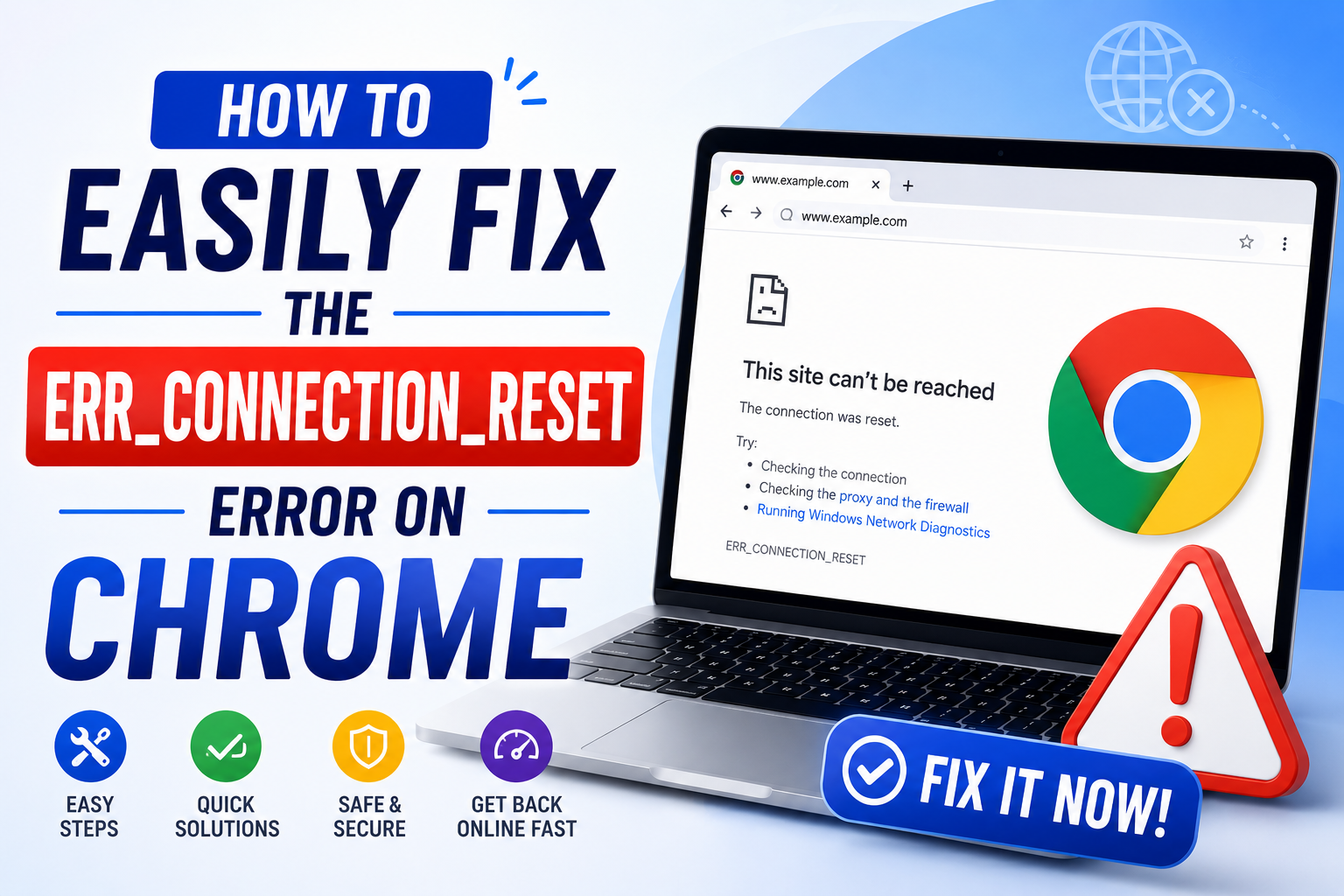
1. What is the ERR_CONNECTION_RESET error?
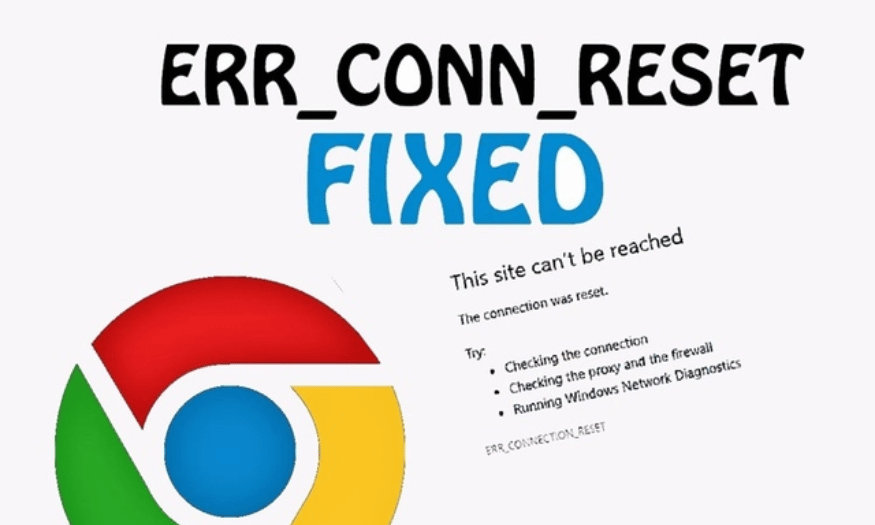
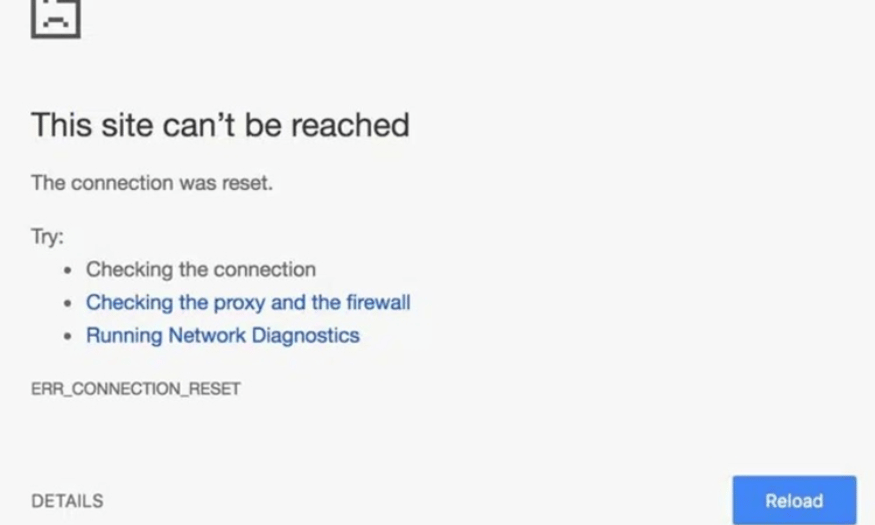
The ERR_CONNECTION_RESET error is an error message indicating that the browser cannot establish a connection with the website's server. This commonly occurs on Chrome, but can also appear on other browsers such as Firefox or Internet Explorer. The cause could be a server issue, a firewall problem, or even incorrect network configuration.
When users encounter this error, they will see an error message on the screen, which is not only annoying but also disrupts their web browsing. Understanding the ERR_CONNECTION_RESET error will help users quickly identify the cause and find an effective solution.
2. What are the consequences of the ERR_CONNECTION_RESET error?
2.1 Disruptions to the user experience
One of the most noticeable impacts of the ERR_CONNECTION_RESET error is the disruption to the user experience. When the connection is unstable, users will be disconnected midway, unable to continue viewing content or performing tasks on the website. This not only wastes user time but can also create frustration as they are unable to access the information they need.
2.2 Loss of input data
Besides disrupting the user experience, this error can also lead to the loss of important data. When a user is entering information on a website and encounters the ERR_CONNECTION_RESET error, it's highly likely that the data they entered will not be sent. This forces the user to re-enter the information from scratch after the connection is restored, which is especially frustrating if they are working on an important task.
2.3 Disruption of online transactions
For e-commerce websites or services requiring online transactions, the ERR_CONNECTION_RESET error can cause serious disruptions to the transaction process. Users are unable to complete payments or make purchases, which not only affects their experience but can also lead to lost revenue for businesses. Therefore, resolving this error quickly and effectively is extremely important.
3. Causes of the ERR_CONNECTION_RESET error
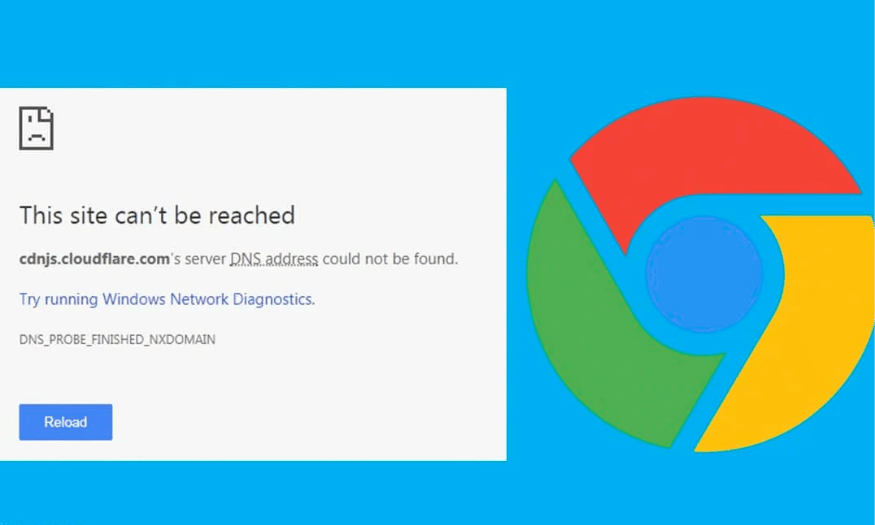
The ERR_CONNECTION_RESET error can stem from various factors affecting a user's ability to connect to the server. One common cause is network connectivity issues. This can occur when the Wi-Fi network is weak or unstable, leading to sudden disconnections. Additionally, network configuration problems on the device can also cause this error, such as incorrect DNS settings or conflicts between network devices.
Additionally, issues with the service provider's servers are also a significant cause. If the server is overloaded or undergoing maintenance, it may not respond properly, preventing the browser from establishing a connection. Finally, errors can also arise from the browser itself, due to incompatible extensions or overly high security settings blocking the connection.
4. Effective ways to fix the ERR_CONNECTION_RESET error
The ERR_CONNECTION_RESET error can be a major hindrance to web browsing, but fortunately, there are several ways to fix this problem. Below are some simple and effective methods you can use to restore your connection and continue your online experience smoothly.
4.1. Check and identify the source of the ERR_CONNECTION_RESET error.
The first step in troubleshooting the ERR_CONNECTION_RESET error is to identify the source of the problem. You can start by trying to access a different website to see if the connection works. If you can't access any pages, the problem is most likely with your operating system or your service provider's network. Conversely, if other pages work normally, the issue may be limited to a specific website, related to an incompatible proxy, or that page is blocked by your provider.
Understanding the source of the problem will help you decide on the next steps without wasting too much time. If necessary, you can also try restarting your modem or router to refresh the connection, which often resolves many basic network issues.
4.2. Using Chrome's browser cleanup tool
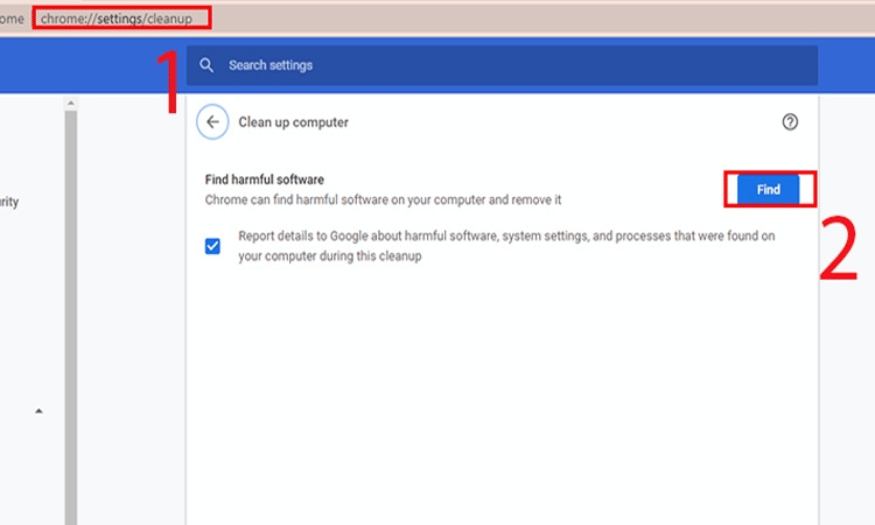
One effective way to fix the ERR_CONNECTION_RESET error is to use Chrome's built-in cleanup tool. Simply type chrome://settings/cleanup into the address bar and press Enter. Then, click the "Find" button to allow the browser to automatically search for and repair any errors that may be causing the problem. This process helps remove junk files and other elements that can reduce browser performance.
Using cleaning tools not only helps fix errors but also makes your browser run more smoothly. This is especially important in the context of increasing browser usage, where keeping your browser clean and optimized is essential for the best experience.
4.3. Check proxy settings
Incorrect proxy settings can also lead to the ERR_CONNECTION_RESET error. To check and disable proxy access, you can open the Run dialog box by pressing the Windows + R key combination, then type inetcpl.cpl and press Enter. In the Internet Properties window, go to the Connections tab and select LAN settings. Here, make sure that the "Use a proxy server for your LAN" option is not selected, then save the changes.
Checking and adjusting proxy settings can help restore connections quickly, especially if you frequently use public or corporate networks. Ensuring your network configuration is optimal will help you avoid many problems in the future.
4.4. Clear browser cache data
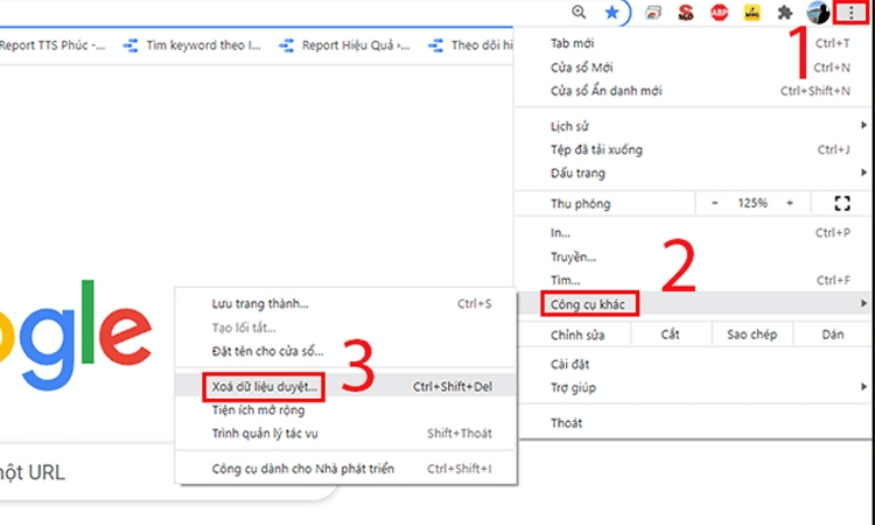
Accumulated cache data during web browsing can cause various problems, including the ERR_CONNECTION_RESET error. To clear this data, open Google Chrome, click the three-dot icon in the upper right corner, and select "More tools," then "Clear browsing data...". In the "Advanced" tab, select "Cookies and other site data" and click "Clear data."
This process not only fixes the error but also improves browser performance. After clearing the cache, restart Chrome and check if the error has been resolved. Maintaining a clean and optimized browser will provide you with a better web browsing experience.
4.5. Reset AppEx Networks Accelerator
If you are using AppEx Networks Accelerator, disabling it may help improve your website server access speed. To do this, open Settings, select "Network & Internet," then select "Ethernet," and click "Change adapter options." Disabling this application can help minimize connection-related issues, thereby resolving the ERR_CONNECTION_RESET error.
Once completed, you can easily restore your internet connection and ensure a smoother browsing experience. Understanding these troubleshooting methods will give you more confidence when facing connection issues in the future.
4.6. Reset Winsock catalog
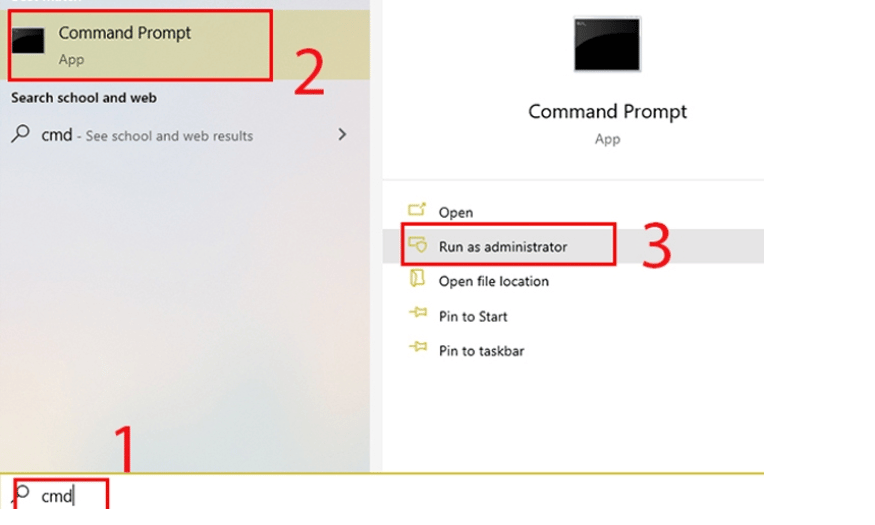
If you're having trouble accessing most websites, resetting the Winsock directory might help restore your network connection. Winsock is a crucial API in the Windows operating system that manages communication between applications and the network. To do this, you need to open Command Prompt with administrator privileges. Type "CMD" into the search box, then right-click and select "Run as Administrator".
When the Command Prompt window appears, type the command `netsh winsock reset` and press Enter. If the reset is successful, you will receive a confirmation message. To apply the changes, restart your computer. This simple operation can help improve network connectivity and effectively resolve the ERR_CONNECTION_RESET error.
4.7. Reset TCP/IP
When encountering the ERR_CONNECTION_RESET error on many websites, resetting TCP/IP is also a helpful solution. First, open Command Prompt by pressing the "Windows + S" key combination, then type "CMD" into the search box. Right-click and select "Run as administrator" to open with administrator privileges.
In the Command Prompt window, type the command `netsh int ip reset` and press Enter. After the command finishes executing, restart your computer to apply the changes. Resetting TCP/IP can help fix network connection issues, bringing you back to a smoother web browsing experience.
4.8. Reset the router
Sometimes, restarting your router can be a simple but effective solution to connection problems. Most network devices have a power button that allows you to easily turn them off and on again. If there isn't a power button, you can unplug the power cord and wait at least half a minute to ensure the device's memory is completely cleared.
After waiting the required time, reconnect the power cord and start the device. This will refresh the internet connection and may resolve the ERR_CONNECTION_RESET error you are experiencing. With just a few simple steps, you should be able to restore your network connection.
4.9. Temporarily disable the firewall and Windows Defender.
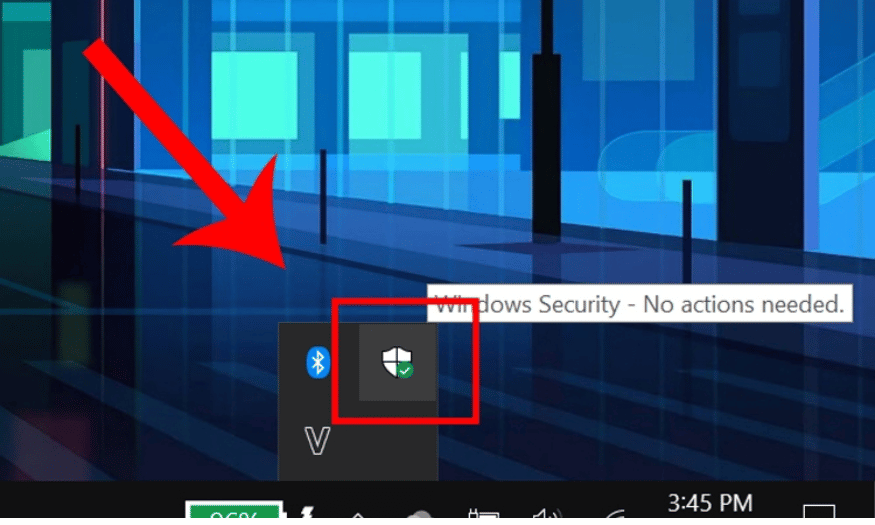
If you still can't access websites, temporarily disabling your firewall and Windows Defender might be a viable option. To do this, double-click the Windows Security icon on the taskbar. Next, select “Virus & threat protection” and then click “Manage settings”.
In the settings, switch the “Real-time protection” option to “Off”. Note that disabling the firewall can increase security risks, so remember to turn it back on after you have checked the connection. This is a temporary solution but may help you determine if the firewall is the cause of the ERR_CONNECTION_RESET error.
4.10. Contact your network provider.
If all of the above solutions still fail to resolve the ERR_CONNECTION_RESET error, contacting your Internet Service Provider (ISP) is the logical next step. Your ISP can provide information about your connection status and check if the website you are trying to access is blocked.
If the website is indeed blocked, you can request that your ISP grant you access. Support from your network provider can help resolve the issue quickly and ensure you can return to a seamless browsing experience.
5. Conclusion
The ERR_CONNECTION_RESET error can cause many problems and interruptions during internet access, but with the right troubleshooting methods, you can quickly restore your connection and continue your online experience. From checking network settings, resetting Winsock and TCP/IP lists, to restarting your router or temporarily disabling your firewall, all of these can help you resolve this issue.





















VIP Products








Best Selling Products
Upgrade genuine Capture One account
120 USD
Adobe Photoshop Copyright - Full App
120 USD
ChatGPT Plus Account (GPT-4)
16 USD
Capcut Pro 1 Year
39 USD
Autodesk All App Account Copyright
120 USD
Plugin Retouch4me
69 USD
Upgrade Genuine Office 365
49 USD
Freepik Premium Account
59 USD
MidJourney Account
29 USD
Copyright Adobe Lightroom Account
59 USD
Genuine Cheap Canva Pro
39 USD
Genuine Adobe Illustrator account
99 USD
Adobe Premiere Pro Account
99 USD
Windows 10 & 11 Pro Key
36 USD
Upgrade Duolingo Super
29 USD