Best Selling Products

Adobe Premiere Pro Account
99 USD

MidJourney Account
29 USD

Genuine Adobe Illustrator account
99 USD

Upgrade Genuine Office 365
49 USD

Upgrade genuine Capture One account
120 USD

Genuine Cheap Canva Pro
39 USD

Autodesk All App Account Copyright
120 USD

Plugin Retouch4me
69 USD

Copyright Adobe Lightroom Account
59 USD

Upgrade Duolingo Super
29 USD

ChatGPT Plus Account (GPT-4)
16 USD

Freepik Premium Account
59 USD

Adobe Photoshop Copyright - Full App
120 USD

Windows 10 & 11 Pro Key
36 USD

Capcut Pro 1 Year
39 USD
How to Use Canva on Your Phone and Computer for Free for Beginners
Nội dung
- 1. A brief introduction to Canva
- 2. 5 popular pre-designed templates available on Canva
- 2.1 Professional Presentation
- 2.2 Social Media Content Design
- 2.3 Video Design and Editing
- 2.4 Print Product Design
- 2.5 Other Creative Design Examples
- 3. Detailed instructions on how to use Canva on your phone for beginners.
- 3.1. Download the Canva app to your phone.
- 3.2. Register and log in to your Canva account
- 3.3. Designing images in Canva using a phone
- 3.4. Saving and sharing designs
- 3.5. Explore more advanced features
- 4. The simplest way to use Canva on a computer.
- 4. Conclusion
With just a few simple steps, you can create stunning images, professional banners, impressive social media posts, or high-quality presentations without needing extensive graphic design knowledge.
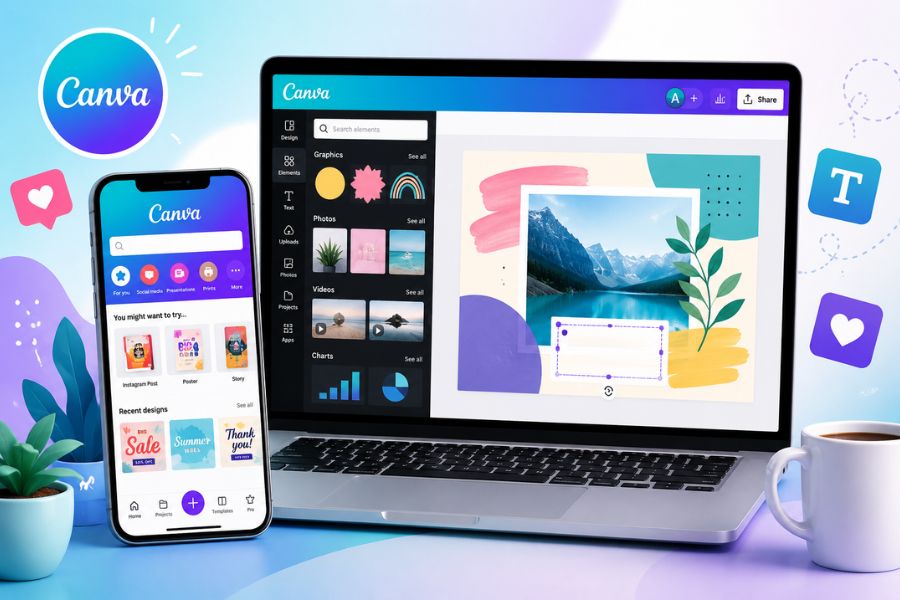
1. A brief introduction to Canva
One of Canva's outstanding strengths is its vast library of design templates covering a wide range of themes and industries. Users simply choose a suitable template, edit the content to their needs, and quickly complete their product. In addition, Canva supports automatic design storage on its cloud platform, allowing easy access, editing, or downloading whenever needed. Thanks to its convenience, flexibility, and completely free basic features, Canva on both mobile and desktop platforms is becoming an indispensable content creation tool for individuals, businesses, and marketers today.

2. 5 popular pre-designed templates available on Canva
2.1 Professional Presentation
Canva offers a wide variety of pre-designed presentation templates in various aspect ratios such as 16:9, 4:3, or mobile-optimized formats. Users can easily edit colors, images, charts, and content with simple drag-and-drop functionality. Therefore, Canva on your phone helps you quickly create beautiful presentation slides for studying, working, or presentations without needing specialized design software.
2.2 Social Media Content Design
This is one of the most widely used template sets on Canva today. The platform offers thousands of ready-made templates for Facebook posts, Instagram Stories, cover photos, advertising banners, and many other formats suitable for each social media platform. With Canva on your phone, users can edit and upload content instantly, saving time and maintaining a professional image for their brand or personal page.
2.3 Video Design and Editing
Beyond its outstanding visual design capabilities, Canva also offers incredibly convenient video creation and editing. Users can create TikTok videos, YouTube videos, commercials, or product introductions using pre-made templates. Canva on mobile devices allows you to add effects, sound, text, and transitions in just minutes, making content creation simpler than ever.
2.4 Print Product Design
Canva offers a rich library of templates for printable products such as flyers, posters, invitations, vouchers, menus, certificates, resumes, and desk calendars. The designs are optimized for size and layout, making it easy for users to create professional-looking finished products. Even when using Canva on a phone, you can still customize details and export high-quality files for printing purposes.
2.5 Other Creative Design Examples
Beyond popular categories, Canva also supports the design of infographics, mind maps, book covers, reports, phone wallpapers, collages, and many other creative products. It's an ideal choice for those who want to express their ideas in a visual and unique way. With Canva's flexibility on mobile devices, users can unleash their creativity anytime, anywhere, and customize designs to create a unique touch for each product.
3. Detailed instructions on how to use Canva on your phone for beginners.
3.1. Download the Canva app to your phone.
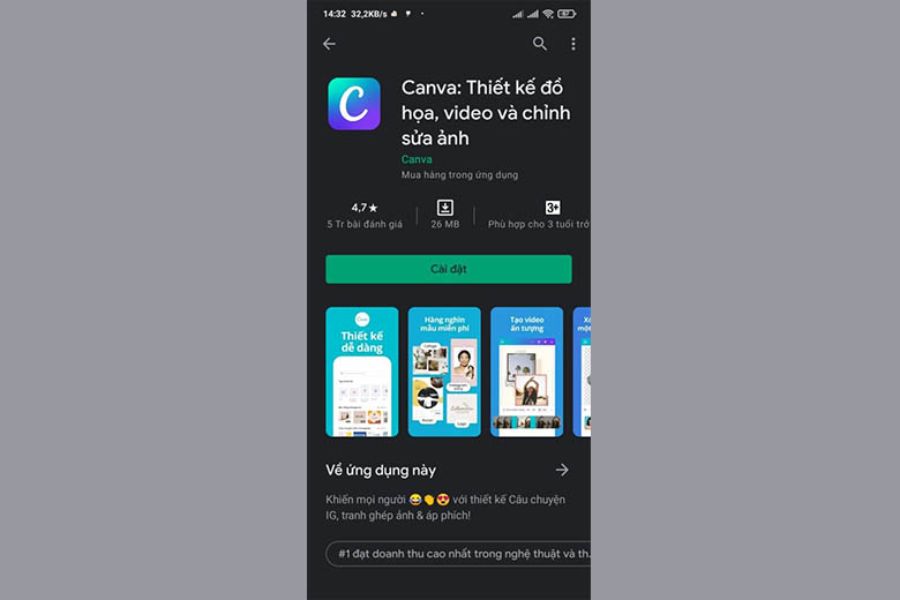
To start designing anytime, anywhere, you first need to install Canva on your phone. The app is fully supported on both Android and iOS operating systems, making it easy to download from the app store in just a few minutes. With its intuitive interface and mobile optimization, Canva on your phone provides a fast, convenient design experience without needing a computer.
3.2. Register and log in to your Canva account
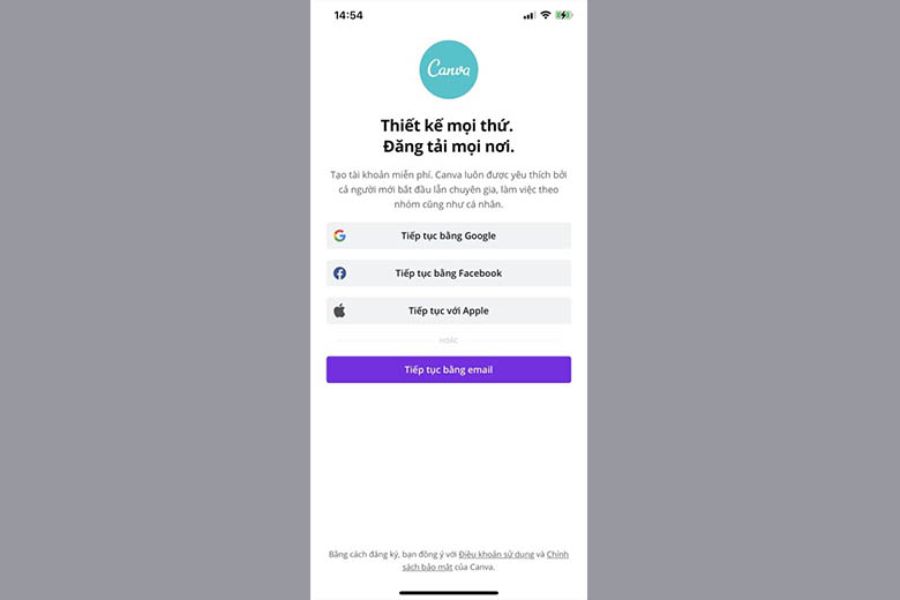
After successful installation, you need to log in to use all of Canva's features. If you already have an account, simply enter your login information to start designing immediately. If you don't have an account yet, Canva allows you to quickly register using Google, Facebook, Email, or Apple ID for iPhone users.
Upon completing registration, the system will ask for your intended use, such as personal, learning, education, or business. This selection helps Canva suggest design templates that better suit each user's needs. This simple step makes the Canva experience on mobile devices more efficient and personalized.
3.3. Designing images in Canva using a phone
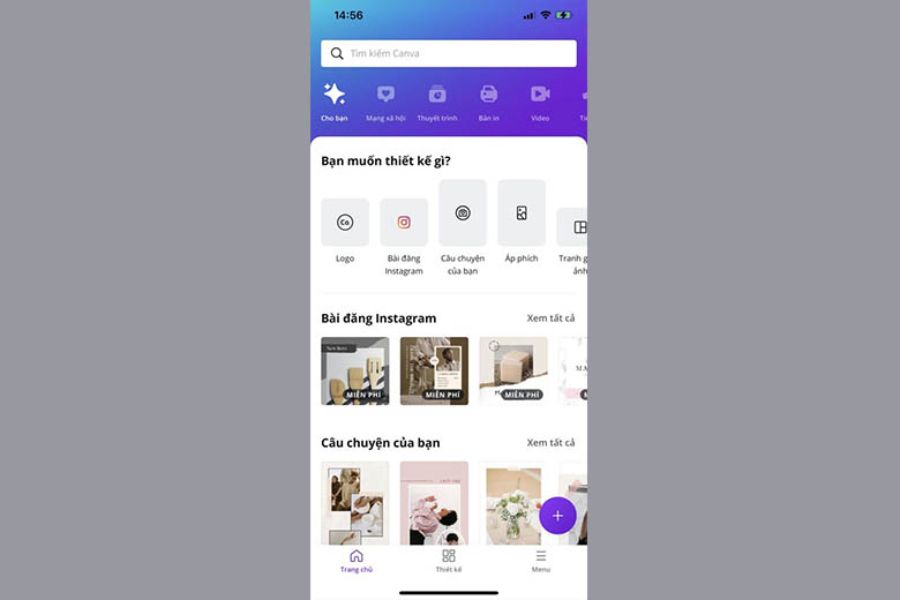
Canva's most appealing feature lies in its ability to quickly design directly on your phone screen. Upon accessing the main interface, you'll find thousands of design templates categorized by purpose, such as Facebook posts, Instagram Stories, posters, logos, advertising banners, CVs, and short videos.
To create a complete design in Canva on your phone, simply follow these steps:
-
Choose a design that suits your needs.
-
Upload photos from your phone's gallery or use the free photo library available on Canva.
-
Insert text, change font, color, and size as desired.
-
Add icons, stickers, graphic effects, or other decorative elements.
-
Apply color filters and edit images to enhance their aesthetic appeal.
-
Arrange the layout using simple drag-and-drop operations.
3.4. Saving and sharing designs
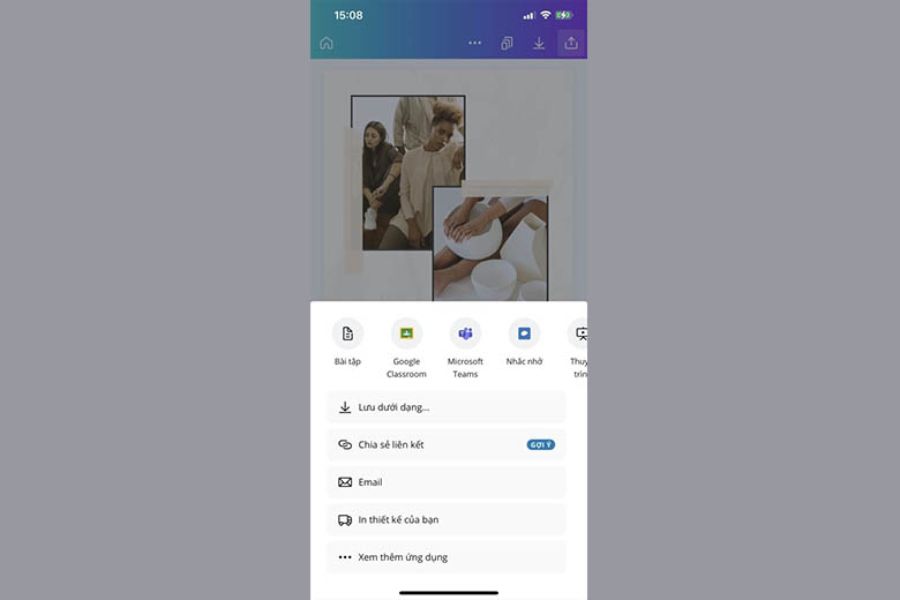
After completing the product, Canva allows exporting files in many popular formats such as PNG, JPG, PDF, or MP4 for videos. Users can save directly to their phones or quickly share to Facebook, Instagram, TikTok, Zalo, and many other platforms with just a few taps.
Additionally, Canva on mobile supports cloud-based data synchronization, allowing you to easily edit your designs whenever needed. If working in a team, you can also share editing rights with others or export files to Google Drive or PowerPoint for continued use in other projects.
3.5. Explore more advanced features
In addition to basic tools, Canva also boasts many advanced features such as video creation, AI-powered background removal, AI-powered content creation, brand identity design, and online teamwork. These features help users improve product quality while significantly saving time.
By simply familiarizing yourself with the basic operations of Canva on your phone, you can confidently create professional designs for your studies, business, or personal branding. The more you use it, the more useful and creative tools you will discover from this leading design platform.
4. The simplest way to use Canva on a computer.
Besides Canva on mobile phones, the desktop version is also very popular thanks to its spacious workspace and more convenient operation. The large screen makes it easy for users to observe the overall layout, edit image details, and manage design elements intuitively. This is a suitable choice for those who frequently work on large projects such as presentations, advertising banners, or marketing materials.
Step 1: Access or install Canva on your computer.
To use Canva on your computer, you can choose one of the following two methods:
-
Access the Canva website directly using a web browser.
-
Download and install the Canva application for Windows or macOS for more convenient use.
Both versions offer full design, editing, and data storage features within a single account, making it easy to synchronize with Canva on your phone when working on multiple devices.
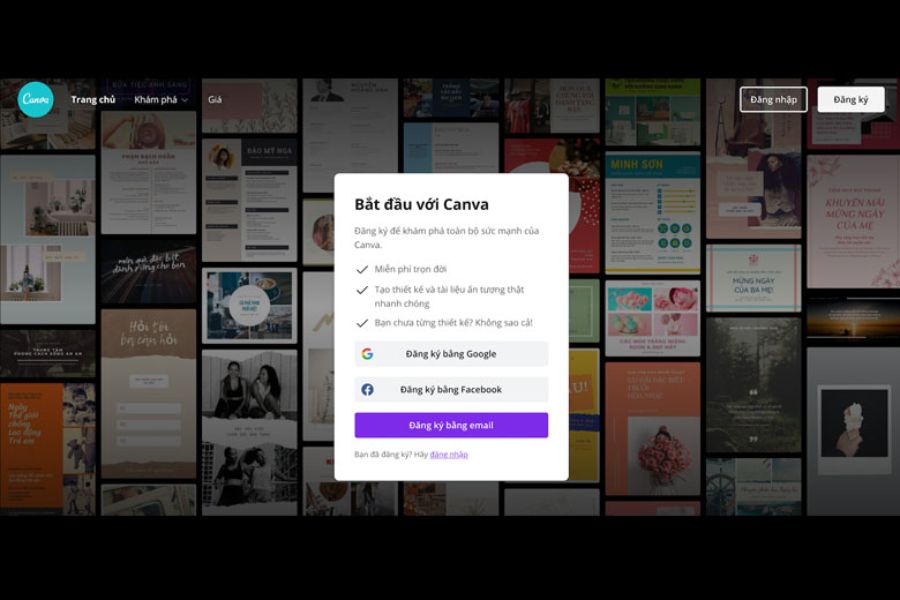
Step 2: Register or log in to your account
After successfully accessing the site, you need to log in to start using it. If you don't have an account yet, Canva supports quick registration through Google, Facebook, or Email. The account creation process only takes a few minutes and is completely free.
After verifying your account, all designs will be stored on the cloud platform. This allows you to continue editing the project on your computer or transfer it to Canva on your phone without worrying about losing data.
Step 3: Start designing in Canva
Immediately after logging in, Canva will display thousands of design templates categorized by different uses. Users can quickly select popular categories such as:
-
Facebook and Instagram posts.
-
Facebook and Instagram Stories.
-
Brand logo.
-
Advertising poster.
-
Business card.
-
Job application CV.
-
Restaurant menu.
-
The presentation.
-
Phone and computer wallpapers.
-
Invitation cards, greeting cards.
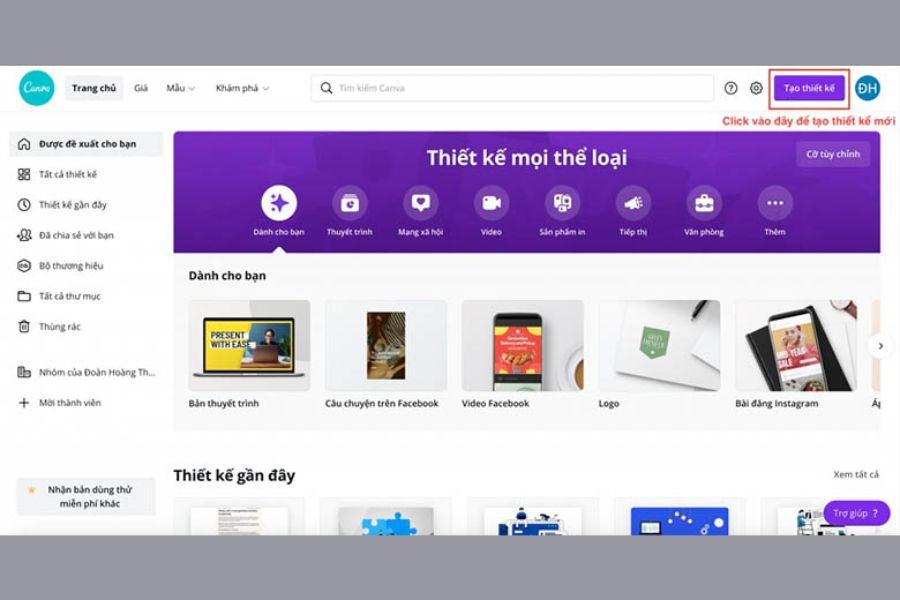
Step 4: Create a new design
To start your own project, click the "Create Design" button in the upper right corner of the screen. Canva will suggest several popular sizes corresponding to different content types such as social media posts, banners, videos, or print documents.
If you want to design it to your own size, simply select "Custom Size" and enter your desired width and height. This is a very useful feature for those working in marketing, advertising, or content design with specific requirements.
Step 5: Edit and finalize the design
After selecting a template or creating a new design framework, you can easily edit it using intuitive drag-and-drop tools. Canva allows you to change images, colors, fonts, icons, effects, and many other elements with just a few clicks.
In addition to creating new images, users can also use the Image Editing feature to modify existing images, apply color filters, or add effects to enhance the professionalism of their work. Thanks to its user-friendly interface, Canva on computers makes the design process quick while maintaining high aesthetic quality.
4. Conclusion
Canva is a simple yet incredibly powerful online design solution that allows anyone to create beautiful graphic designs without professional experience. From designing Facebook posts, advertising images, posters, CVs to short videos, Canva provides a full range of tools with intuitive and easy-to-use operation. In particular, the mobile version of Canva allows users to flexibly edit designs anytime, anywhere, while the desktop version offers a larger and more convenient workspace for larger projects. Hopefully, with the detailed instructions in this article, you have learned how to use Canva effectively and can confidently create professional designs completely free of charge starting today.





















VIP Products








Best Selling Products
Adobe Premiere Pro Account
99 USD
MidJourney Account
29 USD
Genuine Adobe Illustrator account
99 USD
Upgrade Genuine Office 365
49 USD
Upgrade genuine Capture One account
120 USD
Genuine Cheap Canva Pro
39 USD
Autodesk All App Account Copyright
120 USD
Plugin Retouch4me
69 USD
Copyright Adobe Lightroom Account
59 USD
Upgrade Duolingo Super
29 USD
ChatGPT Plus Account (GPT-4)
16 USD
Freepik Premium Account
59 USD
Adobe Photoshop Copyright - Full App
120 USD
Windows 10 & 11 Pro Key
36 USD
Capcut Pro 1 Year
39 USD