Best Selling Products

Capcut Pro 1 Year
39 USD

Copyright Adobe Lightroom Account
59 USD

Upgrade Duolingo Super
29 USD

MidJourney Account
29 USD

Freepik Premium Account
59 USD

Adobe Premiere Pro Account
99 USD

Autodesk All App Account Copyright
120 USD

Adobe Photoshop Copyright - Full App
120 USD

ChatGPT Plus Account (GPT-4)
16 USD

Upgrade genuine Capture One account
120 USD

Plugin Retouch4me
69 USD

Upgrade Genuine Office 365
49 USD

Genuine Cheap Canva Pro
39 USD

Windows 10 & 11 Pro Key
36 USD

Genuine Adobe Illustrator account
99 USD
How to Use Chat GPT and Canva for Professional Design
Nội dung
- 1. What is ChatGPT?
- 2. What is Canva?
- 3. What are the benefits of combining ChatGPT and Canva?
- 4. Instructions on how to install the Canva plugin into ChatGPT
- 4.1 Step 1: Access the ChatGPT page
- 4.2 Step 2: Open Settings & Beta
- 4.3 Step 3: Activate Plugin functionality in Beta Features
- 4.4 Step 4: Access the Plugin Store from ChatGPT-4
- 4.5 Step 5: Search for and install Canva plugins
- 5. Instructions on how to use ChatGPT to create Canva designs
- 5.1 Step 1: Switch to the GPT-4 tab and activate the Canva plugin.
- 5.2 Step 2: Enter the command line describing the design requirements
- 5.3 Step 3: Receive and download the design template to your computer
- 5.4 Step 4: View and edit the design directly in Canva
- 6. Conclusion
With the perfect combination of ChatGPT and Canva , anyone can create beautiful, creative, and personalized designs in a short amount of time.
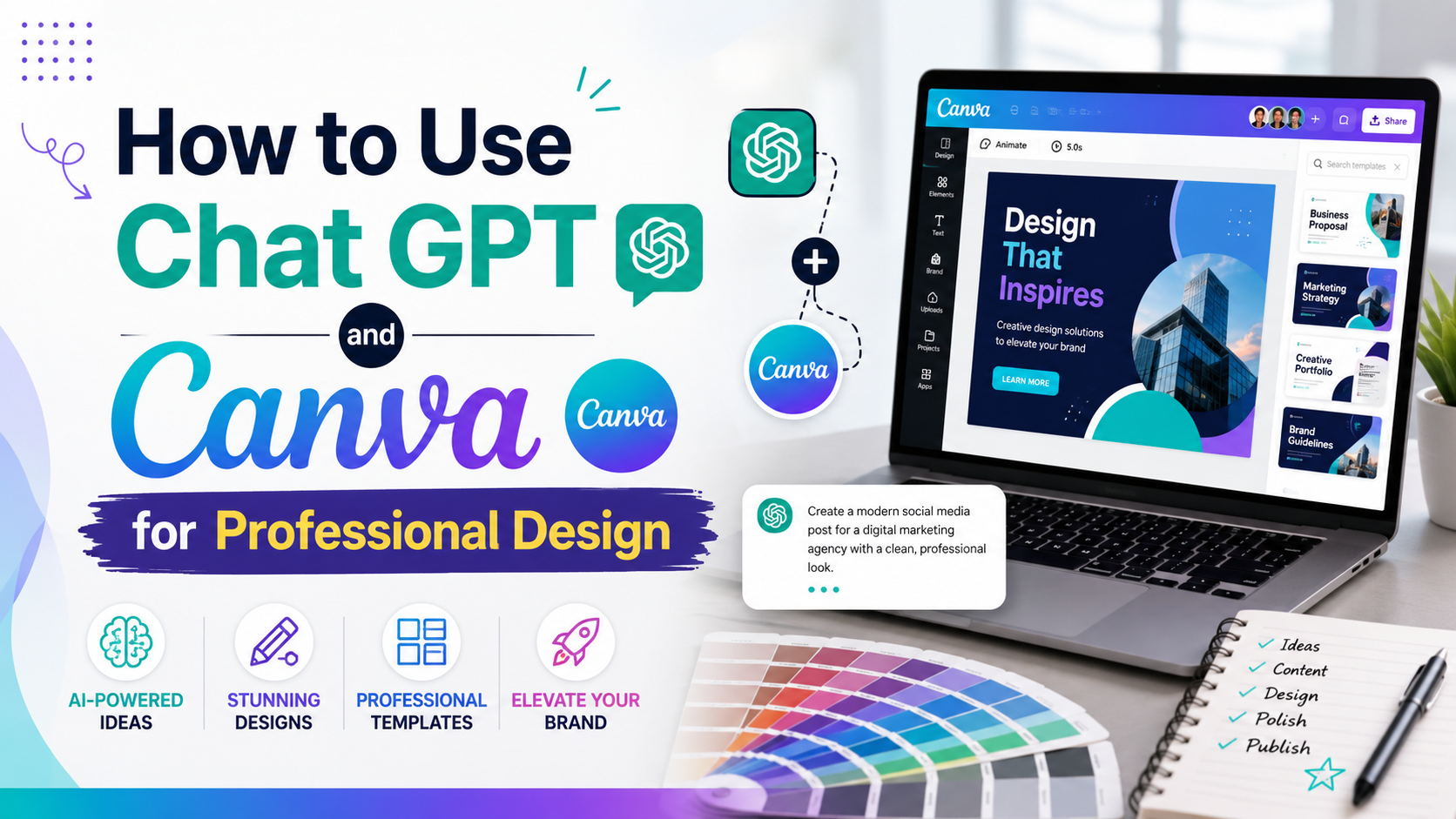
1. What is ChatGPT?
ChatGPT is an advanced artificial intelligence (AI) tool developed to assist people in creating content, solving problems, and finding ideas quickly and accurately. With its natural language processing capabilities, ChatGPT can understand and respond to your questions and requests like an intelligent "virtual assistant." A key feature of ChatGPT is its ability to create and customize content according to user needs, from writing advertisements, video scripts, and social media posts to suggesting design ideas. This significantly saves you time and effort while delivering high-quality content that aligns with your goals.
Beyond simply providing content, ChatGPT also serves as an endless source of creative inspiration. When you're struggling with design ideas or developing communication strategies, simply describe your needs, and ChatGPT will offer unique and specific suggestions. It's an ideal tool for designers, marketers, entrepreneurs, and even beginners wanting to explore the world of creativity. Thanks to its continuous updates and intelligent feedback, ChatGPT becomes a reliable companion, helping you improve work efficiency and optimize your creative experience every day.
2. What is Canva?
Canva is a popular online graphic design platform, loved for its user-friendly interface and rich resource library. Canva's greatest strength lies in its simplicity and ease of use, allowing anyone, even without professional design knowledge, to create beautiful, professional-looking products. Canva offers thousands of ready-made design templates for various purposes such as social media posts, posters, banners, videos, presentations, and even logos and brand identity packages. All can be flexibly customized to suit individual style and needs.
More than just a design tool, Canva is a massive "creative repository" where you can easily combine colors, fonts, and images to create products with a unique personal touch. Additionally, Canva supports real-time team collaboration, allowing multiple people to work on a single project, making it ideal for businesses or content creation teams. With both free and paid upgrade options, Canva caters to needs from basic to advanced, becoming a top choice for those who want to save time and money while still producing high-quality, professional design work.
3. What are the benefits of combining ChatGPT and Canva?
The combination of ChatGPT and Canva offers a comprehensive solution, helping you create content and bring your ideas to life quickly and easily. This duo of tools not only saves time but also opens up unlimited creative possibilities, suitable for everyone from beginners to professional designers.
- Simple and easy to use : ChatGPT acts as a "virtual assistant" to help you create content, brainstorm design ideas, and define your style with just a few short descriptions. Then, Canva will help you translate these ideas into beautiful and professional designs without spending hours learning complex software.
- Endless customization options : ChatGPT can offer numerous suggestions for colors, layouts, and content, while Canva provides thousands of ready-made templates for you to freely customize. As a result, the final product not only meets your requirements but also accurately reflects your personal style or brand.
- Integrating artificial intelligence and graphic design : When ChatGPT and Canva are used together, you can create complete social media posts, advertising posters, or brand identities in a short amount of time. This is the optimal solution for small businesses, content creators, and marketers who want to maximize efficiency while saving costs.
- Save time and money : Instead of hiring a design team or spending days figuring things out yourself, you only need a few basic steps to complete your product. This is especially helpful for startups or freelancers who want to speed up their workflow.
- Unleash your creativity : ChatGPT can suggest fresh and groundbreaking ideas, while Canva provides intuitive tools to turn those ideas into reality. This combination helps you maintain a constant creative flow, never running out of ideas for your projects.
- Effective team collaboration support : Canva allows multiple people to edit a design simultaneously, while ChatGPT can provide guidance or assign specific tasks. This helps teams work in sync, optimizes performance, and ensures a high-quality final product.
4. Instructions on how to install the Canva plugin into ChatGPT
Integrating the Canva plugin into ChatGPT will enhance your creative experience, allowing you to use AI for idea generation and design directly within the Canva platform. Below is a detailed step-by-step guide, along with important notes to help you easily implement it.
4.1 Step 1: Access the ChatGPT page
First, open your browser and access the official ChatGPT website at: https://chat.openai.com/ . This is the central platform where you can use ChatGPT and install additional plugins. Ensure you have a stable internet connection to avoid interruptions during operation.
If you don't have an account yet, click Sign Up to register using your email or link your Google or Microsoft account. If you already have an account, simply click Log In to log in. Note that to use the plugin installation feature, you need to upgrade to ChatGPT Plus . This is a paid version with many advanced features, powerful AI support, and plugin installation. You can purchase a ChatGPT Plus account at a low price from Gamikey , a reputable provider that ensures safety and convenience.
4.2 Step 2: Open Settings & Beta
After successfully logging in, on the main ChatGPT interface, pay attention to the bottom left corner of the screen. You will see the email account currently logged in. Click on this email address, and a menu of options will appear. In this list, select "Settings & Beta" .
This is where you'll find advanced settings, allowing you to customize ChatGPT to your personal needs. Accessing this section is a mandatory step to enable the plugin before proceeding with Canva installation.
4.3 Step 3: Activate Plugin functionality in Beta Features
When the Settings & Beta window opens, you'll see a list of advanced features. Click on "Beta Features" . Here, ChatGPT offers several experimental options, including Plugins . To continue, toggle the switch to enable this feature .
Enabling Plugins allows ChatGPT to recognize and install extensions like Canva. Without this step, the Plugin store will not appear, and you will not be able to install Canva or other tools.

4.4 Step 4: Access the Plugin Store from ChatGPT-4
After successful activation, return to the ChatGPT main screen. At the top of the chat window, you will see the AI model options bar . Move your mouse to the ChatGPT-4 tab , then click the dropdown icon next to it.
A list will appear; find and select "Plugin Store" . If you see "No plugin enabled" , don't worry, just click on it and scroll down to select "Plugin Store" . This is where you can find plugins that you can install, including Canva.

4.5 Step 5: Search for and install Canva plugins
When the Plugin Store interface opens, you'll see a search bar at the top. Enter the keyword "Canva" into the search box, and the system will quickly display relevant results. When the Canva application icon appears, click "Install" to begin the installation process.
After clicking install, wait a few seconds for the system to load and integrate Canva into ChatGPT. Once complete, you will see the Canva plugin appear in the list of installed plugins. Now you can easily use ChatGPT to brainstorm design ideas and directly edit and create professional products right in Canva with just a few simple steps.

5. Instructions on how to use ChatGPT to create Canva designs
Using ChatGPT in conjunction with Canva not only saves you time but also opens up a world of unlimited creativity. With a few simple steps, you can request ChatGPT to create a professional design template, then edit it directly in Canva. Below is a detailed, step-by-step guide that is easy to understand and follow, even if you have little design experience.
5.1 Step 1: Switch to the GPT-4 tab and activate the Canva plugin.
First, on the main ChatGPT interface, you need to switch to the GPT-4 tab , which is the premium version that supports plugins. At the top of the chat window, click the dropdown menu icon . A list of installed plugins will appear, including the Canva plugin . Click activate to enable this plugin, allowing ChatGPT to connect directly with Canva.
Activating the plugin is crucial as it bridges the gap between ChatGPT and Canva. If you haven't installed the Canva plugin yet, please refer to the previous installation steps to complete the process. Once the plugin is enabled, you will see the Canva icon appear next to it, indicating that the tool is ready to use.

5.2 Step 2: Enter the command line describing the design requirements
Next, enter your design requirements into the chat box. Be as detailed as possible so ChatGPT understands your needs precisely. For example: "Design a cosmetics advertising poster with a pastel pink color scheme, minimalist style, prominent and modern typography."
After typing, press Enter to submit your request. ChatGPT will immediately analyze the content you provide and combine it with the Canva plugin to create a suitable design template. This is ChatGPT's strength: with just a short description, you'll get many unique ideas without having to design from scratch.

5.3 Step 3: Receive and download the design template to your computer
Once ChatGPT completes the template creation process, the system will send you one or more design drafts based on your description. You can preview these designs directly within the chat interface.
If you're happy with the result, simply right-click on the image and select "Download image" to save the design directly to your computer. This is a quick way to get a complete design file, ready for use in advertising campaigns, social media posts, or personal projects.
5.4 Step 4: View and edit the design directly in Canva
If you want to customize or edit certain details in your design, ChatGPT has integrated a link with Canva for easy access. Right below the design image, you'll find the "View and Edit" option . Click on it, and the system will automatically open the Canva interface and upload your newly created design to the platform.
In Canva, you can change every element of the design, such as colors, fonts, images, or layout. This is a great way to personalize your product, ensuring the design is not only visually appealing but also matches your brand or personal style. Once you've finished editing, you can save or download the file in various formats such as PNG, JPG, or PDF.

6. Conclusion
The combination of ChatGPT and Canva is key to elevating creativity and optimizing the design process. ChatGPT provides a wealth of ideas and insightful content guidance, while Canva makes it easy to transform those suggestions into professional products with just a few simple steps. Whether you're a business owner, a content creator, or a design beginner, this duo of tools will save you time and money and quickly create impressive products.





















VIP Products








Best Selling Products
Capcut Pro 1 Year
39 USD
Copyright Adobe Lightroom Account
59 USD
Upgrade Duolingo Super
29 USD
MidJourney Account
29 USD
Freepik Premium Account
59 USD
Adobe Premiere Pro Account
99 USD
Autodesk All App Account Copyright
120 USD
Adobe Photoshop Copyright - Full App
120 USD
ChatGPT Plus Account (GPT-4)
16 USD
Upgrade genuine Capture One account
120 USD
Plugin Retouch4me
69 USD
Upgrade Genuine Office 365
49 USD
Genuine Cheap Canva Pro
39 USD
Windows 10 & 11 Pro Key
36 USD
Genuine Adobe Illustrator account
99 USD