Best Selling Products

MidJourney Account
29 USD

Capcut Pro 1 Year
39 USD

Upgrade Genuine Office 365
49 USD

Genuine Adobe Illustrator account
99 USD

Plugin Retouch4me
69 USD

Upgrade genuine Capture One account
120 USD

Adobe Photoshop Copyright - Full App
120 USD

Autodesk All App Account Copyright
120 USD

Copyright Adobe Lightroom Account
59 USD

ChatGPT Plus Account (GPT-4)
16 USD

Genuine Cheap Canva Pro
39 USD

Freepik Premium Account
59 USD

Upgrade Duolingo Super
29 USD

Windows 10 & 11 Pro Key
36 USD

Adobe Premiere Pro Account
99 USD
How to Use ChatGPT Record on macOS
Nội dung
- 1. What is the ChatGPT Record feature?
- 2. Key features of ChatGPT Record
- 2.1 Speech-to-Text Conversion
- 2.2 Create a smart summary
- 2.3 Customize the summary content
- 2.4 Remembering previous information
- 2.5 How to use ChatGPT Record
- 3. Who can use the ChatGPT Record feature?
- 4. Notes on using ChatGPT Record
- 5. Why choose ChatGPT Record instead of other tools?
- 6. Frequently Asked Questions
- 6.1 Does ChatGPT Record support multiple speakers simultaneously?
- 6.2 Does ChatGPT Record support languages other than English?
- 6.3 Can the workspace owner turn off the recording feature?
- 6.4 How long are recordings and canvases saved?
- 7. Cost of upgrading ChatGPT Plus account
- 7.1 Upgrades at the OpenAI homepage
- 7.2 Upgrade at SaDesign at the best price
- 8. Conclusion
With the newly developed ChatGPT Record feature, exclusive to Workspace Enterprise, Edu, Team, and Pro users on macOS, you''ll have the opportunity to optimize your workflow like never before. This feature not only helps you remember important information but also enhances your organizational and work management skills. Let''s explore in detail how to use ChatGPT Record to turn your ideas into reality and help you work more efficiently than ever!
1. What is the ChatGPT Record feature?
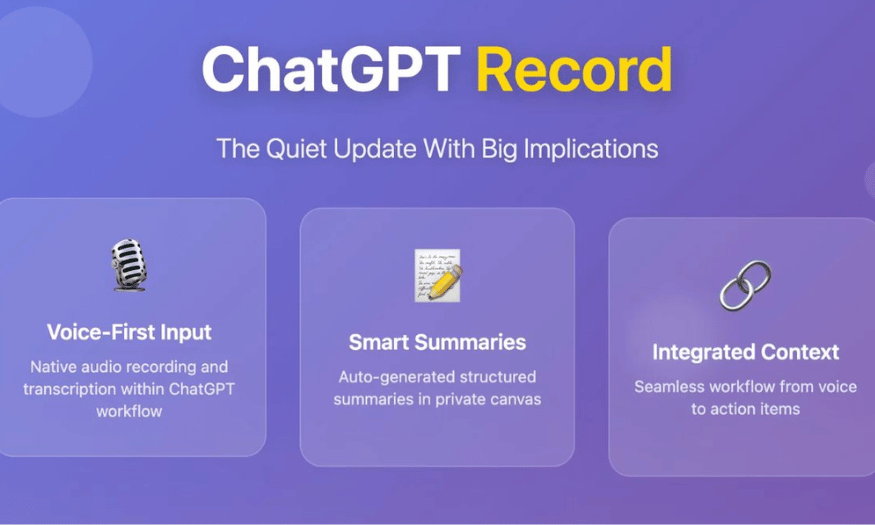
ChatGPT Record is an advanced feature that allows users to automatically convert speech to text in real time. This offers maximum convenience, helping you record important ideas and information during meetings without having to worry about taking notes. After recording, a summary is created and stored as a canvas in the chat history, making it easy to access and manage the information.
Beyond just recording audio, ChatGPT Record allows you to edit the summary or request its conversion into various formats such as email, project plans, or code snippets. This feature helps you optimize your workflow and improve work efficiency, providing a convenient user experience.
2. Key features of ChatGPT Record
2.1 Speech-to-Text Conversion
One of ChatGPT Record's standout features is its ability to convert speech to text directly. This allows you to accurately and conveniently record the content of meetings or discussions. You no longer have to worry about missing important information, as everything will be recorded visually and easily.
The accuracy of this conversion not only saves you time but also allows you to focus on the content of the conversation. Instead of taking notes, you can devote your full attention to what is being discussed.
2.2 Create a smart summary
ChatGPT automatically generates summaries on a private canvas based on audio recordings. This makes it easier for users to grasp and remember important information without having to search for every detail again. These summaries will become useful reference materials for you in the future.
By organizing information systematically, you can quickly access the necessary content. This feature not only saves time but also helps you maintain efficiency in your daily work.
2.3 Customize the summary content
Users can easily manually edit the summary or request ChatGPT to rewrite it as an email, project plan, or code snippet. This gives the feature high applicability, allowing for flexibility in organizing information and managing tasks. Converting content to different formats helps you communicate more effectively. This flexibility allows you to create professional documents in just minutes, thereby increasing productivity and improving team communication.
2.4 Remembering previous information
ChatGPT has the ability to remember previous recordings and summaries, thereby providing more accurate and relevant answers in subsequent conversations. This not only helps you access information quickly but also creates a more personalized user experience.
With its intelligent memory capabilities, you can easily access important information without wasting time searching. This feature truly helps you turn your notes into a useful tool in your daily work.
2.5 How to use ChatGPT Record
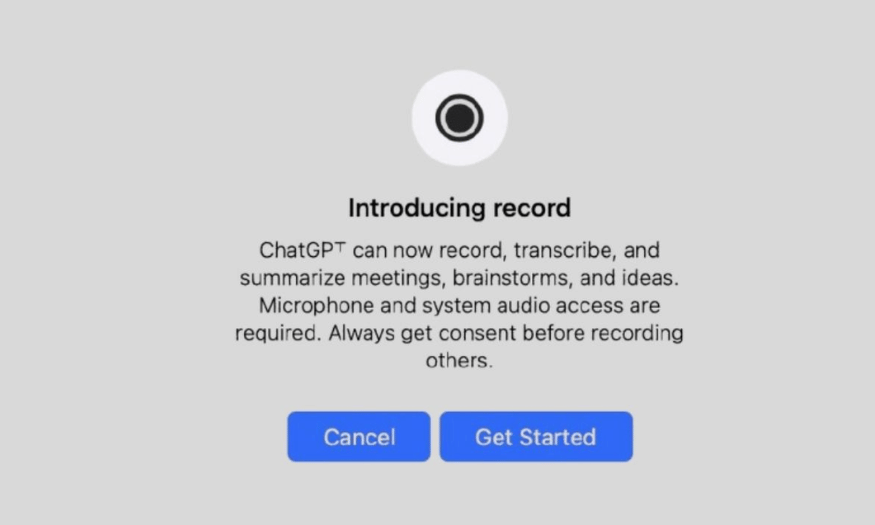
To start using ChatGPT Record, simply click the Record button at the bottom of the chat window. When first launched, the system will ask you to grant access to your microphone and system audio, ensuring ChatGPT can accurately record your voice. This is simple and quick, getting you ready to record in no time.
During recording, ChatGPT will convert your voice into text in real time. This not only helps you record content but also allows you to visually monitor the information being recorded. You can pause or resume recording at any time, depending on your needs. Once finished, simply press the Send button to upload the recording to the system, and ChatGPT will quickly process it to open a private canvas containing a structured summary of the recorded content.
Once the summary has been created, you can freely edit it directly on the canvas. If needed, you can also ask ChatGPT to convert this content into other formats such as email, project plans, or code snippets. This feature not only helps you organize information scientifically but also improves work efficiency, providing a convenient and flexible user experience.
3. Who can use the ChatGPT Record feature?
ChatGPT's recording feature is currently designed specifically for users in workspaces such as Enterprise, Edu, Team, and Pro. This means that only those using these professional service packages can take advantage of this useful feature. By providing this feature to work groups, ChatGPT aims to improve communication efficiency and information organization in professional work environments.
However, the ChatGPT Record feature is only available on the ChatGPT desktop application. Currently, this feature is not supported on other platforms such as Windows, web, or mobile applications. This may limit some users, but it also shows a focus on optimizing the user experience on the macOS platform.
4. Notes on using ChatGPT Record
Before you begin recording, it's crucial to obtain permission from everyone involved in the conversation. Recording without consent can violate personal privacy rights and local laws. Therefore, always ensure you comply with these regulations to avoid unnecessary trouble.
Additionally, it's important to note that when using the recording feature, the audio file will be deleted immediately after being converted to text. This is to protect personal data and ensure that no sensitive or confidential information is disclosed. Furthermore, recording time is limited, with a maximum of 120 minutes per session. If this time is exceeded, the recording session will automatically stop and create a note.
5. Why choose ChatGPT Record instead of other tools?
ChatGPT Record stands out for its ability to accurately and quickly convert speech to text. While many other tools only offer basic recording functionality, ChatGPT Record not only records audio but also generates intelligent summaries, making it easy for users to grasp important information. This is especially useful in meetings or discussions where handwritten notes can be distracting.
Furthermore, the ability to support multiple speakers simultaneously is a major advantage of ChatGPT Record. The ability to recognize and differentiate voices from multiple people in the same recording session makes it easy to track each member's opinions and perspectives. Meanwhile, many other tools often struggle with handling multiple voices, leading to inaccurate recordings or missing information.
Finally, the flexibility in editing and converting summary content into other formats such as emails or project plans makes ChatGPT Record a powerful tool for work. Users can not only record but also customize the content to their specific needs. This feature optimizes workflows, improves efficiency, and saves time, something that other tools may not be able to achieve.
6. Frequently Asked Questions
6.1 Does ChatGPT Record support multiple speakers simultaneously?
Yes, the ChatGPT Record feature supports multiple speakers simultaneously, helping to identify and distinguish the voice of each person in the same recording session. This is very useful in meetings or group discussions where many opinions and viewpoints need to be recorded. Voice differentiation makes it easy to track important opinions and information from each member.
This feature not only enhances recording efficiency but also facilitates later information synthesis. You won't have to worry about confusing information from different speakers, thus helping you maintain accuracy in your notes.
6.2 Does ChatGPT Record support languages other than English?
Currently, the ChatGPT Record feature is best optimized for English. OpenAI is continuously improving support for other languages to meet the needs of global users. You can find a detailed list of supported languages on OpenAI's official website for more information.
This development demonstrates OpenAI's commitment to expanding the capabilities of ChatGPT, enabling more users worldwide to take advantage of this recording feature. Multilingual support will enhance the user experience and create more opportunities for communication and collaboration.

6.3 Can the workspace owner turn off the recording feature?
Yes, workspace owners can enable or disable audio recording in Settings > Workspace Controls. This allows organizations to control how this feature is used in their environment. Please note that this feature is disabled by default in workspaces such as Enterprise and Edu, to ensure compliance with privacy regulations.
The ability for the workspace owner to customize this feature is crucial, as it helps protect sensitive information and the rights of team members. This also creates a safer work environment for everyone.
6.4 How long are recordings and canvases saved?
The storage of recordings and canvases follows the workspace's data storage policy. When you delete a conversation, the associated data will be deleted within 30 days. This ensures that personal and sensitive information is not stored long-term, helping to protect user privacy.
This policy also allows organizations to manage data more efficiently, minimizing the risks associated with storing unnecessary information. You can rest assured that your data will be processed intelligently and securely.
7. Cost of upgrading ChatGPT Plus account
Upgrading your ChatGPT Plus account offers numerous significant benefits, and you currently have two ways to do so.
7.1 Upgrades at the OpenAI homepage
The first method is to upgrade directly on the OpenAI homepage. This is a simple and transparent method, where you just need to log into your account and select the ChatGPT Plus plan.
Advantage:
-
Safety and security : Your information is protected to the maximum extent.
-
Transparent pricing : Costs are clearly stated, just $20 per month.
Disadvantages:
-
High cost : Upgrading directly at OpenAI can be more expensive than other options.
-
The payment method is complicated : You need an international credit card to complete the transaction.
7.2 Upgrade at SaDesign at the best price
The second option is to upgrade your account at SaDesign, one of the leading software companies in Vietnam. SaDesign not only provides ChatGPT Plus account upgrade services but is also trusted by many individuals and businesses.
Advantage:
-
Reasonable pricing : SaDesign offers upgrade services at a more competitive price compared to OpenAI.
-
Multiple payment methods : You can easily pay via bank transfer, e-wallet, QR code scanning, Visa card, and PayPal.
-
Information Security : SaDesign is committed to protecting customer information and will not disclose it to third parties.
With these benefits and flexible options, upgrading to a ChatGPT Plus account at SaDesign not only saves you money but also provides a better user experience.

8. Conclusion
With ChatGPT Record, you'll no longer have to worry about missing important information or wasting time on manual note-taking. This feature not only offers convenience but also significantly improves your productivity. Hopefully, this article will help you make the most of this powerful tool, making it an indispensable part of your daily workflow. Get ready to experience a smarter and more efficient way of working with ChatGPT Record on macOS!





















VIP Products








Best Selling Products
MidJourney Account
29 USD
Capcut Pro 1 Year
39 USD
Upgrade Genuine Office 365
49 USD
Genuine Adobe Illustrator account
99 USD
Plugin Retouch4me
69 USD
Upgrade genuine Capture One account
120 USD
Adobe Photoshop Copyright - Full App
120 USD
Autodesk All App Account Copyright
120 USD
Copyright Adobe Lightroom Account
59 USD
ChatGPT Plus Account (GPT-4)
16 USD
Genuine Cheap Canva Pro
39 USD
Freepik Premium Account
59 USD
Upgrade Duolingo Super
29 USD
Windows 10 & 11 Pro Key
36 USD
Adobe Premiere Pro Account
99 USD