Best Selling Products

Adobe Photoshop Copyright - Full App
120 USD

Capcut Pro 1 Year
39 USD

Plugin Retouch4me
69 USD

Upgrade genuine Capture One account
120 USD

Genuine Adobe Illustrator account
99 USD

Upgrade Genuine Office 365
49 USD

ChatGPT Plus Account (GPT-4)
16 USD

Adobe Premiere Pro Account
99 USD

Freepik Premium Account
59 USD

Genuine Cheap Canva Pro
39 USD

Copyright Adobe Lightroom Account
59 USD

MidJourney Account
29 USD

Windows 10 & 11 Pro Key
36 USD

Autodesk All App Account Copyright
120 USD

Upgrade Duolingo Super
29 USD
Introducing the Popular Adobe Illustrator Tools to Help You Create Perfect Publications
Nội dung
- 1. Selection Tool (V)
- 2. Direct Selection Tool (A)
- 3. Magic Wand Tool (Y)
- 4. Lasso Tool (Q)
- 5. Pen Tool (P)
- 6. Curvature Tool (Shift + ~)
- 7. Type Tool (T)
- 8. Line Segment Tool (/)
- 9. Rectangle Tool (M)
- 10. Hand Tool (H)
- 11. Artboard Tool (Shift + O)
- 12. Shape Builder Tool (Shift + M)
- 13. Gradient Tool (G)
- 14. Clipping Mask
- 15. Eyedropper Tool (I)
- 16. Paintbrush Tool (B)
- 17. Pencil Tool (N)
- 18. Transform Tool (E)
- 19. Scissors Tool (C)
- 20. Gradient Mesh Tool
- 21. Live Paint Tool (K)
- 22. Symbol Sprayer Tool (Shift + S)
- 23. Pattern Tool
- 24. Free Transform Tool (E)
- 25. Width Tool (Shift + W)
- 26. Conclusion
Adobe Illustrator is more than just graphic design software; it''s a world of creative potential for those passionate about art and design.
1. Selection Tool (V)
The Selection Tool is a fundamental yet incredibly powerful tool in Adobe Illustrator, allowing you to select any shape or object within your document window. To select multiple objects at once, simply click the tool and hold down the Shift key, then click on the shapes you want to select. With the shortcut key V, the Selection Tool makes it easy to manage and organize objects in your design.
Interestingly, if you accidentally select an unwanted shape, simply click on it again and it will be deselected. This feature not only saves time but also enhances accuracy when working with complex designs.
2. Direct Selection Tool (A)
The Direct Selection Tool is a powerful aid in customizing your shapes. With this tool, you can easily expand or change the edges of existing shapes to create fresh and creative designs. The Direct Selection Tool is located right next to the Selection Tool in the tools panel, with the shortcut key A, allowing for quick and convenient access.
When using the Direct Selection Tool, you can not only select the entire object, but also flexibly adjust each anchor point. This gives you maximum control over the design process, helping you transform abstract ideas into concrete and impressive works of art.

3. Magic Wand Tool (Y)
The Magic Wand Tool is a great tool for saving time during the design process. With the ability to select shapes or objects with similar properties with just one click, this tool makes it easy to manage and edit multiple objects simultaneously. To use it, simply select the Magic Wand Tool from the tool panel or press the Y shortcut key, then click on an object, and other objects with the same properties will be selected immediately.
Like magic, the Magic Wand Tool not only saves you effort but also increases your productivity. You'll soon realize that this tool becomes an indispensable part of your design toolkit, helping you complete your work quickly and easily.
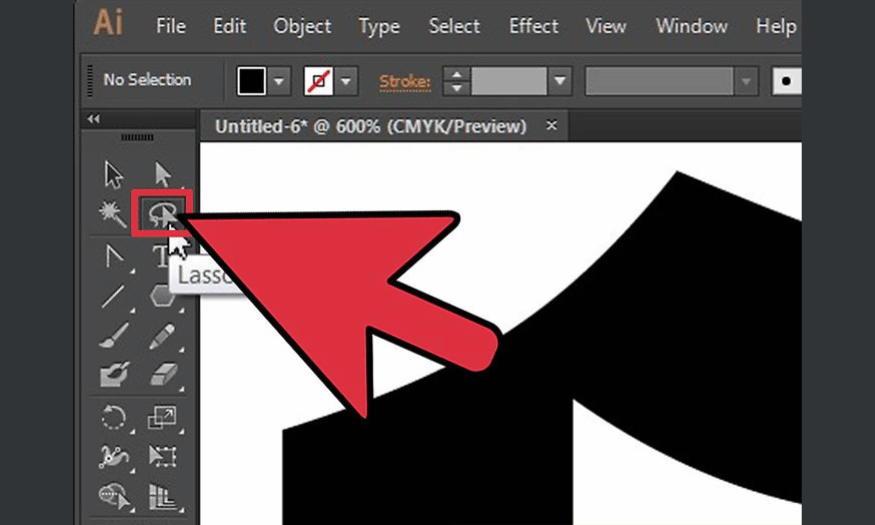
4. Lasso Tool (Q)
The Lasso Tool offers a fresh way to select objects in Adobe Illustrator. Unlike the Selection Tool, the Lasso Tool allows you to freely drag and select multiple objects or shapes as desired. This is very useful when you want to select areas that don't follow a specific shape, creating flexibility and creativity in your design.
You can find the Lasso Tool next to the Magic Wand tool in the tool panel. With the shortcut key Q, the Lasso Tool opens up a new world of object selection, allowing you to easily adjust and customize small details in your design without being limited by conventional geometric shapes.
5. Pen Tool (P)
The Pen Tool is the heart of Adobe Illustrator, a tool loved and used by many designers to create delicate lines. Initially, using the Pen Tool might seem challenging, but once you get used to it, you'll find it an indispensable part of your creative process. With the shortcut key P, the Pen Tool allows you to draw complex shapes by creating lines with anchor points.
When you right-click on the Pen tool in the tool panel, you'll discover many other useful features such as the Add Anchor Point Tool, Delete Anchor Point Tool, and Anchor Point Tool. These tools help you add, delete, or adjust anchor points on a path, thereby creating unique and personalized designs.
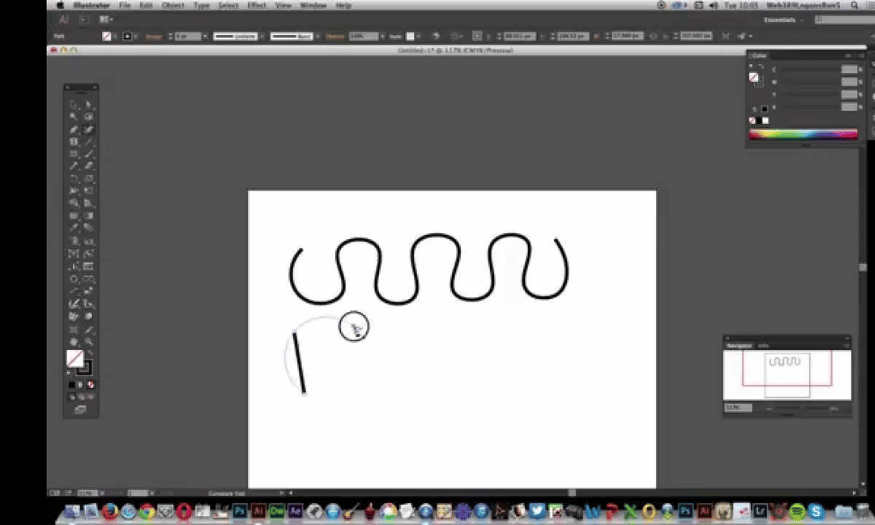
6. Curvature Tool (Shift + ~)
The Curvature Tool is a powerful and versatile tool, located right next to the Pen Tool in Adobe Illustrator's tool palette. With the Curvature Tool, you can easily create smooth and natural curves for your lines, adding sophistication to your designs. What's special is that this tool allows you to create complex shapes without the difficulty of adjusting each anchor point.
Thanks to its flexible adjustment capabilities, the Curvature Tool is an ideal choice for those who want to express their creativity through soft and flowing lines. From artistic illustrations to unique logo designs, this tool will help you realize any idea with just a few clicks.
7. Type Tool (T)
The Type Tool is one of the most essential tools in Adobe Illustrator, allowing you to easily add text to your artwork. Using the keyboard shortcut T, you can quickly type a line or paragraph of text onto the artboard, adding emphasis to your design. Right-clicking the Type Tool icon reveals many other useful sub-options.
Specifically, the Type Tool isn't limited to simple text input; you can also create complex text blocks by dragging to form rectangles or squares. This allows you to adjust, align, and customize the text to suit the overall design, bringing professionalism and sophistication to each piece.
8. Line Segment Tool (/)
The Line Segment Tool is a great tool for drawing precise lines in your designs. With the shortcut /, you can quickly create a line on the drawing board, and adjust its length, angle, color, and width as desired. Pressing the Shift key while drawing will help you keep the line straight and more accurate.
In addition, the Line Segment Tool comes with many other interesting tools such as the Arc Tool, Spiral Tool, and Rectangular Grid Tool, opening up many creative possibilities for you. These tools will help you easily create complex designs, from illustrations to technical layouts.
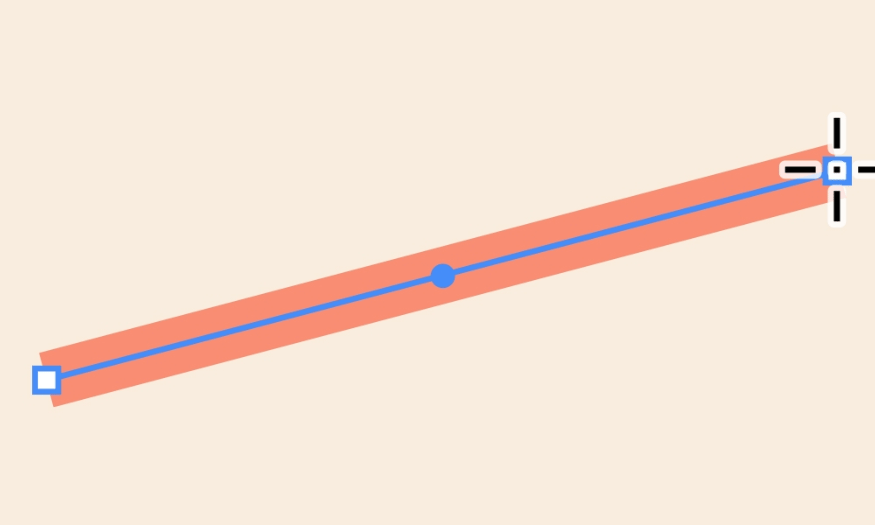
9. Rectangle Tool (M)
The Rectangle Tool is not just a tool for drawing rectangles; it's also a gateway to many other interesting shapes. With the shortcut key M, you can quickly create rectangles and adjust their size to your liking. Right-clicking on the Rectangle Tool reveals a rich list of other tools such as the Rounded Rectangle Tool and the Polygon Tool.
What makes the Rectangle Tool special is its limitless creative potential. You can use this tool to create complex shapes or combine them to create unique designs. Using the Rectangle Tool will give you a fun and inspiring design experience.
10. Hand Tool (H)
The Hand Tool is ideal for moving and adjusting your drawing within the workspace. With the shortcut key H, you can easily navigate around the artboard without any difficulty. If you press the Space key, the Hand Tool will also be activated, allowing you to move the drawing smoothly while keeping other tools active.
Using the Hand Tool helps you maintain focus on your design without being distracted by the limitations of your workspace. Take advantage of this tool to easily explore and refine your work, maximizing freedom and creativity during the design process.

11. Artboard Tool (Shift + O)
The Artboard Tool is an extremely useful tool for managing and creating multiple artboards within a single document. With the keyboard shortcut Shift + O, you can easily add, delete, or resize artboards, making your design workflow more efficient. This is especially important when working with multiple versions or layouts of a project.
When you use the Artboard Tool, you can easily switch between artboards and work on each section seamlessly. Organizing and managing artboards will save you time and create more polished designs, while also making it easier to track the progress of each part of the project.
12. Shape Builder Tool (Shift + M)
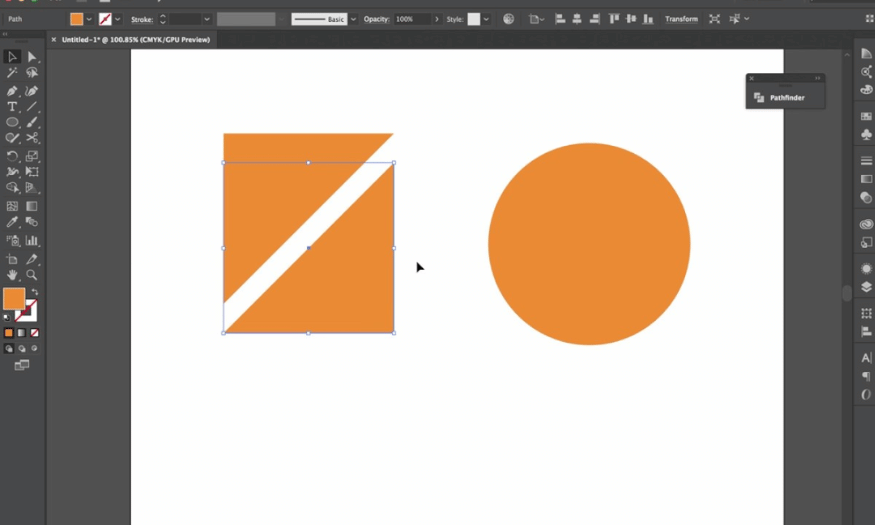
The Shape Builder Tool is an innovative tool that allows you to combine and separate shapes flexibly. With the shortcut Shift + M, you can create new shapes simply by dragging your mouse over the intersections of selected shapes. This gives you the freedom to create complex designs without needing multiple cutting and merging steps.
Using the Shape Builder Tool, you can quickly create unique and creative images, saving time and effort in the design process. This tool opens up a new world for expressing your ideas, from simple illustrations to complex works of art.
13. Gradient Tool (G)
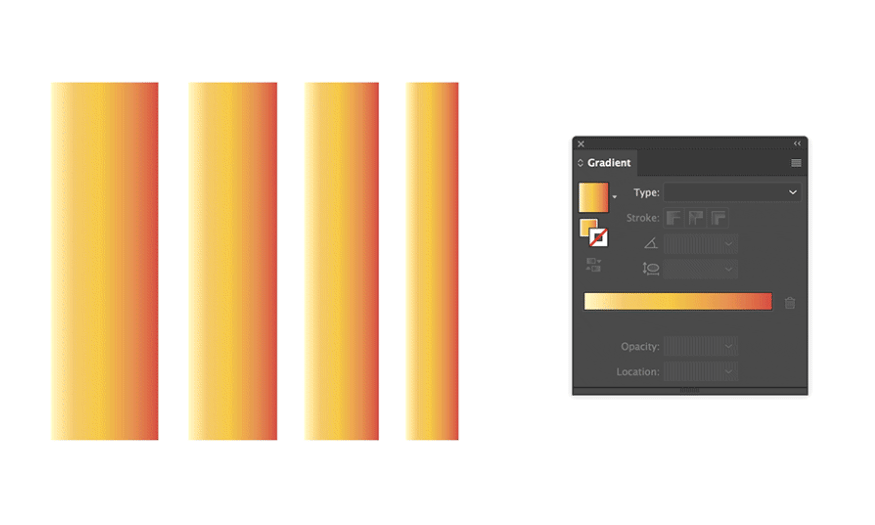
The Gradient Tool is a tool that helps you add depth and nuance to shapes in your designs. With the shortcut key G, you can easily apply smooth gradient effects, from linear gradients to circular gradients, helping to create striking and eye-catching designs.
Interestingly, you can customize the color, direction, and opacity of the gradient to create unique and personalized effects for your designs. Using the Gradient Tool, you'll find that color transitions not only bring your designs to life but also showcase your personal style and identity.
14. Clipping Mask
Clipping Mask is a powerful tool that helps you create unique illustrations by confining one shape within another. To use Clipping Mask, simply select both shapes, then press the shortcut Ctrl + 7 (or Cmd + 7 on Mac). This tool allows you to create creative and professional designs with fine-tuned control over details.
With Clipping Mask, you can easily create impressive effects, from applying images to shapes to creating innovative layouts. This tool opens up many opportunities for you to express your creativity, helping you realize unique and distinctive design ideas.
15. Eyedropper Tool (I)
The Eyedropper Tool is a useful tool that allows you to select and copy colors, fonts, or other attributes from an existing object. Using the shortcut key 'I', you simply click on the object whose attributes you want to copy, and the Eyedropper Tool will automatically apply those attributes to the previously selected object.
Using the Eyedropper Tool not only saves time but also helps you maintain consistency in color and style throughout your design. This tool is a valuable aid, especially when working on large projects with many elements that need to be synchronized.
16. Paintbrush Tool (B)
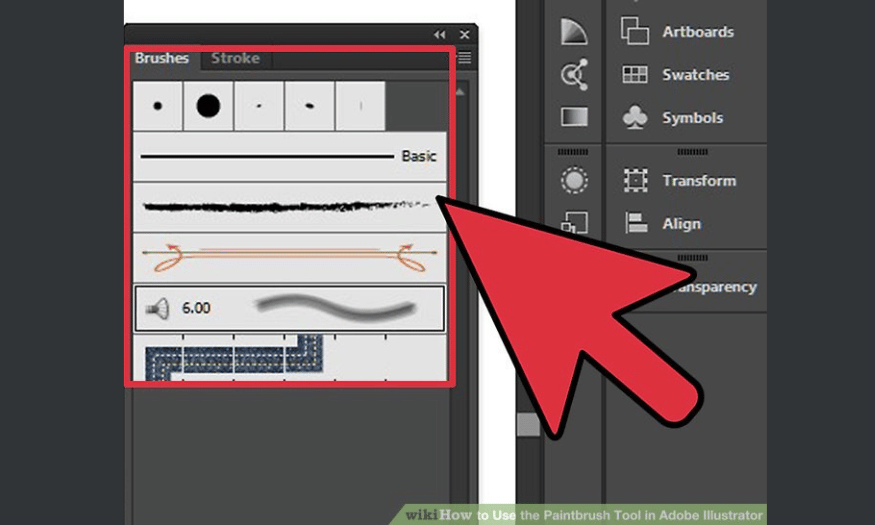
The Paintbrush Tool is a great tool for those who love creating freehand strokes in Adobe Illustrator. With the shortcut key B, you can easily draw lines and shapes in your own style. This tool not only allows you to create smooth strokes but also supports many different types of brushes, from hand-drawn brushes to digital brushes.
Using the Paintbrush Tool, you can add depth and emotion to your designs. Create vibrant and unique illustrations, allowing you to express your distinct artistic style without being limited by rigid shapes.
17. Pencil Tool (N)
The Pencil Tool is ideal for those who want to draw freely on an artboard. With the shortcut key N, you can create lines naturally and flexibly, just like using a real pencil. The Pencil Tool allows you to draw and edit lines easily, helping you quickly develop design ideas.
When using the Pencil Tool, you can adjust your strokes immediately after creating them, resulting in unique and personalized designs. This tool is perfect for illustration and artwork creation, giving you creative freedom.
18. Transform Tool (E)
The Transform Tool is a powerful tool that allows you to resize, rotate, tilt, and mirror objects in your design. Using the shortcut key E, you can easily adjust the position and shape of objects without losing proportion or accuracy.
In particular, the Transform Tool allows you to perform transformations precisely by entering specific parameters. This helps you create consistent and professional designs, while saving time when working with many different objects.
19. Scissors Tool (C)
The Scissors Tool is a useful tool for cutting and editing paths in your designs. With the shortcut key C, you can easily cut a path at any point, creating separate segments that you can edit later. This tool is very useful when you want to create complex shapes from simple paths.
When using the Scissors Tool, you'll find that creating unique and innovative shapes is easier than ever. This tool helps you express your creativity and gives your designs a fresh and different look.
20. Gradient Mesh Tool
The Gradient Mesh Tool is a powerful tool that allows you to create complex and detailed color effects in shapes. This tool creates a color mesh on the object, allowing you to adjust the color at each point on the mesh, thereby creating vivid light and shadow effects.
With the Gradient Mesh Tool, you can transform simple images into intricate and sophisticated works of art. This helps you improve your design skills and create outstanding products that attract attention from everyone.
21. Live Paint Tool (K)
The Live Paint Tool is a special tool that allows you to easily and flexibly color complex shapes. With the shortcut key K, you can transform a group of shapes into a single vibrant color area. This tool helps you quickly color areas without worrying about broken outlines.
Using the Live Paint Tool, you'll find adding color to your illustrations more enjoyable than ever. You can freely color every part of your design without any restrictions, maximizing your creativity.
22. Symbol Sprayer Tool (Shift + S)
The Symbol Sprayer Tool is a fun tool that allows you to add symbols to your designs quickly and easily. Using the shortcut Shift + S, you can choose from thousands of available symbols in the library or create your own. This tool lets you create special effects by scattering symbols all over the artboard.
Using the Symbol Sprayer Tool, you can create vibrant and rich images with lots of detail without spending too much time. This is a great way to make your designs more attractive and unique.
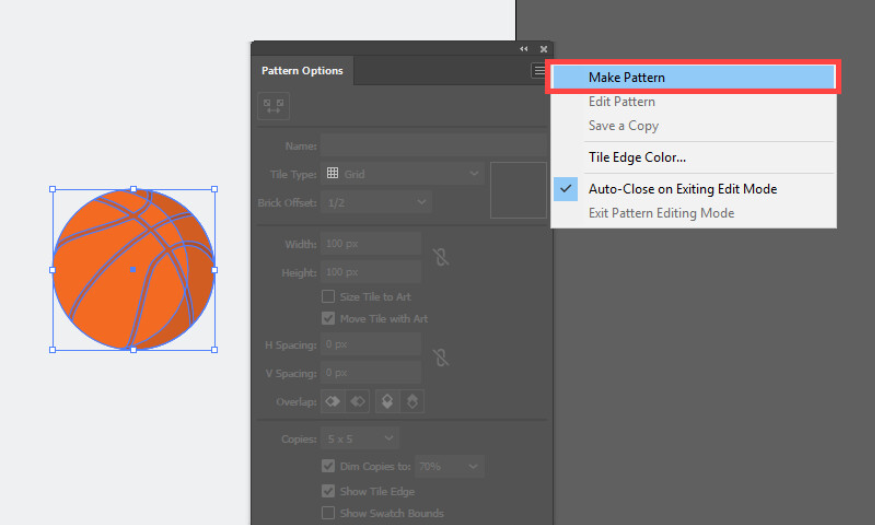
23. Pattern Tool
The Pattern Tool allows you to create and apply decorative patterns to shapes in your designs. This tool makes it easy to create rich and diverse patterns, from simple to complex designs. You can customize the size, spacing, and color of the patterns to your liking.
Using the Pattern Tool, you can create unique and creative designs without having to draw each detail individually. This tool is a powerful aid that saves you time and improves the quality of your work.
24. Free Transform Tool (E)
The Free Transform Tool is a versatile tool that allows you to perform many transformation operations on objects in Illustrator. Using the keyboard shortcut E, you can resize, rotate, tilt, and reshape objects with just a few clicks. This tool is very useful when you want to adjust objects without changing their scale or aspect ratio.
Using the Free Transform Tool, you'll find that creating complex and precise layouts is easier than ever. This allows you to quickly finalize your designs and express your creativity freely and flexibly.
25. Width Tool (Shift + W)
The Width Tool is a powerful tool that allows you to adjust the thickness of lines in your designs. With the shortcut Shift + W, you can create lines with naturally varying thickness, giving your designs a lively feel. This tool is especially useful when you want to create subtle lighting and shadow effects.
When using the Width Tool, you can customize each part of the path, thereby creating unique and stylish drawings. This tool will help you improve your design skills and create outstanding works that attract attention from everyone.
26. Conclusion
Exploring and mastering Adobe Illustrator's tools will not only help you create perfect publications but also enhance your design skills. With each tool, you'll find limitless creativity and the ability to express your ideas uniquely. Start your design journey today and turn your ideas into reality with Adobe Illustrator!





















VIP Products








Best Selling Products
Adobe Photoshop Copyright - Full App
120 USD
Capcut Pro 1 Year
39 USD
Plugin Retouch4me
69 USD
Upgrade genuine Capture One account
120 USD
Genuine Adobe Illustrator account
99 USD
Upgrade Genuine Office 365
49 USD
ChatGPT Plus Account (GPT-4)
16 USD
Adobe Premiere Pro Account
99 USD
Freepik Premium Account
59 USD
Genuine Cheap Canva Pro
39 USD
Copyright Adobe Lightroom Account
59 USD
MidJourney Account
29 USD
Windows 10 & 11 Pro Key
36 USD
Autodesk All App Account Copyright
120 USD
Upgrade Duolingo Super
29 USD