Best Selling Products

Autodesk All App Account Copyright
120 USD

Copyright Adobe Lightroom Account
59 USD

MidJourney Account
29 USD

Upgrade genuine Capture One account
120 USD

ChatGPT Plus Account (GPT-4)
16 USD

Capcut Pro 1 Year
39 USD

Genuine Adobe Illustrator account
99 USD

Freepik Premium Account
59 USD

Adobe Photoshop Copyright - Full App
120 USD

Adobe Premiere Pro Account
99 USD

Genuine Cheap Canva Pro
39 USD

Upgrade Genuine Office 365
49 USD

Plugin Retouch4me
69 USD

Upgrade Duolingo Super
29 USD

Windows 10 & 11 Pro Key
36 USD
The Most Detailed Guide to Downloading and Using Canva on Your Computer
Nội dung
- 1. Learn about the trends in using Canva for computers.
- 1.1. Concept and development of drag-and-drop design tools
- 1.2. Differences between desktop and web browser versions of applications
- 2. Reasons why you should install Canva on your computer today.
- 2.1. Increase data processing speed and work efficiency.
- 2.2. Instant Push Notifications and Smart File Management
- 2.3. Ability to work with high concentration
- 3. Discover the groundbreaking features on the PC version.
- 3.1. Diverse keyboard shortcuts optimize time.
- 3.2. Project management using a convenient tab model
- 3.3. Deep integration of next-generation artificial intelligence (AI) tools
- 4. Detailed instructions on how to download and install Canva on your computer.
- 4.1. Installation process on Windows operating system
- 4.2. Installation process on macOS
- 5. Basic design guide for beginners
- 5.1. Initialize the project with the correct dimensions.
- 5.2. Mastering the toolbar and graphical elements
- 5.3. Publishing and sharing high-quality products
- 6. Appvip.ai - A reputable source providing affordable Canva Premium accounts.
- 7. Tips and tricks to optimize the design experience
- 7.1. Building a consistent brand identity
- 7.2. Make the most of advanced photo filters and editing tools.
- 7.3. Creating dynamic animation for elements
- 8. Common errors and solutions when using applications on a computer.
- 8.1. Application error: Unable to connect to the internet.
- 8.2. The application freezes or closes unexpectedly.
- 9. Conclusion
Discover how to install and master the Canva design tool for your computer. This article provides a complete guide from basic to advanced levels to optimize your work performance.
1. Learn about the trends in using Canva for computers.
1.1. Concept and development of drag-and-drop design tools
This online graphic design platform has completely revolutionized the way millions of people worldwide approach visual arts. Instead of spending years learning complex, specialized design software, users can now create complete media products with just basic drag-and-drop operations. The release of a separate desktop version marks a significant step forward, meeting the demands of the professional user segment for continuous work.

1.2. Differences between desktop and web browser versions of applications
Working with a custom application offers superior stability thanks to its ability to optimize the device's hardware resources. Web browsers often suffer from excessive RAM consumption or automatic page reloads when users open too many tabs simultaneously, interrupting the design process. A custom application completely eliminates these browser distractions and allows for more organized and efficient management of internal design tabs.
2. Reasons why you should install Canva on your computer today.
2.1. Increase data processing speed and work efficiency.
The core system of the computer application is optimized for deep compatibility with the operating system, allowing for near-instantaneous motion and image loading. Large design files containing hundreds of layers or high-resolution videos will be processed more smoothly, minimizing lag.
2.2. Instant Push Notifications and Smart File Management
The system will send notifications directly to the computer screen whenever there is feedback from a colleague or the video export process is complete, helping to ensure a continuous workflow in the team. Organizing and categorizing project folders also becomes much more intuitive when operating within an independent workspace.
2.3. Ability to work with high concentration
A workspace free of URL address bars, social media tabs, or entertainment news helps users maintain deep focus. This is a core element that helps designers and marketers increase productivity and complete products on schedule.
3. Discover the groundbreaking features on the PC version.
3.1. Diverse keyboard shortcuts optimize time.
Design processes become much more professional when users master keyboard shortcuts. Duplicating elements, aligning text, grouping objects, or changing the display order of layers can be done in a fraction of a second, minimizing the need for constant mouse movement.
3.2. Project management using a convenient tab model
Similar to how web browsers work, the application allows multiple design projects to be opened simultaneously in parallel tabs. Users can easily copy a detail from an old design and paste it directly into a new design without having to perform complicated file opening and closing steps.
3.3. Deep integration of next-generation artificial intelligence (AI) tools
The processing power of computers enables AI features such as one-click background removal, intelligent frame expansion, or text-to-image conversion to work with extremely high accuracy. These features help transform rudimentary ideas into impressive digital artworks in a short amount of time.
4. Detailed instructions on how to download and install Canva on your computer.
4.1. Installation process on Windows operating system
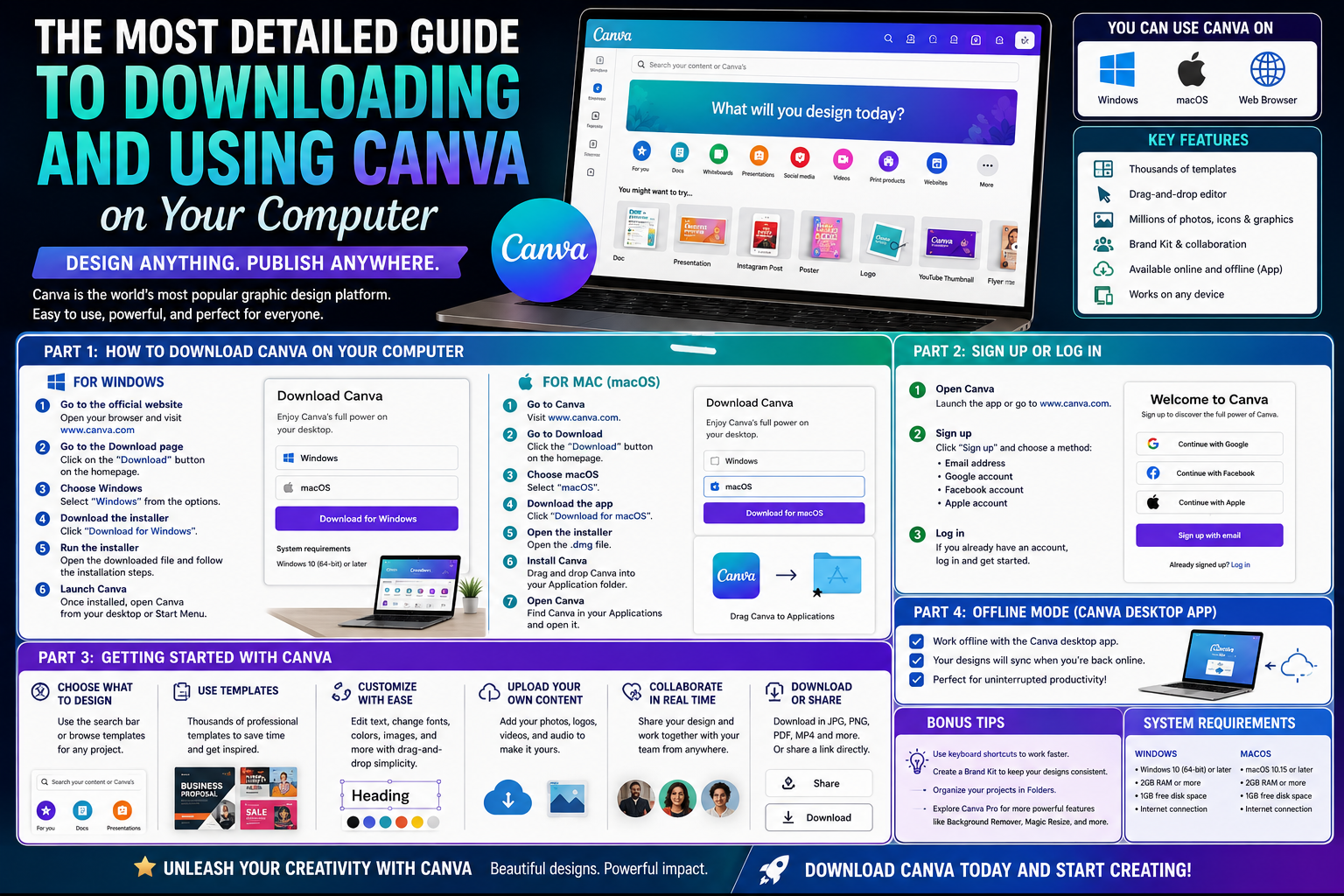
Users need to access the publisher's official website to download the installation file in .exe format . After the download is complete, launch the file and follow the on-screen instructions. The system will automatically set up the data and create a shortcut icon on the home screen (Desktop) for convenient access later.
4.2. Installation process on macOS
Mac owners need to download the .dmg file that matches their device's processor (Intel or Apple Silicon). The next step is to drag the application icon into the Applications folder on your computer. macOS's security system will quickly authenticate the application before allowing the user to open and use it for the first time.
5. Basic design guide for beginners

5.1. Initialize the project with the correct dimensions.
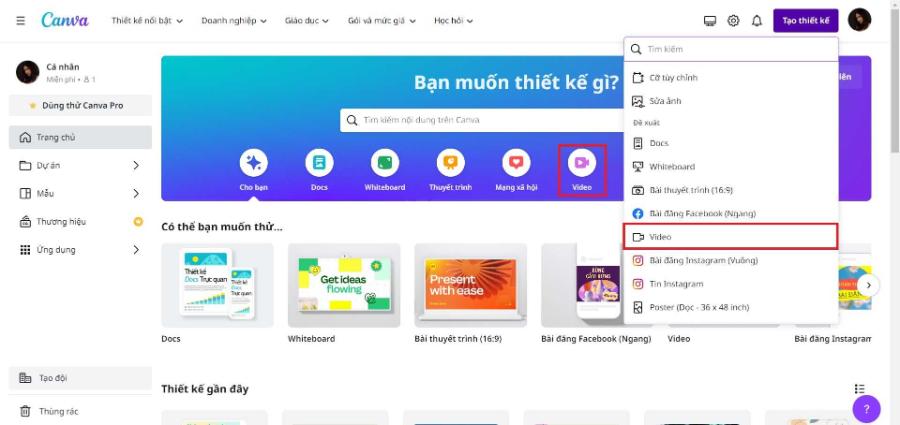
The main interface offers users thousands of available size options for social media platforms, office documents, and print publications. Users can also customize the size in pixels, centimeters, or inches to suit the specific needs of their project.
5.2. Mastering the toolbar and graphical elements
The left-hand side of the screen contains all the necessary tools, including graphic elements, text, uploaded images, and a library of pre-made templates. A harmonious combination of shapes, lines, and text contrast will create an overall layout that is visually appealing.
5.3. Publishing and sharing high-quality products
The platform supports exporting files in many popular formats such as PNG, JPEG, standard PDF, printable PDF, MP4, or GIF files. Users can customize file size and image quality before saving to their computer's memory to ensure the highest sharpness when displayed.
6. Appvip.ai - A reputable source providing affordable Canva Premium accounts.
To unlock the full power of this design software, owning a paid account is essential for designers. Appvip.ai proudly offers top-tier account upgrade solutions at the most competitive prices on the market. Users who choose our services will experience unlimited features, long-term warranties, and dedicated technical support from our experienced team.
7. Tips and tricks to optimize the design experience
7.1. Building a consistent brand identity
The brand identity storage feature allows users to pre-set their company's logo, fixed color palette, and signature fonts. This ensures that all subsequent communication materials maintain visual consistency, contributing to shaping brand value in the minds of customers.
7.2. Make the most of advanced photo filters and editing tools.
The system provides pre-set color filters along with detailed parameter adjustment sliders such as brightness, contrast, saturation, and blur. Users can transform plain original photos into artistic masterpieces without needing to switch to third-party photo editing applications.
7.3. Creating dynamic animation for elements
Modern design trends prioritize smooth animation to capture viewers' attention on digital platforms. With just a few steps to set up animation effects for text or images, the entire design becomes intuitive, vibrant, and professional, like a short advertising video.
8. Common errors and solutions when using applications on a computer.
8.1. Application error: Unable to connect to the internet.
This situation often occurs when the computer's firewall or antivirus software inadvertently blocks the application's network access. Users should check their operating system's security settings, grant the software internet access, or restart their home network router.
8.2. The application freezes or closes unexpectedly.
Cache conflicts that accumulate after prolonged use are the main cause of this issue. The best solution is to access the application's settings on your computer, clear the cache, or completely uninstall the old version and reinstall the latest version from the publisher.
9. Conclusion
Bringing this drag-and-drop design application to the computer platform has provided a truly powerful, stable, and efficient working tool for the creative community. The perfect combination of an intuitive interface, a vast resource library, and smooth operation allows every graphic idea to be realized as quickly as possible. Installing the software on personal devices will undoubtedly bring completely new working experiences, improve product quality, and maximize users' time efficiency.





















VIP Products








Best Selling Products
Autodesk All App Account Copyright
120 USD
Copyright Adobe Lightroom Account
59 USD
MidJourney Account
29 USD
Upgrade genuine Capture One account
120 USD
ChatGPT Plus Account (GPT-4)
16 USD
Capcut Pro 1 Year
39 USD
Genuine Adobe Illustrator account
99 USD
Freepik Premium Account
59 USD
Adobe Photoshop Copyright - Full App
120 USD
Adobe Premiere Pro Account
99 USD
Genuine Cheap Canva Pro
39 USD
Upgrade Genuine Office 365
49 USD
Plugin Retouch4me
69 USD
Upgrade Duolingo Super
29 USD
Windows 10 & 11 Pro Key
36 USD