Best Selling Products

Genuine Cheap Canva Pro
39 USD

MidJourney Account
29 USD

Freepik Premium Account
59 USD

ChatGPT Plus Account (GPT-4)
16 USD

Windows 10 & 11 Pro Key
36 USD

Autodesk All App Account Copyright
120 USD

Plugin Retouch4me
69 USD

Upgrade genuine Capture One account
120 USD

Capcut Pro 1 Year
39 USD

Upgrade Duolingo Super
29 USD

Copyright Adobe Lightroom Account
59 USD

Adobe Photoshop Copyright - Full App
120 USD

Genuine Adobe Illustrator account
99 USD

Adobe Premiere Pro Account
99 USD

Upgrade Genuine Office 365
49 USD
Web Design with Canva from A to Z: Secrets to Creating a Website That Attracts Customers
Nội dung
- 1. What is Canva?
- 2. What are the main features of Canva?
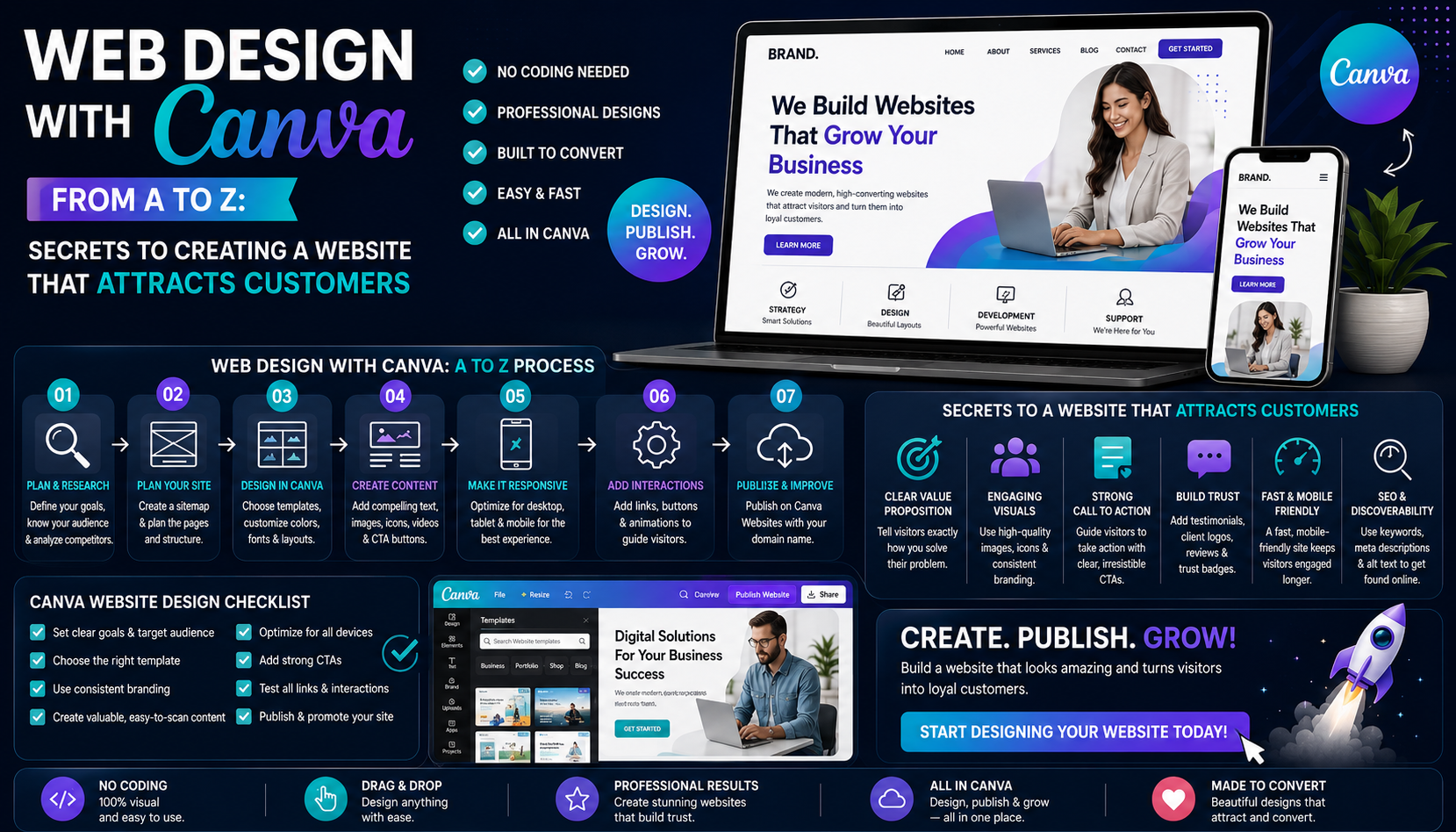
- 3. Guide to designing websites using Canva
- 3.1 Step 1: Choose a design template or create your own website.
- 3.2 Step 2: Customize the website design
- 3.3 Step 3: Add call-to-action button and link
- 3.4 Step 4: Preview and test the website
- 3.5 Step 5: Publish the website designed using Canva
- 4. Advantages and disadvantages of designing websites with Canva
- 4.1 Advantages of web design using Canva
- 4.2 Disadvantages of web design using Canva
- 5. Conclusion
In the digital age, websites play a crucial role in brand building and customer outreach.
1. What is Canva?
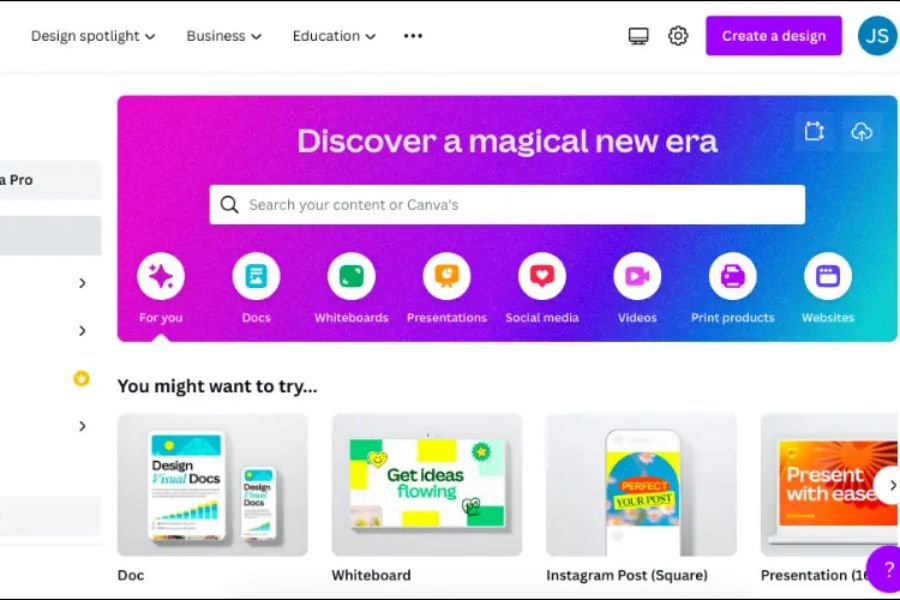
Canva is a popular online design platform developed to help people easily create professional graphic designs without needing advanced design skills. Launched in 2013, Canva quickly became a unicorn startup thanks to its ability to simplify the content creation process. With its intuitive interface, easy-to-use drag-and-drop functionality, and millions of ready-made templates, Canva allows users to create posters, banners, social media posts, infographics, presentations, and many other publications in just minutes. It is a tool trusted by individuals, businesses, and marketers worldwide to improve communication effectiveness and build brand awareness.
Beyond just graphic design, Canva expands its ecosystem with many modern features, most notably web design . This feature allows users to create simple, beautiful websites without needing programming knowledge or complex design software. Thanks to its rich template library, flexible customization options, and fast publishing tools, web design with Canva is becoming an attractive choice for individuals, freelancers, online shop owners, and small businesses looking to build a professional digital presence at an optimal cost.
2. What are the main features of Canva?
Canva is not just a simple image design tool; it's also considered a comprehensive "creative assistant," helping users quickly transform simple ideas into professional-looking products.
-
Creating social media content: Canva is a top choice for those who want to build brand image on social media platforms. Users can easily design Facebook and Instagram posts, cover photos, profile pictures, or eye-catching advertisements with just a few drag-and-drop actions.
-
Professional poster and banner design: With a diverse library of templates across various fields, Canva helps users quickly create posters, advertising banners, promotional materials, or event posters.
-
Create impressive presentations: Canva is also a powerful tool for building professional presentations. Users can choose from a wide range of modern slide templates, add charts, images, and animation effects to create more engaging presentations.
-
Business card and branding design: One of Canva's strengths is its ability to support the building of personal and business images. With pre-designed business card templates, users only need to change the information, logo, and brand colors to create a professional product.
-
Graphic design for blogs and websites: Website content becomes more engaging when combined with beautiful illustrations. Canva offers millions of images, icons, backgrounds, and graphic elements, making it easy for users to create suitable visuals for blog posts, product pages, or online marketing campaigns.
-
Simple website design with Canva: This is one of the standout features that sets Canva apart from a typical design tool. With Canva's web design capabilities , users can create landing pages, personal websites, business or product pages without needing programming knowledge.
-
Create creative short videos: Beyond just still images, Canva supports the creation of short videos for advertising, communication, or social media sharing. Users can add effects, sound, moving text, and use pre-made video templates to create engaging content without needing professional editing software.
3. Guide to designing websites using Canva
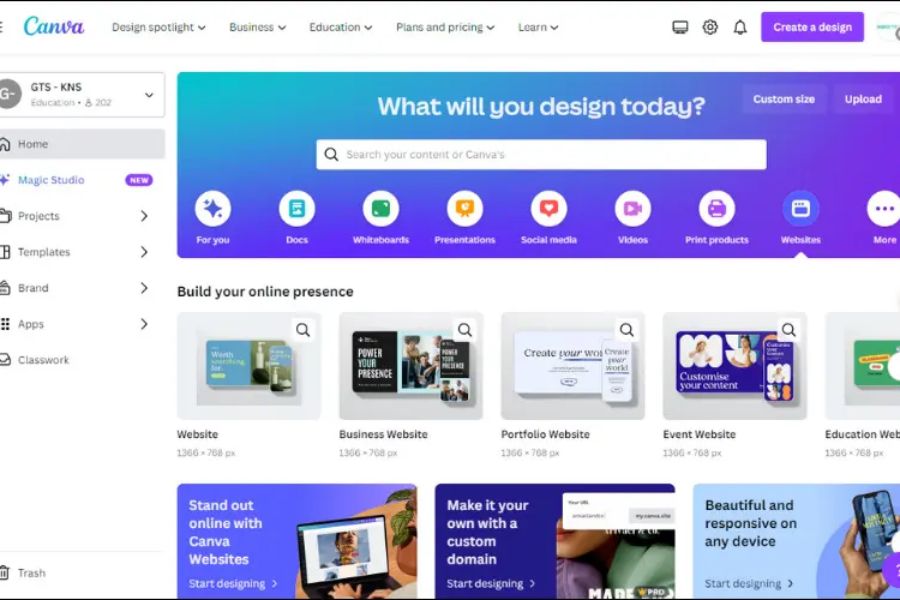
3.1 Step 1: Choose a design template or create your own website.
To begin designing websites with Canva , you need to create a Canva account using your email or log in quickly via Google or Facebook. Then, go to the Canva homepage, find the "Website" section, and choose the type of website that suits your needs, such as a personal website, business website, e-commerce website, event website, or company profile website.
Canva offers a wide range of ready-made website templates with professional layouts, saving you design time. Besides using pre-made templates, you can also start from a blank page to build your own interface according to your style and ideas.
3.2 Step 2: Customize the website design
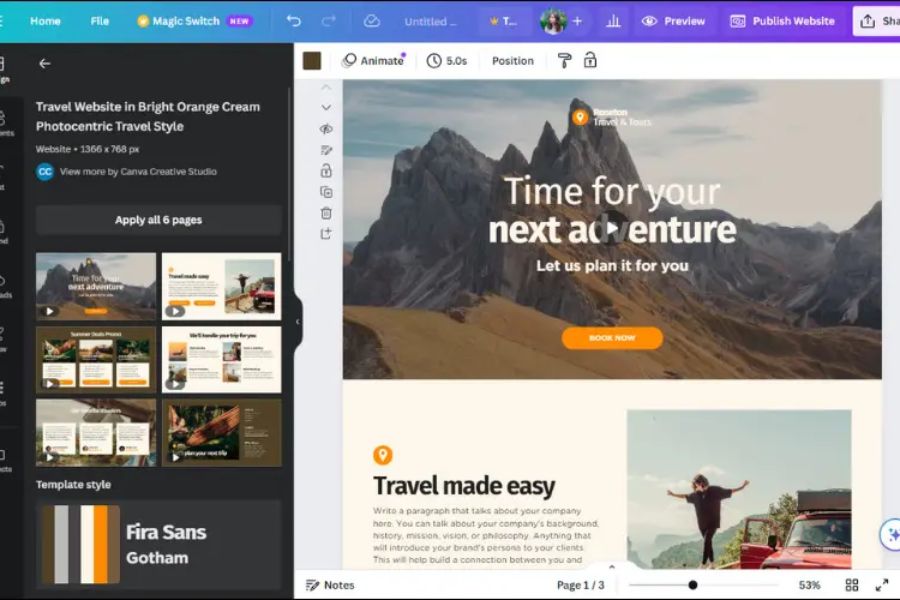
After selecting a suitable template, you can directly edit website elements such as text, images, colors, icons, fonts, and layout. With its simple drag-and-drop tool, Canva allows users to easily change every detail without needing programming knowledge.
When designing a website using Canva , you should choose colors that are consistent with your brand, use high-quality images, and organize content clearly. A visually appealing and easy-to-read interface will give customers a better experience when visiting your website.
3.3 Step 3: Add call-to-action button and link
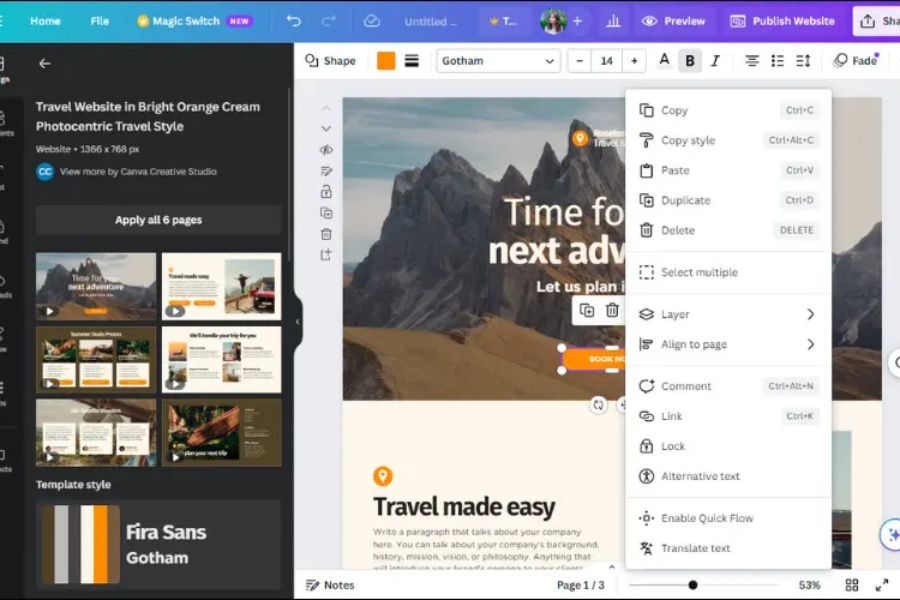
CTA buttons such as "Buy Now," "Contact Us," and "Sign Up" play a crucial role in guiding customers toward specific actions. Therefore, when designing a website, you should add these buttons in prominent locations to increase interaction and conversion rates.
To insert a link in Canva, simply select the element you want to add a link to, click the Link icon, and enter the desired URL. You can link to product pages, social media, or other contact channels.
3.4 Step 4: Preview and test the website
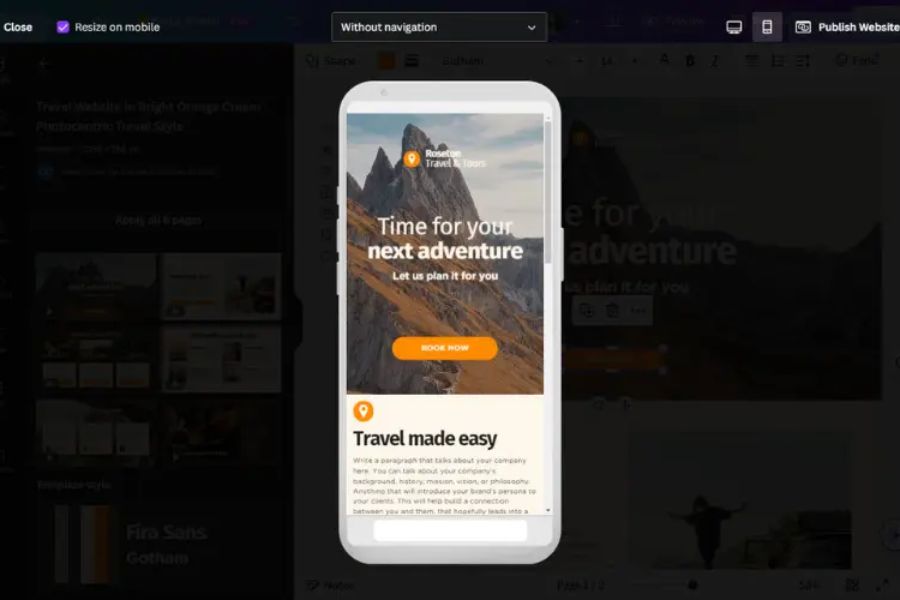
Before publishing, use Canva's Preview feature to check how your website displays on computers and phones. This step helps you detect layout, image, or content errors before making your website available to customers.
In particular, it's crucial to optimize the interface for mobile devices, as the majority of users now access websites via mobile phones. A website that displays well across multiple devices will project a professional image and enhance the user experience.
3.5 Step 5: Publish the website designed using Canva
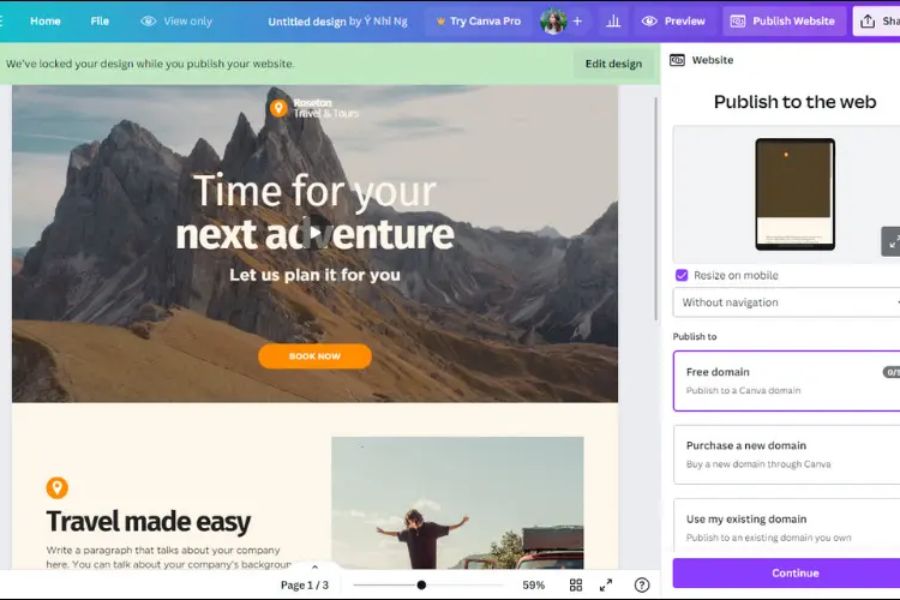
After completing the content and interface, click "Publish Website" to publish your website. Canva offers options such as using a free Canva domain, purchasing a new domain, or connecting to an existing custom domain.
If you choose a free domain name, you simply enter your website name, add a description, and click Publish to complete the process. With just a few simple steps, you can create an online website using Canva without needing complex programming tools. This is the advantage that makes designing websites with Canva a suitable choice for individuals and small businesses.
4. Advantages and disadvantages of designing websites with Canva
4.1 Advantages of web design using Canva
-
Diverse design template library: Canva offers thousands of website templates in various styles, suitable for businesses, individuals, online stores, or service providers. Users can easily choose from available templates and customize them to create an impressive interface.
-
Save time and money: Thanks to its pre-built templates and simple drag-and-drop functionality, Canva significantly shortens the website building process. This is a suitable solution for beginners or small businesses who want a professional website without investing too much budget.
-
Easy to use for everyone: Canva has an intuitive interface and requires no programming skills. With just a few edits to images, text, and colors, anyone can create a website in their own style.
4.2 Disadvantages of web design using Canva
-
Limitations in in-depth customization: Compared to professional web design platforms, Canva does not support many advanced features and does not allow users to directly modify HTML, CSS, or JavaScript code. Therefore, this tool is more suitable for simple websites, landing pages, or introductory pages.
-
Easy to duplicate ideas: Due to the use of many pre-made design templates, websites created with Canva may look similar to other templates on the market. If you need a unique interface with a high degree of personalization, you should incorporate your own creative elements to make it stand out.
5. Conclusion
Overall, designing websites with Canva is a suitable solution for those who want a beautiful, modern website without needing extensive technical knowledge. With its user-friendly interface, rich template library, and simple design process, Canva helps shorten website development time while still ensuring aesthetics and the ability to convey brand messages. If you know how to combine a well-designed layout, quality images, and engaging content, you can create a website that attracts customers, supports marketing activities, and effectively develops your business.





















VIP Products








Best Selling Products
Genuine Cheap Canva Pro
39 USD
MidJourney Account
29 USD
Freepik Premium Account
59 USD
ChatGPT Plus Account (GPT-4)
16 USD
Windows 10 & 11 Pro Key
36 USD
Autodesk All App Account Copyright
120 USD
Plugin Retouch4me
69 USD
Upgrade genuine Capture One account
120 USD
Capcut Pro 1 Year
39 USD
Upgrade Duolingo Super
29 USD
Copyright Adobe Lightroom Account
59 USD
Adobe Photoshop Copyright - Full App
120 USD
Genuine Adobe Illustrator account
99 USD
Adobe Premiere Pro Account
99 USD
Upgrade Genuine Office 365
49 USD