Best Selling Products

Windows 10 & 11 Pro Key
36 USD

Freepik Premium Account
59 USD

Genuine Cheap Canva Pro
39 USD

Genuine Adobe Illustrator account
99 USD

Capcut Pro 1 Year
39 USD

Upgrade Genuine Office 365
49 USD

Plugin Retouch4me
69 USD

ChatGPT Plus Account (GPT-4)
16 USD

Upgrade Duolingo Super
29 USD

Adobe Photoshop Copyright - Full App
120 USD

MidJourney Account
29 USD

Upgrade genuine Capture One account
120 USD

Adobe Premiere Pro Account
99 USD

Autodesk All App Account Copyright
120 USD

Copyright Adobe Lightroom Account
59 USD
What are Photoshop brushes? A creative brush library that helps you create more beautiful and professional designs.
Nội dung
- 1. What are Photoshop brushes?
- 2. Popular Photoshop brush types currently available
- 3. Why should you manage your Photoshop brush library?
- 4. Some websites to download high-quality free Photoshop brushes.
- Brusheezy
- BrushKing
- FBrushes
- My Photoshop Brushes
- DeviantArt
- All Free Download
- 5. How to use and install Photoshop brushes easily
- 6. Common mistakes when using Photoshop brushes
- Brush is not showing
- Brush is not working.
- Photoshop slows down when using large brushes.
- 7. Upgrade your Photoshop skills at Sadesign for more effective creative work.
- 8. Conclusion
If you frequently work with Photoshop, you''ve probably used or heard of Photoshop brushes. These are familiar tools capable of creating many interesting effects, from simple strokes to textures, lighting, smoke, dust, and artistic color schemes. With just a few clicks, brushes can bring designs to life without spending hours manually drawing each detail. Beyond the built-in brush sets, users can also find and download free Photoshop brushes from various sources on the internet. Each brush set offers a unique style, suitable for different design needs. So, what are Photoshop brushes, what types are there, and where can you download them? Let''s find out with Sadesign below.
1. What are Photoshop brushes?
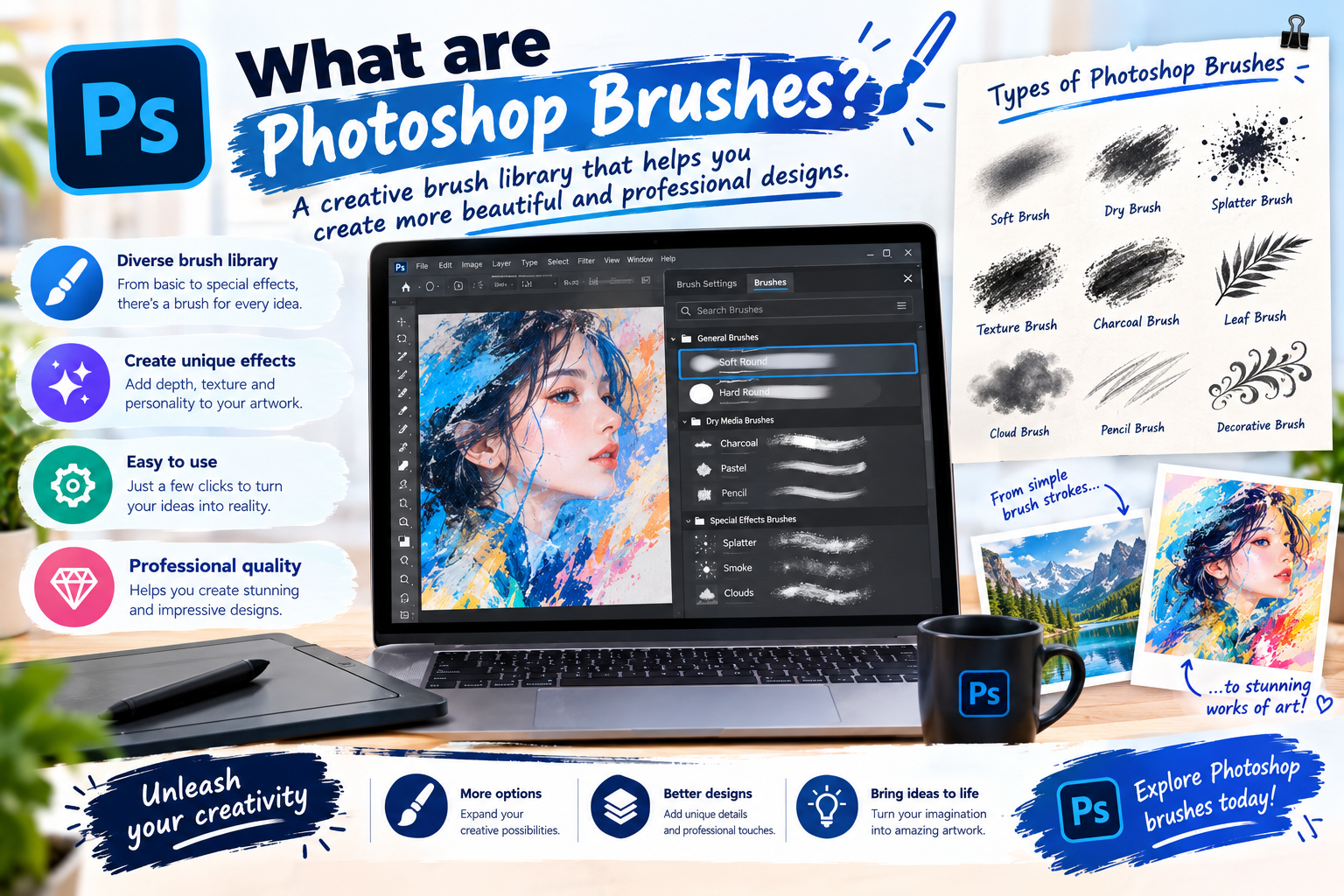
Photoshop brushes are a system of brushes integrated into Adobe Photoshop, allowing users to create strokes, shapes, and effects directly on images or designs. Instead of creating each detail by hand, you simply select the appropriate brush, adjust its size, transparency, and color, and then manipulate it on the area you want to edit. The interesting thing about brushes is their versatility. A tool seemingly only used for coloring can create many different effects. This is also why brushes are frequently used in graphic design, photo editing, digital painting, and content creation.
Some common applications of Photoshop brushes include:
-
Coloring: Quickly create color blocks and adjust them as desired.
-
Create textures: Add rough surfaces, paper, fabric, stone, dust, or many other materials.
-
Create effects: Easily create smoke, fire, rain, snow, sparks, light, or dust.
-
Image decoration: Add patterns, motifs, color splashes, or artistic details.
-
Illustration: Supports creating strokes similar to pencil, watercolor, ink, or paint.
-
Create a focal point: Highlight a specific area in a poster, banner, or advertising image.
2. Popular Photoshop brush types currently available
Photoshop's brush library is very diverse. Depending on your design goals, you can choose different brush sets to create the desired style. A suitable brush set not only saves time but also makes the creative process more enjoyable.
Here are some commonly used Photoshop brush types:
-
Basic Brushes: This is a group of basic brushes with simple strokes, suitable for coloring, sketching, or performing common editing tasks.
-
Watercolor Brushes: Mimicking the feel of watercolors with soft strokes and natural color blending. This type of brush is suitable for illustration and artistic design.
-
Smoke Brushes: Create smoke effects with various shapes and intensities. This is a popular choice when designing posters, advertisements, or artwork.
-
Grunge Brushes: Create a rough, aged, dusty, or somewhat coarse surface. Grunge brushes are often used for vintage, retro, and street style designs.
-
Texture Brushes: Add depth to images using different surfaces and textures.
-
Splatter Brushes: Simulate random splashes of paint or paint droplets, giving designs a free-spirited and unique feel.
-
Lighting & Glow Brushes: Create light, light rays, or glowing areas to highlight the subject and enhance visual appeal.
-
Nature Brushes: Includes brush sets shaped like leaves, grass, flowers, clouds, or other natural details.
-
Ink Brushes: Create a feel similar to traditional ink strokes, suitable for illustration, lettering, and handcrafted designs.
When choosing brushes, you don't necessarily need to download a huge number. The important thing is to identify your usual design style and then select brush sets that suit it. A small but well-organized library is sometimes more useful than hundreds of brushes that are difficult to find.
3. Why should you manage your Photoshop brush library?
After using Photoshop for a while, your brush library can easily become cluttered. Today you download a set of texture brushes, tomorrow you add lighting brushes, and a few days later you add watercolor brushes. Without proper organization from the start, you can waste a lot of time just trying to find the right brush you need. Good brush management makes the design process smoother. Knowing exactly where your brushes are located allows you to quickly transition from idea to product instead of constantly searching through a long list.
Here are some effective ways to manage Photoshop brushes:
-
Classification by function: Separate brushes into groups for texture, light, smoke, watercolor, grunge, etc.
-
Choose easily recognizable names: Prioritize short names that clearly reflect the characteristics of the brush set.
-
Remove unused brushes: Poor quality or unsuitable brush sets can be removed to keep the library tidy.
-
Keep your frequently used brushes: Brush sets that are used often should be prioritized for faster application.
-
Check the source: Only use brushes from reliable sources, especially when designing for clients or commercial projects.
-
Copyright notice: Some free brushes are only permitted for personal use, so please read the terms carefully before incorporating them into commercial projects.
Proper resource management not only saves time but also prevents Photoshop from having to process too many unnecessary resources. This is a small habit, but very useful for those who frequently work with design.
4. Some websites to download high-quality free Photoshop brushes.
If Photoshop's default brush set isn't enough for your needs, you can expand your library by downloading brushes from design resource websites. Many free brush sources with diverse styles are available online.
Brusheezy
Brusheezy is one of the most well-known libraries for finding brushes for Photoshop. The website offers many brush sets with different themes, from textures and lighting to artistic effects. A convenient feature is that users can search by category instead of manually filtering through a long list. This is a suitable option if you want to expand your brush collection but don't know where to start.
BrushKing
BrushKing focuses on Photoshop brush sets with a wide variety of styles. You can find brush sets for hand-drawing, illustration, effects, and decoration. The interface is quite intuitive, so finding and downloading brushes is relatively simple. However, before using them for commercial projects, you should still check the licensing information for each brush set.
FBrushes
FBrushes is a valuable resource if you're looking for artistic brush sets. The library offers a wide range of styles, from watercolors and oil paints to textures and decorative patterns. The subject-based categorization saves users time searching. It's also a great place to discover new brush styles and add inspiration to your designs.
My Photoshop Brushes
My Photoshop Brushes offers a wide variety of brush sets for graphic design and image editing. The themes are quite diverse, including nature, color splashes, lighting, geometric shapes, and many other effects. If you're looking for brush sets to add detail to posters, banners, or artwork, this is a good resource.
DeviantArt
DeviantArt is a large creative community where many artists and designers share resources they've created. Therefore, the brush library here is quite extensive and features many unique styles. However, it's important to note that usage terms may vary between authors. Please carefully read the descriptions and licenses before using brushes in commercial projects.
All Free Download
All Free Download also provides many resources for designers, including Photoshop brushes. Besides brushes, users can also find vectors, icons, backgrounds, and many other graphic resources. Regardless of where you download brushes, you should always check the format, compatible Photoshop version, and terms of use before installing.
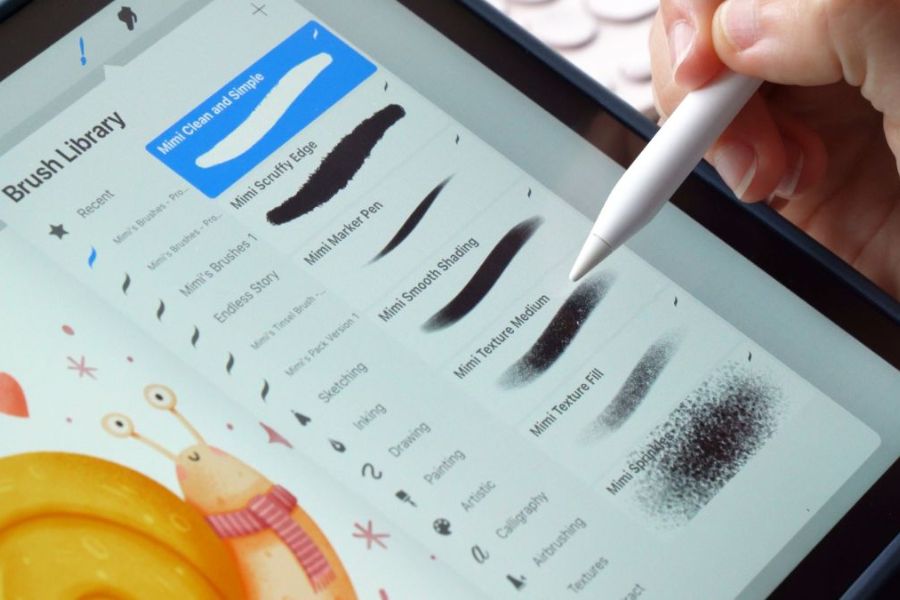
5. How to use and install Photoshop brushes easily
After downloading Photoshop brushes, the next step is to import the brush set into Photoshop for use. For beginners, this might seem a bit strange, but it's actually quite simple. Typically, Photoshop brushes are provided as ABR files . This is a common format for Photoshop brush sets. After downloading, you can follow these basic steps:
-
Step 1: Download the brush set you want to use to your computer and extract it if the file is in ZIP or RAR format.
-
Step 2: Open Photoshop on your computer.
-
Step 3: Select the Brush Tool from the toolbar.
-
Step 4: Open the brush menu and find the option to add or import brushes.
-
Step 5: Select the downloaded brush file, then confirm to add it to the library.
-
Step 6: Select the brush set you just installed and try drawing on a new layer.
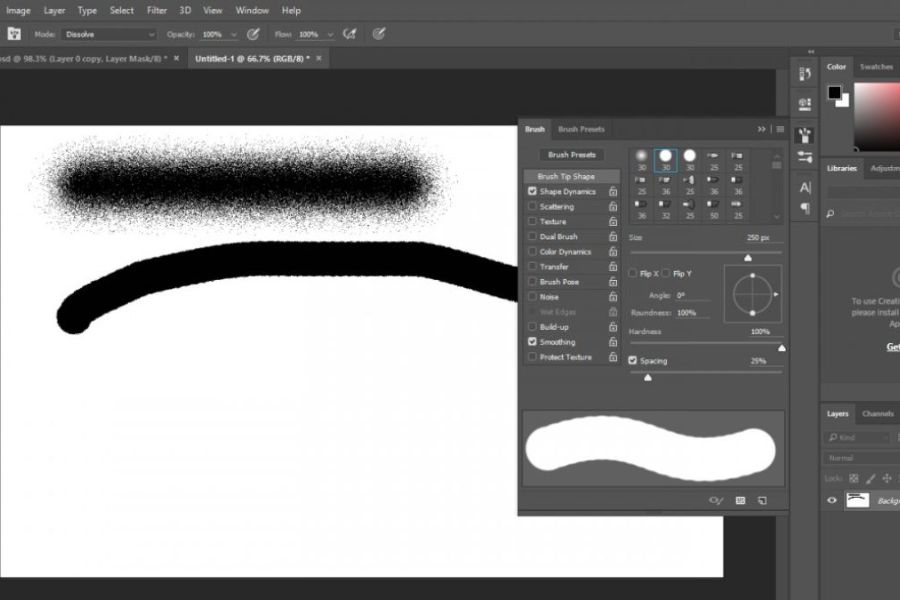
After installation, you should try changing some parameters such as size, hardness, transparency, or stroke spacing. Just changing a few settings, even with the same brush, can produce very different results.
A helpful tip is to create a new layer before trying out effect brushes. This makes it easier to edit, reduce blur, or remove effects without affecting the original image.
6. Common mistakes when using Photoshop brushes
Although working with brushes is quite simple, you may sometimes encounter situations where the brushes don't work, don't display, or Photoshop responds slowly. This could be due to the brush set, software settings, or computer resources.
Brush is not showing
If the newly installed brush set doesn't appear, first check if the import process is complete. You should also check the file format and compatibility with your Photoshop version. You can try closing and reopening Photoshop, then checking the brush library again. If it's still not there, try reinstalling the brush set from a different source.
Brush is not working.
If you select a brush but are unable to draw, it could be because you've selected the wrong layer, the layer is locked, or some of the brush tool settings are incorrect.
You can check quickly:
-
Is the current layer locked?
-
Is the foreground color suitable?
-
Are the Opacity and Flow settings too low?
-
Is the current tool actually the Brush Tool?
-
Are the brushes compatible with the version of Photoshop you are using?
Photoshop slows down when using large brushes.
Some brushes are large or contain a lot of detail, which can require more processing resources. When used on high-resolution documents, Photoshop may respond slower than usual. If this happens, try reducing the brush size, closing running applications, or optimizing Photoshop's performance settings. Also, limit the number of large documents you have open simultaneously to free up processing resources.
7. Upgrade your Photoshop skills at Sadesign for more effective creative work.
Having a rich collection of free Photoshop brushes will give you more options when designing. However, to make the most of these editing tools, it's crucial to use a version of Photoshop that suits your needs and has all the necessary features. If you're looking for a Photoshop upgrade at Sadesign , this could be a convenient option to access the tools needed for your design work. With the right version, you can combine the Brush Tool with many other features to edit photos, create posters, design banners, illustrations, or build graphic products in your own unique style.
When choosing upgrade services at Sadesign, you will enjoy many benefits such as:
-
Support during use: There is a support area available for issues encountered during installation or use.
-
Affordable cost: Choose a package that suits your personal or business needs.
-
Convenience: The simple upgrade process saves time.
-
Post-registration support: There are contact channels available for assistance when needed.
-
Suitable for design needs: Particularly useful for those who frequently work with Photoshop and other creative tools.
8. Conclusion
Photoshop brushes can be considered one of the smallest yet most impactful tools in the design process. From a simple brush stroke, you can transform it into lighting effects, textures, smoke, watercolors, or a host of unique details. Combining a well-organized brush library with Photoshop's editing features makes the creative process much faster and more flexible. If you're looking to expand your design capabilities, start by choosing brush sets that truly suit your work, carefully checking the licenses, and practicing adjusting each parameter. Once you're proficient, you'll realize that the Brush Tool is not just a digital brush, but a tool that helps transform graphic ideas into visually appealing and captivating images.





















VIP Products








Best Selling Products
Windows 10 & 11 Pro Key
36 USD
Freepik Premium Account
59 USD
Genuine Cheap Canva Pro
39 USD
Genuine Adobe Illustrator account
99 USD
Capcut Pro 1 Year
39 USD
Upgrade Genuine Office 365
49 USD
Plugin Retouch4me
69 USD
ChatGPT Plus Account (GPT-4)
16 USD
Upgrade Duolingo Super
29 USD
Adobe Photoshop Copyright - Full App
120 USD
MidJourney Account
29 USD
Upgrade genuine Capture One account
120 USD
Adobe Premiere Pro Account
99 USD
Autodesk All App Account Copyright
120 USD
Copyright Adobe Lightroom Account
59 USD