Best Selling Products

Upgrade genuine Capture One account
120 USD

Genuine Adobe Illustrator account
99 USD

Copyright Adobe Lightroom Account
59 USD

MidJourney Account
29 USD

Adobe Photoshop Copyright - Full App
120 USD

Freepik Premium Account
59 USD

Genuine Cheap Canva Pro
39 USD

Windows 10 & 11 Pro Key
36 USD

Adobe Premiere Pro Account
99 USD

Capcut Pro 1 Year
39 USD

Upgrade Genuine Office 365
49 USD

Plugin Retouch4me
69 USD

Upgrade Duolingo Super
29 USD

ChatGPT Plus Account (GPT-4)
16 USD

Autodesk All App Account Copyright
120 USD
What is Canva? A Beginner''''s Guide to Using Canva
Nội dung
Whether you''''re a student, office worker, or online business owner, you can easily create beautiful images without needing extensive design knowledge.
1. Learning about the Canva software
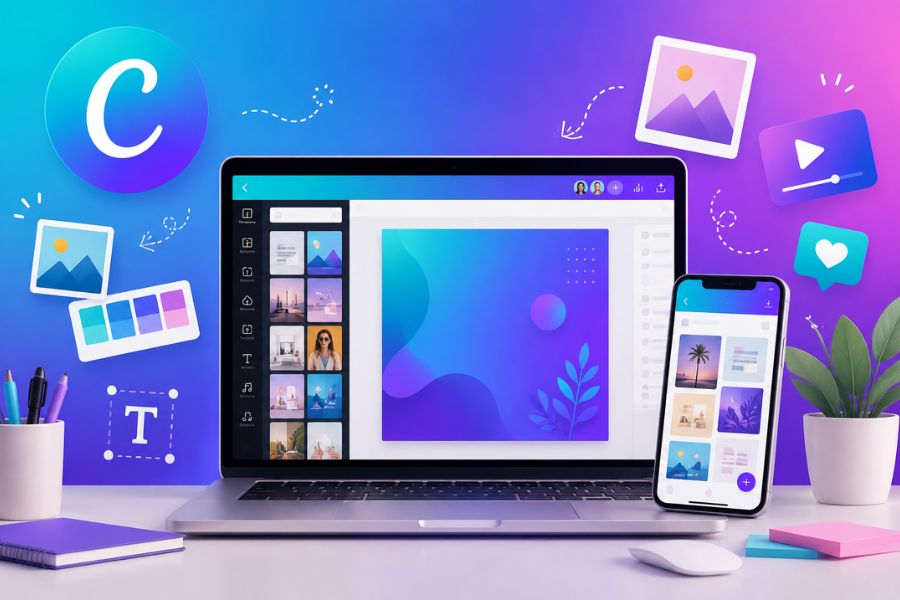
Canva is an online graphic design platform loved by many people today thanks to its simple, easy-to-operate interface suitable for a wide range of users. From designing images, posters, and banners to editing videos or creating presentation slides, Canva fully supports all of this on both the website and the phone app. In particular, for those looking for a "Canva for beginners" solution, this is considered an extremely ideal tool since every action is optimized in an intuitive drag-and-drop style, helping users easily get familiar with it after just a few minutes of use.
Not only does Canva have a massive template library with many modern styles, it also provides millions of resources such as fonts, icons, stickers, images, and ready-made effects for users to freely unleash their creativity. Currently, Canva has two versions: free and Canva Pro. With the free version, users can already use many basic features to serve their everyday design needs. Meanwhile, the Pro version offers many notable upgrades such as background removal, automatic design resizing, unlimited use of premium resources, or creating professional animated images, making the design process much faster and more convenient.
2. What can you do on Canva?
Not merely a design tool, Canva also offers a lot of utilities that help users create content more easily every day. Even if you're not a professional designer, you can still create beautiful, modern products in just a few minutes.
Design a variety of content types: Canva supports creating posters, banners, logos, infographics, presentation slides, invitations, resumes, or social media posts with many ready-made sizes, extremely convenient.
Easy to use for beginners: Features are simply optimized in a drag-and-drop format, helping users quickly get familiar without needing in-depth design skills.
Create professional videos: Besides image design, Canva also supports editing YouTube videos, TikTok videos, presentation videos, or advertising videos with great ease.
A rich resource library: Canva has thousands of free templates, hundreds of fonts along with a library of images, icons, stickers, and unique effects that make designs stand out more.
Easily share designs: Once finished, users can download or directly share their product on social media for the community to view and edit together.
3. How to create an account on Canva
Step 1: Access Canva and choose to create an account
To start using Canva, you first need to visit the Canva homepage in your browser or download the app to your phone. On the main interface, select the Create account item, then tap Sign up with email to begin the registration process. For those learning about "Canva for beginners," Canva's interface is designed to be very intuitive, so you can operate it easily after just a few minutes of getting familiar with it.
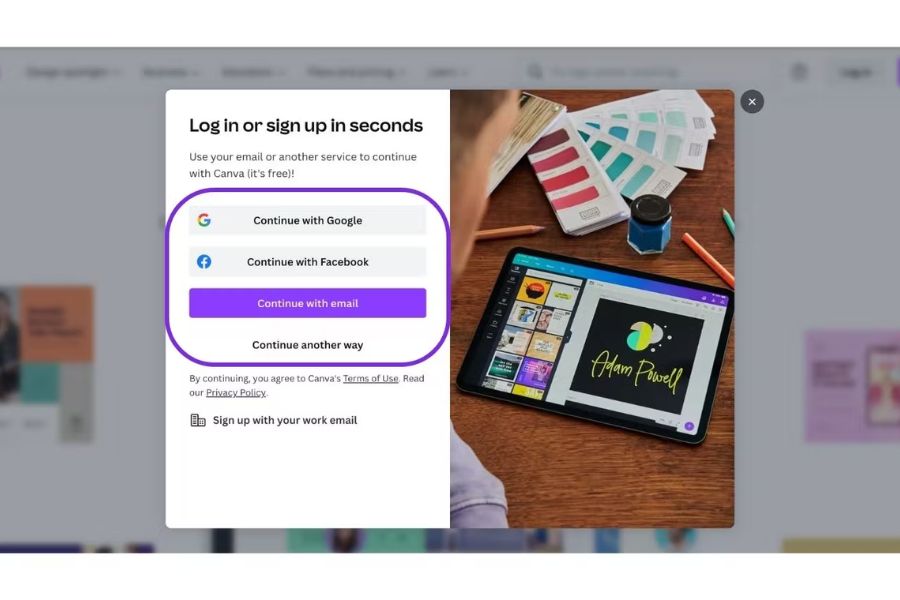
Step 2: Enter your account registration information
After choosing to sign up with email, Canva will ask you to enter basic information such as your email address, full name, and login password. Once done, simply tap Create account to continue. Note that the password at this step is a separate password just for your Canva account, so you don't need to set it the same as your personal email password. Creating an account is quite simple and suitable even for people who have never used design software before.
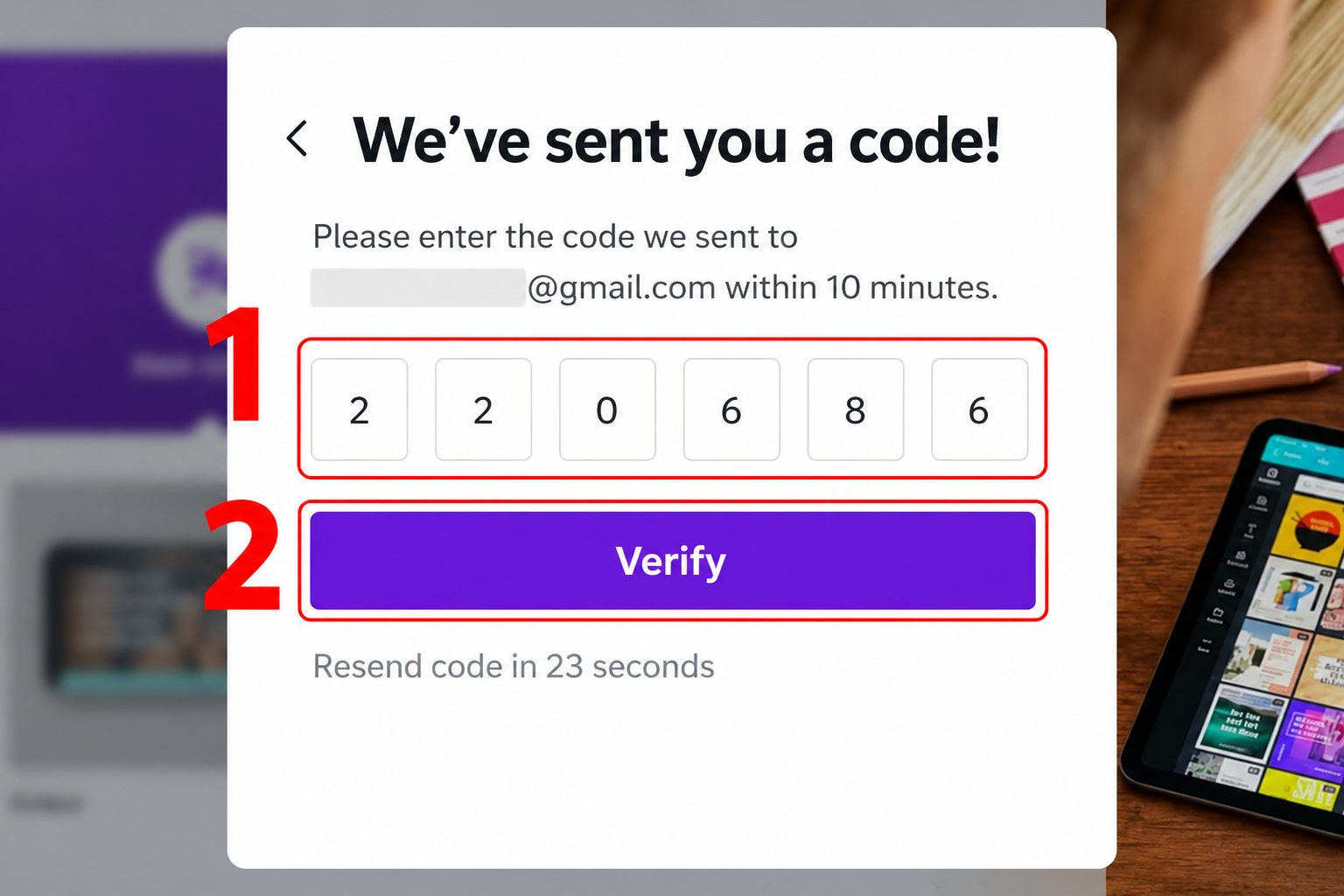
Step 3: Verify your registered email
Next, Canva will send a 6-digit verification code to the email you just registered. Simply open your inbox, get the code, then go back to the Canva interface to enter it into the verification field. After entering the correct code, tap Done to complete the account verification step. This is an important step that helps secure your account and ensures you can use all of Canva's features.
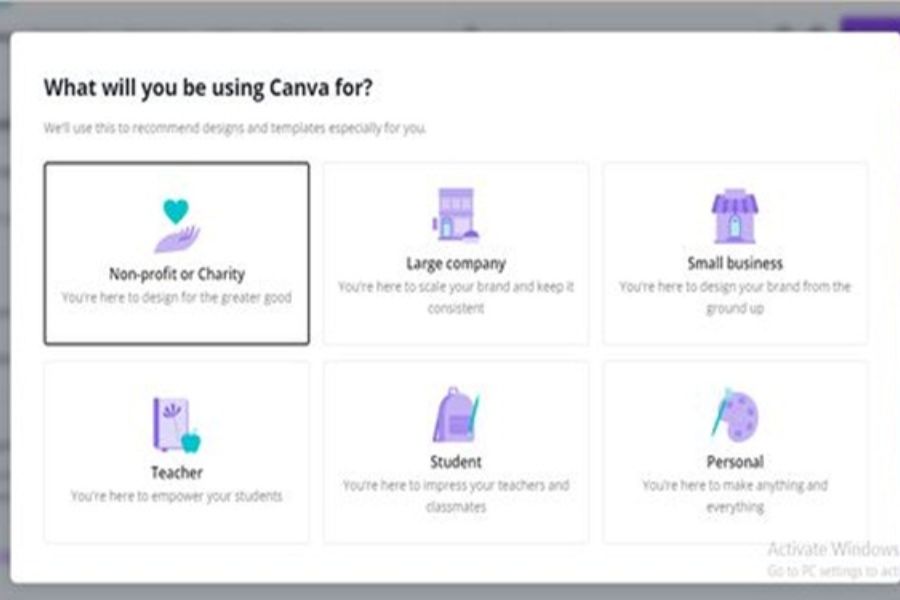
Step 4: Choose your purpose for using Canva
After successful verification, Canva will display a question about your purpose for using it, such as studying, working, business, or content creation. Simply select the option that matches your needs so the system can suggest more suitable templates and features. With "Canva for beginners," this setup step will help users easily navigate the interface and quickly find design templates that fit their everyday purposes.
4. Guide to using Canva on a computer
Step 1: Log in to your Canva account
To start using Canva on a computer, simply visit the Canva homepage and log in with the account you registered earlier. You only need to log in when you switch devices or haven't saved your account information in the browser. After successfully logging in, all design features, the template library, and your saved projects will be fully displayed. With "Canva for beginners," Canva's intuitive interface will help you easily get familiar with it right from your first use.
Step 2: Choose a design template or create a new design
After entering the main interface, you can choose from thousands of available templates covering many different topics such as posters, banners, presentation slides, logos, or social media posts. Simply click on your favorite template to edit it according to your personal needs. If you want to design from scratch yourself, select the Create a design item and enter a custom size that suits your purpose. This is an extremely convenient feature that helps users save time and easily create more professional products.
Step 3: Customize the design using Canva's tools
When you open the editing interface, select Customize design to start creating content. Canva provides many tools that are extremely easy for beginners to use:
Elements: Contains icons, illustrations, photo frames, animated stickers, and many graphic elements that make designs stand out more.
Uploads: Allows you to add images, videos, or personal resources from your computer into the design.
Text: Supports inserting text, changing fonts, colors, and effects to make content more eye-catching.
Projects: Where completed designs are stored, or projects shared by others.
Apps: Integrates additional audio, video, backgrounds, and many other creative support tools.
Thanks to simple drag-and-drop actions, "Canva for beginners" becomes much more accessible even if you've never studied design before.
Step 4: Download the design to your computer
After finishing editing, simply click the three-dot icon or the Share button in the top right corner of the screen to download the file to your computer. Canva supports many popular formats such as PNG, JPG, PDF, or MP4 depending on your usage needs. With just a few simple steps, users can already create professional image or video products right on their computer quickly and conveniently.
5. Guide to using the Canva app on a phone
Step 1: Download the Canva app to your phone
To start using Canva on your phone, simply go to the App Store or CH Play (Google Play) and search for the Canva: Design photo and video app to download it. Once installation is complete, log in with the account you registered earlier to use all the features. With an interface optimized for mobile devices, "Canva for beginners" becomes extremely easy to use and convenient even when operating on a small screen.
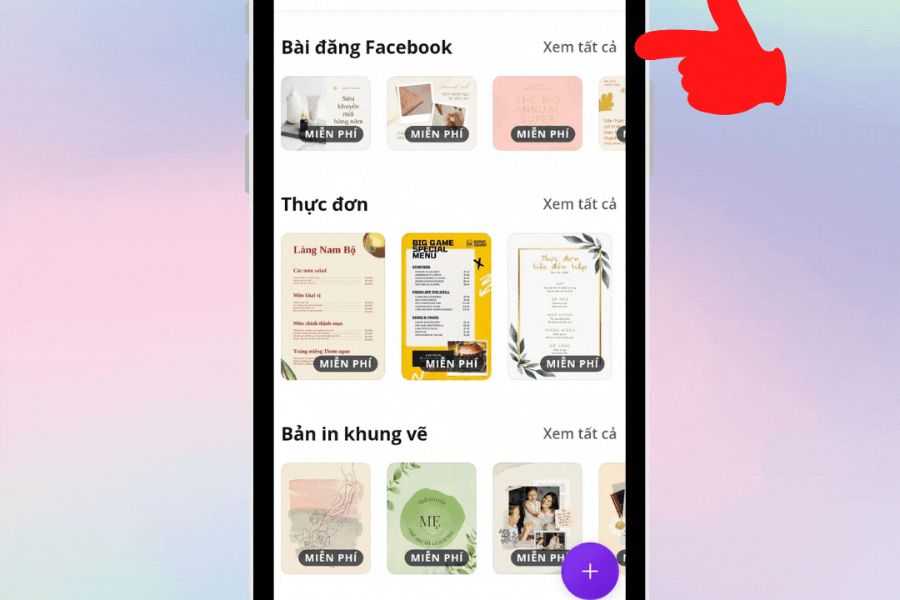
Step 2: Choose a suitable design template
After logging in, Canva will display a large number of available templates covering many different topics such as posters, Facebook stories, Instagram posts, logos, or short videos. Simply choose a suitable template to edit quickly. If you want to create a completely new design yourself, tap the plus icon in the bottom right corner of the screen to start with a blank page in a custom size.
Step 3: Use the editing tools on Canva
In the design interface, tap the plus icon in the left corner of the screen to open editing tools such as:
Elements: Add icons, stickers, photo frames, and graphic effects.
Uploads: Upload photos or videos from your phone to Canva.
Text: Insert text, change fonts, colors, and effects for content.
Photos and videos: Choose free resources available on Canva.
Thanks to simple drag-and-drop actions, users can easily edit their designs to their liking without needing specialized skills.
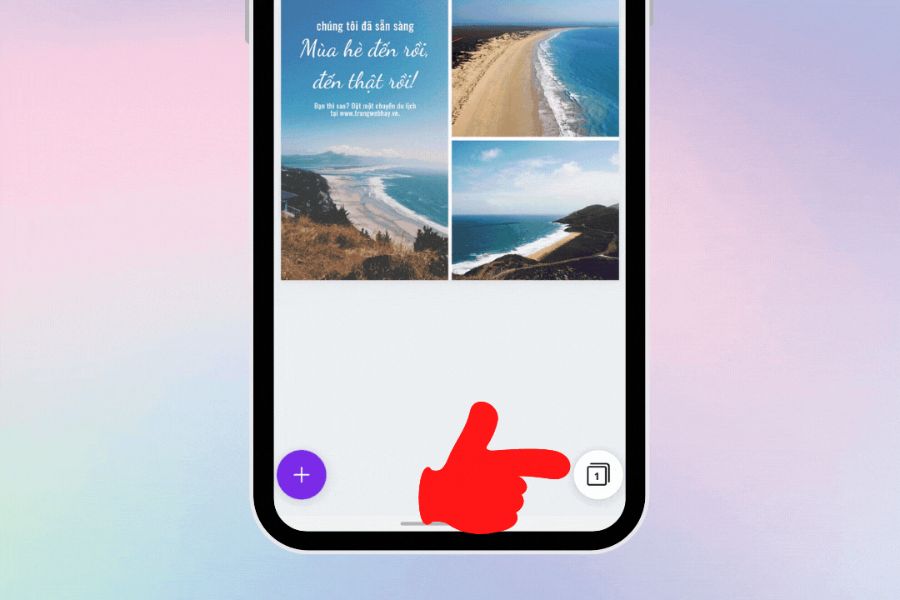
Step 4: Duplicate or delete a design page
If you want to add a new page or delete an unnecessary one, simply tap the page icon located in the bottom right corner of the screen. Here, Canva allows you to quickly duplicate existing designs to save editing time, which is especially useful when making slides or posts in the same style.
Step 5: Save the design to your phone
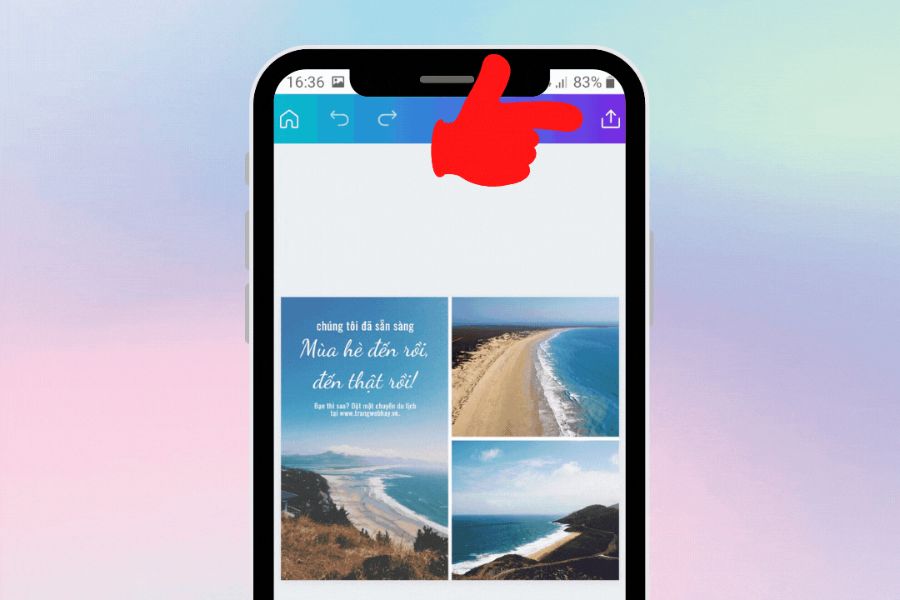
After finishing editing, tap the upward arrow icon in the top right corner of the screen, then select Save as. Canva supports many popular formats such as PNG, JPG, PDF, or MP4 to suit different usage needs. This is the final step that helps you save your design product quickly and conveniently.
Step 6: Share your design on social media
Besides downloading the file to your device, Canva also supports sharing your design directly to social media platforms such as Facebook, Instagram, TikTok, or WhatsApp. Simply select the export icon again, then tap the platform you want to share to, and you're done. With this convenience, "Canva for beginners" not only makes designing easy but also supports posting content quickly in just a few simple steps.
6. Conclusion
It's clear that Canva is a design platform extremely suitable for those without experience, thanks to its intuitive, easy-to-use interface and integration of many useful features. With just a few simple steps, users can create their own professional posters, slides, banners, or social media posts right on their phone or computer. If you're looking for a "Canva for beginners" tool that's easy to learn, easy to use, and supports fast design, then Canva is definitely a choice well worth trying.





















VIP Products








Best Selling Products
Upgrade genuine Capture One account
120 USD
Genuine Adobe Illustrator account
99 USD
Copyright Adobe Lightroom Account
59 USD
MidJourney Account
29 USD
Adobe Photoshop Copyright - Full App
120 USD
Freepik Premium Account
59 USD
Genuine Cheap Canva Pro
39 USD
Windows 10 & 11 Pro Key
36 USD
Adobe Premiere Pro Account
99 USD
Capcut Pro 1 Year
39 USD
Upgrade Genuine Office 365
49 USD
Plugin Retouch4me
69 USD
Upgrade Duolingo Super
29 USD
ChatGPT Plus Account (GPT-4)
16 USD
Autodesk All App Account Copyright
120 USD