Best Selling Products

ChatGPT Plus Account (GPT-4)
16 USD

Upgrade genuine Capture One account
120 USD

Genuine Cheap Canva Pro
39 USD

Capcut Pro 1 Year
39 USD

Adobe Premiere Pro Account
99 USD

Plugin Retouch4me
69 USD

Copyright Adobe Lightroom Account
59 USD

Windows 10 & 11 Pro Key
36 USD

Freepik Premium Account
59 USD

Adobe Photoshop Copyright - Full App
120 USD

Upgrade Duolingo Super
29 USD

Genuine Adobe Illustrator account
99 USD

MidJourney Account
29 USD

Autodesk All App Account Copyright
120 USD

Upgrade Genuine Office 365
49 USD
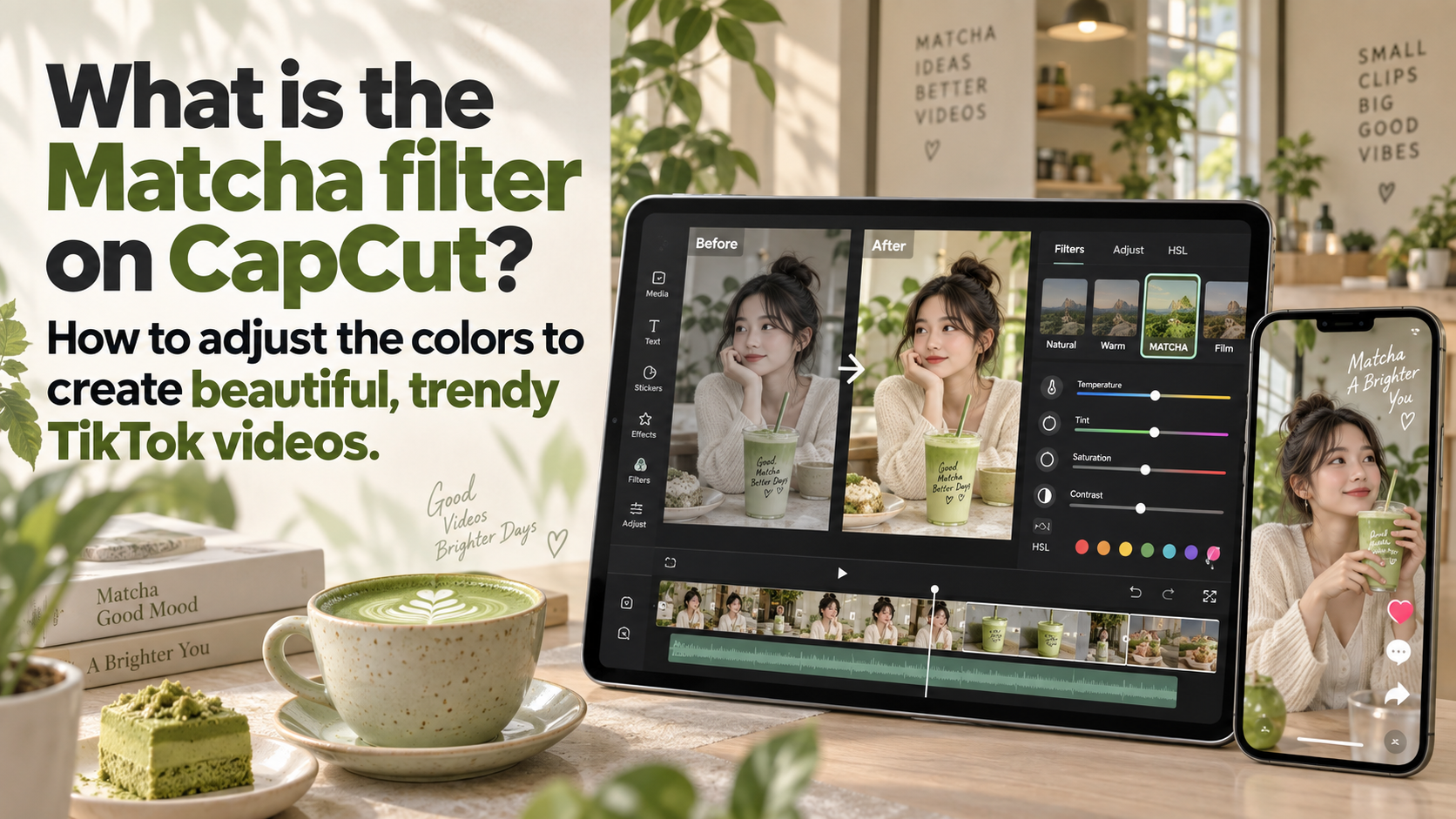
What is the Matcha filter on CapCut? How to adjust the colors to create beautiful, trendy TikTok videos.
Nội dung
- 1. What is the Matcha filter in CapCut?
- 2. Why is the Matcha filter so popular on TikTok?
- 3. What types of videos are suitable for using the Matcha filter?
- 4. Detailed instructions on how to use the Matcha filter on CapCut
- 4.1. Accessing the Matcha filter template
- 4.2. Select the video you want to apply the filter to.
- 4.3. Check color and preview video
- 4.4. Set video quality before exporting.
- 4.5. Save the video and share it on TikTok.
- 5. How to adjust the color of Matcha to make it more beautiful and trendy.
- 6. Should the Matcha filter be combined with other effects?
- 7. Notes on using the Matcha filter on CapCut
- 8. Conclusion
The Matcha filter on CapCut is becoming one of the most popular color effects for creating TikTok videos. No elaborate filming or editing is needed; with just a clip already on your phone, you can create a unique green and yellow-tinged image that''s both eye-catching and trendy.
1. What is the Matcha filter in CapCut?
The Matcha filter is a color effect inspired by the distinctive green hue of matcha green tea powder. When applied to videos, the filter typically creates a yellowish-green color palette, sometimes with high brightness and saturation. As a result, the edited images feel fresh, vibrant, and somewhat surreal.
Unlike filters that focus on beautification or only subtly alter color tones, Matcha makes a stronger impact on the entire frame. The color of clothing, scenery, lighting, or even faces can all be transformed by the effect. This unexpectedness makes the filter interesting and suitable for videos that want to grab attention from the very first seconds.

2. Why is the Matcha filter so popular on TikTok?
One of the things that makes the Matcha filter stand out is its easily recognizable color. Amidst a plethora of videos using familiar tones like orange, brown, or bright white, the Matcha green hue creates a fresh feel and makes videos look more distinctive.
In addition, the effects are quite simple to use. Beginners in video editing don't need extensive knowledge of color grading to create finished products using only the pre-made templates on CapCut. This is a major advantage for those who frequently create TikTok videos but don't want to spend too much time on post-production.
3. What types of videos are suitable for using the Matcha filter?
The Matcha filter can be used for a wide variety of content. However, the effect is usually better when the original video has good lighting, sharp images, and a prominent subject. Clips filmed outdoors, in cafes, or in spaces with plenty of natural light often create a very eye-catching color effect.
You can try Matcha with videos in various formats such as:
-
Selfie videos or close-up shots of your face.
-
Video outfits and fashion.
-
Video of going out, going for coffee.
-
Travel videos, exploring new places.
-
Video filmed with friends.
-
Short transition clip.
-
Lifestyle videos or daily vlogs.
-
These videos aim to create an artistic and unique feel.
If the video is too dark, shaky, or of low quality, the effects can make the image harder to see. Therefore, choosing the right initial clip remains a very important factor.
4. Detailed instructions on how to use the Matcha filter on CapCut
If you've never used CapCut templates before, don't worry. The process is relatively simple and mainly relies on pre-established templates. Just prepare a suitable video, then follow the steps below.
4.1. Accessing the Matcha filter template
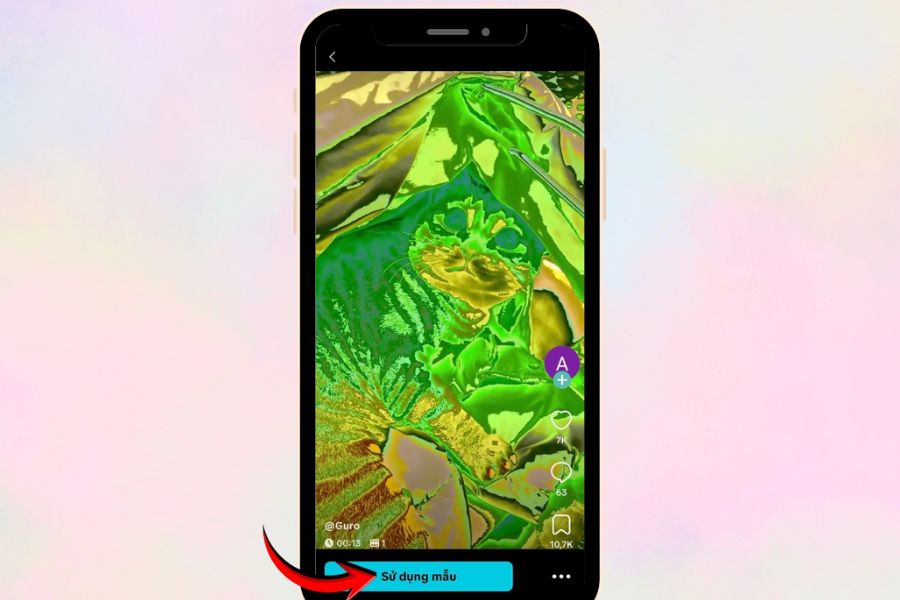
First, open the Matcha filter template in CapCut via the provided link. When the template interface appears, double-check the effect to ensure it's the color style you want to use. Then, click "Use template" to begin the editing process.
If CapCut requests access to photos and videos on your phone, grant the necessary permissions. If you can't find a template or other display interface, check if the app has been updated to the latest version.
Mẫu filter Matcha: https://www.capcut.com/tv2/ZSqF2obRp
4.2. Select the video you want to apply the filter to.
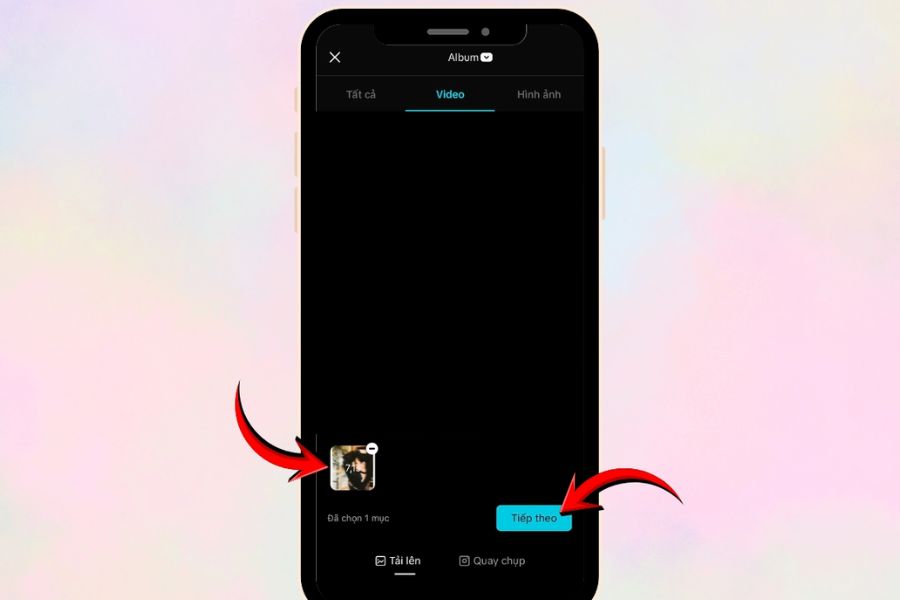
After selecting a template, CapCut will take you to your phone's library. There, choose the video clip you want to apply the effect to. It's best to prioritize clips with good resolution, sufficient lighting, and where the subject isn't obscured.
Once you've selected the correct video, review the preview and then click "Next" . CapCut will automatically import the video into the template and process it using the Matcha effect. Depending on the clip length and the device being used, this process may be quick or take a little longer.
4.3. Check color and preview video
After CapCut finishes processing, don't rush to export the video. Review the entire clip to check the colors, faces, movements, and details in the background. This is a crucial step if you want the final video to look natural instead of simply overlaying a green tint on the entire image.
If you feel the color is a bit too intense, you can go back to the editing section to reduce the effect's intensity. For videos with people in them, especially selfies, pay attention to skin tone. A touch of blue can create an interesting effect, but if it's too strong, the face can easily look unnatural.
4.4. Set video quality before exporting.
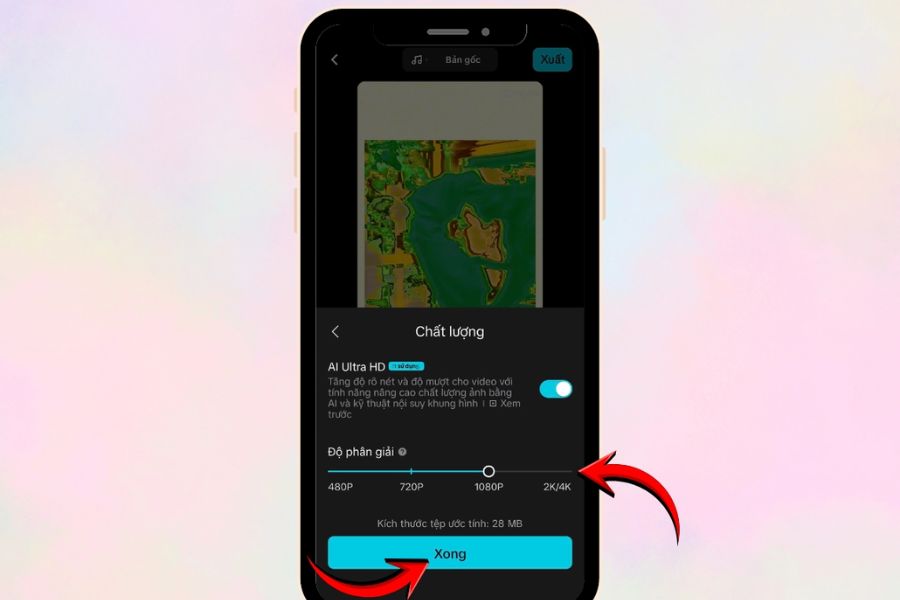
Once you're satisfied with the effect, tap "Export" in the upper right corner of the screen. CapCut will then display the "Export Settings" section where you can choose the video quality. If you're using the video to post on TikTok, you can choose 1080P to strike a balance between image quality and file size.
In the quality settings, if your device supports it, you can enable AI Ultra HD to enhance video clarity. Then adjust the resolution to your needs and press "Done" . It's not necessary to choose the highest setting if the original video doesn't have a comparable quality, as this can significantly increase video file size.
4.5. Save the video and share it on TikTok.
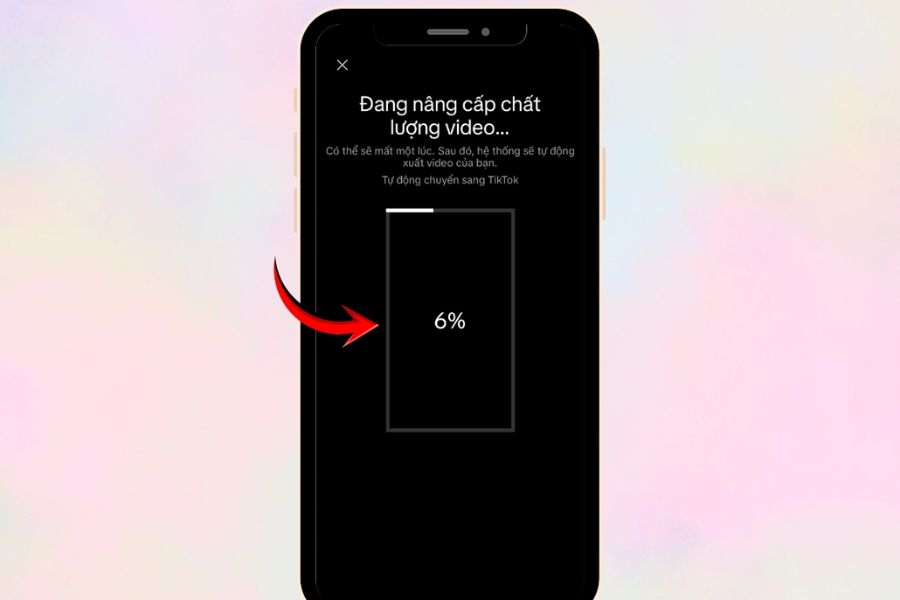
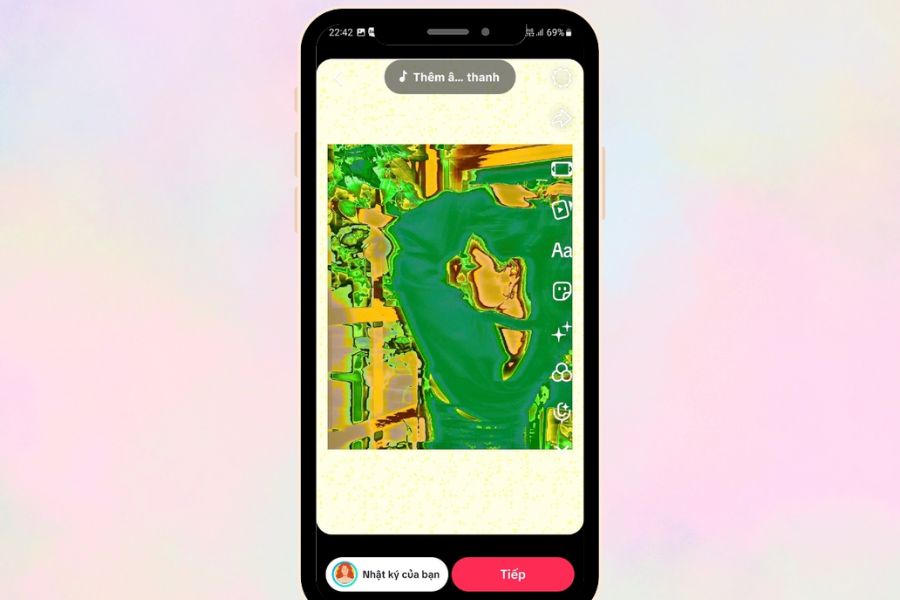
After completing the installation, select "Save and share to TikTok" . CapCut will begin processing and saving the video to your device. While waiting, avoid closing the application or switching to heavy tasks to prevent interruptions during the export process.
Once the video is saved, you can select “Share to TikTok” to directly transfer it to the platform. Here, you can still add audio, text, stickers, or other effects if you wish. Finally, review the content and press “Next” to add a description before posting.
5. How to adjust the color of Matcha to make it more beautiful and trendy.
The available filter templates help you complete your video quickly, but if you want your product to have its own unique touch, you can further adjust the colors after applying them. Avoid increasing all parameters at once, as the matcha color is already quite vibrant. Instead, adjust each element individually to find the right level for your video.
You can start by slightly increasing the brightness if the clip is a bit dark, then adjust the contrast to add more depth to the image. If you want the blue to stand out, you can increase the saturation, but only moderately. For videos with faces, prioritize keeping skin tones easy to see and avoid making the entire face appear too intensely blue.
Here are some parameters you can refer to:
-
Brightness: Increase slightly if the video is dark.
-
Contrast: Increase moderately to make the image more three-dimensional.
-
Saturation: Adjust slightly to allow the Matcha color to stand out.
-
Temperature: Lower slightly if you want a more pronounced blue color.
-
Sharpness: Increase moderately for clearer images.
-
Highlight: Reduce if the bright area is overexposed.
-
Shadow: Slightly increase if dark areas lose detail.
The parameters above are for reference only. Each video has different original lighting and color, so please adjust based on the actual image.
6. Should the Matcha filter be combined with other effects?
You can certainly combine Matcha with other effects in CapCut, but you shouldn't use too many at once. The green and yellow color combination itself already creates a strong visual impact. If you continue adding more motion effects, lighting, or filters, the video can easily become cluttered.
A simple approach is to keep Matcha as the main effect and add a few subtle details. For example, you can add text at the beginning, a subtle transition effect, or stickers at key moments. This method helps the video stay on trend while maintaining the main content.
7. Notes on using the Matcha filter on CapCut
Before you start editing, you should check a few things to make the process smoother. Especially if you need to create a video quickly to follow a trend, having the clip ready and updating the application will save you considerable time.
-
Choose a clear, well-lit video: This is the most important factor for achieving beautiful colors.
-
CapCut update: The new version may help reduce errors when using the template.
-
Check your network connection: Some templates require data to load during editing.
-
Grant library permissions: Ensure CapCut can access the videos you want to use.
-
Review the final product: Check skin tone, background, motion, and sound before posting.
-
Avoid overdoing the effects: Matcha is already striking enough, so there's no need for too many filters.
-
Audio check: If using external music or sound, pay attention to usage permissions.
8. Conclusion
The Matcha filter on CapCut is a fun option if you want to refresh your familiar TikTok videos with a unique green and yellow color scheme. The effect creates a strong visual impact without requiring professional editing skills. With just a few steps—accessing the template, selecting a video, checking the effect, setting the quality, and sharing to TikTok—you can quickly create a trendy Matcha-style video. For the best results, prioritize a clear, well-lit video, adjust the colors appropriately, and don't forget to double-check before posting.





















VIP Products








Best Selling Products
ChatGPT Plus Account (GPT-4)
16 USD
Upgrade genuine Capture One account
120 USD
Genuine Cheap Canva Pro
39 USD
Capcut Pro 1 Year
39 USD
Adobe Premiere Pro Account
99 USD
Plugin Retouch4me
69 USD
Copyright Adobe Lightroom Account
59 USD
Windows 10 & 11 Pro Key
36 USD
Freepik Premium Account
59 USD
Adobe Photoshop Copyright - Full App
120 USD
Upgrade Duolingo Super
29 USD
Genuine Adobe Illustrator account
99 USD
MidJourney Account
29 USD
Autodesk All App Account Copyright
120 USD
Upgrade Genuine Office 365
49 USD