Best Selling Products

Plugin Retouch4me
69 USD

Autodesk All App Account Copyright
120 USD

ChatGPT Plus Account (GPT-4)
16 USD

Upgrade genuine Capture One account
120 USD

Adobe Photoshop Copyright - Full App
120 USD

Adobe Premiere Pro Account
99 USD

Upgrade Genuine Office 365
49 USD

Copyright Adobe Lightroom Account
59 USD

Freepik Premium Account
59 USD

Capcut Pro 1 Year
39 USD

Genuine Cheap Canva Pro
39 USD

Windows 10 & 11 Pro Key
36 USD

Genuine Adobe Illustrator account
99 USD

Upgrade Duolingo Super
29 USD

MidJourney Account
29 USD
12+ Spotify tips that every pro user applies.
Nội dung
- 1. Use Spotify's search function correctly.
- 2. Explore the mixes
- 3. Use Spotify via the website.
- 4. Explore the radio with your favorite songs.
- 5. Recover accidentally deleted playlists
- 6. View your music listening history.
- 7. Add songs that are not available on the Spotify app.
- 8. Stream music to other devices.
- 9. Organize playlists into folders.
- 10. Hide music playback activity
- 11. Customize music quality
- 12. Combine to create a playlist
- 13. Move the song save location.
- 14. Use keyboard shortcuts.
This compilation includes helpful tips to optimize your Spotify experience, from finding music and creating playlists to discovering useful features.

Spotify has long been the most popular online music streaming platform in the world. With its vast music library, ranging from international hits to indie music, from classic albums to daily new releases, Spotify offers a rich musical experience for all users. However, not everyone knows how to fully utilize the platform's features. If you only use Spotify to find songs and play playlists, you're missing out on a host of amazing features that elevate your music listening experience to a whole new level. In this article, we'll explore 14 of the best Spotify music listening tips, helping you search, discover, manage, and enjoy music smarter and more conveniently than ever before.
1. Use Spotify's search function correctly.
Spotify's search bar is a powerful tool, but if you don't know how to use it correctly, you can easily waste a lot of time scrolling through endless lists to find the song you're looking for. Spotify lets you search for anything, from songs, albums, artists, playlists to genres, release years, or international codes. To optimize search results, you can use advanced search shortcuts like these:
-
Year: Filter songs by release year, for example, enter year:2023 to display songs released in 2023.
-
Genre: search by music genre, for example genre:pop or genre:jazz .
-
Label: Filter songs by record label; this is especially useful if you want to find artists from the same label.
-
ISRC: Use the International Standard Recording Code to find a specific song.
-
UPC: Search by Universal Product Code for albums or singles.
-
AND (+): displays results that match two or more conditions, for example genre:pop + year:2022 .
-
NOT (-): excludes unwanted results, for example genre:rock -year:2020 excludes rock songs released in 2020.
-
OR: displays results that match at least one of several conditions, for example, genre:pop OR genre:rock .
Using these shortcuts helps you find the exact song that matches your mood, occasion, or preferences without wasting time manually filtering. This is an important step to make the most of Spotify's vast music library and makes your listening experience smoother and more efficient.

2. Explore the mixes
Spotify is known for its personalized playlists, especially Discover Weekly and Daily Mixes . Discover Weekly is updated weekly, offering new songs you may not have heard before but that match your musical tastes. Meanwhile, Daily Mixes goes even further by creating separate playlists based on the specific genres you frequently listen to.
For example, if you frequently listen to pop and acoustic music, Spotify will create two different Daily Mixes, each playlist including a mix of familiar songs and new tracks, helping you discover music without feeling repetitive. This is how Spotify “learns” your listening habits and provides intelligent suggestions, helping you broaden your musical taste, experiment with new genres, and still stay true to your personal preferences.
These mixes are especially useful when you want a daily playlist without having to create it manually. You can play Daily Mix in the morning, while exercising, or relaxing in the evening, keeping your listening experience fresh and enjoyable.
3. Use Spotify via the website.
You can't always install the Spotify app on your computer or mobile device. In that case, you can still listen to music through a web player without being restricted by basic features. Simply visit the official Spotify website, log in to your account, and open the music player to listen to your favorite playlists, albums, or explore Daily Mixes and Discover Weekly.
Spotify Web Player is the ideal solution when using a public computer or a device that doesn't support installing the app. The web interface is almost identical to the app, allowing you to enjoy music anytime, anywhere without worrying about storage space or installation issues. This is a simple but extremely useful tip for users who frequently travel or use multiple devices.
4. Explore the radio with your favorite songs.
Spotify Radio is a great way to discover new music based on your personal preferences. When you select a favorite song, album, or playlist and like it, Spotify will create a personalized radio show from that song, including tracks with similar melodies, genres, or moods.
Turning on the radio is very simple:
Step 1: Choose your favorite song or album.
Step 2: Tap the three dots next to the result.
Step 3: Select Go to Radio .
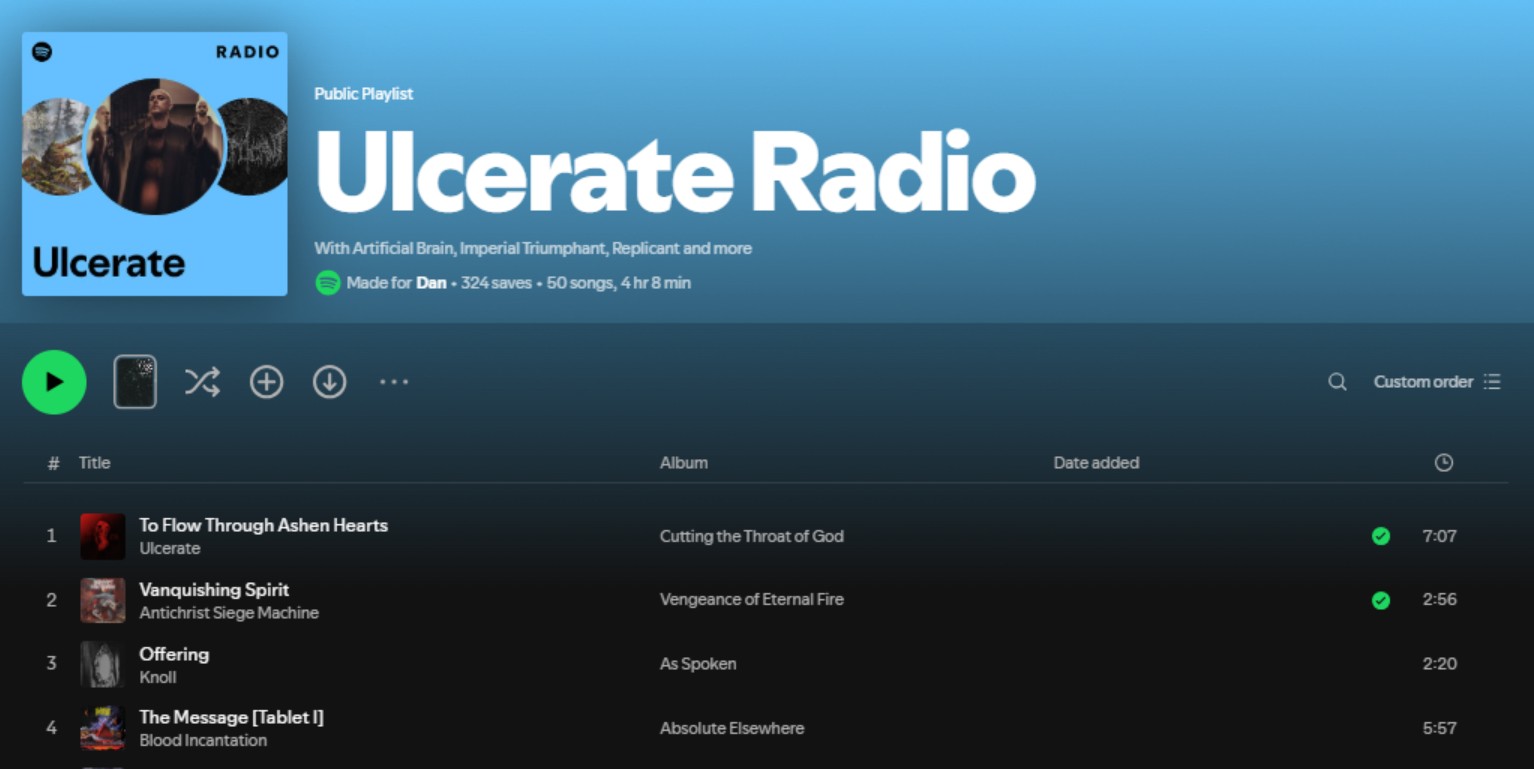
The radio feature helps you discover new artists and songs you've never heard before, while still matching your musical taste. This is a useful tip for those who want to find new music without having to create playlists manually.
5. Recover accidentally deleted playlists
Sometimes you accidentally delete precious playlists that you've been curating for months. Spotify offers a very convenient playlist recovery feature. Simply log in to Spotify on the web, select Profile > Account > Restore Playlists , and a list of deleted playlists will appear, allowing you to recover them with just a few clicks.
This feature is incredibly useful for complex playlists containing precious songs or personal collections that you don't want to lose. This is one of the Spotify music listening tips that long-time users highly appreciate.
6. View your music listening history.
Spotify allows users to review their recent listening history. This is a useful tip when you forget the name of a song but still want to listen to it again. Open Queue , click on History , and you will see the entire list of songs you have played, from which you can add them to a playlist or listen to them again immediately.
This feature helps manage your music listening habits, making it easy to find your favorite songs again or rediscover songs you may have missed before.
7. Add songs that are not available on the Spotify app.
If you own rare songs or audio files not yet available on Spotify, you can still add them to the app. In Settings , scroll down to Local Files > Add Source , and select the folder containing your music on your computer. The songs will then appear on Spotify, where you can play them directly or add them to your personal playlists.
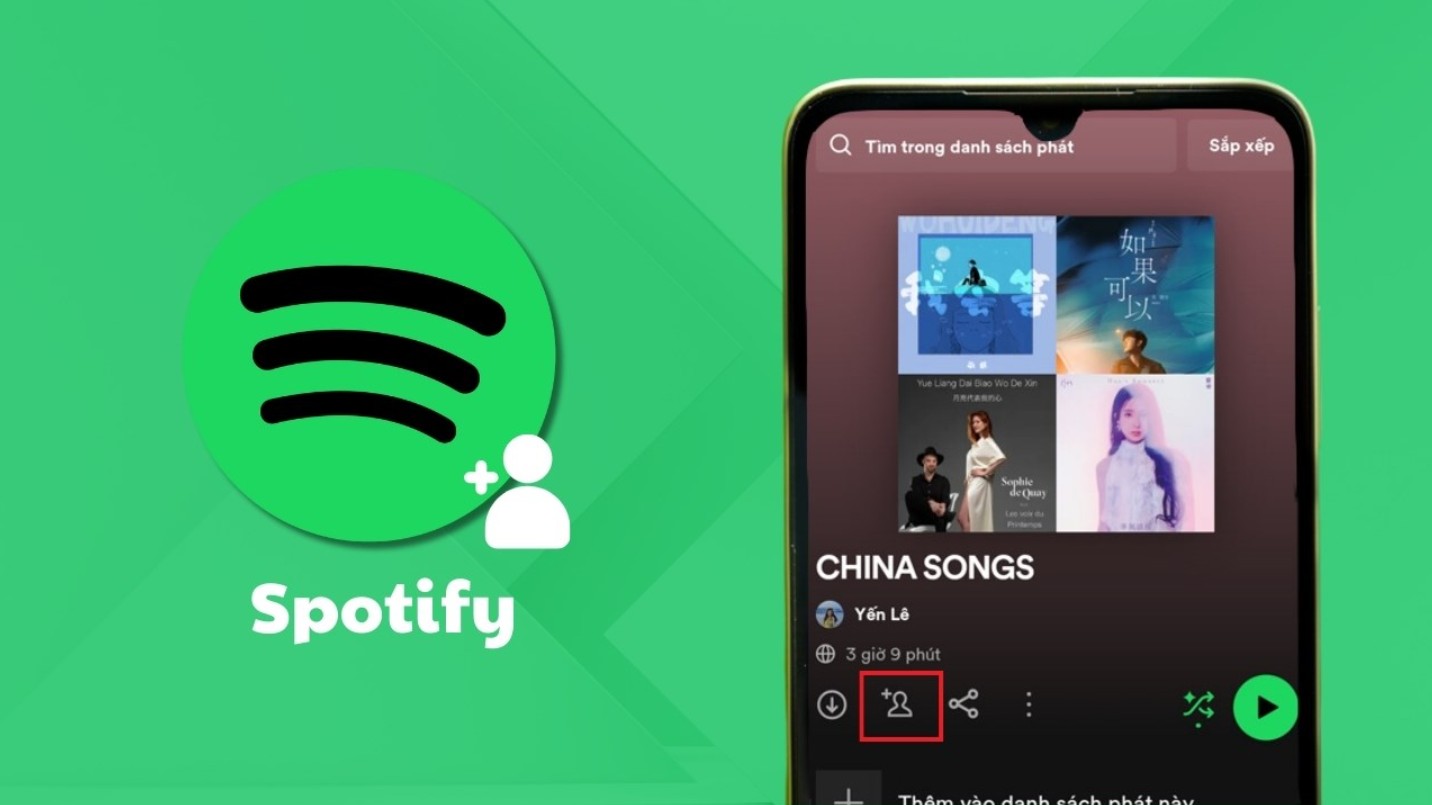
This tip helps you integrate your entire music library into one platform, manage it easily, and enjoy it without switching between multiple apps.
8. Stream music to other devices.
Spotify Connect is a feature that lets you stream music from your Spotify account to other devices, including phones, tablets, laptops, smart TVs, smart speakers, or set-top boxes. Simply log in with the same account, and you can control your music on other devices while maintaining a seamless experience.
If you use voice command-enabled devices like Amazon Alexa, you can control the volume, skip tracks, or pause music using only your voice. Spotify Connect supports most devices, even with a free account, making the music listening experience more flexible and suitable for any situation, from relaxing at home to partying with friends.
9. Organize playlists into folders.
Having many playlists can make managing and searching difficult. Spotify on your computer allows you to organize playlists into folders , making management more efficient and convenient. Click the three dots in the upper left corner, select File > New Folder , and then drag your playlists into the corresponding folder.
You can organize playlists by theme, mood, or genre, enabling quick access, enhancing the user experience, and reducing search time when you want to listen to music.
10. Hide music playback activity
Spotify allows you to share your listening activity with friends. However, if you don't want others to see your activity, you can enable private mode , which hides your listening history. Go to Settings > Social > Private Session . Spotify will temporarily stop saving your listening history, and others won't be able to see your activity.
This feature is useful if you want to enjoy music privately, without interruption or having your listening habits tracked, especially when listening to personal playlists or sensitive music.
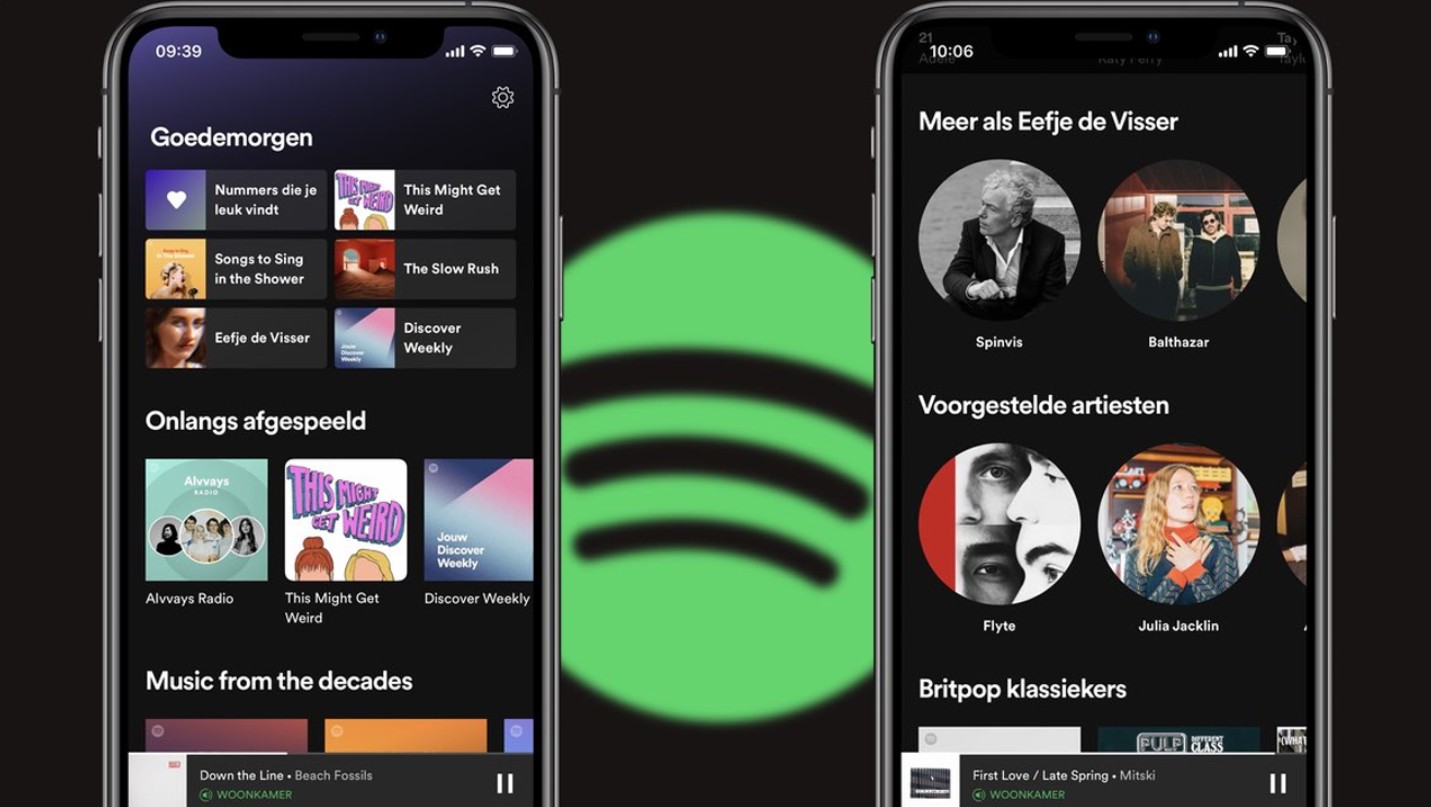
11. Customize music quality
When you're out and about and using 3G/4G instead of Wi-Fi, listening to Spotify will consume a lot of data. You can adjust the music quality to reduce data usage by going to Settings > Music Quality. Or you can choose the automatic feature by going to Settings > Data Saver > Turn On.
Both free and paid users can change the music quality. However, with the paid version, users can set the highest quality to 320Kbps. On the web version, the quality is fixed at 128Kbps for the free plan and 256Kbps for the paid plan.
12. Combine to create a playlist
You can collaborate with friends who share your musical tastes to create playlists. Go to Your Library > Playlists > Choose a Playlist > Options > Make Collaborative. You and your friends can freely add or remove songs from the playlist.
13. Move the song save location.
If you don't want to save songs in the default location, you can move them if you wish. Click on the menu, select Settings, scroll down until you find Advanced Settings. Look for the Offline Songs Storage option and click Change location. The songs will then be moved to your desired location.
14. Use keyboard shortcuts.
Here are some basic Spotify keyboard shortcuts:
Ctrl + Right Arrow (Ctrl + Command + Right Arrow): Skip to the next song
Ctrl + left arrow (Ctrl + Command + left arrow): Go back to the previous song
Ctrl + up/down arrow (Ctrl + Command + up/down arrow): customize sound
Ctrl + N: Create a new playlist
Using keyboard shortcuts is more convenient and saves you time.
Spotify is more than just a streaming music platform; it's a comprehensive tool for managing, discovering, and personalizing your music experience. With the 14 excellent Spotify listening tips we've introduced, users can search for songs more accurately, discover new music more intelligently, manage playlists effectively, connect across multiple devices, and protect their privacy.





















VIP Products








Best Selling Products
Plugin Retouch4me
69 USD
Autodesk All App Account Copyright
120 USD
ChatGPT Plus Account (GPT-4)
16 USD
Upgrade genuine Capture One account
120 USD
Adobe Photoshop Copyright - Full App
120 USD
Adobe Premiere Pro Account
99 USD
Upgrade Genuine Office 365
49 USD
Copyright Adobe Lightroom Account
59 USD
Freepik Premium Account
59 USD
Capcut Pro 1 Year
39 USD
Genuine Cheap Canva Pro
39 USD
Windows 10 & 11 Pro Key
36 USD
Genuine Adobe Illustrator account
99 USD
Upgrade Duolingo Super
29 USD
MidJourney Account
29 USD