Best Selling Products

Genuine Cheap Canva Pro
39 USD

Upgrade genuine Capture One account
120 USD

Adobe Premiere Pro Account
99 USD

Upgrade Duolingo Super
29 USD

Genuine Adobe Illustrator account
99 USD

Adobe Photoshop Copyright - Full App
120 USD

Capcut Pro 1 Year
39 USD

ChatGPT Plus Account (GPT-4)
16 USD

Plugin Retouch4me
69 USD

Windows 10 & 11 Pro Key
36 USD

MidJourney Account
29 USD

Upgrade Genuine Office 365
49 USD

Copyright Adobe Lightroom Account
59 USD

Autodesk All App Account Copyright
120 USD

Freepik Premium Account
59 USD
Zoom Breakout Rooms: How to Easily Join Small Groups in Seconds
Nội dung
- 1. Requirements for joining a small group on Zoom
- 2. Instructions on how to easily join a small group on Zoom
- 2.1. Accept the invitation to join a small group on Zoom.
- 2.2. Choose your own room (small group) on Zoom
- 3. Working in small groups on Zoom
- 3.1. Ask for Help
- 3.2. Private chat within a small group (Group Chat)
- 4. Leave the small group and return to the main meeting room on Zoom.
- 4.1. Voluntary return
- 4.2. Automatic return when Host closes room
- 5. Some things to keep in mind when joining small groups on Zoom.
This detailed, step-by-step guide will help you quickly join small group rooms on Zoom. You'll no longer miss important information or get confused when switching rooms.

With the increasing popularity of online meetings, classes, and teleconferencing, Zoom is proving its crucial role as an effective communication tool. Among the standout features that have made Zoom so popular, "Breakout Rooms," or small group rooms, offer flexibility in organizing group activities. These rooms allow the facilitator to divide participants into independent groups, optimizing the learning, discussion, and teamwork experience.
However, for many people, joining a small group on Zoom is still relatively awkward. Many miss notifications, can't find the join button, or don't know how to return to the main room after the group activity has ended. This creates significant obstacles during the meeting.
This article will guide you through the entire process of joining a small group on Zoom in just 3 simple steps , along with important tips to help you fully understand how to use the Breakout Rooms feature effectively and professionally.
1. Requirements for joining a small group on Zoom
Before you can join a small group on Zoom, you need to ensure some basic conditions are met. These factors determine whether you will see the Breakout Room join button or encounter errors during the room switching process.
The first requirement is to use the correct Zoom Client application for computers or phones, instead of the version running directly on a web browser. While the web version still allows you to join meetings, it doesn't fully support Room Splitting, meaning you can't select a room or view a list of sub-rooms. Updating Zoom to the latest version also helps reduce errors and ensures stable functionality.
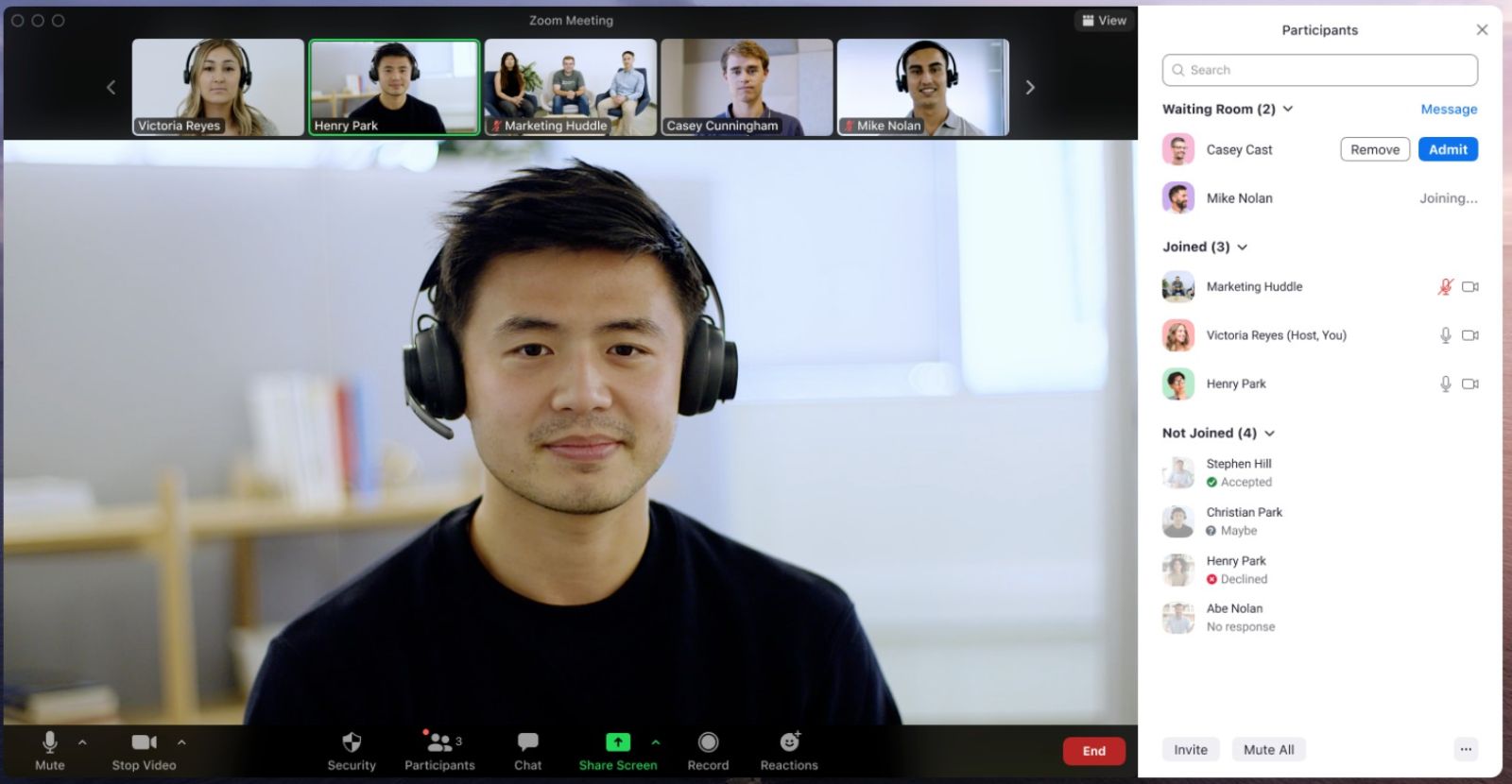
The second condition relates to your role in the meeting. The feature to create and manage small group rooms is only available to the Host or Co-host. Regular participants can only receive an invitation to a room or choose a room themselves if the Host allows it. Therefore, if you don't see Breakout Rooms, it's likely because the Host hasn't enabled this feature or the meeting doesn't allow participants to choose their own room.
The third requirement is a stable network connection. Each time you switch rooms, you'll need to reconnect to the Zoom server for a brief moment. If the network is unstable, you might experience dropped calls, loss of sound, or very slow room rejoining. This directly impacts the quality of discussions in small group rooms, especially during important meetings or large conferences.
Once you meet all three of these conditions, you are fully ready to join small group rooms without any problems.
2. Instructions on how to easily join a small group on Zoom
Depending on how the host sets up the meeting, you may be added to the small group in one of two ways: by receiving an invitation from the host or by choosing a room yourself. Either way, joining a small group room only requires a few simple steps.
2.1. Accept the invitation to join a small group on Zoom.
In most meetings, the host will proactively divide and assign participants to small rooms. As soon as the host sends the invitation, Zoom will display a prominent message in the middle of the screen, indicating that you have been invited to a specific room, such as "The host is inviting you to join Breakout Room: Group 1".
Then, all you have to do is confirm. Click the Join or Yes button to agree, and you'll immediately be taken to the small group room. This process is very quick and requires no further setup.
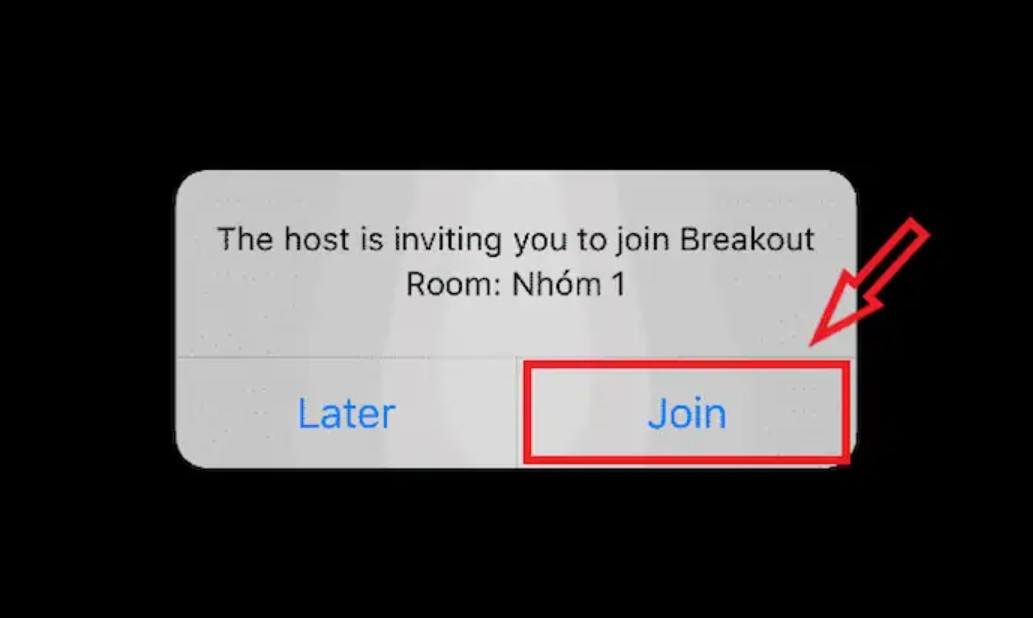
If you accidentally press the "Later" button and the notification disappears, you can still find the invitation yourself. Look down at the Zoom toolbar and find the Breakout Rooms icon (four small squares). Clicking on it will show you the invitation, and you can join at any time without waiting for the host to resend it.
This method is particularly suitable for online classes or company meetings where participants don't need to choose a room themselves.
2.2. Choose your own room (small group) on Zoom
Some meetings, especially workshops, large events, or interactive training sessions, will allow participants to choose their own themed group rooms. In this case, you can decide which room you want to join independently of the host.
First, find the Breakout Rooms icon. On a computer, this icon is located right on the taskbar at the bottom of the screen. On a phone or tablet, the icon is usually in the "More" section in the upper right corner, making it easy for users to access.
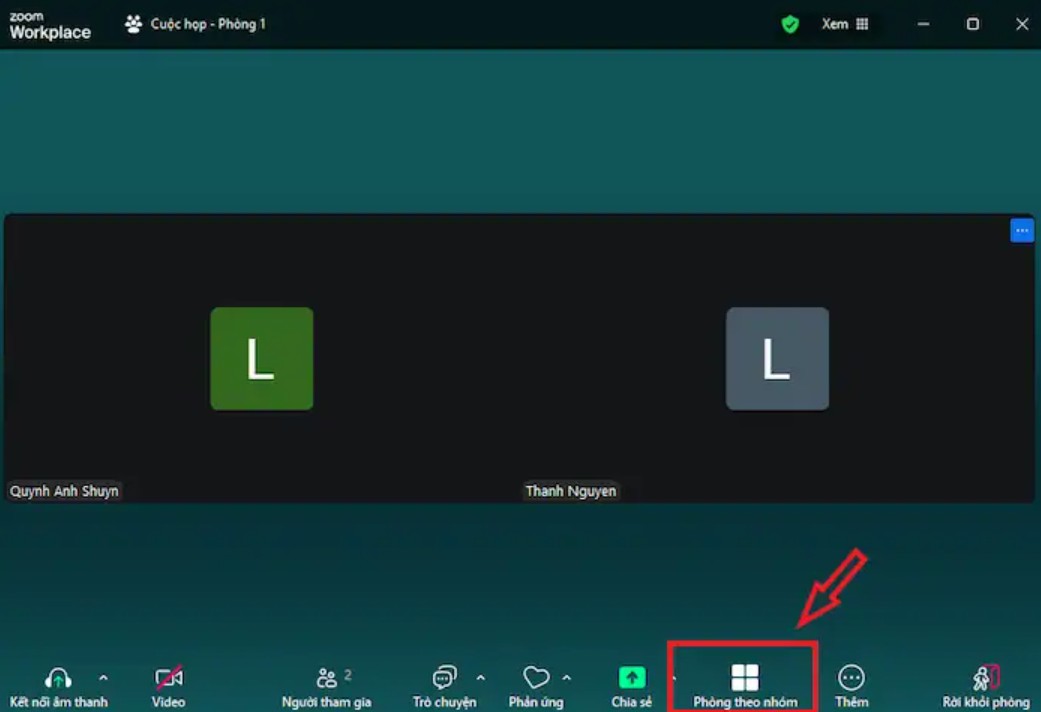
When the list of rooms appears, you will see the name of each room along with the number of people currently staying in it. This helps you choose a room that suits your needs, for example, a room with fewer people for more in-depth discussions or a room with more people for group activities.
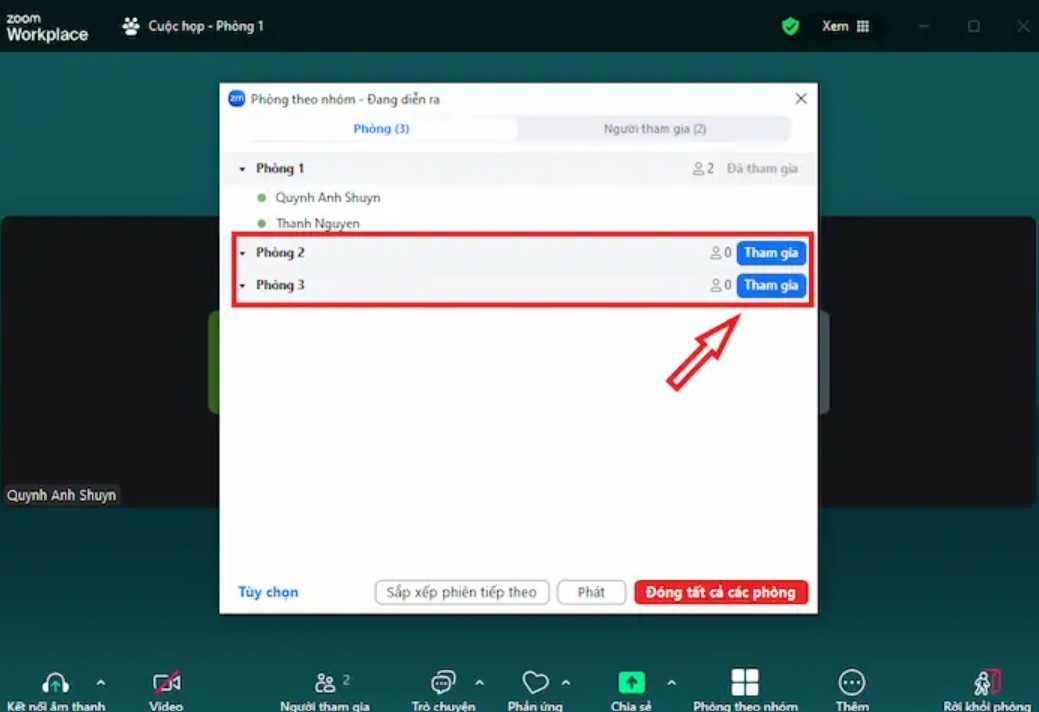
After selecting a room, the system will ask you to confirm your participation by pressing Yes . This is the final step before transferring you to the new room.
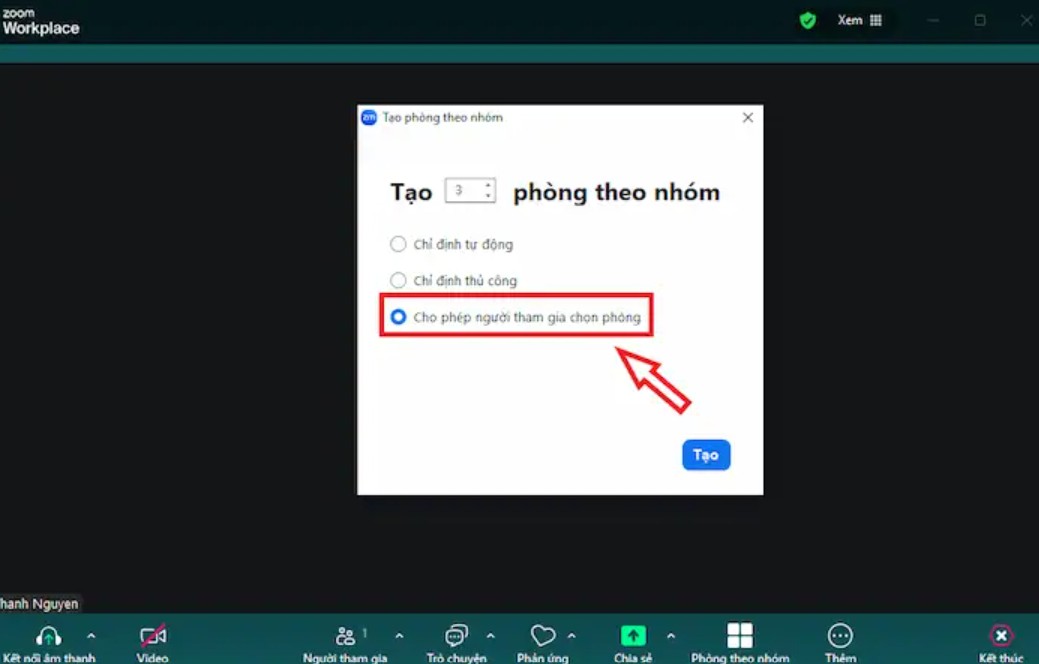
This feature only works when the Host has enabled it. If you don't see the room list, check if the Host has enabled the room selection option.
3. Working in small groups on Zoom
Once inside the small group room, all activities are similar to those in the main meeting room. However, the small group room has some specialized functions that enhance the teamwork experience and support participants.
3.1. Ask for Help
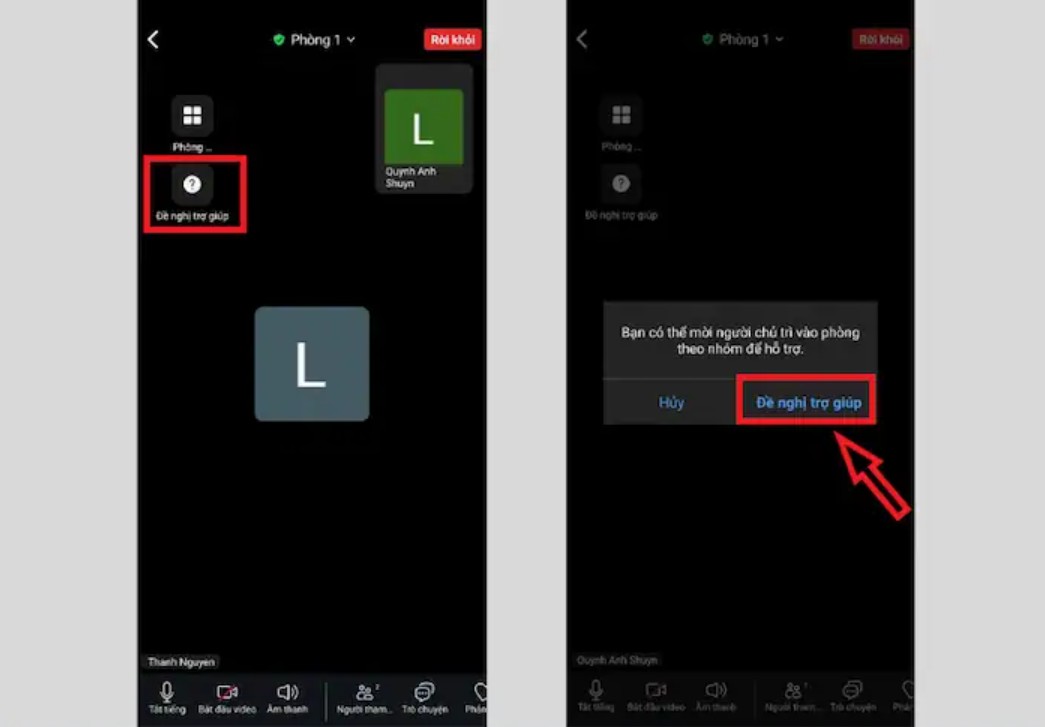
If small group sessions encounter problems or require the host's involvement to answer questions, you can utilize the "Ask for Help" feature. This is crucial for online classes as it allows instructors to support individual groups without having to monitor all groups simultaneously.
When you click on Ask for Help, a message will be sent to the Host. The Host can immediately join your room to assist with any issues, such as explaining the lesson, guiding you through the task, or troubleshooting technical problems.
3.2. Private chat within a small group (Group Chat)
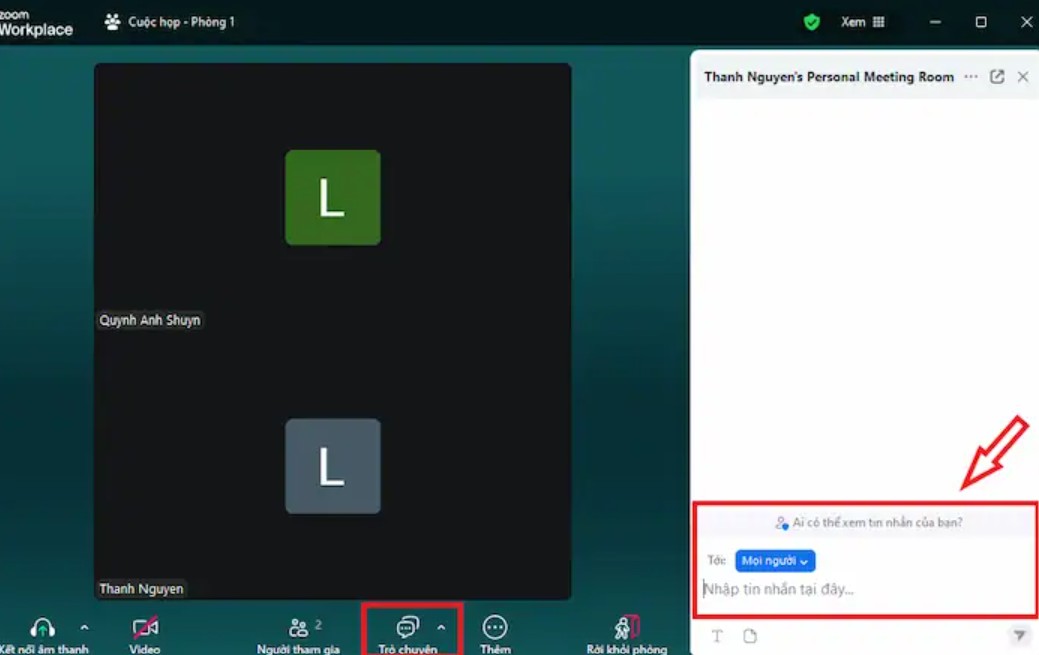
Group chat in a small room operates independently from the main meeting room. This allows you to freely exchange ideas, send document links, have quick discussions, or convey important information to your group without being mixed up with the general meeting chat.
These messages are only visible to your roommates and disappear completely once you leave the room.
4. Leave the small group and return to the main meeting room on Zoom.
Once you've completed your task, you can return to the main room in two ways: either leave the room proactively or wait for the Host to close all the rooms.
4.1. Voluntary return
You can leave the small group room at any time by clicking the Leave Room button in the bottom right corner. When you click it, Zoom will ask if you want to leave the small room or leave the entire meeting. Choose Leave Breakout Room to return to the main room.
4.2. Automatic return when Host closes room
When the host clicks "Close All Rooms," everyone will receive a countdown notification. After the time runs out, Zoom will automatically move you back to the main room without any further action required. You can also click " Return to Main Session" to return earlier.
5. Some things to keep in mind when joining small groups on Zoom.
To make the process of joining a small group more complete and smoother, you should keep a few important points in mind.
The space in a small group room is private. What you say in the room is only heard by those in the group. Therefore, if you need support from the Host, use the Ask for Help feature instead of trying to call out loudly from a distance.
Additionally, check your microphone and camera before entering the room, as small group discussions rely heavily on face-to-face interaction.
If you need to share your screen to discuss documents, try the Screen Sharing feature first, as some meetings may limit sharing permissions for participants.
Sometimes, the room switching process can take a few seconds, especially when the meeting has many participants. Please be patient and avoid pressing the button multiple times.
Ultimately, most participants are unable to record small group sessions because this permission is typically only granted to the Host.
With just a few simple steps, you can switch between rooms, request support from the host, or discuss with your team in a coherent and professional manner. The important thing is to ensure your Zoom application is updated, maintain a stable network connection, and understand your role in the meeting to fully utilize this feature.
Whether you're a student, office worker, lecturer, or event organizer, understanding how to join small groups on Zoom will help optimize your work performance and create a more effective online work environment. Hopefully, with the detailed instructions in this article, you can confidently use Breakout Rooms in any Zoom meeting.





















VIP Products








Best Selling Products
Genuine Cheap Canva Pro
39 USD
Upgrade genuine Capture One account
120 USD
Adobe Premiere Pro Account
99 USD
Upgrade Duolingo Super
29 USD
Genuine Adobe Illustrator account
99 USD
Adobe Photoshop Copyright - Full App
120 USD
Capcut Pro 1 Year
39 USD
ChatGPT Plus Account (GPT-4)
16 USD
Plugin Retouch4me
69 USD
Windows 10 & 11 Pro Key
36 USD
MidJourney Account
29 USD
Upgrade Genuine Office 365
49 USD
Copyright Adobe Lightroom Account
59 USD
Autodesk All App Account Copyright
120 USD
Freepik Premium Account
59 USD