Best Selling Products

Upgrade Duolingo Super
29 USD

Adobe Photoshop Copyright - Full App
120 USD

MidJourney Account
29 USD

Genuine Adobe Illustrator account
99 USD

Genuine Cheap Canva Pro
39 USD

Autodesk All App Account Copyright
120 USD

Plugin Retouch4me
69 USD

Adobe Premiere Pro Account
99 USD

ChatGPT Plus Account (GPT-4)
16 USD

Upgrade genuine Capture One account
120 USD

Copyright Adobe Lightroom Account
59 USD

Windows 10 & 11 Pro Key
36 USD

Capcut Pro 1 Year
39 USD

Freepik Premium Account
59 USD

Upgrade Genuine Office 365
49 USD
A Detailed Guide to Pinning YouTube Videos on Android & iPhone from A to Z
Nội dung
- 1. What is the purpose of pinning YouTube videos to your phone?
- 1.1. Listen to music and podcasts with the screen off.
- 1.2. Watch the video in a small window.
- 1.3. Save time and maintain content flow
- 2. How to easily pin YouTube videos on your phone.
- 2.1. How to pin YouTube videos on your phone using a browser
- 2.2. Pin YouTube videos to your phone using YouTube Premium
- 2.3. Pin YouTube videos using Picture-in-Picture (PiP) on iOS and Android
- 3. Tips for pinning YouTube videos on your phone
Whether you're using Android or iPhone, this article has a suitable solution. The content is presented clearly, easy to understand, and updated according to the latest operating system version. Check it out now to use YouTube more effectively.
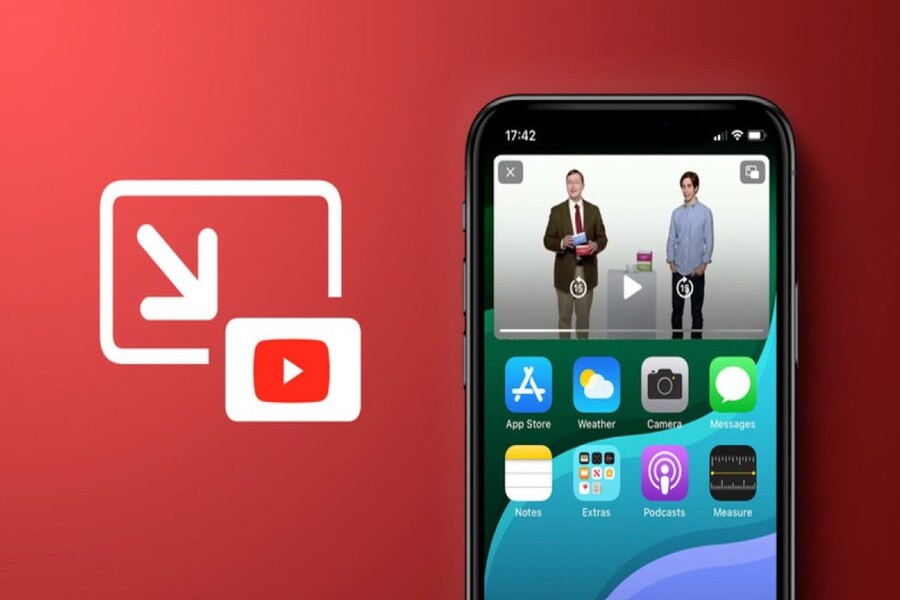
A Detailed Guide to Pinning YouTube Videos on Android & iPhone from A to Z
Whether you're using Android or iPhone, this article has a suitable solution. The content is presented clearly, easy to understand, and updated according to the latest operating system version. Check it out now to use YouTube more effectively.
Using YouTube on a phone has a major drawback: videos often pause when you exit the app or turn off the screen. Therefore, the need to pin YouTube videos on phones is becoming increasingly popular. Users want to listen to music while the screen is locked and watch a video in a small window so they can text, browse the web, or handle work simultaneously. This is no longer just a "trick," but an effective smartphone usage skill in modern life. This article will guide you through all the ways to pin YouTube videos on your phone. Beyond just instructions, the article will help you understand why you should pin videos, which method best suits your needs, and tips for optimizing your daily experience using this feature.
1. What is the purpose of pinning YouTube videos to your phone?
From a user experience (UX) perspective, pinning YouTube videos is not simply about "opening another video window." It's a feature that optimizes how we consume content, especially in a context where multitasking is becoming an increasingly essential habit.
Upgrade to Official YouTube Premium at a Low Price
1.1. Listen to music and podcasts with the screen off.
The biggest and most obvious advantage of pinning YouTube videos is the ability to continue playing audio even when the screen is off. Instead of having to keep the screen constantly on, draining battery and causing visual distraction, you can lock your phone and still listen to music, podcasts, or lectures.
This is especially helpful for people who have the following habits:
Listen to music while commuting, exercising, or doing housework.
Listen to podcasts, talk shows, and audiobooks on YouTube .
Learn a foreign language and listen to online lectures without looking at the screen.
Turning off the screen not only saves battery power but also reduces eye strain, especially for those who use their phones for extended periods.
.jpg)
1.2. Watch the video in a small window.
Another important benefit of pinning YouTube videos is the ability to view them in a small (Picture-in-Picture – PiP) window . When a video is pinned, you can:
• Send messages on Zalo, Messenger, WhatsApp
Browsing the web, reading emails
• Taking notes, working on office applications
Browsing social media
All of this happens simultaneously while the video continues to play. This is a major step forward in terms of multitasking experience on phones.
1.3. Save time and maintain content flow
Constantly having to exit and reopen YouTube is not only annoying, but it also disrupts the flow of your viewing or listening experience. Pinning videos helps you maintain a seamless flow of content, without interruption from switching applications.
For those engaged in creative work, learning, or research, maintaining a continuous flow of information is crucial for improving focus and retention.
2. How to easily pin YouTube videos on your phone.
Depending on your operating system, device, and needs, you can choose from several different ways to pin YouTube videos on your phone. Each method has its own advantages and disadvantages, and not every option is suitable for everyone.
.jpg)
2.1. How to pin YouTube videos on your phone using a browser
Cốc Cốc is one of the few mobile browsers that supports pinning YouTube videos for free, without requiring a YouTube Premium account. This is why this method is chosen by so many Vietnamese users.
Steps to pin YouTube videos using Cốc Cốc
First, you need to install the Cốc Cốc browser on your phone (Android or iOS). After installation, follow these steps:
First, open the Cốc Cốc browser and access the YouTube website. You can log in to your YouTube account or not. Then, select the video you want to watch or listen to.
When the video starts playing, you'll see a distinctive green "Pin video" button appear on the interface . This is the biggest difference compared to other browsers.
Next, simply tap the Pin video button. Immediately, the video will be minimized and pinned to a corner of the screen.
.jpg)
Now, whether you exit Cốc Cốc, open another app, or return to the home screen, the video will continue playing. You can drag the video window to your desired position to avoid obscuring important content.
2.2. Pin YouTube videos to your phone using YouTube Premium
YouTube Premium is the most official and stable solution for pinning YouTube videos on your phone. It's a paid service, but in return you get a full, smooth experience and official Google support.
What does YouTube Premium offer?
When you subscribe to YouTube Premium, you will get:
Watch videos without ads.
• Play video in the background
• Use the Picture-in-Picture feature.
Download videos to watch offline.
Of these, Picture-in-Picture (PiP) is the core feature that allows you to pin YouTube videos.
.jpg)
How to pin YouTube videos using YouTube Premium
After subscribing to YouTube Premium, open the YouTube app on your phone and log in to your account. In the upper right corner, tap your profile picture (Avatar) to access Settings.
In Settings, select General and enable Picture-in-Picture . This is an important step to ensure PiP works correctly.
After the setup is complete, return to the YouTube homepage and open your desired video. While the video is playing, simply press the Home button or swipe to exit the app. Immediately, the video will automatically minimize to a Picture-in-Picture (PiP) window in the corner of the screen.
This window can be dragged and dropped, and resized as desired. The video continues to play even when you open another app or lock the screen (with certain content that allows it).
.jpg)
When should you choose YouTube Premium?
If you are the type of person:
• Use YouTube daily
Listen to music and podcasts regularly.
We need a stable, bug-free experience .
Then YouTube Premium is a worthwhile option to consider. It's the simplest to use and also provides the most consistent experience.
2.3. Pin YouTube videos using Picture-in-Picture (PiP) on iOS and Android
Besides YouTube Premium and the Cốc Cốc browser, you can still utilize the Picture-in-Picture feature available on the operating system to pin YouTube videos in certain situations.
Turn on Picture-in-Picture on iPhone
On iPhones, Picture-in-Picture (PiP) has been supported by Apple since iOS 14. To activate it, go to Settings, select General, then select Picture-in-Picture and turn on Auto-Start PiP.
This feature works best on devices from iPhone 7 and later, and iOS 14-15. However, from iOS 16 onwards, PiP with YouTube has more limitations and often requires YouTube Premium or a browser that supports it.
.jpg)
Enable Picture-in-Picture on Android
On Android, Picture-in-Picture (PiP) is supported from Android 8.0 Oreo. Go to Settings, select Security & Privacy, then find the Special Permissions section and select Picture-in-Picture.
In the list of apps, select YouTube and enable the Picture-in-Picture permission. Then, when you open a video and exit the app, the video will automatically shrink.
Important notes about PiP
Not all YouTube videos support free Picture-in-Picture (PiP). Some content, especially copyrighted music videos, may be restricted. Additionally, YouTube's policies can vary by region and operating system version.
3. Tips for pinning YouTube videos on your phone
Pinning YouTube videos will be much more effective if you know how to optimize the experience.
First, if you're using YouTube Premium, always check that Picture-in-Picture is enabled. This is a very common error that leads many people to think PiP isn't working.
Next, you should prioritize using Wi-Fi when recording videos for extended periods. Videos still consume data even when you're not looking at the screen, and this can cause you to exceed your mobile data limit without realizing it.
.jpg)
While pinning a video, enabling Do Not Disturb mode will help limit notifications, calls, or pop-ups from interrupting your viewing experience.
You should also take advantage of the ability to resize and reposition the PiP window to avoid obscuring important buttons of other applications. This is a small detail, but it greatly impacts the multitasking experience.
Finally, if you don't want to pay for YouTube Premium, be flexible and combine browsers like Cốc Cốc or Safari (with iOS 14–15) to take advantage of free PiP when needed.
Pinning YouTube videos on your phone is no longer a "sophisticated" trick, but has become part of an efficient smartphone usage habit. Whether you're a casual user, a student, or a creative professional, knowing how to pin videos will save you time, battery life, and significantly increase your device's efficiency.





















VIP Products








Best Selling Products
Upgrade Duolingo Super
29 USD
Adobe Photoshop Copyright - Full App
120 USD
MidJourney Account
29 USD
Genuine Adobe Illustrator account
99 USD
Genuine Cheap Canva Pro
39 USD
Autodesk All App Account Copyright
120 USD
Plugin Retouch4me
69 USD
Adobe Premiere Pro Account
99 USD
ChatGPT Plus Account (GPT-4)
16 USD
Upgrade genuine Capture One account
120 USD
Copyright Adobe Lightroom Account
59 USD
Windows 10 & 11 Pro Key
36 USD
Capcut Pro 1 Year
39 USD
Freepik Premium Account
59 USD
Upgrade Genuine Office 365
49 USD