Best Selling Products
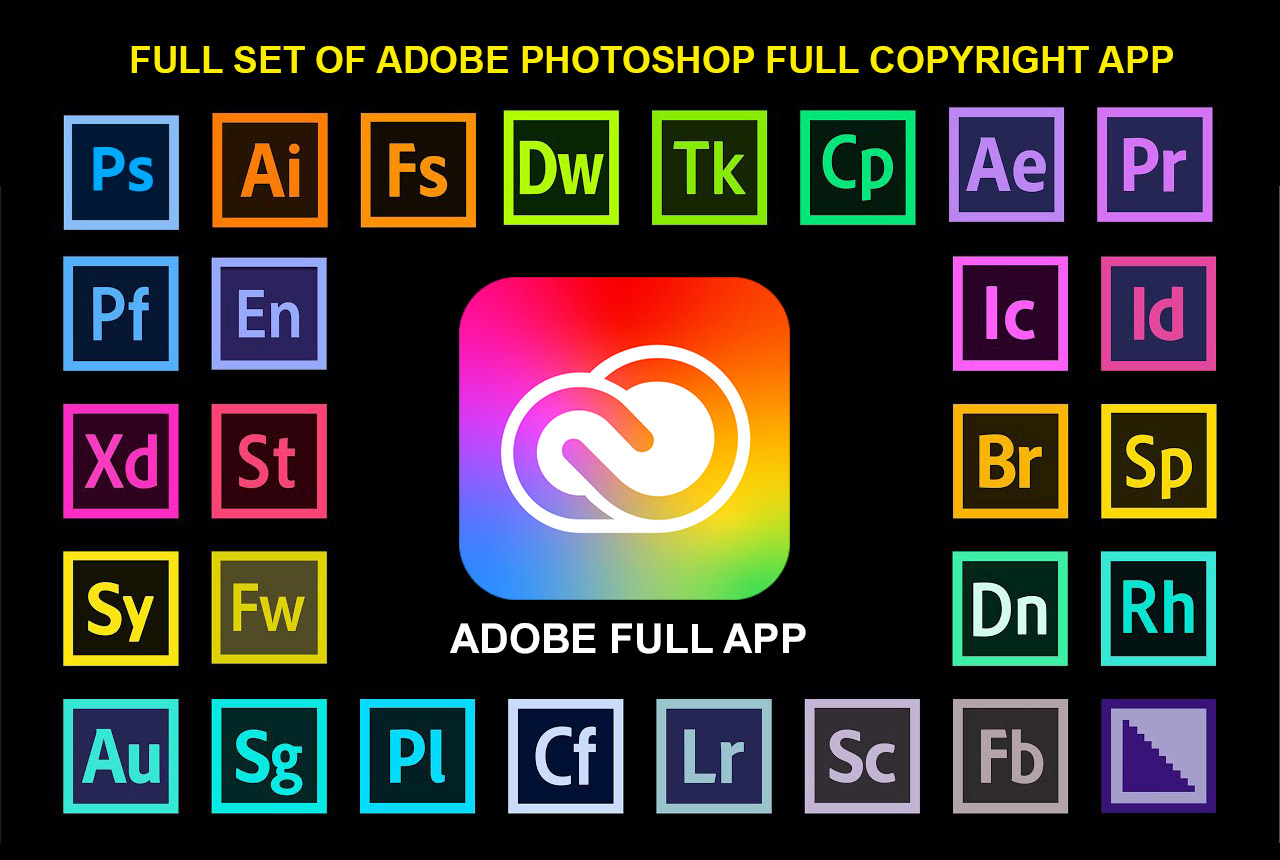
Adobe Photoshop Copyright - Full App
120 USD

Capcut Pro 1 Year
39 USD
Copyright Adobe Lightroom Account
59 USD
Autodesk All App Account Copyright
120 USD
Genuine Cheap Canva Pro
39 USD
Plugin Retouch4me
69 USD
Genuine Adobe Illustrator account
99 USD

ChatGPT Plus Account (GPT-4)
16 USD
Windows 10 & 11 Pro Key
36 USD
Adobe Premiere Pro Account
99 USD

MidJourney Account
29 USD

Upgrade Duolingo Super
29 USD

Freepik Premium Account
59 USD
Upgrade Genuine Office 365
49 USD
Upgrade genuine Capture One account
120 USD
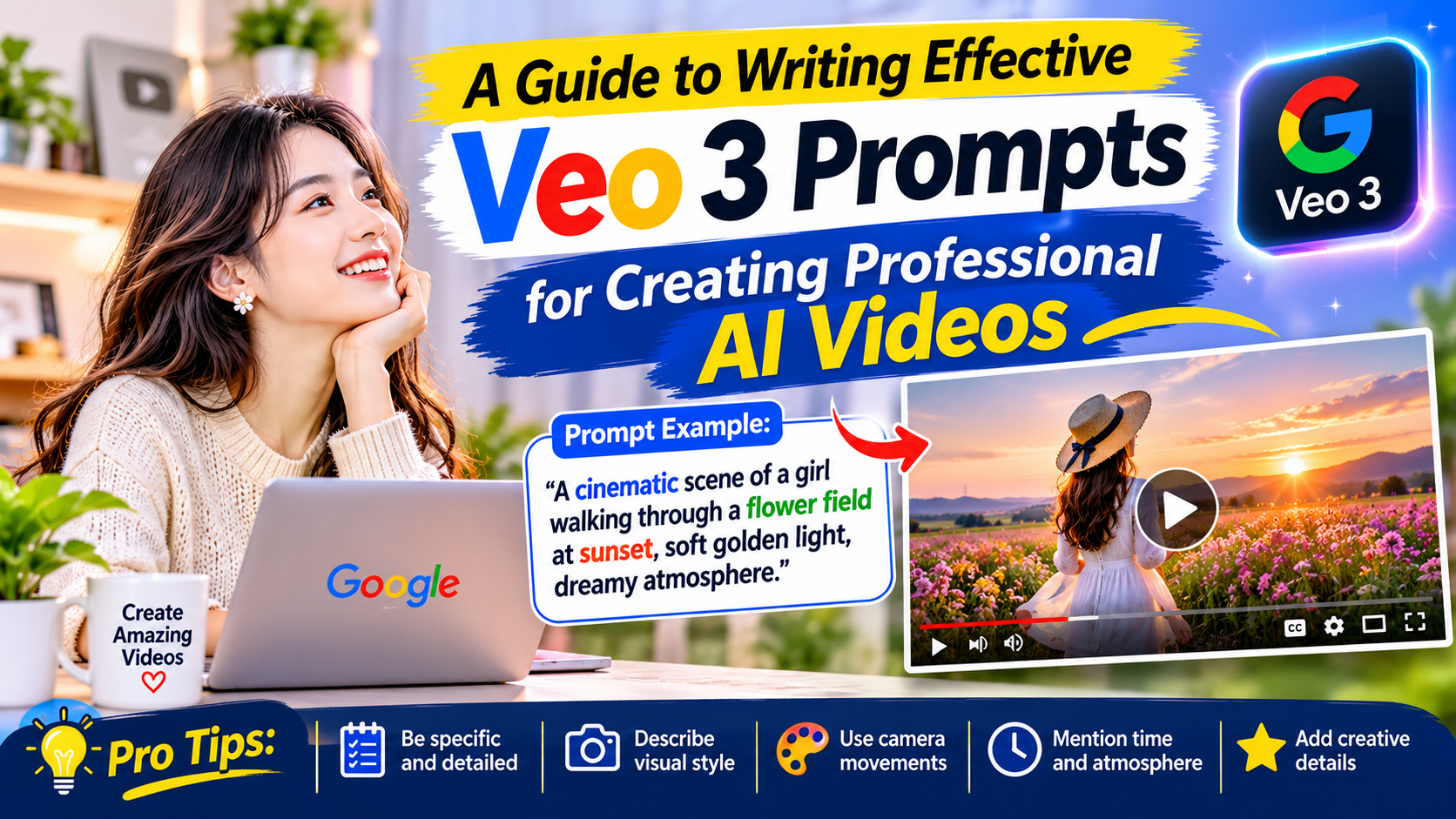
A Detailed Guide to Using Google Veo 3 for Beginners
Nội dung
- 1. Learn about Google Veo 3 and its "killer" features.
- 2. How to access and use Google Veo 3
- 3. Secrets to writing a great and effective video prompt.
- 4. How to create videos from photos and keep the characters consistent.
- 5. How to create a video with sound and choose the aspect ratio.
- 6. Common problems and how to fix them
- 7. Conclusion
A comprehensive guide to using Google Veo 3, from basic to advanced: how to access it, write prompts, create videos from text and images, combine audio, and troubleshoot common errors.
1. Learn about Google Veo 3 and its "killer" features.
Google Veo 3 is an AI model that creates videos from text or images, capable of synchronizing audio with the image content. Instead of having to film directly, users simply describe the desired scene, and the system creates a video according to their request.
One notable advantage is the ability to combine multiple audiovisual elements in a single product. For example, when creating a video of a character running in the rain, users can request the system to display the character's movement, footsteps, rain sounds, and light reflecting off the road surface.
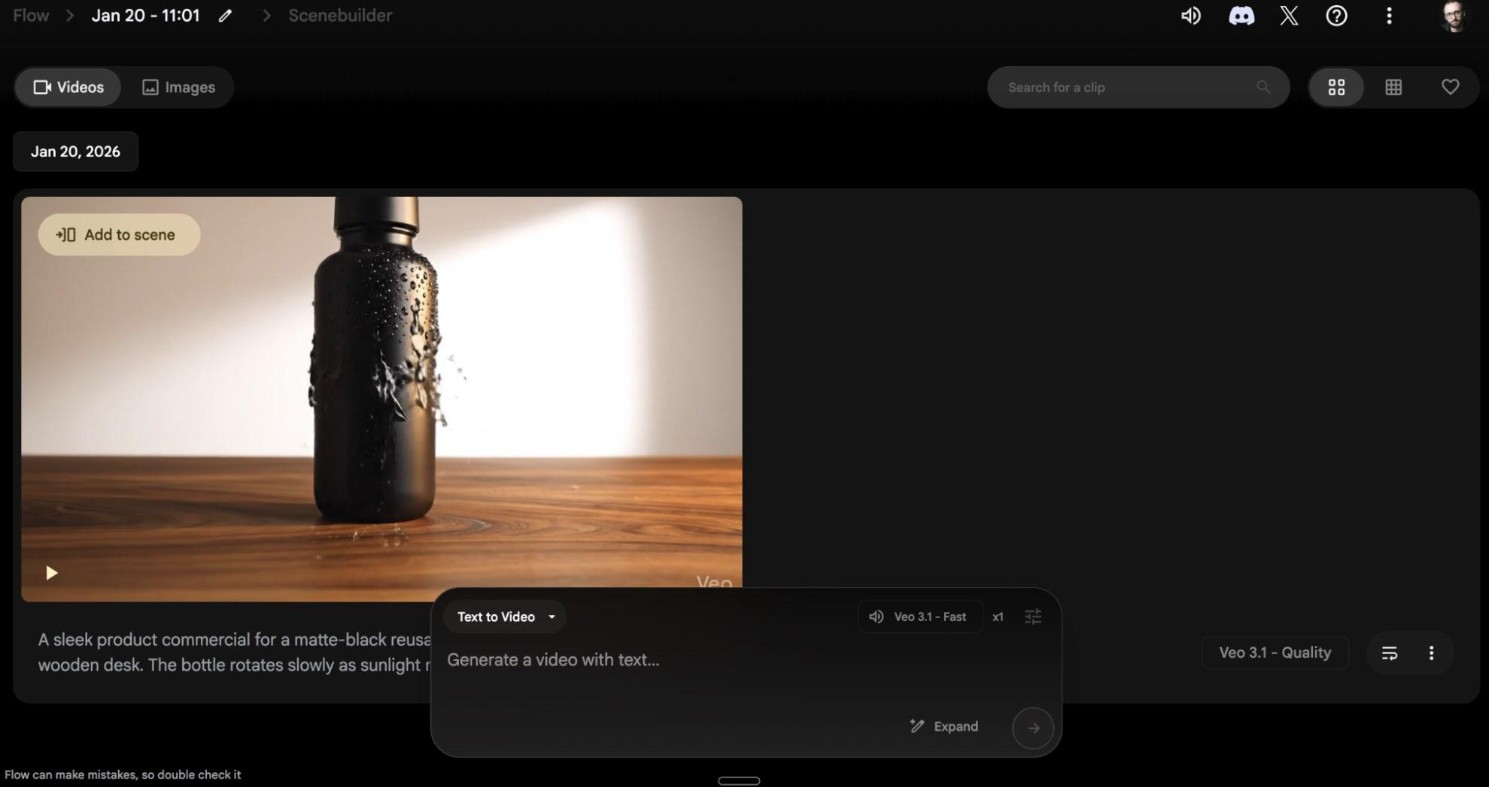
Key features include:
-
Create videos from text: Transform descriptions into footage with specific characters, settings, actions, and visual styles.
-
Turning photos into videos: Use existing photos as the initial frame to create motion.
-
Sound creation: Combine dialogue, environmental sounds, and sound effects appropriate to the scene, depending on the mode.
-
Image control: Describes the camera angle, movement, lighting, color, and atmosphere of the scene.
-
Maintain character characteristics: Use reference images to guide the appearance of the character or product across scenes.
-
Expand your filmmaking workflow: Combine multiple video clips, create seamless transitions, and edit videos in supported modes.
However, the results aren't always perfectly accurate. The character's face might change, their movements might be unnatural, or the sound might not match the image. Therefore, users still need to check and edit before publishing the video.
2. How to access and use Google Veo 3
To use Google Flow, users can follow these steps:
Step 1: Access the platform. Open the Google Chrome browser on your computer, go to the Google Flow page, and log in with your Google account. Check the age requirements, supported regions, and account plan before using it.
Step 2: Create a new project. After accessing the main interface, create a project if prompted. Depending on your needs, you can choose to create a video from text, create a video from frames, or use reference images.
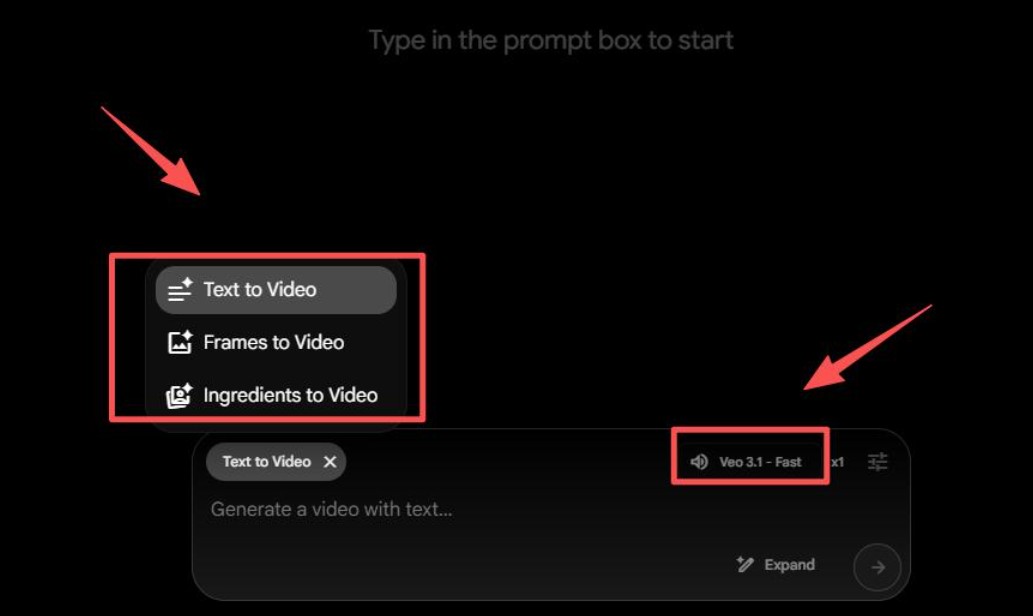
Step 3: Select a mode. Check the active mode, frame rate, resolution, and supported duration. Veo 3.1 has variations with different capabilities and limitations, so not all modes offer all the features.
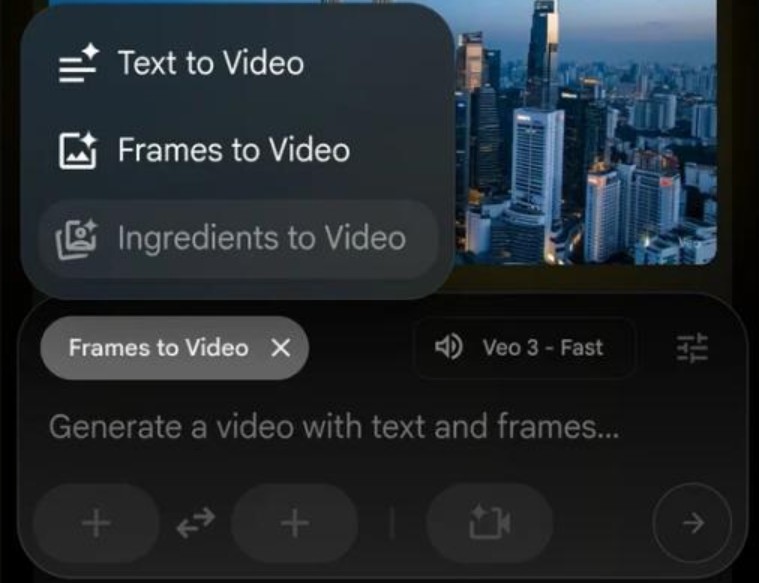
Step 4: Enter the command. Describe the video content in detail, including characters, actions, setting, camera angles, lighting, and sound. If you want to create a video from photos, upload the photos in the appropriate mode.
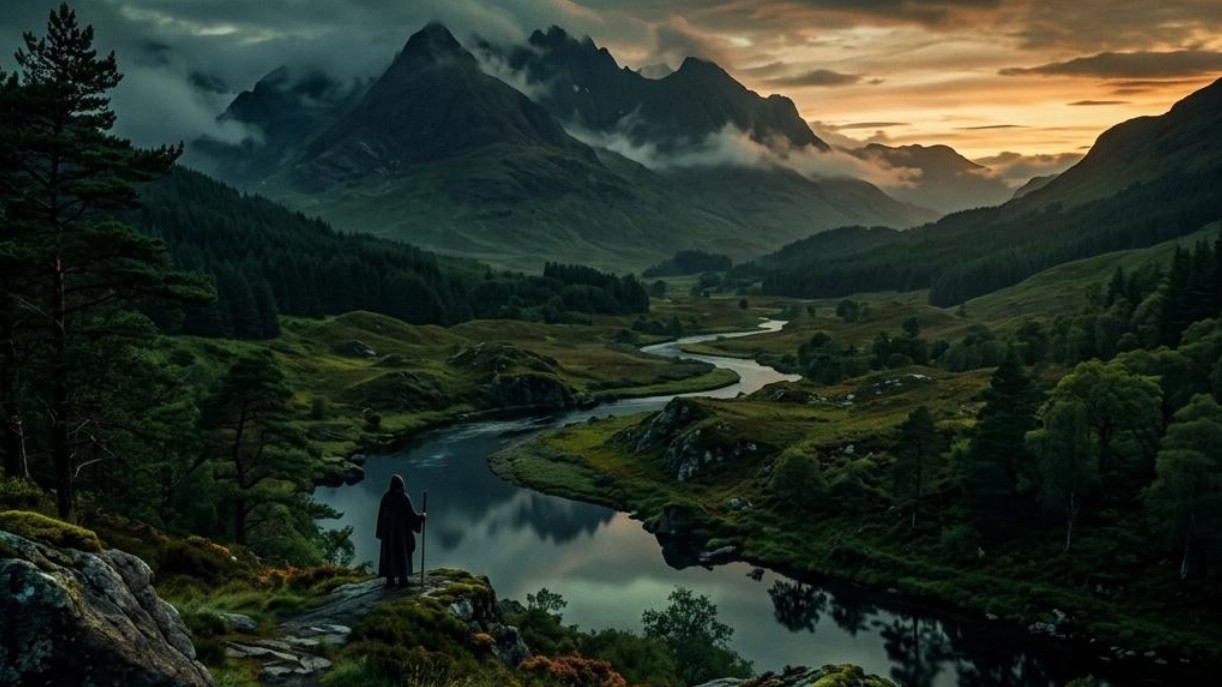
Step 5: Create and test the video. Press the create video button, wait for the system to process, and then view the result. If the image is not satisfactory, adjust the command and recreate it.
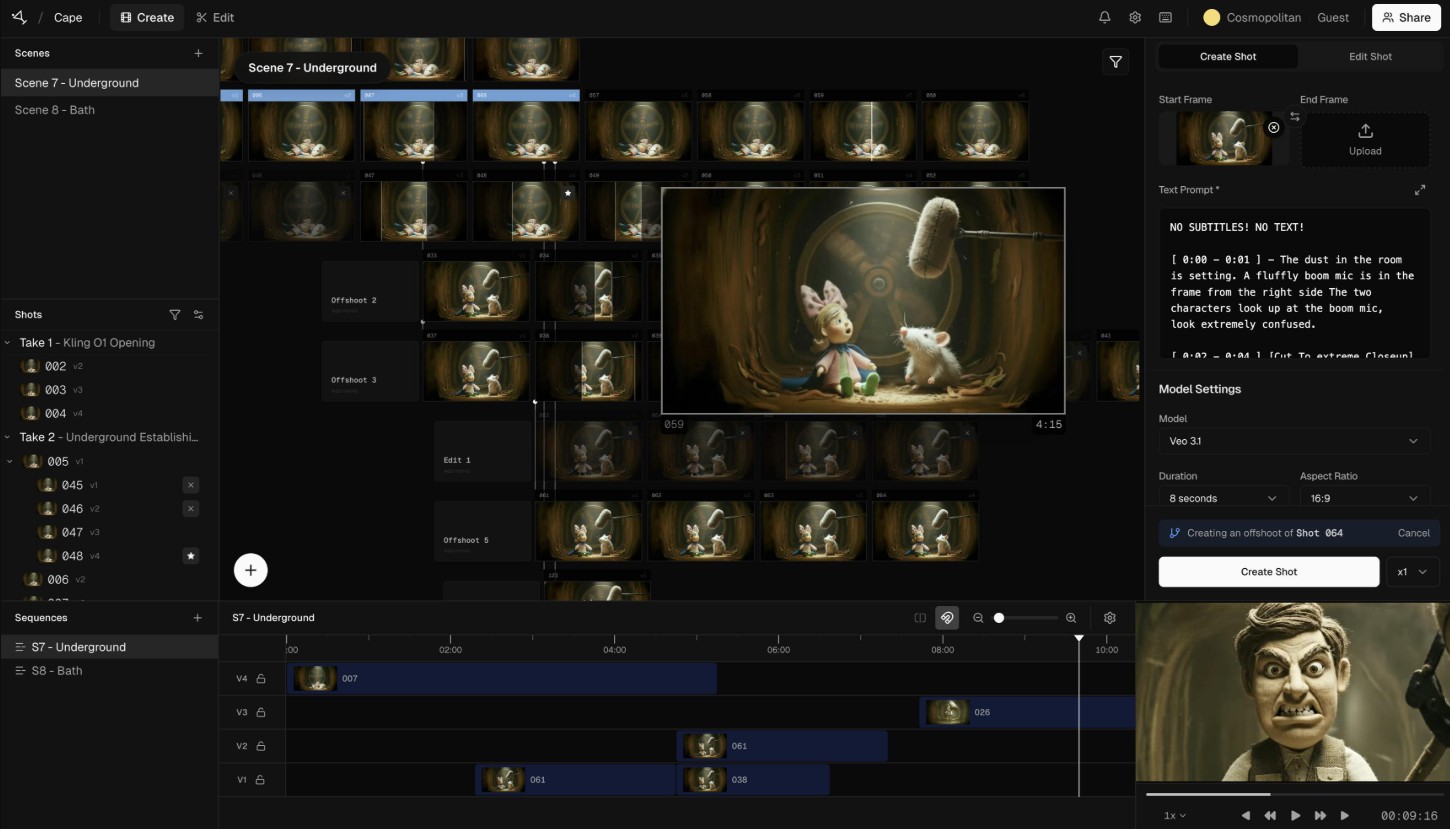
Step 6: Save the finished product. Once you're satisfied, download the video if the interface provides this option. You can then continue using the video editing software to cut, splice, add subtitles, or edit the audio.
Please note that access and video creation limits may vary by region and time. Before subscribing to a paid plan, users should check the information on the official Google Flow website and help center .
3. Secrets to writing a great and effective video prompt.
The prompt is a command that describes the content the user wants the AI to create. This is a crucial element that influences the layout, movement, lighting, and style of the video. According to Google DeepMind guidelines, clearly describing the framing, camera movement, style, lighting, and character characteristics gives the user better control over the results.
An effective prompt typically includes the following components:
For example, instead of simply typing the command "Create a video of a guy running in the city," you should be more specific:
Create a cinematic video of a young man running through a futuristic city at night in the rain. Neon signs reflect on the wet streets as the camera tracks alongside him. His black jacket moves naturally with the wind. Use dynamic tracking shots, realistic lighting, detailed environmental textures, and smooth motion. Audio includes footsteps splashing through puddles, rainfall, distant traffic, and subtle electronic ambience. No subtitles or narration. Vertical 9:16 composition.
The command above clearly defines the character, setting, action, camera movement, and sound. This gives the AI more information to build the scene according to the initial concept.
Another tip is to break the video into several short scenes instead of asking the system to create an overly complex story all at once. Once you have the individual scenes, you can piece them together using the editing tool to create the complete video.
4. How to create videos from photos and keep the characters consistent.
Besides creating videos from text, using reference images is a useful option when you want the character, costume, or product to retain certain characteristics.
In Veo 3.1, the feature of creating videos from reference images allows for visual content guidance using images of characters or products. According to the developer documentation, some Veo 3.1 models support up to three reference images; the specific feature depends on the model and interface being used.
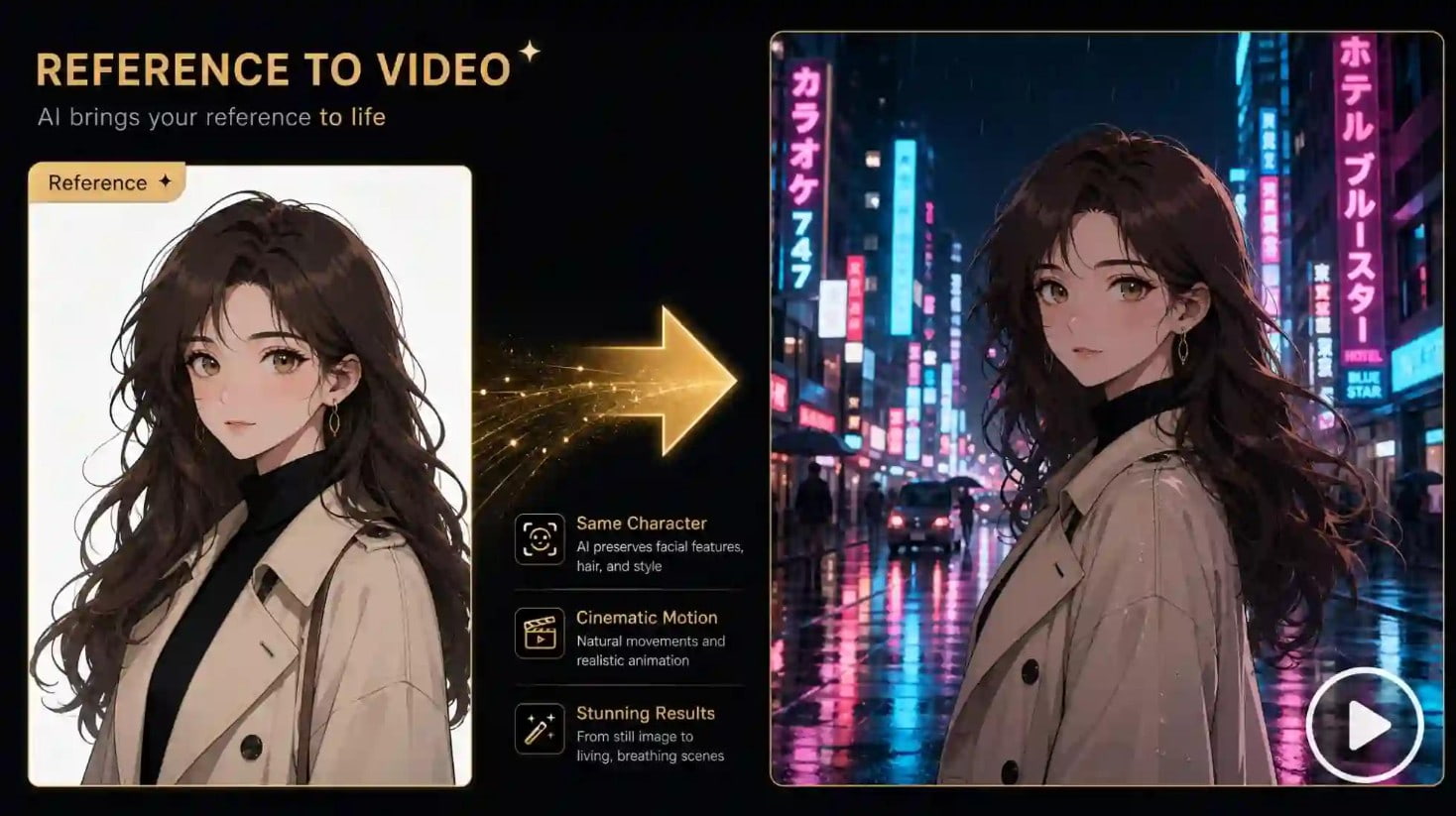
The process includes:
1. Prepare clear photos that show sufficient detail of the face, hair, clothing, or product.
2. Choose the mode to create a video from photos or reference photos.
3. Upload the image as requested by the interface.
4. Write a prompt describing the movement to be created, such as the character turning their head, walking, or looking towards the camera.
5. Clearly state the details that need to be kept unchanged, then create the video and check the results.
For example, if you want to turn an anime image into a short video clip, you can enter:
Animate the uploaded anime character reference into a short cinematic video. Preserve the character's facial features, hairstyle, clothing, colors, and original anime art style. The character slowly turns toward the camera, blinks naturally, and raises one hand while the hair and clothing move gently in the wind. Use smooth animation, subtle camera movement, and dramatic cinematic lighting. Keep the background consistent with the reference. No new characters, no subtitles, no dialogue, and no sudden scene changes.
It's important to note that reference images help orient the image but don't guarantee that every frame will be an exact match to the original. If the goal is to replace a character in an existing video while preserving motion, text effects, and background, you need to check the input video editing capabilities of the model you're using. Don't assume that creating a video from photos can completely replace professional character merging processes.
5. How to create a video with sound and choose the aspect ratio.
For better results, describe the sounds specifically instead of just saying "there are sounds." For example, for a scene of a character running through a forest, you could request the sound of dry leaves underfoot, wind blowing through the trees, and birdsong in the distance. If there is dialogue, specify the lines, language, and the person speaking.
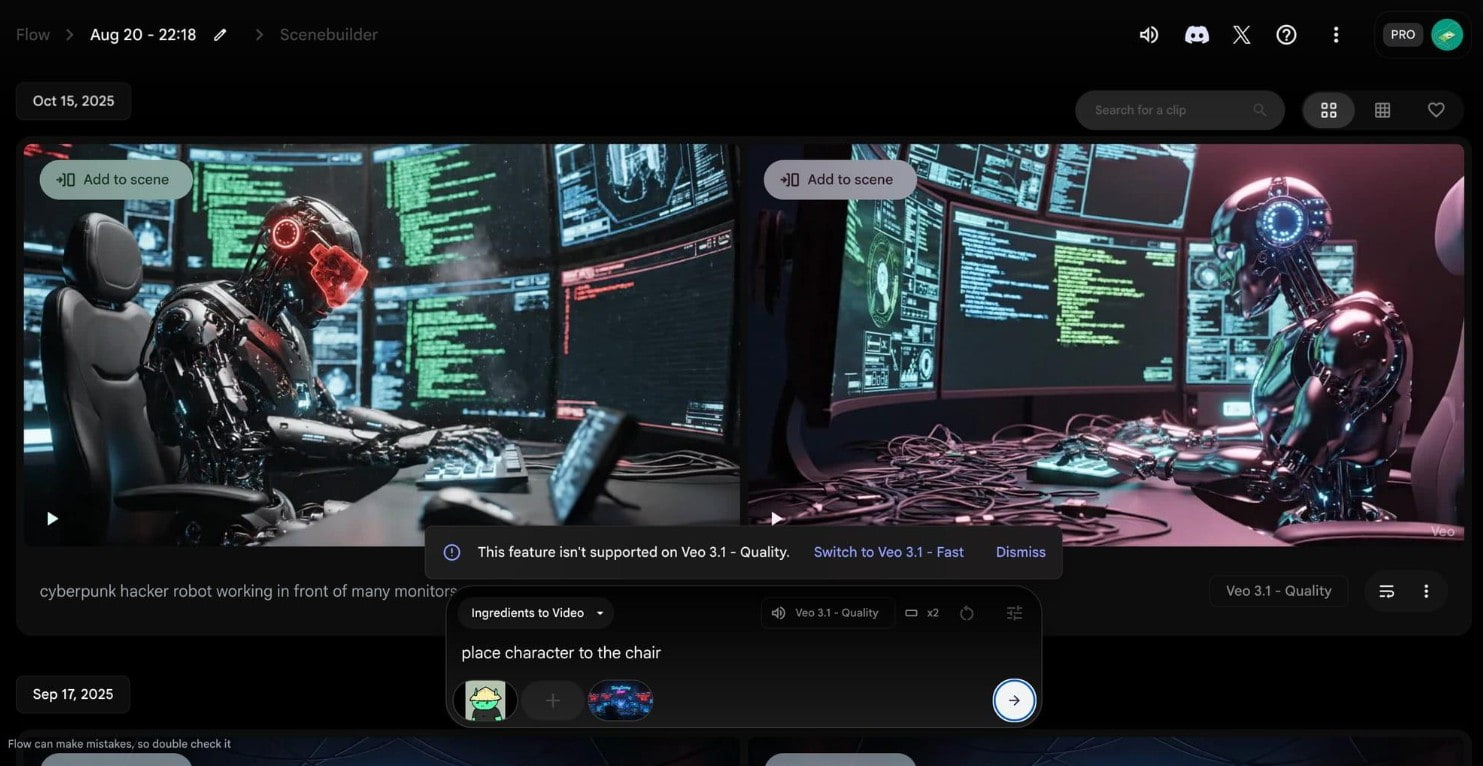
Besides sound, aspect ratio also affects how viewers perceive a video:
-
16:9: Suitable for regular YouTube videos, short films, and content displayed on a horizontal screen.
-
9:16: Compatible with YouTube Shorts, TikTok, and vertical videos on phones.
-
Resolution: Choose a level that suits your intended use, account limits, and model capabilities.
Veo 3.1 supports vertical video creation in suitable modes; some processes even offer resolution upscaling. However, resolution and duration are not the same across all models. Users should check the settings before creating a video.
6. Common problems and how to fix them
While using Veo, new users may encounter some issues related to image quality, motion, or access permissions.
Characters whose appearance has been altered: Clearly describe identifying features, use reference photos when possible, and avoid requesting too many changes within a single scene.
Unnatural movement: Break down actions into clear steps, such as the character turning around before running. Specific instructions are often easier to control than a command containing many complex actions.
Inappropriate sound: Specify the type of sound, its source, and the atmosphere of the scene. If dialogue is required, specify the content and the characters speaking.
Video composition is incorrect: Clearly state shot size, camera orientation, and aspect ratio. If creating a vertical video, mention vertical composition in the prompt.
Unable to access the tool: Check your account, supported region, service plan, and permission model. Google Flow has its own access conditions and usage limits; having a Google account does not guarantee all features are available.
Finally, take some time to review the video before uploading. Details such as hands, faces, text in the image, lip movements, and continuity between scenes may still need manual editing.
7. Conclusion
Google Veo 3 opens up many opportunities for AI-powered video creation, from simple short films to commercials, anime animation, and cinematic shots. With its ability to create moving images combined with sound, this tool helps users shorten the production process and realize their ideas without having to film every scene in person.
To use it effectively, you should start with short videos, focusing on a single main action and writing clear prompts about the characters, setting, camera angles, lighting, and sound. Once you're familiar with command-line controls, you can try creating videos from reference images, developing multiple scenes in sequence, and incorporating video editing software to perfect your product.












VIP Products


Best Selling Products
Adobe Photoshop Copyright - Full App
120 USD
Capcut Pro 1 Year
39 USD
Copyright Adobe Lightroom Account
59 USD
Autodesk All App Account Copyright
120 USD
Genuine Cheap Canva Pro
39 USD
Plugin Retouch4me
69 USD
Genuine Adobe Illustrator account
99 USD
ChatGPT Plus Account (GPT-4)
16 USD
Windows 10 & 11 Pro Key
36 USD
Adobe Premiere Pro Account
99 USD
MidJourney Account
29 USD
Upgrade Duolingo Super
29 USD
Freepik Premium Account
59 USD
Upgrade Genuine Office 365
49 USD
Upgrade genuine Capture One account
120 USD