Best Selling Products
Windows 10 & 11 Pro Key
36 USD
Adobe Photoshop Copyright - Full App
120 USD

ChatGPT Plus Account (GPT-4)
16 USD
Adobe Premiere Pro Account
99 USD
Plugin Retouch4me
69 USD
Genuine Cheap Canva Pro
39 USD

Capcut Pro 1 Year
39 USD

Upgrade Duolingo Super
29 USD
Autodesk All App Account Copyright
120 USD

Freepik Premium Account
59 USD

MidJourney Account
29 USD
Genuine Adobe Illustrator account
99 USD

Upgrade Genuine Office 365
49 USD
Copyright Adobe Lightroom Account
59 USD
Upgrade genuine Capture One account
120 USD
A detailed, step-by-step guide to creating outfit-switching videos using AI on Higgsfield.
Nội dung
- 1. What is the trend of changing outfits using AI with a fan effect?
- 2. What do I need to prepare before creating an outfit-swapping video using AI?
- 3. Guide to creating trending outfit-changing videos with AI on Higgsfield
- 3.1. Step 1: Access Higgsfield and log in to your account.
- 3.2. Step 2: Open the Higgsfield Genjutsu tool
- 3.3. Step 3: Upload the reference video to the tool
- 3.4. Step 4: Upload character images and outfits
- 3.5. Step 5: Enter the prompt describing the video you want to create.
- 3.6. Step 6: Choose the appropriate video quality
- 3.7. Step 7: Press Generate and check the resulting video.
- 4. Tips to make your AI-powered outfit-changing videos look more beautiful and natural.
- 5. Common mistakes when creating outfit change videos on Higgsfield
- 6. Conclusion
The trend of creating AI-powered outfit-switching videos with a fan effect is gaining attention thanks to its unique clothing transitions, smooth motion, and eye-catching visuals. With just character photos, images of outfits, and a suitable reference video, you can create fashion clips without needing to prepare many outfits or film each scene yourself. In this article, let''s explore with Sadesign how to create AI-powered outfit-switching videos on Higgsfield, from preparation to prompt writing and exporting the finished video.
1. What is the trend of changing outfits using AI with a fan effect?
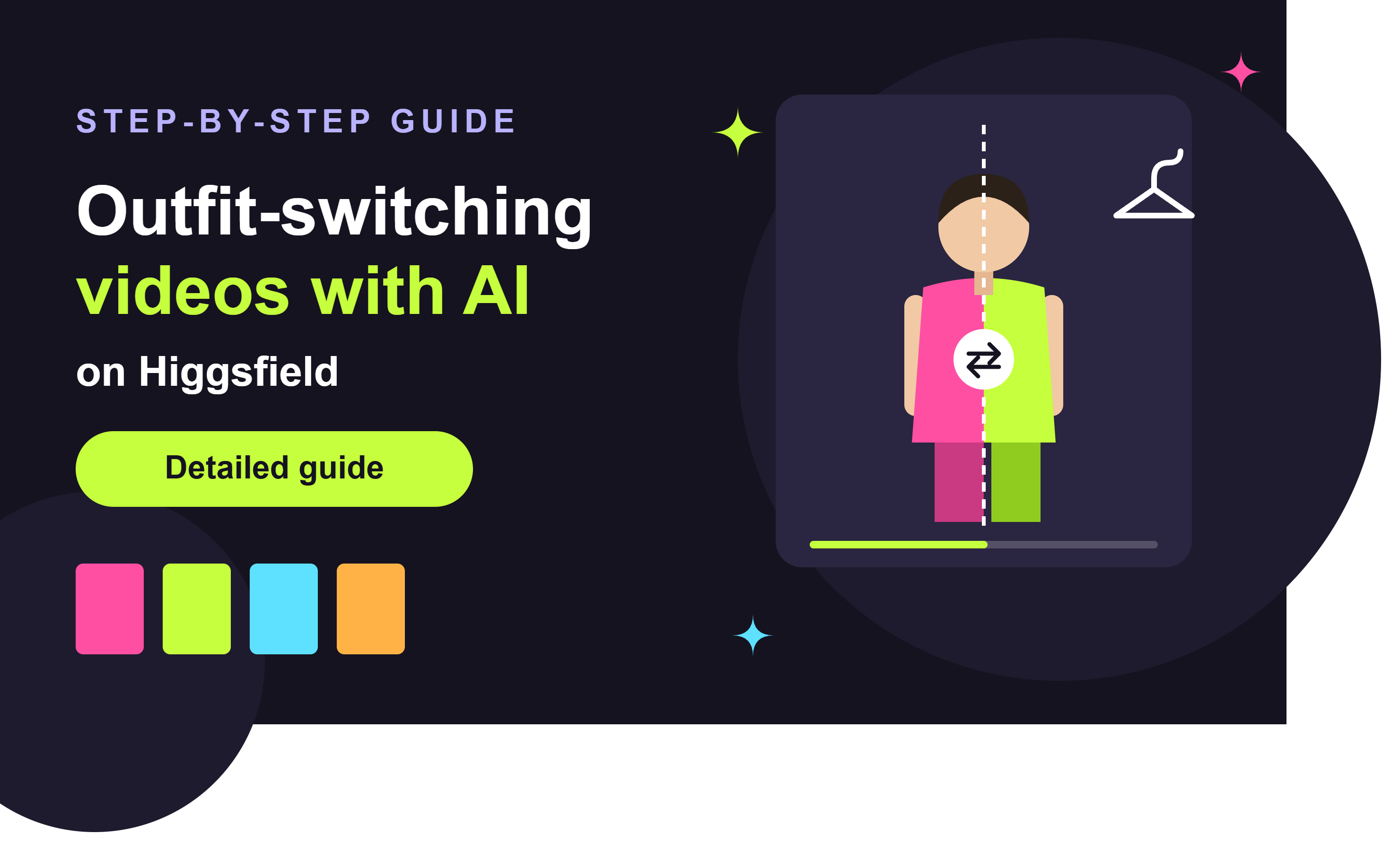
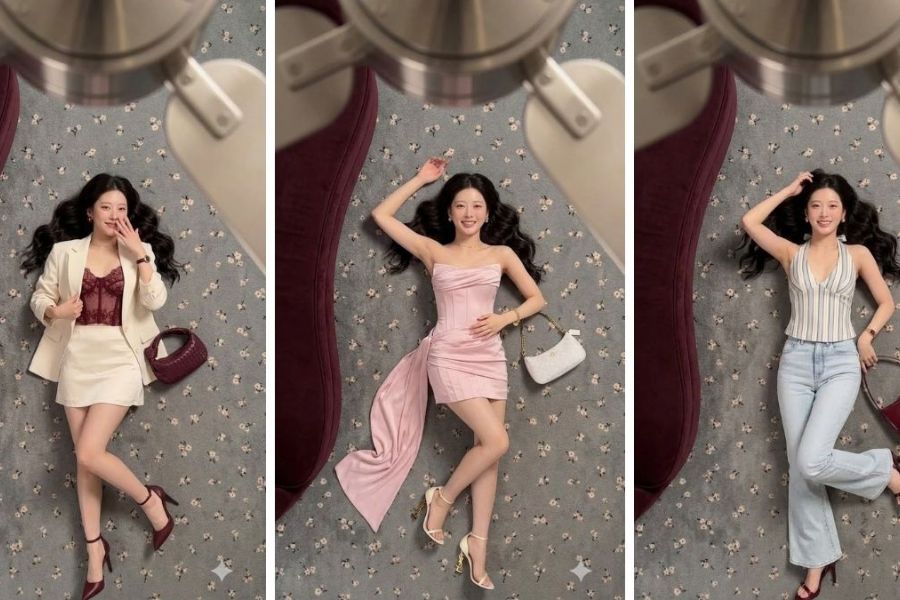
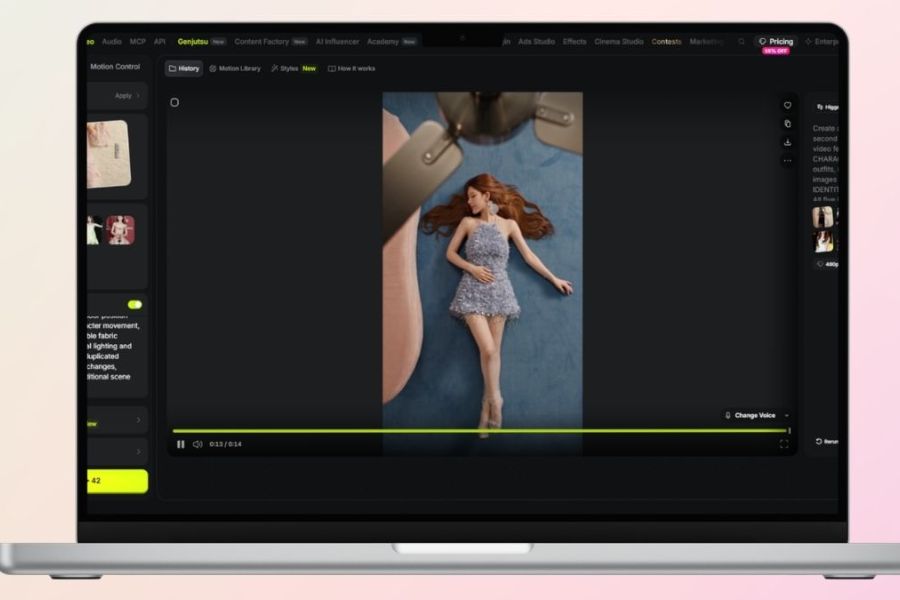
This is an AI-powered costume transformation video where the character lies on the floor and is filmed from an overhead perspective. A fan continuously moves horizontally across the frame, creating a blurring effect. Each time the fan sweeps past, the character's outfit changes, providing a seamless transformation without the need for overly explicit cuts.
The appeal of this trend lies in the combination of movement, transitions, and outfits with different styles. You can transform from everyday wear to feminine dresses, office attire, or edgy outfits in just a short clip. Using AI, you don't need to reshoot multiple times to change clothes; instead, you can utilize reference images and videos to create the desired effect.
2. What do I need to prepare before creating an outfit-swapping video using AI?
Before you begin, prepare all the necessary materials so that the AI can understand the character, costume, and transitions you want. The clearer the images and the more relevant the reference content, the higher the chance of creating a video that matches your vision.
-
Character photos: Choose photos that clearly show the face, body shape, and are well-lit. If you want to maintain consistency, use photos with the same hairstyle, facial features, and identifying characteristics.
-
Outfit photos: Prepare photos of each outfit, highlighting its color, style, and easily recognizable details. Choose outfits with clear differences to make the transition effect more striking.
-
Reference video: Use a video with a top-down camera angle, the moving fan obscuring the character, and a similar costume change rhythm to achieve the desired result. Prioritize a clean video without text or distracting details.
-
Higgsfield account: Log in to the website and check your access to the Genjutsu tool, the number of videos you've created, and the supported quality levels.
-
Equipment and network connection: Prepare a computer or phone with a stable browser. You should save all your documents in the same folder for easier uploading.
3. Guide to creating trending outfit-changing videos with AI on Higgsfield
After preparing your character images, outfits, and reference video, you can begin creating your video in Higgsfield. The steps below guide you through the process of using the Genjutsu tool; item names or interfaces may vary depending on the version and account access.
3.1. Step 1: Access Higgsfield and log in to your account.
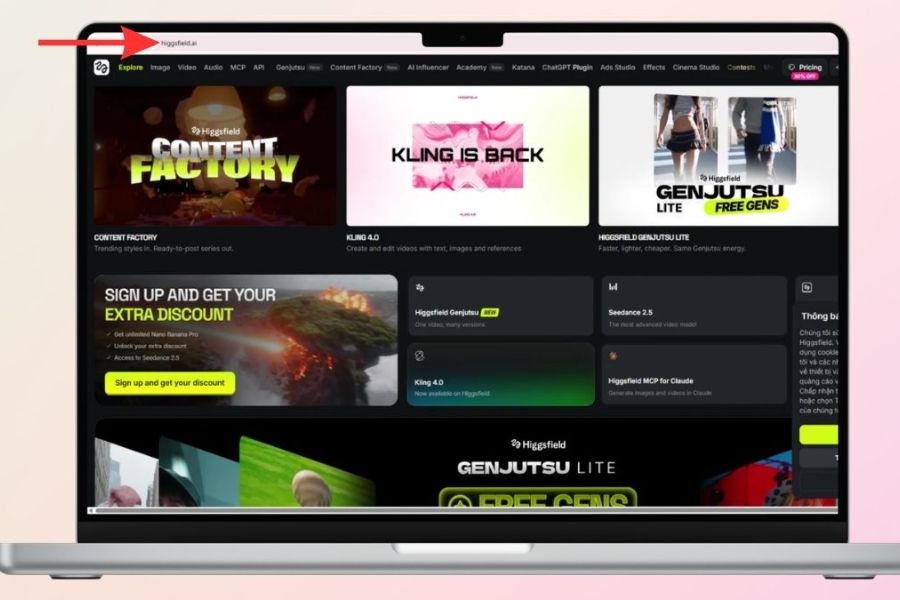
Open your browser and access the Higgsfield website at Higgsfield.ai. On the main interface, select login if you already have an account, or follow the registration instructions to create a new account. After successfully logging in, check the available features before you begin, especially your access to the video creation tool and the remaining number of creations.
3.2. Step 2: Open the Higgsfield Genjutsu tool
Find the Genjutsu section in the Higgsfield interface and open the tool to begin setting up your video. This step will take you to the workspace with reference materials and content creation requirements. If you can't find the tool, check the menu, account access permissions, or available features on the website.
3.3. Step 3: Upload the reference video to the tool
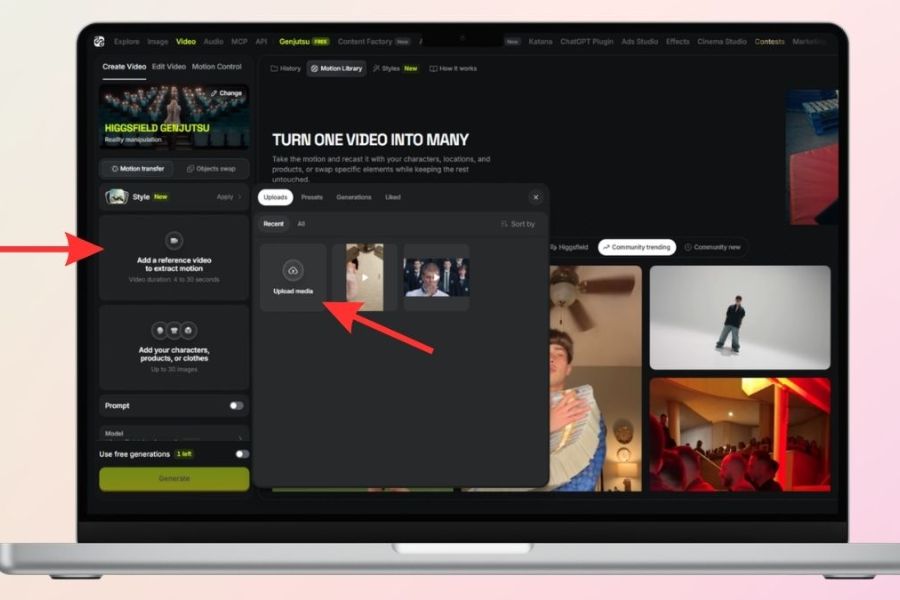
In the video upload area, select the pre-prepared reference file and wait for the system to process it. The video should clearly show a top-down perspective, the direction of the propeller's movement, and the moment when an object obscures the character. You should choose a video with a stable composition so that the AI can easily recognize the scene transitions, thereby creating an outfit change effect that is close to the original idea.
3.4. Step 4: Upload character images and outfits
Next, upload character images and outfit images to the corresponding areas of the tool. Carefully check each file to avoid confusing character images with outfit images, and ensure that important details such as shirt color, dress style, and accessories are clearly visible. If you want the video to have multiple outfit changes, prepare a number of outfits that match the clip's length and the tool's processing capabilities.
3.5. Step 5: Enter the prompt describing the video you want to create.
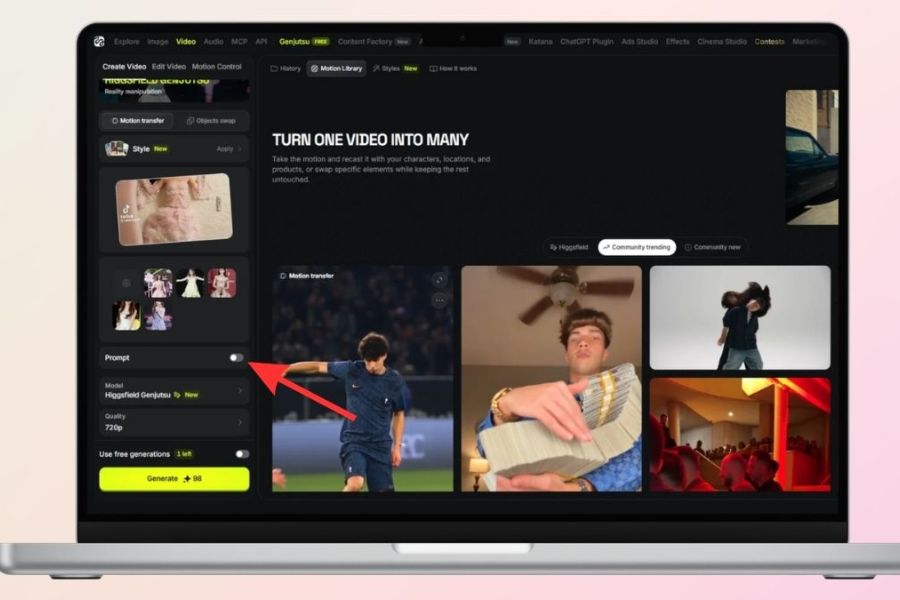
Select the Prompt field and enter a command describing the movement, camera angle, occlusion effects, and how the clothing changes. To keep the video on trend, you should request that the character, composition, and lighting remain constant, only changing the outfit after each time the fan passes over and covers the body. Write your request clearly, avoiding describing too many unnecessary effects that make it difficult for the AI to maintain consistency between scenes.
Here's a sample tutorial for creating a video with outfit changes using a propeller effect:
Create a trendy fashion outfit transition video using the provided character images, outfit images, and reference video. The character is lying on the floor, viewed from a fixed top-down camera angle. A large rotating fan blade repeatedly sweeps across the foreground, briefly covering the character. Every time the fan blade fully occludes the character, seamlessly change the outfit to the next provided look. Keep the same person, face, hairstyle, body proportions, pose, floor, lighting, camera angle, and composition consistent throughout the video. Match the timing and motion of the fan blade to the reference video. Make each outfit clearly visible between transitions, with realistic fabric movement, natural anatomy, smooth motion, and clean, seamless transitions. No camera cuts, no camera movement, no face changes, no body distortion, no extra limbs, no flickering, no random accessories, no text, no logos.
3.6. Step 6: Choose the appropriate video quality
After entering the prompt, open the Quality section to check the resolution options your account supports. If the interface offers 480p, 720p, or 1080p, you can choose according to your needs. When testing ideas, consider the appropriate quality level to save on creation attempts. For videos posted on TikTok, Reels, or Shorts, prioritize a quality clear enough for viewers to see faces, colors, and details of each outfit.
3.7. Step 7: Press Generate and check the resulting video.
Once you've checked the footage, prompt, and quality, press Generate to begin creating the video. Processing time may vary depending on clip length, settings, and system status. After completion, review the entire video instead of just the first few seconds. Pay attention to the moments the propellers move, the continuity of the costume, and the ability to maintain the character's appearance. If the result meets your requirements, select the download option on the interface to save the video to your device.
4. Tips to make your AI-powered outfit-changing videos look more beautiful and natural.
To make your video look professional, you need to pay attention to the consistency of the visuals and the rhythm of the transitions, rather than just focusing on the number of outfits. A few small adjustments in the preparation phase can help create a clearer and more visually appealing result.
-
Keep the camera angle fixed: Prioritize a top-down composition, as in the reference video, to minimize camera tilt or character position shifts.
-
Choose outfits with a focal point: Combine different colors and styles so that each change feels fresh and new.
-
Clearly describe the costume change time: In the prompt, emphasize that the costume only changes when the fan obscures the character.
-
Limit the number of accessories: Small details are easily misrepresented or altered by AI between scenes, so focus on the main outfit.
-
Check for consistency: If the face, hands, or figure are distorted, try again with a clearer input image and a more specific prompt.
5. Common mistakes when creating outfit change videos on Higgsfield
During video creation, AI may not accurately reproduce every detail as desired. Identifying the root cause will help you adjust the footage and prompt more effectively.
-
Outfit changes at the wrong time: Add a requirement to only change outfits when the fan completely covers the character, and emphasize the movement rhythm according to the reference video.
-
Character faces are inconsistent: Use clear photos, limit filters that alter appearance, and instruct the AI to maintain the character's identity throughout the video.
-
Outfit doesn't match the provided photo: Choose a high-resolution image of the outfit that is minimally obscured and clearly shows important features such as color and style.
-
Unnatural fan movement: Test the reference footage for clear, smooth movement without shaking or abrupt cuts.
-
Video is blurry or distorted: Check the input image quality, try adjusting the prompt, and consider recreating the video with appropriate quality settings.
6. Conclusion
Creating outfit-swapping videos using AI on Higgsfield is a fun way to keep up with social media fashion trends without having to film many dress-up scenes yourself. Simply prepare character photos, outfits, reference videos, and a clear prompt, and you can start experimenting with the unique propeller effect. Remember to maintain the character's appearance, choose outfits with a distinctive touch, and carefully check the final product before uploading to create a visually appealing, natural-looking video with your own personal style.












VIP Products


Best Selling Products
Windows 10 & 11 Pro Key
36 USD
Adobe Photoshop Copyright - Full App
120 USD
ChatGPT Plus Account (GPT-4)
16 USD
Adobe Premiere Pro Account
99 USD
Plugin Retouch4me
69 USD
Genuine Cheap Canva Pro
39 USD
Capcut Pro 1 Year
39 USD
Upgrade Duolingo Super
29 USD
Autodesk All App Account Copyright
120 USD
Freepik Premium Account
59 USD
MidJourney Account
29 USD
Genuine Adobe Illustrator account
99 USD
Upgrade Genuine Office 365
49 USD
Copyright Adobe Lightroom Account
59 USD
Upgrade genuine Capture One account
120 USD