Best Selling Products

ChatGPT Plus Account (GPT-4)
16 USD
Adobe Premiere Pro Account
99 USD
Capcut Pro 1 Year
39 USD
Adobe Photoshop Copyright - Full App
120 USD
Genuine Adobe Illustrator account
99 USD
Upgrade Genuine Office 365
49 USD
Windows 10 & 11 Pro Key
36 USD
Plugin Retouch4me
69 USD
Freepik Premium Account
59 USD
Upgrade Duolingo Super
29 USD
Genuine Cheap Canva Pro
39 USD
Upgrade genuine Capture One account
120 USD
Autodesk All App Account Copyright
120 USD

MidJourney Account
29 USD

Copyright Adobe Lightroom Account
59 USD
A step-by-step guide to creating skills on ChatGPT for beginners.
Nội dung
- 1. What are Skills on ChatGPT?
- 2. Benefits of using Skills in ChatGPT
- 3. Simple guide to creating Skills on ChatGPT
- 4. How to share skills on ChatGPT with your work team.
- 5. Some practical applications of Skills in ChatGPT
- 6. Tips for creating more effective Skills on ChatGPT
- 7. Frequently Asked Questions
- 8. Conclusion
ChatGPT is increasingly becoming a useful AI assistant in work, study, and content creation. However, constantly retyping the same commands can be time-consuming, especially when handling repetitive tasks daily. Creating Skills on ChatGPT is an approach that helps save instructions, standardize processes, and reuse workflows according to individual needs. So what are Skills, what are their benefits, and how do you create them? Let''s explore the detailed guide below with Sadesign to start using it more effectively.
1. What are Skills on ChatGPT?
Skills on ChatGPT can be understood as abilities designed to help the AI perform specific tasks according to pre-defined instructions. Instead of re-entering entire requests in each conversation, you can build your own workflow for frequently performed tasks such as SEO writing, data analysis, programming, or email composition. When properly configured, skills save time and maintain a more consistent workflow.
A skill typically includes a name, description, instructions, and references if needed. Depending on the product, account package, and interface offered, the ability to create, manage, or share skills may vary. If your account doesn't already have this feature, you might consider using Custom Instructions or a custom GPT to save your own instructions.
2. Benefits of using Skills in ChatGPT
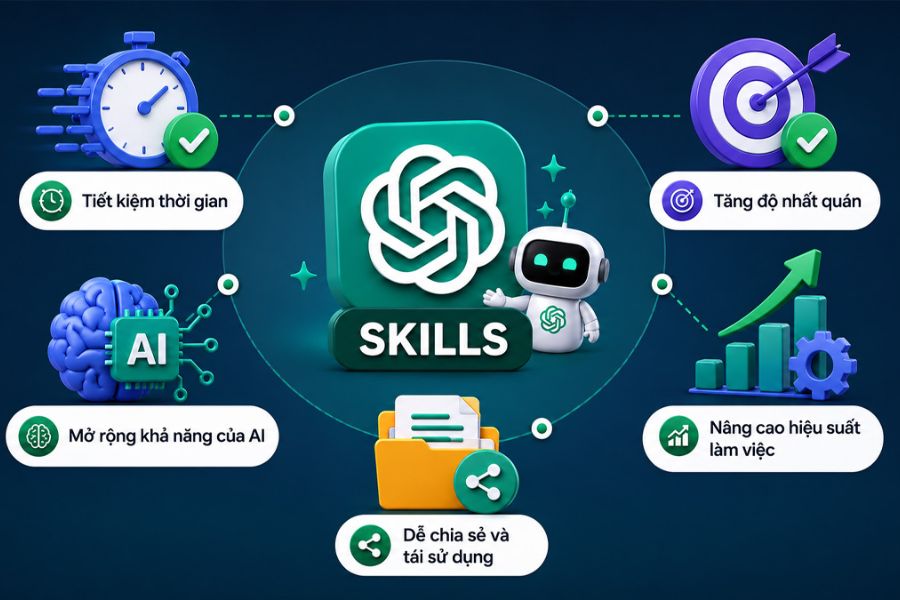
Using Skills helps you leverage ChatGPT more effectively, especially when frequently handling tasks with similar workflows. Instead of starting from scratch each time you use it, you can reuse the built-in tutorial and adjust it as your needs change. Some notable benefits include:
-
Save time: Avoid re-entering long commands and familiar instructions.
-
Increased consistency: Helps AI adhere to established structure, tone, and output standards.
-
Personalize the experience: Develop skills that are relevant to the job and real-world needs.
-
Process optimization: Supports the systematic handling of multi-step tasks.
-
Teamwork support: Facilitating process sharing when features and access permissions allow.
-
Easy to improve: Update the guidelines to conform to new standards or requirements.
3. Simple guide to creating Skills on ChatGPT
To create effective skills, you should first define the task to be performed, the rules the AI must follow, and the desired outcome. If your account has already been provided with the Skills interface, you can refer to the steps below. The menu names and actual options may vary depending on the version.
-
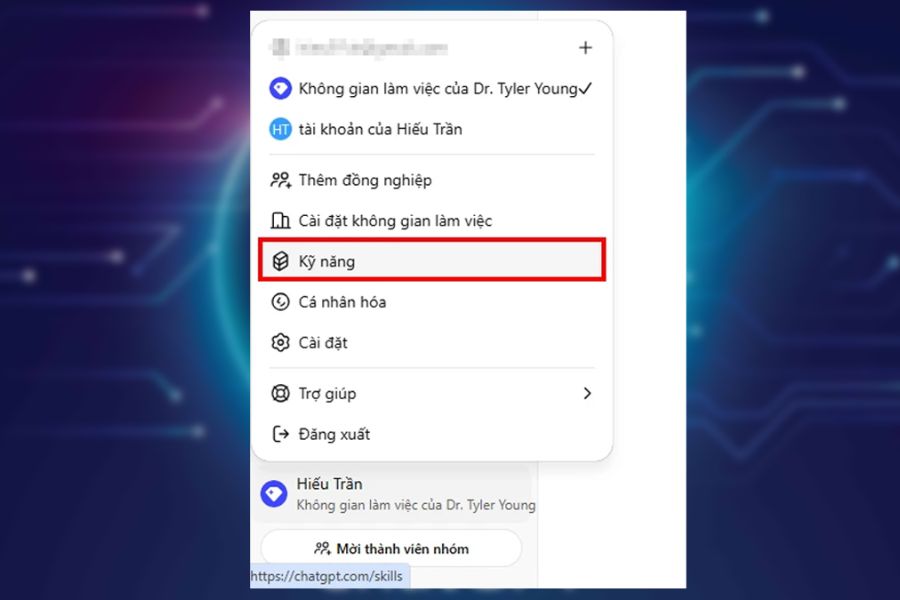
Step 1: Log in to ChatGPT and open Skills. Access ChatGPT using your browser or app, log in to your account, and then check the tools or skills management area if available. If you don't find the Skills section, check the supported features on your account.
-
Step 2: Select Create skill. In the Skills interface, find the option to create a new skill. Before setting it up, define a specific task such as writing SEO articles, summarizing documents, or composing emails so that the skill has a clear scope.
-
Step 3: Enter the skill name and description. Choose a name that is concise, easy to remember, and accurately reflects the function. For example, the skill "SEO Content Writer" could be used to support writing SEO-structured articles, while "Email Assistant" focuses on drafting business emails.
-
Step 4: Write Instructions. Describe in detail how the AI needs to perform the task, including tone, structure, output format, and things to avoid. For example, for SEO writing skills, you could request that the content be written in Vietnamese, include a lead paragraph (sapo), divide the content into H2 sections, use bullet points where appropriate, and avoid unnatural keyword repetition.
-
Step 5: Add references if needed. If the interface supports file attachments, you can add content samples, brand guidelines, or instruction manuals to provide the AI with additional information. Only use necessary documents and avoid uploading sensitive or inappropriate data.
-
Step 6: Set up access permissions. If sharing is available, choose the scope that best suits your personal or team needs. You should start with private access if you don't need to share it yet.
-
Step 7: Save and test the skill. Choose the save or publish option from the interface, then test it with real-world requirements. If the results are not in the correct format or are missing information, edit the Instructions and test again.
4. How to share skills on ChatGPT with your work team.
Sharing skills allows team members to use common guidelines and minimizes differences in how they handle tasks. For example, the marketing team can share a common SEO content writing process, while the customer service department can standardize email response writing. However, this sharing is only possible if the account interface supports this feature.
-
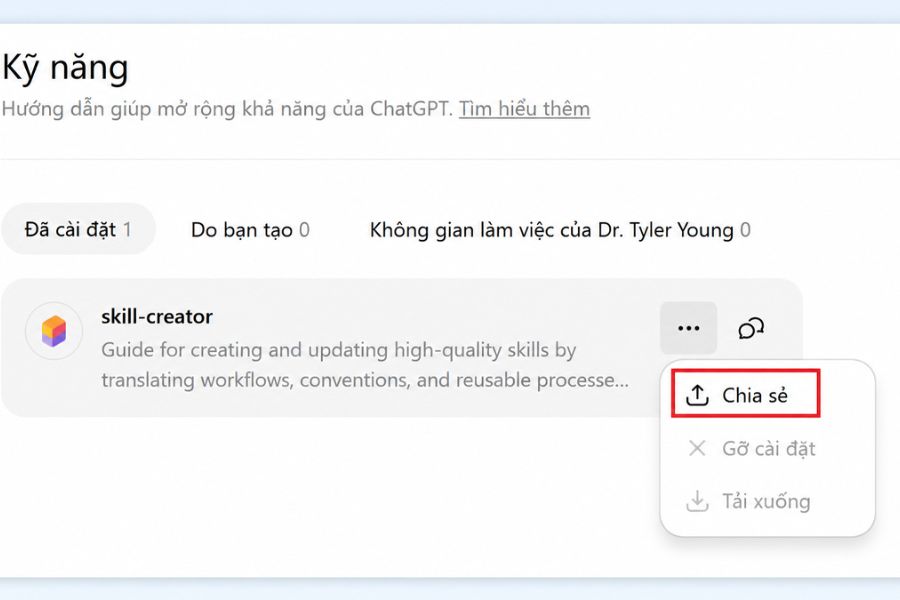
Step 1: Open the Skills section and select the skill you want to share.
-
Step 2: Click on the three dots or look for the Share option if available.
-
Step 3: Choose the appropriate sharing scope, such as personal use only, sharing with invited people, or sharing within the workspace if the system supports it.
-
Step 4: If you need to invite members, enter their information or select recipients according to the instructions on the interface.
-
Step 5: Save the changes and check the access permissions of those you share with.
Before sharing, you should review the guidelines and attached documents to avoid disclosing internal information. Also, identify the person responsible for updating skills to ensure the process is always aligned with the team's needs.
5. Some practical applications of Skills in ChatGPT
Skills can support a wide range of fields, from content creation to programming and data analysis. When properly developed, skills help reduce request preparation time and maintain a more stable workflow.
-
SEO content creation: Develop an outline, write articles using the H2 structure, optimize keyword usage, and adjust the writing style to reflect the brand.
-
Programming support: Code explanation, syntax error checking, and suggestions for improving Python, JavaScript, or HTML/CSS source code.
-
Data analysis: Assists in compiling tables, finding key information, and building weekly or monthly reports.
-
Customer service: Drafting emails, developing response templates, and adjusting wording to suit different situations.
-
Learning support: Summarizes material, creates review questions, and explains concepts according to the learner's level.
Regardless of the application, you still need to verify information before applying the results. Skills help AI follow instructions better, but they don't guarantee that every answer will be accurate.
6. Tips for creating more effective Skills on ChatGPT
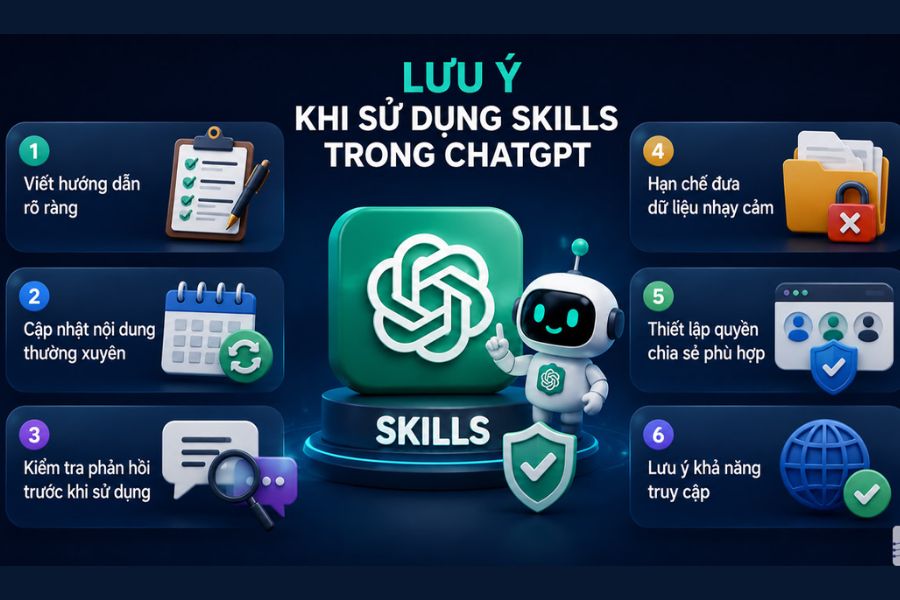
To ensure the skill works as intended, you should start with a small task, check the results, and then expand the instructions. A clear set of instructions will be more helpful than lengthy but unfocused requirements.
-
Define specific goals: Focus on one group of tasks instead of bundling too many unrelated jobs together.
-
Write clear instructions: State the task, the procedure, and the desired output format.
-
Provide sample examples: Offer reference results to help the AI understand the standards it needs to meet.
-
Test multiple scenarios: Check both standard requirements and cases with missing data.
-
Regular updates: Adjust instructions as procedures or job requirements change.
-
Pre-use review: Review data, technical information, and important content.
7. Frequently Asked Questions
Can new users create skills on ChatGPT?
Yes. If your account supports this feature, you can set up skills using natural language instructions without necessarily knowing programming.
Is creating skills on ChatGPT free?
Availability depends on your service plan, account, and how OpenAI deploys the feature at any given time. You should check the ChatGPT interface directly to see your current access permissions.
What should I do if I can't find the Skills section?
You can check your account and workspace. If you don't have the Skills feature, consider Custom Instructions or a custom GPT to save instructions and reuse them in your work.
Can skills completely replace prompts?
No. Skills can store general principles and procedures, but you still need to provide the topic, input data, or specific requirements for each task.
8. Conclusion
Creating Skills on ChatGPT helps you personalize your use of AI, save time, and standardize repetitive tasks. Simply define your goals, write clear instructions, add relevant documentation, and check the results, and you can build a more efficient workflow. If your account doesn't directly support Skills, Custom Instructions or custom GPT are also useful alternatives. Start with a simple task and gradually improve to better utilize ChatGPT every day.












VIP Products


Best Selling Products
ChatGPT Plus Account (GPT-4)
16 USD
Adobe Premiere Pro Account
99 USD
Capcut Pro 1 Year
39 USD
Adobe Photoshop Copyright - Full App
120 USD
Genuine Adobe Illustrator account
99 USD
Upgrade Genuine Office 365
49 USD
Windows 10 & 11 Pro Key
36 USD
Plugin Retouch4me
69 USD
Freepik Premium Account
59 USD
Upgrade Duolingo Super
29 USD
Genuine Cheap Canva Pro
39 USD
Upgrade genuine Capture One account
120 USD
Autodesk All App Account Copyright
120 USD
MidJourney Account
29 USD
Copyright Adobe Lightroom Account
59 USD