Best Selling Products
Genuine Cheap Canva Pro
39 USD
Adobe Photoshop Copyright - Full App
120 USD
Upgrade genuine Capture One account
120 USD
Plugin Retouch4me
69 USD

ChatGPT Plus Account (GPT-4)
16 USD

Upgrade Duolingo Super
29 USD

Freepik Premium Account
59 USD
Copyright Adobe Lightroom Account
59 USD
Upgrade Genuine Office 365
49 USD
Autodesk All App Account Copyright
120 USD
Genuine Adobe Illustrator account
99 USD

Capcut Pro 1 Year
39 USD
Windows 10 & 11 Pro Key
36 USD

MidJourney Account
29 USD
Adobe Premiere Pro Account
99 USD
What is Navisworks? A guide to collision detection and 4D progress simulation.
Nội dung
- 1. What is Navisworks?
- 2. Why should Navisworks be used in construction?
- 3. Popular Navisworks versions
- 4. What is collision detection in Navisworks?
- 5. Benefits of pre-construction crash testing
- 6. Guide to performing collision checks using Navisworks Manage
- Step 1: Model Synthesis
- Step 2: Open Clash Detective
- Step 3: Select the target group
- Step 4: Establish inspection rules
- Step 5: Run the test.
- Step 6: Sorting and processing
- Step 7: Export the report and review it.
- 7. Things to note when using Navisworks
- 8. Conclusion
In construction projects, coordinating architecture, structure, and mechanical and electrical systems is always a challenging task. Each discipline has its own drawings and models, but all must be precisely combined for smooth construction. Even a single incorrectly placed pipe can cause conflicts with beams, columns, or other systems, leading to increased costs and delays. Navisworks was created to help solve these problems through its ability to synthesize models, check for collisions, and simulate construction progress in 4D. So, what is Navisworks, how do you use the software, and what benefits does this tool bring to construction projects? Let''s explore the details below with Sadesign.
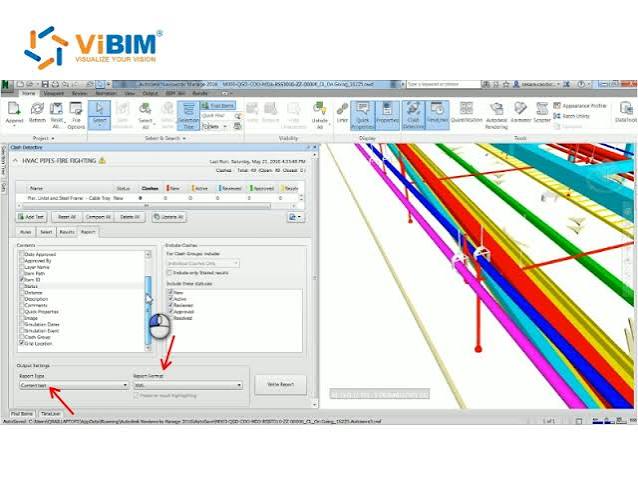
1. What is Navisworks?
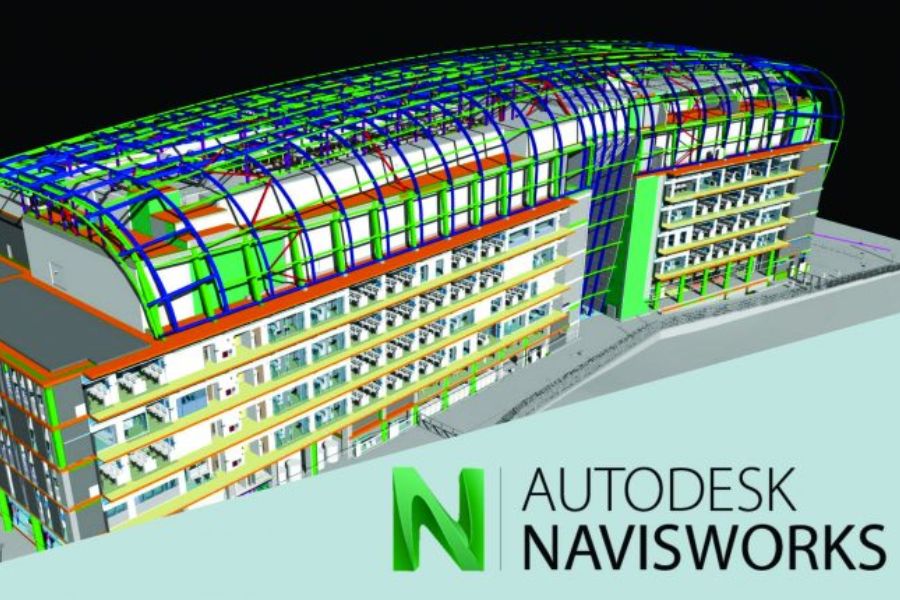
Navisworks is Autodesk software specifically designed for viewing, compiling, checking, and simulating building models in the Building Information Modeling (BIM) process. Unlike Revit or AutoCAD, which are used for design and model creation, Navisworks focuses on connecting data from multiple disciplines to comprehensively check the building before construction. The software supports many data formats, allowing users to combine architectural, structural, mechanical, electrical, and infrastructure models in a single space. This enables project stakeholders to visually observe the building, identify inconsistencies, and discuss solutions more easily.
Key features of Navisworks include:
-
Model synthesis: Combining data from multiple software programs and disciplines.
-
Collision test: Detects intersecting components or those that do not meet the required spacing.
-
4D progress simulation: Links 3D models with construction schedules to show the construction process over time.
-
Measurement and Note-Taking: Assists in checking dimensions, observing locations, and documenting issues.
-
Project coordination: Helps the owner, engineers, and contractors monitor the model together without directly modifying the original design.
2. Why should Navisworks be used in construction?
In a large project, architecture might be designed using Revit, steel structures using Tekla Structures, and infrastructure systems using Civil 3D. Relying solely on one software program would severely limit the integration and comparison of all data. Navisworks connects these models, facilitating more effective collaboration between disciplines. The software offers three main benefits:
-
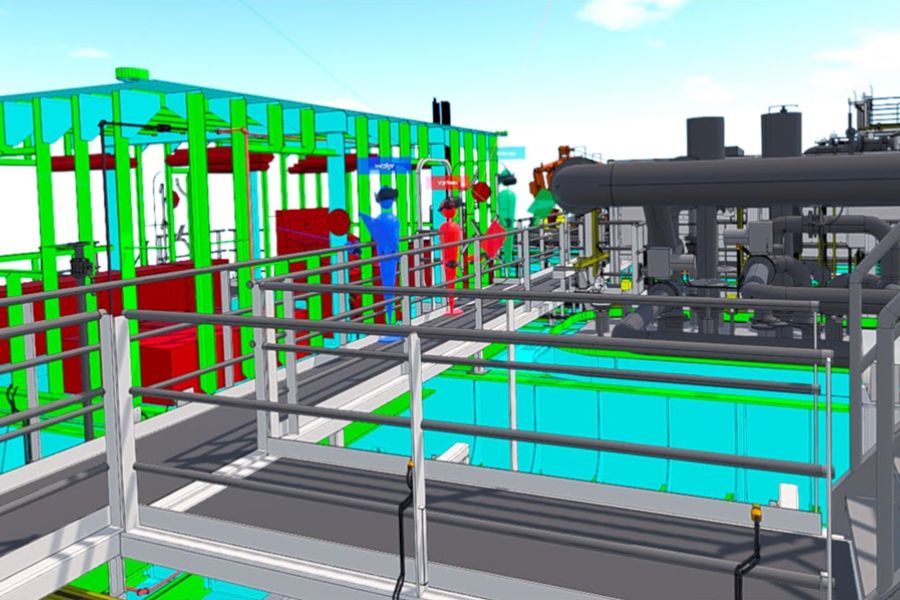
Multidisciplinary integration: Combining architectural, structural, electrical, plumbing, and HVAC models to test compatibility between systems.
-
Large-scale model viewing support: Creates a convenient environment for observing and inspecting the overall model without having to directly edit each component as in design software.
-
Facilitating coordination: The investor, supervisors, and field engineers can view the model, take measurements, and record issues as needed for the job.
3. Popular Navisworks versions
Autodesk offers versions of Navisworks to serve different needs, from viewing models to collision inspection and progress simulation.
-
Navisworks Freedom: The free version, suitable for those who need to view and navigate supported model files, such as NWD.
-
Navisworks Simulate: Supports synthesis, model review, measurement, annotation, and 4D progress simulation.
-
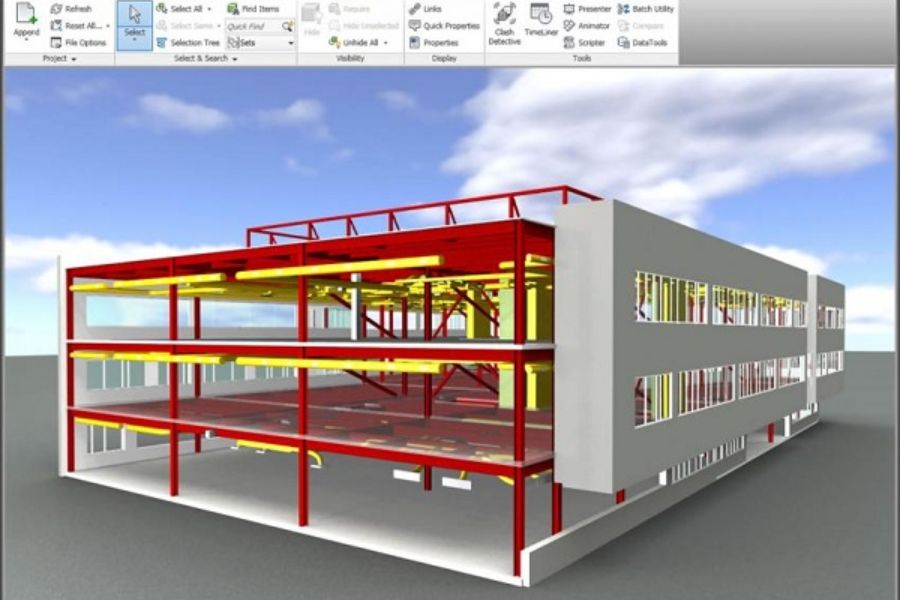
Navisworks Manage: Includes model coordination functions, the Clash Detective tool for collision detection, and progress simulation capabilities.
If you only need to view the model provided by the design firm, Navisworks Freedom can meet basic needs. For BIM professionals who frequently need to check for conflicts between disciplines, Navisworks Manage is a more suitable option.
4. What is collision detection in Navisworks?
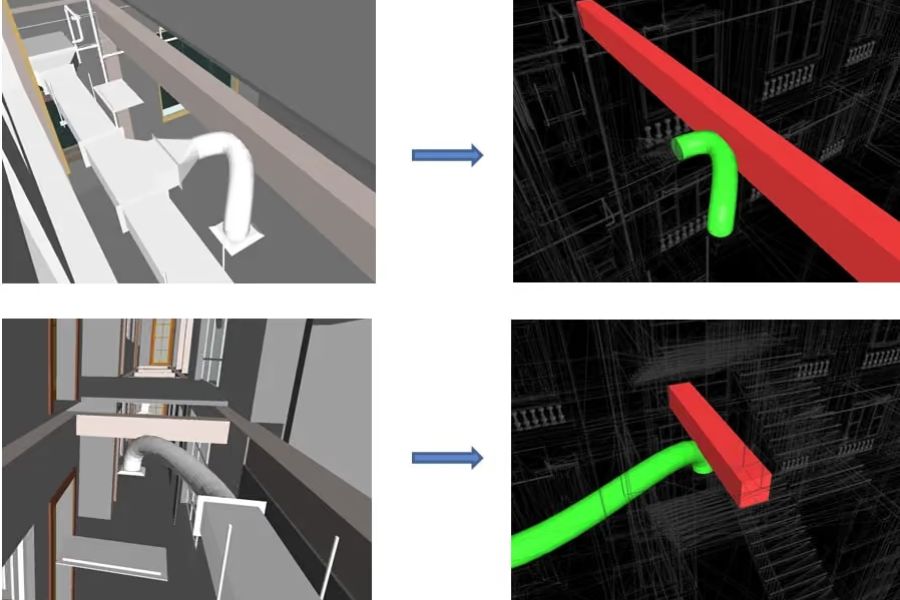
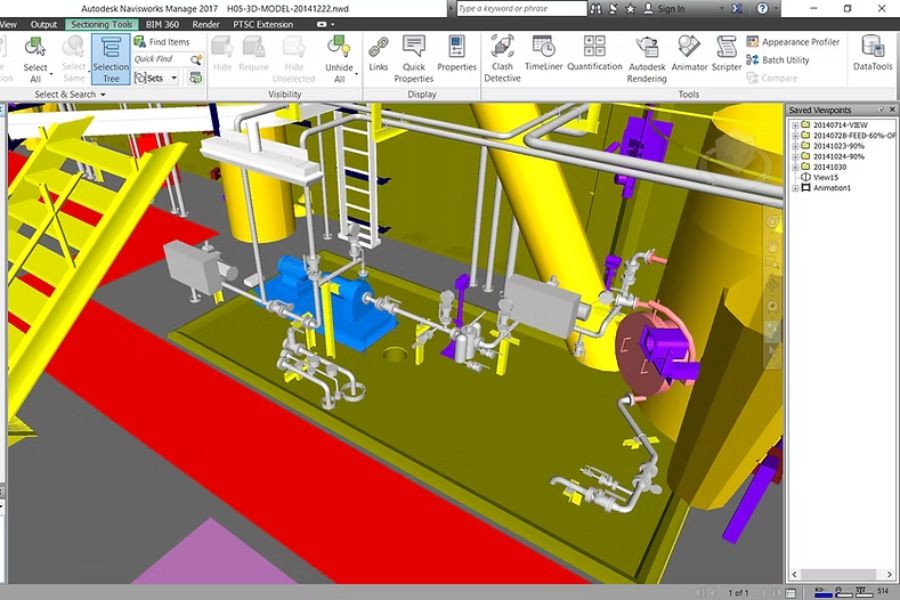
Clash detection is the process of finding intersecting components or those that do not meet the required technical clearances. This is one of the standout features of Navisworks Manage, helping to detect problems directly on the model before the project is implemented in reality. For example, air conditioning pipes running through a concrete beam or cable trays occupying the same space as water pipes. When viewing the drawings of each individual discipline, these conflicts can be difficult to spot. When assembling the model, Clash Detective helps identify the locations that need checking and provides visual representations for engineers to assess. Common types of clashes include:
-
Direct collision: Two structural elements occupying the same space, such as a duct intersecting a beam.
-
Collision gap: Two objects are positioned too close together, failing to meet the required clearance.
-
Conflicts between systems: Equipment, pipes, or cable trays are improperly arranged, making installation and maintenance difficult.
5. Benefits of pre-construction crash testing
A minor design flaw can lead to significant additional costs if only discovered when the project is partially completed. For example, electrical and mechanical piping getting caught on a concrete beam could force the construction team to halt work while they find a solution. Changing the piping route could affect ceilings, lighting, and related systems; and structural adjustments require technical evaluation and approval. Using Navisworks collision detection helps projects proactively identify and resolve issues earlier.
-
Reduce repair costs: Minimize dismantling, replacing materials, and redoing already completed work.
-
Minimize delays: Reduce the time spent resolving conflicts between contractors.
-
Improving quality: This helps disciplines coordinate accurately and minimizes uncontrolled changes.
-
Increased communication efficiency: Engineers can rely on the same model to pinpoint fault locations and agree on solutions.
Buy Navisworks at a low price.
6. Guide to performing collision checks using Navisworks Manage
To perform collision detection, users need to assemble a model, select groups of objects to compare, and establish appropriate rules. Below is a basic procedure for beginners.
Step 1: Model Synthesis
Open Navisworks Manage and use the Append function to bring architectural, structural, and MEP models into a single working environment. Before proceeding, check the positions, units of measurement, and coordinate systems to ensure the disciplines are correctly positioned.
Step 2: Open Clash Detective
Access the Clash Detective tool to create new tests. Users can set up multiple separate tests, such as testing pipes with beams or cable trays with air conditioning systems, to help track results more easily.
Step 3: Select the target group
Select the first and second groups of objects to be inspected. For example, the first group includes beams and columns, and the second group includes air ducts and technical piping. Defining the scope correctly helps to limit irrelevant results.
Step 4: Establish inspection rules
Choose either direct collision testing or distance testing depending on the objective. If the project requires components to be spaced at a minimum of 50 mm apart, the user can set a corresponding threshold to identify areas requiring consideration. The actual threshold should be based on the technical requirements of each system.
Step 5: Run the test.
After completing the setup, run the test to allow the software to identify potential conflict locations. The results list allows the user to select each case, zoom in on the relevant area, and observe the intersecting components.
Step 6: Sorting and processing
Each result is checked to determine if it is a genuine error. Then, the project team discusses and selects an option such as adjusting the pipeline, changing equipment location, or updating the design. Options involving structural changes must be evaluated and approved by an authorized person.
Step 7: Export the report and review it.
Compile the results into a report with location information, relevant components, images, and processing status. After the departments update the model, rerun the test to confirm that the collisions have been resolved and no new conflicts have arisen.
7. Things to note when using Navisworks
To use Navisworks effectively, users need to focus on data quality and collaboration between disciplines, rather than just concentrating on software operations.
-
Standardize the coordinate system: Avoid situations where the models are misaligned during synthesis.
-
Use the most up-to-date data: Limit testing to outdated design versions.
-
Establish appropriate rules: Select the collision threshold according to actual technical requirements.
-
Manually check results: Verify each case before requesting adjustments.
-
Regular progress updates: Ensure the 4D simulation accurately reflects the plan.
-
In conjunction with design software: Use Navisworks to review and coordinate, and update the design using specialized tools as needed.
8. Conclusion
Navisworks is a useful tool in the BIM process, supporting model synthesis, collision detection, and 4D construction schedule simulation. With Clash Detective, users can detect conflicts between disciplines early; and Timeliner helps visualize the construction sequence over time. By combining accurate modeling with a clear coordination process, Navisworks helps project teams proactively control risks, minimize unforeseen costs, and improve construction management efficiency. This software is worth exploring for civil engineers, BIM professionals, and anyone wanting to apply technology to modern project management.













VIP Products


Best Selling Products
Genuine Cheap Canva Pro
39 USD
Adobe Photoshop Copyright - Full App
120 USD
Upgrade genuine Capture One account
120 USD
Plugin Retouch4me
69 USD
ChatGPT Plus Account (GPT-4)
16 USD
Upgrade Duolingo Super
29 USD
Freepik Premium Account
59 USD
Copyright Adobe Lightroom Account
59 USD
Upgrade Genuine Office 365
49 USD
Autodesk All App Account Copyright
120 USD
Genuine Adobe Illustrator account
99 USD
Capcut Pro 1 Year
39 USD
Windows 10 & 11 Pro Key
36 USD
MidJourney Account
29 USD
Adobe Premiere Pro Account
99 USD