Best Selling Products

MidJourney Account
29 USD
Capcut Pro 1 Year
39 USD
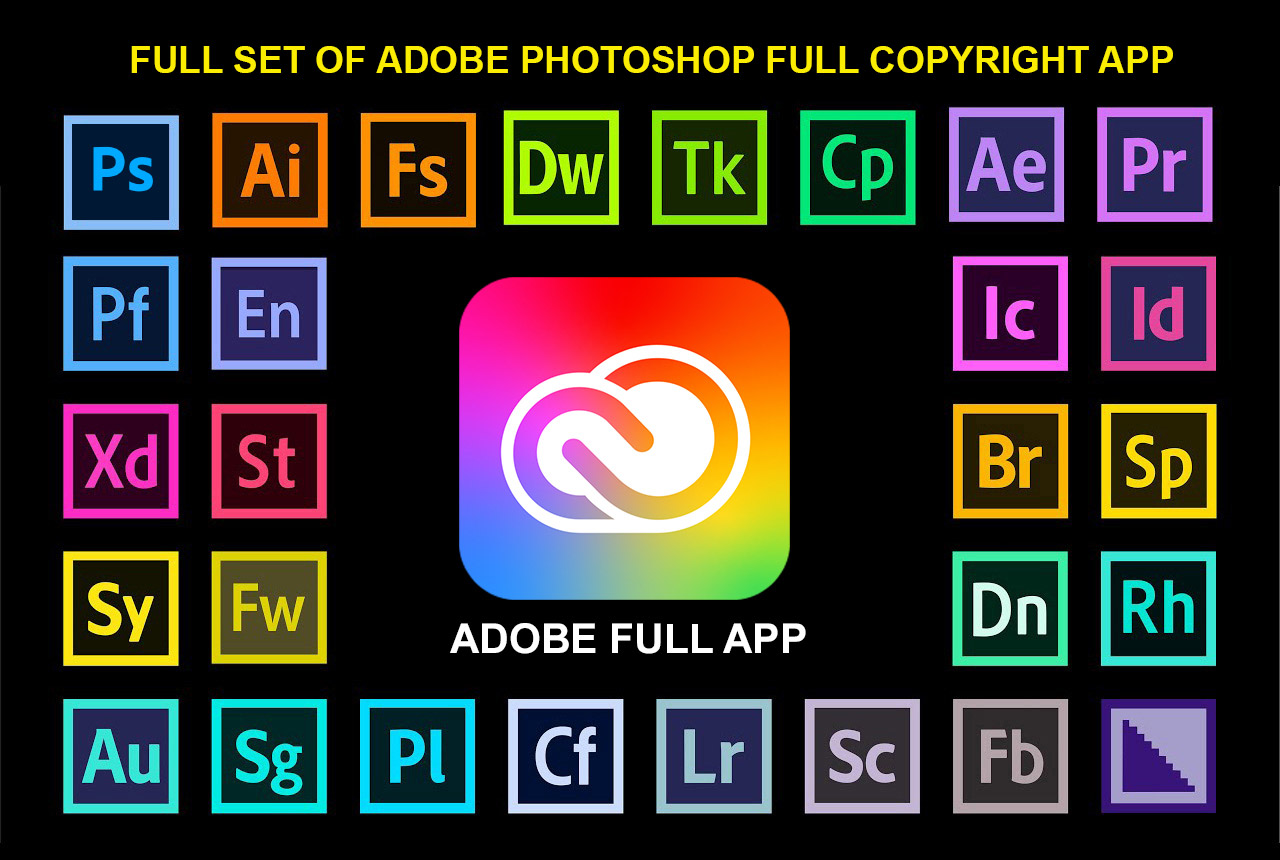
Adobe Photoshop Copyright - Full App
120 USD

Freepik Premium Account
59 USD
Genuine Cheap Canva Pro
39 USD
Upgrade genuine Capture One account
120 USD

Genuine Adobe Illustrator account
99 USD
Windows 10 & 11 Pro Key
36 USD

ChatGPT Plus Account (GPT-4)
16 USD

Copyright Adobe Lightroom Account
59 USD
Upgrade Genuine Office 365
49 USD
Upgrade Duolingo Super
29 USD
Autodesk All App Account Copyright
120 USD
Plugin Retouch4me
69 USD
Adobe Premiere Pro Account
99 USD
How to use Daily Brief on Gemini to plan and track tasks
Nội dung
- 1. What is Daily Brief on Gemini?
- 2. What do I need to prepare before using Daily Brief on Gemini?
- 3. How to set up and use Daily Brief on Gemini
- Step 1: Access Gemini settings.
- Step 2: Find the Personal Intelligence section.
- Step 3: Activate Daily Brief if supported.
- Step 4: Open the Connected Apps section.
- Step 5: Connect the necessary applications.
- Step 6: Review the summary and determine priorities.
- Step 7: Track work and update the daily plan.
- 4. How to use Gemini's Daily Brief for effective planning.
- 5. Things to note when using Daily Brief on Gemini
- 7. Should I use Daily Brief on Gemini to manage my tasks?
- 8. Conclusion
How much time do you typically spend each morning checking emails, reviewing meeting schedules, reading notifications, and recalling unfinished tasks? If you have multiple apps open simultaneously, scheduling can sometimes take more time than actually starting the work. Gemini''s Daily Brief is designed to help users summarize important information, prioritize tasks, and manage their time more effectively. Instead of manually reviewing each data source, you can start your day with a summary tailored to your individual needs. So, what is Daily Brief, how do you set it up, and how can you utilize this feature in your daily work? Let''s explore the details in the guide below.

1. What is Daily Brief on Gemini?
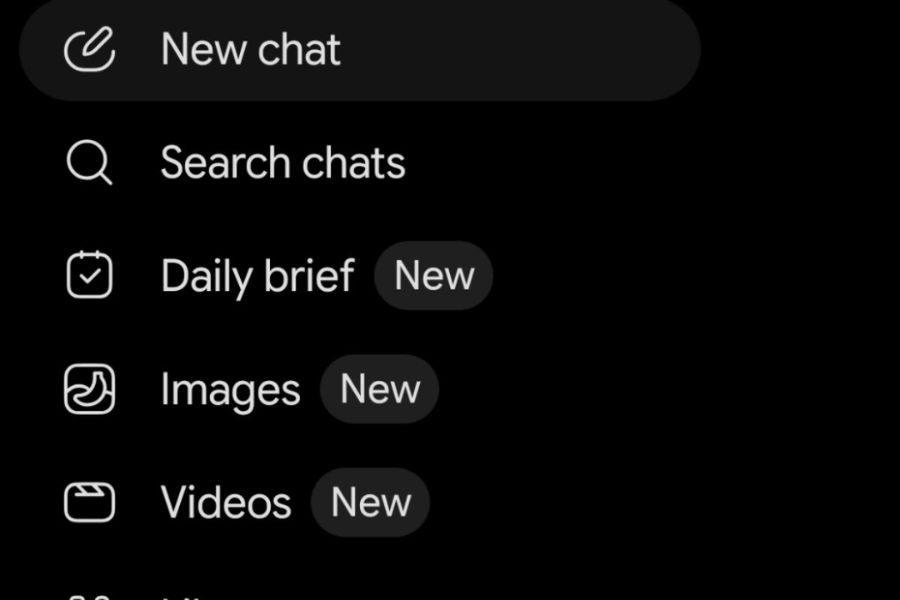
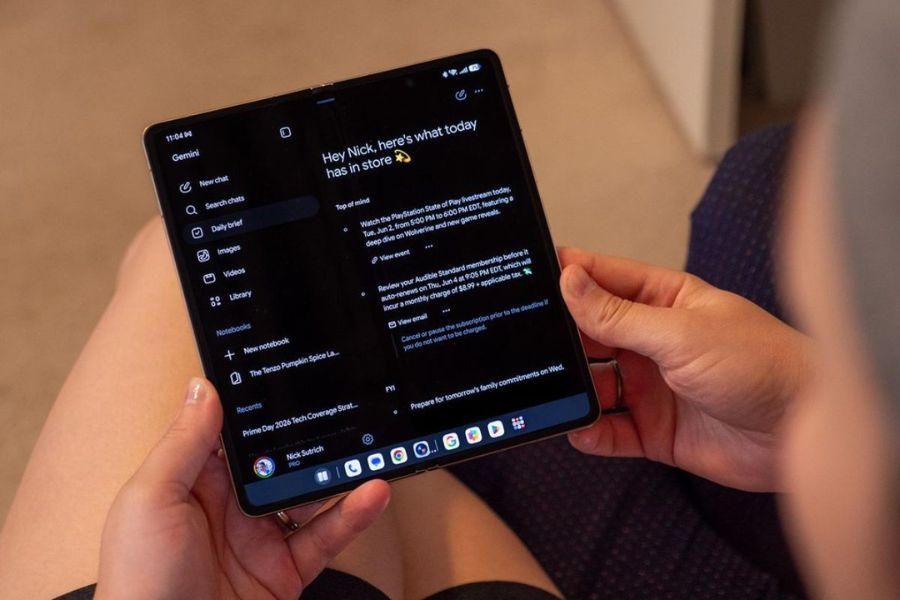
Daily Brief is a feature within the Gemini ecosystem that helps users consolidate personal information, keeping track of important information at the start of the day. When properly set up and granted permissions, the tool can leverage data from connected Google apps to create summaries of schedules, emails, and work-related information. This eliminates the need to constantly switch between apps just to figure out what to do today.
Instead of viewing Daily Brief as a regular notification list, you can use this feature as a starting point for your daily work plan. For example, before starting work, you can check upcoming meetings, review emails that need responding, and identify tasks that should be completed first. However, the content displayed depends on account support, connected applications, and the access permissions you have set.
2. What do I need to prepare before using Daily Brief on Gemini?
Before activating Daily Brief, you should check your Google account and related settings to ensure the information aggregation process runs smoothly. Thorough preparation also helps prevent the summary from being incomplete or not accurately reflecting the actual schedule.
Some conditions you need to be aware of include:
-
Compatible Google accounts: Use an account that supports this feature. Accessibility may vary by region, age, account type, and rollout date.
-
Personal Intelligence: Check if this option appears in Gemini's settings and enable it if supported.
-
Connecting Google applications: Gmail, Google Calendar, Google Drive, or related services need to be connected if you want Gemini to aggregate data from these sources.
-
Memory settings: If the feature requires the use of personal memory or context, check the status and permissions before starting.
-
Data is updated: Work schedules, emails, and documents should be clearly organized so you can easily compare them with the content compiled by the AI.
3. How to set up and use Daily Brief on Gemini
To use Daily Brief, you need to check your personal settings, enable the feature if your account is supported, and connect the necessary data sources. The interface may vary by app version, so the names or locations of some options may not be exactly the same on every device.
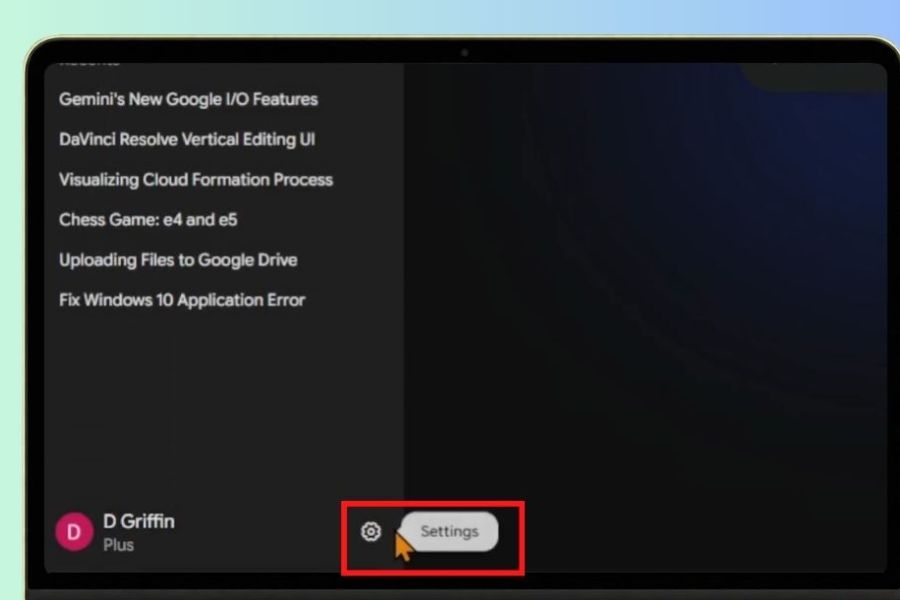
Step 1: Access Gemini settings.
First, open the Gemini app on your phone or access Gemini using a browser on your computer. Log in with the Google account you intend to use to manage your schedule and tasks. On the main interface, find your account profile picture or the settings menu, then open the settings section to check the available features. If you are using multiple Google accounts, be sure to select the correct account to avoid accidentally linking personal or work data.
Step 2: Find the Personal Intelligence section.
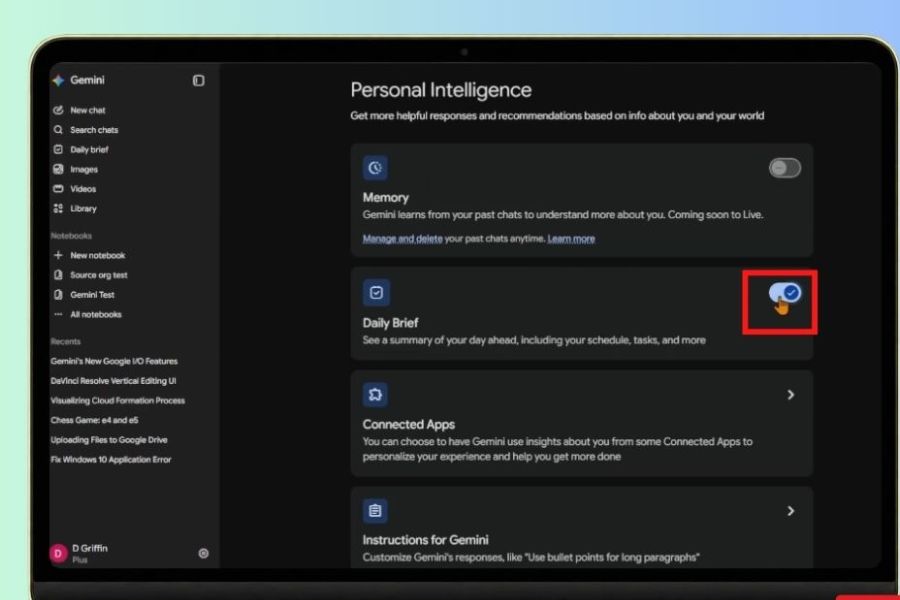
In the settings, find the Personal Intelligence option. This area relates to the ability to personalize answers and use information from connected services, depending on your account configuration. If you see this option, open it to see the options inside, including its status and related permissions. If you can't find it, you should check your account's support before proceeding, as the feature may not be available to all users.
Step 3: Activate Daily Brief if supported.
After finding the appropriate settings area, check the Daily Brief option and enable the feature if there is a toggle switch. Carefully read the information displayed before confirming to understand what data can be used and how the feature works. When finished, you should return to the main interface or the relevant area to check the status. If you don't see Daily Brief even with Personal Intelligence enabled, review Google's current access conditions and guidelines instead of speculating on the cause.
Step 4: Open the Connected Apps section.
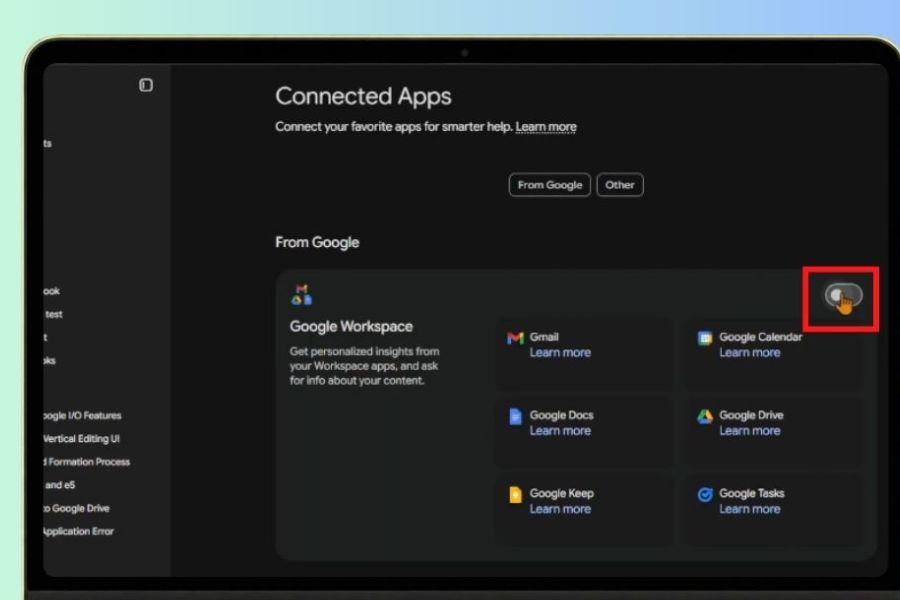
Next, access Connected Apps, which is the area for managing applications connected to Gemini. Here, you can check which Google services are linked, their corresponding access permissions, and their connection status if your account interface supports it. Clearly identify which data sources are truly necessary for your daily planning. For example, someone who frequently receives meeting schedules via email might prioritize Gmail and Google Calendar, while someone who works with many documents should consider connecting Google Drive as well.
Step 5: Connect the necessary applications.
In the Connected Apps list, select the services you want to use and follow the instructions to grant connection permissions. With Gmail, Gemini can help aggregate information from authorized emails; with Google Calendar, calendar data can help you keep track of upcoming meetings and events. Google Drive can also be useful when work involves storing documents, plans, or files. You don't necessarily need to connect all apps right away. Start with the necessary data sources, then check the results and adjust access permissions as needed.
Step 6: Review the summary and determine priorities.
After completing the setup, return to Gemini and check if the Daily Brief has appeared or is accessible through your account interface. When viewing the summary, cross-check important information such as meeting times, emails requiring responses, and tasks with the nearest deadline. If you find any inaccuracies or missing information, open the source application to double-check. You can list the three most important tasks of the day, prioritize them by urgency, and allocate time to each task instead of trying to complete everything at once.
Step 7: Track work and update the daily plan.
Daily Brief is most useful when combined with a regular task tracking routine. After identifying priority tasks, you can update their status in your task management tool, add deadlines to Google Calendar, or record outstanding tasks. Throughout the day, review your calendar and task list to check progress and adjust your plan if unexpected meetings or urgent tasks arise. It's important to note that Daily Brief doesn't automatically replace a project management application or automatically mark every task as completed. You should still update your progress in your official task storage to avoid missing any information.
4. How to use Gemini's Daily Brief for effective planning.
Once established, you can combine the summary with a suitable time management method to limit the problem of working without direction. The key is not to process a lot of information, but to identify the right tasks and dedicate time to those that produce clear results.
You can apply some of the following methods:
-
Identify the three most important tasks: Choose three tasks that will have a significant impact on the day's results, such as completing a report, submitting a proposal, or preparing documents for a meeting.
-
Prioritize tasks by deadline: Focus on tasks with approaching deadlines, but still allocate time for important tasks that require long-term attention.
-
Divide your schedule into time slots: Based on your meeting and event schedules, allocate appropriate time for handling emails, intensive work, and rest.
-
Allow time for unforeseen tasks: Don't fill your entire schedule. A buffer period will allow you to handle unexpected issues without disrupting your plans.
-
End-of-day summary: Check what's completed, what's on hold, and what tasks need to be carried over to the next day.
5. Things to note when using Daily Brief on Gemini
While it can save time, Daily Brief is still an AI-powered information aggregation tool, not an absolutely accurate source of data. Users should proactively review the content and consider privacy concerns before connecting personal or work accounts.
Some important points to remember:
-
Check feature limitations: Update frequency, data coverage, and Daily Brief availability may vary by account, region, or version. It should not be assumed that all users will have the same experience.
-
Protecting private data: Before granting access to Gmail, Drive, or other services, consider whether the data contains sensitive personal information, contracts, or business secrets.
-
Read the data policy carefully: Understand how Google handles connected data, AI performance settings, and privacy choices that apply to your account. Don't assume that all data is used or excluded from the service improvement process.
-
Verify important information: For deadlines, meeting schedules, client requests, or financial details, double-check the source before making a decision.
-
Proactively disconnect when needed: If you no longer wish to use the feature, you can disable it or revoke connection permissions in the corresponding settings. Check the storage and chat history options separately if you want to manage saved data.

6. How to fix Daily Brief not working on Gemini
If you've set it up but haven't seen the summary, don't jump to the conclusion that the feature is faulty. Check your account, access permissions, and connected apps to identify the possible cause.
-
Daily Brief not found: Check if the feature has been rolled out for your account, region, and version.
-
No email data visible: Open Connected Apps to check if Gmail is connected to the correct account and has the appropriate permissions.
-
Missing schedule: Access Google Calendar to verify that the event exists, is saved correctly, and is not linked to the wrong account.
-
Inaccurate summary information: Compare with the original data, check the granted permissions, and adjust the information in the application accordingly.
-
The feature isn't updating as expected: Try reloading the interface, checking your network connection, updating the app, or logging out and logging back in if necessary.
7. Should I use Daily Brief on Gemini to manage my tasks?
Daily Brief is ideal for those who frequently handle emails, attend numerous meetings, or need to gather information from Google services before starting their day. When combined with a clear work schedule and a habit of updating progress, this tool can help you reduce manual review time, identify important tasks, and avoid missing noteworthy information.
However, Daily Brief cannot completely replace the user's ability to prioritize, make decisions, and track progress. You still need to verify data, proactively update tasks, and choose access permissions that suit your actual needs. If your account doesn't support this feature, you can still apply similar management methods using Google Calendar, Gmail, and a well-organized to-do list.
8. Conclusion
Understanding how to use Daily Brief on Gemini will help you build a habit of starting your day with a plan, conveniently tracking your schedule, and being more proactive in handling work. From checking settings and connecting the application to identifying priority tasks, each step contributes to creating a clear and manageable workflow. Start with the data sources that are truly necessary, regularly compare information, and adjust your usage to your personal needs. By combining AI with the right time management methods, you will have more opportunities to work focused, reduce repetitive tasks, and use your time more effectively each day.










VIP Products



Best Selling Products
MidJourney Account
29 USD
Capcut Pro 1 Year
39 USD
Adobe Photoshop Copyright - Full App
120 USD
Freepik Premium Account
59 USD
Genuine Cheap Canva Pro
39 USD
Upgrade genuine Capture One account
120 USD
Genuine Adobe Illustrator account
99 USD
Windows 10 & 11 Pro Key
36 USD
ChatGPT Plus Account (GPT-4)
16 USD
Copyright Adobe Lightroom Account
59 USD
Upgrade Genuine Office 365
49 USD
Upgrade Duolingo Super
29 USD
Autodesk All App Account Copyright
120 USD
Plugin Retouch4me
69 USD
Adobe Premiere Pro Account
99 USD