
Best Selling Products
Plugin Retouch4me
69 USD
Copyright Adobe Lightroom Account
59 USD
Genuine Cheap Canva Pro
39 USD
Adobe Photoshop Copyright - Full App
120 USD
Genuine Adobe Illustrator account
99 USD

ChatGPT Plus Account (GPT-4)
16 USD
Adobe Premiere Pro Account
99 USD
Windows 10 & 11 Pro Key
36 USD

MidJourney Account
29 USD
Upgrade Genuine Office 365
49 USD
Autodesk All App Account Copyright
120 USD

Freepik Premium Account
59 USD
Capcut Pro 1 Year
39 USD
Upgrade Duolingo Super
29 USD
Upgrade genuine Capture One account
120 USD
What is Gemini Error 1152? Causes and effective solutions.
Nội dung
- 1. What is Gemini Error 1152?
- 2. Causes of Gemini Error 1152
- 3. 7-Step Guide to Fixing Gemini Error 1152
- Step 1: Open Gemini and access the Cookies and Website Data section.
- Step 2: Select Manage website data on your device.
- Step 3: Delete the data from the website gemini.google.com
- Step 4: Click Reload to reload Gemini.
- Step 5: Open Settings on Google Chrome
- Step 6: Select Add-ons to open the list of extensions.
- Step 7: Disable extensions on Chrome
- 4. Some notes on troubleshooting Gemini error 1152
- 5. Conclusion
Gemini is Google''s artificial intelligence tool that assists users in searching for information, creating content, and solving many daily tasks. However, during use, you may encounter error 1152, which interrupts command input or response reception. This situation causes considerable inconvenience, especially when you need to complete tasks quickly. So, where does Gemini error 1152 come from and how can you effectively fix it? In this article, Sadesign will explore the signs, common causes, and provide detailed instructions in 7 steps to resolve the error on the Google Chrome browser. By following the instructions step by step, you can easily check and fix the problem.
1. What is Gemini Error 1152?
Error 1152 Gemini is an error code that appears when users encounter problems accessing or using Google's AI tools. When this error occurs, Gemini may fail to process commands, not respond as expected, or cause a session interruption. This situation may be related to website data, network connection, or browser activity. However, it should not be assumed that all instances of error code 1152 have the same cause. Correctly identifying the problem will help you choose the appropriate troubleshooting method, avoiding unnecessary steps.
Some common signs of abnormal Gemini activity include:
-
Unable to send commands or receive responses from Gemini.
-
The Gemini website loads slowly, freezes, or doesn't display its content fully.
-
The conversation was interrupted while the request was being processed.
-
The error persists even after reloading the page multiple times.
-
Gemini is unstable on the Google Chrome browser.
2. Causes of Gemini Error 1152
Many factors can cause Gemini to malfunction during operation. Understanding the cause will help you be more proactive in troubleshooting and prevent the problem from recurring in subsequent uses.
-
Unstable network connection: A fluctuating internet connection may prevent the browser from sending or receiving data from Gemini properly.
-
Cookie and website data issues: Outdated data or corrupted session information may affect the loading and use of Gemini.
-
Conflicting extensions: Certain extensions that block ads, protect privacy, or modify website content may interfere with Gemini's functionality.
-
VPN or proxy: Connecting through an intermediary server can sometimes result in unstable connections or difficulties accessing services.
-
Browser issues: Chrome not being updated or experiencing instability can also affect the user experience.
-
Service-related issues: In some cases, Gemini may experience temporary system errors from the service provider, preventing users from submitting requests as usual.
3. 7-Step Guide to Fixing Gemini Error 1152
To resolve the Gemini 1152 error, you can follow these seven steps in order on the Google Chrome browser. The guide focuses on clearing website data, reloading Gemini, and checking for potentially conflicting extensions. Depending on your Chrome version, the names or locations of some options may differ slightly.
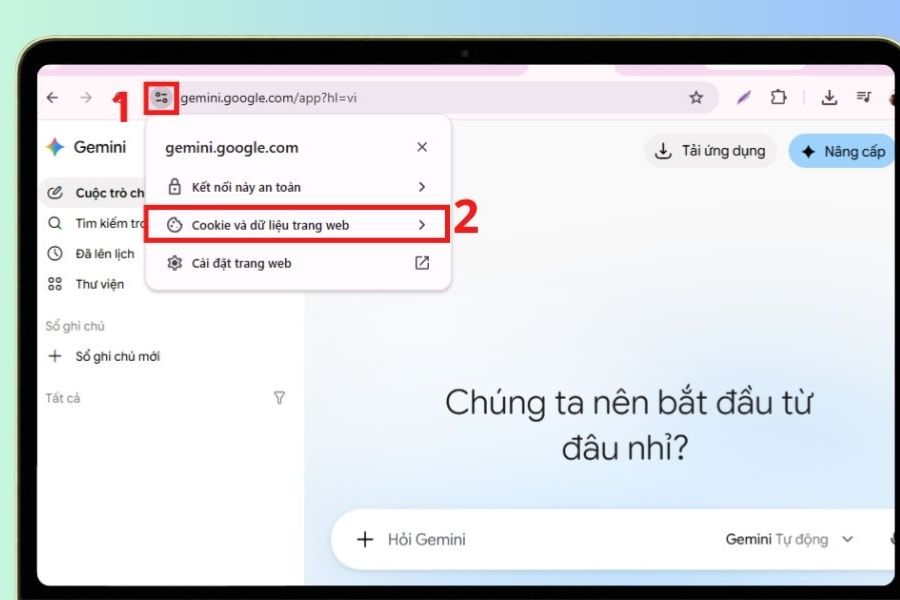
Step 1: Open Gemini and access the Cookies and Website Data section.
First, open your Google Chrome browser and access the Gemini page that is experiencing the error. On the Gemini interface, click the three horizontal lines icon in the upper left corner of the screen to open the menu bar. Then, find and select the "Cookies and site data" option if this option appears on the interface you are using.
This area allows you to check the data that the website stores during operation. Accessing this section is a preparatory step to identify and remove data that could potentially cause problems. If you can't find the Cookies and Website Data option in the Gemini menu, you can go to Chrome's privacy settings to manage the data of the respective domain.
Step 2: Select Manage website data on your device.
After opening the Cookies and Website Data section, find the Manage website data option on your device. Click here to see a list of websites that have saved cookies and data on your browser. Depending on your Chrome version, this option may be located in the privacy settings instead of appearing directly on the Gemini interface.
When the list of data is displayed, you need to correctly identify the website experiencing the problem to avoid accidentally deleting information from other services. If the list contains multiple domains, use the search function, if available, for faster operation. After finding the relevant data, you can proceed to the next step to delete Gemini's information.
Step 3: Delete the data from the website gemini.google.com
In the list of website data, find the domain name gemini.google.com. Once you've identified the item you need to process, click the corresponding delete data icon to remove cookies and data stored for the Gemini site. This will allow your browser to recreate the website data the next time you visit, thus checking if the problem stems from outdated data.
You should only delete data from the Gemini domain if your goal is to fix errors on this website. After completion, some session information may be deleted, and you may need to log back into your Google account. Don't forget to back up any important unsaved content before proceeding to minimize the risk of losing your work data.
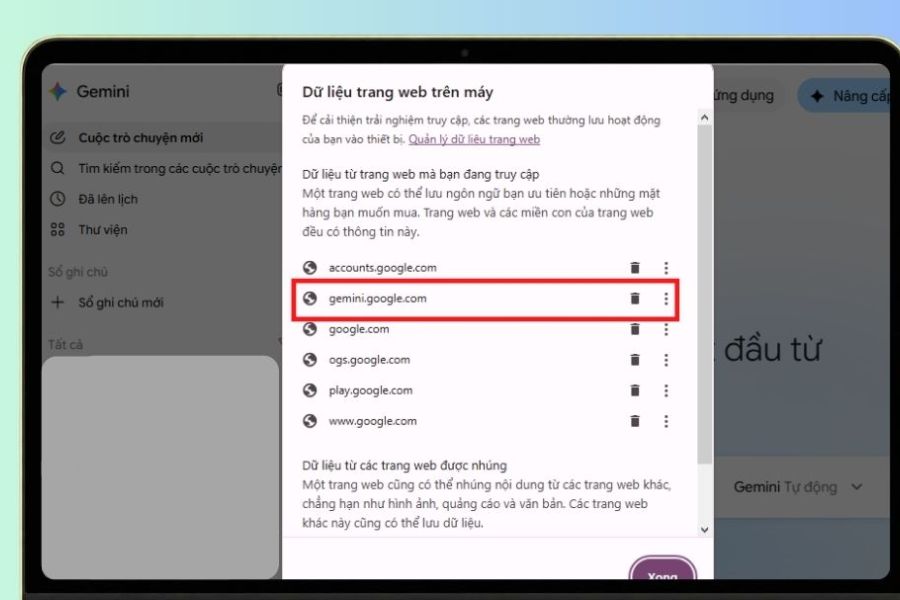
Step 4: Click Reload to reload Gemini.
After deleting the website data, return to the Gemini interface and click the Reload button in your browser. You can also use Ctrl + R on Windows to refresh the page. Chrome will then reload the Gemini interface and reset the necessary data for the new session.
Once the website has finished loading, try entering a short command to test Gemini's responsiveness. If the tool works normally, the issue may be related to previous website data. Otherwise, if error 1152 persists, continue with the extension testing steps below to find other causes.
Step 5: Open Settings on Google Chrome
If the problem persists after reinstalling Gemini, you need to check your browser settings. On Google Chrome, click the three vertical dots icon in the upper right corner of the screen, then select Settings to open the browser management page.
Here, you can access options related to privacy, performance, and extensions. In this guide, the goal is to find a list of installed extensions to check if any are affecting Gemini's performance. After opening the settings, proceed to the extension management section.
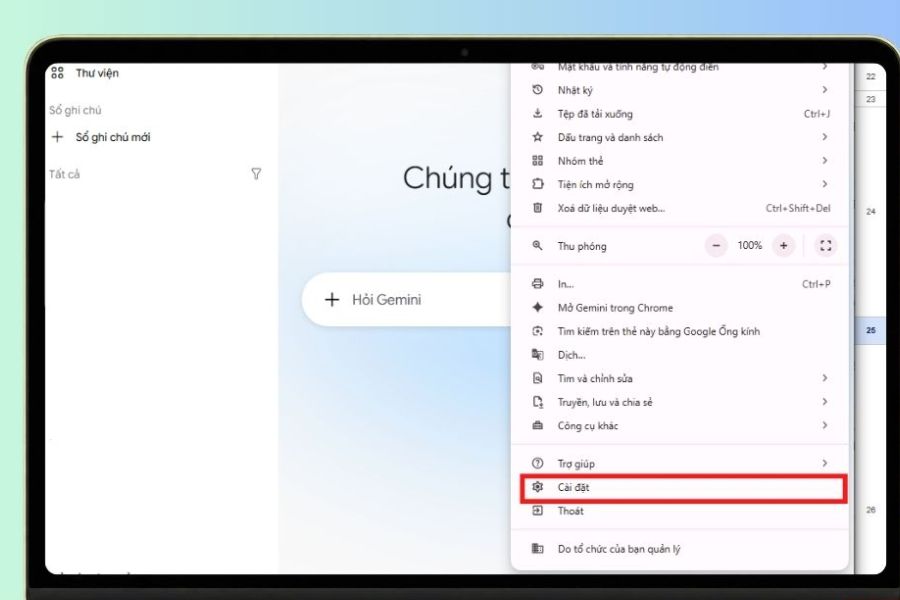
Step 6: Select Add-ons to open the list of extensions.
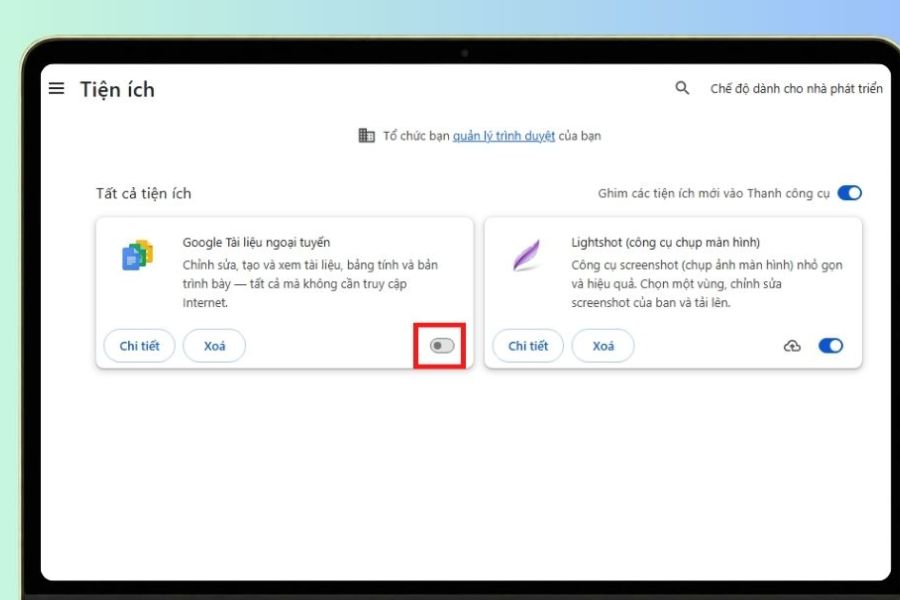
In the Chrome interface, find the Extensions section and select Manage extensions to see all installed extensions. For faster access, you can type chrome ://extensions/ into the Chrome address bar and press Enter. The displayed list will help you check which extensions are currently enabled on your browser.
Pay attention to extensions that block ads, scripts, protect privacy, or alter how a website functions. These tools don't always cause errors, but in some cases they can affect Gemini's content loading or request submission. If you're using multiple extensions simultaneously, you should check each one to identify potential conflicts.
Step 7: Disable extensions on Chrome
In the list of extensions, temporarily disable any extensions that might affect Gemini's operation by switching the corresponding toggles to the off position. You should prioritize checking ad blockers, web security tools, or network connection tweaking extensions. It's not necessary to remove them immediately; temporarily disabling them is sufficient to check for potential conflicts.
After disabling the extension, return to the Gemini page, reload the interface, and try sending a new command. If Gemini works normally, you can re-enable each extension to identify which tool is causing the issue. If error 1152 persists after completing all seven steps, check your internet connection, try a different browser, or view the Gemini service status information to determine if the problem originates from your system.
4. Some notes on troubleshooting Gemini error 1152
During the process of performing the steps above, you should operate sequentially to easily identify the cause. If you change too many settings at once, it will be difficult to know which method is actually effective. Also, not all cases of error 1152 can be resolved by deleting data or disabling extensions.
Some things you should keep in mind include:
-
Check your internet connection: Try opening different websites to determine if your connection is stable.
-
Do not delete data indiscriminately: Only delete Gemini's data when necessary to minimize impact on other websites.
-
Save important content: Copy long statements or incomplete content before reloading the page.
-
Update Chrome: If your browser hasn't been updated in a while, check for the latest version for improved compatibility.
-
Check the Gemini service: If the error occurs on multiple devices, check the service status information or wait a while and try again.
Following these guidelines will help you troubleshoot more proactively and avoid repeating unnecessary actions. If the error originates from the server side, you may need to wait for Google to fix it instead of continuing to change settings on your device.
5. Conclusion
Error 1152 Gemini can disrupt the use of Google's AI tools, impacting work and user experience. The cause may be related to website data, cookies, extensions, or other issues during the connection process. To fix this, you can follow these seven steps: open the Cookies and Website Data section, manage data on your device, delete gemini.google.com data , reload Gemini, open Chrome Settings, access Extensions, and disable any potentially conflicting extensions. If the error persists after trying these methods, check your network connection or Gemini service status for appropriate troubleshooting.










VIP Products

Best Selling Products
Plugin Retouch4me
69 USD
Copyright Adobe Lightroom Account
59 USD
Genuine Cheap Canva Pro
39 USD
Adobe Photoshop Copyright - Full App
120 USD
Genuine Adobe Illustrator account
99 USD
ChatGPT Plus Account (GPT-4)
16 USD
Adobe Premiere Pro Account
99 USD
Windows 10 & 11 Pro Key
36 USD
MidJourney Account
29 USD
Upgrade Genuine Office 365
49 USD
Autodesk All App Account Copyright
120 USD
Freepik Premium Account
59 USD
Capcut Pro 1 Year
39 USD
Upgrade Duolingo Super
29 USD
Upgrade genuine Capture One account
120 USD