Best Selling Products
Adobe Photoshop Copyright - Full App
120 USD

MidJourney Account
29 USD

ChatGPT Plus Account (GPT-4)
16 USD
Windows 10 & 11 Pro Key
36 USD

Freepik Premium Account
59 USD

Capcut Pro 1 Year
39 USD
Upgrade Genuine Office 365
49 USD
Genuine Cheap Canva Pro
39 USD
Upgrade genuine Capture One account
120 USD

Copyright Adobe Lightroom Account
59 USD

Genuine Adobe Illustrator account
99 USD

Adobe Premiere Pro Account
99 USD
Plugin Retouch4me
69 USD

Autodesk All App Account Copyright
120 USD

Upgrade Duolingo Super
29 USD
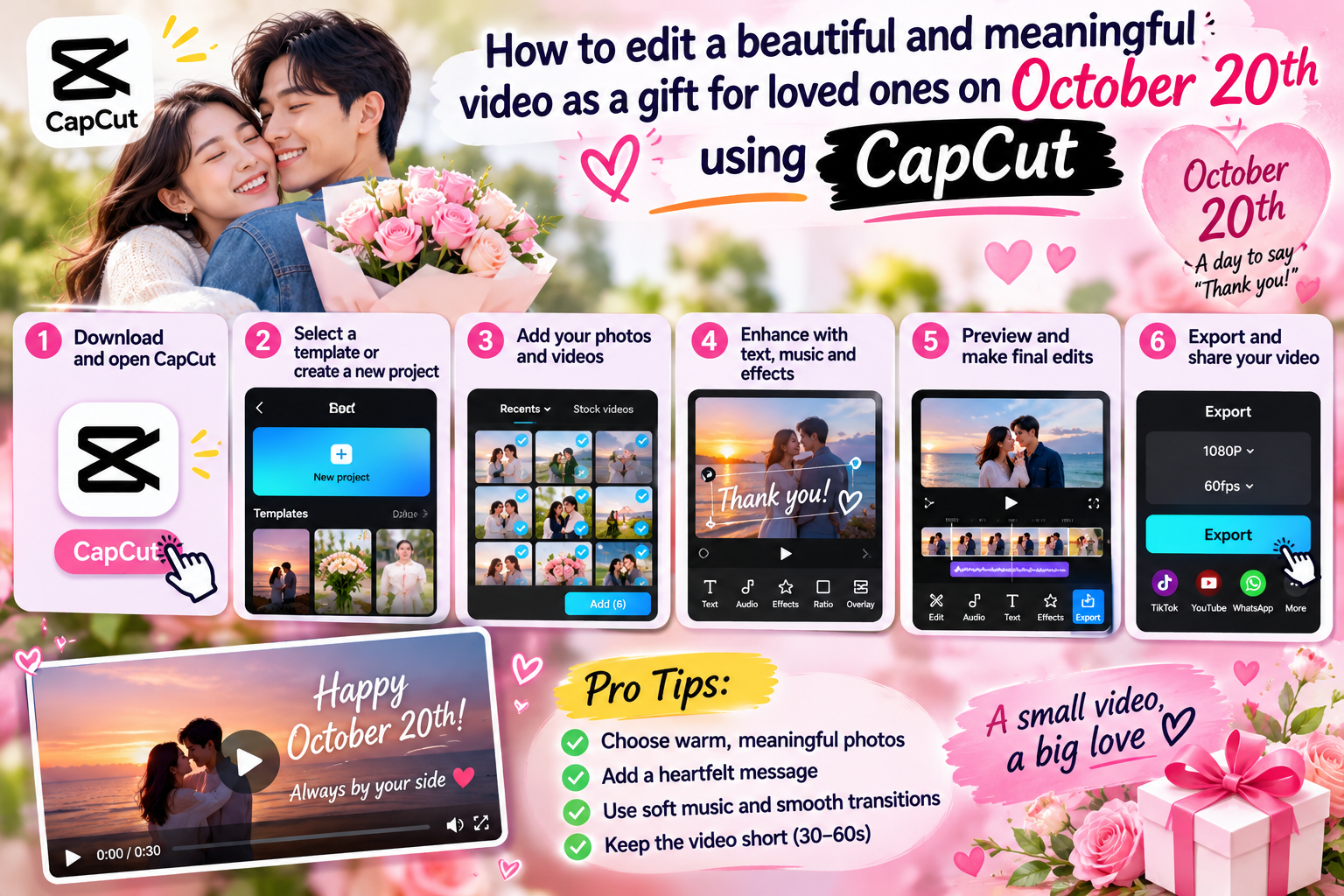
Instructions on how to edit a beautiful and meaningful video as a gift for loved ones on October 20th using CapCut.
Nội dung
- 1. Why should you edit videos to give to loved ones on October 20th using CapCut?
- 2. Prepare images and ideas before editing the October 20th video.
- 3. Instructions on editing a video to give to loved ones using CapCut on your phone.
- Step 1: Create a new project and add images.
- Step 2: Arrange the photos according to emotional flow.
- Step 3: Choose the appropriate aspect ratio.
- Step 4: Adjust colors and highlight the image.
- 4. How to add music, effects, and 20/10 greetings on CapCut
- Add background music that suits the recipient.
- Create smooth transition effects.
- Insert a 20/10 greeting in text format.
- 5. How to quickly create a 20/10 video using the CapCut template
- Steps to use the CapCut template
- Suggested template styles based on target audience
- 6. Secrets to editing beautiful, emotional, and uncluttered videos for October 20th.
- 7. How to export and send the October 20th video after completion.
- 8. Conclusion
Vietnamese Women''s Day on October 20th is an occasion to express our love to our mothers, grandmothers, wives, sisters, and all the women who have always been by our side. Besides flowers and familiar gifts, a video created from cherished photos, a familiar melody, and heartfelt wishes is also a very special way to show our affection. Sometimes, just a simple moment, captured in the right way, is enough to make the recipient happy. With CapCut, you can easily edit a video to give to your loved ones on October 20th without needing extensive video editing skills. From combining photos, adding music, inserting wishes, to creating transition effects, everything can be done on your phone or computer. Let''s explore the detailed instructions below with Sadesign to create a gift that is both beautiful and uniquely yours.
1. Why should you edit videos to give to loved ones on October 20th using CapCut?
CapCut is a popular video editing app thanks to its intuitive interface and diverse creative tools. You can use the app to transform photos from your library into a complete video, combining music, text, color filters, and transition effects. Even if you've never edited a video before, you can start with simple operations to create a product that reflects your personal emotions. The advantages that make CapCut suitable for creating videos as gifts for loved ones include:
-
Easy to use: The tools for merging photos, adding text, and editing audio are relatively intuitive, making them convenient for beginners.
-
Many creative options: You can change the colors, fonts, background music, and effects to suit each recipient.
-
Save time: If you don't want to edit from scratch, you can find a ready-made video template and replace the images with your own.
-
Style flexibility: From gentle, nostalgic videos to youthful, fun styles, anything is possible.
-
Easy to save and share: Once exported, videos can be sent privately to loved ones, saved as keepsakes, or shown during family gatherings.
2. Prepare images and ideas before editing the October 20th video.
Before opening CapCut, you should take the time to select images and determine the story you want to tell. This is a crucial step to ensure the video has a clear narrative flow and avoids a haphazard image splicing. You don't need to find perfectly flawless photos; sometimes a candid shot during a family meal or a moment of everyone laughing together can be more meaningful than a meticulously posed picture. To ensure smooth editing, prepare the following beforehand:
-
Commemorative photos: Choose about 8 to 15 clear photos that capture memorable moments with the recipient.
-
Short videos: If you have footage of birthdays, outings, or family gatherings, select a few clips to make the video more lively.
-
Personal message: Write a few short, sincere sentences beforehand that are appropriate for the relationship.
-
Background music: Choose a gentle, warm, or cheerful melody that matches the video's style.
-
Main idea: Determine whether the video will tell the story of your journey of growing up, shared memories, or simply a thank you to the woman you love.
3. Instructions on editing a video to give to loved ones using CapCut on your phone.
Once you have all the necessary materials, you can start editing your video right on your phone. The basic process includes creating a new project, importing images, organizing content, adding music, and finalizing details. The names or locations of some tools may vary depending on the version of CapCut, but the process is generally quite easy to get used to.
Step 1: Create a new project and add images.
First, open CapCut, select "New project," and grant access to your photo library if requested. Next, select the photos and videos you have prepared to include in your project.
-
Choose photos that match the theme and the recipient.
-
Prioritize images that are of good quality and not blurry.
-
Include some short video clips if you want to increase the authenticity.
-
Review the image list before confirming its addition to the project.
You don't need to choose too many images right from the start. A short video of about 30 to 60 seconds with well-structured content is usually easier to follow than a longer video with many repetitive segments.
Step 2: Arrange the photos according to emotional flow.
After importing the images, the text snippets will appear on the timeline. You can drag and drop to change the order, adjust the length, or delete any inappropriate sections.
A simple layout you can use is:
-
Start with your best photo or most memorable moment.
-
Continuing with memories from the past.
-
Include a few short videos to add emphasis.
-
It concludes with heartwarming images and wishes for October 20th.
Typically, each image can be displayed for about 2 to 4 seconds. However, for images containing a lot of detail or accompanied by a message, you should extend the display time so that viewers can comfortably absorb and read the content.
Step 3: Choose the appropriate aspect ratio.
The aspect ratio directly affects how videos display on different devices. If you plan to send videos via phone or post them on TikTok, a vertical 9:16 ratio is usually suitable. Meanwhile, a horizontal 16:9 ratio will be more convenient if you want to display it on a TV or computer monitor.
-
Choose the video aspect ratio before finalizing the details.
-
Align the face and subject so they aren't cut off.
-
Avoid zooming in too much, as this can cause the image to become pixelated.
-
Watch the video preview to check for important details.
Step 4: Adjust colors and highlight the image.
You can use filters or tools to adjust brightness, contrast, and color to create a consistent style for your video. For videos dedicated to loved ones, warm tones, cream, pastel pink, or light browns often create a sense of intimacy and nostalgia.
However, avoid over-coloring, which can significantly alter skin tones and details in the image. The goal is to create a more harmonious image, not to transform genuine memories into unnatural-looking photographs.
4. How to add music, effects, and 20/10 greetings on CapCut
Add background music that suits the recipient.
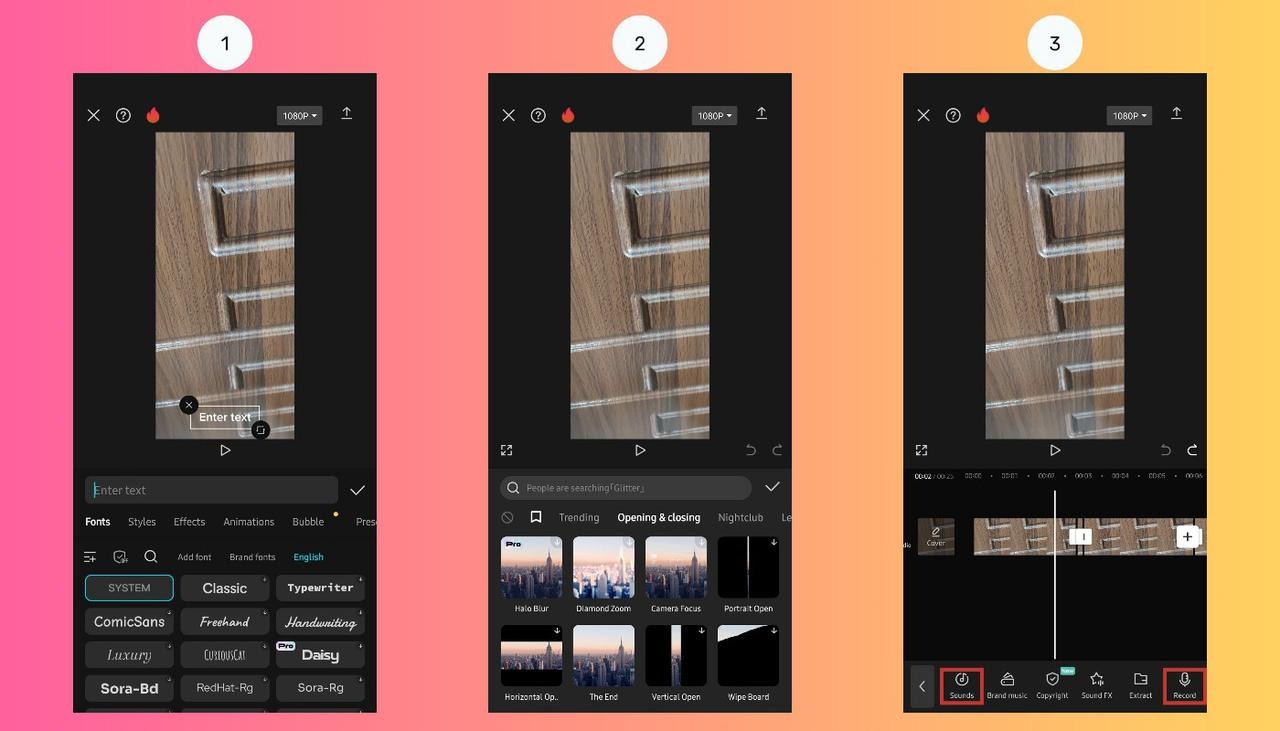
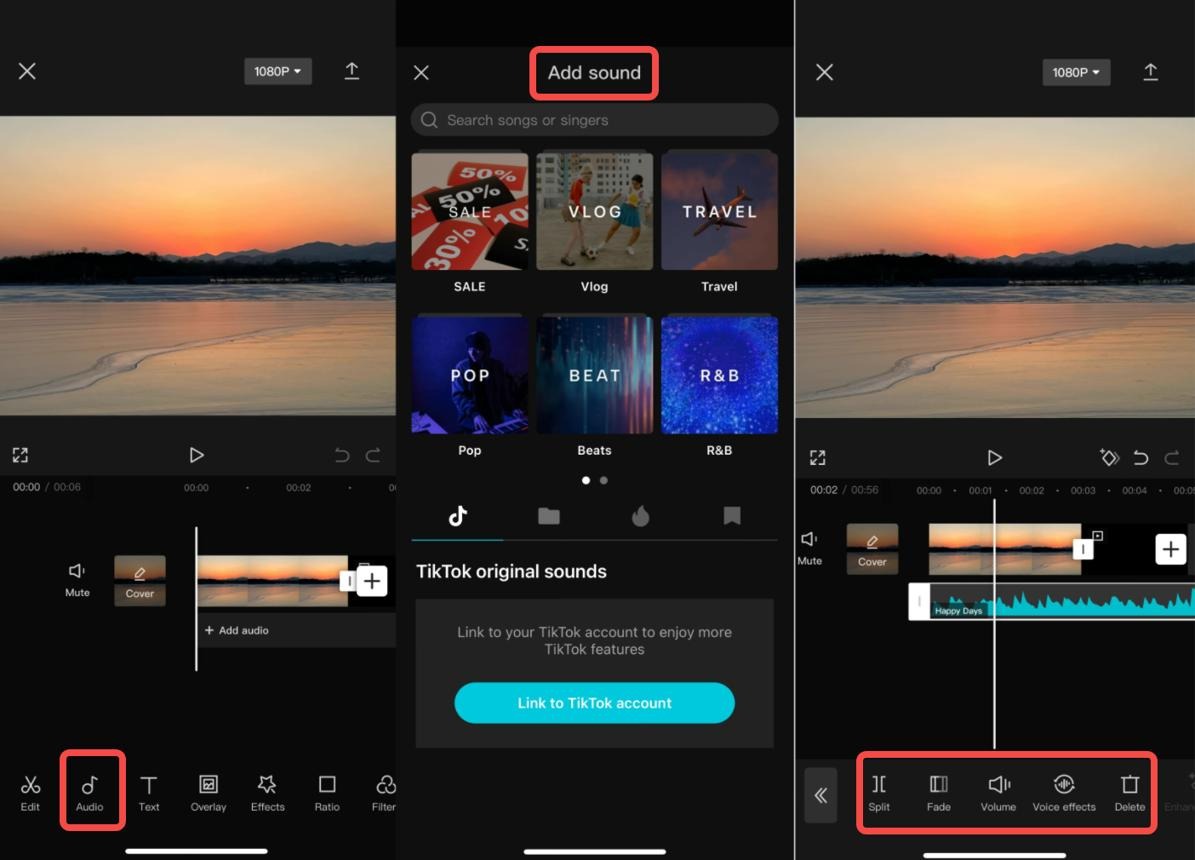
In CapCut, select the Audio option and then find the appropriate music. You can use the audio already available in the application or add music files that you have permission to use.
-
For Mom: Choose a warm, gentle melody that evokes family memories.
-
Gift for your wife: Prioritize sentimental, romantic music that suits your journey together.
-
For your grandmother: Choose melodies that are soothing, create a sense of peace, and evoke feelings of closeness.
-
For a gift for your sister: You can use cheerful, upbeat music to express your close relationship.
After adding music, adjust the volume to a comfortable level. If the video includes a voiceover for a greeting, you should reduce the background music to make the voice clearer. You can also use a gradual volume increase effect at the beginning of the video and a gradual decrease at the end to create a natural audio transition.
Create smooth transition effects.
To prevent the video from feeling disjointed, you can add transition effects between the images. In CapCut, click on the point where the content segments meet, then select the transition style and adjust the duration as desired.
Some effects suitable for a video celebrating October 20th include:
-
Fade: A smooth transition, suitable for a thank-you video.
-
Dissolve: Creates the feeling that the two images blend together, suitable for commemorative albums.
-
Zoom: Highlights a particular image.
-
Slide: Gives a youthful and energetic feel.
Avoid using too many transition effects in a single video. Prioritize consistency so viewers can focus on the visuals and message. Important moments can be highlighted with a striking effect, while the rest of the video can be simply transitioned.
Insert a 20/10 greeting in text format.
Select Text, add content, and then adjust the font, size, color, and display position. You can choose white text on a dark background, brown text on a cream background, or a light pink tone to match the overall style.
Here are some greetings that you can include directly in the video:
-
To Mom: “Mom, you are the most precious gift in my life. Wishing you a happy, healthy, and peaceful Women's Day on October 20th. I love you so much!”
-
To my wife: "Thank you for always being by my side, for building our little home together. Happy Women's Day, may you always be radiant and loved every day."
-
To Grandma: "I wish you good health, happiness, and that you will always be the warm pillar of support for our whole family."
-
To my sister: "Wishing you a beautiful, confident, lucky, and fulfilling Women's Day on October 20th, and may you do everything you love."
-
To my teacher: "On October 20th, I wish you good health, happiness, and continued joy in your journey of sowing the seeds of knowledge."
To prevent text from obscuring the subject, place the content in the empty space of the image and avoid using too many different font styles. Each paragraph should only contain a short, easy-to-read message. In particular, check for spelling errors and the display time to ensure the greeting doesn't disappear too quickly.

5. How to quickly create a 20/10 video using the CapCut template

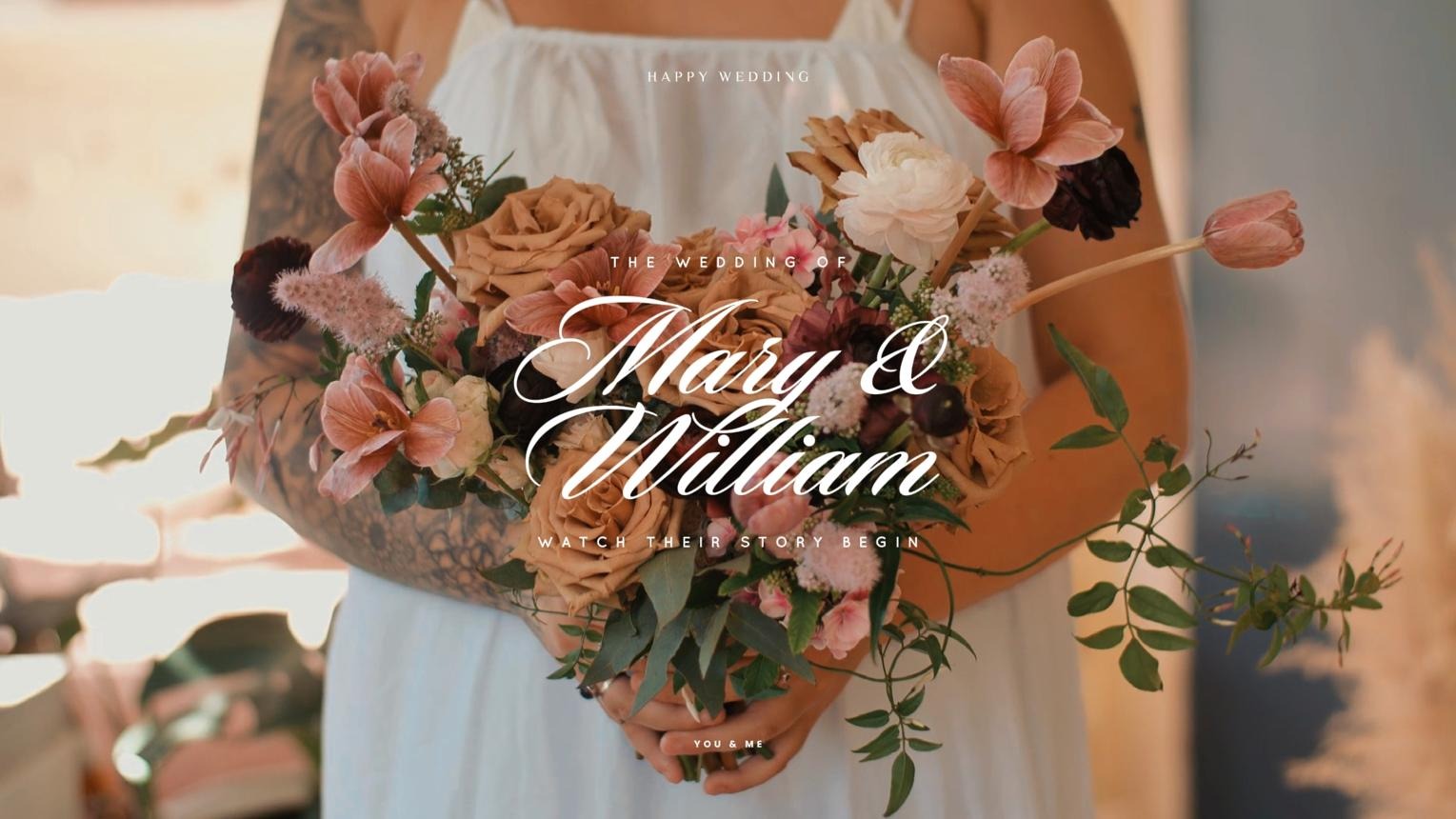
If you want to create beautiful videos without having to edit every detail yourself, you can take advantage of the ready-made templates on CapCut. These templates are usually designed with suitable layouts, transitions, effects, and sound. You just need to choose your favorite template, replace the images with your own, and edit the content if supported.
Steps to use the CapCut template
-
Step 1: Open the CapCut app and find the Templates section if this feature is available on the version you are using.
-
Step 2: Find templates using keywords such as “20/10”, “Family Memories”, “Mother”, “Love” or “Photo Slideshow”.
-
Step 3: Preview the sample video to check the number of photos to use, transition style, and background music.
-
Step 4: Choose a template and add images that are appropriate for the recipient, following the instructions displayed on the app.
-
Step 5: Review the video, add your own greeting if possible, and export the finished product to your device.
Suggested template styles based on target audience
-
Video gift for Mom: Choose a design featuring flowers, commemorative photo frames, and warm colors. You can start with childhood photos and end with a picture of you and your mother now.
-
Video gift for your wife: Use romantic themes, smooth transition effects, and footage capturing your journey together.
-
Video gift for Grandma: Prioritize a classic photo album style, soft colors, and minimal motion effects.
-
Video gift for my sister: Choose a cheerful template with a faster rhythm, incorporating funny everyday photos.
A helpful tip is to avoid sticking to the template's details if they don't fit your story. Try personalizing the video with a personal message, meaningful photos, or a short audio recording. These details will make the gift even more special.
6. Secrets to editing beautiful, emotional, and uncluttered videos for October 20th.
A beautiful video doesn't necessarily need a lot of complex effects. The important thing is that the visuals, music, and message work together harmoniously to create a natural story. When editing in CapCut, you should focus on the recipient's emotions, select only the truly necessary details, and avoid turning the video into a disjointed collection of effects.
-
Maintain color consistency: Choose a dominant color tone such as pastel pink, cream, white, or warm brown to create a sense of harmony.
-
Avoid overusing effects: Only use prominent effects in sections where emphasis is needed.
-
Adjust the duration appropriately: Allow each photo to appear for a sufficient amount of time, especially when there is a greeting or content that needs to be read.
-
Choose music that evokes the right emotions: The melody should suit the recipient and the content of the story.
-
Prioritize authentic images: Natural smiles, hugs, or everyday moments often evoke stronger emotions than overly elaborate photographs.
-
Check the entire video: Watch it from beginning to end to detect any text errors, cropped images, excessively loud audio, or clunky transitions.
-
Privacy Notice: If the video contains images of multiple people, please consider this before posting it publicly on social media.

7. How to export and send the October 20th video after completion.
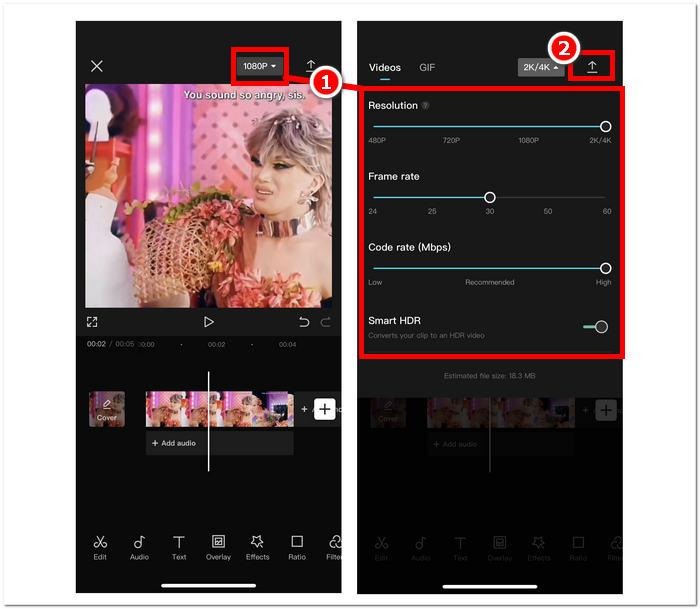
Once you've finished editing, play back the entire video before exporting. This step helps you check if the images are displayed correctly, if the greeting has enough time to be read, and if the music matches the content. After everything is satisfactory, select the Export button on CapCut and adjust the parameters to suit your needs. You can refer to some of the following settings:
-
Resolution: Choose 1080p if your device supports it and you want high-definition video.
-
Frame rate: 30 fps is typically suitable for photo collage videos and general footage.
-
Aspect ratio: Choose 9:16 when posting on TikTok or Reels; choose 16:9 if the video is intended for display on a landscape screen.
-
Format: MP4 is preferred if a suitable option is available.
-
Check the file after exporting: Open the saved video to make sure the images, sound, and greetings are all working correctly.
8. Conclusion
Editing your own video to give to loved ones on October 20th using CapCut is a simple way to transform familiar photos into a meaningful gift. With just a few steps of combining photos, adding music, inserting greetings, and choosing suitable effects, you can create a video with your own unique touch without needing professional video editing experience. Remember, the value of the gift doesn't lie in elaborate effects or perfect images, but in the feelings conveyed in each moment. A sincere video, created from real memories and heartfelt wishes, can become a gift that makes the recipient smile every time they watch it. On October 20th, take some time to be creative on CapCut to send a truly special thank you to the women you love!
















VIP Products






Best Selling Products
Adobe Photoshop Copyright - Full App
120 USD
MidJourney Account
29 USD
ChatGPT Plus Account (GPT-4)
16 USD
Windows 10 & 11 Pro Key
36 USD
Freepik Premium Account
59 USD
Capcut Pro 1 Year
39 USD
Upgrade Genuine Office 365
49 USD
Genuine Cheap Canva Pro
39 USD
Upgrade genuine Capture One account
120 USD
Copyright Adobe Lightroom Account
59 USD
Genuine Adobe Illustrator account
99 USD
Adobe Premiere Pro Account
99 USD
Plugin Retouch4me
69 USD
Autodesk All App Account Copyright
120 USD
Upgrade Duolingo Super
29 USD