
Best Selling Products

ChatGPT Plus Account (GPT-4)
16 USD
Upgrade Genuine Office 365
49 USD

MidJourney Account
29 USD
Plugin Retouch4me
69 USD

Upgrade Duolingo Super
29 USD

Freepik Premium Account
59 USD
Genuine Adobe Illustrator account
99 USD
Copyright Adobe Lightroom Account
59 USD
Adobe Photoshop Copyright - Full App
120 USD

Adobe Premiere Pro Account
99 USD
Autodesk All App Account Copyright
120 USD
Genuine Cheap Canva Pro
39 USD

Capcut Pro 1 Year
39 USD
Upgrade genuine Capture One account
120 USD
Windows 10 & 11 Pro Key
36 USD
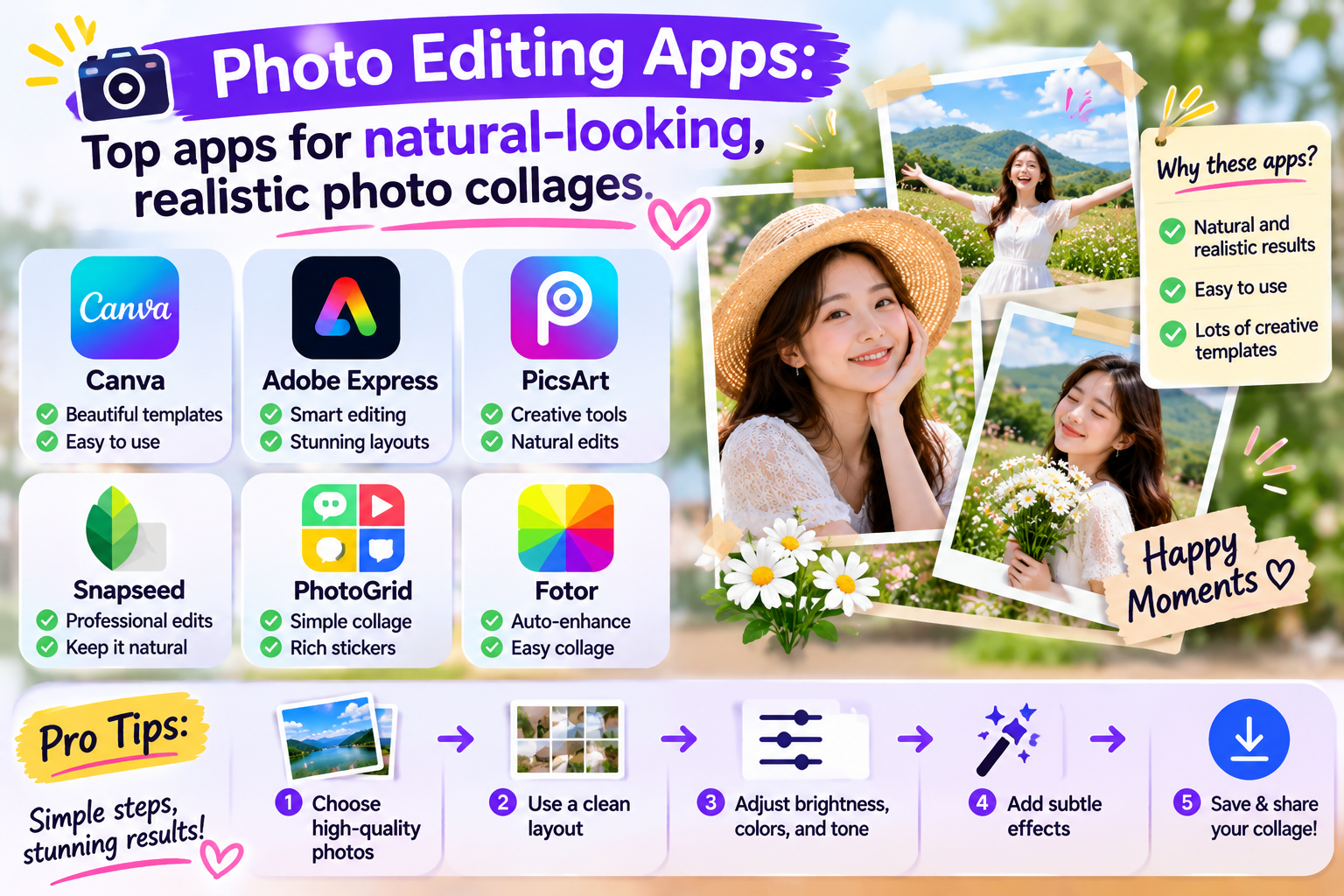
Photo editing apps: Top apps for natural-looking, realistic photo collages.
Nội dung
- 1. What is an app for adding people to photos?
- 2. Top apps for adding people to photos beautifully and easily.
- 2.1. Picsart
- 2.2. Canva
- 2.3. Adobe Photoshop Express
- 2.4. PhotoRoom
- 2.5. CapCut
- 2.6. Adobe Photoshop
- 3. How to easily add people to photos using your phone.
- Step 1: Prepare the person's photo and the background image.
- Step 2: Separate the person from the background.
- Step 3: Add people to the background image.
- Step 4: Adjust the color and lighting.
- Step 5: Check and save the image
- 4. Tips for naturally adding people to photos without revealing any signs of editing.
- 5. Which app should I choose to superimpose people onto photos?
- 6. Conclusion
Want a group photo with your idol, combine your friends into one frame, or create a romantic couple photo even if you''ve never taken a picture together before? With the help of today''s photo editing apps, you can completely turn those ideas into vibrant images with just a few taps on your phone. Instead of spending a lot of time manually cutting and pasting, you can use photo merging apps to separate subjects, remove backgrounds, adjust sizes, and combine multiple photos into a harmonious whole. So, which apps are worth trying and how do you use them to make the merged photos look the most natural? Let''s explore with Sadesign below!
1. What is an app for adding people to photos?
Photo merging apps allow you to transfer a person from one photo to another, combine multiple people in the same frame, or create new layouts as you wish. Depending on the app, you can manually crop the subject, remove the background, or use artificial intelligence (AI) to automatically recognize people and blend images. The interesting thing is that you don't need professional design skills to create impressive photos. Just prepare a clear photo, choose a suitable background, and adjust a few details, and you can create an image with your own unique touch.
Some common features found in photo overlay apps include:
-
Automatic background removal: Detects people in photos and removes unnecessary parts of the background.
-
Multi-person collage: Combine images of friends, family, or multiple people into a single frame.
-
Adjust size and position: This helps the character fit the perspective and composition of the image.
-
Image enhancement: Adjusting brightness, color, contrast, and sharpness.
-
AI support: Create new backgrounds, expand the frame, or assist in blending the subject with the background.
2. Top apps for adding people to photos beautifully and easily.
Currently, there are many apps available on phones and computers that support adding people to photos. Each app has its own strengths, from quick background removal to advanced editing tools or AI-powered image creation. Below are some popular options you can consider depending on your needs.
2.1. Picsart
Picsart is a photo editing app suitable for those who enjoy creating content, making artistic photos, or combining multiple characters into one frame. The app provides tools for cropping, removing backgrounds, adding image layers, inserting stickers, and adjusting colors, allowing you to flexibly build layouts according to your ideas.
Picsart's highlight is its ability to combine multiple editing tools within a single interface. You can superimpose yourself onto travel photos, create group photos, or design unique avatars without switching between too many different apps.
Some notable features:
-
Separate the person from the background for use in a new layout.
-
Add more images, text, stickers, and decorative effects.
-
Adjust the colors so that the subject blends in with the background.
-
AI tools are supported depending on the version and subscription package.
Picsart is suitable for those who want a wide range of creative options. However, some advanced tools may require payment, and the background removal results depend on the quality of the original image.
2.2. Canva
Canva is a worthwhile option if you want to add people to photos for posters, cover photos, greeting cards, or social media content. Its intuitive drag-and-drop interface makes it easy for beginners to get started, and it offers many ready-made templates to save you time.
You can upload a portrait photo, separate the subject using the appropriate tool if your account supports it, and then place the person in a new background. Canva also allows you to add text, photo frames, textures, and graphic elements to complete the design.
The outstanding advantages of Canva include:
-
The interface is simple and easy to use on both phones and computers.
-
Many image templates are available for posts, posters, and promotional photos.
-
Images are easy to combine with text and decorative elements.
-
There are several AI-assisted image editing features available depending on your account plan.
Canva is suitable for students, content creators, and online shop owners. You should check the access permissions for each feature, as some background removal or advanced editing tools are only available in certain plans.
2.3. Adobe Photoshop Express
Adobe Photoshop Express is an image editing application for those who want more control over color, lighting, and image quality. Besides basic editing operations, the application also supports image processing tools to help you improve images before combining them into a new layout.
To create beautiful photo collages, you can use the right tools to prepare the subjects, then combine them with an application capable of working with layers if needed. This method is especially useful when you want to control the brightness, skin tone, and color saturation between the subjects and the background image.
Key points to note:
-
Adjust brightness, contrast, and color.
-
Improve the overall appearance of the image before merging.
-
Provides filters and effects to support creative work.
-
Suitable for finalizing photos after the background has been removed using other tools.
Note that Photoshop Express does not have the same layering capabilities as Adobe Photoshop on a desktop computer. If you want detailed control over placement, masks, and shadows, you should choose a tool that supports these features.
2.4. PhotoRoom
PhotoRoom is known for its ability to conveniently separate the subject from the background and create a new setting. The app is especially useful when you need to superimpose people onto product photos, advertising images, or pre-designed backgrounds.
After uploading the image, you can use the automatic subject detection tool, choose a different background, and adjust the composition. Depending on the available features, you can also add shadows or fine-tune the image to make the subject blend more harmoniously with its surroundings.
Some advantages of PhotoRoom:
-
Supports rapid background separation.
-
There are various background and layout templates to suit creative needs.
-
Suitable for sales photos and promotional content.
-
It helps save time when you need to process many similar images.
If your main goal is to create product photos or superimpose people into advertising scenes, PhotoRoom is an app worth trying. However, you should still check the hair edges, clothing, and small details after removing the background to avoid the subject looking completely cut out of the image.
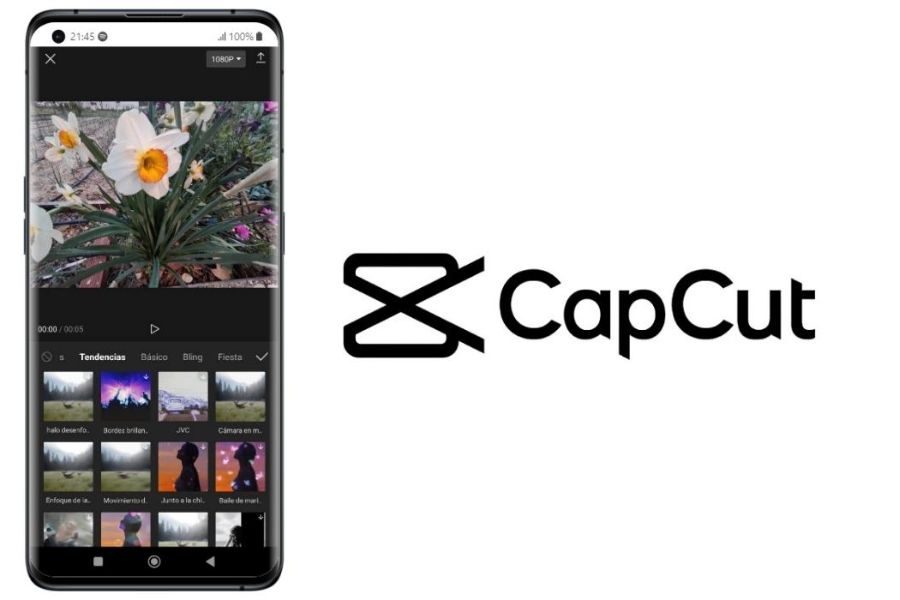
2.5. CapCut
CapCut is commonly known as a video editing app, but it also offers photo editing tools and AI features depending on the version. It's a suitable choice if you want to superimpose people onto photos and then use those images in TikTok videos, Reels, or other short content.
You can prepare portrait photos, remove the background using compatible tools, combine them with a new background, and then import the finished product into your video project. This makes it easy to create cover images, illustrations, or content that have a consistent style with your video.
Key points to consider:
-
Support the creative process for creating photo and video content.
-
It features visual effects, filters, and editing tools.
-
It's convenient when you want to add photo collages to short videos.
-
Some AI features may vary by device, region, and version.
CapCut is suitable for people who frequently post content on social media. However, if you need to merge multiple people with high accuracy, you should check if your version supports background removal and the desired layout.
2.6. Adobe Photoshop
Adobe Photoshop on a computer is a powerful choice for those who need high-precision photo manipulation. The software provides tools for selecting subjects, creating layer masks, adjusting colors, and processing shadows, giving you control over every detail in the process of adding people to photos.
Instead of simply placing a person against a new background, you can fine-tune the hair's outline, transparency, lighting direction, and contrast to create the illusion that the subject is actually present within the scene. This is advantageous when creating creative portraits, advertisements, or designs requiring high quality.
Key features:
-
Select and separate the subject from the background using various tools.
-
Work with multiple image layers and masks for flexible editing.
-
Adjust color, brightness, sharpness, and shadows.
-
AI features are supported depending on the version and subscription plan.
Photoshop is suitable for those who need advanced editing or are willing to spend time learning how to use it. If you only need to do simple photo editing on your phone, easier-to-use apps might be a more time-saving option.
3. How to easily add people to photos using your phone.
You don't need to perform too many complicated steps to create a beautiful photo collage. With apps that have background removal and image insertion features, the basic process usually involves preparing the images, removing the old background, merging them into a new context, and fine-tuning the details.
Step 1: Prepare the person's photo and the background image.
First, choose an image with a clear, well-lit subject that isn't too obscured. If you want to superimpose people into travel photos, group photos, or outdoor scenes, you should choose a background with a similar shooting angle and lighting direction to a portrait photo.
Some things to keep in mind when preparing photos:
-
Prioritize photos with good resolution and no blurring.
-
Choose a photo of a person in a pose that suits the context.
-
Avoid photos with too much overlapping detail around hair and clothing.
-
Check the aspect ratio to minimize the need for excessive cropping.
Step 2: Separate the person from the background.
Open your chosen app and upload a portrait photo. Look for features like background removal, subject separation, or automatic person selection if the app supports them. After processing, zoom in on the image to check the hairline, shoulders, hands, and other fine details.
If the recognition tool isn't accurate, you can manually edit by adding or removing selections. Don't skip this step, as any missing edges or remnants of the old background can make the photo look unnatural.
Step 3: Add people to the background image.
After removing the background, insert the subject into the new image using the insert image tool or image layer. Adjust the size and position to fit the surrounding objects. For example, if you're adding a person standing on the street, the body size needs to be proportionate to the doorway, vehicles, and other people in the frame.
You should observe the overall picture rather than focusing solely on the face. The position of the feet, the distance from objects, and the body proportions all contribute to a sense of realism.
Step 4: Adjust the color and lighting.
This step helps to make the composite image more harmonious. If the background image has yellow lighting but the portrait image has a cool blue tone, the subject might look like they're placed on top of it instead of actually standing in the background.
Try adjusting a few factors:
-
Adjust brightness and contrast to match the background image.
-
Adjust the color temperature to match the surrounding environment.
-
Sharpness is important to avoid the subject being too prominent against the background.
-
Shadows are used if the application supports them and the context requires them.
Step 5: Check and save the image
Before exporting the image, zoom in to check the edges of the hair, hands, clothing, and other areas prone to errors when separating the background. Then, zoom out the image to see if the overall composition is balanced.
Once you're satisfied, you can save the image at the appropriate quality and share it on social media. If using the image for printing or advertising purposes, check the resolution and permissions for any elements added to the design.
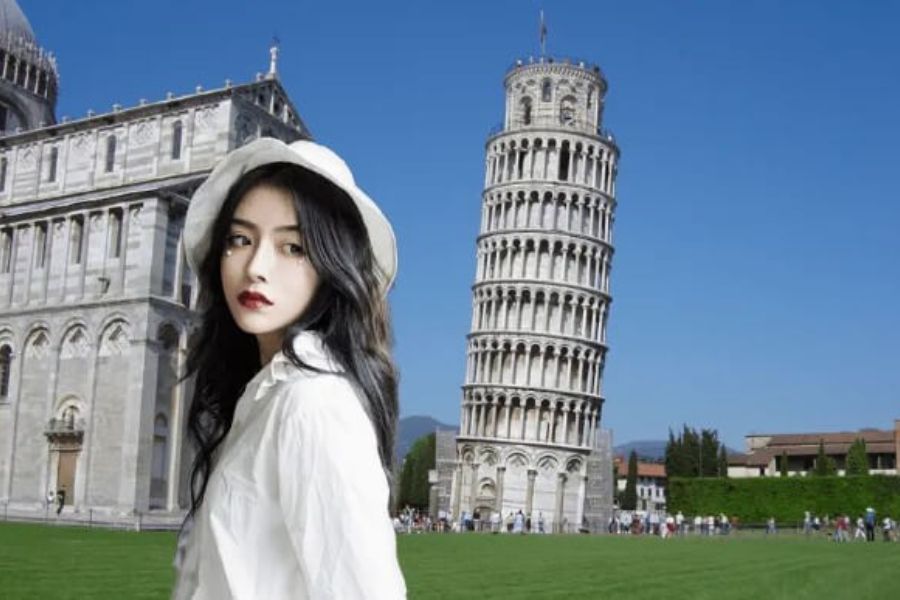
4. Tips for naturally adding people to photos without revealing any signs of editing.
A beautiful photo collage depends not only on the app but also on how you select the photos and process each detail. Even when using automated AI tools, you should still take the time to check to avoid common errors such as incorrect body proportions, uneven hair edges, or inconsistent lighting.
Here are some tips to make your images look more convincing:
-
Choose photos with similar angles: People photographed from a horizontal angle are easier to integrate into a background with a similar perspective.
-
Maintain proper body proportions: Avoid arbitrarily enlarging or shrinking the subject if it doesn't fit in with the surrounding objects.
-
Harmonize the light source: Observe the direction of light on your face, clothing, and background to adjust accordingly.
-
Carefully trim the edges: Hair, fingers, and small details need to be checked thoroughly to avoid the appearance of being cut off.
-
Adjust the colors moderately: Avoid overusing filters that make skin tones or clothing look too different from the original photo.
-
Create shadows when necessary: Appropriate shadows can help the subject in the photo blend in with the ground or surrounding surfaces.
-
Don't overuse AI effects: Check the face, hands, clothing, and other AI-generated details before sharing.
5. Which app should I choose to superimpose people onto photos?
Each application has its own advantages, so the best choice will depend on your goals. If you want to quickly combine photos for social media posting, you should prioritize a simple interface. If you need professional editing, layer-based tools will give you better control over your images.
You can refer to the following selection method:
-
Want to create artistic photos? Choose Picsart with its many photo editing tools and effects.
-
Want to create posters or cover images? Choose Canva to take advantage of its ready-made design templates.
-
Want to quickly remove the background? Try PhotoRoom with its convenient subject processing workflow.
-
If you want to combine photos and create a video: Consider CapCut if the necessary tools are available in your version.
-
For detailed editing: Select Adobe Photoshop to control image layers, masks, and colors.
-
To improve your photos before merging them: Consider using Adobe Photoshop Express in combination with a merging support application.
Before installing, you should check device compatibility, application size, free features, and terms of use. Some tools may limit the number of edits, require account registration, or charge for exporting high-quality images.
6. Conclusion
Photo collage apps help you transform creative ideas into unique images without needing to be proficient in professional design software. Depending on your needs, you can choose Picsart for artistic photo creation, Canva for poster design, PhotoRoom for quick background removal, or Adobe Photoshop for advanced editing. Start with a clear photo, choose the appropriate app, and take the time to fine-tune the lighting, color, and proportions of the subjects. By paying attention to small details, you can create a harmonious, beautiful collage that reflects your personal style.











VIP Products



Best Selling Products
ChatGPT Plus Account (GPT-4)
16 USD
Upgrade Genuine Office 365
49 USD
MidJourney Account
29 USD
Plugin Retouch4me
69 USD
Upgrade Duolingo Super
29 USD
Freepik Premium Account
59 USD
Genuine Adobe Illustrator account
99 USD
Copyright Adobe Lightroom Account
59 USD
Adobe Photoshop Copyright - Full App
120 USD
Adobe Premiere Pro Account
99 USD
Autodesk All App Account Copyright
120 USD
Genuine Cheap Canva Pro
39 USD
Capcut Pro 1 Year
39 USD
Upgrade genuine Capture One account
120 USD
Windows 10 & 11 Pro Key
36 USD