Best Selling Products

MidJourney Account
29 USD

Freepik Premium Account
59 USD
Genuine Cheap Canva Pro
39 USD
Capcut Pro 1 Year
39 USD
Autodesk All App Account Copyright
120 USD

Upgrade Duolingo Super
29 USD
Copyright Adobe Lightroom Account
59 USD
Plugin Retouch4me
69 USD

ChatGPT Plus Account (GPT-4)
16 USD
Upgrade Genuine Office 365
49 USD
Upgrade genuine Capture One account
120 USD
Adobe Photoshop Copyright - Full App
120 USD
Genuine Adobe Illustrator account
99 USD
Windows 10 & 11 Pro Key
36 USD
Adobe Premiere Pro Account
99 USD
How to quickly and beautifully create video clips from photos using Gemini AI for beginners.
Nội dung
- 1. How can Gemini AI create video clips from photos?
- 2. What do I need to prepare before creating a video clip from photos using Gemini AI?
- 3. Instructions on how to create a video clip from photos using Gemini AI
- Step 1: Access Gemini AI
- Step 2: Upload the image you want to convert into a video clip.
- Step 3: Write a prompt describing the movement.
- Step 4: Create the video and wait for the AI to process it.
- Step 5: Review and adjust the results.
- 4. A compilation of prompts for creating beautiful and engaging video clips from photos using Gemini AI.
- Prompt creates natural-looking portrait videos.
- Prompt creates product advertising videos.
- Prompt creates cinematic landscape videos.
- Prompt creates fashion videos.
- Prompt creates a commemorative photo video.
- 5. Conclusion
Do you have beautiful photos and want to turn them into lively videos but don''t know which tool to use? Instead of spending hours editing on video editing software, you can leverage Gemini AI to explore the creative possibilities of turning images into videos. With the support of artificial intelligence, a static photo can become a moving clip, creating a more natural and engaging feel when posted to TikTok, Facebook Reels, or YouTube Shorts. In this article, let''s explore with Sadesign how to create clips from photos using Gemini AI step-by-step, from preparing images and writing prompts to editing and finalizing the video. Whether you want to create product videos, moving portraits, or short storytelling clips, the instructions below will help you get started more easily.

1. How can Gemini AI create video clips from photos?
Gemini AI is Google's artificial intelligence assistant, supporting users with various tasks such as information searching, content writing, image analysis, and AI-powered creativity. Depending on the features, account, and interface provided, users can access AI video creation tools to transform existing images into short clips. Instead of manually animating each detail using professional software, you simply provide input images and a description of the desired outcome. The AI model will then use the images and commands to create animations that match the content.
Some common applications of this feature include:
-
Create portrait videos: Make the subject in the photo have subtle movements such as turning their head, smiling, or moving their hair.
-
Creating product introduction videos: Add camera zoom effects, change camera angles, or highlight the product.
-
Transform landscape photos into video clips: Create the illusion of drifting clouds, moving water, or leaves gently swaying in the wind.
-
Creating social media content: Create short videos from existing photos for TikTok, Reels, or Shorts.
-
Visual storytelling: Combining multiple animated images into a short story with a unique style.
It's worth noting that you don't necessarily need video editing experience to get started. However, the results will depend on the video creation tool being used, the quality of the input images, and the clarity of the prompt.
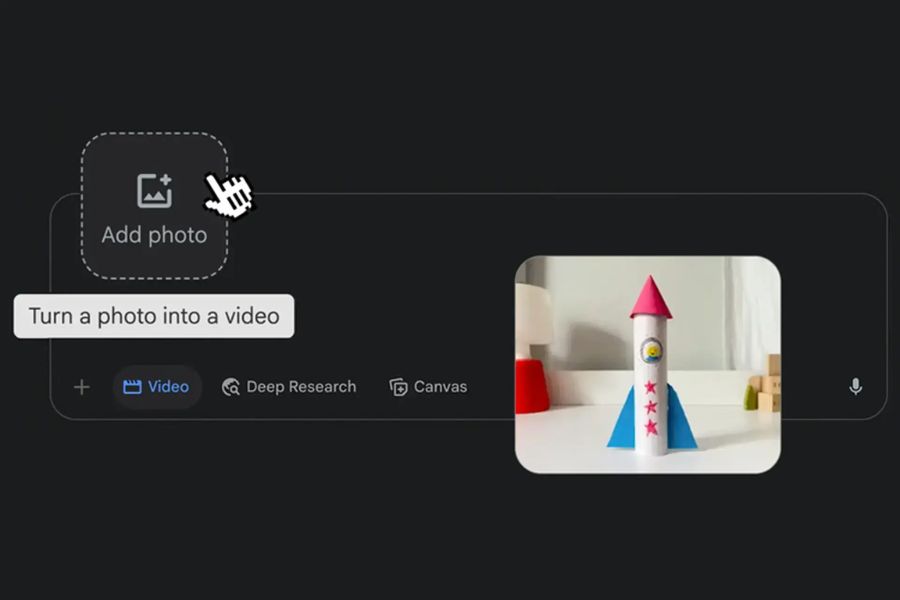
2. What do I need to prepare before creating a video clip from photos using Gemini AI?
To create a high-quality video, you should prepare your images and ideas beforehand. A clear image with an easily recognizable subject and a detailed description will help the AI understand the content more accurately. You should also determine the purpose of the video in advance to choose the appropriate aspect ratio and animation style.
-
Google Account: Log in with your account to access Gemini and check out the features it offers.
-
High-quality images: Prioritize high-resolution photos with clear subjects, stable lighting, and minimal obscured details.
-
Video concept: Determine how the character or product will move, whether the setting will change, and the overall emotion of the clip.
-
Specific prompt: Prepare statements describing the subject, movement, camera angle, lighting, and image style.
-
Internet-connected devices: You can use a compatible computer or phone to access the service.
Additionally, check image usage rights before uploading. If the image includes other people, you should ask for permission when necessary, especially if you plan to post the video publicly or use it for commercial purposes.
3. Instructions on how to create a video clip from photos using Gemini AI
This is the most important part if you want to start turning still photos into moving videos. Depending on the time, Google may offer the ability to create videos directly within Gemini or through a related AI video creation tool. Therefore, the button name and feature location may vary between accounts.
Step 1: Access Gemini AI
First, open your browser on your computer or phone, go to Gemini at gemini.google.com, and log in with your Google account. After logging in, observe the interface to check the available content creation tools. If your account supports video creation, you can use the corresponding feature directly on the interface or follow the instructions to switch to the provided video creation tool.
If you don't see the video creation feature, don't immediately assume your account is experiencing an error. The feature may depend on your service plan, region, age restrictions, usage limits, or Google's rollout.
Step 2: Upload the image you want to convert into a video clip.
Next, choose the option to attach or upload an image if the interface supports it. Select an image that aligns with your prepared concept. To make it easier for AI to create motion, prioritize images with a clear subject, balanced composition, and not too many complex details. For example, when creating a video showcasing handbags, a product image placed in the center will be more convenient than an image with many overlapping objects.
After uploading the image, check if the system has recognized it correctly. If the image is blurry, underexposed, or has important details outside the frame, you should replace it or edit it before continuing.
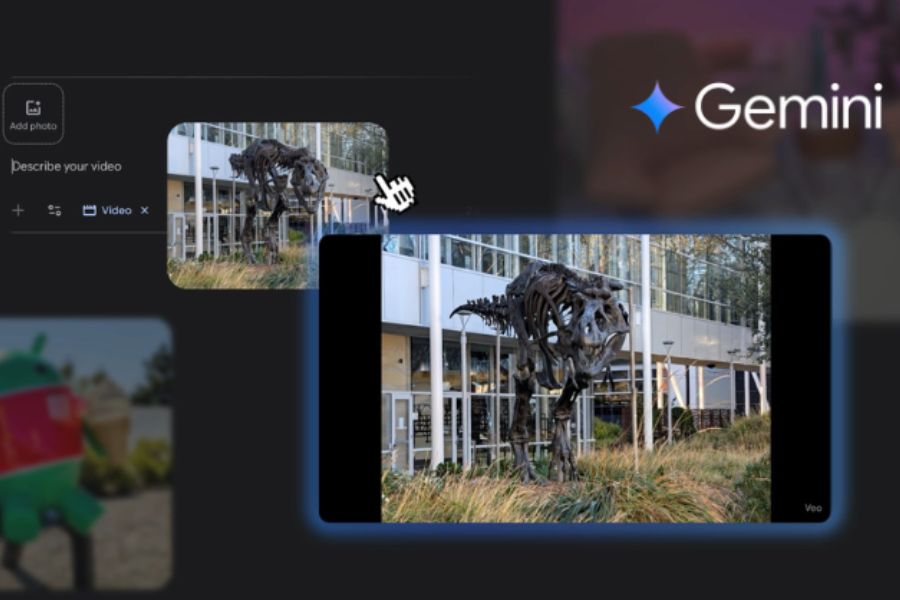
Step 3: Write a prompt describing the movement.
The prompt is the command that helps the AI understand how you want the video to look. It's also a crucial factor in determining whether the clip aligns with your original vision. Instead of simply typing a short command like "create video from this image," you should specifically describe the subject, actions, camera movements, and atmosphere of the scene.
You can refer to the following prompt structure:
-
Subject: The person, product, or landscape that appears in the photograph.
-
Movement: What action is the subject performing, and is the movement fast or slow?
-
Camera angle: The camera remains stationary, moves closer, moves further back, or shifts slightly to the side.
-
Lighting and style: Natural light, cinematic, minimalist, or professional advertising.
-
Requirements to maintain originality: Minimize changes to the face, color, shape, and other important details of the original image.
For example, if you want to create a clip from a portrait photo, you could enter: “Transform this portrait photo into a natural short video. The subject smiles slightly, blinks, and subtly turns their head. Hair moves gently in the wind, daylight is soft, and the camera slowly moves closer. Preserve the facial features, clothing, and background of the original photo; the movement is realistic and does not distort the image.” The clearer the command, the easier it is to control the idea. However, AI may still create some details that don't perfectly match the description, so be sure to review the video after completion.
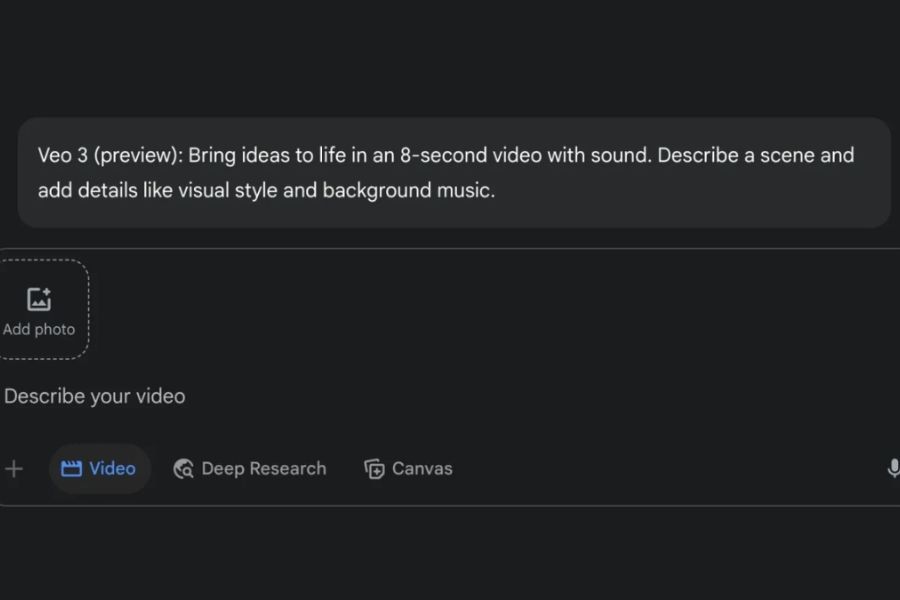
Step 4: Create the video and wait for the AI to process it.
After completing the prompt, submit the request and wait for the system to process it. Video creation time can vary depending on the tool, the complexity of the request, system status, and account limits. During this process, you don't need to describe too many actions at once. For short clips, one main movement combined with a few supplementary effects usually makes the video look more natural.
If the live photo-to-video creation system in Gemini isn't available, check the instructions or the option to switch to a Google-supported AI video creation tool, such as Veo, in eligible themes and plans. Not all accounts have the same features or access.
Step 5: Review and adjust the results.
Once the video is created, play it back from beginning to end to check the motion, composition, and resemblance to the original image. If the clip isn't to your liking, you can request adjustments or recreate it with a clearer prompt, depending on the tool's capabilities.
Some revision requests may apply:
-
Slow down the motion to make the clip look more natural.
-
Keep the camera steady, avoiding shaking or drastic changes in angle.
-
Minimize distortion of the product's face, hands, or shape.
-
Adjust the lighting so that the resulting image harmonizes with the original photo.
-
Simplify the action if the video contains many unusual details.
Don't forget to save the video to your device if there's a download option. Then, you can transfer the clip to other editing software to add music, subtitles, logos, or trim it as needed.
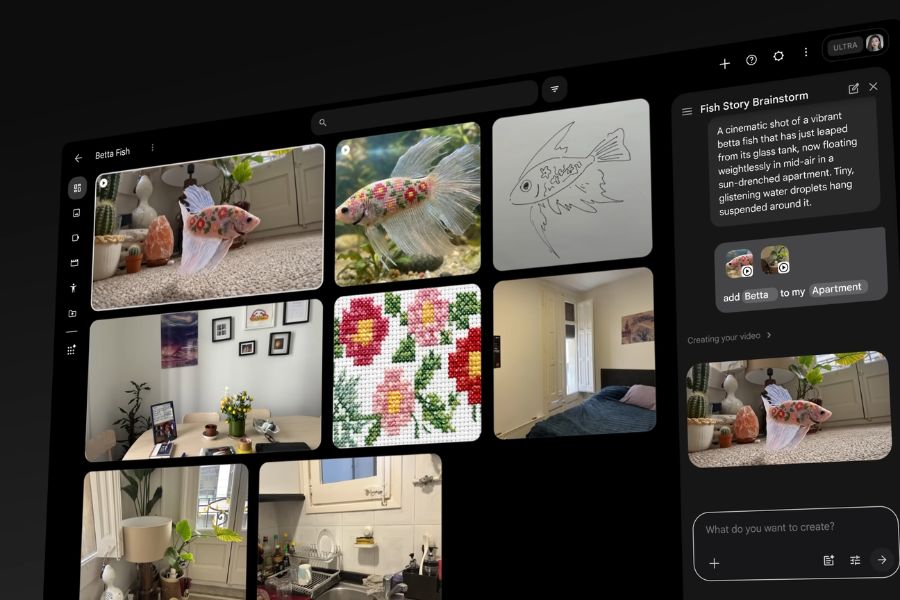
4. A compilation of prompts for creating beautiful and engaging video clips from photos using Gemini AI.
If you're unsure how to write the commands, you can start with the prompt templates below and then modify the details to suit your image. These commands are designed to be concise, easy to understand, and focus on a single main movement.
Prompt creates natural-looking portrait videos.
“Transform portrait photos into short videos with gentle movement. The subject blinks, smiles naturally, and subtly tilts their head. Soft lighting, hair gently swaying in the breeze, and the camera slowly zooming in. Maintain the original face, hairstyle, clothing, and background. Authentic style, smooth movement.”
This prompt is suitable for personal portraits, fashion photos, or any images you want to use as creative content on social media.
Prompt creates product advertising videos.
“Transform the product photo into a professional short advertising video. The camera slowly moves closer to the product, then subtly shifts to the side to highlight the material and lines. Soft studio lighting, natural shadows, a clean and elegant background. Preserve the product's shape, color, logo, and identifying details. No new objects are added; a modern advertising style.”
This is a suitable option when you want to create videos showcasing cosmetics, handbags, accessories, household goods, or products for online sales. However, if the images contain text or logos, check carefully as AI may distort details.
Prompt creates cinematic landscape videos.
“Transform landscape photos into short cinematic videos. Clouds drift slowly across the sky, leaves sway gently in the breeze, and sunlight changes subtly. The camera moves slowly forward, creating a natural sense of depth. The original topography and composition are preserved, colors are harmonious, movement is smooth, and no details are omitted from the scene.”
This template is suitable for photos of the sea, mountains, forests, fields, gardens, or cityscapes. You can adjust the movement to match the characteristics of each photo to make the video feel more realistic.
Prompt creates fashion videos.
“Transform fashion photos into professional style showcase videos. The model gently turns slightly, the clothing moving naturally with her body. The camera slowly pans from left to right, with soft lighting and a refined composition. Maintain the original facial features, clothing, colors, and accessories. The movement is elegant and doesn't distort the body.”
If you want to post a video showcasing outfits or accessories, you can adjust the prompt so the camera focuses on the bag, shoes, or another standout detail.
Prompt creates a commemorative photo video.
“Transform a memorable photo into a heartwarming short video. The subjects smile gently, move naturally, and maintain their relative positions within the frame. Soft lighting, nostalgic colors, and a slow, close-up camera movement. Preserve facial features and clothing, do not change the number of people, and do not add any new characters.”
For family or friends photos, use moderate movement to preserve the original feeling of the image. If you plan to share it publicly, consider the privacy and consent of those appearing in the photo.

5. Conclusion
Creating video clips from photos using Gemini AI becomes easier when you prepare suitable images, write clear prompts, and know how to adjust the motion for your purpose. With just a photo and a creative idea, you can start experimenting with lively short videos without manually creating each movement. Start with a simple photo, try sample prompts, and carefully check the finished product before sharing. Once you're familiar with describing the subject, camera angle, and image style, you'll easily develop many new video ideas, from commemorative photos to more professional product introduction clips.










VIP Products

Best Selling Products
MidJourney Account
29 USD
Freepik Premium Account
59 USD
Genuine Cheap Canva Pro
39 USD
Capcut Pro 1 Year
39 USD
Autodesk All App Account Copyright
120 USD
Upgrade Duolingo Super
29 USD
Copyright Adobe Lightroom Account
59 USD
Plugin Retouch4me
69 USD
ChatGPT Plus Account (GPT-4)
16 USD
Upgrade Genuine Office 365
49 USD
Upgrade genuine Capture One account
120 USD
Adobe Photoshop Copyright - Full App
120 USD
Genuine Adobe Illustrator account
99 USD
Windows 10 & 11 Pro Key
36 USD
Adobe Premiere Pro Account
99 USD