
Best Selling Products
Genuine Cheap Canva Pro
39 USD

MidJourney Account
29 USD

Freepik Premium Account
59 USD

ChatGPT Plus Account (GPT-4)
16 USD
Upgrade genuine Capture One account
120 USD

Upgrade Genuine Office 365
49 USD

Windows 10 & 11 Pro Key
36 USD

Capcut Pro 1 Year
39 USD

Adobe Premiere Pro Account
99 USD
Autodesk All App Account Copyright
120 USD
Upgrade Duolingo Super
29 USD

Copyright Adobe Lightroom Account
59 USD

Genuine Adobe Illustrator account
99 USD
Plugin Retouch4me
69 USD
Adobe Photoshop Copyright - Full App
120 USD
A guide to using ChatGPT Search on Chrome quickly and effectively.
Nội dung
- 1. What is ChatGPT Search?
- 2. How to use ChatGPT Search on Chrome
- Step 1: Open the Chrome Web Store
- Step 2: Confirm adding the extension
- Step 3: Open Chrome's settings.
- Step 4: Access the search engine management section.
- Step 5: Add ChatGPT as a custom search engine.
- Step 6: Search using ChatGPT directly in the address bar.
- 3. Tips for using ChatGPT Search more effectively
- 3.1. Ask specific questions with sufficient context.
- 3.2. Request ChatGPT to cite the source.
- 3.3. Utilize follow-up questions
- 3.4. Check for accuracy before use.
- 4. Things to note when using ChatGPT Search on Chrome
- 5. Benefits of ChatGPT Search for Learning and Work
- 6. Conclusion
In today''s information-driven world, quickly and accurately finding information saves you considerable time in studying and working. Instead of opening numerous websites to gather information, you can utilize ChatGPT Search directly on Google Chrome to find answers in a more intuitive and convenient way. This tool supports searching for information on the Internet, summarizing content, and providing reference links for users to proactively verify information. In the article below, Sadesign will guide you through setting up and using ChatGPT Search on Chrome from A to Z, and share useful tips to help you achieve better search results.
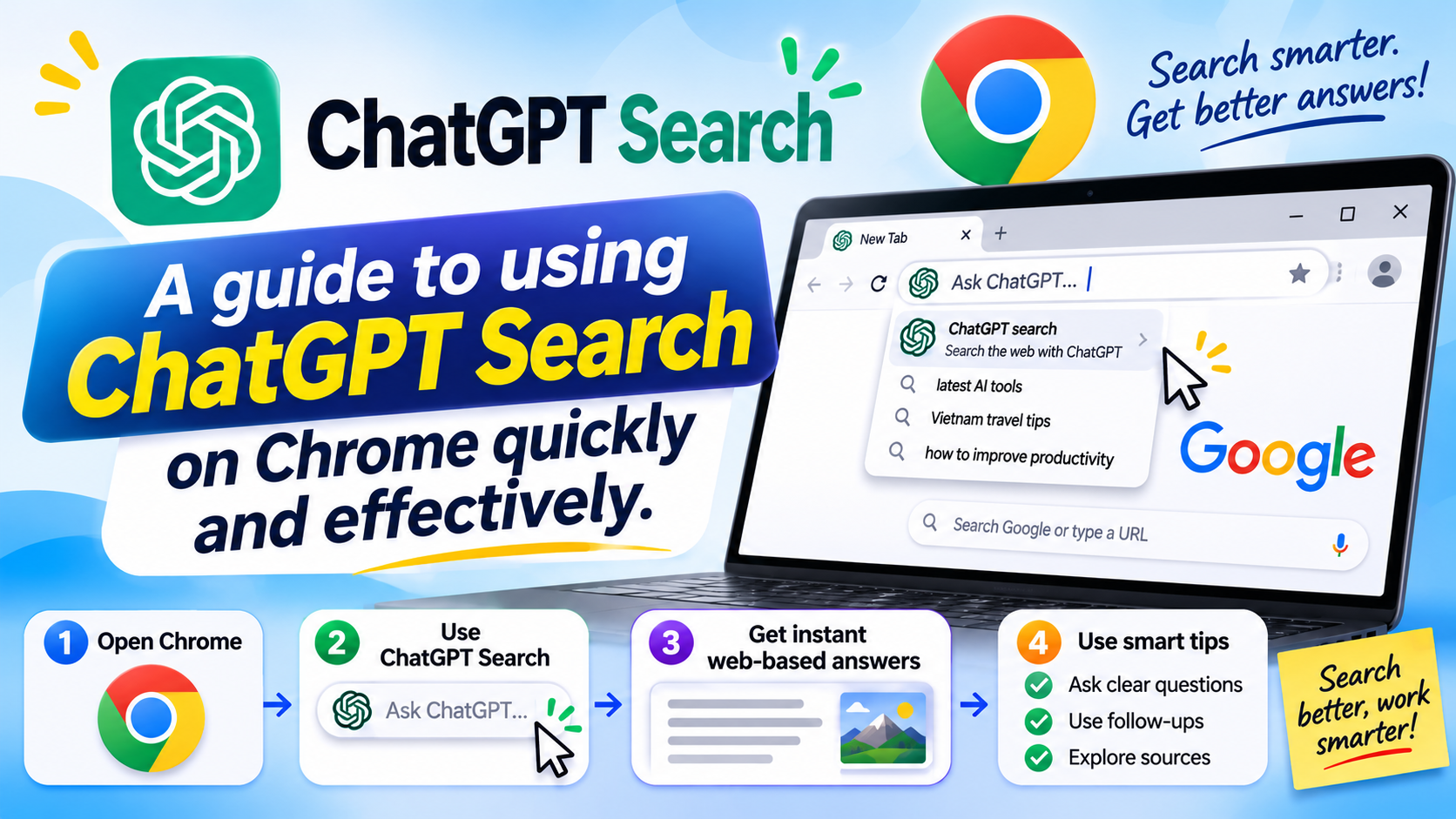
1. What is ChatGPT Search?
ChatGPT Search is a web search feature integrated into ChatGPT, allowing users to look up new information and receive answers in natural language. Instead of simply displaying a list of links like traditional search engines, ChatGPT can synthesize relevant information into easy-to-understand answers, along with links to reference sources. When combined with Google Chrome, users can set ChatGPT as a search option via the address bar, shortening the time spent switching between tools.
Some of the highlights of ChatGPT Search include:
-
Quick information retrieval: Helps you find knowledge, news, products, and many other topics on the Internet.
-
Summarize the content in an easy-to-understand way: Transform relevant information into a well-structured, easy-to-follow answer.
-
Direct source references: Provide links to relevant websites so users can read more and verify the information.
-
Natural language search: Allows you to ask questions in a conversational way instead of using separate keywords.
-
Supports a wide range of needs: Suitable for students, office workers, content creators, and anyone who frequently searches for information.
It's important to note that ChatGPT Search doesn't completely replace reading the source. For important information, especially pricing, policies, data, or content that may change over time, you should open the reference link to verify before using it.
2. How to use ChatGPT Search on Chrome
To search using ChatGPT directly in Chrome, you can add the ChatGPT Search extension from the Chrome Web Store or set ChatGPT as your custom search engine in the browser. With manual setup, you can use an abbreviated keyword in the address bar to quickly access ChatGPT without having to visit the website in the usual way each time you search.
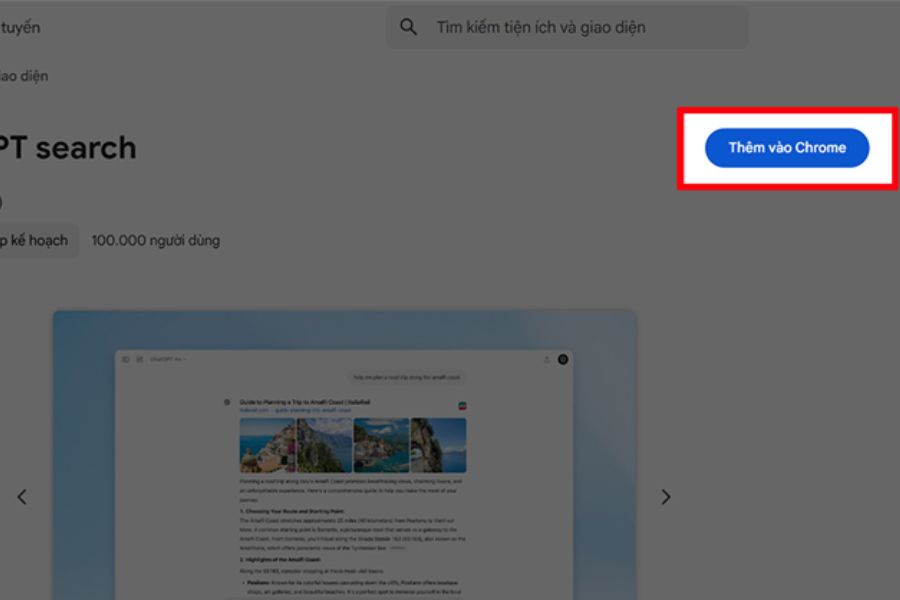
Step 1: Open the Chrome Web Store
First, open the Google Chrome browser on your computer and access the ChatGPT Search extension link:
https://chromewebstore.google.com/detail/chatgpt-search/ejcfepkfckglbgocfkanmcdngdijcgld
On the extensions page, check the name and publisher information before installing. Then, click Add to Chrome if the extension is still available and suits your needs.
Step 2: Confirm adding the extension
After clicking Add to Chrome, the browser may display a confirmation window. Select Add extension to continue. Chrome will proceed with the installation and notify you when it's complete.
If the extension requests access permissions, carefully read the displayed content before agreeing. You should only install extensions from trusted sources and grant only the permissions that are truly necessary for your intended use.
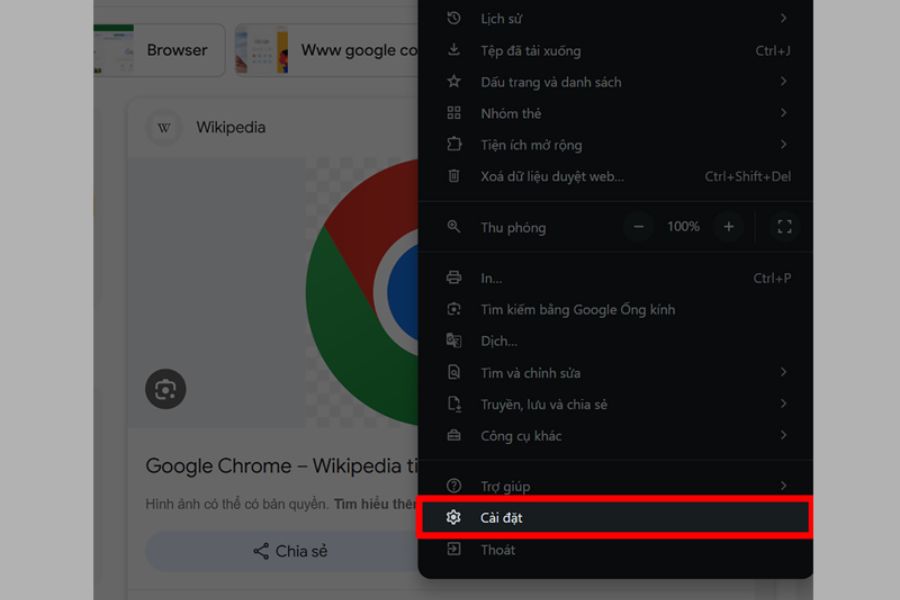
Step 3: Open Chrome's settings.
Next, click the three-dot icon in the upper right corner of the Chrome window and select Settings . This is the area where you can manage your browser options, including the default search engine and custom search engines.
If the Chrome interface on your computer has a different layout, look for the search engine-related section in the settings. The name may vary slightly depending on the browser version.
Step 4: Access the search engine management section.
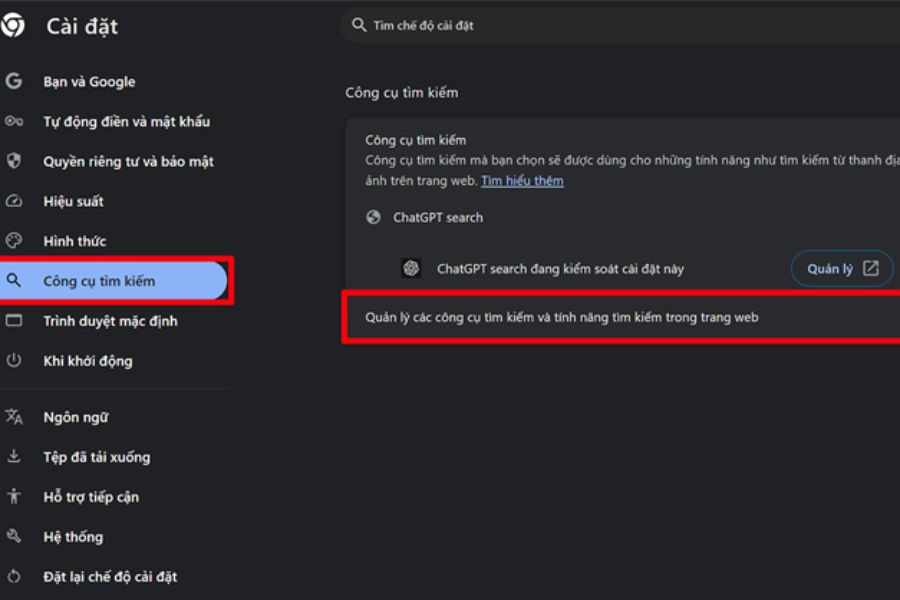
In the Settings interface, find the Search Engines section in the left-hand menu. Then, select Manage search engines and search features on websites , or a similar option.
Here, Chrome allows users to manage available search engines and add new options. If you want quick access to ChatGPT from the address bar, you can create a custom search entry instead of having to open the separate ChatGPT page every time you use it.
Step 5: Add ChatGPT as a custom search engine.
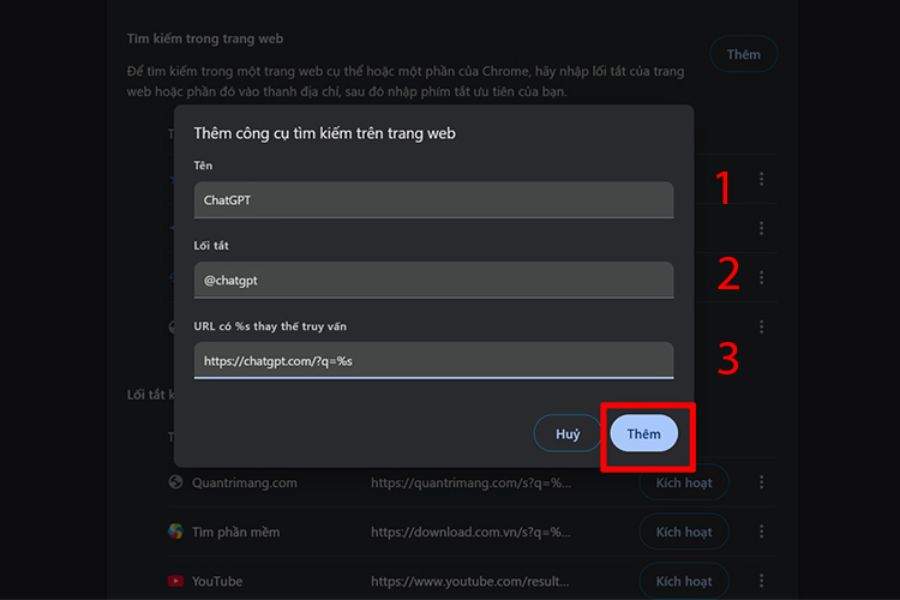
In the search engine management section, find the option to add a new search engine. Then, fill in the information as instructed below:
-
Search engine name: ChatGPT.
-
Shortcut: @chatgpt or a short keyword of your choice.
-
URLs with %s replacing the query: https://chatgpt.com/?q=%s
After entering all the information, click Add to save the settings.
In this case, %s is a placeholder that Chrome uses to insert the search query you enter into the address bar. When configured correctly, the browser will convert the query to ChatGPT instead of performing a search in the usual way.
Note that the interface and handling of search URLs may vary between Chrome versions. If the above configuration doesn't work as expected, double-check the shortcut, the entered URL, and the tool's query support.
Step 6: Search using ChatGPT directly in the address bar.
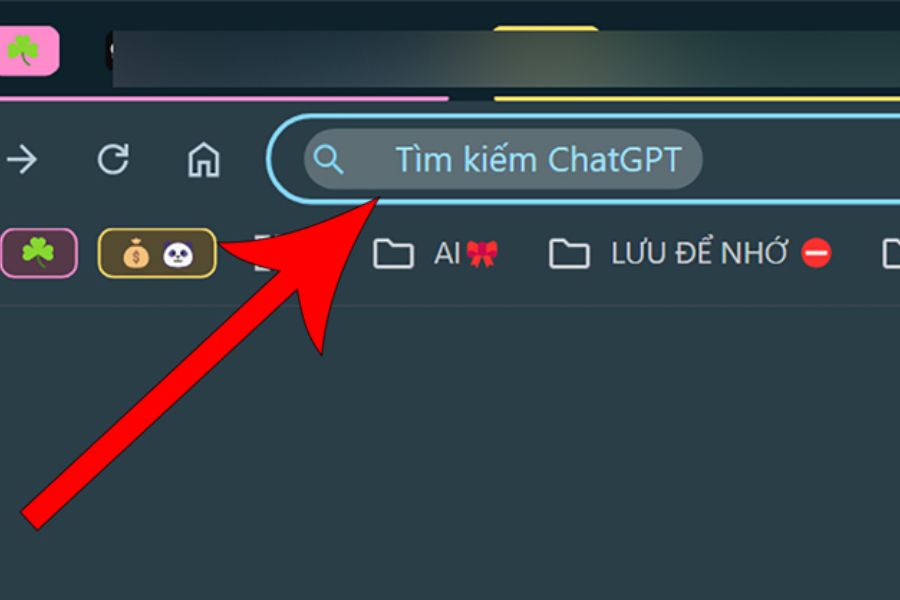
Once the setup is complete, you can start searching without opening multiple tabs. Click on the Chrome address bar, type @chatgpt , then press the spacebar or select the corresponding search option if the browser displays it.
When the address bar switches to ChatGPT search mode, type your question or topic and press Enter. Chrome will open ChatGPT with your query so you can continue viewing the answers.
For example, you could enter questions like:
-
"A summary of key points to note when using Google Drive."
-
"Comparing Canva and PowerPoint for creating presentations."
-
"Suggestions on how to create a study plan for one week."
-
"Explore the prominent AI trends in the design field."
Instead of just typing a few short keywords, you should clearly describe what you want to know. The more specific the question, the better the answer will be in line with your actual needs.
3. Tips for using ChatGPT Search more effectively
Once successfully set up, you can improve search quality by asking clear questions, defining your goals, and instructing ChatGPT to present results in a suitable format. These are simple but useful habits, especially if you frequently look up documents or process a lot of information at once.
3.1. Ask specific questions with sufficient context.
A general query often results in unfocused results. Therefore, instead of simply typing "AI in design," you could ask, "Analyze 5 common AI applications in graphic design, outlining the advantages and limitations of each." This type of question helps ChatGPT understand the scope of the search and present a more systematic answer.
You can add information such as:
-
Objective: Do you need to research, compare, synthesize, or provide guidance on implementation?
-
Target audience: Is this content for beginners, students, or working professionals?
-
Scope: Do you want to find information within a specific field, time period, or region?
-
Format: Do you want your answers in the form of a table, list, step-by-step guide, or summary?
3.2. Request ChatGPT to cite the source.
When searching for information online, you should ask ChatGPT to provide relevant links for easy verification. For highly up-to-date topics, prioritize official sources, professional documents, or reputable websites.
For example, when researching new software, you can ask ChatGPT to compile features, pricing, and terms of use, prioritizing information from the developer's website. Then, open the provided links to compare the data. This is especially important when using the information for articles, reports, or product purchase decisions.
3.3. Utilize follow-up questions
You don't necessarily need to rewrite the entire request every time you want to delve deeper. After the initial answer, ask further related questions such as "Explain this part with a real-world example," "Are there any more cost-effective alternatives?" or "Summarize it into 5 key points."
A step-by-step approach to communication allows you to expand on the information while maintaining the flow of the content. If the answer is too general, add context or specify the part you want to clarify so that ChatGPT can tailor the results accordingly.
3.4. Check for accuracy before use.
Despite its ability to synthesize information, ChatGPT may still provide incomplete or inaccurate answers. Therefore, you should not assume that all content provided is correct, especially when it comes to statistics, legal matters, health, finance, or newly updated information.
Some effective testing methods include:
-
Compare the information with at least one reliable source.
-
Prioritize the official website when looking up features, pricing, or policies.
-
Check the publication date and update time of the document.
-
Read the original content instead of relying solely on the summary.
-
The ChatGPT request is to distinguish between confirmed facts and uncertain information.
4. Things to note when using ChatGPT Search on Chrome
To ensure a smooth search process, you should check your browser configuration, manage extensions, and use a suitable ChatGPT account. Some minor issues during setup may cause the feature to not work as expected, but these can usually be fixed with a few simple steps.
-
Check your internet connection: An unstable connection can cause the ChatGPT page to load slowly or not display results at all.
-
Update Chrome: Using the latest version of the browser helps reduce interface errors and improve compatibility.
-
Check the search shortcut: If @chatgpt isn't working, go back to the search engine management section to confirm the name and keywords entered.
-
Manage extension permissions: Do not install extensions from unknown sources or grant permissions beyond your needs.
-
Protecting personal data: Avoid entering passwords, authentication codes, bank account information, or sensitive internal data into queries.
-
Verify the returned content: A fluent answer isn't necessarily accurate, so cross-check the source before sharing or using it.
Furthermore, adding ChatGPT to Chrome in the way described above does not mean that all queries will be processed exactly like Google Search. How it works depends on your configuration, account, web accessibility, and the version of ChatGPT you are using. If you want to find the most up-to-date information, make sure you are using the web search feature when necessary.
5. Benefits of ChatGPT Search for Learning and Work
ChatGPT Search can be a useful tool if you frequently search for information, need to synthesize documents, or want to save time when starting a task. Instead of having to read many disparate results from the beginning, you can use the aggregated answers to guide your understanding of the content, then check the sources and delve deeper into the important parts.
Some practical applications include:
-
In academics: Find explanations for difficult concepts, create study outlines, and synthesize knowledge from multiple topics.
-
In office work: Look up how to use the software, understand the procedures, and create a list of steps to follow.
-
In content creation: Explore topics, research keywords, find ideas, and consult sources for your articles.
-
When shopping: Compare products based on specific criteria, research features, and verify information from the supplier.
-
In research: Develop an initial search strategy, identify relevant sources, and formulate more in-depth questions.
However, ChatGPT Search should be viewed as a tool to support the research process, not a complete replacement for the user's own thinking and verification. By knowing how to ask questions and filter information, you will be able to extract more value from this tool.
6. Conclusion
Using ChatGPT Search on Chrome is a convenient way to shorten search times and access information more intuitively. With just a few steps to set up a custom search engine, you can type your question from the address bar and quickly switch to ChatGPT for a lookup. For best results, ask specific questions, utilize follow-up questions, and check sources before using information. Hopefully, this guide from Sadesign will help you get acquainted with ChatGPT Search more easily, thereby improving your learning, work, and content creation efficiency every day.

















VIP Products





Best Selling Products
Genuine Cheap Canva Pro
39 USD
MidJourney Account
29 USD
Freepik Premium Account
59 USD
ChatGPT Plus Account (GPT-4)
16 USD
Upgrade genuine Capture One account
120 USD
Upgrade Genuine Office 365
49 USD
Windows 10 & 11 Pro Key
36 USD
Capcut Pro 1 Year
39 USD
Adobe Premiere Pro Account
99 USD
Autodesk All App Account Copyright
120 USD
Upgrade Duolingo Super
29 USD
Copyright Adobe Lightroom Account
59 USD
Genuine Adobe Illustrator account
99 USD
Plugin Retouch4me
69 USD
Adobe Photoshop Copyright - Full App
120 USD