Best Selling Products

Windows 10 & 11 Pro Key
36 USD

Adobe Premiere Pro Account
99 USD

Plugin Retouch4me
69 USD

Copyright Adobe Lightroom Account
59 USD

Freepik Premium Account
59 USD

Autodesk All App Account Copyright
120 USD

Upgrade genuine Capture One account
120 USD

Genuine Cheap Canva Pro
39 USD

Upgrade Genuine Office 365
49 USD

MidJourney Account
29 USD

Genuine Adobe Illustrator account
99 USD

ChatGPT Plus Account (GPT-4)
16 USD

Upgrade Duolingo Super
29 USD

Adobe Photoshop Copyright - Full App
120 USD

Capcut Pro 1 Year
39 USD
How to create a student resume form in minutes, easily and accurately.
Nội dung
- 1. What is a student resume form?
- 2. Why should you create a student resume form using Google Forms?
- 3. How to create a student resume form using Gemini
- Step 1: Prepare and upload your resume template to Gemini.
- Step 2: Check the extracted Gemini content.
- Step 3: Open Google Forms and create a new form.
- Step 4: Use Gemini to help create the form.
- Step 5: Review and edit the form
- Step 6: Publish and send the form to parents.
- 4. Tips for designing an easy-to-fill student resume form.
- 5. How to manage data after collection
- 6. Conclusion
Instead of handing out individual student resumes, waiting for parents to fill them out, and then manually entering the data, teachers can switch to using online forms to save time. With the help of Gemini and Google Forms, you can quickly convert content from pre-made templates into online questions, then compile the answers into Google Sheets for convenient management. This method is especially useful at the beginning of the school year, when teachers need to collect information from many students at once. In the article below, let''s explore with Sadesign how to create a student resume form quickly, easily, and with minimal errors.
1. What is a student resume form?
The student profile form is a document used to collect personal, family, and contact information for school administration purposes. Depending on requirements, the content may include full name, date of birth, residential address, parent or guardian information, phone number, and other necessary data. Instead of filling out the form on paper, parents can access the online form, fill in the information section by section, and send it to the teacher. The data is stored in the system, making verification and compilation more convenient.
A typical student resume form usually includes the following groups of information:
-
Personal information: Full name, date of birth, gender, class, and address.
-
Family information: Full names of parents or guardians, occupations, and necessary contact information.
-
Contact information: Phone number, email address, or other suitable contact method.
-
Additional information: Other content as per the template approved by the school.
Switching to online forms reduces paperwork but still requires ensuring all mandatory information fields are included as per school regulations.

2. Why should you create a student resume form using Google Forms?
Google Forms is an online form creation tool that helps teachers build questions, collect answers, and track feedback all on one system. When combined with Gemini, the content preparation process can be faster thanks to its ability to analyze documents and suggest suitable question lists.
The outstanding benefits of this method include:
-
Save time: No need to re-enter each piece of information from paper forms into the computer.
-
Easy to share: Teachers simply send a link for parents to fill out the form on their phone or computer.
-
Convenient to edit: Questions can be added, deleted, or changed as school requirements change.
-
Minimizing errors: The information fields are presented consistently, making it easier for parents to understand and fill them out accurately.
-
Centralized data management: Answers can connect to Google Sheets for quick searching, filtering, and aggregation.
However, teachers still need to verify the information after receiving feedback. The tool only assists in data collection and does not guarantee that all answers are accurate.
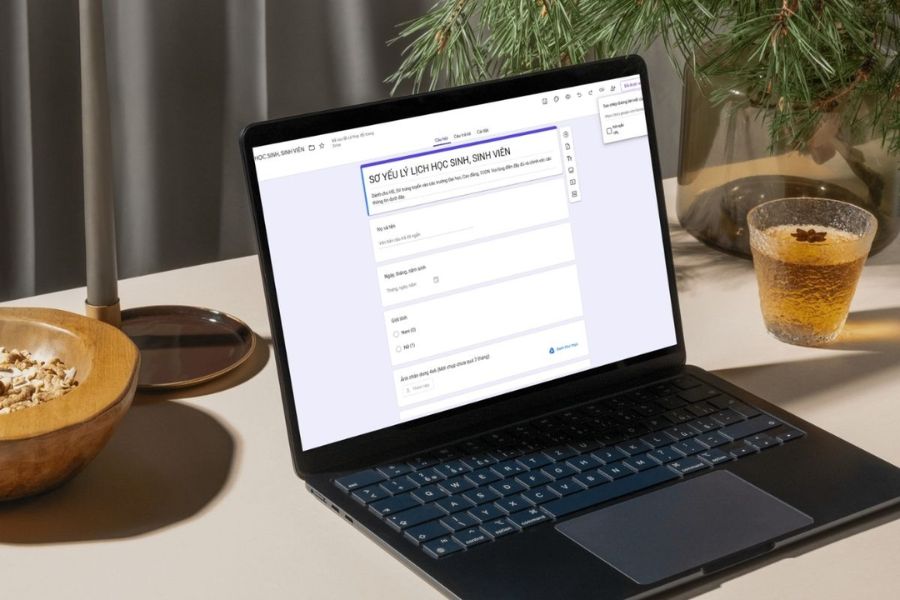
3. How to create a student resume form using Gemini
Instead of writing each question yourself, you can ask Gemini to analyze a pre-existing resume template and then use that content to create a form on Google Forms. The process includes the following steps.
Step 1: Prepare and upload your resume template to Gemini.
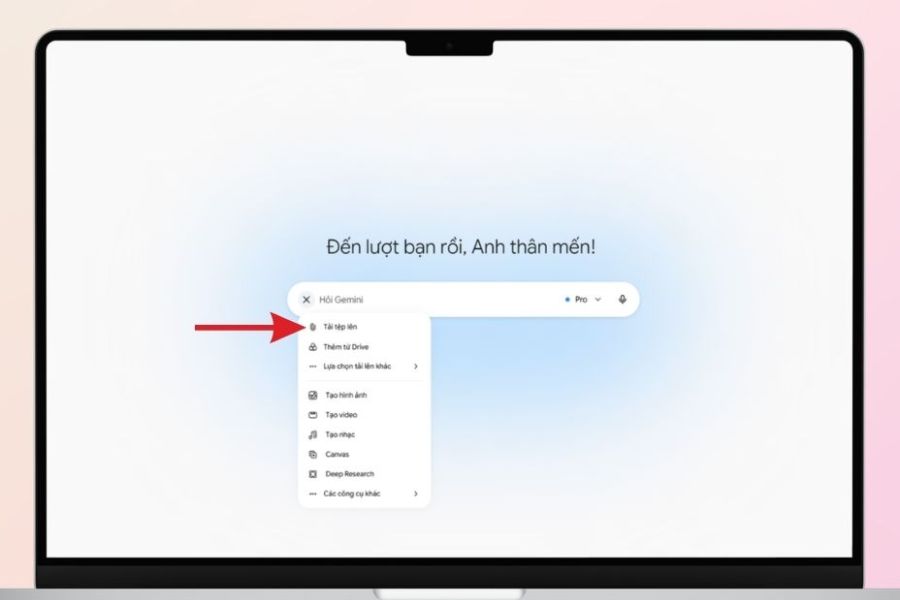
First, prepare the student's current school resume file. The document can be a PDF, Word document, or any format supported by Gemini. Choose a clear and complete template so that the AI can easily recognize the content. Access Gemini on your computer, upload the document, and enter the command:
"Based on the attached resume file, list all the necessary information fields to create a Google Forms template. Divide the questions into logical groups, preserving the meaning of the original template and suggesting appropriate answer types."
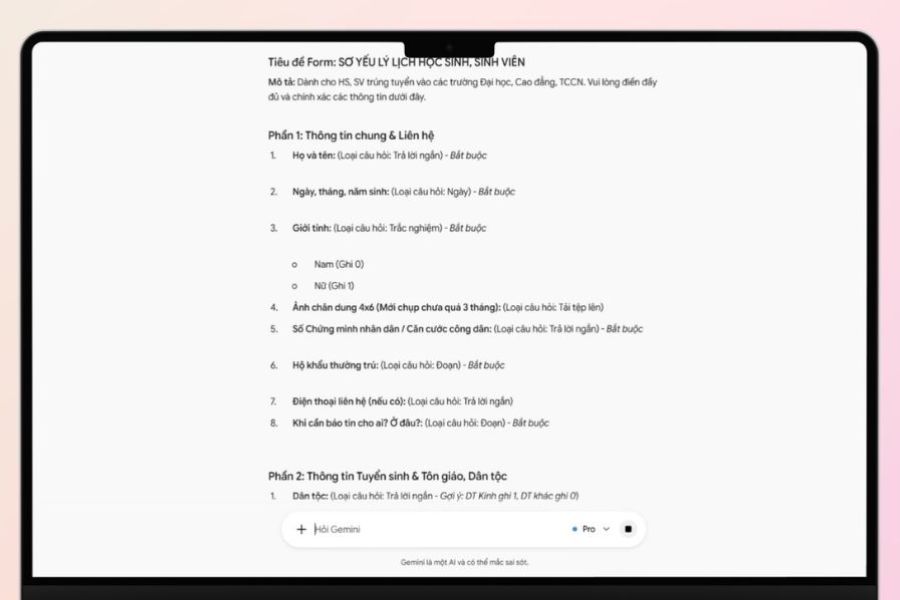
Gemini will analyze the document and suggest a list of questions. The more specific the instructions, the easier the results will be to use in the next steps.
Step 2: Check the extracted Gemini content.
After receiving the results, compare each field of information with the original template to ensure that no content is missing or incorrect. For documents with small text, blurry images, or many similar items, you need to check even more carefully.
Some points to note:
-
Please check all information fields according to the official form.
-
Edit long or confusing questions.
-
Determine the appropriate type of answer for each case.
-
Remove duplicate or unnecessary questions.
-
Do not add sensitive information beyond the stated purpose for which it was collected.
Once completed, copy the list of questions to use when creating the form.
Step 3: Open Google Forms and create a new form.
Next, access Google Forms with your Google account and select "Create a blank form." You can also create forms directly from Google Drive if you want to save the document in a separate folder.
Use a clear title, for example, "Student Profile Form for the 2026-2027 School Year" . In the description, briefly state the purpose of the form, the target audience, the deadline, and a note to check the information before submitting. A specific form name helps teachers manage it easily and helps parents identify the correct form to fill out, avoiding confusion with other surveys.
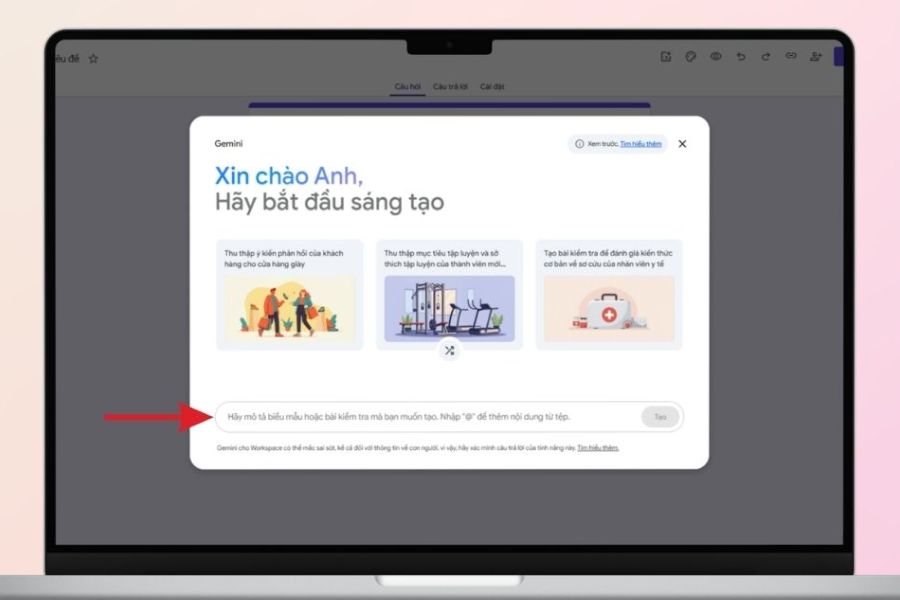
Step 4: Use Gemini to help create the form.
If your account has the Gemini form creation feature in Google Forms, open it and enter the content you prepared in the previous step. You can use the following command:
“Create a student resume template from the list of questions below. Divide the content into sections for personal information, family information, and contact information. Choose the appropriate answer type, use clear language, and only mark required fields.”
Next, follow the on-screen instructions to create a draft and check the results. Note that the Gemini feature integrated into Google Forms may not be available for all accounts or themes. If you don't see this option, you can still use the question list generated by Gemini to manually enter questions into Google Forms.
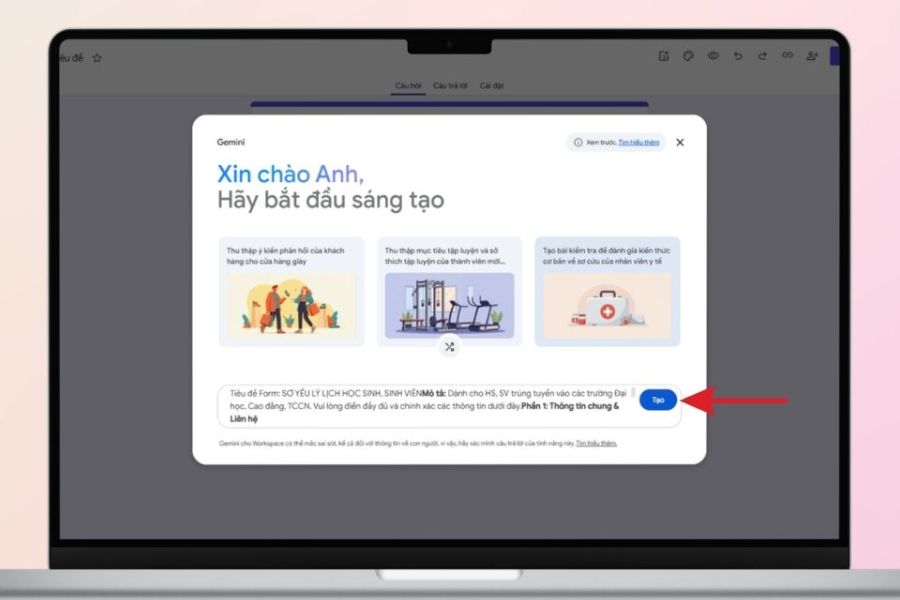
Step 5: Review and edit the form
Once the form is created, open the preview to check the content before sharing. This is a crucial step to detect missing questions, incorrect question order, or inappropriate answer choices.
You should review the following factors:
-
Question content: Ensure it is true to the original format, free from spelling errors or misunderstandings.
-
Type of response: Use short answers for full names, longer answers for explanations, and multiple-choice options where appropriate.
-
Required fields: Only enable mandatory fields for information that is truly necessary.
-
File upload feature: Use only when you need to collect attached documents. This feature may require respondents to log in to Google.
-
Usability: Try filling out the form on your phone to test the functionality and display.
Don't skip the testing phase. An easy-to-fill form will help parents complete it faster and minimize the need to revise data.
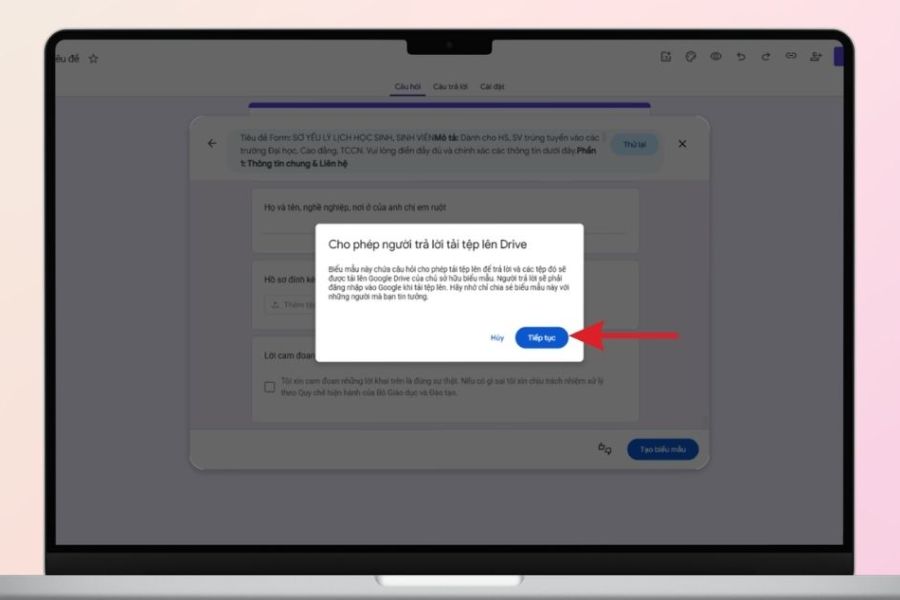
Step 6: Publish and send the form to parents.
Once completed, check the access settings. Depending on the interface and account, you may need to publish the form or adjust sharing permissions to allow recipients to access it. Next, copy the link for respondents and send it through the class communication channel. The notification should clearly state the deadline, the purpose of the form, and how to contact parents if they encounter difficulties.
To make the information gathering process easier, teachers should:
-
Instructions are included for cases that are prone to confusion.
-
Remind parents to double-check the information before submitting.
-
Monitor feedback to identify cases that are not yet completed.
-
Try opening the link with a different account to check access permissions.
After submitting the form, teachers can track responses directly on Google Forms and process any cases requiring additional information.
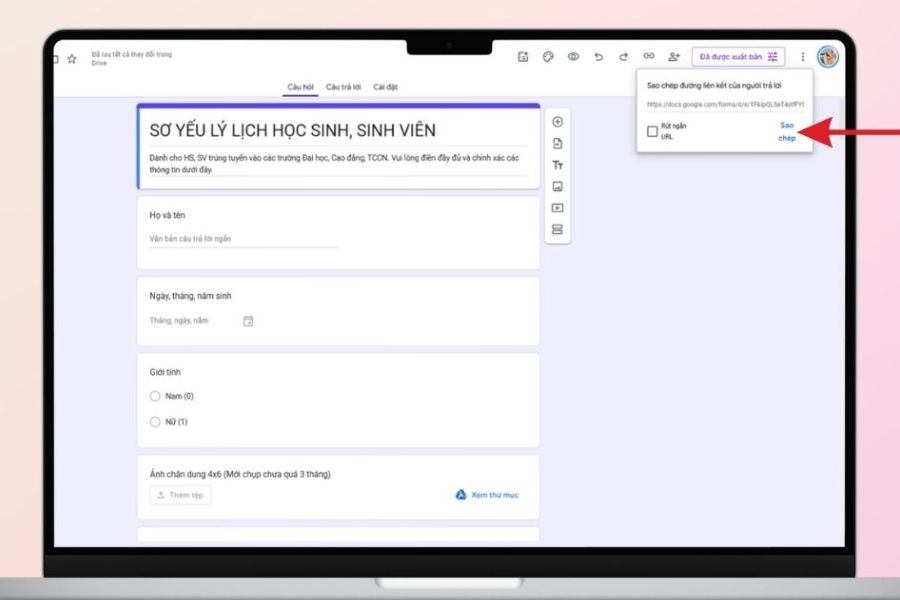
4. Tips for designing an easy-to-fill student resume form.
A form with complete information but a cluttered layout can still cause parents to fill it out incorrectly or abandon it midway. Therefore, teachers should prioritize clear presentation, easy-to-understand questions, and a logical order.
Some helpful tips include:
-
Divide the questions into groups: Organize personal, family, and contact information into separate sections.
-
Write concise questions: Avoid jargon, and include instructions for fields requiring specific formatting.
-
Choose the correct answer type: Use a date field for your date of birth, and a short answer for your full name and phone number.
-
Not mandatory for all schools: Avoid asking parents to fill out information that does not apply to their children.
-
Test on a mobile phone: Ensure the form is easy to read and convenient to use on a small screen.
5. How to manage data after collection
After parents submit their responses, teachers can view the feedback on Google Forms or connect to Google Sheets to manage the data in a table format. Each response is recorded according to the question structure, making searching and summarizing easier.
To manage effectively, you should take the following steps:
-
Connecting Google Sheets: In the Google Forms response section, select the spreadsheet link icon to create or select the sheet where the data is stored.
-
Verify your answers: Review your full name, date of birth, phone number, and other important information fields.
-
Data consistency: Minimize variations in recording the same type of information.
-
Track progress: Check the number of responses to remind parents who haven't completed the task.
-
Organize scientifically: Name your spreadsheets by grade and school year for easy searching.
6. Conclusion
Creating student profile forms using Gemini and Google Forms simplifies the information gathering process, reduces data entry, and allows for centralized data management. Simply prepare the original template, have Gemini build the questionnaire, complete the form, and send the link to parents – this significantly saves processing time. However, to ensure accuracy, carefully check the content before sharing, test the ability to send feedback, and set appropriate access permissions. When using technology correctly, teachers can manage student information more conveniently while ensuring data completeness and security.





















VIP Products








Best Selling Products
Windows 10 & 11 Pro Key
36 USD
Adobe Premiere Pro Account
99 USD
Plugin Retouch4me
69 USD
Copyright Adobe Lightroom Account
59 USD
Freepik Premium Account
59 USD
Autodesk All App Account Copyright
120 USD
Upgrade genuine Capture One account
120 USD
Genuine Cheap Canva Pro
39 USD
Upgrade Genuine Office 365
49 USD
MidJourney Account
29 USD
Genuine Adobe Illustrator account
99 USD
ChatGPT Plus Account (GPT-4)
16 USD
Upgrade Duolingo Super
29 USD
Adobe Photoshop Copyright - Full App
120 USD
Capcut Pro 1 Year
39 USD