Best Selling Products

Capcut Pro 1 Year
39 USD

Windows 10 & 11 Pro Key
36 USD

ChatGPT Plus Account (GPT-4)
16 USD

Upgrade Genuine Office 365
49 USD

Adobe Premiere Pro Account
99 USD

Genuine Cheap Canva Pro
39 USD

Genuine Adobe Illustrator account
99 USD

Autodesk All App Account Copyright
120 USD

Copyright Adobe Lightroom Account
59 USD

Plugin Retouch4me
69 USD

Upgrade Duolingo Super
29 USD

Freepik Premium Account
59 USD

MidJourney Account
29 USD

Adobe Photoshop Copyright - Full App
120 USD

Upgrade genuine Capture One account
120 USD
How to quickly sign PDF files directly on ChatGPT, without installing any software.
Nội dung
- 1. Why should you sign PDF documents directly on ChatGPT?
- 2. What do I need to prepare before signing a PDF file on ChatGPT?
- 3. Instructions on how to sign PDF files directly on ChatGPT
- 3.1 Step 1: Upload the PDF file and signature image to ChatGPT
- 3.2 Step 2: Enter the ChatGPT prompt to insert the signature.
- 3.3 Step 3: Wait for processing and check the results
- 3.4 Step 4: Upload the PDF file with the signature inserted.
- 4. Tips to make your signature on PDFs look better and more accurate.
- 5. Important notes when signing PDFs using ChatGPT
- 6. Conclusion
Do you need to sign contracts, complete forms, or send documents to partners but spend time editing signatures and adjusting every position on the PDF file? Instead of installing specialized software, you can utilize ChatGPT to assist in image signature processing, identifying the area to be signed, and recreating the complete document. With just a few steps of uploading the file and entering the appropriate command, you can significantly shorten your working time. In this article, let''s explore with Sadesign how to quickly and easily sign PDF files directly on ChatGPT, even if you don''t have much experience editing documents.

1. Why should you sign PDF documents directly on ChatGPT?
PDF is a commonly used document format in work, study, and online transactions. However, when adding a signature to a document, many people still have to use separate tools to remove the image background, adjust the size, and manually insert it in the correct position. ChatGPT can simplify these operations by analyzing the file, processing images, and creating a new PDF when the working environment supports the necessary functions. This saves you time by eliminating the need to switch between multiple applications. Key benefits of using ChatGPT to assist with PDF signing include:
-
No additional software installation required: You can start directly on the ChatGPT interface if your account supports file uploading and processing.
-
Convenient operation: Download documents, submit requests, and receive results all within the same chat.
-
Signature image cleaning support: ChatGPT can help process the white background, creating signature images with a transparent background when the appropriate image processing tools are supported.
-
Signature alignment support: You can request that your signature be placed according to page numbers, area labels, or specific locations within the document.
-
Save time and effort on editing: Instead of performing each step manually, you can describe your requirements and ChatGPT will assist in processing them through a streamlined process.
-
Easy to request adjustments: If the signature is too large, misplaced, or obscures content, you can provide feedback so the tool can try to edit it.
2. What do I need to prepare before signing a PDF file on ChatGPT?
Before you begin, prepare all the necessary documents and signature images to ensure a smooth process. Using clear, properly formatted files that provide specific information will help ChatGPT more easily identify the content to be processed and reduce the risk of having to repeat the process multiple times. The files you need to prepare include:
-
PDF files requiring signatures: Use a complete document with all content and designated signature spaces. If the document has multiple pages, check the page numbers before uploading.
-
Personal signature photo: You can sign your name with blue or black ink on white paper, then take a photo or scan the document. Choose a clear photo, free of shadows and without unnecessary details around the signature.
-
ChatGPT account: Log in to an account that can upload files. Features and processing limitations may vary depending on the account, time of use, and tools provided.
-
Information about the signature location: If the document has multiple signature areas, record the page number, signatory's name, or label for each box to accurately describe it in the statement.
3. Instructions on how to sign PDF files directly on ChatGPT
Once everything is prepared, you can begin the signature insertion process with a new chat. The method below is suitable when you want to use a pre-existing signature image and need ChatGPT to assist in processing the document. Depending on the capabilities of the session, ChatGPT can either directly generate the output file or provide instructions and code to perform the necessary processing steps.
3.1 Step 1: Upload the PDF file and signature image to ChatGPT
First, open ChatGPT on your computer browser and log in to your account. In the chat interface, click the add file or upload icon, then select the PDF document you want to sign and the signature image you have prepared.
You should upload both files in the same chat so that ChatGPT can compare the document content with the signature image. If using a computer, you can also drag and drop the files into the message input area if the interface supports it.
There are a few things to check before moving on to the next step:
-
Ensure that the PDF file opens correctly and without errors.
-
Select the correct signature image of the person whose signature needs to be signed, avoiding confusion between multiple files.
-
Prioritize signature photos with good contrast, clear ink lines, and a clean paper background.
-
If the document contains personal information or internal data, please review the privacy policy before uploading it to an online service.
After the file has successfully uploaded, check if both the document and the signature image have appeared in the chat. Once everything is complete, you can send a command to request ChatGPT to process it.
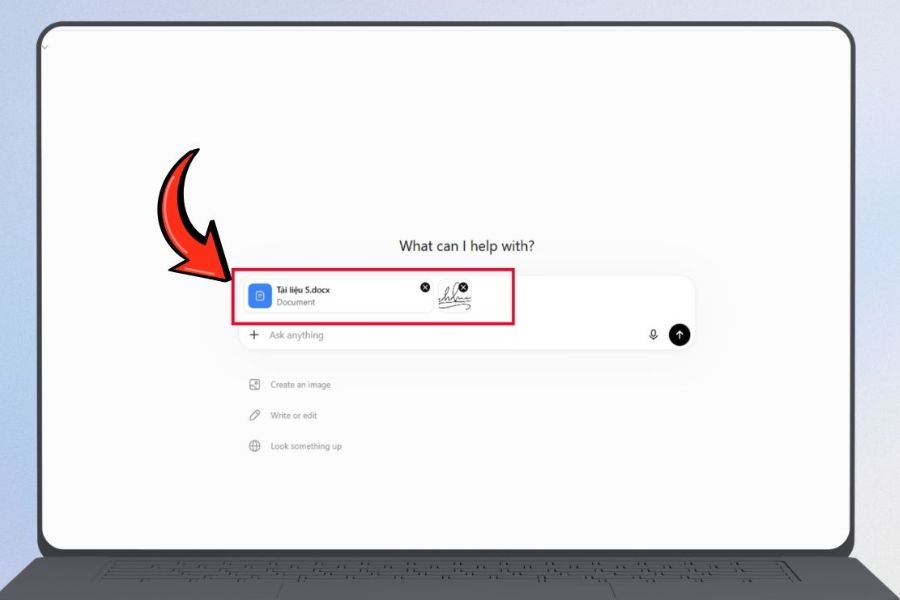
3.2 Step 2: Enter the ChatGPT prompt to insert the signature.
This is a crucial step in determining whether ChatGPT correctly understands your request. Instead of simply typing a short command like "Please sign this PDF file for me," you should clearly describe the tasks to be performed, from image background processing to determining the signature position and size, and exporting the resulting file. You can use the sample prompt below:
Prompt to sign PDF files using ChatGPT:
“I have uploaded a PDF file that needs signing and an image of a signature written on white paper. Please help process these two files according to the following requirements:
-
Analyze the PDF content and identify the locations for the signature. If you are unsure of the location, please ask me before proceeding.
-
Process the signature image to remove the white background, preserve the ink strokes, and create a transparent background if possible.
-
Insert your signature in the correct area on the document. If there are multiple signature locations, check the page numbers and area labels to avoid placing it in the wrong place.
-
Adjust the size of your signature to be balanced and natural, without stretching or distorting it, and without obscuring important content.
-
Preserve the text, images, layout, and other content of the original document. Do not make any changes to the information in the PDF without authorization.
-
Export it as a new PDF file for me to review and download. Do not overwrite the original.
If you cannot directly process or export the file in this session, please guide me on how to do so using the appropriate tool or provide the necessary code to generate the resulting file. Specific signing location: [specify page number, area name, or signature box label if applicable].”
After completing the command, press submit and wait for ChatGPT to analyze the document. You can change the location description according to each specific case, for example, requesting the signature to be placed at the bottom of page 3, below the "Signer" line, or in the box designated for the company representative. A clearer prompt helps to minimize misplacement, incorrect page placement, or disruption of the layout. However, you should not assume that ChatGPT will always accurately recognize every signature box, especially with documents scanned from paper or those with many columns and complex tables.
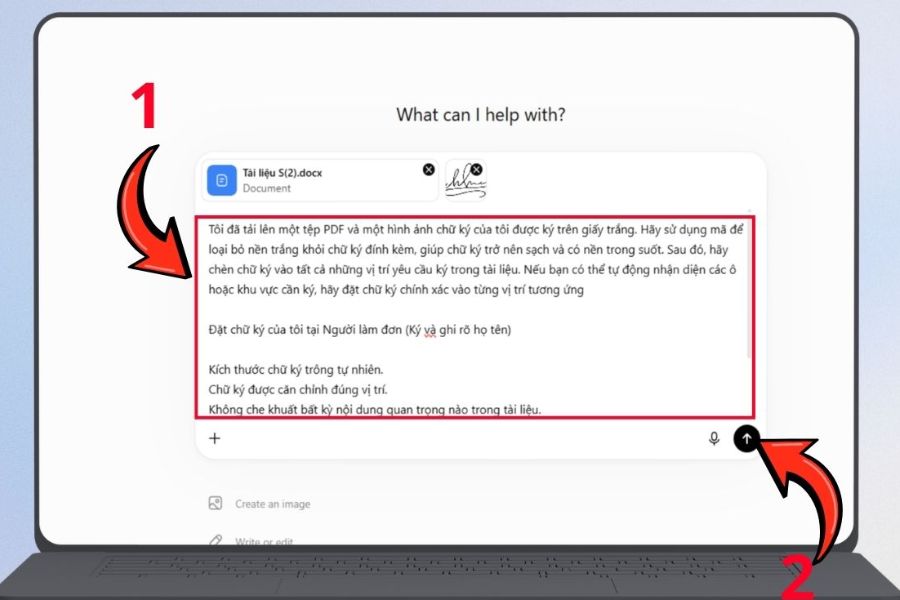
3.3 Step 3: Wait for processing and check the results
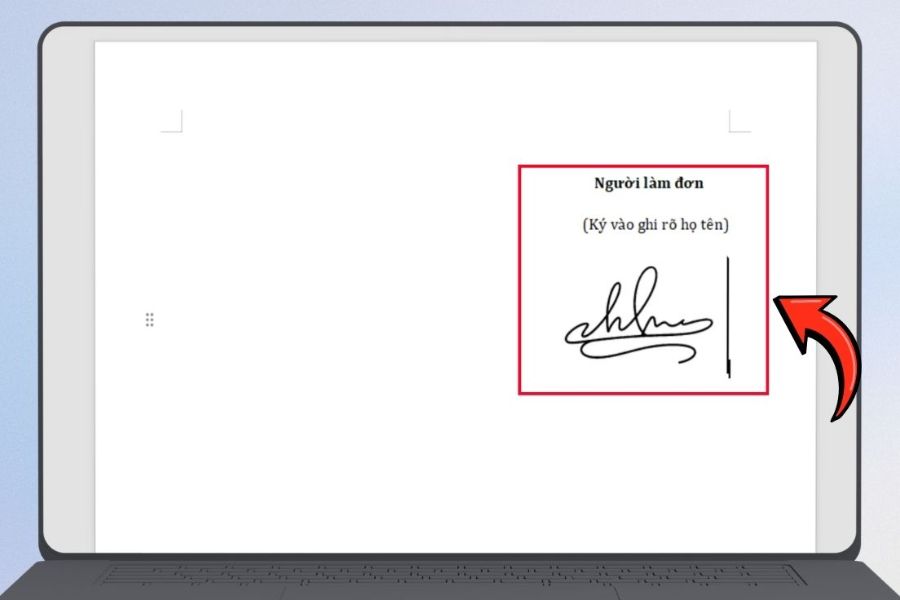
After receiving the request, ChatGPT will perform the operations supported by the session. This process may include analyzing the PDF structure, processing the signature image, identifying the insertion location, and generating the output document. For files with a simple layout, identifying the signature area is usually easier than for multi-page documents or those with many signature locations close together. Upon receiving the results, you should check the following:
-
Signature placement: Is the signature in the correct page, box, and area designated for the signatory?
-
Size: Is the signature proportionate to the signature line, neither too big nor too small?
-
Background image: Has the white background been processed appropriately? Are there any white borders or unwanted image spots?
-
Display quality: The signature is still clear, not blurry, distorted, or stretched.
-
Document content: Are paragraphs, tables, page numbers, and important information preserved?
If you find an error, you can ask ChatGPT to make adjustments, for example: “Please reduce the signature size on page 2 by about 15%, center it in the signature box, and keep the rest of the content the same.” Clearly describing the part that needs correction will help avoid unwanted changes in other areas.
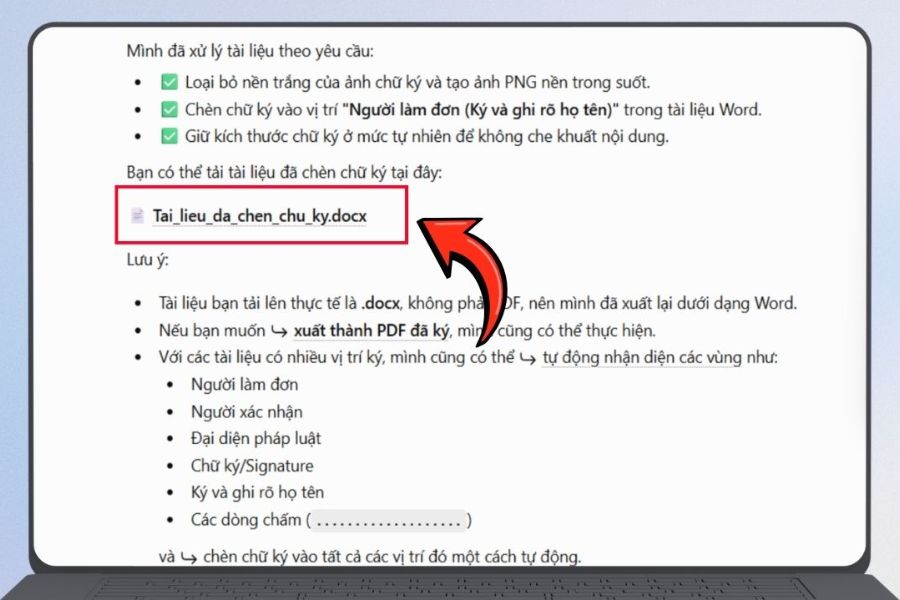
3.4 Step 4: Upload the PDF file with the signature inserted.
Once the processing is complete and ChatGPT provides the output file, click the download link or button displayed in the chat to save the document to your computer. Depending on the processing method, the file may be provided directly or require additional file export steps. After downloading, open the PDF using a document reader on your computer for a final check. Do not rely solely on the preview images in the chat window, as the preview may not fully reflect layout or quality issues when zoomed in.
To manage your documents more conveniently, you should:
-
Give the new file a recognizable name, such as hop-dong-da-ky.pdf .
-
Keep the unsigned PDF for future reference.
-
Check all pages, especially those with tables or multiple signature areas.
-
Verify that the signature is displayed correctly before sending it to clients, partners, or relevant departments.
-
Save documents in folders with appropriate access permissions to avoid disclosing sensitive information.
If ChatGPT fails to generate the PDF file directly, you may need to use a PDF processing tool or run code generated by ChatGPT. Therefore, check the actual download capability of the session instead of assuming the file has been generated just because ChatGPT reports completion.
4. Tips to make your signature on PDFs look better and more accurate.
The quality of the input image and how you describe your request greatly influence the result. A clear, high-contrast signature is easier to process than a poorly lit, tilted image or one with many surrounding objects. Additionally, you should take the time to check the layout after insertion to ensure the document maintains a professional appearance. Here are some helpful tips you should apply:
-
Photographing signatures should be done in well-lit conditions: Place the paper on a flat surface, avoid shadows, and minimize reflected light that could obscure the ink's sharpness.
-
Use clean white paper: A simple background makes it easier to separate the signature, especially when a transparent background is needed.
-
Write your signature in blue or black ink: These two colors are usually easier to distinguish from the paper background, helping to preserve the clarity of the handwriting during processing.
-
Provide specific details for each signature location: If the PDF has multiple pages, clearly indicate the page number, signature box label, and signatory's name instead of simply requesting it be inserted at the end of the document.
-
The requirement is to preserve the original text: Remind ChatGPT not to change the text, data, tables, or images outside the scope of what needs to be processed.
-
Check after zooming in: Some errors such as white borders, broken ink lines, or off-center signatures are only easily noticeable when viewed at a larger scale.
-
Save the final version separately: Use a different filename than the original for easy comparison and editing when needed.
If the signature isn't satisfactory on the first try, don't rush to re-upload the entire document or request a complete restart. You can specify the error and ask for corrections in that particular area. This approach is usually more time-saving and minimizes the risk of affecting completed sections.
5. Important notes when signing PDFs using ChatGPT
While convenient, using ChatGPT to insert signatures still has limitations you need to understand. First, signatures added to PDFs as images are not automatically equivalent to electronic signatures or digital signatures created using appropriate authentication methods. Image signatures primarily serve to visually represent the signature on the document, while digital signatures may be linked to identity verification mechanisms and data integrity checks.
-
Distinguishing between image signatures and digital signatures: If a contract, bank statement, or administrative procedure requires a valid digital signature, use the signing method that meets the corresponding legal requirements.
-
Do not sign on behalf of someone else without permission: Use only your own signature or a signature that you have the legal right to use.
-
Protecting personal information: Think carefully before uploading contracts, identification documents, financial information, or confidential documents to any online service.
-
Test your document before publishing: ChatGPT may incorrectly identify the signing area or alter the layout when handling complex files. You need to test the results yourself.
-
Not all PDFs are editable by default: Some documents that are locked, encrypted, or have a special structure may require specialized tools.
-
Comply with the recipient's requirements: If the partner requires a face-to-face signature, digital certificate signature, or the use of a private electronic signature system, follow those instructions.
In particular, if the document involves multiple signatories, you need to accurately identify the designated space for each person. You shouldn't automatically insert a signature into all the signature boxes without verifying that those boxes actually belong to the same person.
6. Conclusion
Signing PDF files directly on ChatGPT is a convenient solution for those who want to shorten document processing time without installing specialized software. Simply prepare your PDF file, a clear signature image, and a specific prompt, and you can ask ChatGPT to help process the image, determine the signature placement, and create a new document within the provided features. However, don't skip the final check to ensure the signature is in the correct position, the content hasn't been altered, and the document meets the recipient's requirements. For important documents, clearly distinguish between image signatures and electronic or digital signatures to choose the appropriate, secure, and reliable method.





















VIP Products








Best Selling Products
Capcut Pro 1 Year
39 USD
Windows 10 & 11 Pro Key
36 USD
ChatGPT Plus Account (GPT-4)
16 USD
Upgrade Genuine Office 365
49 USD
Adobe Premiere Pro Account
99 USD
Genuine Cheap Canva Pro
39 USD
Genuine Adobe Illustrator account
99 USD
Autodesk All App Account Copyright
120 USD
Copyright Adobe Lightroom Account
59 USD
Plugin Retouch4me
69 USD
Upgrade Duolingo Super
29 USD
Freepik Premium Account
59 USD
MidJourney Account
29 USD
Adobe Photoshop Copyright - Full App
120 USD
Upgrade genuine Capture One account
120 USD