Best Selling Products

Genuine Cheap Canva Pro
39 USD

ChatGPT Plus Account (GPT-4)
16 USD

Adobe Premiere Pro Account
99 USD

Freepik Premium Account
59 USD

Windows 10 & 11 Pro Key
36 USD

Adobe Photoshop Copyright - Full App
120 USD

Autodesk All App Account Copyright
120 USD

Upgrade genuine Capture One account
120 USD

Plugin Retouch4me
69 USD

Copyright Adobe Lightroom Account
59 USD

Genuine Adobe Illustrator account
99 USD

Upgrade Genuine Office 365
49 USD

MidJourney Account
29 USD

Upgrade Duolingo Super
29 USD

Capcut Pro 1 Year
39 USD
Gemini''s Photo Restoration Prompt: The Sharpest, Most Natural-Looking Old Photos
Nội dung
- 1. Why should I use Gemini to restore old photos?
- 2. Instructions on how to recover old photos on Gemini
- 2.1. Access Gemini and log in to your account.
- 2.2. Upload the old photos you want to recover to Gemini.
- 2.3. Enter the appropriate old image recovery prompt.
- 2.4. Check the results and fine-tune the image.
- 3. Gemini's prompt for recovering old photos is ready to use.
- 3.1. Prompt for restoring old, blurry, or yellowed photos.
- 3.2. Prompt for restoring faded old photos
- 3.3. Prompt for restoring family portrait photos
- 3.4. Prompt for restoring black and white photos and natural coloring.
- 3.5. Prompt for restoring old, torn, or scratched photos.
- 3.6. Prompt for restoring old photos with graininess and underexposure.
- 3.7. Prompt for restoring old photos in a nostalgic style.
- 4. Things to note when restoring old photos using Gemini
- 5. Conclusion
Old photos hold countless precious memories, from family reunions and pictures of grandparents in their youth to trips taken years ago. However, over time, photos can fade, yellow, become blurry, scratched, or lose important details. Instead of accepting these imperfections, you can use Gemini to help restore your photos at home. With the right commands, Gemini can help improve sharpness, balance colors, and reduce common flaws in old photos. In particular, you can proactively instruct the AI to preserve facial features, clothing, and background so that the edited photo retains its original authenticity. In this article, let''s explore the easy-to-use Gemini old photo restoration prompt, from basic commands to advanced templates for torn photos, black and white photos, and family portraits.
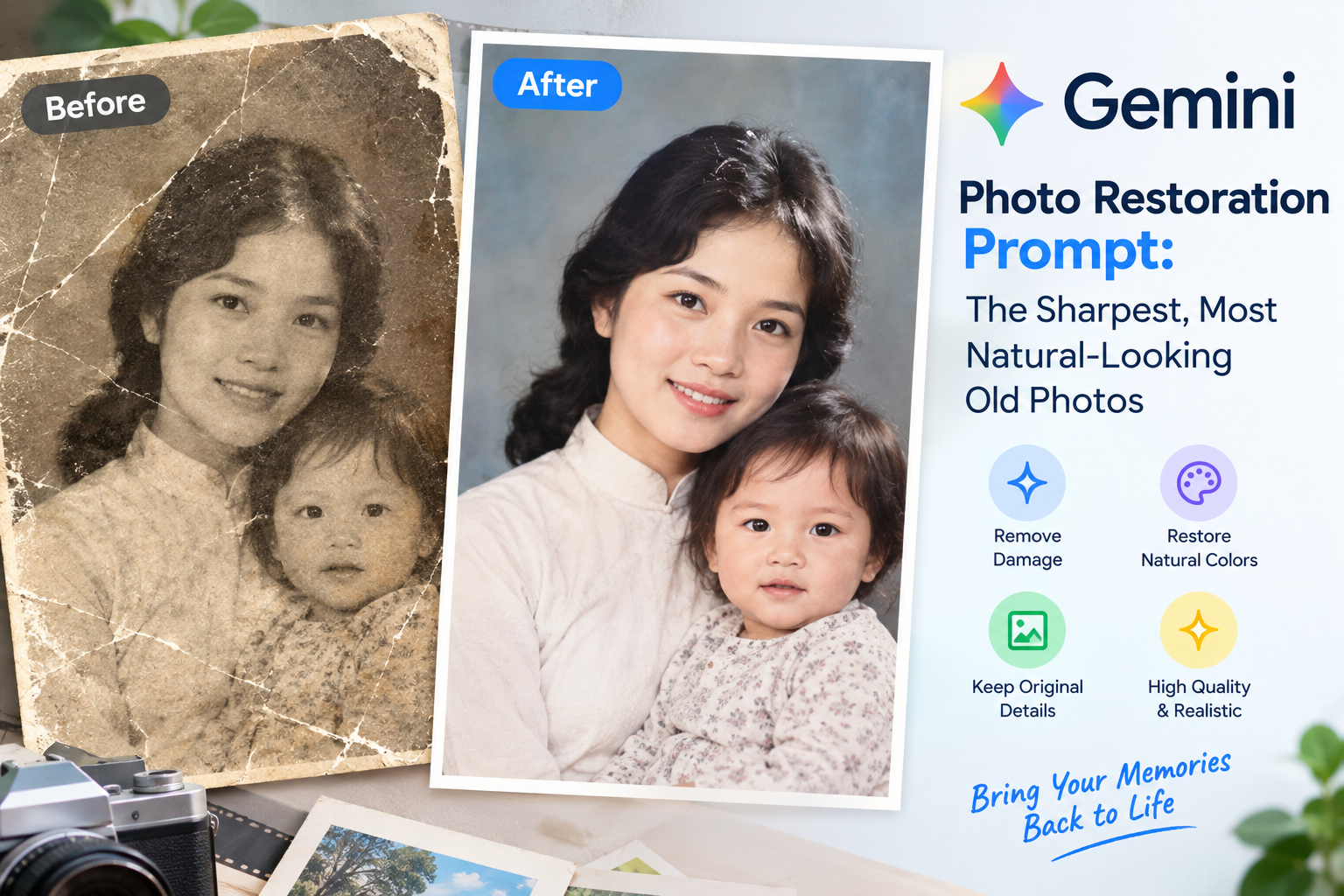
1. Why should I use Gemini to restore old photos?
Restoring old photos with Gemini is a suitable option for those who want to improve image quality without needing to be proficient in professional editing software. Simply upload your photos, describe the areas needing improvement using natural commands, and check the results generated by the AI. Depending on the image's condition, Gemini can help clarify details, reduce noise, adjust lighting, and restore colors. However, the results depend on the quality of the input image, the extent of damage, and the processing capabilities of the tool at the time of use. Key advantages of using the Gemini photo restoration prompt include:
-
Simple operation: You don't need to know much about photo editing. Just describe your requirements in Vietnamese or English and you can get started.
-
Save time: AI helps address multiple flaws in a single request, reducing the need for manual editing.
-
Improve sharpness: Blurry images, those lacking contrast, or those with excessive noise can be made clearer depending on their initial condition.
-
Color restoration support: Faded, yellowed, or black and white photos can be processed to look more natural.
-
Customize to your needs: You can request to keep the face intact, restore clothing details, or only edit a specific area.
-
Easily try multiple options: If the result isn't satisfactory, you can add commands to adjust sharpness, color, and brightness.
2. Instructions on how to recover old photos on Gemini
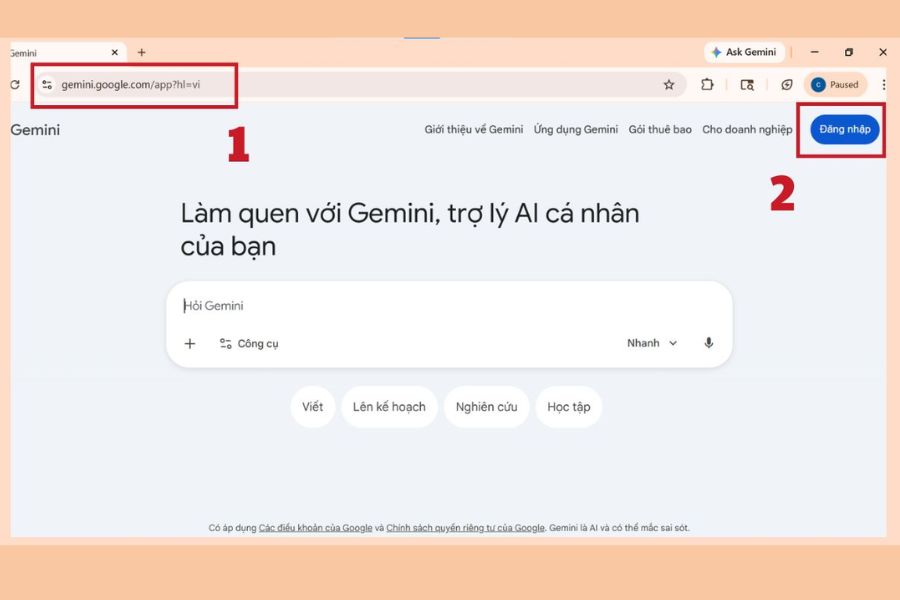
2.1. Access Gemini and log in to your account.
First, open the website https://gemini.google.com or the Gemini app on your device. Log in with your Google account to access the chat interface. Depending on your account, region, and service version, some image processing features may vary. Before proceeding, you should select a representative image showing the issue that needs fixing, such as a yellowed photo, a blurry portrait, or a family photo with many scratches. If possible, use a high-resolution scan or photo so the AI can better recognize details.
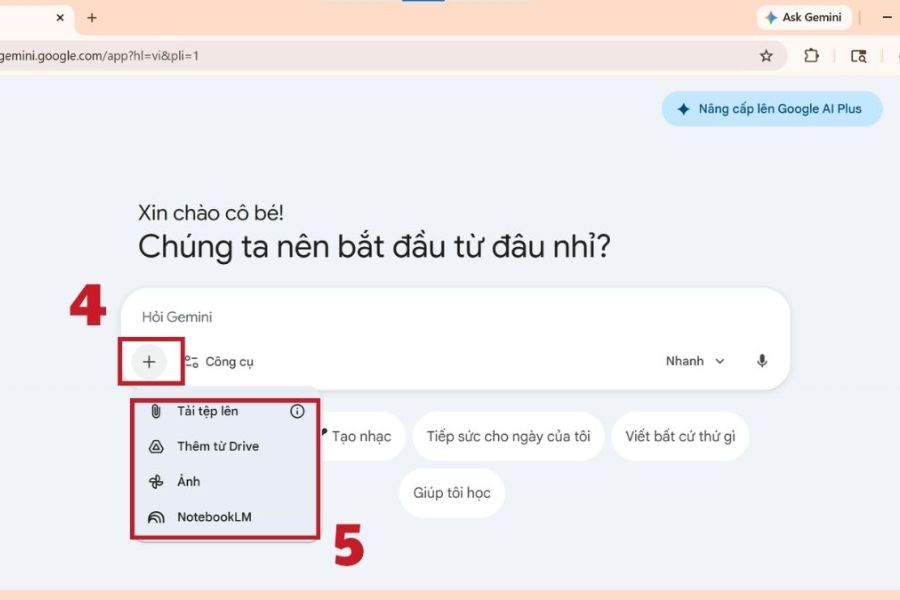
2.2. Upload the old photos you want to recover to Gemini.
In the chat interface, tap the plus icon or the image attachment button, then select the image you want to process from your device. Wait for the image to finish uploading before submitting your request. If the image is saved in your phone's photo album, you can select it directly from the image library. A few notes when preparing your image:
-
Prioritize scans that are clear, free from shaking, and without excessive loss of detail.
-
If you're taking a photograph of paper, place it in a well-lit area, minimizing shadows and reflections.
-
Do not crop out areas containing important information such as faces, hands, or clothing.
-
For family photos with many people, choose a version that clearly shows the position and characteristics of each person.
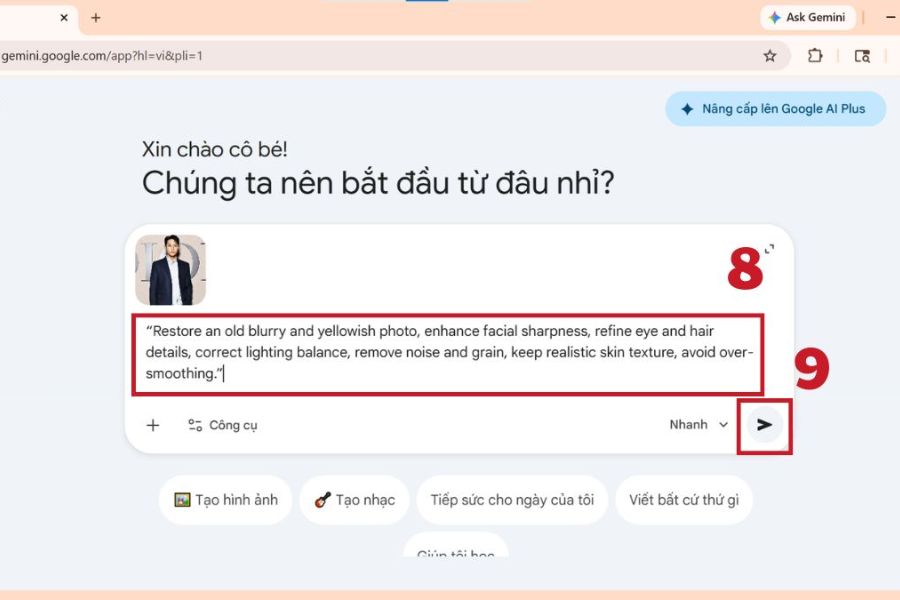
2.3. Enter the appropriate old image recovery prompt.
After uploading the image, enter a command that specifically describes the image's condition and desired outcome. Instead of simply writing "make the image better," you should clearly state where the image is blurry, how the colors have changed, and which details absolutely should not be altered. For example, you could use the command: "Restore this old image, reduce noise, improve sharpness, and balance the colors naturally. Keep the original faces, expressions, clothing, poses, and composition. Do not add people or change any details in the image."
After entering the prompt, press submit and wait for Gemini to process it. If the tool creates a new image, check it carefully before using it. If the image creation or editing feature is not yet available on your account, you may need to try again later or use a different image editing tool.
2.4. Check the results and fine-tune the image.
When you receive the results, don't just look at the overall brightness or sharpness. Compare the new image to the original to identify details that have been improved and areas that are at risk of being unintentionally altered. You can continue the conversation with Gemini with short requests such as:
-
"Keep the face as in the original photo, reduce artificial sharpness and make the skin tone more natural."
-
"Adjust the colors subtly, avoiding making the image too vibrant or increasing the contrast excessively."
-
"Restore the costume details but do not arbitrarily change the patterns and style."
-
"The original context is preserved, only noise is reduced and image clarity is improved."
Once you're satisfied, download the results to your device if the interface supports it. You should keep the original and save the restored image as a separate file so you can compare, edit, or restore it when needed.
3. Gemini's prompt for recovering old photos is ready to use.
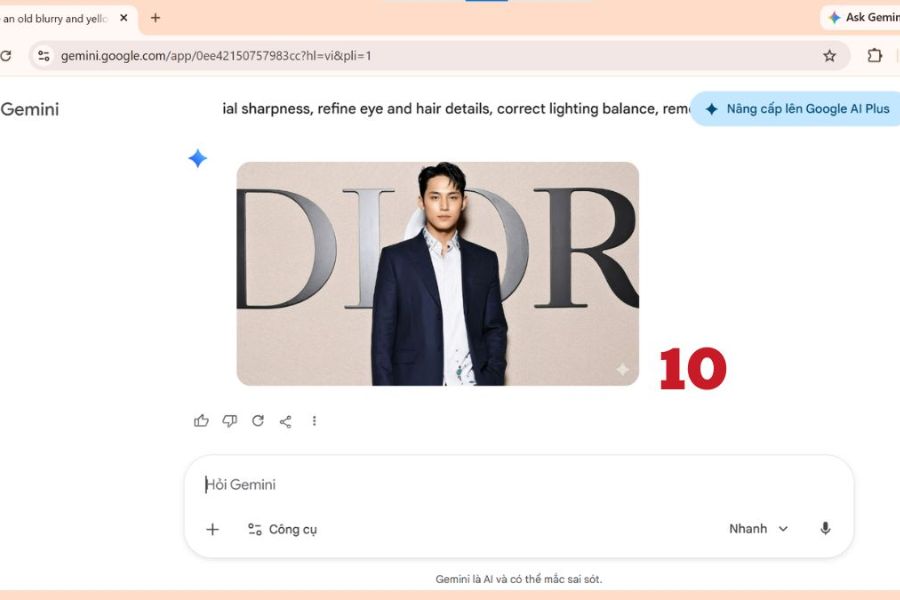
3.1. Prompt for restoring old, blurry, or yellowed photos.
Prompt 1:
“Restore this old, blurry, and yellowed photograph. Improve the sharpness of the face, hair, eyes, and clothing; reduce noise, balance lighting, and correct the yellow tint caused by time. Preserve the original identity, expression, facial structure, pose, and composition. Maintain natural skin texture, without excessive smoothing or adding details not present in the original image.”
Prompt 2:
“Restore this old, blurry, yellowed photograph. Improve clarity and contrast gently, reduce image noise, and correct the yellow color cast. Preserve the original faces, expressions, clothing, composition, and historical character. Keep realistic skin texture and natural lighting. Do not invent facial details or apply excessive sharpening.”
Prompt 3:
“Improve the overall quality of this old photograph, clarifying any blurred details and balancing the colors gently. Preserve the feel of a photograph taken in the past, avoid transforming it into a modern image, prevent unnaturally smooth skin, and do not alter the identifying features of the subject.”

3.2. Prompt for restoring faded old photos
Prompt 4:
"Restore the colors to this faded old photograph. Adjust the contrast appropriately, balance the tones, and improve the clarity of details. Keep the face, clothing, hairstyle, pose, and composition unchanged. Skin tones should be natural, clothing colors harmonious, avoid excessive saturation, and do not alter the image content."
Prompt 5:
“Restore the faded colors in this old photograph with a natural and realistic finish. Correct color fading, improve tonal balance, and recover subtle details while preserving the original composition, facial features, clothing, and lighting. Avoid oversaturated colors, artificial skin tones, and modern filters.”
Prompt 6:
"Refresh the colors of an old photo while preserving its nostalgic feel. Reduce fading, improve contrast, and clarify areas of light and shadow. Do not arbitrarily change the colors of clothing, hair, or objects when the original photo still contains enough information to identify them."
3.3. Prompt for restoring family portrait photos
Prompt 7:
“Restore this old family photo with the top priority being preserving everyone’s identity. Clarify faces, hair, clothing, and any blurred details; reduce noise and improve natural lighting. Do not alter age, facial features, expressions, number of people, standing positions, or distances between individuals. Do not add people or create details not present in the original photo.”
Prompt 8:
“Enhance this old family portrait while preserving every person's identity and original expression. Improve facial clarity, clothing details, and overall image quality. Keep the exact number of people, their positions, hairstyles, and original background. Avoid face replacement, beauty retouching, altered ages, or invented details.”
Prompt 9:
"Restore family photos in a natural, authentic style. Preserve the distinctive features of each person's face, without enlarging eyes, altering smiles, or altering facial shapes. Improve clarity just enough to make the photo easier to look at while still retaining the warm feeling of cherished memories."
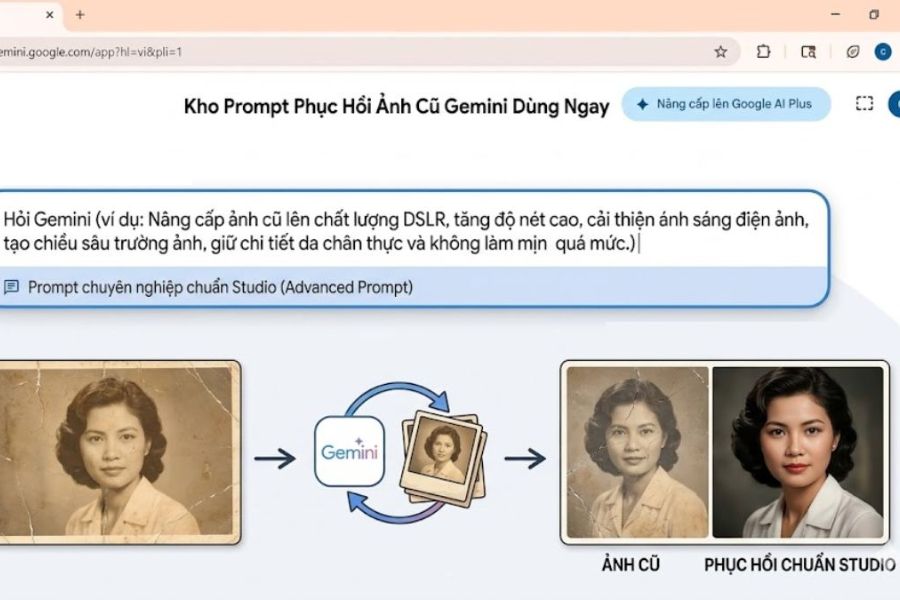
3.4. Prompt for restoring black and white photos and natural coloring.
Prompt 10:
"Restore this black and white photograph, reduce noise, improve sharpness, and balance light and shadow. Preserve facial features, hairstyle, clothing, and background. Maintain the classic black and white style; no color correction, no skin smoothing, and no added new details."
Prompt 11:
“Colorize this black and white photograph naturally. Use realistic skin tones, harmonious clothing and background colors, and lighting that matches the original image. Preserve the identity, expression, hairstyle, and composition. Colors that cannot be definitively identified from the original image should be rendered cautiously, avoiding overly vibrant colors or modern effects.”
Prompt 12:
“Colorize and restore this historical black-and-white photograph in a subtle, realistic style. Preserve the original faces, expressions, clothing, and background. Use balanced colors and natural skin tones, with lighting consistent with the original image. Do not modernize the subjects or introduce unsupported historical details.”
3.5. Prompt for restoring old, torn, or scratched photos.
Prompt 13:
“Restore this old photograph with numerous scratches and creases. Reduce scratches, dirt, and stains on the image surface; improve clarity in areas that remain intact. Preserve the faces, clothing, composition, and background. Only recreate damaged areas to the necessary extent, without altering the content or adding any objects.”
Prompt 14:
“Restore this damaged old photograph by carefully reducing scratches, creases, stains, and faded areas. Preserve all visible original details, including faces, clothing, and background. Repair damaged sections conservatively and avoid inventing missing facial features or changing the photograph's original composition.”
Prompt 15:
“Restore the image that is torn in several places. Clean up the damage and connect the interrupted areas of the image as naturally as possible. Preserve the visible details, do not change faces or clothing. If a part of the image is completely missing and its content cannot be accurately identified, avoid recreating too many unfounded details.”
3.6. Prompt for restoring old photos with graininess and underexposure.
Prompt 16:
“Improve the old photo that was underexposed and noisy. Increase brightness in dark areas, balance contrast, reduce noise, and clarify important details. Maintain overall lighting, skin tone, facial features, and background. Avoid overexposing bright areas, losing detail in dark areas, and not applying an overly strong HDR effect.”
Prompt 17:
“Enhance this old low-light photograph by reducing grain and image noise, improving shadow detail, and balancing exposure naturally. Preserve realistic textures, facial features, original colors, and the existing atmosphere. Avoid excessive denoising, artificial sharpness, and unnatural contrast.”
Prompt 18:
“Enhance the quality of old photos by focusing on realism. Reduce background noise, clarify the subject, and adjust contrast appropriately. Retain natural grain if it contributes to the characteristic look of film photography, avoiding creating an overly clean or shallow digital image.”
3.7. Prompt for restoring old photos in a nostalgic style.
Prompt 19:
"Restoring old photographs in a natural, nostalgic style. Improving clarity, reducing imperfections affecting visibility, while retaining the muted tones, soft lighting, and characteristic texture of the original image. Avoiding overly vibrant colors, and preserving faces, clothing, or backgrounds. Prioritizing the preservation of the image's emotion and originality."
Prompt 20:
“Restore this vintage photograph while preserving its nostalgic character. Improve clarity and reduce distracting damage without removing all film grain or changing the original mood. Keep the original composition, facial features, clothing, and lighting style. Avoid glossy skin, oversaturated colors, and contemporary photographic effects.”
4. Things to note when restoring old photos using Gemini
While Gemini simplifies the editing process, you should still carefully check the results before saving or sharing. AI technology can enhance the appearance of images, but it doesn't always accurately reproduce details that have been lost. This is especially important for portraits, family photos, and valuable historical documents.
-
Always keep the original: Do not overwrite the original image with the edited version. Save each version separately for easy reference.
-
Facial examination: Pay attention to the eyes, nose, mouth, smile, and identifying features to detect any unwanted changes.
-
Don't blindly trust AI-reconstructed details: Completely missing areas can be recreated by AI based on speculation, and may not necessarily reflect the actual image.
-
Adjust gradually: If the image is not satisfactory, fix one or two elements at a time to easily assess the effectiveness.
-
Choose the best possible input image: High-quality scans often preserve detail better than photos that are shaky, overexposed, or severely underexposed.
-
Respect privacy: When uploading personal or family photos, think carefully before sharing them on online services and avoid sharing sensitive images without permission.
-
Review usage permissions and image saving capabilities: Features, upload limits, and how images are exported may vary by account or Gemini version.
5. Conclusion
Gemini's old photo restoration prompt is a convenient solution for improving blurry, faded, yellowed, or scratched photos without requiring advanced editing skills. With just a clearly described command, you can ask the AI to enhance sharpness, balance lighting, and preserve important image details. For natural-looking results, choose the prompt appropriate for the photo's condition, prioritize preserving faces and composition, and carefully check all details after processing. You can start with the sample commands provided in this article and then fine-tune them to your liking. Most importantly, always keep the original image to protect precious memories and avoid confusing the restored image with details recreated by the AI.





















VIP Products








Best Selling Products
Genuine Cheap Canva Pro
39 USD
ChatGPT Plus Account (GPT-4)
16 USD
Adobe Premiere Pro Account
99 USD
Freepik Premium Account
59 USD
Windows 10 & 11 Pro Key
36 USD
Adobe Photoshop Copyright - Full App
120 USD
Autodesk All App Account Copyright
120 USD
Upgrade genuine Capture One account
120 USD
Plugin Retouch4me
69 USD
Copyright Adobe Lightroom Account
59 USD
Genuine Adobe Illustrator account
99 USD
Upgrade Genuine Office 365
49 USD
MidJourney Account
29 USD
Upgrade Duolingo Super
29 USD
Capcut Pro 1 Year
39 USD