Best Selling Products

ChatGPT Plus Account (GPT-4)
16 USD

Copyright Adobe Lightroom Account
59 USD

Adobe Photoshop Copyright - Full App
120 USD

MidJourney Account
29 USD

Genuine Cheap Canva Pro
39 USD

Freepik Premium Account
59 USD

Upgrade genuine Capture One account
120 USD

Plugin Retouch4me
69 USD

Autodesk All App Account Copyright
120 USD

Capcut Pro 1 Year
39 USD

Upgrade Genuine Office 365
49 USD

Genuine Adobe Illustrator account
99 USD

Windows 10 & 11 Pro Key
36 USD

Upgrade Duolingo Super
29 USD

Adobe Premiere Pro Account
99 USD
YouTube has no sound on my phone: Causes and solutions.
Nội dung
- 1. Reasons why YouTube loses sound on my phone.
- 2. How to fix YouTube with no sound on your phone
- 2.1. Check and increase the media volume on your phone.
- 2.2. Restart your phone
- 2.3. Clear the YouTube app's cache.
- 2.4. Update the YouTube app to the latest version.
- 2.5. Check your internet connection.
- 2.6. Disconnect Bluetooth headphones and speakers.
- 2.7. Uninstall and reinstall the YouTube app.
- 2.8. Update your phone's operating system.
- 3. What should I do if YouTube only loses sound when I plug in headphones?
- 4. When should I check or repair my phone's speaker?
- 5. Tips to prevent YouTube audio loss on your phone.
- 6. Conclusion
Watching an engaging YouTube video and suddenly hearing no sound while the video continues playing normally? This is a frustrating situation for many phone users, especially when listening to music, watching movies, or studying online. The YouTube sound loss issue can occur on iPhones, Samsungs, OPPOs, and many other Android devices. Sometimes the cause is simply that the media volume is muted, but it can also be related to app memory, headphone connection, or system software. Instead of worrying or rushing to get your phone repaired, try the troubleshooting steps below to find the cause and get your YouTube sound back to normal. Let''s explore them with Sadesign!
1. Reasons why YouTube loses sound on my phone.
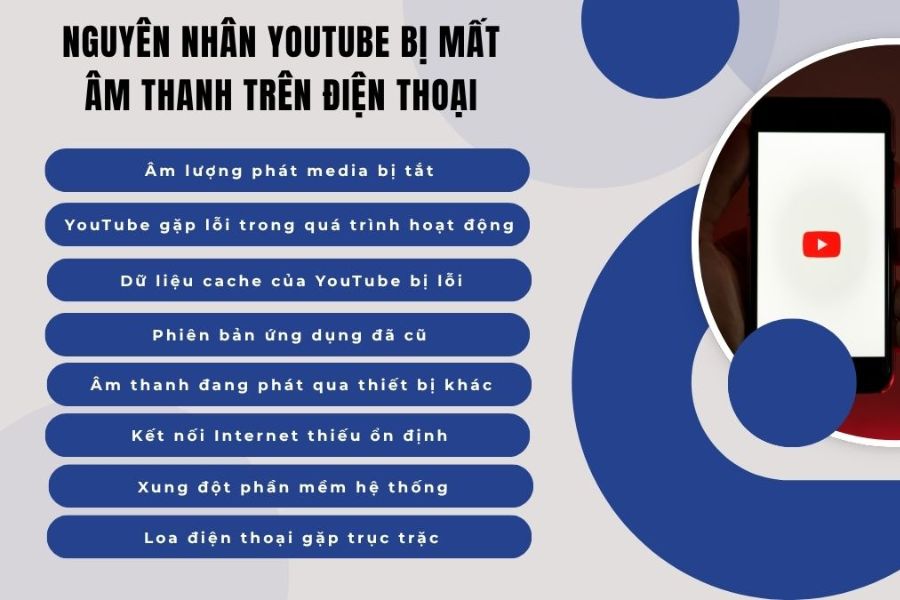
Before attempting to fix the problem, you should determine whether the issue originates from the YouTube app or the phone you're using. Identifying the correct cause will save time, avoid unnecessary actions, and minimize the impact on your personal data. Below are some common reasons why YouTube might have video but no sound.
-
Media volume is at 0: Phones have separate volume levels for ringtones, calls, and entertainment content. Therefore, even though the ringtone is still playing normally, YouTube videos may be muted if the media volume is turned off.
-
The video is muted: You might have accidentally tapped the speaker icon, or the video might be playing without sound.
-
YouTube app malfunctioning: Errors occurring during use may cause the app to malfunction, including loss of sound.
-
Cache error: Application temporary data can sometimes cause unusual issues when loading or playing content.
-
The YouTube app is outdated: An outdated version may experience compatibility issues with your operating system or some phone features.
-
Audio is being diverted to another device: Your phone may be connected to Bluetooth headphones, wireless speakers, or an external audio device without you noticing.
-
Unstable internet connection: A weak connection can cause videos to load slowly, be interrupted, or result in errors during content transmission.
-
System software errors: Certain glitches on Android or iOS can affect the app's ability to play audio.
-
Damaged phone speaker: If many apps have no sound, the speaker is crackling, or the sound is intermittent, you should consider the possibility of a hardware problem.
2. How to fix YouTube with no sound on your phone
When YouTube suddenly loses sound, you don't need to immediately uninstall the app or perform a factory reset. Prioritize simple actions like checking the volume, restarting your phone, and updating the app. If the problem persists, you can try the solutions below to resolve it more thoroughly.
2.1. Check and increase the media volume on your phone.
This is the first step you should take when encountering the "no sound" error on YouTube. Many people often only pay attention to the ringtone volume and forget that video audio is adjusted separately. Simply increasing the media volume to the correct level can fix the problem without changing any complex settings.
The testing method is quite simple:
-
Step 1: Open YouTube and select any video to play as a test.
-
Step 2: Press the volume up button on the side of the phone.
-
Step 3: On Android, expand the volume panel if needed and check the Media or "Entertainment" section. On iPhone, adjust the volume using the side button or Control Center.
-
Step 4: Observe the speaker icon on the video to ensure the content is not muted.
-
Step 5: Play back the video to check the audio.
If you're using headphones, you should also adjust the volume on the accessory. If the video remains silent even after increasing the volume, proceed to the next step.
2.2. Restart your phone
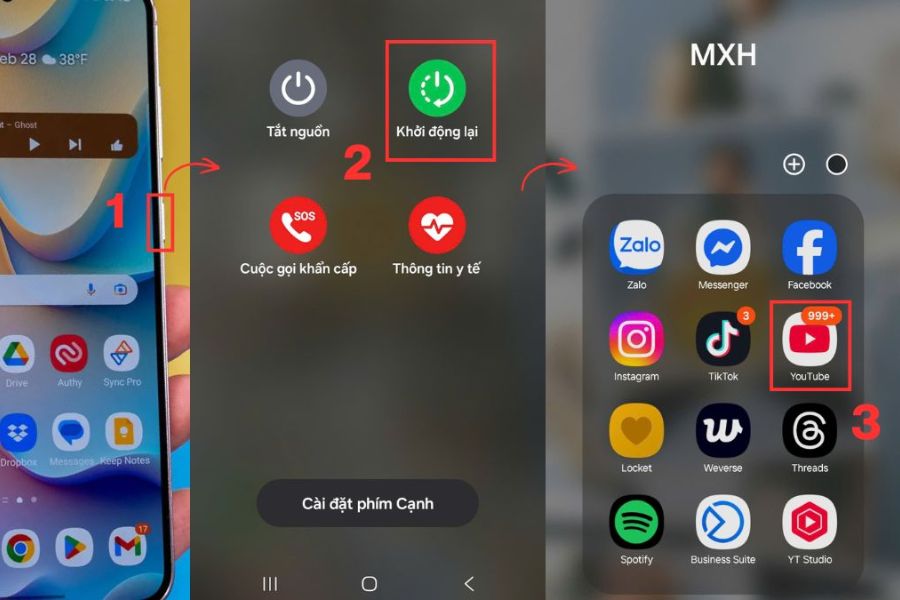
Phones that are used continuously for extended periods can sometimes experience temporary software errors. Frozen background processes or unresponsive applications can affect audio playback. Restarting the device is a simple way to refresh the system and resolve some minor issues.
You can follow these instructions:
-
Step 1: Press and hold the power button or the power and volume buttons simultaneously, depending on the device model.
-
Step 2: Select Restart if available. If you don't see this option, turn your phone off and then back on.
-
Step 3: Wait for the device to finish booting up.
-
Step 4: Open YouTube, play a video, and check if the sound is working properly.
If the issue is resolved after a restart, you can continue using it as normal. However, if YouTube frequently loses sound again, please check your app version and system software.
2.3. Clear the YouTube app's cache.
The cache helps applications store temporary data to load content faster. However, when this temporary data becomes corrupted, YouTube may become unstable. Clearing the cache is a worthwhile solution to try on Samsung, OPPO, and other Android devices when videos play erratically.
The steps are as follows:
-
Step 1: Open Settings on your phone.
-
Step 2: Select Applications or Manage applications.
-
Step 3: Find and click on YouTube.
-
Step 4: Choose Storage or Memory.
-
Step 5: Click Clear Cache to remove temporary data.
-
Step 6: Reopen YouTube and play the video.
The names of the items may vary depending on the phone model and operating system version. You need to distinguish between clearing cache and clearing data, because clearing data can reset application settings.
Note: On iPhone, you cannot directly clear the YouTube cache in the app settings like you can on Android. If you suspect app data corruption, consider uninstalling YouTube and then reinstalling it from the App Store.
2.4. Update the YouTube app to the latest version.
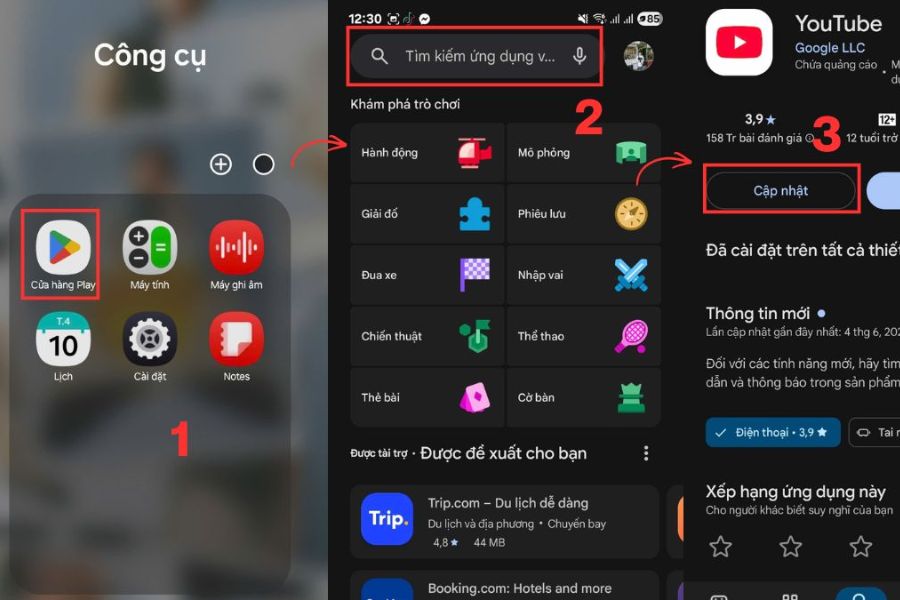
If you've checked the volume but YouTube still isn't playing sound, check if the app has a new update. Older versions sometimes contain bugs that affect app functionality. Updating can improve stability and compatibility with your phone.
Here are the steps to update YouTube:
-
Step 1: Open Google Play Store on Android or the App Store on iPhone.
-
Step 2: Enter the keyword "YouTube" into the search bar.
-
Step 3: Select the official YouTube app.
-
Step 4: Click Update if a new version is available.
-
Step 5: Wait for the update process to complete, then open the app and check the sound again.
If the Update button doesn't appear, the app may already be at its latest version or there may not be an update available for your device. You should download the app from the official store to minimize the risks associated with unreliable software.
2.5. Check your internet connection.
An unstable internet connection can cause YouTube videos to load slowly, freeze, or play intermittently. While the internet isn't the most common cause of complete sound loss, checking your network is still necessary if a video exhibits multiple unusual issues simultaneously.
Try these methods:
-
Change Wi-Fi network: Connect to a different network to test video streaming capabilities.
-
Switch to mobile data: Turn off Wi-Fi and use 4G or 5G if available.
-
Turn airplane mode on and off: Wait a few seconds before turning it off so your phone can refresh its network connection.
-
Restart your modem: If multiple devices in your home are experiencing the same problem, check your Wi-Fi router.
-
Play a different video: Sometimes the problem only appears in a specific video, so try different content for comparison.
If a video plays smoothly but without sound, while other apps play audio normally, you should focus on checking your audio settings and the YouTube app itself.
2.6. Disconnect Bluetooth headphones and speakers.
One easily overlooked cause is that the phone is still connected to an external audio device. For example, you might have used Bluetooth headphones but forgotten to disconnect them, causing YouTube audio to play through the headphones instead of the external speaker.
To check, follow these steps:
-
Step 1: Open Settings and access the Bluetooth section.
-
Step 2: Check the connected devices, then disconnect any unused headphones or speakers.
-
Step 3: If using wired headphones, unplug them and plug them back in securely.
-
Step 4: Play a YouTube video to test the sound through your phone's speaker.
-
Step 5: If there is still no sound, try a different pair of headphones to determine the cause.
If the external speaker is working normally but there's no sound from the headphones, the problem might be with the headphones, the adapter, or the Bluetooth connection. Conversely, if none of the output devices are producing sound, you should also check your phone's software and settings.
2.7. Uninstall and reinstall the YouTube app.
If the above methods don't work, you can consider reinstalling YouTube. This refreshes the application files and may fix any errors that may have occurred during use.
On iPhone:
-
Step 1: Press and hold the YouTube icon on the home screen.
-
Step 2: Select Delete app and confirm.
-
Step 3: Open the App Store and search for YouTube.
-
Step 4: Tap Get to download and reinstall the app.
-
Step 5: Open YouTube, play a video, and check the audio.
On Android:
-
Step 1: Open Settings, select Apps, and find YouTube.
-
Step 2: If your device allows it, uninstall the app.
-
Step 3: If YouTube is a system app, you may only see the option to uninstall updates or disable the app.
-
Step 4: Update YouTube through the Google Play Store.
-
Step 5: Open the app and check the results.
Before proceeding, make sure you remember your Google account login information. Reinstalling the app won't delete your YouTube account, but it may erase some local data or device settings.
2.8. Update your phone's operating system.
If YouTube frequently loses sound or many other apps also experience audio issues, you should check your operating system. Some Android and iOS updates may include improvements to stability, app compatibility, and software bug fixes.
-
For Android: Go to Settings, find Software Update or System Update, and check for available updates.
-
For iPhone: Open Settings, select General, and then tap Software Update.
-
Before updating: Make sure your phone has sufficient battery power, storage space, and a stable internet connection.
-
After the update: Restart your device if prompted, open YouTube, and check the sound.
Not all devices receive the same update. You should use the official software version compatible with your phone, and avoid installing unofficial versions just to try and fix bugs.
3. What should I do if YouTube only loses sound when I plug in headphones?
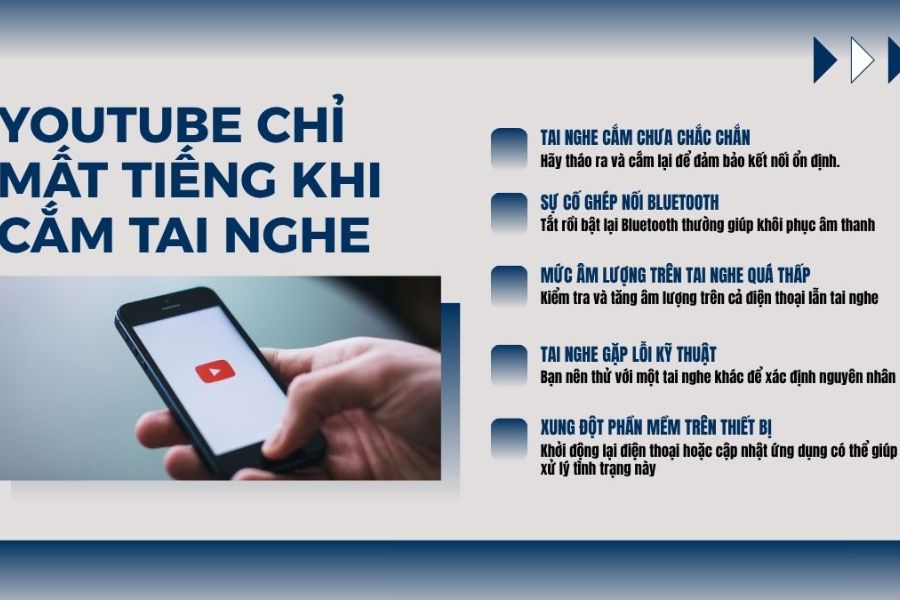
If YouTube plays sound normally through the external speaker but is silent when using headphones, you should check your accessories and audio connection before interfering with the app. This issue could stem from a loose connection, dead headphone battery, unstable Bluetooth connection, or a faulty audio device.
-
Check the connector: For wired headphones, unplug and reconnect them. If using a USB-C or Lightning adapter, check if the accessory is loose or damaged.
-
Check Bluetooth: Turn Bluetooth off and then back on, then reconnect the headphones.
-
Increase headphone volume: Check both the volume level on your phone and on the accessory if it has a separate volume control button.
-
Try a different pair of headphones: Use a different pair of headphones to determine whether the problem lies with the phone or the accessory.
-
Test with another app: Play music or videos on another app to see if the headphones are working properly.
-
Reconnecting from scratch: If the Bluetooth headphones still have no sound, delete the old connection from the Bluetooth list and then pair again according to the manufacturer's instructions.
If you've tried multiple headphones and your phone still isn't producing sound, you should also check the connection ports, adapters, and system software. Don't jump to conclusions that YouTube is faulty before verifying that the sound works normally in other applications.
4. When should I check or repair my phone's speaker?
Not every instance of YouTube losing sound requires repair. However, if increasing the volume, disconnecting headphones, restarting the device, and updating the app still doesn't work, you should investigate further. Especially if the problem occurs across multiple apps, the cause may be related to the audio system or hardware.
Some signs you should look out for include:
-
The speakerphone isn't producing sound in all apps: Try playing music or a video from a different app to check.
-
Sound is distorted, crackling, or unusually quiet: The speaker may be dusty, damp, or damaged.
-
Intermittent sound: Sound that comes and goes may be related to software or hardware connections.
-
Phone has been dropped or exposed to water: If the fault appears immediately after impact or contact with liquid, the device should be checked promptly.
You should not attempt to disassemble your phone yourself, use sharp objects to poke at the speaker, or heat the device with a hairdryer to fix it. These actions can damage components and increase repair costs. If you suspect a speaker problem, take your phone to an authorized service center or a reputable repair shop.
5. Tips to prevent YouTube audio loss on your phone.
To avoid interruptions to your entertainment and learning experiences due to sound loss, you should maintain some sensible phone usage habits. Small actions such as updating apps, checking your audio equipment, and keeping your speakers clean can help prevent some common problems.
-
Check the volume before watching: Make sure the media volume isn't at 0 and the video isn't muted.
-
Update YouTube regularly: Use the latest official version that is compatible with your device.
-
Restart your device when necessary: If an app is behaving erratically or your phone is slow, try restarting it.
-
Bluetooth connection management: Disconnect unused audio devices to avoid output mix-ups.
-
Keep the speakers and connectors clean: Limit dust and moisture exposure, and avoid using sharp objects for cleaning.
-
Test the audio on another app: This helps you quickly determine if the problem only occurs with YouTube or affects the entire phone.
-
Use official software: Download the app from Google Play or the App Store, and avoid installing versions from unknown sources.
6. Conclusion
YouTube losing sound on your phone can stem from many causes, from media volume being muted, app errors, unstable headphone connection, or hardware issues. In many cases, you can try to fix it yourself by increasing the volume, restarting your phone, clearing the Android cache, updating or reinstalling YouTube. To save time, try each solution in order from simplest to most complex and check the sound in other apps to identify the cause. If you've tried all these steps and your phone still has no sound, you should have a technician check .





















VIP Products








Best Selling Products
ChatGPT Plus Account (GPT-4)
16 USD
Copyright Adobe Lightroom Account
59 USD
Adobe Photoshop Copyright - Full App
120 USD
MidJourney Account
29 USD
Genuine Cheap Canva Pro
39 USD
Freepik Premium Account
59 USD
Upgrade genuine Capture One account
120 USD
Plugin Retouch4me
69 USD
Autodesk All App Account Copyright
120 USD
Capcut Pro 1 Year
39 USD
Upgrade Genuine Office 365
49 USD
Genuine Adobe Illustrator account
99 USD
Windows 10 & 11 Pro Key
36 USD
Upgrade Duolingo Super
29 USD
Adobe Premiere Pro Account
99 USD