Best Selling Products

ChatGPT Plus Account (GPT-4)
16 USD

Upgrade genuine Capture One account
120 USD

Freepik Premium Account
59 USD

Windows 10 & 11 Pro Key
36 USD

Capcut Pro 1 Year
39 USD

Genuine Cheap Canva Pro
39 USD

Adobe Premiere Pro Account
99 USD

Copyright Adobe Lightroom Account
59 USD

Genuine Adobe Illustrator account
99 USD

Adobe Photoshop Copyright - Full App
120 USD

Plugin Retouch4me
69 USD

Autodesk All App Account Copyright
120 USD

MidJourney Account
29 USD

Upgrade Genuine Office 365
49 USD

Upgrade Duolingo Super
29 USD
How to create beautiful, authentic retro-style 80s-themed photos using AI, without installing any software.
Nội dung
- 1. What are trending 80s photos created using AI?
- 2. What preparations are needed before creating 80s-themed photos using AI?
- 3. How to create 80s-style trend photos using AI with Hypic
- Step 1: Find 80s-style photos on TikTok.
- Step 2: Choose a template to use in Hypic
- Step 3: Allow Hyperic to open.
- Step 4: Click to use the image template
- Step 5: Log in to Hypic
- Step 6: Enter your date of birth if prompted.
- Step 7: Choose a personal photo
- Step 8: Confirm image usage
- Step 9: Wait for the AI to create the image.
- Step 10: Export and save the image
- 4. A compilation of AI-powered prompts for creating beautiful, natural-looking 80s-style photos.
- Prompt 1: Classic Retro Portrait
- Prompt 2: Elegant Ladies of the 80s
- Prompt 3: Everyday Film Photography
- Prompt 4: Stylish retro fashion photos
- Tips for writing effective prompts
- 5. Other AI tools that help create 80s-style trending images.
- 6. Conclusion
The trend of creating 80s-themed photos using AI is gaining attention on social media thanks to its nostalgic frames, vintage clothing, and unique film effects. From a simple portrait photo, you can transform your look into a retro style with voluminous hair, soft lighting, and the characteristic color palette of the 1980s. The interesting thing is that you don''t need professional photo editing skills or a film camera to follow this trend. With the help of AI tools, the photo creation process becomes simpler and faster. Let''s explore with Sadesign how to create trendy 80s-themed photos using AI on your phone, beautiful prompts, and secrets to making the finished product look as natural as possible.
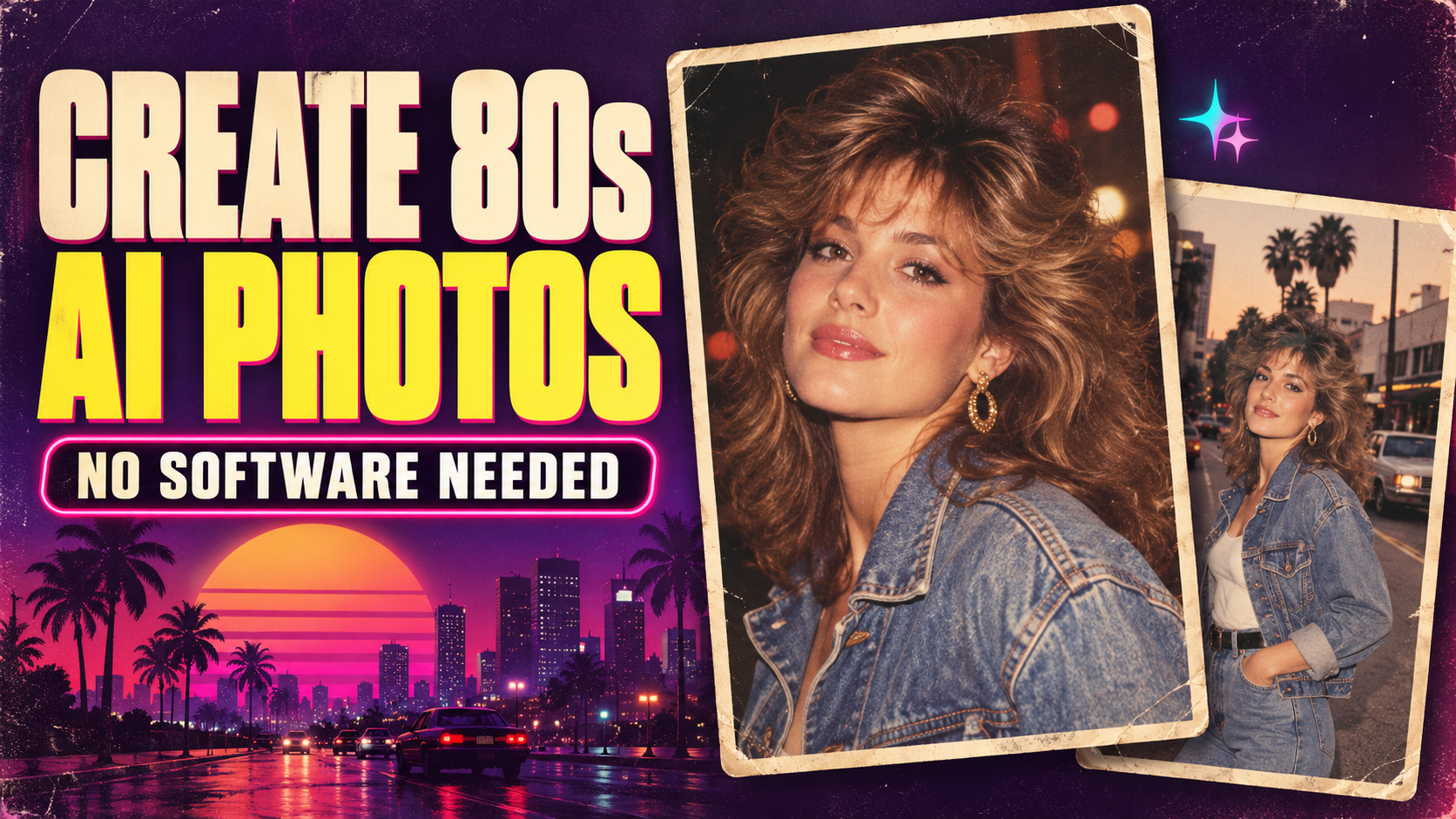
1. What are trending 80s photos created using AI?
AI-powered 80s-style photos are a trend that uses artificial intelligence to transform modern images into portraits with a 1980s photographic style. AI technology can analyze faces, clothing, and photo composition to create a new look with vintage colors, classic hairstyles, and characteristic lighting. This trend is popular for its combination of nostalgia and creative flexibility, allowing users to create unique photos to post on TikTok, Facebook, or Instagram.
Some notable characteristics of 1980s photography include:
-
Retro colors: Warm yellow, brown, earthy orange tones, or slightly silvery film colors evoke a nostalgic feeling.
-
Classic outfits: Denim jackets, patterned shirts, padded-shoulder blazers, and oversized sweaters all bear the hallmarks of 80s fashion.
-
Voluminous hairstyles: Voluminous hair, curls, or styled bangs can make your look even more striking.
-
Film effect: Mild noise, moderate contrast, and soft lighting mimic images taken with an analog camera.
-
Nostalgic setting: Classic studio backdrop, old-fashioned living room, or vintage-style street.
To create beautiful and realistic images, you should combine the above elements harmoniously. There's no need to use too many effects, because sometimes soft colors and natural faces create a unique appeal for the photograph.
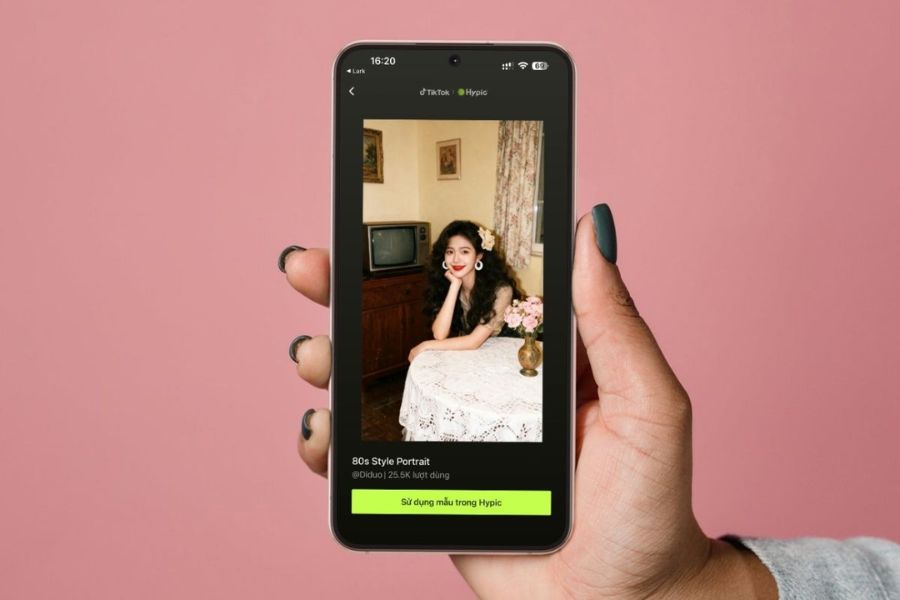
2. What preparations are needed before creating 80s-themed photos using AI?
Before you begin, you should prepare a clear portrait photo and choose the appropriate AI tool. The quality of the input image significantly affects the results because the system needs to recognize facial features to reconstruct the image. In addition, a stable internet connection will help the image uploading and processing process run more smoothly.
Things to note include:
-
Choose a high-quality original photo: Prioritize photos that are well-lit, have clear faces, and are not blurry.
-
The right angle: A frontal or slightly angled shot is usually easier to process than a shot where the face is obscured.
-
Prepare your internet connection: A phone or computer with a stable internet connection will allow you to use online tools conveniently.
-
Choosing an AI tool: You can try the Hypic photo template shared on TikTok or use other AI photo creation platforms.
-
Determine your desired style: Choose beforehand whether you want an elegant, edgy, studio portrait, or candid film shot to easily adjust the results.
-
Privacy Notice: Only upload photos you have the right to use and check the tool's data policy before submitting personal images.
If you want to get things done quickly, you should start with a pre-made image template. This saves time compared to writing your own prompt and adjusting each effect.
3. How to create 80s-style trend photos using AI with Hypic
Hypic is an option for those who want to create retro photos using pre-made editing templates. You can find templates on TikTok, switch to Hypic, and then upload your own photos for AI processing. Below are the steps to follow using photo templates shared on TikTok. Button names and interfaces may vary depending on the app version.
Step 1: Find 80s-style photos on TikTok.
Open TikTok and enter keywords like “80s photo trend,” “80s Style Portrait,” or “AI retro portrait” into the search bar. After finding a suitable video, check if it has a “Hypic | Try this photo template” option. If it does, tap on it to go to the corresponding template.
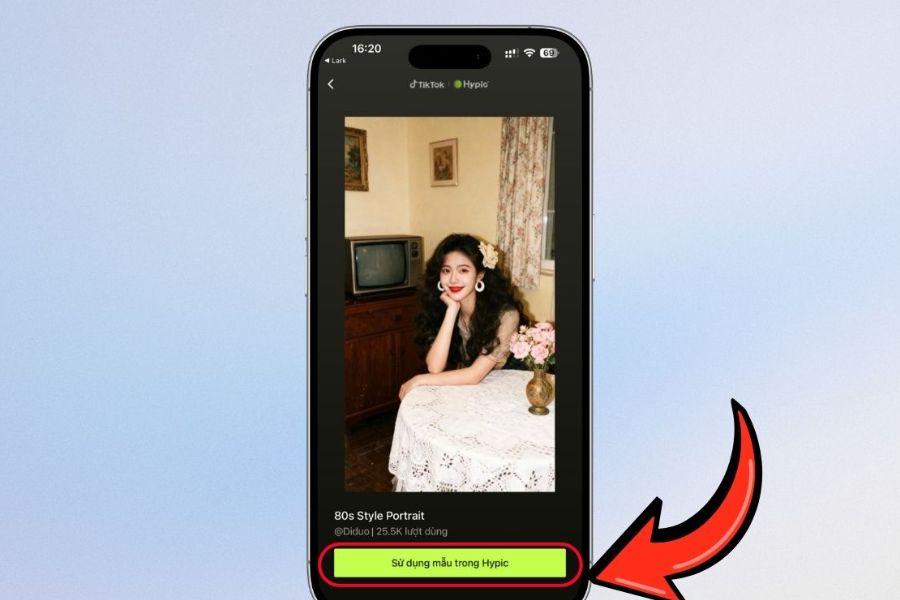
Step 2: Choose a template to use in Hypic
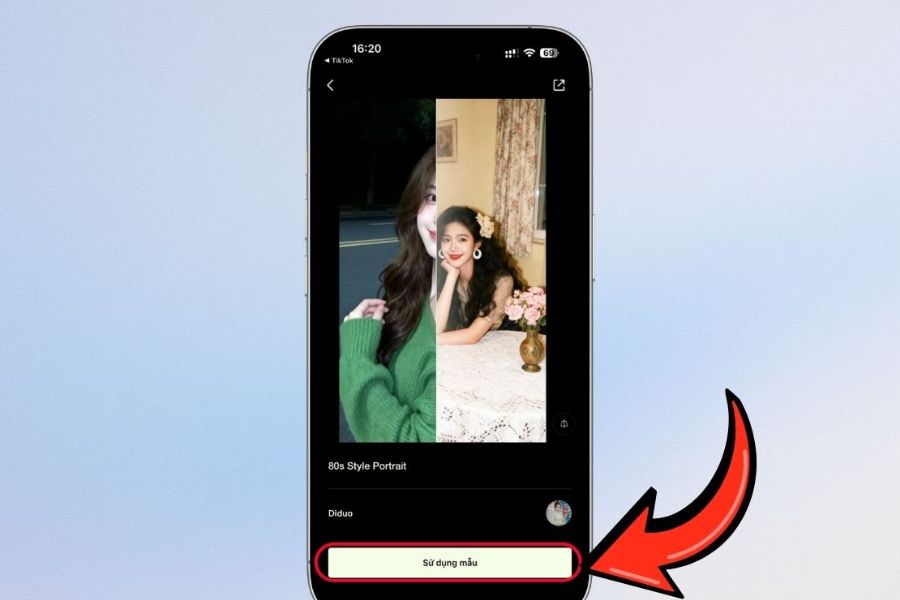
When the “80s Style Portrait” template interface appears, press the “Use template in Hypic” button at the bottom of the screen. This will transfer the editing template to Hypic so you can continue creating your image.
If you don't see the option, you can try a different template or check if the link is still working.
Step 3: Allow Hyperic to open.
Your phone may display a message asking if you want to open Hypic from TikTok. Select "Open" to continue if you want to use this template.
If the app doesn't open automatically, go back to TikTok and tap the template link again. The specific steps may vary depending on your device.
Step 4: Click to use the image template
In the Hypic interface, find the "Use template" button to start applying the 80s style. The system will use the pre-set settings instead of requiring you to manually edit each detail.
You should double-check the sample before proceeding to ensure the style suits your preferences.
Step 5: Log in to Hypic
If prompted to log in, choose the method that suits your account. Depending on the version, the app may support logging in via TikTok, Facebook, Apple, or Google.
Before confirming, please check the requested permissions and only use your own account information.
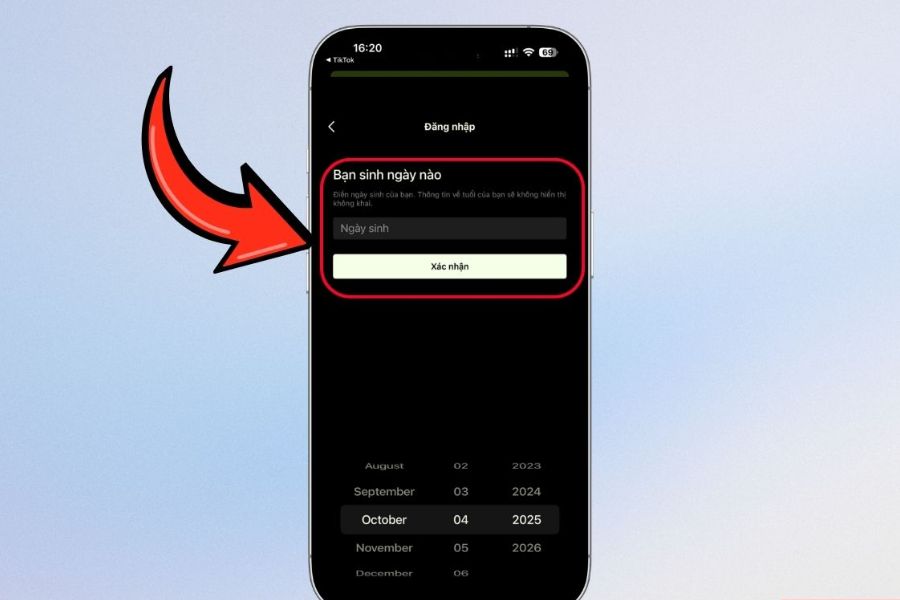
Step 6: Enter your date of birth if prompted.
Some versions of the app may require you to enter your date of birth to complete account setup. If the screen displays a "Date of Birth" field, fill in the information as instructed and press "Confirm".
If the application doesn't require this step, you can skip it and continue.
Step 7: Choose a personal photo
When the photo library appears, select the portrait you want to transform into the 80s style. Photos with clear faces, balanced lighting, and minimal distracting details tend to be better processed by the AI.
You should prioritize photos with natural expressions, without cropping out the forehead or chin, and avoid using filters that drastically distort the face.
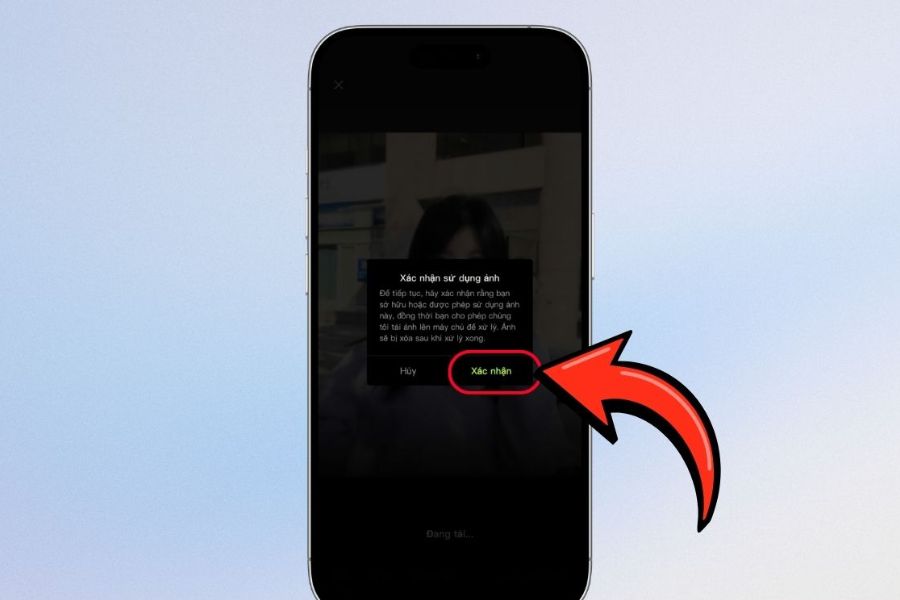
Step 8: Confirm image usage
After selecting an image, the app may display a "Confirm image usage" message. Tap "Confirm" if you have selected the correct image and agree to the terms and conditions displayed.
If you realize you've selected the wrong image, go back to the library and change it before you begin processing.
Step 9: Wait for the AI to create the image.
Hypic will upload the image and automatically process it according to the selected template. Completion time depends on network speed, complexity of the effect, and service availability.
Once the image is created, check the face, hairstyle, clothing, and colors to see if the result is satisfactory.
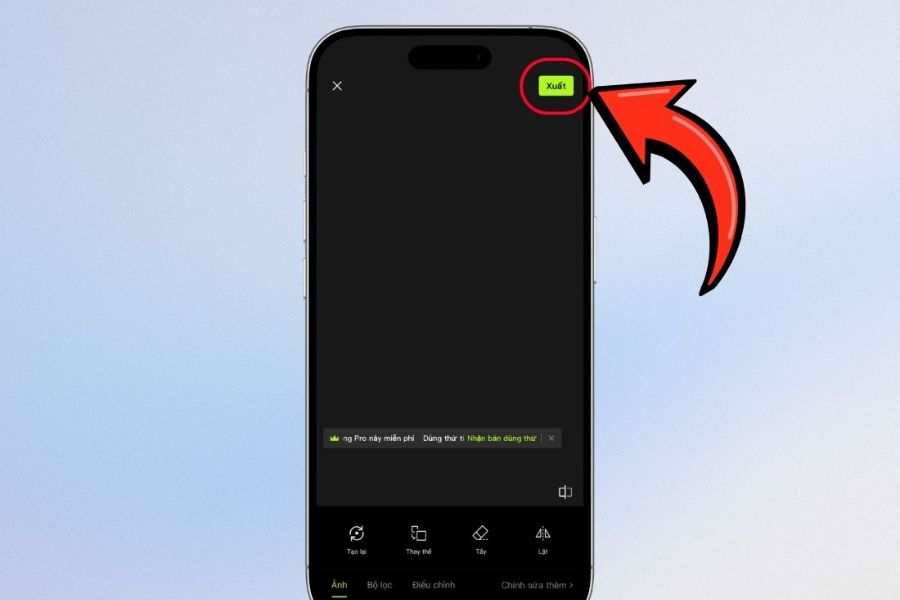
Step 10: Export and save the image
Once you're satisfied with the final product, press the "Export" button in the upper right corner or select the corresponding image saving option. Depending on the version, the application may offer additional sharing options or require an upgrade for certain features.
If you see a notification about Hypic Pro, check the fees and subscription conditions before deciding. After saving the image, you can open the library to check the quality and post it on social media.
4. A compilation of AI-powered prompts for creating beautiful, natural-looking 80s-style photos.
If you want to actively choose clothing, lighting, and background, you can use prompts to guide the AI in creating or editing photos. Clearly describe your desired style and request that facial features be preserved to avoid the resulting image looking unnatural.
Prompt 1: Classic Retro Portrait
Suitable for those who want to create a profile picture with a nostalgic feel.
Prompt:
“Transform the uploaded portrait into an authentic 1980s vintage studio photograph. Preserve the person's original facial features, identity and natural expression. Add classic 1980s clothing, softly voluminous hair, warm film tones, subtle film grain and gentle studio lighting. Realistic photography, natural skin texture, no exaggerated beauty filters.”
Prompt 2: Elegant Ladies of the 80s
This style suits those who love classic outfits, blazers, and voluminous hairstyles.
Prompt:
“Create a realistic 1980s fashion portrait based on the reference photo. Preserve the person's original identity and facial features. Add an elegant vintage blazer, classic accessories and softly voluminous 1980s hair. Use warm beige and brown tones, soft studio lighting and subtle analog film grain. Natural skin texture, timeless editorial photography.”
Prompt 3: Everyday Film Photography
If you like the intimate feel of old family photos, you can use this prompt.
Prompt:
“Turn the reference photo into a candid 1980s film photograph. Keep the person's identity and natural expression unchanged. Add vintage casual clothing, a nostalgic everyday setting, warm faded colors, gentle natural light and subtle 35mm film grain. Realistic photography, natural skin texture, no excessive retouching.”
Prompt 4: Stylish retro fashion photos
Editorial style helps images stand out with denim jackets, contrasting lighting, and bold film colors.
Prompt:
“Create a bold 1980s retro fashion editorial portrait using the uploaded photo as reference. Preserve the subject's identity and recognizable facial features. Add a vintage denim jacket, voluminous hairstyle, cinematic studio lighting and rich analog film colors. Subtle film grain, realistic fabric textures, natural proportions, authentic retro aesthetic.”
Tips for writing effective prompts
To make the result look more natural, you can add some requirements to the end of the prompt:
-
Preserve the original facial identity and features.
-
Limitations of skin smoothing: “Natural skin texture, realistic pores”.
-
Maintain natural body proportions: “Realistic anatomy and natural proportions”.
-
Reduced visual artifacts: “Subtle film grain, no excessive filters.”
-
Avoid facial distortion: “No distorted eyes, no warped facial features.”
You can change the outfit, hairstyle, and background to your liking. If the photo editing tool provides a reference, upload the original photo and clearly state that you want to change the style, not the identity of the person in the photo.
5. Other AI tools that help create 80s-style trending images.
Besides Hypic, you can explore several other AI tools for creating retro photos. Each platform has its own strengths, suitable for portrait editing, creating descriptive images, or designing social media content.
-
ChatGPT: Supports creating and editing images using commands when the corresponding feature is available. You can describe the costumes, lighting, and setting of the 80s to create images according to your own ideas.
-
Gemini: Can support image creation or editing in versions that offer this feature. A suitable tool for experimenting with various retro style variations.
-
Remini: Suitable when you want to improve the sharpness of portrait photos or restore low-quality images. Vintage effect features depend on the version used.
-
Canva AI: Suitable for those who want to create images, adjust colors, and incorporate retro elements into social media post designs.
Before using any tool, you should check the free trial limits, login requirements, and image export conditions of each platform. Not all tools offer all features for free.
6. Conclusion
Creating 80s-themed photos using AI isn't too complicated if you choose the right tools and prepare suitable original images. Hypic is a convenient option if you want to use pre-made templates from TikTok, while ChatGPT, Gemini, and Canva AI can help you experiment with retro ideas in your own way. Start with a clear portrait photo, use the appropriate prompt, and adjust the effects moderately. With just a few steps, you can create nostalgic, natural, and unique frames to share on social media.





















VIP Products








Best Selling Products
ChatGPT Plus Account (GPT-4)
16 USD
Upgrade genuine Capture One account
120 USD
Freepik Premium Account
59 USD
Windows 10 & 11 Pro Key
36 USD
Capcut Pro 1 Year
39 USD
Genuine Cheap Canva Pro
39 USD
Adobe Premiere Pro Account
99 USD
Copyright Adobe Lightroom Account
59 USD
Genuine Adobe Illustrator account
99 USD
Adobe Photoshop Copyright - Full App
120 USD
Plugin Retouch4me
69 USD
Autodesk All App Account Copyright
120 USD
MidJourney Account
29 USD
Upgrade Genuine Office 365
49 USD
Upgrade Duolingo Super
29 USD