Best Selling Products

Genuine Adobe Illustrator account
99 USD

Freepik Premium Account
59 USD

Upgrade Genuine Office 365
49 USD

Copyright Adobe Lightroom Account
59 USD

Upgrade genuine Capture One account
120 USD

Upgrade Duolingo Super
29 USD

Windows 10 & 11 Pro Key
36 USD

Capcut Pro 1 Year
39 USD

MidJourney Account
29 USD

Genuine Cheap Canva Pro
39 USD

Plugin Retouch4me
69 USD

ChatGPT Plus Account (GPT-4)
16 USD

Adobe Premiere Pro Account
99 USD

Autodesk All App Account Copyright
120 USD

Adobe Photoshop Copyright - Full App
120 USD
How well does ChatGPT understand you? A guide to catching the super hot trend of the interest box.
Nội dung
- 1. What is the trend of the "interests box" on ChatGPT?
- 2. What information does ChatGPT use to understand you?
- 3. What preparations are needed before joining the hobby box trend?
- 4. Guide to seeing how well ChatGPT understands you through the interest box trend.
- 4.1 Step 1: Prepare an image of an empty box
- 4.2 Step 2: Open ChatGPT and upload images
- 4.3 Step 3: Enter the command to ask ChatGPT to decorate the box.
- 4.4 Step 4: View the images and compare them with your actual preferences.
- 5. Tips to make your hobby box more beautiful and personalized.
- 6. Conclusion
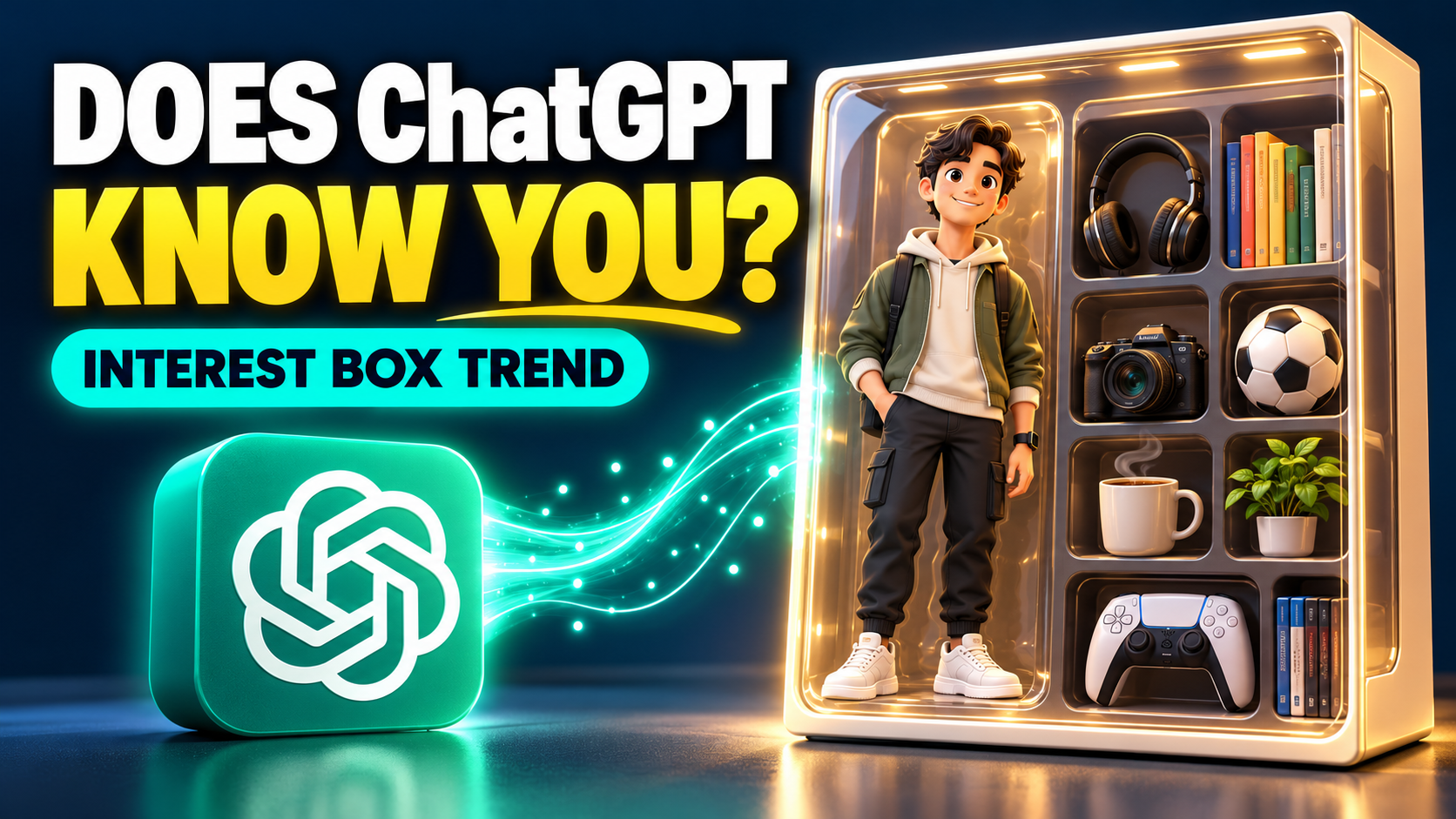
What are your hobbies, lifestyle, or things you''ve been interested in through past conversations? The trending "Hobbies Box" is a fun way to find the answer. With just an image of an empty box and a simple command, you can ask ChatGPT to create a box filled with items, colors, and details that reflect your personal style. The appeal of this trend lies in the element of surprise. Some details will make you laugh because they perfectly reflect your personality, while others will be completely unexpected.
1. What is the trend of the "interests box" on ChatGPT?
The "Hobbies Box" trend is an AI-powered creative activity where users ask ChatGPT to decorate an empty box with objects and colors that reflect their personality. Instead of choosing each detail themselves, users let the AI suggest decorations based on available information about them. The finished product usually consists of many small items arranged beautifully, creating the feeling of a box preserving each person's own private world.
-
No design skills required: You don't need to know how to use Photoshop or other professional photo editing apps.
-
Quick and easy: Simply prepare the image, upload it to ChatGPT, and enter the command.
-
Personal touches: Items, colors, and arrangements can evoke your hobbies or work.
-
Easy to share: The finished image can become engaging content to post on social media.
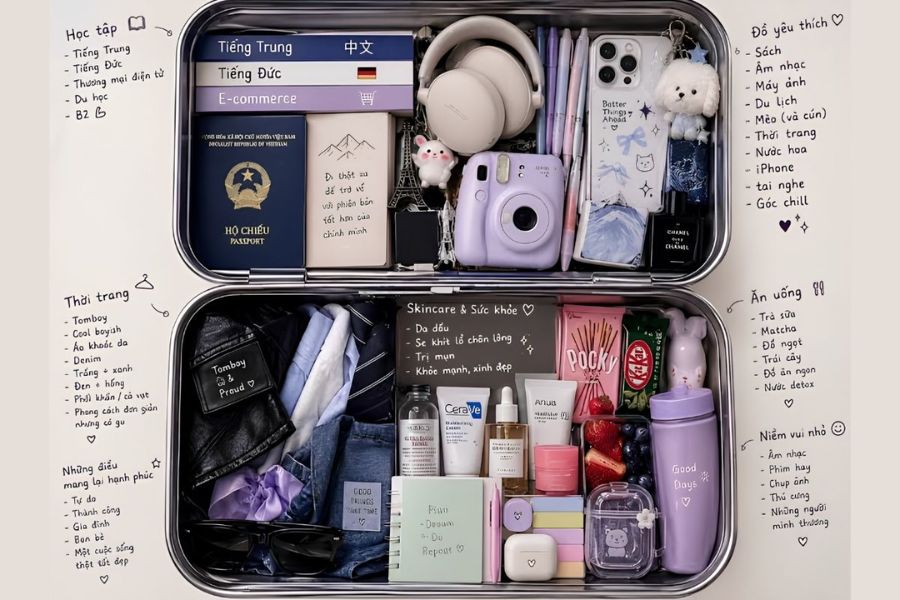
2. What information does ChatGPT use to understand you?
Before you begin, you should understand that ChatGPT doesn't automatically know everything about you. The AI-generated responses and images depend on the content you provide, the context used, and the personalization features enabled on your account. Therefore, the interests box may reflect some of what you've shared, but it's not a complete description of who you are. There are several sources of information that can help ChatGPT provide more relevant responses:
-
Current conversation content: The questions, requests, examples, and information you provide in the conversation help the AI understand what you want to accomplish. For example, if you typically request sales copywriting, ChatGPT can use that context when suggesting work-related items.
-
Information is remembered: If the memory feature is supported and enabled, ChatGPT may use some of the information you've previously shared, such as interests, occupation, or preferred response style. However, this does not mean the tool retains every single conversation.
-
Customization guidelines: Settings such as prioritizing Vietnamese, preferring short answers, or wanting a more natural style of expression can help ChatGPT tailor its responses to better meet your needs.
-
How you interact and respond: When you frequently edit, add to, or comment on answers, the AI can use that context to adjust the content. However, some of the assessments are still speculative and may not be accurate.
3. What preparations are needed before joining the hobby box trend?
To get a good image that's easy to compare with your actual preferences, you should prepare a suitable image of the box and a ChatGPT account that can use the image uploading and image creation/editing features. You can do this on your computer or mobile browser; you don't necessarily need to install any specialized software. Before you begin, check the following:
-
Box image: Choose an image of a box or container with both sides clearly visible, unobstructed, and with enough space to add objects.
-
Image quality: Prioritize clear images with good lighting and a simple composition to make it easier for the AI to recognize the original shape.
-
ChatGPT account: Log in with your frequently used account to take advantage of the contextual and personalized features offered.
-
The required statement: Prepare the statement in advance to accurately describe your needs, avoiding the need to rewrite it multiple times.
-
Internet-connected devices are required: both phones and laptops can be used, as long as the account and interface being used support the necessary operations.
4. Guide to seeing how well ChatGPT understands you through the interest box trend.
4.1 Step 1: Prepare an image of an empty box
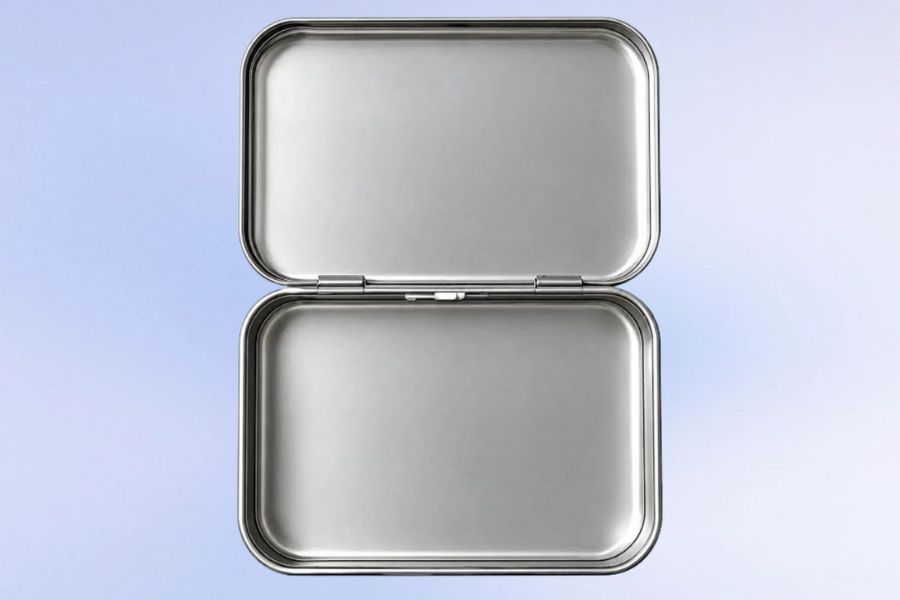
First, find a clear image of an empty box. You should choose a box with two easily distinguishable sides or compartments, and a surface large enough for the AI to add decorations. Images with simple backgrounds, a frontal angle, and even lighting usually make it easier to observe the changes after editing.
You can use an existing photo or take a picture of the box at home. For a visually appealing result, avoid images with too much detail in the background, the box being obscured, or the angle being too tilted. Once you've chosen a satisfactory image, save it to your device for easy uploading to ChatGPT in the next step.
4.2 Step 2: Open ChatGPT and upload images
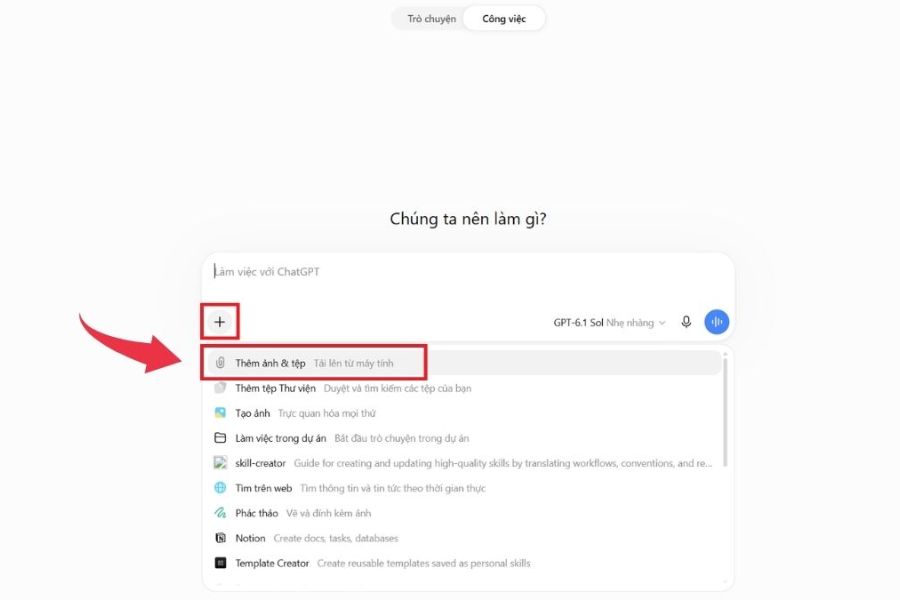
Access ChatGPT using a browser on your computer, phone, or the official app if you have one installed. After logging in, open a new chat or a chat suitable for image creation purposes. In the message input area, tap the plus icon or the attachment button, then select the "add photos and files" option if your interface displays it.
Next, select the prepared box image and wait for the system to complete the upload. Before submitting, check that the image is fully displayed and ensure it's the correct image you want to use. If you can't find the image upload button or image editing feature, you can check your current interface, file access permissions, and account support.
4.3 Step 3: Enter the command to ask ChatGPT to decorate the box.
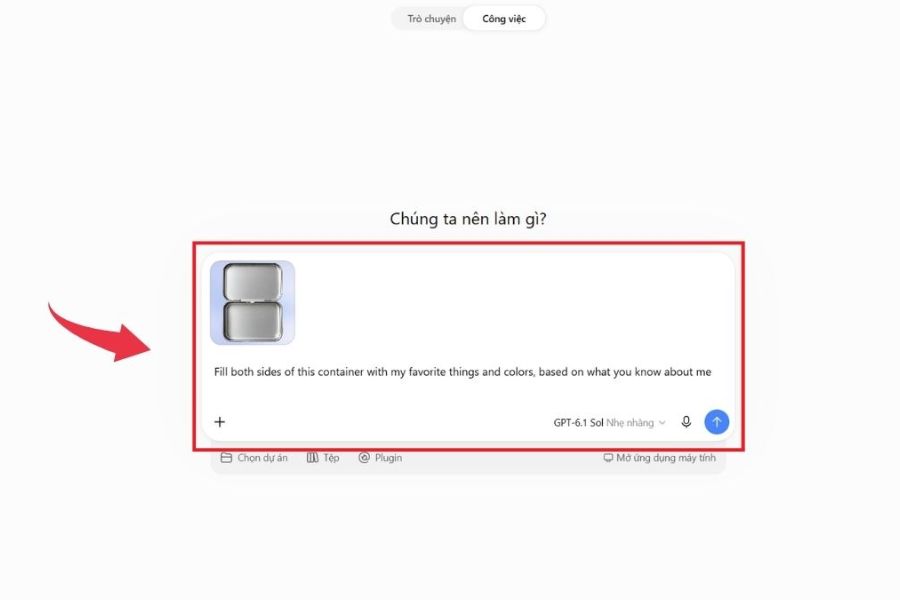
After successfully uploading the image, enter a command to ask ChatGPT to fill both sides of the box with your favorite items and colors based on the information the tool knows about you. You can use the following English command to get started:
“Fill both sides of this container with my favorite things and colors, based on what you know about me.”
This command means: “Fill both sides of the box with my favorite items and colors, based on what you know about me.” After entering the information, press Submit and wait for ChatGPT to process the request. Depending on the available features and the complexity of the image, the completion time may vary.
If you want the image to reflect your personality more clearly, you can add requests such as keeping the box's shape, arranging the items neatly, using natural light, and creating a cute or minimalist style. If ChatGPT doesn't have much information about your preferences, provide some more practical suggestions to make the image less generic.
4.4 Step 4: View the images and compare them with your actual preferences.
When ChatGPT returns an image, take the time to observe the items, colors, and details that appear in the box. You might spot items related to your work, hobbies, or symbols representing your lifestyle. This is the most interesting part of the trend, as the results are sometimes quite unexpected and can become a topic to share with your friends.
To explore further, you can ask ChatGPT to explain the reasoning behind each item's selection or point out details taken from the information you've shared. If the image isn't quite what you wanted, provide specific feedback on the colors, items to add, or details to remove. You can also request a re-creation of the image with a different arrangement to find the best version. Once satisfied, save the image and share it if you wish.
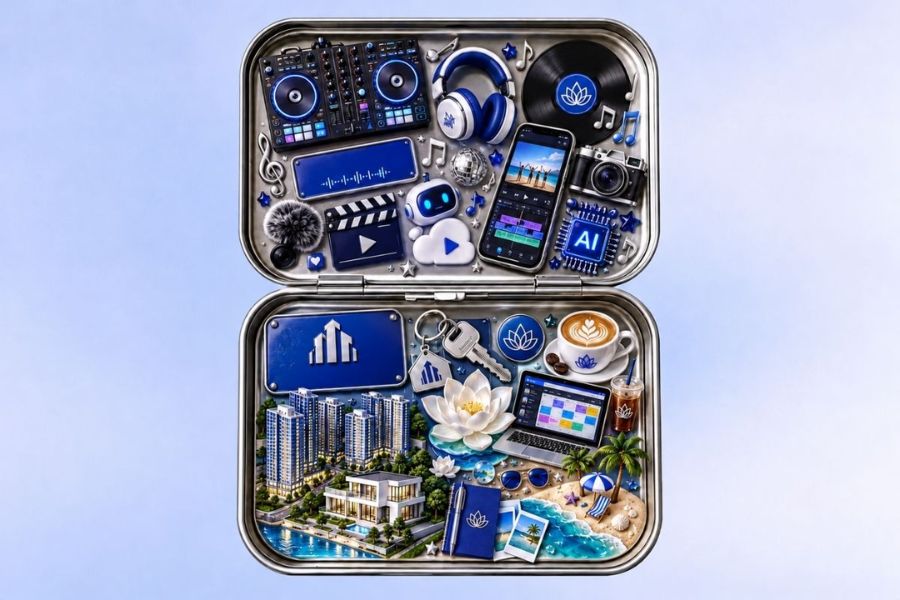
5. Tips to make your hobby box more beautiful and personalized.
A simple command can generate an interesting image, but if you want the final product to truly stand out, you should clearly describe the desired style. Instead of just asking to add objects to the box, specify the color scheme, layout, and level of detail. Specific suggestions will help ChatGPT better understand your vision, although the final result may still vary between creations.
-
Choose your favorite color palette: If you prefer a soft style, ask for pastel colors, cream white, or light pink. If you like a bold look, you can choose black, silver, or contrasting colors.
-
Add specific interests: Tell ChatGPT whether you enjoy music, reading, traveling, beauty, fashion, or another activity so the AI has more information to help select items.
-
A neat layout is required: You can suggest arranging objects with reasonable spacing, minimizing overlapping details, and keeping the box as the central focus.
-
Choose your image style: Styles such as realistic photography, miniature models, scrapbooking, or cute illustrations can all produce different results.
-
Make adjustments piece by piece: If the overall look is great but a few items aren't quite right, ask to change only those details instead of recreating everything from scratch.
6. Conclusion
The hobby box trend is a fun way to discover how well ChatGPT understands you through personalized images. With just a picture of an empty box and a simple command, you can create unique results without needing any specialized editing software. Try it out, compare each item to your real-life interests, and ask the AI to adjust if needed to get the best possible image. Whether the results are perfectly accurate or not, the important thing is to enjoy the creative experience and understand the limitations of AI. If you want to share your creation on social media, remember to check your privacy settings before posting. Who knows, the box created by ChatGPT might reveal some interesting things about your interests that you never thought of!





















VIP Products








Best Selling Products
Genuine Adobe Illustrator account
99 USD
Freepik Premium Account
59 USD
Upgrade Genuine Office 365
49 USD
Copyright Adobe Lightroom Account
59 USD
Upgrade genuine Capture One account
120 USD
Upgrade Duolingo Super
29 USD
Windows 10 & 11 Pro Key
36 USD
Capcut Pro 1 Year
39 USD
MidJourney Account
29 USD
Genuine Cheap Canva Pro
39 USD
Plugin Retouch4me
69 USD
ChatGPT Plus Account (GPT-4)
16 USD
Adobe Premiere Pro Account
99 USD
Autodesk All App Account Copyright
120 USD
Adobe Photoshop Copyright - Full App
120 USD