Best Selling Products
Adobe Photoshop Copyright - Full App
120 USD

MidJourney Account
29 USD
Autodesk All App Account Copyright
120 USD
Genuine Adobe Illustrator account
99 USD
Upgrade Genuine Office 365
49 USD

Capcut Pro 1 Year
39 USD
Windows 10 & 11 Pro Key
36 USD
Upgrade Duolingo Super
29 USD
Copyright Adobe Lightroom Account
59 USD
Adobe Premiere Pro Account
99 USD
Plugin Retouch4me
69 USD

Freepik Premium Account
59 USD
Genuine Cheap Canva Pro
39 USD
Upgrade genuine Capture One account
120 USD

ChatGPT Plus Account (GPT-4)
16 USD
How to install Gemini on Windows for more convenient AI collaboration.
Nội dung
- 1. What is Gemini on Windows?
- 2. Key features of Gemini on Windows
- 3. Instructions on how to install Gemini on Windows
- Step 1: Access the official Gemini download page.
- Step 2: Run the application installation file.
- Step 3: Open Gemini and log in to your Google account.
- Step 4: Start using Gemini on your computer.
- 4. How to use Gemini more effectively on Windows
- 5. Important notes when installing and using Gemini on Windows
- 6. Conclusion
In the age of rapidly developing AI, integrating AI assistants into personal computers makes learning and working faster and more flexible. Instead of having to open a browser and search for tools every time support is needed, users can access Gemini to search for information, create content, brainstorm ideas, or solve everyday tasks. In particular, the Gemini application for Windows aims for a convenient user experience directly on the computer, reducing the need to switch between windows. So, how do you install Gemini on Windows? Let''s explore its outstanding features, setup instructions, and important notes to effectively utilize this AI assistant!
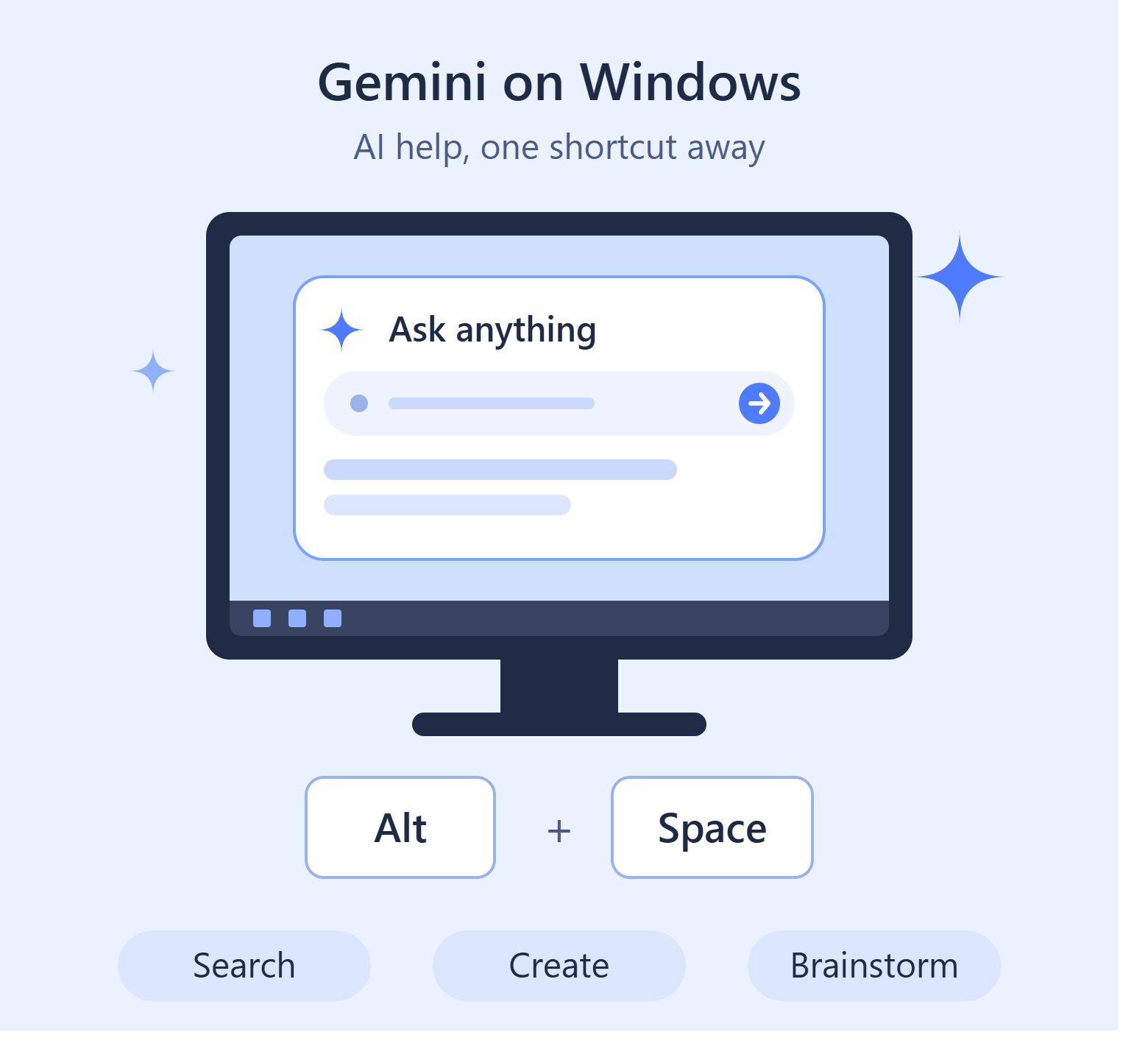
1. What is Gemini on Windows?
Gemini is an artificial intelligence assistant developed by Google, supporting users with various tasks related to information searching, content writing, data analysis, and creativity. As an application for Windows computers, Gemini offers a more convenient approach to AI, especially for those who frequently work on computers and need assistance with studying, writing documents, or planning work.
A notable feature of the desktop application is its ability to quickly access content via keyboard shortcuts, allowing users to open the chat interface without having to search the website they are currently using. However, installation and available features will depend on the application version, region, and Google account. Therefore, before proceeding, you should check information from official sources to choose the appropriate access method.

2. Key features of Gemini on Windows
Gemini can be a helpful assistant in many situations, from handling office work to studying and developing creative ideas. When used on Windows computers, users can leverage AI capabilities to shorten the time spent on repetitive tasks and find additional solutions to complex problems.
-
Quick access to AI: With shortcut-enabled apps, users can access Gemini while working, ask questions, or request suggestions without switching to a separate browser.
-
Text drafting and editing: Gemini assists with outlining, email writing, article development, proofreading, and adjusting tone for specific purposes.
-
Summarizing information: You can ask the AI to condense lengthy content, systematize key points, or explain complex topics in a simpler way.
-
Image creation support: Depending on the tools and account access, users can create images from descriptions to develop design ideas, illustrate presentations, or build communication content.
-
Data extraction from images: When the relevant feature is supported, you can upload images to Gemini for content recognition, information interpretation, or detail analysis.
-
Programming support: Gemini can explain code snippets, suggest ways to write code, identify the root causes of errors, and propose solutions to improve the program.
-
Connecting with Google services: Some features allow you to access data from services like Gmail or Google Drive when your account, access permissions, and integration settings meet the requirements.
3. Instructions on how to install Gemini on Windows
To use Gemini conveniently on your computer, you need to check if the application is compatible with your device, download the installer from a reliable source, and log in with your Google account. The steps below will help you complete the setup process more easily.
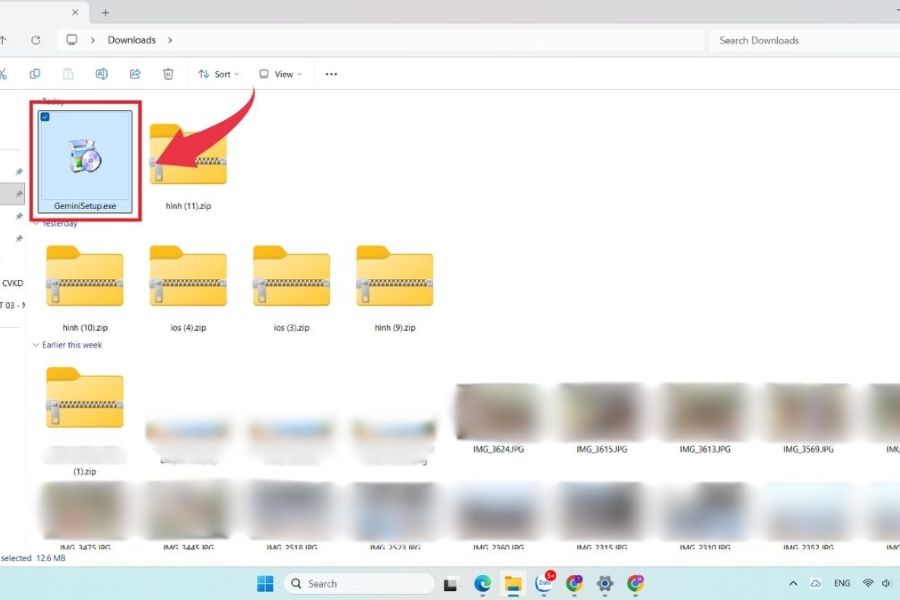
Step 1: Access the official Gemini download page.
First, open your browser on your Windows computer and go to gemini.google/desktop following the instructions provided. Here, check if Google offers a Windows application for your region and the time you are visiting.
If the download page has a Windows option, click the corresponding download button and wait for the process to complete. The installation file may be saved in your Downloads folder or your browser's default download location.
Here are some points to note when performing this step:
-
Double-check the domain name before downloading files to avoid fake websites.
-
Only use installers provided from official sources or links verified by Google.
-
Do not download executable files from unknown sources just because they have the name Gemini.
-
If you don't see the Windows version, check Google's notification again instead of installing unverified software.

Step 2: Run the application installation file.
After downloading a valid installer, open the folder containing the file and double-click to launch the setup process. If Windows displays a message asking for permission to run the application, check the publisher and download source before agreeing.
Depending on the version of the installer, the application may automatically perform the setup steps or display instructions on the screen. You just need to follow the instructions provided, wait for the process to complete, and avoid closing the installer while the software is still running.
If you are unable to install, please check some common causes:
-
Download failed: Re-download the installer from the official source and check if the download is complete.
-
Windows blocks applications: Check the publisher information and security warnings before deciding to proceed.
-
The device does not meet the requirements: Check your Windows version and the system conditions required by the application.
-
No suitable installer found: Please confirm Google's Windows support at the time of this process.
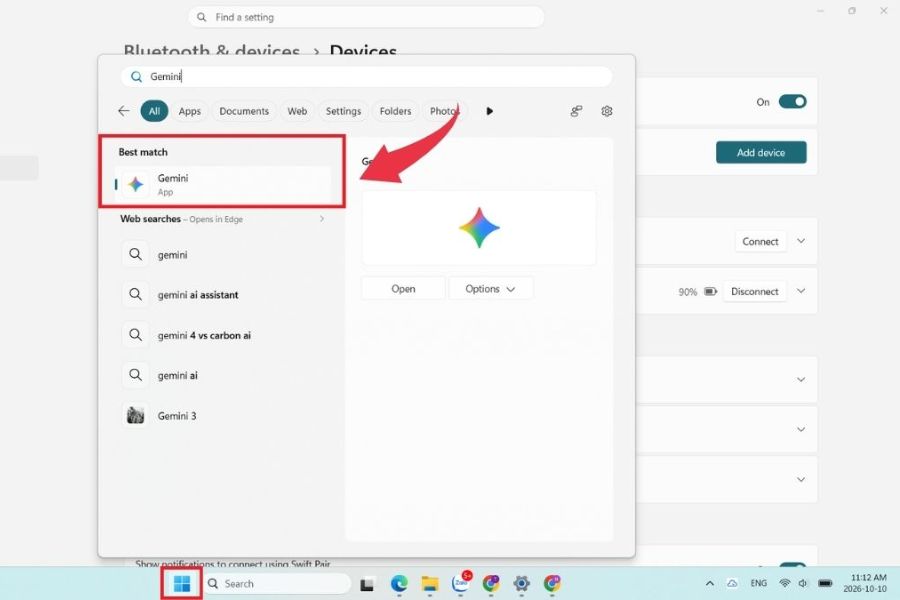
Step 3: Open Gemini and log in to your Google account.
Once the installation is complete, open the Start menu on Windows, type "Gemini" in the search box, and select the application if the icon appears. On the first launch, the application may ask you to log in to your Google account to access supported functions.
Use the account that best suits your personal or work needs, then follow the on-screen instructions. Some features may require you to confirm terms, grant permissions, or complete additional setup before use.
To ensure a smooth login process, please note the following:
-
Check your internet connection before logging in.
-
Use a Google account that you have access to and can verify when needed.
-
Read the permission requests carefully, especially if the app asks to connect to other services.
-
If you're using an account managed by a school or business, check if the administrator has restricted Gemini access.
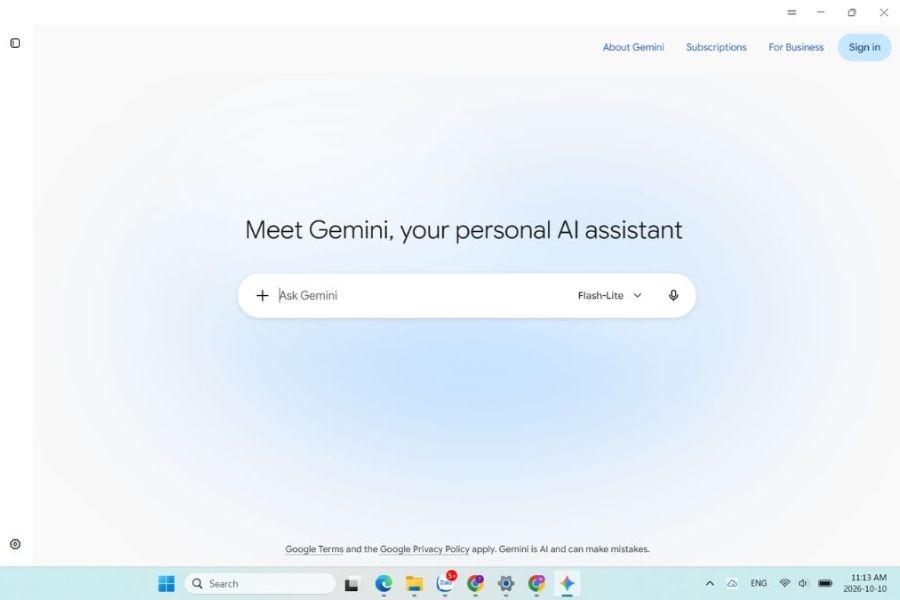
Step 4: Start using Gemini on your computer.
Once the chat interface is ready, enter your request in the chat box so Gemini can assist with your task. You can start with simple tasks such as writing emails, planning your day, summarizing content, or finding ideas for a presentation.
To receive a response that closely matches your needs, clearly describe your goal, context, and desired outcome format. For example, instead of simply requesting an email, you could specify the recipient, the purpose of the email, and the tone of voice required. The more specific the information, the easier it is to achieve the desired result.
You can try some of the following requests:
-
Draft the content: “Write an email requesting to reschedule the meeting to Friday afternoon, keeping the tone polite and concise.”
-
Summary of the document: "Summarize the following content into 5 main points, using easy-to-understand language."
-
Planning: "Schedule your day's work to include three key tasks, with reasonable breaks."
-
Idea development: “Suggest 10 article topics about the application of AI in learning, suitable for beginners.”
-
Learning support: “Explain this concept with a real-world example and provide three review questions.”
If the version of the app you're using supports the Alt + Space shortcut , you can use this combination to launch Gemini faster. If the shortcut doesn't work, check your current version's manual or open the app from the Start menu.
4. How to use Gemini more effectively on Windows
Installing the app is just the first step. For Gemini to truly save you time, you should develop clear questions and choose appropriate tasks to assign to the AI. Instead of using Gemini as a simple search tool, think of it as an assistant to help you brainstorm, organize information, and refine drafts. Here are some helpful tips you can apply right away:
-
State your goal clearly: Let Gemini know what problem you want to solve, such as writing a report, analyzing content, or creating a plan.
-
Provide the necessary context: Include relevant information so the AI understands the request correctly, but avoid sharing confidential or unnecessary data.
-
Specific formatting requirements: If you need a table, list, paragraph, or step-by-step instructions, specify it directly in the command.
-
Break down complex tasks: Start by creating an outline, then gradually request the development of each section to better control quality.
-
Multiple rounds of discussion: If the answer isn't suitable, ask Gemini to shorten it, add examples, change the tone, or clarify any missing points.
-
Verify the results before use: Compare the data, proper names, technical information, and other important details with reliable sources.
5. Important notes when installing and using Gemini on Windows
When using Gemini, users need to pay attention to security, compatibility, and information accuracy. Understanding the limitations of AI will help you utilize the tool more effectively and avoid unnecessary risks when working on a computer. Here are some important points to remember:
-
Prioritize reliable download sources: Only install applications from official sources or verified vendors. Avoid installers from unknown sources, even if they advertise additional features.
-
Maintain an internet connection: Online AI functions require a network connection to receive requests and return results. If the connection is unstable, the process may be interrupted.
-
Protecting personal information: Do not enter passwords, financial information, customer data, or sensitive internal documents without first assessing the appropriate security conditions and data processing policies.
-
Verify the answers: Gemini may provide inaccurate, outdated, or incomplete information. Please verify the results before including them in reports or using them for important decisions.
-
Be aware of feature limitations: Some advanced tools may require a paid Google AI plan, have usage limits, or may not be available in all regions.
-
Keep an eye on app updates: When using a supported version, install updates from the official source to access new improvements and bug fixes.
-
Check for keyboard shortcut conflicts: If Alt + Space conflicts with another software's operation, check the relevant instructions or settings to choose the appropriate way to open Gemini.
-
Check service access permissions: If you want Gemini to work with Gmail, Drive, or other services, review the requested permissions and only connect when absolutely necessary.
6. Conclusion
Installing Gemini on Windows becomes simpler when you check the correct download source, follow the setup instructions, and log in with the appropriate Google account. Once you access Gemini, you can leverage AI to draft documents, summarize materials, plan, develop ideas, and assist with many daily tasks. However, the availability of native applications, shortcuts, and advanced features may vary depending on the version, region, and account type. Therefore, prioritize information from Google, protect your personal data, and verify results before use. When used correctly, Gemini can become a helpful assistant, allowing you to work proactively, save time, and better utilize the power of artificial intelligence.









VIP Products


Best Selling Products
Adobe Photoshop Copyright - Full App
120 USD
MidJourney Account
29 USD
Autodesk All App Account Copyright
120 USD
Genuine Adobe Illustrator account
99 USD
Upgrade Genuine Office 365
49 USD
Capcut Pro 1 Year
39 USD
Windows 10 & 11 Pro Key
36 USD
Upgrade Duolingo Super
29 USD
Copyright Adobe Lightroom Account
59 USD
Adobe Premiere Pro Account
99 USD
Plugin Retouch4me
69 USD
Freepik Premium Account
59 USD
Genuine Cheap Canva Pro
39 USD
Upgrade genuine Capture One account
120 USD
ChatGPT Plus Account (GPT-4)
16 USD