Best Selling Products

Copyright Adobe Lightroom Account
59 USD

ChatGPT Plus Account (GPT-4)
16 USD

MidJourney Account
29 USD

Plugin Retouch4me
69 USD

Autodesk All App Account Copyright
120 USD

Upgrade genuine Capture One account
120 USD

Freepik Premium Account
59 USD

Capcut Pro 1 Year
39 USD

Windows 10 & 11 Pro Key
36 USD

Adobe Photoshop Copyright - Full App
120 USD

Genuine Adobe Illustrator account
99 USD

Genuine Cheap Canva Pro
39 USD

Upgrade Genuine Office 365
49 USD

Adobe Premiere Pro Account
99 USD

Upgrade Duolingo Super
29 USD
Aurora Viewing Photo Creation Tips with AI: Super Beautiful, Super Fast
Nội dung
- 1. Why the AI Aurora Photo Trend Is “Going Viral” on Social Media
- 2. The Most Popular AI Aurora Photo Styles Today
- 3. Gemini and Wink – Which Tool Creates Better Aurora Photos?
- 4. Guide to Creating Aurora Viewing Photos with Gemini AI
- 4.1 Step 1: Access and Log Into Your Gemini Account
- 4.2 Step 2: Select Image Generation Mode
- 4.3 Step 3: Upload Your Personal Photo to Gemini
- 4.4 Step 4: Enter a Prompt Describing the Aurora Image
- 4.5 Step 5: Wait for AI Processing and Download the Image
- Tips for Creating the Best Aurora Photos
- 5. Steps to Create Aurora Viewing Photos with the Wink App
- 5.2 Step 2: Select the AI Art Tool
- 5.3 Step 3: Choose the Aurora Theme and Upload Your Personal Photo
- 5.4 Step 4: Wait for Wink to Process and Download the Image
- Tips for Better Aurora Photos
- 6. Important Notes When Creating Aurora Viewing Photos with AI
- 7. Conclusion
Instead of spending a lot of time and money traveling thousands of kilometers to Northern Europe or Alaska just to wait for the aurora to appear, now you can completely create aurora viewing photos with AI right at home with just a few simple steps on your phone or computer.
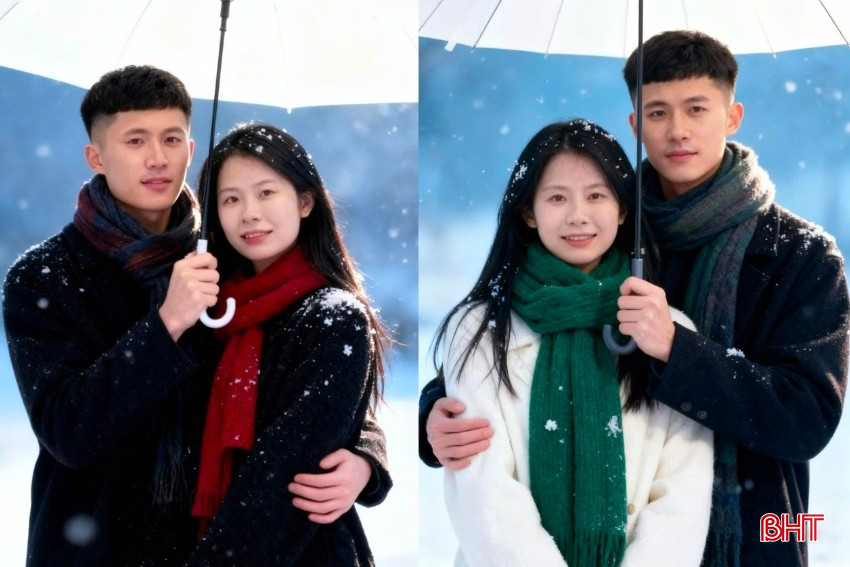
1. Why the AI Aurora Photo Trend Is “Going Viral” on Social Media
The AI aurora photo trend quickly became a phenomenon on social media because of the combination of modern technology and personalized experiences. Instead of preparing for a long trip, enduring freezing weather, and waiting for luck to witness the aurora in real life, users now only need a few actions on a phone or computer to own brilliant, sparkling sky scenes that look incredibly realistic. This convenience makes the trend appealing to both digital art lovers and people who enjoy sharing impressive visuals online.
What makes this trend even more attractive is its unlimited customization capability. Users can choose backgrounds, colors, lighting, and even combine auroras with portraits, architecture, or Vietnamese landscapes to create unique images carrying their personal identity. This flexibility allows everyone to easily express their creative personality while producing standout photos that attract high engagement on platforms such as Instagram, Facebook, or TikTok.
Not only is it a quick solution, but the AI aurora photo trend also reflects the increasingly popular fusion of art and technology. The shared images are not only visually beautiful but also inspire creativity, opening new opportunities for content creators, influencers, and even beginners exploring AI. Thanks to this, creating aurora photos with AI is no longer just a temporary trend but has become part of the modern digital lifestyle.
.jpg)
2. The Most Popular AI Aurora Photo Styles Today
Currently, AI aurora photo styles are mainly divided into two categories: realistic and artistic. The realistic style simulates aurora scenes in Northern Europe, Alaska, or polar regions with green, purple, and pink light bands reflecting on snowy mountains, lakes, or forests, creating vivid visuals almost indistinguishable from real photography. This style is especially loved by photography and nature enthusiasts because it feels both authentic and dreamlike.
Meanwhile, the artistic style focuses on creativity and fantasy. AI can transform auroras into paintings, cyberpunk effects, fantasy worlds, or anime aesthetics, producing magical and dreamy frames that stand out strongly on social media. This is the favorite choice of influencers, content creators, and young users who want to impress audiences with unique, highly personalized visuals.
In addition, a rising trend is combining auroras with local elements or portraits. For example, integrating auroras with Vietnamese mountain scenery, modern architecture, or street art styles creates images that are both trendy and personally meaningful. This diversity not only makes it easier for users to choose a suitable style but also expands creative possibilities, helping AI aurora photos become both beautiful and distinctive enough to attract views and interactions on social platforms.
3. Gemini and Wink – Which Tool Creates Better Aurora Photos?
4. Guide to Creating Aurora Viewing Photos with Gemini AI
Gemini is not only a text-to-image tool but also supports uploading personal photos so AI can edit, combine backgrounds, or recreate styles as desired. Thanks to this capability, you can own surreal aurora photos that are both personalized and dazzling like professional photography. Below is a detailed step-by-step guide to help you do it easily.
4.1 Step 1: Access and Log Into Your Gemini Account
First, access the Gemini platform through a web browser. You can quickly log in using a Google account for convenience and time-saving. After successfully logging in, you will be taken to the main interface with a chat box and advanced options where you can enter prompts, upload personal photos, and interact directly with AI during the aurora photo creation process.
.jpg)
4.2 Step 2: Select Image Generation Mode
On the main interface, make sure you are in image generation mode. This is an important step so the AI recognizes that you want to create a new image from prompts or edit uploaded photos. Once activated, options related to backgrounds, styles, lighting, and colors will appear, allowing you to flexibly customize results according to your preferences.
.jpg)
4.3 Step 3: Upload Your Personal Photo to Gemini
Click the “+” icon and upload your photo. Choose a clear portrait photo with high resolution and natural lighting. Your face should not be covered by hair, masks, or other objects. A straight-on or slightly angled pose will help the AI accurately recognize facial features. Gemini will analyze the photo, identify facial details, skin tone, and lighting, then prepare to integrate the aurora background behind you.
.jpg)
4.4 Step 4: Enter a Prompt Describing the Aurora Image
The prompt is a command describing the image you want to create. A good prompt should include information about the background, aurora colors, artistic style, lighting, camera angle, and overall mood of the image. For example, you can ask the AI to create a 4K aurora image divided into three-frame composition, featuring yourself wearing winter clothing and standing in snowy scenery with vibrant aurora lights across the sky. The more detailed the prompt, the more accurately the AI will process it, delivering vivid, realistic, and visually stunning images.
.jpg)
4.5 Step 5: Wait for AI Processing and Download the Image
After submitting the prompt, Gemini will begin processing the data and generating the image. Waiting time may range from a few seconds to several minutes depending on complexity and system configuration. Once completed, you will receive the edited aurora image. If you are not fully satisfied, you can request adjustments to colors, lighting, or background details for better results. Finally, download the image to use as a profile picture, post on social media, or keep as a memory.
.jpg)
Tips for Creating the Best Aurora Photos
Detailed prompts: The more specifically you describe styles, backgrounds, lighting, and emotions, the more realistic and impressive the image becomes.
High-quality source images: Choose sharp personal photos with good lighting for better AI recognition.
Review and refine results: If necessary, try multiple prompts or perform post-editing for the best outcome.
With these steps, you can completely create beautiful, realistic, and personalized AI aurora viewing photos that rival real-life photography.
5. Steps to Create Aurora Viewing Photos with the Wink App
If you prioritize quick and simple mobile editing, Wink is a highly recommended option. This app is famous for its pre-designed AI Art effects, making it suitable for users unfamiliar with prompts or advanced editing. As a result, with just a few simple steps, you can create dazzling aurora photos without photography knowledge or complicated software.
5.1 Step 1: Download the Wink App to Your Phone
Visit the App Store on iOS or Google Play on Android, search for Wink, and install the app. After installation, open the app and log in following the instructions. Once logged in successfully, you will see the main interface with clearly organized AI tools and options, making it easy for users to get familiar from the first use.
5.2 Step 2: Select the AI Art Tool
On the main Wink interface, scroll down to the Tools section. Here the app offers many AI features such as portrait editing, image enhancement, and artistic styling. Select AI Art because this section contains AI-generated effects and backgrounds, including the Aurora theme. Choosing the correct feature helps you quickly create aurora viewing images without needing prompts or complicated operations.
.jpg)
5.3 Step 3: Choose the Aurora Theme and Upload Your Personal Photo
In the AI Art theme list, find and select Aurora. Next, upload a personal photo that you want to blend into the aurora scene. The app will automatically crop, align your face, and place you into the background, creating a balanced and harmonious image. This step greatly affects output quality, so choose a photo with a clear face, good lighting, and no obstructing objects.
5.4 Step 4: Wait for Wink to Process and Download the Image
After uploading the photo and selecting the theme, Wink will automatically process the image. You can preview the result and make light adjustments if needed, such as increasing brightness, refining colors, or adding effects. Once satisfied, press Save to download the image to your phone. With only a few simple actions, you will instantly have a sparkling aurora viewing photo ready for social media posting or wallpaper use.
.jpg)
Tips for Better Aurora Photos
Choose personal photos with clear faces and good lighting for accurate AI recognition.
Try different AI Art themes and effects to find the most suitable style.
If desired, further adjust colors, lighting, or effects after AI processing to make the image stand out more.
With Wink, creating beautiful aurora photos becomes fast, easy, and intuitive, suitable for both beginners and anyone wanting to instantly post eye-catching images without deep photography or AI knowledge.
6. Important Notes When Creating Aurora Viewing Photos with AI
To create beautiful and natural-looking aurora photos, pay attention to the following points:
Choose high-quality source images: Sharp portraits with good lighting help AI accurately recognize and process facial features naturally.
Provide detailed prompts: If using platforms that support prompts, clearly describe aurora colors, backgrounds, and desired moods so the AI generates images closest to your vision.
Avoid overusing effects: Excessive editing or filters can make images look unnatural. Prioritize harmonious styles that preserve the subject’s original characteristics.
Review before sharing: Carefully inspect facial details, skin tones, and hair edges to avoid small errors and ensure perfect images before posting on social media.
7. Conclusion
It can be said that creating aurora photos with AI is becoming an ideal choice for those who love image creativity and want to keep up with modern technology trends. With support from popular tools like Gemini or the Wink app, creating super beautiful, super fast aurora images has become easier than ever, helping you save time and costs while still owning impressive visuals ready to share on social media and attract everyone’s attention.





















VIP Products








Best Selling Products
Copyright Adobe Lightroom Account
59 USD
ChatGPT Plus Account (GPT-4)
16 USD
MidJourney Account
29 USD
Plugin Retouch4me
69 USD
Autodesk All App Account Copyright
120 USD
Upgrade genuine Capture One account
120 USD
Freepik Premium Account
59 USD
Capcut Pro 1 Year
39 USD
Windows 10 & 11 Pro Key
36 USD
Adobe Photoshop Copyright - Full App
120 USD
Genuine Adobe Illustrator account
99 USD
Genuine Cheap Canva Pro
39 USD
Upgrade Genuine Office 365
49 USD
Adobe Premiere Pro Account
99 USD
Upgrade Duolingo Super
29 USD