Best Selling Products

Plugin Retouch4me
69 USD

Autodesk All App Account Copyright
120 USD

Upgrade genuine Capture One account
120 USD

Adobe Photoshop Copyright - Full App
120 USD

Adobe Premiere Pro Account
99 USD

ChatGPT Plus Account (GPT-4)
16 USD

Capcut Pro 1 Year
39 USD

MidJourney Account
29 USD

Genuine Adobe Illustrator account
99 USD

Genuine Cheap Canva Pro
39 USD

Windows 10 & 11 Pro Key
36 USD

Upgrade Duolingo Super
29 USD

Freepik Premium Account
59 USD

Upgrade Genuine Office 365
49 USD

Copyright Adobe Lightroom Account
59 USD
No Premium Needed! How to Listen to YouTube While Browsing the Web on Android
Nội dung
- 1. Is it possible to listen to YouTube while browsing the web on Android?
- 2. Use the Picture-in-Picture feature to listen to YouTube and browse the web
- 2.1 Requirements
- 2.2 How to enable in settings
- 3. Listen to YouTube while browsing the web using a browser
- 3.1 Google Chrome
- 3.3 Opera Browser
- 4. Use Split Screen feature
- 4.1 Step 1: Open multitasking window
- 4.2 Step 2: Select “Open in split screen view”
- 4.3 Step 3: Select the second app
- 5. Tips to listen to YouTube while browsing without music stopping
- 6. Common issues and fixes
- 7. Conclusion
No Premium needed! Listening to YouTube while browsing the web on Android is becoming a topic of great interest, especially for those who frequently listen to music, podcasts, talk shows, or stay updated with news on YouTube while still wanting to open Facebook, Zalo, Chrome, or other apps at the same time.
1. Is it possible to listen to YouTube while browsing the web on Android?
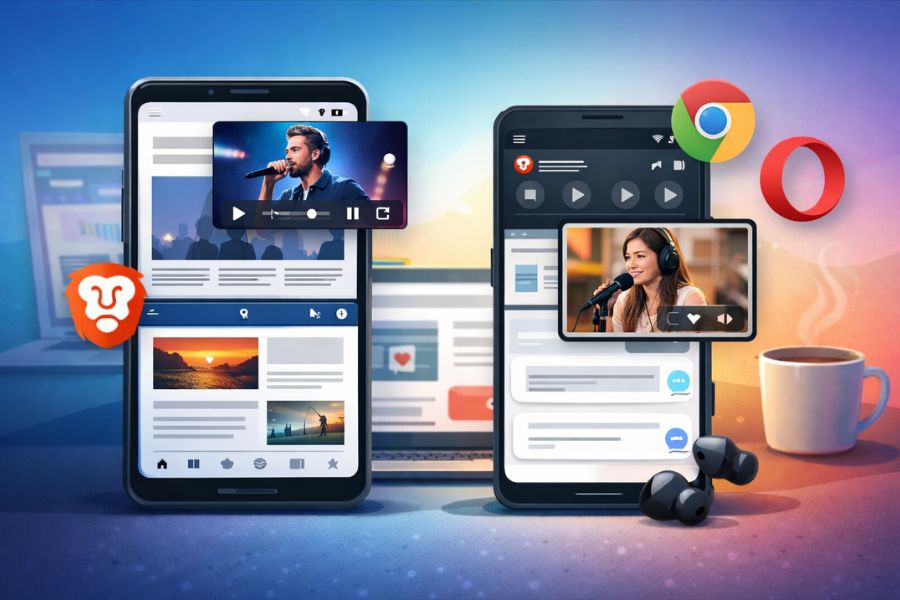
It is absolutely possible to listen to YouTube while browsing the web on Android if you know how to take advantage of the operating system’s features and the right tools. Android is designed for multitasking, allowing users to switch flexibly between applications without interrupting the experience. As long as your device meets the operating system version requirements or you use the right methods such as opening YouTube in a browser, enabling background playback mode, or using split screen, you can listen to music, watch talk shows, stay updated with news while browsing the web, messaging, or working on other apps smoothly. This is a solution many people choose to optimize time without needing to subscribe to a paid plan.
In addition, you can even listen to YouTube on the lock screen while continuing to browse the web or perform other tasks on your phone. When applied correctly, the audio of the video continues playing normally even when the screen is turned off, helping save battery and allowing you to focus on content such as podcasts, chill music, or favorite news programs. This convenience is especially suitable for those who frequently move around, multitask, or want to turn their smartphone into a flexible “music player” for both entertainment and daily information updates.
.jpg)
2. Use the Picture-in-Picture feature to listen to YouTube and browse the web
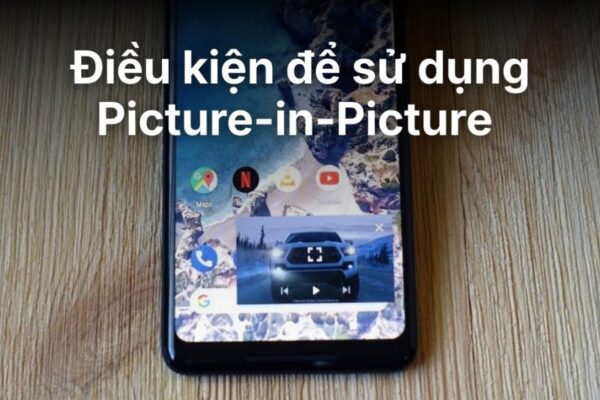
Picture-in-Picture (PiP) is a feature that allows videos to shrink into a floating window on the screen, helping you continue watching or listening while using other applications. When PiP is activated, YouTube videos automatically shrink into a small window positioned at a corner of the screen, which you can drag, pause, or resume with just one tap. This is considered the most official, safe, and stable way to listen to YouTube while browsing the web on Android without installing third-party apps.
This feature is especially useful when you want to listen to music, podcasts, news, or educational videos while reading news, browsing Facebook, replying to messages, or working in a browser. Instead of switching back and forth between apps and interrupting the experience, PiP ensures everything runs smoothly, maximizing Android’s multitasking strength.
2.1 Requirements
To apply the method of listening to YouTube while browsing the web on Android using Picture-in-Picture, your device needs to meet the following conditions:
Phone running Android 8.0 or higher PiP is integrated from Android 8 (Oreo), so if your device runs a lower version, this feature will not be available. You can check by going to Settings → About phone → Android version.
YouTube app updated to the latest version Updating ensures compatibility with the system and full support for PiP. You should check the app store to avoid issues caused by outdated versions.
Picture-in-Picture permission enabled for YouTube in system settings Go to Settings → Apps → YouTube → Picture-in-Picture (or “Display over other apps”), then enable permission. If not granted, the video will not automatically shrink when exiting to the home screen.
2.2 How to enable in settings
To make listening to YouTube while browsing the web on Android work smoothly using Picture-in-Picture (PiP), you need to ensure the YouTube app has been granted the “Picture-in-Picture” permission in the system. Below is a detailed step-by-step guide that is easy to follow even for non-tech users.
Step 1: Go to Settings → Apps → Special app access
First, open Settings on your Android phone. This is where all system permissions and features are managed. Then find Apps or App management (depending on the brand such as Samsung, Xiaomi, Oppo, Vivo… the name may vary slightly).
In the Apps section, scroll down and select Special app access. This is where advanced permissions such as display over other apps, system modification, and especially Picture-in-Picture are managed. Accessing the correct section is crucial to ensure this method works properly.
Step 2: Select Picture-in-Picture → Find and enable permission for YouTube
After entering “Special app access,” tap Picture-in-Picture. The system will display a list of apps that support this feature.
Find YouTube in the list and toggle Allow. Once enabled, YouTube can automatically shrink into a floating window when you exit to the home screen or open another app. Without this permission, the video will stop immediately when leaving the app.
Step 3: Check the feature
After granting permission, open any video on YouTube and ensure it is playing normally.
Next, press the Home button or swipe to return to the home screen. If the video automatically shrinks into a floating window at the corner and continues playing audio, it means the setup is successful. You can now open Chrome, Facebook, Zalo, or any other app while YouTube continues running smoothly on top.
3. Listen to YouTube while browsing the web using a browser
Even without installing additional apps or subscribing to a paid plan, you can still listen to YouTube while browsing the web on Android using popular browsers. When accessing YouTube via the web instead of the app, the system treats the video as standard media content, allowing background playback, minimization, or control via the notification bar. This is a widely used trick because it is simple, easy, and compatible with most Android devices today.
3.1 Google Chrome
With Google Chrome, you only need a few steps to listen to YouTube in the background without YouTube Premium.
Open YouTube on Chrome
First, open Chrome on your Android phone. In the address bar, enter m.youtube.com to access YouTube in web form instead of the app.
Using a browser gives you more flexibility in controlling background playback. This is the foundation for this method without being limited by the official app.
Switch to “Desktop site”
After selecting the video you want to listen to, press Pause first. Then tap the three-dot icon at the top right corner of Chrome.
Scroll down and select “Desktop site.” The interface will switch to the desktop version like on a computer. This step is important to allow background playback, even when the screen is off.
Exit the desktop YouTube interface
Once the desktop interface appears, ensure the video is paused. Then press the Home button to return to the home screen.
Even after exiting Chrome, the system still recognizes the content as an active media player, preparing it for background playback.
Play the video in background mode
Pull down the notification bar, and you will see Chrome’s media player displaying the video title. Press Play, and the audio will continue even while browsing, using other apps, or turning off the screen.
You can control pause or play directly from the notification bar or lock screen. This is one of the most effective ways to listen to YouTube with the screen off without installing additional software.
.jpg)
3.2 Brave browser
With Brave, listening to YouTube while browsing the web on Android is even simpler because it has built-in background playback support. You just need to open a YouTube video in Brave and enable the “Background Video Playback” feature in Settings.
Once activated, you can exit the browser or switch to another app while the audio continues playing. Brave also supports PiP directly from the address bar, allowing you to minimize the video into a floating window if needed. This is highly rated for stability, minimal errors, and no need to switch to desktop mode like Chrome.
.jpg)
3.3 Opera Browser
Opera is also a great option thanks to its convenient Video Popout feature. When you open a YouTube video in Opera and switch to another app, the video automatically shrinks into a floating window.
This window allows you to pause, resume, or drag it to any position. This way, you can listen to YouTube while messaging, reading news, or browsing social media without interruption. Opera is especially suitable for those who prefer a visual, easy-to-control multitasking experience without complex setup.
.jpg)
4. Use Split Screen feature
Another intuitive and easy way to listen to YouTube while browsing the web on Android is using Split Screen. This feature allows two apps to run simultaneously on one screen, each occupying half of the display. You can open YouTube on the top half to play music or podcasts, while the bottom half is a browser for reading news, researching, or browsing social media without switching apps.
Below is a step-by-step guide (performed on a Samsung phone). On other brands like Xiaomi, Oppo, Vivo… the interface may differ slightly, but the process is generally similar.
4.1 Step 1: Open multitasking window
First, press the multitasking button (three-line icon or swipe up and hold depending on navigation style). The screen will display a list of recently used apps.
This is Android’s multitasking control center, allowing quick switching between apps. Accessing it correctly is essential to enable split screen quickly.
4.2 Step 2: Select “Open in split screen view”
In the multitasking window, find the YouTube app. Then tap the app icon at the top of its preview window (not the video area).
A small menu will appear, select “Open in split screen view.” YouTube will be fixed at the top half, and the system will prompt you to choose a second app.
4.3 Step 3: Select the second app
After YouTube occupies half the screen, choose a browser (Chrome, Brave, or Opera). Both apps will run side by side.
You can adjust the divider to resize each app. This allows you to listen to YouTube while browsing, reading news, or replying to messages without interruption.
Note: This guide is based on Samsung devices. On other brands, icons or option names may vary slightly, but the general steps remain the same. If your device does not support this feature, check Settings → Advanced features → Multi-window to enable it first.
(1).jpg)
5. Tips to listen to YouTube while browsing without music stopping
To ensure smooth listening while browsing on Android, you not only need the right method but also optimize some system settings. In many cases, music stopping midway is not due to YouTube but due to battery management, RAM, or network issues. With a few adjustments, you can maintain stable background playback.
Turn off Battery Saver When enabled, Android limits background apps, causing playback to stop when exiting. Go to Settings → Battery → Turn off Battery Saver or whitelist YouTube.
Do not swipe away the app If you close YouTube or the browser from multitasking, the system stops it completely. Just press Home or switch apps instead.
Avoid running too many heavy apps Low RAM can cause Android to close background apps. Avoid gaming or opening too many apps simultaneously.
Ensure stable network Weak WiFi or unstable data can pause playback. Use a strong connection for uninterrupted listening.
(1).jpg)
6. Common issues and fixes
When applying this method, you may encounter issues such as video stopping, losing sound, or not playing when switching apps. Most are not serious and are caused by battery management, permissions, or unstable networks.
Video stops when screen is off Usually due to Battery Saver or optimization. Go to Settings → Battery → Optimization and exclude YouTube and browsers.
Cannot play when switching apps Happens when PiP permission is not enabled or browser does not support background playback. Enable PiP or switch to Desktop site in Chrome.
Audio stutters or cuts out Often due to weak network or overloaded RAM. Check connection, close apps, or restart the device.
7. Conclusion
Without paying for Premium, you can still listen to YouTube in the background while browsing the web on Android if you use the right features and tools. Depending on your needs, habits, and device, you can choose the most convenient method to both entertain and work efficiently every day. Hopefully, the tips from Thế Giới Phần Mềm AI will help you optimize your experience, enjoy your favorite content without interruption, and fully utilize the power of your Android smartphone in modern digital life.





















VIP Products








Best Selling Products
Plugin Retouch4me
69 USD
Autodesk All App Account Copyright
120 USD
Upgrade genuine Capture One account
120 USD
Adobe Photoshop Copyright - Full App
120 USD
Adobe Premiere Pro Account
99 USD
ChatGPT Plus Account (GPT-4)
16 USD
Capcut Pro 1 Year
39 USD
MidJourney Account
29 USD
Genuine Adobe Illustrator account
99 USD
Genuine Cheap Canva Pro
39 USD
Windows 10 & 11 Pro Key
36 USD
Upgrade Duolingo Super
29 USD
Freepik Premium Account
59 USD
Upgrade Genuine Office 365
49 USD
Copyright Adobe Lightroom Account
59 USD