Best Selling Products

MidJourney Account
29 USD

Adobe Photoshop Copyright - Full App
120 USD

Upgrade Genuine Office 365
49 USD

Windows 10 & 11 Pro Key
36 USD

Upgrade genuine Capture One account
120 USD

Plugin Retouch4me
69 USD

Copyright Adobe Lightroom Account
59 USD

Adobe Premiere Pro Account
99 USD

Freepik Premium Account
59 USD

Capcut Pro 1 Year
39 USD

Autodesk All App Account Copyright
120 USD

Genuine Cheap Canva Pro
39 USD

Genuine Adobe Illustrator account
99 USD

Upgrade Duolingo Super
29 USD

ChatGPT Plus Account (GPT-4)
16 USD
Batch Image Renaming Tools for Professional File Management
Nội dung
- 1. Highly Rated Batch Image Renaming Tools Today
- 1.2 Bulk Rename Utility
- 1.3 File Renamer Basic
- 1.4 ReNamer
- 1.5 File Renamer Turbo
- 1.6 Rename Master
- 2. Important Notes When Renaming Multiple Images
- 3. Frequently Asked Questions
- 3.1 Can I undo batch renaming?
- 3.2 Does renaming affect image quality?
- 4. Conclusion
When working with images, messy and inconsistent file naming can cost you hours just to locate a single file you need.

1. Highly Rated Batch Image Renaming Tools Today
Managing hundreds or even thousands of image files becomes much easier when you use the right tools. The software and utilities below not only help rename files in bulk quickly but also minimize errors, ensuring your data system is organized more scientifically and professionally.
1.1 Advanced Renamer
More than just a file renaming tool, Advanced Renamer is considered a “data management assistant” for those who frequently work with large volumes of images. The software offers up to 14 different renaming methods, from adding prefixes/suffixes, automatic numbering, changing letter case, to replacing characters based on custom rules.
Notably, its ability to utilize metadata such as capture date, EXIF data, or file creation time allows you to name images accurately and consistently—making it ideal for photographers, designers, or marketing teams managing structured image libraries.
Its standout strength lies in its intuitive interface and smart preview feature. You simply drag and drop an entire folder into the software, set your desired rules, and monitor the new names in real time. This ensures all changes are controlled before being officially applied, minimizing risks of errors or data loss. With fast processing and high customization, Advanced Renamer is a strong choice for professional use.
.jpg)
1.2 Bulk Rename Utility
If you’re looking for an all-in-one batch renaming tool on Windows, Bulk Rename Utility is a top contender. It impresses with its ability to process hundreds or thousands of files in seconds, along with extremely detailed customization options.
Users can add prefixes, insert characters at specific positions, replace text, apply automatic numbering, or standardize letter case. The real-time preview feature helps you fully control changes before applying them, minimizing risks when handling important data.
Beyond basic tasks, it also supports changing file extensions, renaming based on EXIF data, and editing audio files via ID3 tags—advanced features not commonly found in other tools. You can even adjust timestamps to reorganize files chronologically, which is extremely useful for design projects, events, or e-commerce image libraries.
Although the interface may feel overwhelming for beginners, professionals will appreciate having all features available on one screen for faster and more accurate workflows.
.jpg)
1.3 File Renamer Basic
If you prefer simplicity and ease of use while maintaining efficiency, File Renamer Basic is a great option. Its intuitive interface and clearly arranged options allow beginners to get started within minutes.
You can add characters before or after file names, insert automatic numbering, or modify the main name while keeping the file extension intact—all with simple drag-and-drop actions. This is especially useful for standardizing image names for design projects, website posts, or internal storage.
It also supports processing up to 1,000 files at once and allows editing metadata such as creation date, modification date, and last access time. With a good balance between features and usability, it suits photographers, marketers, designers, or anyone wanting professional file management without complexity.
.jpg)
1.4 ReNamer
Compared to many other tools, ReNamer stands out for its lightweight design yet powerful capabilities. It allows quick execution of common tasks like adding prefixes/suffixes, automatic numbering, changing extensions, or replacing text based on conditions.
Its minimalist interface is easy to navigate for beginners, while still offering enough depth for advanced users managing large datasets.
A key strength is its ability to create reusable rule sets, allowing you to save configurations and apply them across multiple projects. It also supports metadata reading from ID3 (audio), EXIF (images), and AVI (video), enabling automatic naming based on embedded information.
Although currently Windows-only, ReNamer remains a flexible and highly valuable free solution for optimizing professional workflows.
.jpg)
1.5 File Renamer Turbo
If you need high performance and deep customization, File Renamer Turbo is a powerful option on Windows. It enables renaming hundreds or thousands of files in just a few clicks.
With over 20 renaming actions, you can search and replace text, insert or remove characters by position, add numbering, change case styles, or even use regular expressions (regex) for complex rules. This makes it extremely flexible for standardizing file naming across projects.
It also supports file organization tasks such as sorting, moving files into new folders, or restructuring storage systems within a single workflow—especially useful for large design, media, or e-commerce libraries.
While its interface may feel complex for beginners, professionals will appreciate its powerful and customizable features.
.jpg)
1.6 Rename Master
If you’re looking for a lightweight, easy-to-use tool that remains effective, Rename Master is worth considering. It allows you to rename files or folders within seconds using simple operations, saving significant time when handling large datasets.
Its strength lies in scanning subfolders, enabling you to rename files across multiple locations in a single operation—extremely useful for project image libraries.
In addition to basic features like prefixes, suffixes, and numbering, it supports renaming based on metadata from JPEG, MP3, or video files. The built-in Undo function allows easy rollback in case of errors, ensuring safety during bulk operations.
Compatible with Windows and requiring minimal system resources, it’s a practical solution for professional file organization without complexity.
.jpg)
2. Important Notes When Renaming Multiple Images
Preview new names before applying: Always use the preview feature to check results before confirming. This helps detect duplicate names, numbering errors, or incorrect formats early.
Keep file extensions intact: Avoid changing or removing extensions like .JPG, .PNG, or .WEBP, as this may cause files to become unusable.
Establish a consistent naming convention: For example: product_A_01, event_2026_03_01, or banner_sale_Mar_01. A clear structure improves searchability and teamwork efficiency.
Back up important data: Even with Undo features, always create backups before performing bulk operations.
Check compatibility for websites/software: Avoid special characters, Vietnamese accents, or unnecessary spaces in file names to ensure smooth uploads and system compatibility.
.jpg)
3. Frequently Asked Questions
3.1 Can I undo batch renaming?
Most professional tools support Undo, but you should still back up important data for safety.
3.2 Does renaming affect image quality?
No. Renaming only changes the file name, not the image content or quality.
3.3 Can I rename files based on EXIF data?
Yes. Many tools support metadata-based naming such as capture date or device information.
3.4 How to avoid duplicate names?
Use automatic numbering or preview features to detect duplicates before applying changes.
3.5 Can I rename files in subfolders?
Many tools support scanning and renaming files within subfolders in one operation.
3.6 Are these tools beginner-friendly?
Yes. Many tools are designed with simple interfaces suitable for beginners.
3.7 Can I rename multiple file formats at once?
Yes. Most tools allow selecting multiple formats like JPG, PNG, WEBP, or even PDF and MP4.
3.8 Should I use SEO-friendly file names?
Yes. Use relevant keywords, remove accents, and separate words with hyphens (e.g., banner-sale-2026.jpg) for better search optimization.
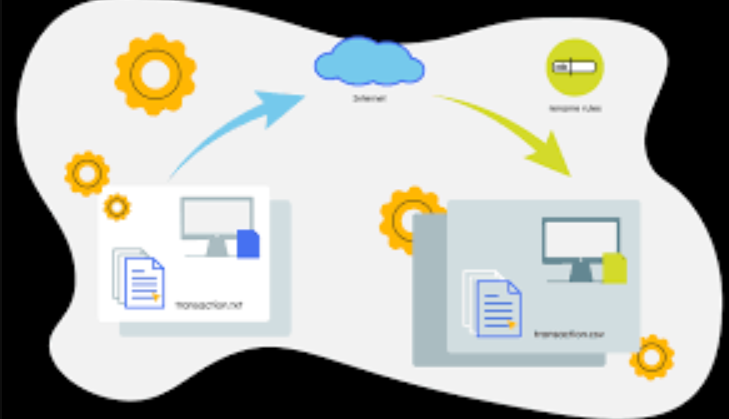
4. Conclusion
Using batch image renaming tools not only saves time but also creates a more organized, professional, and manageable storage system in the long run. Standardized file names make searching, sharing, and teamwork much more efficient. Hopefully, with these suggestions from Sadesign, you can choose the right tool and optimize your data management workflow in a smart, clean, and sustainable way.





















VIP Products








Best Selling Products
MidJourney Account
29 USD
Adobe Photoshop Copyright - Full App
120 USD
Upgrade Genuine Office 365
49 USD
Windows 10 & 11 Pro Key
36 USD
Upgrade genuine Capture One account
120 USD
Plugin Retouch4me
69 USD
Copyright Adobe Lightroom Account
59 USD
Adobe Premiere Pro Account
99 USD
Freepik Premium Account
59 USD
Capcut Pro 1 Year
39 USD
Autodesk All App Account Copyright
120 USD
Genuine Cheap Canva Pro
39 USD
Genuine Adobe Illustrator account
99 USD
Upgrade Duolingo Super
29 USD
ChatGPT Plus Account (GPT-4)
16 USD