Best Selling Products

Copyright Adobe Lightroom Account
59 USD

Adobe Premiere Pro Account
99 USD

Autodesk All App Account Copyright
120 USD

MidJourney Account
29 USD

Windows 10 & 11 Pro Key
36 USD

Adobe Photoshop Copyright - Full App
120 USD

Upgrade Duolingo Super
29 USD

Upgrade genuine Capture One account
120 USD

Genuine Adobe Illustrator account
99 USD

Genuine Cheap Canva Pro
39 USD

Plugin Retouch4me
69 USD

Freepik Premium Account
59 USD

Capcut Pro 1 Year
39 USD

Upgrade Genuine Office 365
49 USD

ChatGPT Plus Account (GPT-4)
16 USD
Canva on Desktop: The "Secret Weapon" That Elevates Design for Non-Designers
Nội dung
- 1. What Is Canva on Desktop? Redefining the Concept of "Design"
- 2. Why Should You Choose Canva on Desktop Over Your Phone?
- 3. Exploring Canva on Desktop's Arsenal of Cutting-Edge "Weapons"
- 3.1 A Massive Template System, "Beautiful With a Touch"
- 3.2 A Diverse Library of Elements
- 3.3 Video Editing as Easy as Making a Slide
- 3.4 Top-Tier Presentation Slide Design
- 3.5 The Integrated AI (Artificial Intelligence) Era
- 4. Step-by-Step Design Guide for Beginners
- 5. Handy Tips and Tricks for Lightning-Fast Design
- 6. Free vs. Canva Pro: Do You Need to Upgrade?
- 7. Conclusion
Description The arrival of Canva on desktop has completely changed the game, turning any one of us into a "design wizard" after just a few clicks. In this article, AppVip.ai will guide you from A to Z through Canva on desktop, the nationwide design platform that''''''''s taking the world by storm.
1. What Is Canva on Desktop? Redefining the Concept of "Design"
Put simply, Canva on desktop is an intuitive online graphic design platform. Rather than forcing you to draw every line and build every layout from scratch,
Canva gives you a complete ecosystem with millions of ready-made design templates, images, icons, and fonts. All you have to do is: choose a template, drag, drop, and customize to your liking.
You can experience Canva on desktop in two ways: Web browser: Access it directly through familiar browsers like Google Chrome, Microsoft Edge, Safari, or Firefox. Canva Desktop App: A dedicated installed version for Windows and macOS, offering a smoother experience, optimized performance, and helping you stay focused without being distracted by other browser tabs.
Whether you're a student who needs to make a presentation slide, an office worker looking to optimize a report, or a small business owner building your own brand image, Canva on desktop can meet your needs excellently.
.jpg)
2. Why Should You Choose Canva on Desktop Over Your Phone?
Although Canva has an incredibly convenient mobile app, for truly creative work and handling large projects, desktop is still king. Here are the core reasons
why:
Larger display space: A computer screen gives you an overall view of the layout. You can easily compare details, align margins, and spot the smallest errors that a phone screen can hardly display clearly. Precise mouse and keyboard operation: Dragging and dropping, zooming in and out, or cropping images with a mouse always delivers greater precision than a finger. Keyboard shortcuts (like Ctrl + C, Ctrl + V, Ctrl + Z) also multiply your working speed. Powerful processing performance: When you're designing a yearbook with hundreds of pages or editing a high-resolution video, your computer's hardware configuration keeps the app running smoothly, without lag or unexpected crashes like on a phone. Easy file management: Uploading resources (your own photos, videos) and exporting finished files to your computer happens very quickly. You can easily organize your work folders in a systematic way.
3. Exploring Canva on Desktop's Arsenal of Cutting-Edge "Weapons"
Canva's power lies in its enormous resource library and constantly updated smart features. Let's go through the most capable tools that help you bring every idea to life:
3.1 A Massive Template System, "Beautiful With a Touch"
Don't know how to coordinate colors elegantly? Don't know how to arrange text so it's easy to read? Canva's design experts have already done that for you. With
hundreds of thousands of free and paid templates, all you need to do is type a search keyword. From Facebook posts, Instagram stories, YouTube thumbnails, to business cards, invoices, and flyers... everything already has a polished, standard structure.
3.2 A Diverse Library of Elements
The "Elements" section of Canva is a genuine treasure trove. Here, you can find: Graphics and Stickers: Vivid illustrations in many styles (flat design, 3D, hand-drawn...). Frames and Grids: A magical tool that helps you crop photos into a circle, a heart shape, or create a professional photo-collage layout in the blink of an eye. Animated Charts: Helps turn the dry numbers in your report into visual, dynamic, and persuasive content.
3.3 Video Editing as Easy as Making a Slide
No need for heavy video-editing software — Canva on desktop has a built-in, highly intuitive video editor. You can cut and splice clips, add background music, insert transition effects, and add scrolling text. This feature is perfect for anyone who wants to make short videos like TikTok, Reels, or YouTube Shorts.
.png)
3.4 Top-Tier Presentation Slide Design
Say goodbye to monotonous PowerPoint slides — Canva offers presentation slide sets with an incredibly high aesthetic standard. You can apply a synchronized color scheme across all pages with just one click. Notably, the "Present" feature lets you record your face and voice directly onto the slide to send to clients or teachers.
3.5 The Integrated AI (Artificial Intelligence) Era
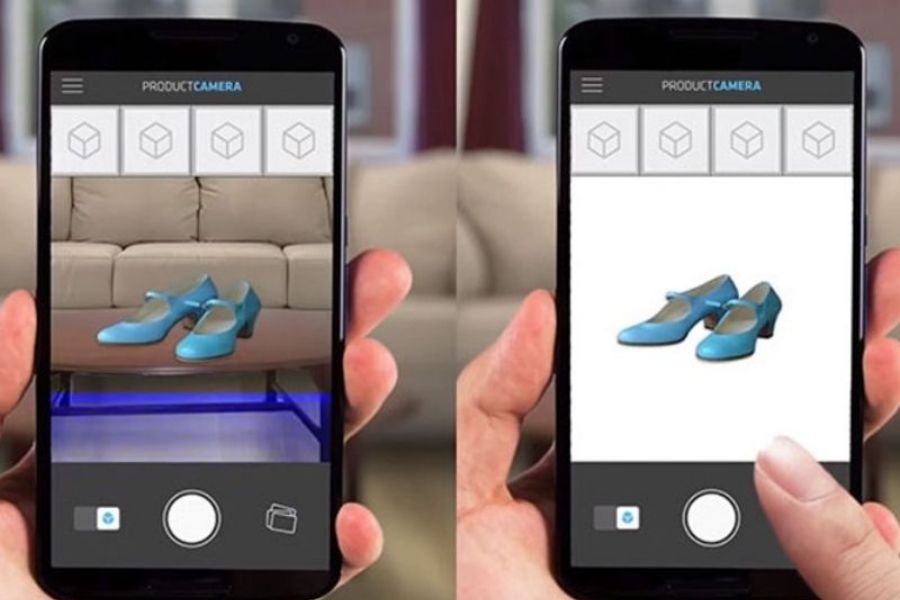
Staying ahead of the technology trend, Canva on desktop is equipped with an extremely powerful set of AI tools: Automatic Background Removal (Magic Eraser/Background Remover): Separate a portrait or product photo from its background in just 3 seconds with high accuracy. Text-to-Image Generation (Magic Media): Simply type a description of your idea in words, and Canva's AI will automatically draw the corresponding image. Smart Text Writing (Magic Write): Helps you brainstorm content ideas, fix spelling errors, or change the writing style directly on the design page.
.jpg)
4. Step-by-Step Design Guide for Beginners
So you don't feel overwhelmed the first time you open the Canva on desktop interface, follow this simple but proper 5-step process below:
Step 1: Determine the goal and design size
Right on the homepage, click the "Create a design" button in the top-right corner. You can choose from available preset sizes (for example, a Facebook post is 1080 x 1080 pixels) or enter a custom size according to your needs. Choosing the right size from the start helps your design avoid being cropped or losing corners when posted.
Step 2: Choose a background and layout
If you're out of ideas, browse the "Templates" section in the left toolbar to find a layout you like. If you want to build it yourself, you can pick a solid background color that matches the spirit of the design (bright colors for energy, dark tones for elegance).
Step 3: Add content and handle typography
Click on the "Text" section to add a title and content, then edit it. A small tip is not to use more than 3 fonts in the same design to avoid a cluttered look. Canva has ready-made font pairings that go together beautifully, which you can take advantage of. Pay attention to information hierarchy: the most important text should be the largest and boldest.
Step 4: Decorate with images and graphic elements
Upload your own images in the "Uploads" section, or search for illustrative images from Canva's library. Use additional lines, shapes, or icons in the "Elements" section to create emphasis and guide the viewer's eye.
Step 5: Check and publish the final product
Once finished, take a minute to look at the overall design for spelling errors and check whether the spacing between sections is balanced. Finally, click the "Share" button in the top-right corner, then select "Download." Canva lets you export your file in many high-quality formats such as PNG (for social media images), Standard PDF (for documents), Print PDF (for printing without losing sharpness), or MP4 (for video).
.jpg)
5. Handy Tips and Tricks for Lightning-Fast Design
If you want to go from someone who just knows how to use Canva to a time-optimizing "master," you must remember the following tips:
Use the magic keyboard shortcuts: Press the T key to instantly bring up a text box (Text). Press the R key to immediately create a rectangle/square (Rectangle). Press the C key to create a circle (Circle). Press the L key to draw a straight line (Line).
Rulers & Guides: Turn on this feature under the "File" menu -> "View settings." Guide lines help you align objects perfectly straight, creating a neat, professional finish for your work.
Lock Objects (Lock): When a design has too many overlapping layers, it's very easy to accidentally click the background and shift it. Click on the background and select the lock icon to fix it in place, so you can confidently edit the smaller details on top.
Fast Duplicate (Duplicate): Instead of pressing copy then paste, just hold the Alt key (on Windows) or Option key (on Mac) and drag the object with your mouse to another location. The object will be duplicated instantly.
6. Free vs. Canva Pro: Do You Need to Upgrade?
This is a question that many people wonder about. Canva can be used free forever, but if you have higher demands, the Canva Pro plan is genuinely worth the money. Let's consider it through the comparison below:
Criteria: Resource library Free Canva: Limited to basic images, templates, and icons. Canva Pro: Unlocks 100% of the resource library with over 100 million premium photos, videos, and graphics.
Criteria: AI features Free Canva: Limited usage or no access to advanced features. Canva Pro: Unlimited use of background removal, physical object removal, Magic Write, and more.
Criteria: Resize Free Canva: Cannot automatically resize a design. Canva Pro: Smart Resize feature: Turn a Facebook post into an Instagram Story in just 1 click.
Criteria: Brand Kit Free Canva: Not supported. Canva Pro: Stores your company's logo, color palette, and fonts ready to apply quickly to any design.
Criteria: Cloud storage Free Canva: 5 GB Canva Pro: 1 TB (Plenty of room to store heavy videos and images).
If you only occasionally make a personal image, the free version is completely enough. But if you work as a Content Creator, sell products online, do marketing, or design slides regularly, investing in Canva Pro will save you hours of work and take your image quality to a whole new level.
.jpg)
7. Conclusion
The development of technology exists to serve people, and Canva on desktop is the clearest proof of that. It removes technical barriers and gives you back the pure space to focus on ideas. Whether something is beautiful or not no longer depends on how skillfully you use the tool, but on the thinking and message you want to convey.





















VIP Products








Best Selling Products
Copyright Adobe Lightroom Account
59 USD
Adobe Premiere Pro Account
99 USD
Autodesk All App Account Copyright
120 USD
MidJourney Account
29 USD
Windows 10 & 11 Pro Key
36 USD
Adobe Photoshop Copyright - Full App
120 USD
Upgrade Duolingo Super
29 USD
Upgrade genuine Capture One account
120 USD
Genuine Adobe Illustrator account
99 USD
Genuine Cheap Canva Pro
39 USD
Plugin Retouch4me
69 USD
Freepik Premium Account
59 USD
Capcut Pro 1 Year
39 USD
Upgrade Genuine Office 365
49 USD
ChatGPT Plus Account (GPT-4)
16 USD