Best Selling Products

Genuine Adobe Illustrator account
99 USD

Upgrade Genuine Office 365
49 USD

Upgrade genuine Capture One account
120 USD

Adobe Photoshop Copyright - Full App
120 USD

Autodesk All App Account Copyright
120 USD

MidJourney Account
29 USD

Freepik Premium Account
59 USD

Plugin Retouch4me
69 USD

ChatGPT Plus Account (GPT-4)
16 USD

Copyright Adobe Lightroom Account
59 USD

Windows 10 & 11 Pro Key
36 USD

Capcut Pro 1 Year
39 USD

Adobe Premiere Pro Account
99 USD

Upgrade Duolingo Super
29 USD

Genuine Cheap Canva Pro
39 USD
Canva Sheets: A simple guide to using the new spreadsheet feature in Canva.
Nội dung
Canva Sheets offers a more intuitive and user-friendly spreadsheet experience than ever before.

Canva has continuously improved to provide a simple, intuitive, yet powerful and highly effective experience. One of the most notable recent improvements is Canva Sheets , a spreadsheet feature integrated directly into Canva, allowing users to create, manage, synchronize data, and automatically apply that data to designs.
Previously, designers had to manually work with external spreadsheets like Excel or Google Sheets, entering each line of data into their designs. Now, that process is easier than ever. Canva Sheets opens up a completely new way of working: flexible, smart, and time-saving. Whether you're a professional designer, marketing employee, teacher, small business owner, or even a general user who just wants to create certificates, name tags, lists, or menus quickly, you can use Canva Sheets without difficulty. This article will guide you through using Canva Sheets from A to Z, from basic concepts to outstanding features, with detailed step-by-step instructions to help you master this tool.
1. Learn about Canva Sheets
Canva Sheets is a spreadsheet feature integrated directly into Canva. This represents a significant advancement, transforming Canva from a tool for creating visually appealing designs into a platform for efficient data management. Essentially, Canva Sheets functions similarly to Google Sheets or Excel, allowing users to input data in tabular form, adjust formatting, and manipulate information systematically.
However, Canva Sheets is more than just data entry. What sets it apart is its ability to directly link data to designs. When you create a data sheet in Canva Sheets, it can connect to any design in Canva, and all the data will be automatically loaded into each element. This is the most outstanding feature that makes Canva Sheets a powerful tool loved by many users.

Canva Sheets is also developed with a minimalist, easy-to-use interface that is friendly to non-tech-savvy users. This makes it an ideal choice for teachers who want to create certificates in bulk, small businesses who want to create product labels, event managers who want to create name tags for guests, or content creators who want to quickly create data-driven infographics without having to open multiple complex software programs.
2. Key features of Canva Sheets
Canva Sheets is more than just a spreadsheet containing data. It's an integrated system built to support the design process from start to finish more easily. The following outstanding features will help you understand why Canva Sheets is becoming an indispensable tool.
2.1. Automatically connect data to the design.
Automation is the heart of Canva Sheets. Unlike traditional spreadsheets, Canva Sheets can be directly linked to Canva designs. After you've completed your data sheet, simply activate the Bulk Create feature, and all the information from the sheet will be transferred to each location in your design according to the structure you've set up.
This feature is suitable for a wide range of needs, such as:
– Create hundreds of certificates in minutes instead of hours.
– Make event name tags with different names and titles without editing each file.
– Create custom labels or price lists for each product.
– Create personalized image-based email templates for each customer.
This is a significant step forward that saves considerable time and minimizes errors that would occur when manually entering data for each object.
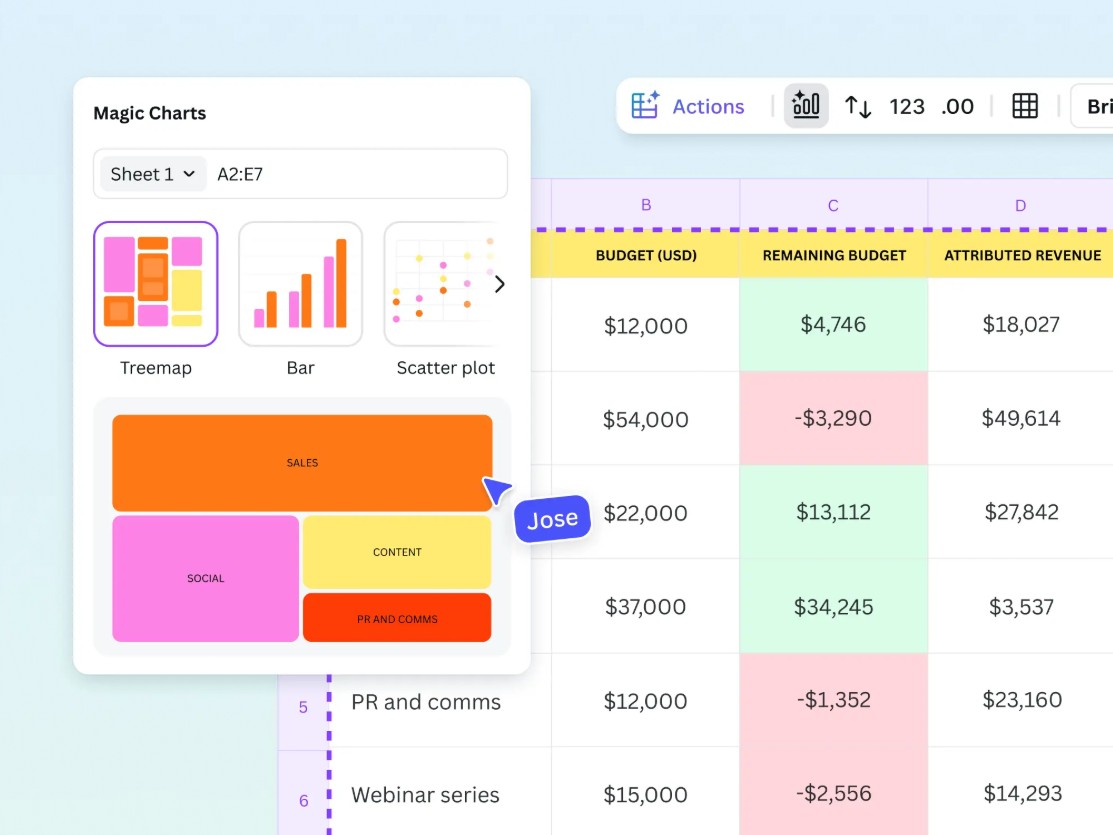
2.2. Flexible and intuitive customization
Canva Sheets inherits the simplicity and intuitiveness of Canva, making it easy for users to work with. You can easily customize data cells, text formatting, colors, and alignment. Canva Sheets allows you to change how data is displayed as you wish, transforming dry data tables into intuitive, easy-to-read, and logical ones.
Thanks to its minimalist interface, beginners can quickly grasp it without needing as much training as Excel. This creates a significant advantage for those who need to work with data but are unfamiliar with complex spreadsheet tools.
2.3. Real-time collaboration
Collaboration features are one of the factors that make Canva Sheets important in work teams. Like Google Sheets, Canva Sheets allows multiple people to edit a spreadsheet together. You can send a link so colleagues can access the data sheet instantly.
Real-time collaboration capabilities enable teams to:
– Easily assign data entry personnel.
– Verify information without overlapping versions.
– Track all changes as they are automatically recorded.
This saves time and reduces the risk of information errors during collaborative work.

2.4. Convenient cloud synchronization
All data and changes on Canva Sheets are stored online. This means you can access your datasheets anywhere, anytime, as long as you have an internet connection. Your data is not limited by a specific device.
With cloud synchronization, you don't have to worry about losing data or having to send and receive files between devices. This is especially useful for people who frequently work on multiple platforms such as laptops, phones, and tablets.
3. Instructions on using the Canva Sheets feature
This section will guide you through using Canva Sheets from the very first step to completing your design. Each step is presented in detail so that even beginners can follow along without difficulty.
Step 1: Open Canva.com and select the Sheets section.
First, access Canva.com from your browser or open the Canva application if you have it installed on your computer. On the main interface, you will see the "Sheets" section next to sections like Presentation, Poster, and Instagram Post. Canva has placed this section in an easily visible location to encourage users to utilize it.

When you select the Sheets option, you'll find many pre-designed templates from Canva, such as student list tables, survey tables, product management tables, or event data tables. These templates save you time because the layouts are already formatted. If you want to customize from scratch, you can choose a blank sheet to start.
Step 2: Select a template and enter the data.
After selecting a template or whiteboard, you will be taken to the spreadsheet interface. This is where you enter data according to your needs. Canva Sheets allows you to quickly paste data from Excel or Google Sheets files, saving you time. You can also enter data row by row if the data is simple.

What's special about Canva Sheets is that it clearly recognizes data column by column, making it easier to add variables to the design later. Date, numerical, and text formats all work quite smoothly.
Step 3: Customize the table according to your needs.
To make your data table easier to view or more suitable for your needs, you can customize the color of each cell, change the font size, align the text, or format it in groups. When you edit, Canva automatically saves all changes, so you don't have to worry about losing data.
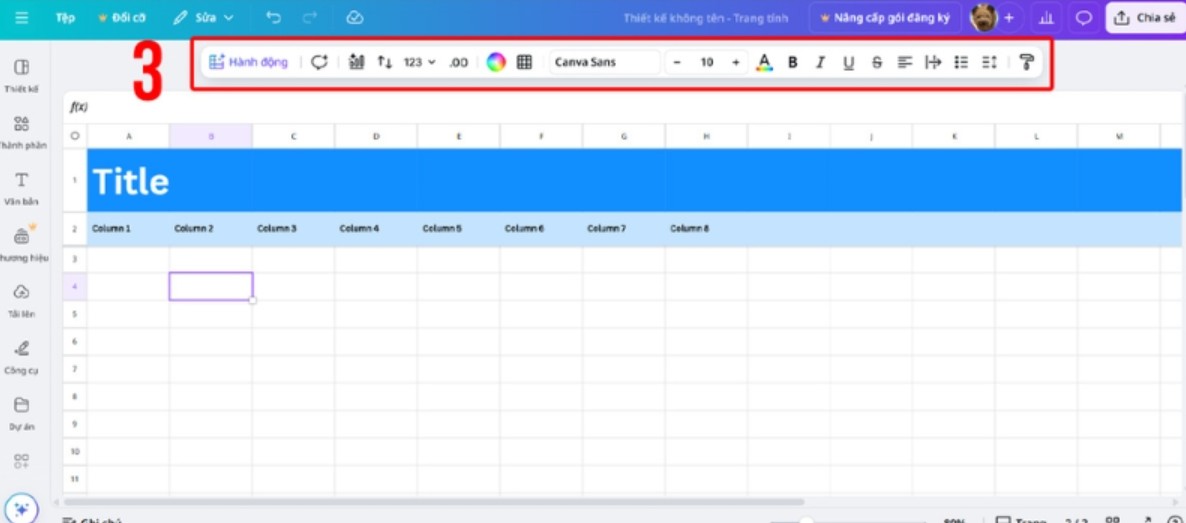
If you want your data table to have clear stratification, you can color-code each row by topic or group. Canva Sheets isn't as data-intensive as Excel, but it's powerful enough to meet the needs of any design project.
Step 4: Select the “Applications” tab and enable the “Bulk Creation” feature.
Once you've completed the data table, you need to return to the design or select the design template you want to link with the data. In the left-hand toolbar, you'll see the "Applications" tab. This is where Canva integrates utilities such as AI plugins, data integration, and extension tools.
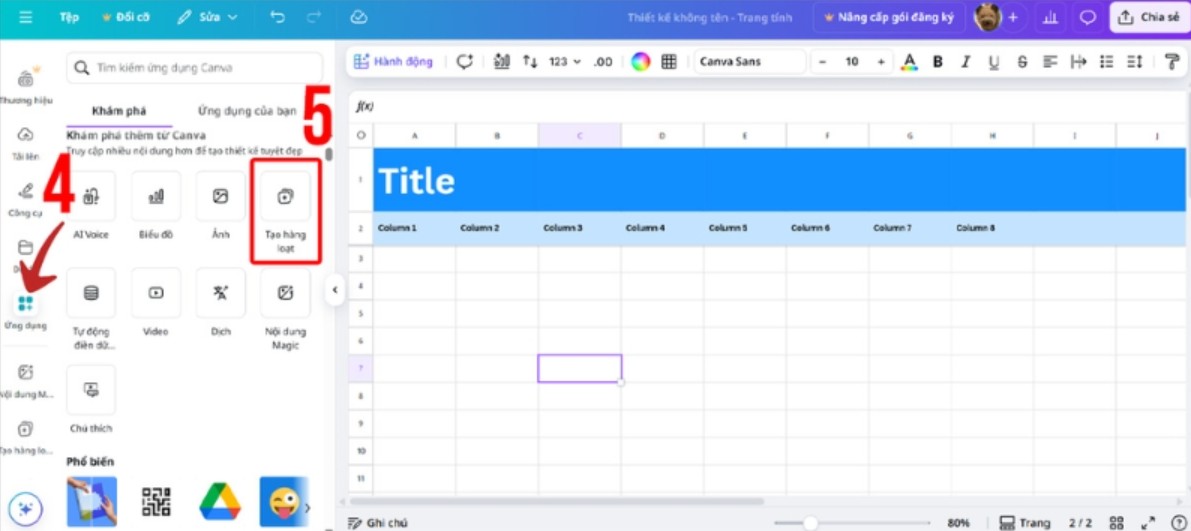
Select the “Bulk Create” option. Canva will then prompt you to choose the data table you just created or upload data from a CSV file. Once the table is uploaded, you can drag individual data fields into the design template by creating placeholders. For example:
– Name
– Class
– Completion Date
Canva will replace each placeholder with the data in the table corresponding to each row when you export the file.
Step 5: Save and download or share the spreadsheet.
Once everything is complete, you can share the datasheet or export the design in bulk. Canva supports multiple formats including PDF, PNG, JPG, and CSV. Depending on your purpose, such as printing or online publishing, you can choose the appropriate format.
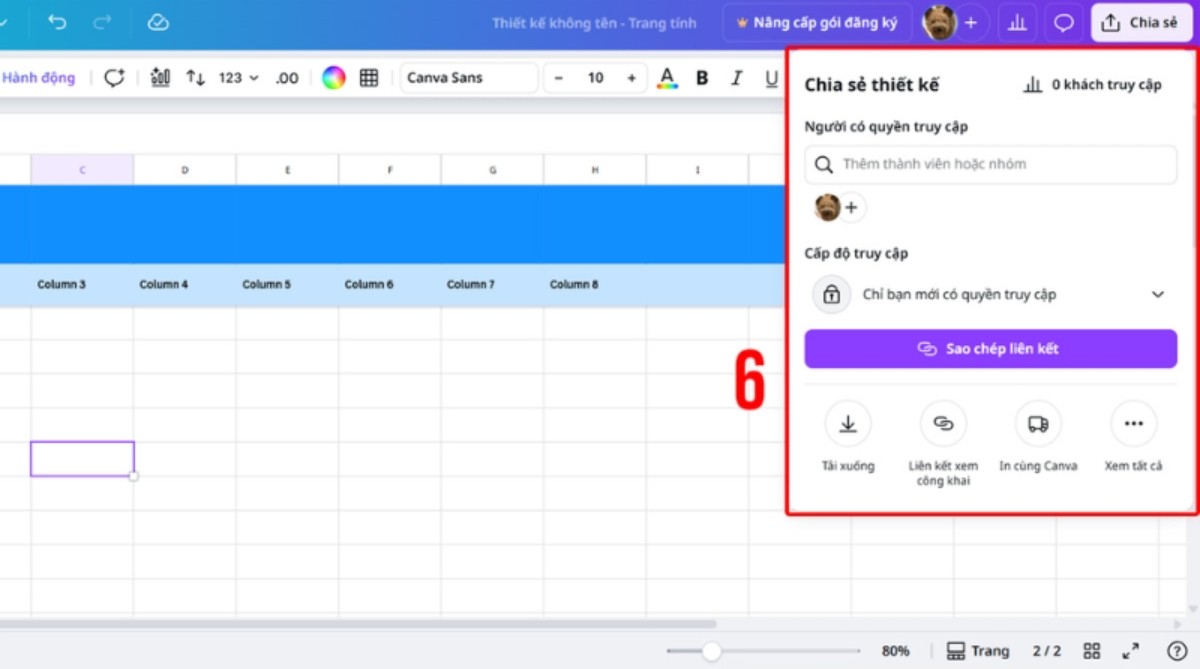
Canva Sheets saves all your data in the cloud so you can go back and edit it anytime.
Canva Sheets is the perfect tool for today's fast-paced, flexible, and highly precise work environment. It's not just a simple spreadsheet; it's a powerful automation solution that helps users complete tasks more efficiently. Thanks to Canva Sheets, the process from data entry to batch design creation is significantly simplified. You no longer have to manually edit each file, worry about data entry errors, and can create a series of designs in just minutes





















VIP Products








Best Selling Products
Genuine Adobe Illustrator account
99 USD
Upgrade Genuine Office 365
49 USD
Upgrade genuine Capture One account
120 USD
Adobe Photoshop Copyright - Full App
120 USD
Autodesk All App Account Copyright
120 USD
MidJourney Account
29 USD
Freepik Premium Account
59 USD
Plugin Retouch4me
69 USD
ChatGPT Plus Account (GPT-4)
16 USD
Copyright Adobe Lightroom Account
59 USD
Windows 10 & 11 Pro Key
36 USD
Capcut Pro 1 Year
39 USD
Adobe Premiere Pro Account
99 USD
Upgrade Duolingo Super
29 USD
Genuine Cheap Canva Pro
39 USD