Best Selling Products

Freepik Premium Account
59 USD

Copyright Adobe Lightroom Account
59 USD

Adobe Photoshop Copyright - Full App
120 USD

ChatGPT Plus Account (GPT-4)
16 USD

Genuine Cheap Canva Pro
39 USD

Upgrade Genuine Office 365
49 USD

Upgrade genuine Capture One account
120 USD

Capcut Pro 1 Year
39 USD

MidJourney Account
29 USD

Adobe Premiere Pro Account
99 USD

Autodesk All App Account Copyright
120 USD

Plugin Retouch4me
69 USD

Genuine Adobe Illustrator account
99 USD

Windows 10 & 11 Pro Key
36 USD

Upgrade Duolingo Super
29 USD
Guide to Reducing Opacity in CapCut on Mobile & PC
Nội dung
A comprehensive guide for both platforms, helping you master the blur effect in videos in just minutes. The steps are intuitive and easy to follow regardless of which device you're using.
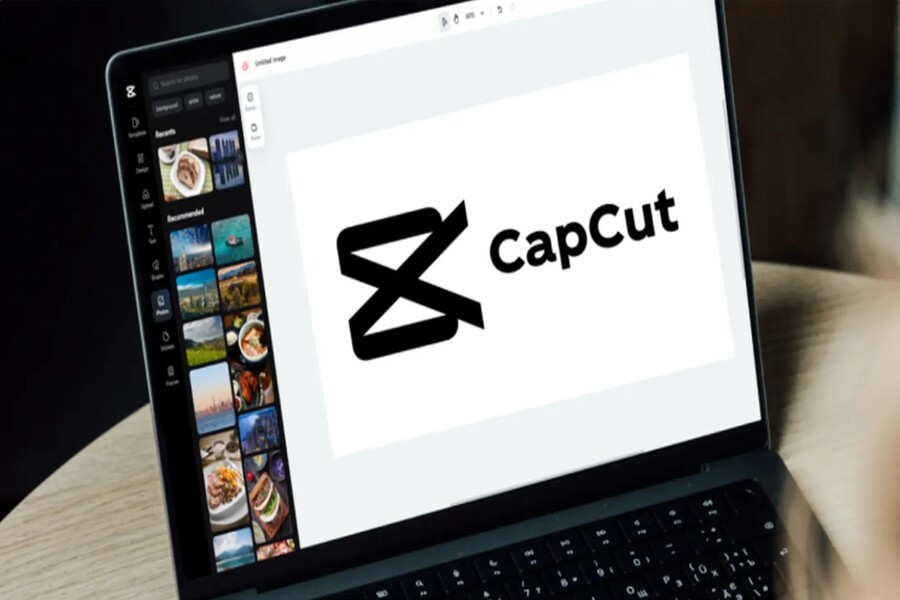
Opacity is one of the key factors that allows users to control the transparency level of images or videos. Adjusting opacity remains crucial in creating harmonious, smooth, and aesthetically pleasing visual effects. In many cases, opacity can help you create subtle overlays, blur the background, blend multiple video layers, or add emphasis to transitions.
CapCut is one of the most popular video editing software programs today thanks to its simple, user-friendly interface and comprehensive features. It not only supports basic users but also offers powerful tools for professional editing. Among these, the Opacity feature is frequently used and can be applied on both PCs and mobile devices, suitable for all content creators. This article will help you understand what Opacity is, how to use it optimally in CapCut, and important considerations to ensure your edited videos look natural, professional, and exactly as you envision.
1. Learn about the Opacity feature in CapCut
Opacity, also known as transparency, is a parameter that allows you to adjust the visibility of a video or image layer. When Opacity is increased to the maximum level, the layer will be fully visible. Conversely, when Opacity is decreased, the image layer will become more transparent, revealing the content behind it. Therefore, it is a useful tool in the process of creating artistic videos, applying overlay effects, or adding decorative elements without being visually distracting.
In CapCut, opacity can be applied to photos, videos, stickers, overlays, text, and even post-production effects. Users may encounter opacity when creating background blur effects, smoothing transitions, inserting watermarks, or highlighting the main subject by blurring secondary elements. This is why this feature is widely used in advertising videos, vlogs, music video covers, or product introduction videos.
.jpg)
One of CapCut's strengths is its highly flexible opacity adjustment, which is easy to use and allows you to see the changes immediately. Whether you're editing on a computer or a phone, CapCut maintains its intuitive and simplified operation. Adjusting the opacity doesn't require complex knowledge, yet it significantly improves video quality.
2. Detailed instructions on how to reduce opacity in CapCut
There are several ways to adjust the opacity in CapCut depending on the device you're using. Whether it's a PC or a phone, the process is quite similar and doesn't take much time. Below is the most detailed guide for each platform, making it easy for you to follow from the simplest steps.
CapCut now supports cross-platform editing, and reducing opacity on PCs often feels more proactive thanks to the larger workspace. Meanwhile, the mobile version is more suitable for users who frequently shoot and edit videos quickly. Both versions have their own advantages, but the overall process is quite similar. Here are the complete procedures for you to follow correctly.
2.1. Detailed guide on how to reduce Opacity in CapCut on PC
Step 1: Open the CapCut software on your computer.
First, open CapCut on your PC. If you haven't installed it, you can download it from the official CapCut website or the Microsoft Store. After opening the software, the main interface will appear with options to create a new project or open an existing one. Starting the project is the first step to begin applying Opacity-related edits.
Step 2: Create or open a new project and then import the video or image.
Once you've created a new project, you need to add the video or image you want to edit. CapCut supports popular formats like MP4, MOV, PNG, and JPEG, so you can use content from various sources. Simply drag and drop the file onto the timeline or select the file import option, and the video will appear on the main editing bar.
.jpg)
Step 3: Select the video or image you want to reduce the blur of.
To work accurately, you need to select the correct section of content on the timeline. When you select it, you'll see that section highlighted with a border. This is how CapCut identifies that you're editing this item and not other layers. If there are multiple overlapping layers, you should zoom in on the timeline to select the exact section you want.
Step 4: On the right-hand toolbar, select "Opacity".
After selecting the video segment, you'll see a detailed editing tools panel appear on the right side of the screen. Among them, the Opacity option is located in the group of tools for adjusting visual effects. When this option is opened, the adjustment slider will appear, allowing you to easily control the level of transparency.
.jpg)
Step 5: Drag the slider to adjust the opacity level as desired.
You can drag the slider from right to left to decrease the transparency. The lower the opacity value, the more the image layer becomes blurred and gives way to the layer behind it. This is the simplest way to create a fade or blending effect in CapCut. During the editing process, you can preview the results directly on the preview screen to ensure everything matches your vision.
.jpg)
This feature works smoothly and allows for unlimited adjustments, letting you experiment with different opacity levels to create the desired effect.
2.2. Detailed instructions on how to reduce Opacity in CapCut on your phone.
Step 1: Open the CapCut app on your phone and create a new project.
The mobile version of CapCut is optimized for touch input, making it easy to use even for beginners. To open the app, simply select "New Project" or open an existing project. The opacity adjustment features in the mobile version are intuitively designed and can be manipulated with just a few taps.
.jpg)
Step 2: Click on the video or image you want to adjust.
After importing the file into the project, the video will appear on the timeline. Simply tap on the video to open the editing options. Once the video is selected, the toolbar at the bottom of the screen will display basic and advanced editing options.
Step 3: In the toolbar at the bottom, select "Opacity".
Opacity is part of CapCut mobile's basic editing tools. When you select this option, a slider will appear, allowing you to adjust the transparency with a simple horizontal drag.
.jpg)
Step 4: Drag the slider to reduce the transparency to your liking.
You can drag the slider from right to left to reduce the opacity. When reduced to a low level, the video layer will become blurry and blend seamlessly with the background. This is a way to create a soft overlay or blur the background without losing key details.
.jpg)
The Opacity value will appear right above the slider, making it easy to control the level of precision. When reviewing the video, you'll see the effect applied instantly without requiring many additional steps.
3. Things to know when reducing Opacity in CapCut
Opacity is a powerful tool, but if not used correctly, it can degrade video quality or cause a loss of focus. Here are four key points to remember during editing to ensure optimal visual results.
Maintain the image quality of the main content.
Reducing opacity too much can make images or videos too blurry, making it difficult for viewers to grasp the content. This is a common problem when users want to create an overlay but reduce the opacity too low, causing the main character or object to become indistinct. It's crucial to identify which layer is the background and which is the main content to adjust the opacity appropriately.
Appropriate color coordination
When layering multiple images with different opacities, color coordination becomes extremely important. If the colors between layers don't blend well, the video can look cluttered and unprofessional. You should choose a light background color with minimal detail when reducing the opacity of the top layer to ensure sufficient contrast, preventing the content from blending together.
.jpg)
Combine motion effects
Opacity becomes smoother and more natural when you incorporate motion effects. For example, when using opacity to create a fade-in or fade-out effect, add motion keyframes to change the opacity over time instead of keeping it at a constant level. This creates a smooth, non-jerky feel and makes the video look more professional.
Test the substrate before applying.
The effectiveness of opacity depends heavily on the background. If the background is too dark, the layer with low opacity will easily be lost and completely lack detail. If the background is too complex, the image above may become cluttered or lose depth. A light, lightly detailed background is usually the best choice when using opacity to achieve a natural transparency effect.
CapCut's Opacity feature, though simple, offers incredibly powerful image customization capabilities. From creating transition effects and blurring backgrounds to combining multiple video layers and adding subtle overlays, Opacity plays a crucial role in building a harmonious and aesthetically pleasing video. Using Opacity on PCs or phones is easy and suitable for all content creators, from young people making TikTok and YouTube Shorts to professional creators.





















VIP Products








Best Selling Products
Freepik Premium Account
59 USD
Copyright Adobe Lightroom Account
59 USD
Adobe Photoshop Copyright - Full App
120 USD
ChatGPT Plus Account (GPT-4)
16 USD
Genuine Cheap Canva Pro
39 USD
Upgrade Genuine Office 365
49 USD
Upgrade genuine Capture One account
120 USD
Capcut Pro 1 Year
39 USD
MidJourney Account
29 USD
Adobe Premiere Pro Account
99 USD
Autodesk All App Account Copyright
120 USD
Plugin Retouch4me
69 USD
Genuine Adobe Illustrator account
99 USD
Windows 10 & 11 Pro Key
36 USD
Upgrade Duolingo Super
29 USD